How to Render Local Images in Puppeteer PDFs
Make local images appear reliably in Puppeteer PDFs by using reachable URLs, explicit image readiness checks, and print-aware PDF options.
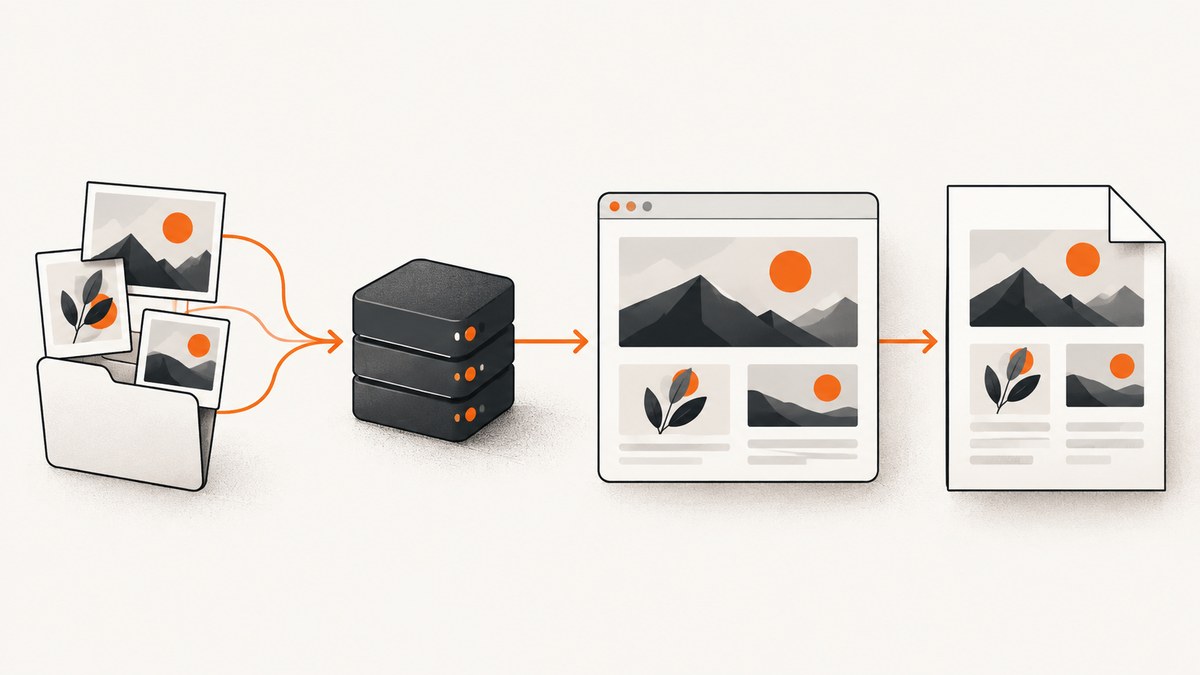
Direct answer: Puppeteer can render local images in a PDF, but page.setContent() only assigns HTML markup. It does not establish that relative image paths resolve from your HTML file’s directory. Make each image reachable in the browser’s runtime, wait until required images have finished loading, then call page.pdf(). For predictable output, account for print media, background graphics, fonts, permissions, and the exact operating system or container used in production.
This guide shows a complete Node.js implementation, alternatives using file://, a local HTTP route, and data URLs, plus diagnostics for missing images. It also covers PDF options, timing, security, performance, reliability, and a hosted alternative when you do not want to maintain a browser runtime.
1. The reliable rendering sequence
Use this sequence whenever HTML contains local images:
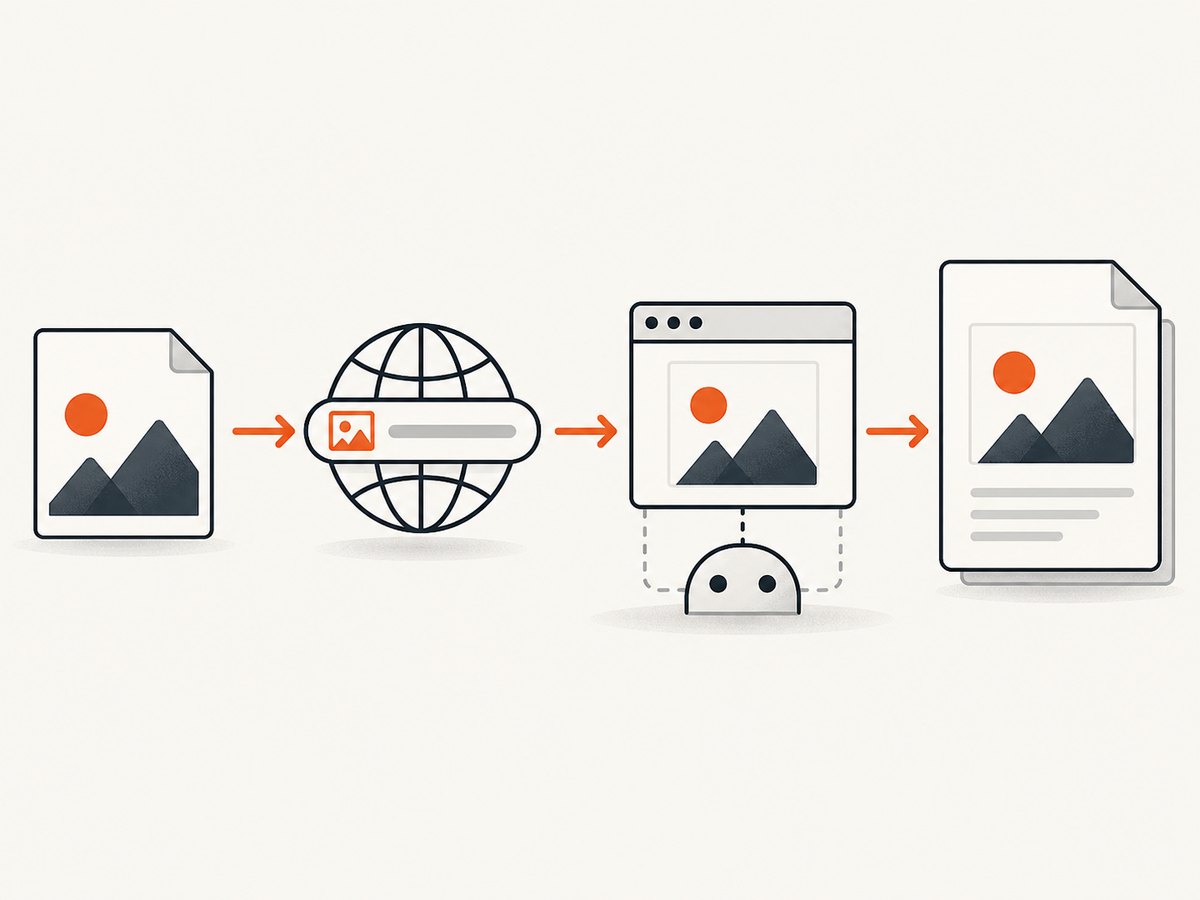
- Resolve the image to a known absolute path, serve it over a local HTTP URL, or embed it as a data URL.
- Put that resolved URL in the HTML. Do not assume a relative path passed to
setContent()uses your source file’s directory as its base URL. - Wait for every required image to finish loading and verify
naturalWidth > 0. - Wait for any application code that inserts images dynamically.
- Generate the PDF with the options your design needs, such as
printBackground: true. - Open the resulting PDF in the same browser, OS, container, and process identity used in deployment.
Puppeteer’s Page.setContent() reference documents markup assignment, not a universal filesystem base URL. Its PDF options and PDF guide document printing behavior and controls.
2. Complete Node.js example with a local image
The following program resolves an image relative to the JavaScript file, converts it to a file:// URL, waits for all images, reports failed resources, and writes a PDF. File URL access is runtime-dependent, so verify this arrangement in your deployment environment.
import puppeteer from 'puppeteer';
import path from 'node:path';
import { fileURLToPath, pathToFileURL } from 'node:url';

const here = path.dirname(fileURLToPath(import.meta.url));
const imagePath = path.resolve(here, 'assets/diagram.png');
const imageUrl = pathToFileURL(imagePath).href;

const html = `<!doctype html>
<html>
  <head>
    <meta charset="utf-8">
    <style>
      @page { size: A4; margin: 18mm; }
      body { font-family: Arial, sans-serif; color: #202124; }
      img { display: block; max-width: 100%; height: auto; }
      h1 { break-after: avoid; }
    </style>
  </head>
  <body>
    <h1>Local image report</h1>
    <p>The image below is resolved to an absolute runtime URL.</p>
    <img src="${imageUrl}" alt="Architecture diagram">
  </body>
</html>`;

const browser = await puppeteer.launch();
try {
  const page = await browser.newPage();

  page.on('requestfailed', request => {
    console.error('Request failed:', request.url(), request.failure()?.errorText);
  });

  await page.setContent(html, { waitUntil: 'load', timeout: 30_000 });

  const imageResults = await page.evaluate(async () => {
    const images = [...document.images];
    await Promise.all(images.map(image => {
      if (image.complete) return Promise.resolve();
      return new Promise(resolve => {
        image.addEventListener('load', resolve, { once: true });
        image.addEventListener('error', resolve, { once: true });
      });
    }));
    return images.map(image => ({
      src: image.currentSrc || image.src,
      loaded: image.complete && image.naturalWidth > 0,
      width: image.naturalWidth,
      height: image.naturalHeight
    }));
  });

  const failedImages = imageResults.filter(result => !result.loaded);
  if (failedImages.length) {
    throw new Error(`Images failed to load: ${JSON.stringify(failedImages)}`);
  }

  await page.pdf({
    path: 'output.pdf',
    format: 'A4',
    printBackground: true,
    waitForFonts: true,
    preferCSSPageSize: true,
    timeout: 30_000
  });
} finally {
  await browser.close();
}
The readiness function intentionally resolves on both load and error, then checks the returned status. That prevents a broken image from hanging forever while still allowing your program to fail clearly before PDF generation.
3. Making a local image reachable
Option A: an absolute file:// URL
Use Node’s pathToFileURL() instead of manually concatenating a path. It handles spaces and platform-specific characters. The browser process still needs permission to read the file, and the behavior can vary with Chrome, Puppeteer, sandboxing, and container policy. The Puppeteer documentation reviewed here does not define a universal launch flag or permission rule for every environment.
const imageUrl = pathToFileURL(path.resolve('assets/photo.jpg')).href;
const html = `<img src="${imageUrl}" alt="Photo">`;
Log the computed URL and inspect it in the page when debugging:
console.log(await page.evaluate(() => [...document.images].map(img => ({
  src: img.src,
  currentSrc: img.currentSrc,
  complete: img.complete,
  naturalWidth: img.naturalWidth
}))));
Option B: serve assets over local HTTP
A local HTTP route often matches production more closely because the browser loads an ordinary network resource. Start a small server, bind it to an interface reachable by Chromium, and use an absolute URL such as http://127.0.0.1:3000/assets/diagram.png. Restrict the route to the files needed by the render job and shut the server down cleanly.
import http from 'node:http';
import fs from 'node:fs';
import path from 'node:path';

const root = path.resolve('assets');
const server = http.createServer((req, res) => {
  const name = decodeURIComponent(new URL(req.url, 'http://127.0.0.1').pathname);
  const file = path.resolve(root, `.${name}`);
  if (!file.startsWith(root + path.sep)) {
    res.writeHead(400); res.end('bad path'); return;
  }
  fs.createReadStream(file)
    .on('error', () => { res.writeHead(404); res.end('not found'); })
    .on('open', () => res.writeHead(200, { 'Cache-Control': 'no-store' }))
    .pipe(res);
});
server.listen(3000, '127.0.0.1');
Use the route in your markup, then close the server after the PDF is complete. A route avoids filesystem URL assumptions, but it adds lifecycle and path-validation work.
Option C: embed a data URL
For small, finite assets, embedding bytes removes a separate resource request:
import fs from 'node:fs';
const bytes = fs.readFileSync('assets/icon.png').toString('base64');
const imageUrl = `data:image/png;base64,${bytes}`;
const html = `<img src="${imageUrl}" alt="Icon">`;
Data URLs increase HTML size and memory use. They are less suitable for many pages or large photographs, but they can simplify single-document exports.
4. Waiting for images and dynamic content
waitUntil: 'load' helps with page lifecycle events, but it is not a promise that every image your application may insert later is ready. Run the image check after your scripts have finished adding nodes. If a page uses lazy loading, scroll or trigger the behavior first, then repeat the readiness check.
await page.evaluate(async () => {
  // Example for pages that lazy-load below the fold.
  window.scrollTo(0, document.body.scrollHeight);
  await new Promise(resolve => setTimeout(resolve, 250));
});

const status = await page.evaluate(() => [...document.images].map(img => ({
  src: img.currentSrc || img.src,
  loaded: img.complete && img.naturalWidth > 0
})));
if (status.some(item => !item.loaded)) throw new Error('A required image is unavailable');
Fonts are a separate concern. PDF options document waitForFonts, which defaults to true and waits for document.fonts.ready. That does not establish that images or arbitrary asynchronous work has completed.
5. PDF options that change image appearance
| Option | What it controls | Practical use |
|---|---|---|
printBackground |
Whether CSS background graphics are printed; default is false. |
Set true for background illustrations, gradients, or colored panels. |
preferCSSPageSize |
Lets CSS @page size take priority over PDF dimensions; default is false. |
Use when page size is defined in your stylesheet. |
format |
Preset paper size; default is letter. |
Use A4, Letter, or another supported preset. It takes priority over width and height. |
scale |
PDF content scale from 0.1 to 2. | Reduce slightly when content clips, then verify text remains readable. |
timeout |
PDF operation timeout; default is 30,000 ms, and zero disables it. | Raise for large documents only when you also enforce an outer job deadline. |
page.emulateMediaType() |
Chooses screen or print CSS media. | Use screen only when the PDF should match screen rules. |
Page.pdf() uses print media by default, so an image visible in a screenshot can differ in the PDF. CSS backgrounds are omitted unless enabled, and print color adjustment can alter colors. If exact colors matter, consider -webkit-print-color-adjust: exact in the print stylesheet, then inspect the generated document.

6. Troubleshooting missing or altered images
| Symptom | Likely cause | Fix |
|---|---|---|
| Broken icon or blank area | The browser cannot resolve the path or the process lacks permission. | Log src/currentSrc, use an absolute URL, verify the file exists for the Puppeteer process identity, and listen for requestfailed. |
Relative path works in a browser but not with setContent() |
Markup assignment did not establish the file’s directory as a base URL. | Use pathToFileURL(), a local HTTP URL, or a data URL. |
| Image appears in a screenshot but not in PDF | Print media rules hide it or change its source. | Compare screen and print styles; use emulateMediaType('screen') only when that output is intended. |
| Background artwork is absent | printBackground defaults to false. |
Set printBackground: true. |
| Image is present but cropped | CSS dimensions, page breaks, or scaling constrain it. | Set max-width: 100%, review object-fit, add break rules, and check scale, margins, and page size. |
| Intermittent blank images | PDF starts before dynamic or lazy-loaded images finish. | Run an explicit readiness check after application rendering and fail on naturalWidth === 0. |
| Colors differ | PDF generation applies print color behavior. | Review print CSS and use -webkit-print-color-adjust: exact where appropriate. |
| Job hangs | A load promise waits forever or the browser is blocked on a resource. | Use finite timeouts, resolve image checks on error, log failed requests, and enforce an outer job deadline. |
| Works locally, fails in a container | Different filesystem paths, permissions, sandbox, browser build, or working directory. | Print absolute paths, verify files inside the image, and run a production-like smoke render. |
7. Security and correctness checks
- Never build a filesystem path directly from an untrusted URL or user string without normalizing and checking that it remains under an allowed root.
- Use a dedicated asset directory and a least-privileged process identity.
- Do not expose a local asset server beyond the interface and routes required by the render job.
- Validate image type and size before embedding data URLs to avoid excessive memory use.
- Keep a record of the source URL, resolved asset path, image status, browser version, and PDF options for reproducibility.
A successful setContent() call proves only that HTML was assigned. It does not prove that every subresource was readable or that print CSS will produce the intended result.
8. Performance, reliability, and cost
Browser startup is usually more expensive than reading one local file. Reuse a browser process for a controlled queue of jobs, create a fresh page per document, and always close pages and browsers in finally blocks. Keep images at the resolution needed for the PDF; oversized PNGs increase decoding time and memory without improving printed output. Prefer JPEG for photographic content when quality requirements allow it.
Use a bounded concurrency limit. Launching too many Chromium pages at once can exhaust memory and make image loads slower. Set both navigation and PDF timeouts, and treat an image failure as a job error when the image is required. For optional decorative images, record the failure and continue according to your product’s policy.
For reliability, test the exact container image, Chromium build, filesystem layout, permissions, fonts, and working directory used in production. Keep a small fixture document containing one local PNG, one background image, and one dynamically inserted image. Render it after deployments and compare the PDF metadata or a rasterized preview.
Puppeteer itself has no per-image or per-PDF service charge; your costs are compute, storage, and operations. If you do not want to maintain browser binaries, filesystem access, queues, and failure handling, a screenshot or PDF API can move those concerns to a hosted service.
9. Or skip the browser setup
ScreenshotNeo provides a website screenshot API and MCP server. One GET request returns PNG, JPEG, WebP, or PDF output. For a hosted page, the smallest call is:
curl -G "https://api.screenshotneo.com/v1/shot" -d access_key=YOUR_API_KEY --data-urlencode url=https://stripe.com -o shot.webpimport requests
r = requests.get("https://api.screenshotneo.com/v1/shot", params={"access_key": "YOUR_API_KEY", "url": "https://stripe.com"}, timeout=90)
open("shot.webp", "wb").write(r.content)const q = new URLSearchParams({ access_key: 'YOUR_API_KEY', url: 'https://stripe.com' });
const res = await fetch(`https://api.screenshotneo.com/v1/shot?${q}`);See the ScreenshotNeo API documentation for output and configuration options. It can accept custom CSS and JavaScript, cookies, headers, user agents, authorization, viewport and device settings, full-page capture, element selectors, dark mode, PDF paper and margin settings, waits, request blocking, caching, signed links, asynchronous jobs, webhooks, bulk capture, and usage reporting.
- Cookie banners, newsletter popups, and chat widgets are removed before the shot; each cleanup step can be turned off.
- Bot checks, blank pages, timeouts, failed loads, and cache hits are not billed. Response headers identify the page verdict and whether it was billed.
- An MCP server lets Claude, Cursor, and other MCP clients call
take_screenshot,get_page_info, andcapture_pdf. - The Free plan includes 1,000 shots per month with no card. Paid plans start at $5 for 3,000 shots.
Create a free ScreenshotNeo account to start with 1,000 screenshots per month and no card.
10. FAQ
Does setContent() support relative local image paths?
It assigns HTML markup, but the documented API does not promise a filesystem base URL. Resolve an absolute file URL, serve the asset over HTTP, or embed it.
Should I use networkidle0 before creating the PDF?
It can help for network-driven pages, but it is not a substitute for checking required images. Explicitly inspect image completion and natural dimensions.
Why does my CSS background disappear?
PDF generation defaults printBackground to false. Enable it and verify print media rules.
Can I use a data URL for every image?
Yes, technically, but large or numerous data URLs increase HTML size and memory use. Use them mainly for small assets.
Why is a PDF different from a screenshot?
Page.pdf() uses print media by default, and print backgrounds and colors follow PDF-specific settings. Compare the media styles explicitly.


