How to Render Multiple URLs Into a Single PDF
Render several URLs in a fixed order, combine the PDFs, and avoid common print-layout and browser automation failures.
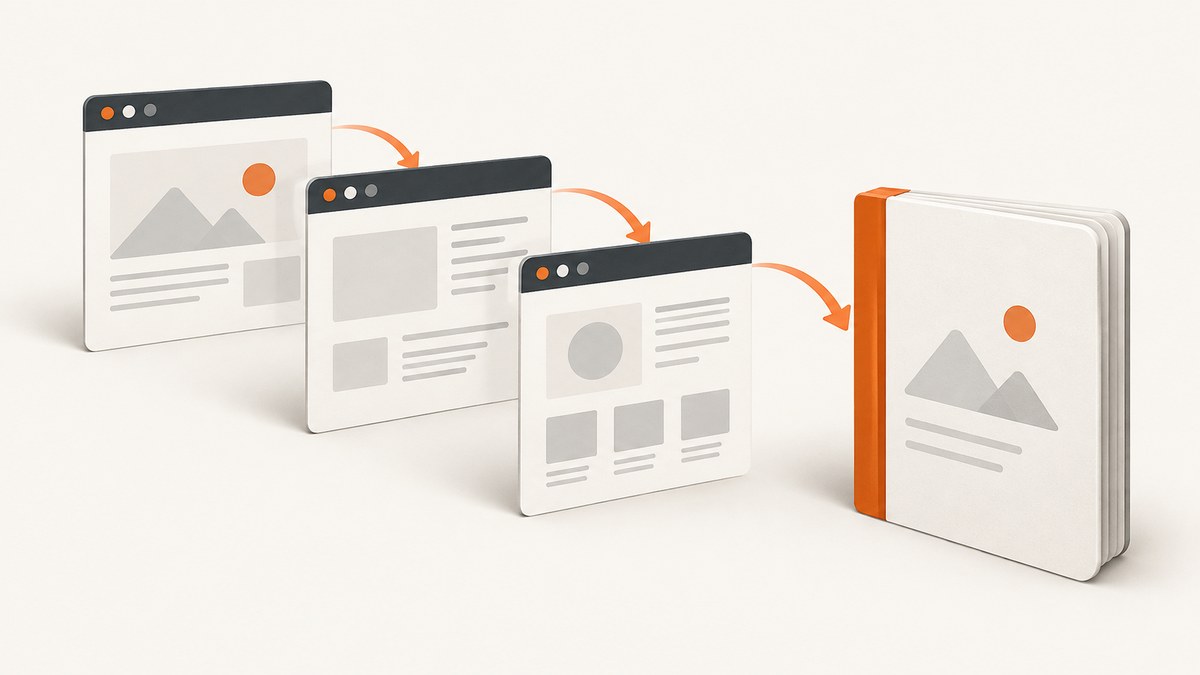
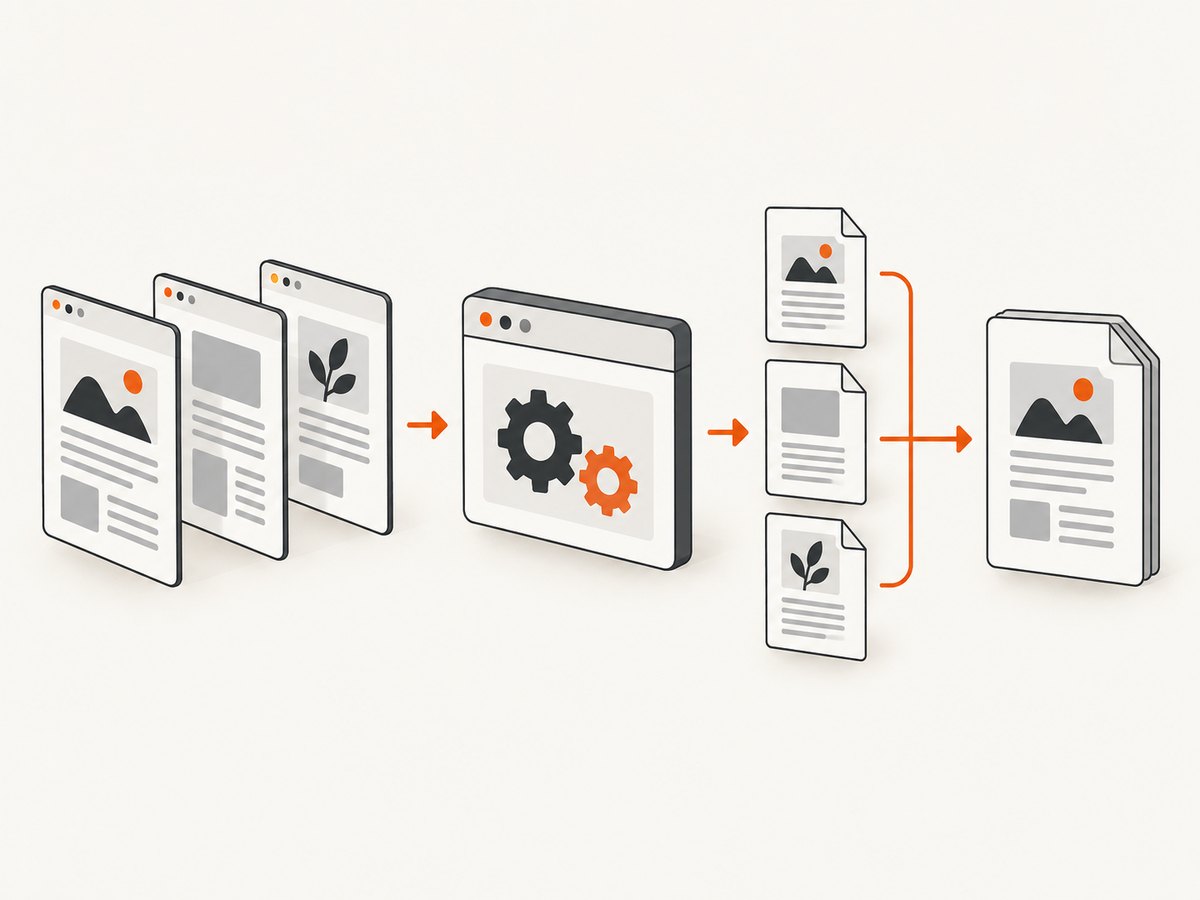
To render multiple URLs into one PDF, put the URLs in the required order, generate one PDF per page, then merge those files in the same order. Puppeteer documents the navigation and page.pdf() step for one page; the loop and merge are workflow code built around that documented operation.
Puppeteer’s PDF guide shows navigation followed by page.pdf(), and notes that fonts are awaited by default. The Page.pdf() API documents print-media rendering, screen-media emulation, and print color behavior.
1. The workflow
- Define the URLs in their final order.
- Launch one browser and reuse it for every page.
- Navigate to each URL with an explicit wait strategy.
- Write one PDF per URL.
- Merge the PDFs in list order.
- Delete temporary files and close the browser.
Keeping one PDF per URL until the final merge makes failures diagnosable: you can retry one page without rendering the entire document again.
2. Complete Node.js example with Puppeteer
Install the dependencies:
npm install puppeteer pdf-libSave this as render-multiple-urls.js:
const fs = require('fs/promises');
const path = require('path');
const os = require('os');
const puppeteer = require('puppeteer');
const { PDFDocument } = require('pdf-lib');

const urls = [
  'https://example.com/first',
  'https://example.com/second',
  'https://example.com/third',
];

async function renderOne(page, url, outputPath) {
  await page.goto(url, {
    waitUntil: 'networkidle2',
    timeout: 60000,
  });

  // Optional: use screen styles instead of the default print styles.
  // await page.emulateMediaType('screen');

  await page.pdf({
    path: outputPath,
    format: 'A4',
    printBackground: true,
    margin: {
      top: '16mm',
      right: '16mm',
      bottom: '16mm',
      left: '16mm',
    },
  });
}

async function mergePdfs(inputPaths, outputPath) {
  const merged = await PDFDocument.create();

  for (const inputPath of inputPaths) {
    const bytes = await fs.readFile(inputPath);
    const source = await PDFDocument.load(bytes);
    const pages = await merged.copyPages(source, source.getPageIndices());
    for (const page of pages) merged.addPage(page);
  }

  await fs.writeFile(outputPath, await merged.save());
}

(async () => {
  const browser = await puppeteer.launch();
  const page = await browser.newPage();
  const temporaryDirectory = await fs.mkdtemp(path.join(os.tmpdir(), 'url-pdfs-'));
  const pdfPaths = [];

  try {
    for (let index = 0; index < urls.length; index += 1) {
      const outputPath = path.join(temporaryDirectory, `page-${String(index + 1).padStart(3, '0')}.pdf`);
      console.log(`Rendering ${index + 1}/${urls.length}: ${urls[index]}`);
      await renderOne(page, urls[index], outputPath);
      pdfPaths.push(outputPath);
    }

    await mergePdfs(pdfPaths, 'combined.pdf');
    console.log('Wrote combined.pdf');
  } finally {
    await browser.close();
    await fs.rm(temporaryDirectory, { recursive: true, force: true });
  }
})().catch((error) => {
  console.error(error);
  process.exitCode = 1;
});
The array order is the output order. The script uses one browser and one page, writes temporary PDFs, merges them, and removes the temporary directory even when an error occurs.
3. Control what gets rendered
Print CSS versus screen CSS
Page.pdf() renders with the print CSS media type. If the page’s screen layout is the desired result, call await page.emulateMediaType('screen') before page.pdf(). This can change responsive breakpoints, hidden elements, navigation, and spacing.
Backgrounds and colors
Set printBackground: true when background colors or images are part of the document. Puppeteer documents that PDF colors are modified for printing by default. Add this CSS when exact colors matter:
*, *::before, *::after {
  -webkit-print-color-adjust: exact;
  print-color-adjust: exact;
}
Inject it only when you control the page or have permission to alter its presentation:
await page.addStyleTag({
  content: `*, *::before, *::after {
    -webkit-print-color-adjust: exact;
    print-color-adjust: exact;
  }`,
});
Waiting for dynamic content
networkidle2 waits for a quiet network, but it does not guarantee that a chart, client-side table, or lazy image has finished rendering. Add a selector wait for content that must appear:
await page.goto(url, { waitUntil: 'domcontentloaded', timeout: 60000 });
await page.waitForSelector('[data-report-ready]', { timeout: 30000 });
await page.pdf({ path: outputPath, format: 'A4', printBackground: true });
For a known animation or delayed request, use a short, explicit delay after the readiness condition. Avoid unbounded sleeps because they increase total render time for every URL.
Page size, margins, and orientation
Use a named format such as A4 or Letter, or provide custom width and height. Set landscape: true for wide tables. Keep margins in the PDF options or use the page’s print stylesheet consistently; mixing both can create unexpected whitespace.
Headers, footers, and page breaks
Puppeteer supports header and footer templates through displayHeaderFooter, headerTemplate, and footerTemplate. For controlled page breaks, use CSS such as:
.chapter {
  break-before: page;
}
.avoid-split {
  break-inside: avoid;
}
These rules apply inside each source PDF. The merge step preserves each source PDF’s pages and order; it does not redesign their layouts.
4. Handling failures and edge cases
One URL fails
Decide whether the whole document should fail or whether the failed URL should be recorded and skipped. For strict reports, throw immediately. For batch archives, catch the error, write a manifest, and continue:
const failures = [];
for (let index = 0; index < urls.length; index += 1) {
  try {
    await renderOne(page, urls[index], pdfPaths[index]);
  } catch (error) {
    failures.push({ url: urls[index], message: error.message });
  }
}
if (failures.length) {
  await fs.writeFile('failures.json', JSON.stringify(failures, null, 2));
}
Authentication and private pages
Authenticate before rendering, then reuse the same browser context for URLs that share the session. Do not put credentials in URLs or commit them to source control. If pages require different accounts, create separate browser contexts and render each group independently.
Cross-origin assets and blocked resources
A page can load HTML successfully while fonts, images, or scripts fail. Inspect browser console and request failures during development. If a page depends on a consent dialog, close it before rendering or provide a page-specific automation step.
Very long pages
Full-page PDFs can use substantial memory. Split unusually long reports into sections, render them separately, and merge the section PDFs. This also makes retries and partial delivery easier.
Duplicate or changing content
Record the URL and capture time in a manifest. If reproducibility matters, use stable page versions, wait for a page-specific readiness marker, and avoid rendering while data is still changing.
5. Troubleshooting
| Symptom | Likely cause | Fix |
|---|---|---|
| PDF is blank | Navigation failed, a bot check appeared, or rendering happened before client content loaded. | Check the HTTP response and console, use a selector wait, and save an HTML screenshot while diagnosing. |
| Screen layout differs from the browser | PDF uses print media by default. | Call page.emulateMediaType('screen') before page.pdf(), or add print CSS intentionally. |
| Colors look washed out | Print color adjustment changed them. | Set printBackground: true and use -webkit-print-color-adjust: exact where appropriate. |
| Fonts are missing | Font requests failed or the PDF was generated before fonts loaded. | Check font responses and wait for document.fonts.ready when needed. |
| Images are missing | Lazy loading, blocked requests, or insufficient wait time. | Scroll to trigger lazy loading, wait for image completion, and inspect request failures. |
| Timeout on one page | Slow server, long-running request, or an unreachable URL. | Set a deliberate timeout, log the URL, retry transient failures, and keep a failure manifest. |
| Pages are in the wrong order | Parallel jobs were merged as they finished. | Merge by the original URL index, not completion time. |
| Process runs out of memory | Too many browser instances or very large pages kept in memory. | Reuse one browser, limit concurrency, merge incrementally, and split large documents. |
| Output file cannot be opened | Incomplete write or a corrupted intermediate PDF. | Await every write, close the browser after rendering, and validate each source PDF before merging. |
6. Performance, reliability, and cost
- Reuse the browser: launching Chromium for every URL adds avoidable startup time.
- Choose concurrency carefully: parallel pages can improve throughput, but increase CPU, memory, and load on target sites. Preserve indexes when merging.
- Use targeted waits: a readiness selector is usually more predictable than a long fixed delay.
- Cache stable inputs: keep completed per-URL PDFs so a later run can retry only failed pages.
- Keep a manifest: store URL, index, timestamp, status, and error text for auditability.
- Estimate storage: temporary PDFs and the merged output can coexist, so allow disk space for both.
Puppeteer itself does not provide a documented one-call multi-URL merge operation in the cited guide. The repeatable pattern is navigation and PDF generation per URL, followed by an explicit merge step.
7. Or skip the browser setup
ScreenshotNeo provides a website screenshot API and PDF capture endpoint, so you can call it once per URL and merge the returned PDFs in your existing pipeline. See the ScreenshotNeo API documentation for request options.

curl -G 'https://api.screenshotneo.com/v1/shot' -d access_key=YOUR_API_KEY --data-urlencode url=https://stripe.com -o shot.pdfimport requests
r = requests.get(
'https://api.screenshotneo.com/v1/shot',
params={'access_key': 'YOUR_API_KEY', 'url': 'https://stripe.com'},
timeout=90,
)
r.raise_for_status()
open('shot.pdf', 'wb').write(r.content)const q = new URLSearchParams({ access_key: 'YOUR_API_KEY', url: 'https://stripe.com' });
const res = await fetch(`https://api.screenshotneo.com/v1/shot?${q}`);
if (!res.ok) throw new Error(`HTTP ${res.status}`);
require('fs').writeFileSync('shot.pdf', Buffer.from(await res.arrayBuffer()));Repeat the call for each URL in order, then merge the PDF files with the same approach shown above. ScreenshotNeo removes cookie and consent banners, newsletter popups, and chat widgets before the shot; bot checks, blank pages, failed loads, timeouts, and cache hits are not billed. Each response reports its result with X-Page-Verdict and X-Billed headers. An MCP server lets AI agents use take_screenshot, get_page_info, and capture_pdf. The free plan includes 1,000 screenshots per month with no card, and paid plans start at $5 for 3,000 shots. Create a free ScreenshotNeo account.
8. FAQ
Can Puppeteer merge multiple URLs directly?
The cited Puppeteer documentation shows rendering a page to a PDF. Treat iteration over URLs and PDF merging as application workflow code.
Should I use print or screen media?
Use print media for a document designed for paper or standard PDF output. Emulate screen media when preserving the web layout matters more.
How do I guarantee URL order?
Assign each URL an index and merge the generated files by that index, never by the order jobs finish.
Can I continue when one page fails?
Yes. Catch errors per URL, record a manifest, and choose whether to skip the failure or stop the entire job.
Why are fonts still wrong?
Verify that font requests succeed and wait for document.fonts.ready after navigation when the page loads fonts asynchronously.


