How to Render a Next.js Page with Puppeteer in Docker
Run Puppeteer with Next.js in Docker: production Dockerfiles, readiness checks, screenshots, PDFs, troubleshooting, and a managed API option.
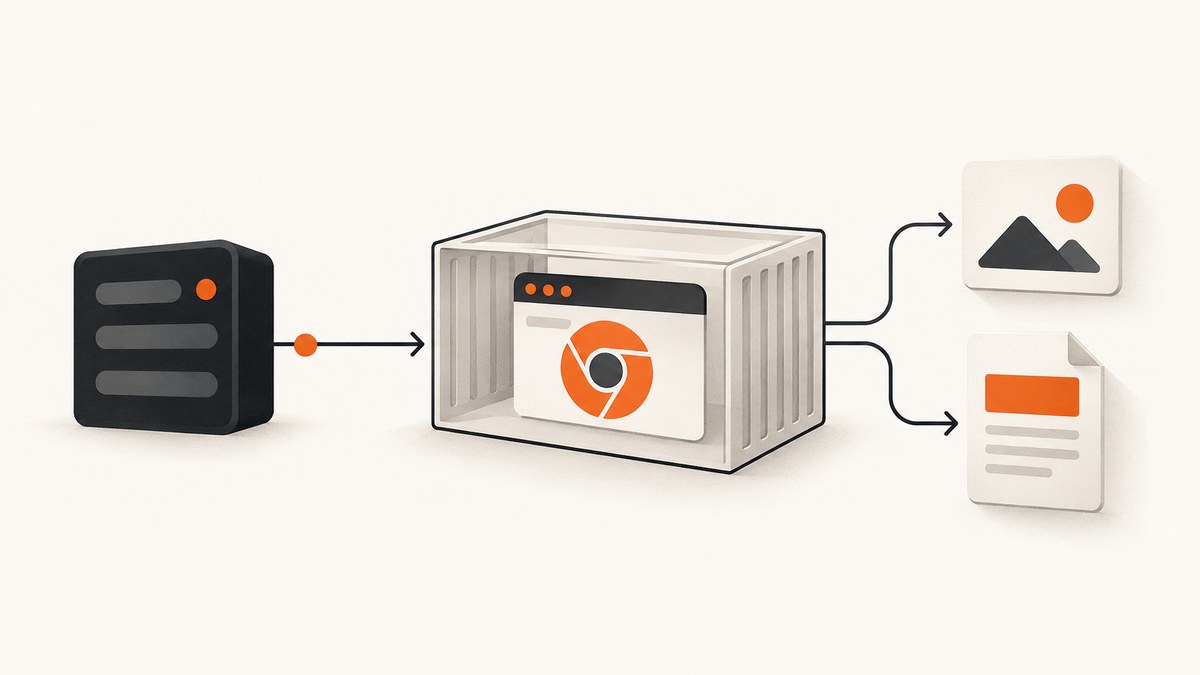
To render a Next.js route in Docker, run Puppeteer on the server side, give it a real Chrome/Chromium runtime and libraries, wait for an explicit readiness signal, then return the screenshot or PDF buffer. For production, build Next.js with output: 'standalone', run the browser as a non-root user, and close it in a finally block.
Architecture: where rendering belongs
A browser cannot be bundled into a client component. Put the renderer in a Pages API route, an App Router Route Handler, or a worker. Next.js API routes are server-only bundles, and Route Handlers provide the equivalent server boundary in the App Router (API Routes, Route Handlers).
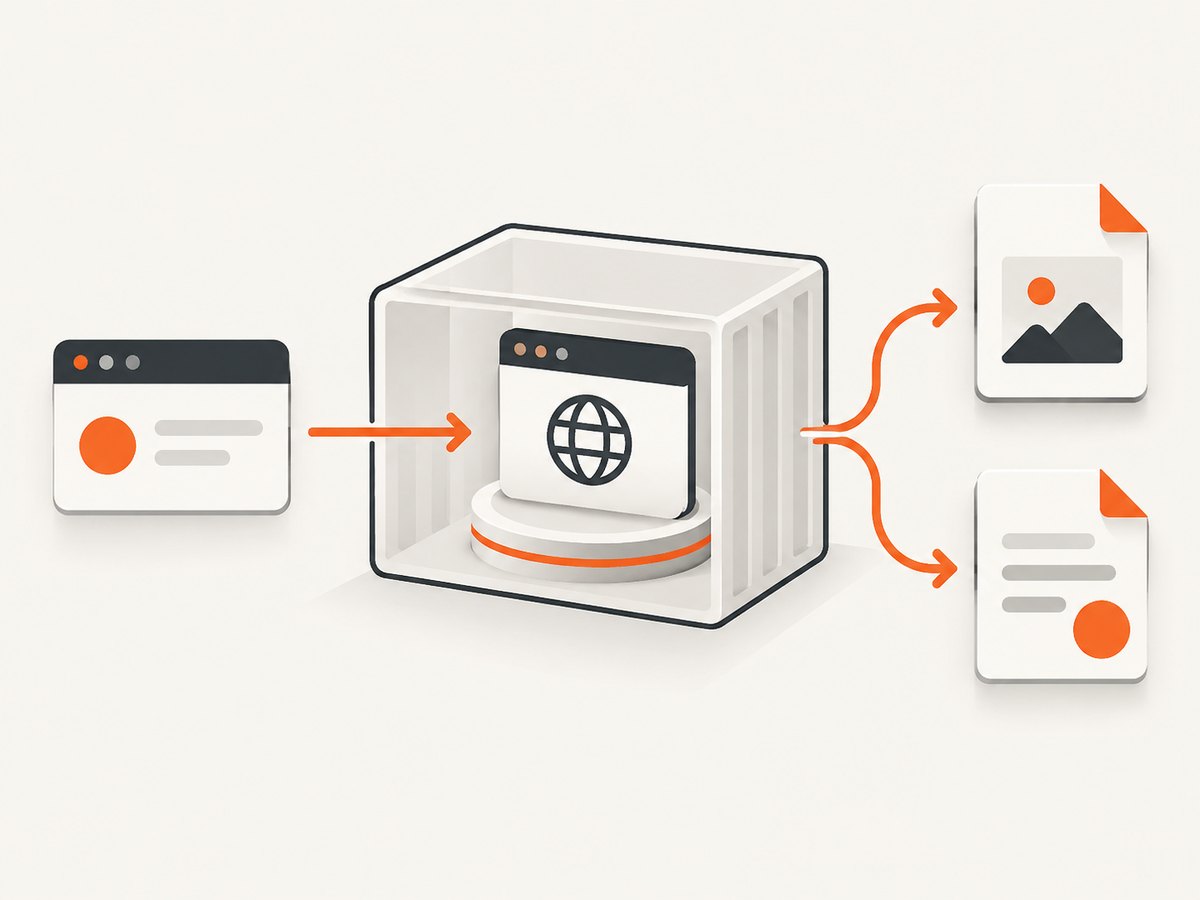
There are two common topologies:
- One container: the Next.js server and Puppeteer share a network namespace. Navigate to
http://127.0.0.1:3000/route(or the port your process listens on). - Compose or separate services: navigate to
http://nextjs:3000/route, wherenextjsis the Compose service name on the shared network. Bind Next.js to0.0.0.0when another container must reach it.
Keep the render endpoint private or authenticated. If a caller can submit arbitrary URLs, validate an allowlist and block access to cloud metadata, internal hostnames and private IP ranges.
Build Next.js for a container
Standalone output copies the Node server and its traced dependencies into .next/standalone. It preserves server rendering, API routes and incremental static regeneration, and is the normal production choice when a Node server is required (Next.js output documentation). A static export is appropriate only when no server behavior is needed.
// next.config.js
/** @type {import('next').NextConfig} */
const nextConfig = {
  output: 'standalone',
};
module.exports = nextConfig;
Make the page expose a deterministic marker after client data and fonts are ready. A selector is more reliable than guessing a delay:
// app/report/page.tsx
export default async function Report() {
  const data = await getReportData();
  return <main data-render-ready>{/* render data */}</main>;
}
Option A: Puppeteer’s maintained Docker image
The image ghcr.io/puppeteer/puppeteer:latest includes Chrome for Testing, required dependencies and a matching Puppeteer version. Pin a specific tag or digest for repeatable builds; the latest tag changes over time. Puppeteer’s Docker guidance uses an init process and, for that image, --cap-add=SYS_ADMIN when its sandbox requires it (Puppeteer Docker guide).
# Dockerfile.puppeteer
FROM ghcr.io/puppeteer/puppeteer:latest
WORKDIR /app
COPY package*.json ./
RUN npm ci --omit=dev
COPY . .
ENV NODE_ENV=production
CMD ["node", "server.js"]
# Example run
# --init lets PID 1 reap Chrome children.
docker run --init --rm -p 3000:3000 your-image
Check the image documentation for the exact user and executable path exposed by the tag you pin. Do not assume a path copied from a different browser build.
Option B: custom Debian/Ubuntu image
A custom image gives control over OS packages and size, but you own browser and library updates. Puppeteer’s troubleshooting guide lists the shared libraries required by Chrome; missing one commonly produces “Failed to launch the browser process” or a missing libX/libnss error (troubleshooting guide).
FROM node:20-bookworm-slim
ENV PUPPETEER_CACHE_DIR=/home/pptruser/.cache/puppeteer
WORKDIR /app
RUN apt-get update && apt-get install -y --no-install-recommends \
    ca-certificates fonts-liberation libasound2 libatk-bridge2.0-0 \
    libatk1.0-0 libc6 libcairo2 libcups2 libdbus-1-3 libdrm2 \
    libgbm1 libgtk-3-0 libnspr4 libnss3 libpango-1.0-0 \
    libx11-6 libx11-xcb1 libxcb1 libxcomposite1 libxdamage1 \
    libxext6 libxfixes3 libxrandr2 xdg-utils && rm -rf /var/lib/apt/lists/*
RUN useradd --create-home --shell /bin/bash pptruser
COPY package*.json ./
RUN npm ci --omit=dev
COPY . .
RUN chown -R pptruser:pptruser /app /home/pptruser
USER pptruser
ENV NODE_ENV=production
CMD ["node", "server.js"]
Let Puppeteer download its bundled browser by default. If you deliberately install system Chromium, set executablePath (or PUPPETEER_EXECUTABLE_PATH) and verify that the binary version and libraries match. If you set PUPPETEER_SKIP_DOWNLOAD=true, a missing system browser becomes your responsibility (configuration).
Complete App Router renderer
Install Puppeteer in the server project with npm install puppeteer. This Route Handler supports PDF or PNG, validates the destination, waits for a selector, and always closes Chrome. The same logic works in a Pages API route.
// app/api/render/route.ts
import puppeteer from 'puppeteer';

export async function GET(request: Request) {
  const input = new URL(request.url);
  const target = process.env.RENDER_URL ?? 'http://nextjs:3000/report';
  const format = input.searchParams.get('format') === 'png' ? 'png' : 'pdf';
  const browser = await puppeteer.launch({
    headless: true,
    // Add container-specific args only when your sandbox policy requires them.
  });
  try {
    const page = await browser.newPage();
    await page.setViewport({ width: 1440, height: 900, deviceScaleFactor: 1 });
    const response = await page.goto(target, {
      waitUntil: 'networkidle2',
      timeout: 30_000,
    });
    if (!response || response.status() >= 400) {
      return new Response('Target returned an HTTP error', { status: 502 });
    }
    await page.waitForSelector('[data-render-ready]', { timeout: 30_000 });
    if (format === 'png') {
      const image = await page.screenshot({ fullPage: true, type: 'png' });
      return new Response(image, { headers: { 'Content-Type': 'image/png' } });
    }
    const pdf = await page.pdf({ format: 'A4', printBackground: true });
    return new Response(pdf, { headers: { 'Content-Type': 'application/pdf' } });
  } finally {
    await browser.close();
  }
}
page.goto requires a URL scheme and has a 30-second default wait timeout; set your own budget explicitly (goto API). A 404 or 500 can resolve as a response in headless mode, so inspect response.status() instead of relying only on exceptions. PDFs wait for fonts by default; use printBackground: true when the design depends on background colors (PDF API).
Readiness, navigation and capture options
| Need | Recommended setting | Why |
|---|---|---|
| Mostly static page | waitUntil: 'networkidle2' |
Convenient after network activity settles. |
| Polling, WebSockets or analytics | waitForSelector or an app signal |
Long-lived connections may never become idle. |
| Known animation | page.evaluate to disable it, then selector |
Prevents frames changing between captures. |
| One component | page.locator(...).screenshot() or element handle |
Captures only the requested region. |
| Whole route | page.screenshot({ fullPage: true }) |
Includes content beyond the viewport. |
Set viewport width, height and device scale factor before navigation. Use page.emulateMediaType('screen') for screen CSS or 'print' for print styles. For authenticated pages, set cookies or an Authorization header before goto; never log those values. For deterministic output, set timezone, locale and a fixed user agent, disable transitions, and wait for images with page.evaluate(() => Promise.all([...document.images].map(i => i.complete ? undefined : new Promise(r => { i.onload = i.onerror = r })) )).
Docker networking and process details
In Compose, declare a health check for the Next.js service and make the renderer depend on it. A listening TCP port does not guarantee that server data is ready, so keep the page-level data-render-ready check. If the route calls itself from the same container, use the internal port rather than the public reverse-proxy hostname. Bind with next start -H 0.0.0.0 -p 3000 when cross-container access is required.
Run Chrome as a dedicated non-root user and keep its sandbox enabled. Add capabilities or --no-sandbox only when your runtime makes the sandbox impossible; disabling it weakens isolation. Use --init (or an equivalent init process) so terminated renders do not leave zombie browser processes.
Performance, reliability and cost
- Reuse carefully: launching Chrome per request is simple but expensive. A bounded browser pool reduces startup time; recycle browsers after a fixed number of pages or when memory grows.
- Bound work: enforce navigation, selector and overall request timeouts. Limit concurrent pages to the memory your container can provide.
- Observe outcomes: record duration, HTTP status, timeout type and browser exit reason. Capture a trace or console log only for failed jobs, with secrets removed.
- Cache safely: cache by URL plus viewport, locale, authentication context and application version. Never reuse a private page’s image for another user.
- Control PDF size: avoid unbounded full-page documents, load only required fonts and images, and set page format, margins and print backgrounds deliberately.
Puppeteer itself has no per-shot service charge; your cost is container CPU, memory, storage and browser maintenance. Pin Node, Puppeteer and browser versions, then refresh them deliberately. A managed API can move those operations out of your deployment.
Troubleshooting checklist
| Symptom | Likely cause | Fix |
|---|---|---|
| “Failed to launch the browser process” | Missing shared library, wrong architecture or unwritable cache. | Use the maintained image or install the troubleshooting guide’s libraries; ensure the browser cache is writable by the runtime user. |
| Sandbox error mentioning root | Chrome started as root without a usable sandbox. | Run as non-root; provide the image’s required capability. Treat --no-sandbox as a last resort. |
ERR_CONNECTION_REFUSED |
Wrong hostname/port or Next.js is bound to loopback. | Use the Compose service name, verify the port, and bind Next.js to 0.0.0.0. |
| Navigation timeout | Polling, slow third-party assets or an unreachable dependency. | Increase a bounded timeout, block nonessential requests, and wait for a readiness selector instead of network idle. |
| Blank or partial capture | Client data or lazy images are not ready. | Expose a readiness marker, await image completion, and scroll or trigger lazy-loading before capture. |
| PDF fonts differ | Font files are unavailable or print CSS changes them. | Package the fonts, wait for document.fonts.ready, and choose screen or print media intentionally. |
| Works locally, fails in CI | Different CPU architecture, missing libraries or restricted sandbox. | Pin the image, inspect architecture, run a minimal browser health check, and compare launch stderr. |
| Chrome processes accumulate | Missing finally close or PID 1 does not reap children. |
Close every browser in finally and run with --init. |
Or skip the browser setup
ScreenshotNeo provides a website screenshot API and MCP server. One GET request returns PNG, JPEG, WebP or PDF, while it accepts cookie banners and removes more than 60 known consent platforms, newsletter popups and chat widgets before capture. Bot checks, blank pages, timeouts, failed loads and cache hits cost nothing; response headers report X-Page-Verdict and X-Billed. Its MCP tools (take_screenshot, get_page_info, capture_pdf) work with Claude, Cursor and other MCP clients.

See the ScreenshotNeo API docs for all options. The same endpoint accepts full-page and element captures, dark mode, device presets, retina scale, PDF paper and margins, custom CSS/JavaScript, clicks, waits, request blocking, headers, cookies, user agents, timezone, geolocation, transparent backgrounds, resizing, TTL caching, signed links, async webhooks, bulk capture and usage data.
curl -G "https://api.screenshotneo.com/v1/shot" -d access_key=YOUR_API_KEY --data-urlencode url=https://stripe.com -o shot.webp
import requests
r = requests.get("https://api.screenshotneo.com/v1/shot", params={"access_key": "YOUR_API_KEY", "url": "https://stripe.com"}, timeout=90)
r.raise_for_status()
open("shot.webp", "wb").write(r.content)
const q = new URLSearchParams({ access_key: 'YOUR_API_KEY', url: 'https://stripe.com' });
const res = await fetch(`https://api.screenshotneo.com/v1/shot?${q}`);
if (!res.ok) throw new Error(`Screenshot failed: ${res.status}`);
require('fs').writeFileSync('shot.webp', Buffer.from(await res.arrayBuffer()));
The free plan includes 1,000 screenshots per month with no card. Paid plans start at $5 for 3,000; every feature is on every plan. Create a free ScreenshotNeo account.
FAQ
Can I run Puppeteer in a Next.js client component?
No. Chrome needs a server process; use a Route Handler, Pages API route or worker.
Should I use networkidle0 instead of networkidle2?
Only when every request is expected to finish. Polling and sockets make a selector or explicit application signal more dependable.
Why does a 500 page not throw?
Headless navigation can resolve with an HTTP response for error statuses. Check HTTPResponse.status() and return an appropriate error.
Can static export run Puppeteer?
Static export has no Node server. Keep rendering in a separate service or use standalone output for server-side routes.
When is a managed screenshot API a better fit?
Use one when maintaining Chrome libraries, sandbox policy, concurrency and retries would distract from your application. ScreenshotNeo also provides MCP tools for AI agents and bills only clean shots.


