How to Render Non-Latin Characters in Headless Chrome
Missing CJK, Arabic, Hebrew, or Thai glyphs in headless Chrome? Check installed fonts, language-aware font selection, and your production container.

To render non-Latin text correctly in headless Chrome, install fonts that contain the characters your page needs in the same Linux image that launches Chrome. A CSS declaration such as font-family: Arial cannot supply missing glyphs. Then verify that the page has loaded its own web fonts, check its language metadata and computed font family, and inspect an actual screenshot or PDF produced by the production runtime.
This applies to Chinese, Japanese, Korean, Arabic, Hebrew, Thai, and other scripts. Headless Chrome still needs font coverage; unattended rendering does not create a universal Unicode font. Puppeteer’s Docker example explicitly installs Chrome and fonts to support major character sets, including Chinese, Japanese, Arabic, Hebrew, and Thai. Its package list is a starting point, not a complete font bundle for every language or image. Puppeteer troubleshooting documentation.
1. Diagnose missing glyphs before changing CSS
First distinguish a browser startup failure from a page that renders but shows blank squares, question marks, or empty spaces where characters should be. These symptoms have different causes.
| What you see | Likely cause | First check |
|---|---|---|
| Chrome will not launch; process exits or reports a shared-library error | Missing browser dependency or incompatible runtime image | Check shared libraries and the browser’s current dependencies |
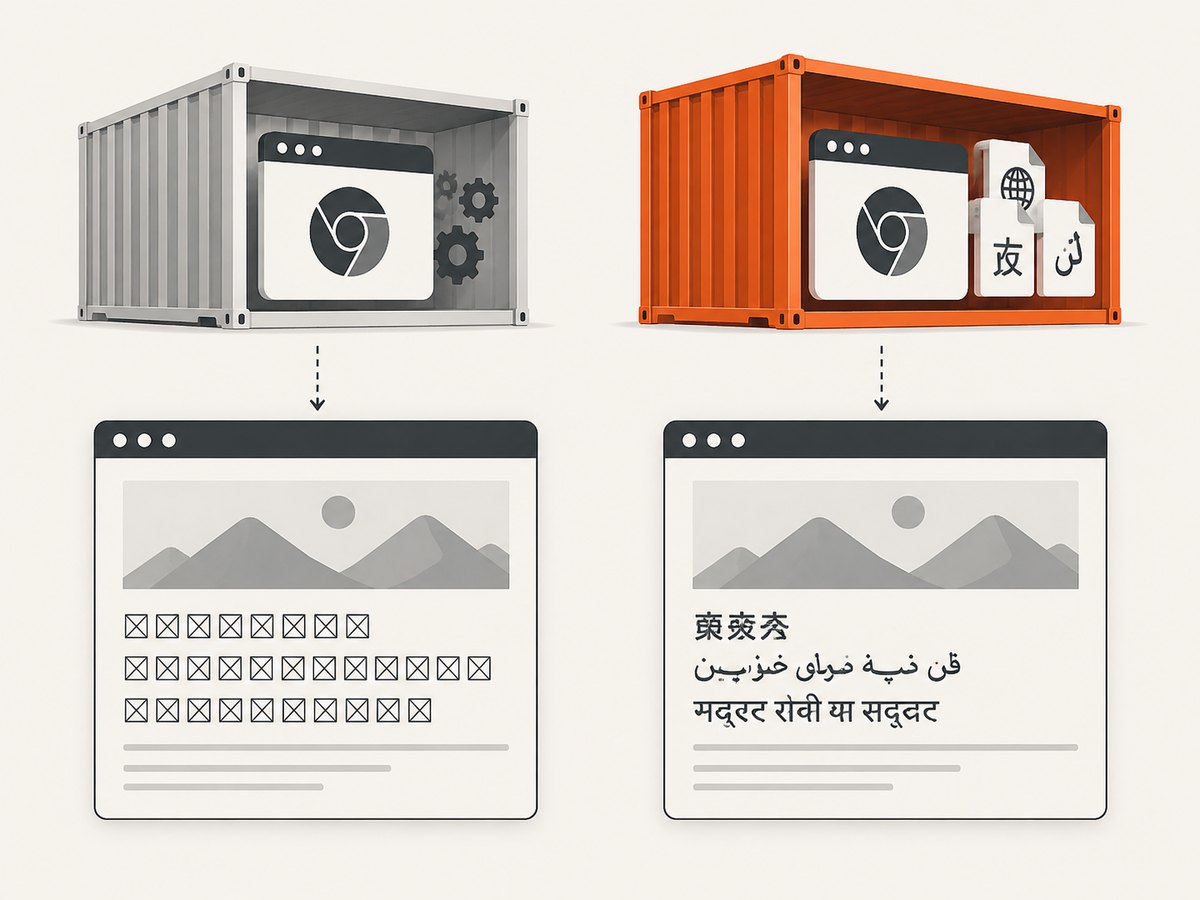
| Page renders, but some characters show as tofu boxes or disappear | No installed font covers those glyphs, or font selection is unsuitable | Inspect installed fonts, page language, and computed family |
| Some scripts render, others do not | Font coverage is partial; the installed family may cover only selected scripts | Test representative characters from each required language |
| Text works locally but fails in the container | Host and production image have different fonts, browser builds, or web-font availability | Reproduce with the exact production image and launch mode |
Record these details for a reproducible diagnosis: Chrome and Puppeteer versions, Linux distribution and base image, launch mode, installed font packages, and whether the page relies on system fonts or downloads web fonts. Do not assume the font set on a developer workstation exists in a minimal container.
2. Install fonts for the scripts you render
On Linux, font files must be present and discoverable in the environment where Chrome runs. Choose packages based on the scripts and actual characters in your output. Puppeteer’s Debian-style Docker example names these packages for major script coverage:
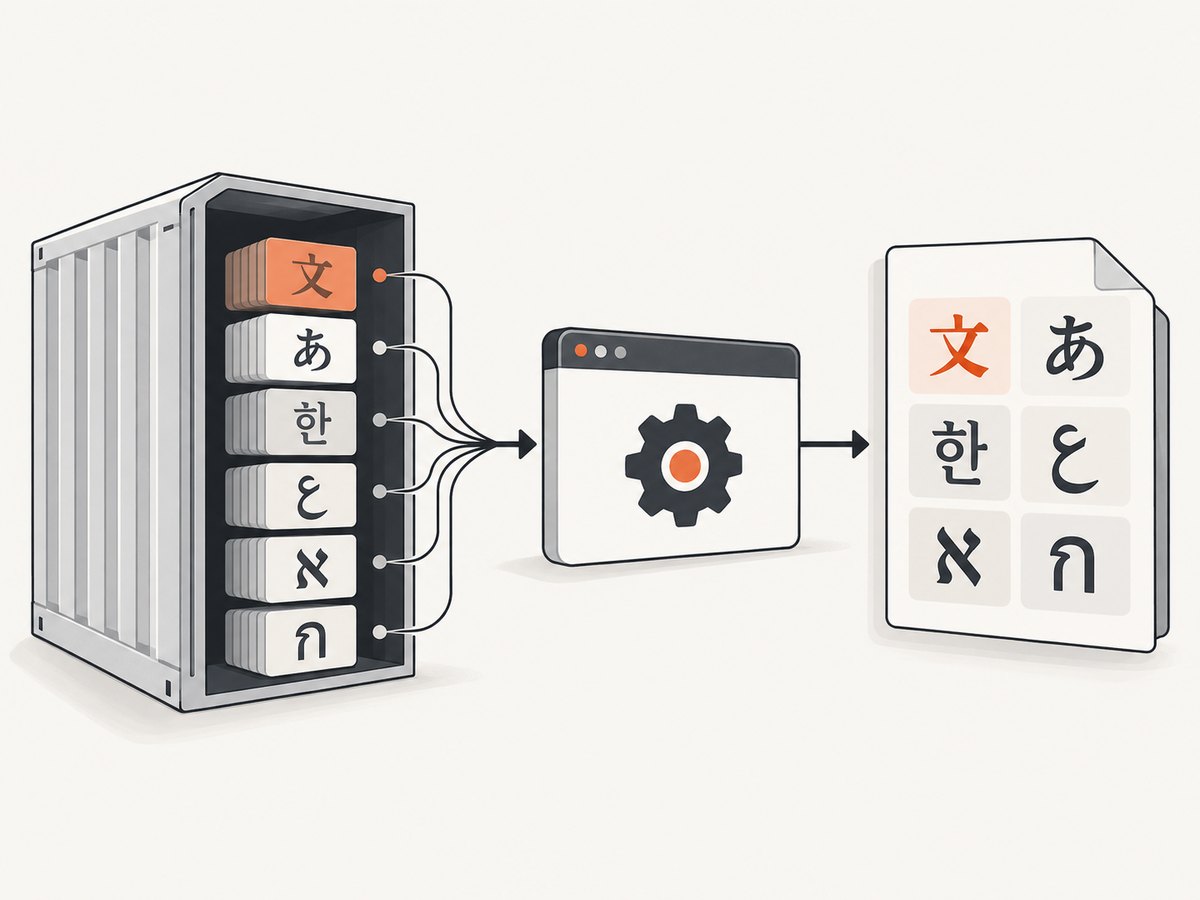
fonts-ipafont-gothicfor Japanesefonts-wqy-zenheifor Chinesefonts-thai-tlwgfor Thaifonts-kacstfor Arabicfonts-freefont-ttffor Hebrew and additional coverage
These are example package names, not a universal installation recipe. Names, availability, package versions, and coverage vary by distribution. The set may not cover every Han character variant, language-specific form, symbol, emoji, or less common script your page uses. Check the packages and fonts offered by your base image and validate the actual glyphs you need.
Example: Debian or Ubuntu container
For a Debian-derived image whose package repositories provide these names, install the fonts alongside your browser dependencies. Adapt this snippet to the image and package manager you use:
RUN apt-get update && apt-get install -y --no-install-recommends \
    fonts-ipafont-gothic \
    fonts-wqy-zenhei \
    fonts-thai-tlwg \
    fonts-kacst \
    fonts-freefont-ttf \
  && rm -rf /var/lib/apt/lists/*
If the package manager cannot find one of these names, do not silently omit it and assume equivalent coverage. Look up a font package for the needed script in that distribution, install it, and run the fixture described below. For an Alpine or other non-Debian image, use that distribution’s package names and repositories; the Debian names above do not transfer directly.
System fonts and page-delivered fonts
A page can use a hosted web font, a self-hosted font, or system fallback. If it intends to use a web font, confirm that the browser has finished loading it before capture. Network restrictions, invalid font URLs, cross-origin rules, or an early screenshot can leave Chrome using fallback fonts. System fonts remain important for fallback and for characters absent from the page font.
Use the browser’s computed font-family to see the requested stack, but remember that a family name is a request, not proof that a suitable font exists. A generic family or a familiar Latin font may not contain the script’s glyphs. Add language metadata such as <html lang="ja"> or <html lang="ar"> when it accurately describes the page. Chrome’s font settings documentation explains that generic families map to font settings and that language can affect which script-specific font Chrome selects; without language information, defaults apply. Chrome font settings documentation.
3. Render a fixture in the production runtime
After installing fonts, create a small page containing representative text for every required language. Include difficult or frequently used characters from your real content; a single greeting does not validate an entire script or locale. Run this fixture in the same container, browser build, and launch configuration used for production. Inspect the generated screenshot or PDF itself.
This check is necessary because font availability belongs to the rendering environment. A host browser can succeed while the container fails. Keep the fixture in your deployment workflow so a change to the base image, browser, packages, or launch mode does not quietly remove required coverage.
Runnable Puppeteer example
This Node.js example launches Puppeteer, renders a fixture with several scripts, and saves a screenshot. Run it after installing Puppeteer and the required system fonts in the same environment. The text is only a smoke check: substitute representative text from your own content before treating the output as validated.
const puppeteer = require('puppeteer');

(async () => {
  const browser = await puppeteer.launch({ headless: true });
  try {
    const page = await browser.newPage();
    await page.setContent(`
      <!doctype html>
      <html lang="en">
      <meta charset="utf-8">
      <style>
        body { font: 28px sans-serif; line-height: 1.8; padding: 24px; }
      </style>
      <p lang="zh-Hans">中文字符检查</p>
      <p lang="ja">日本語の文字を確認</p>
      <p lang="ko">한국어 글자 확인</p>
      <p lang="ar" dir="rtl">اختبار الحروف العربية</p>
      <p lang="he" dir="rtl">בדיקת אותיות בעברית</p>
      <p lang="th">ตรวจสอบอักษรไทย</p>
      </html>
    `, { waitUntil: 'load' });
    await page.screenshot({ path: 'non-latin-fixture.png', fullPage: true });
  } finally {
    await browser.close();
  }
})();
The explicit UTF-8 declaration protects the fixture from encoding ambiguity. The lang attributes give Chrome language context, and the dir="rtl" attributes express right-to-left direction for the Arabic and Hebrew examples. These settings help correct selection and layout; they do not install missing glyphs.
4. Check browser mode and startup dependencies
Record whether you use Puppeteer’s normal unified Headless mode, its shell mode, or headful mode. Chrome documents unified Headless and headful modes; since Chrome 132.0.6793.0, the old Headless implementation is available only as the standalone chrome-headless-shell binary. Puppeteer exposes headless: true, headless: 'shell', and headless: false as different launch choices. Keep the mode consistent when reproducing a rendering issue. Chrome Headless documentation.
If Chrome does not launch, investigate Linux shared libraries separately from fonts. Puppeteer’s Linux troubleshooting guidance suggests checking unresolved dependencies with:
ldd /path/to/chrome | grep notReplace the path with the browser executable in your environment. The dependency list can vary by distribution and may become outdated, so use it as a diagnostic lead and check the browser and base image’s current requirements. Missing libraries stop Chrome from starting; missing font coverage usually allows Chrome to start but produces incorrect text.
5. Troubleshooting common failures
| Problem | Cause | Fix |
|---|---|---|
| Boxes or blank spaces for CJK or other characters | No installed font covers those glyphs | Install a font package with the required script coverage in the runtime image; rebuild and inspect the fixture. |
| Chinese works, Japanese does not, or vice versa | Coverage or language-sensitive font choice differs | Install suitable fonts for both needs, set accurate language metadata, and validate locale-specific text. |
| Arabic or Hebrew letters appear in the wrong order or alignment | Page direction and layout are not specified appropriately, or the issue is broader than font coverage | Set the correct language and direction (for example, dir="rtl") and inspect the resulting layout as well as glyph shapes. |
| Text is unexpectedly in a fallback face | Intended web font did not load, is not available for those glyphs, or capture happened too early | Check font network requests and computed styles; wait for the intended font to load before capture and retain suitable system fallback fonts. |
| Works on a laptop but not in Docker | Different font installation, browser build, network access, or runtime image | Reproduce inside the exact production image and make fonts part of its build. |
| Chrome exits before rendering | Missing shared libraries or another launch/dependency issue | Check the browser’s shared libraries with ldd and follow current Puppeteer and distribution dependency guidance. |
Advice says to add --no-sandbox |
Sandboxing is being confused with font rendering | Do not use this flag as a font fix. Puppeteer recommends Chrome sandboxing; its troubleshooting guidance describes disabling it only for trusted content and strongly discourages running without a sandbox. |
6. Reliability, performance, and deployment costs
Bundling fonts in the image makes the renderer less dependent on external font downloads and keeps local, staging, and production environments closer when they use the same image. The tradeoff is image size and the work of updating packages. Install only the coverage you need, while ensuring that the chosen fonts actually support your content.
External web fonts can reduce the number of packages you manage, but rendering then depends on network access and font availability at capture time. If you use them, make the capture wait until the page is ready and preserve a system fallback for missing glyphs. For a robust pipeline, record browser mode and versions, build fonts into a versioned image, and render a representative fixture after image changes.
Font coverage affects screenshots and PDFs alike because both depend on the browser’s rendered page. It does not fix unrelated issues such as a page that never loads, a blocked font request, or an unsupported character absent from every available font. Diagnose those independently.
7. Or skip the browser setup
If your goal is to capture a URL rather than maintain Chrome and font packages, ScreenshotNeo provides a website screenshot API and MCP server. Its clean-shot process accepts cookie or consent banners like a visitor and removes 60+ known consent platforms, newsletter popups, and chat widgets before capture; each step can be turned off. Only clean shots are billed: bot checks or CAPTCHAs, blank pages, timeouts, failed loads, and cache hits cost nothing, and the response identifies the page verdict and billing status in headers. AI agents can use the MCP tools take_screenshot, get_page_info, and capture_pdf.
One GET request returns an image or PDF. For example, with cURL:
curl -G "https://api.screenshotneo.com/v1/shot" \
  -d access_key=YOUR_API_KEY \
  --data-urlencode url=https://stripe.com \
  -o shot.webp
See the ScreenshotNeo API documentation for setup and available options. The service offers 1,000 screenshots per month free with no card; paid plans start at $5 for 3,000. Sign up for 1,000 free screenshots a month, no card required.
FAQ
Does headless Chrome include a font for every Unicode character?
No. The runtime needs fonts with the needed glyph coverage, and a single font package set is not guaranteed to cover all languages and characters.
Can I fix missing glyphs by setting font-family in CSS?
CSS can request a family that is installed or loaded by the page. It cannot provide glyph data that the rendering environment does not have.
Do I need to install separate packages for screenshots and PDFs?
No. Both outputs use the browser’s rendered page, so font availability and selection matter to each.
Should I disable Chrome’s sandbox to fix text?
No. Sandbox settings are unrelated to glyph coverage. Keep sandboxing enabled where possible and diagnose the font environment directly.


