How to Render a React Fragment to an Image Without a Server
Capture a React Fragment as a downloadable image entirely in the browser. Add a real DOM capture boundary, use html2canvas, and handle CORS, fonts, and large exports.

A React Fragment has no element in the browser DOM, so you cannot pass the Fragment itself to an element capture library. Put the Fragment’s children inside a real host element such as a div, attach a ref to that element, and pass it to html2canvas. The library resolves to a canvas; convert it to a PNG data URL and trigger a download. This runs in the browser and does not require an image-rendering server.
The wrapper is the capture boundary. Style it to the dimensions and appearance you want in the exported image, and keep export controls outside it.
1. Why a Fragment needs a real DOM capture boundary
React Fragments group children without adding a wrapper element. Their children appear as siblings in the rendered DOM. That makes Fragments useful when the page should not gain an extra node, but a capture library that accepts a DOM element needs an actual element to inspect.
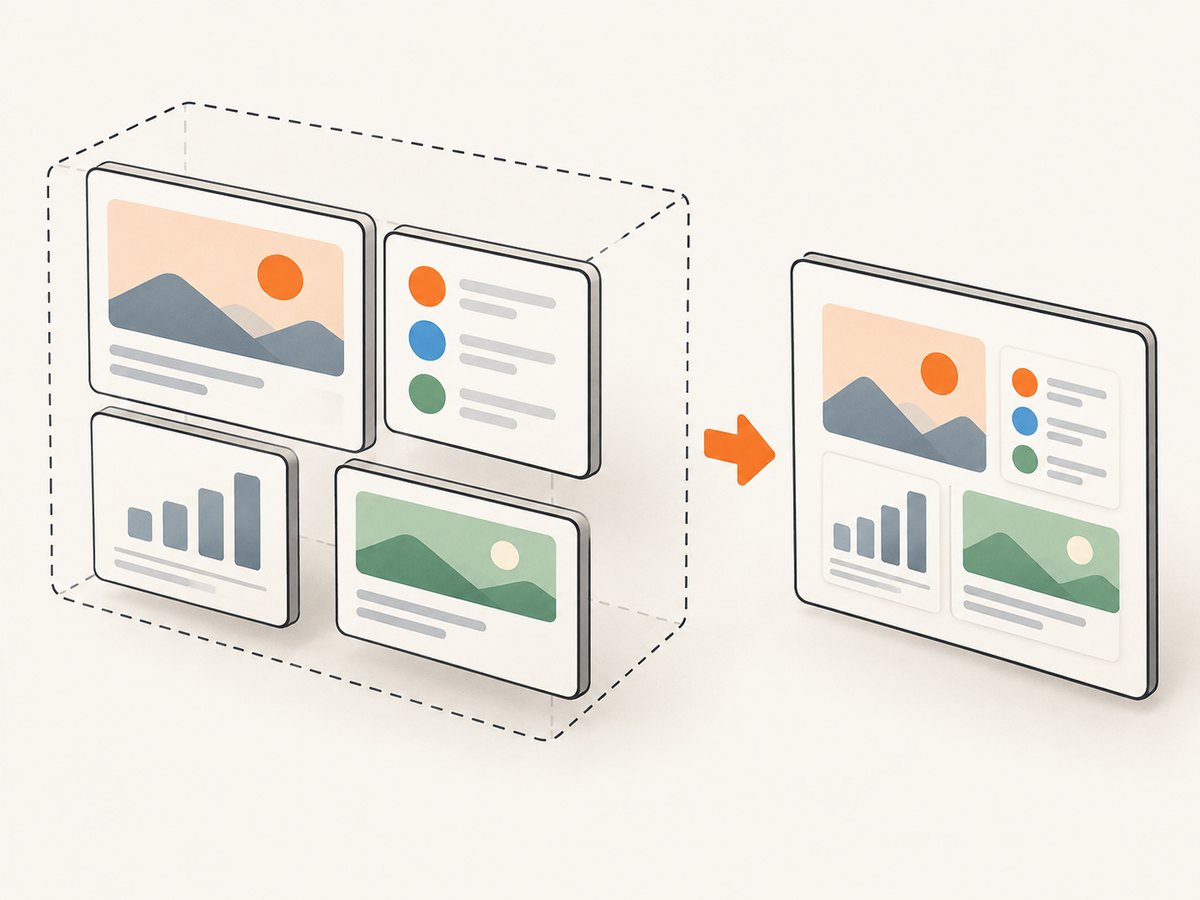
Use a deliberate wrapper only around the content to export. Its CSS controls the captured size, background, spacing, and layout. You can keep the rest of the component tree fragment-based. React also documents refs on explicit <Fragment> syntax in newer versions, but these provide a FragmentInstance, not the ordinary HTMLElement target that html2canvas expects. See the React Fragment reference.
2. Install html2canvas
In an existing React project, install the package:
npm install @html2canvas/html2canvashtml2canvas runs against browser DOM and browser APIs. It is not a Node.js renderer. Import it in client-side application code and start capture in response to a user action, after the component has rendered.
3. Complete React and TypeScript example
This example captures a real element containing Fragment children, waits for the capture promise, converts the canvas to PNG, and asks the browser to download it.
import { useRef, useState } from 'react';
import html2canvas from '@html2canvas/html2canvas';

export function ExportableCard() {
  const captureRef = useRef<HTMLDivElement>(null);
  const [busy, setBusy] = useState(false);
  const [error, setError] = useState<string | null>(null);

  async function downloadPng() {
    const element = captureRef.current;
    if (!element || busy) return;

    setBusy(true);
    setError(null);
    try {
      const canvas = await html2canvas(element, {
        backgroundColor: '#ffffff',
        scale: 2,
        useCORS: true,
        imageTimeout: 15000,
        logging: false,
      });

      const link = document.createElement('a');
      link.download = 'card.png';
      link.href = canvas.toDataURL('image/png');
      link.click();
    } catch (cause) {
      console.error('PNG capture failed', cause);
      setError('Could not create the image. Check remote assets and try again.');
    } finally {
      setBusy(false);
    }
  }

  return (
    <section>
      <div ref={captureRef} className="export-card">
        <FragmentContents />
      </div>
      <button type="button" onClick={downloadPng} disabled={busy}>
        {busy ? 'Creating image…' : 'Download PNG'}
      </button>
      {error && <p role="alert">{error}</p>}
    </section>
  );
}

function FragmentContents() {
  return (
    <>
      <h1>Card title</h1>
      <p>These children are grouped by a React Fragment.</p>
    </>
  );
}
Adjust the import to match your installed package and bundler if needed. The install command and browser capture flow are documented in the html2canvas getting-started guide.
If you use JavaScript, remove the TypeScript annotations and type arguments: initialize with useRef(null), and omit the useState<string | null> type. Keep the null check; the ref is empty until React mounts the element.
4. Choose capture options and prepare the content
The configuration reference lists the supported options. The most relevant ones for a component export are:
| Option | Use | Tradeoff or limit |
|---|---|---|
backgroundColor |
Set a solid background, such as white, for an opaque-looking PNG. | Use null when transparency is desired and supported by the rendered content. |
scale |
Control output resolution relative to the element’s CSS size. A value of 2 creates roughly twice the width and height. | Pixel count and memory grow with the square of the scale. A 2x scale uses about four times the pixels of 1x. |
useCORS |
Attempt to load remote images with cross-origin permission. | The remote server must send a suitable CORS header; this option cannot bypass browser security. |
imageTimeout |
Set how long image loading may take before it is treated as timed out. | Longer waits can make capture slower; short waits can omit slow assets. |
width, height |
Set the capture canvas dimensions. | Dimensions that exceed browser canvas limits can result in blank, cropped, or failed output. |
windowWidth, windowHeight |
Set the virtual window dimensions used during rendering. | For content clipped at its scroll boundary, the FAQ suggests using the element’s scroll dimensions. |
logging |
Enable or disable library logging while diagnosing resource or rendering issues. | Disable it in normal use if console output is not useful. |
onclone |
Adjust the cloned document before rendering, for example to remove export-only controls. | Changes affect the capture clone, not the live page. Keep changes limited to the intended output. |
Style the capture element explicitly. Avoid relying on layout inherited from an unexpected viewport width. Give it a predictable width, padding, background, and font size. Keep the download button outside the referenced element, or it will become part of the image. If you need a cropped region, make a dedicated wrapper for that region rather than capturing a large page and trying to trim it after the fact.
Wait for React, fonts, and images
Start capture only after the target content exists. If it includes asynchronously loaded data, wait for that data state before enabling the export action. Fonts and images can change layout after initial render, so wait for them where possible. For images controlled by your application, inspect their complete state or await loading before capture. A capture taken before resources settle may be missing assets or use fallback fonts.
For a font readiness gate, browser code can await document.fonts.ready before invoking html2canvas. It does not guarantee that every image or third-party resource has loaded; handle those separately and provide a reasonable timeout.
5. Convert and download the image
html2canvas returns a canvas asynchronously. The example uses canvas.toDataURL('image/png') to produce a PNG data URL, then an anchor with a download filename to initiate the browser download. Do not call toDataURL before the promise resolves.
For large images, toDataURL creates a base64 string in memory. If memory pressure is a concern, use canvas.toBlob() and an object URL instead:
function downloadCanvas(canvas: HTMLCanvasElement) {
  canvas.toBlob((blob) => {
    if (!blob) throw new Error('Canvas could not be encoded');
    const objectUrl = URL.createObjectURL(blob);
    const link = document.createElement('a');
    link.download = 'card.png';
    link.href = objectUrl;
    link.click();
    URL.revokeObjectURL(objectUrl);
  }, 'image/png');
}
Some browsers may need the object URL to remain available through the click. If an immediate revoke prevents a download in a target browser, defer revocation briefly and release it afterward. For other raster formats, pass a supported MIME type such as image/jpeg; browser support and output behavior can differ. JPEG has no transparency, so choose a background color.
6. What html2canvas can and cannot reproduce
html2canvas is not a literal screenshot of the browser’s final pixels. It traverses the DOM and reconstructs an image from styles and content it can read. Some CSS may be unsupported or rendered differently, so compare the output to the live component in browsers that matter. Check the project’s documentation on its rendering approach and FAQ before relying on a particular effect.

Cross-origin images are a common boundary. useCORS: true helps only when the remote host permits your origin with an appropriate Access-Control-Allow-Origin response header. Otherwise the image may be omitted or make the canvas unreadable. A proxy can be used where appropriate, but client code cannot waive another server’s policy.
Cross-origin iframes cannot be inspected because their document is inaccessible to the page. Same-origin iframe content may be available. A canvas already tainted by cross-origin content also cannot be safely read back. For highly faithful browser screenshots, consider whether the use case belongs in a browser extension, where browser screenshot facilities apply; those extension APIs are not a general replacement for capture from an in-page React app.
7. Troubleshooting
| Symptom | Likely cause | Fix |
|---|---|---|
| Nothing happens when the button is clicked. | The ref is still null, the handler did not run, or an error was swallowed. |
Confirm the target is mounted, retain the null guard, and log or display rejected capture errors. |
“Tainted canvases may not be exported” or a security error from toDataURL. |
A remote image or existing canvas lacks CORS permission. | Serve the asset with suitable CORS headers, use an allowed same-origin asset or proxy, or exclude the asset. useCORS alone cannot grant permission. |
| Remote images are missing. | They loaded too late, timed out, or the server rejected cross-origin access. | Wait for assets, adjust imageTimeout, verify the image response headers, and inspect the browser console. |
| Fonts or spacing differ from the page. | Capture began before fonts loaded, or CSS is unsupported or reconstructed differently. | Await document.fonts.ready, use explicit dimensions and styles, and compare in target browsers. |
| Bottom or right side is cut off. | Viewport or canvas dimensions do not include the element’s full scroll area. | Try the documented window dimension settings using scroll dimensions; check the element’s measured bounds. |
| Large output is blank or fails on a phone. | Canvas limits or device memory constraints were exceeded. | Reduce scale or dimensions, capture a smaller region, and validate on the actual devices you support. |
| Iframe content is absent. | The iframe is cross-origin. | Capture only accessible same-origin content, or use a workflow with access permitted by the frame’s origin and browser context. |
| Export includes the button or surrounding page. | The ref is attached to too broad an element or the control is inside it. | Move controls outside the capture boundary and attach the ref to a dedicated wrapper. |
| TypeScript reports that the ref may be null. | A ref is null before mount by design. | Check captureRef.current before passing it to html2canvas. |
8. Performance, reliability, and cost
Browser capture uses the visitor’s CPU and memory. Increasing scale raises pixel count quadratically, so start with 1x or 2x and choose the lowest resolution that meets the output need. Avoid capturing an entire long page when a smaller component is enough. Large canvases can hit browser-specific dimension or memory limits; there is no single maximum that applies to every browser and device, so test realistic content on the supported platforms.
For reliability, give users visible progress, prevent duplicate clicks while a capture is pending, handle rejected promises, and offer a retry. If a resource fails, decide whether to export a partial result or stop with a clear message. The browser-only path has no rendering-server request cost, but the work and memory use are borne by the user’s device. If you need scheduled, shared, server-side or large-scale captures, a browser library may not fit that operational requirement.
React’s renderToString is not an image exporter: it creates HTML text. React documents it as a server rendering API and advises client-side code needing rendered HTML to use createRoot and read the DOM. An image still requires a browser capture or rendering step. See React’s renderToString reference.
9. Or skip the browser setup
ScreenshotNeo is a website screenshot API and MCP server for developers. For a website URL, one GET request returns a PNG, JPEG, WebP, or PDF. This captures a rendered page by URL; it does not accept a React ref or capture an un-deployed component that exists only in your app. See the ScreenshotNeo API documentation for parameters and setup.
curl -G "https://api.screenshotneo.com/v1/shot" \
  -d access_key=YOUR_API_KEY \
  --data-urlencode url=https://stripe.com \
  -o shot.webp
import requests
r = requests.get(
"https://api.screenshotneo.com/v1/shot",
params={"access_key": "YOUR_API_KEY", "url": "https://stripe.com"},
timeout=90,
)
open("shot.webp", "wb").write(r.content)const q = new URLSearchParams({
access_key: 'YOUR_API_KEY',
url: 'https://stripe.com',
});
const res = await fetch(`https://api.screenshotneo.com/v1/shot?${q}`);
if (!res.ok) throw new Error(`Screenshot request failed: ${res.status}`);
const bytes = new Uint8Array(await res.arrayBuffer());
await import('node:fs/promises').then(({ writeFile }) => writeFile('shot.webp', bytes));ScreenshotNeo accepts cookie and consent banners like a visitor and removes more than 60 known consent platforms, newsletter popups, and chat widgets before capture; each step can be turned off. Bot checks and CAPTCHAs, blank pages, timeouts, failed loads, and cache hits are not billed, and response headers report the page verdict and billing status. Its MCP server includes take_screenshot, get_page_info, and capture_pdf for Claude, Cursor, and other MCP clients. The free plan includes 1,000 shots per month with no card; paid plans start at $5 for 3,000 shots. Every feature is available on every plan.
Get 1,000 free screenshots a month with no card.
10. FAQ
Can I capture a Fragment without adding a wrapper to the visible layout?
A capture library needs an element target. Add a purposeful wrapper around the exported content and style it to fit the layout. You can also create a separate export-only rendering boundary if that better suits the page design.
Can I do this with React Native?
This example targets React in a browser and relies on DOM and canvas APIs. React Native does not use the browser DOM, so this implementation does not apply there.
Can I create a PDF from the captured canvas?
This workflow creates a raster image. A PDF needs an additional PDF generation step or a screenshot service that returns PDF. A raster image embedded in a PDF remains raster content.
Does this upload my component to a server?
html2canvas processes the DOM in the browser and the example downloads the result locally. The code shown does not upload it. Any third-party assets still load according to your application’s normal network behavior.


