How to Render SVG with wkhtmltopdf
Render SVG reliably with wkhtmltopdf, fix blank or pixelated PDFs, handle local assets, and know when to use another renderer.

Short answer: wkhtmltopdf can render SVG because it uses Qt WebKit, but results depend on how the SVG is embedded, where its assets live, and which wkhtmltopdf build you run. Start with an <img> reference that has explicit dimensions, enable access to local files when needed, and wait for JavaScript-generated graphics before conversion.
For production PDFs, test the exact binary and operating system you deploy. Reports against wkhtmltopdf 0.12.x show blank output from some <object> elements, missing nested images, unsupported SVG features such as clip-path and opacity, and rasterized output that becomes pixelated when zoomed.
How SVG rendering works in wkhtmltopdf
wkhtmltopdf renders HTML through Qt WebKit. Qt documents WebKit Widgets as supporting HTML, XHTML, and SVG styled with CSS and scripted with JavaScript (Qt WebKit reference). Your SVG therefore passes through an old browser engine rather than a dedicated modern SVG or PDF renderer.
The engine can load SVG as an image, parse inline SVG in the HTML document, or load an SVG document through an embedded browsing context. These paths do not have identical behavior. The safest first test is an ordinary image reference:
<!doctype html>
<html>
  <body>
    <img src='images/diagram.svg' width='600' height='400' alt='Diagram'>
  </body>
</html>
Convert it with:
wkhtmltopdf input.html output.pdfGive the SVG a useful viewBox, width, and height. Without an intrinsic size, the image may collapse to zero dimensions or be laid out differently than it is in Chrome or Firefox.
Three reliable ways to include SVG
1. Reference SVG with <img>
This is the best starting point for diagrams, logos, and charts that do not need DOM interaction.
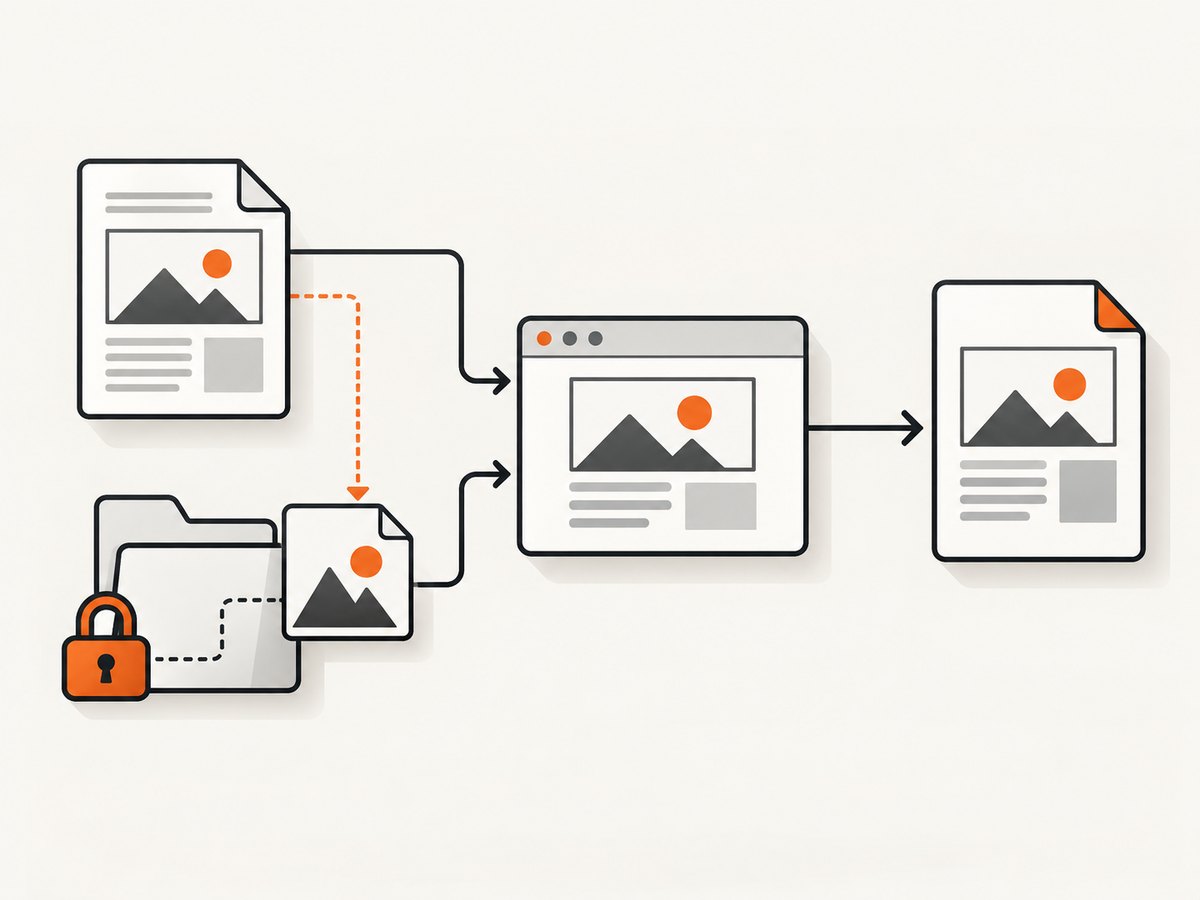
<img src='images/diagram.svg' width='600' height='400' alt='System diagram'>Use a URL or a file path that is resolvable from the HTML document. Relative paths are resolved relative to the input document’s location, not necessarily your shell’s current directory.
2. Inline the SVG
Inlining removes a class of file-permission and relative-path failures and makes CSS and definitions easier to inspect:
<svg xmlns='http://www.w3.org/2000/svg' viewBox='0 0 600 400' width='600' height='400' role='img' aria-label='Diagram'>
  <rect width='600' height='400' fill='#f5f7fb'/>
  <path d='M40 200 H560' stroke='#2563eb' stroke-width='8'/>
</svg>
Inlining can also change behavior. A report for issue #2996 found that inlining made an embedded image visible but caused other elements to render incorrectly. Use it as an isolation technique, then keep the form that behaves consistently in your target build.
3. Avoid relying on <object> for critical output
Although browsers commonly display an SVG loaded with <object data='diagram.svg' type='image/svg+xml'>, wkhtmltopdf issue #3762 reports a completely blank PDF for that pattern. The issue is marked invalid and the upstream repository is archived, so replacing <object> with <img> or inline SVG is the practical fix.
Local files, images, fonts, and CSS
Recent wkhtmltopdf usage documentation lists --disable-local-file-access as the default. If your HTML references a local SVG or the SVG references local images, CSS, or fonts, grant access explicitly:
wkhtmltopdf \
  --enable-local-file-access \
  input.html output.pdf
For a narrower permission boundary, allow only the asset directory:
wkhtmltopdf \
  --allow /absolute/path/to/assets \
  input.html output.pdf
Keep all dependent resources under the allowed directory when possible. A page can load successfully while a nested resource silently fails, producing an incomplete SVG.
Also verify that images are enabled. The documented switches are --images and --no-images; use --images explicitly in scripts whose options may be inherited from a shared configuration:
wkhtmltopdf --images --allow /absolute/path/to/assets input.html output.pdfExternal web fonts and CSS introduce network and compatibility dependencies. For repeatable builds, inline critical styles, package fonts locally, and use absolute or correctly rooted paths. If a font is not available, text inside the SVG may fall back to a different font or change its measured position.
JavaScript-generated SVG
Charts frequently create their SVG after page load. wkhtmltopdf documents --javascript-delay, whose default is 200 milliseconds. Increase it when the SVG is added asynchronously:
wkhtmltopdf \
  --javascript-delay 1500 \
  input.html output.pdf
A fixed delay is simple but can be wasteful or flaky. If your page can expose a stable completion signal, generate the final HTML before invoking wkhtmltopdf or make the page render synchronously. Disable JavaScript only when the document does not depend on it; otherwise the SVG container may remain empty.
Use load error controls while diagnosing failures. The usage reference documents --load-error-handling and --load-media-error-handling. Set them deliberately in automation so a missing SVG dependency does not look like a successful conversion:
wkhtmltopdf \
  --load-error-handling abort \
  --load-media-error-handling abort \
  input.html output.pdf
Check the exact option names supported by your installed binary with wkhtmltopdf --extended-help; packaged builds differ.
A complete reproducible example
Create this directory:
svg-pdf/
  input.html
images/diagram.svgimages/diagram.svg:
<svg xmlns='http://www.w3.org/2000/svg' viewBox='0 0 600 400' width='600' height='400'>
  <defs>
    <linearGradient id='bg' x1='0' x2='1'>
      <stop offset='0' stop-color='#eef2ff'/>
      <stop offset='1' stop-color='#dbeafe'/>
    </linearGradient>
  </defs>
  <rect width='600' height='400' fill='url(#bg)'/>
  <circle cx='150' cy='200' r='70' fill='#2563eb'/>
  <circle cx='450' cy='200' r='70' fill='#16a34a'/>
  <path d='M220 200 H380' stroke='#111827' stroke-width='12'/>
</svg>input.html:
<!doctype html>
<html>
<head>
  <meta charset='utf-8'>
  <style>body { margin: 0; width: 600px; } img { display: block; }</style>
</head>
<body>
  <img src='images/diagram.svg' width='600' height='400' alt='Flow diagram'>
</body>
</html>
Run:
cd svg-pdf
wkhtmltopdf --enable-local-file-access --images input.html output.pdf
Open the PDF at 400% zoom. If edges remain sharp, your build preserved vector content for this case. Do not assume that result applies to every SVG feature or another operating system.
Why SVG is blank, incomplete, or pixelated
| Symptom | Likely cause | Fix |
|---|---|---|
| Entire SVG is blank | Unsupported <object>, blocked local file, or zero dimensions |
Use <img> or inline SVG; add width, height, and viewBox; use --allow or --enable-local-file-access |
| Nested image missing | External or data URI image inside SVG is not handled by this Qt WebKit build | Inline the image or preprocess the SVG; compare a minimal case; consider another renderer |
| Chart area is empty | JavaScript has not finished | Increase --javascript-delay or render the SVG before conversion |
| Styles or fonts differ | External CSS/font failed to load or is unsupported | Inline critical CSS, package fonts locally, and verify paths and permissions |
clip-path or opacity ignored |
Feature gap in the installed Qt WebKit build | Simplify the SVG, flatten effects during preprocessing, or change renderer |
| PDF looks pixelated | SVG was rasterized during conversion | Inspect at high zoom, record build details, and use a renderer that preserves vectors when required |
Issue #4155 documents rasterized SVG output in wkhtmltopdf 0.12.5. Issue #4611 describes differences between patched and unpatched builds, including missing clip-path paths and ignored opacity.
Systematic troubleshooting checklist
- Validate the SVG in a browser and with an SVG validator. Confirm a nonempty
viewBox, width, and height. - Replace the page with the smallest possible
<img>example and explicit pixel dimensions. - Run with
--imagesand grant the asset directory using--allowor enable local access temporarily. - Replace external fonts, CSS, and nested images with inline or preprocessed assets.
- Compare inline SVG with
<img>; avoid<object>if it creates blank output. - Record
wkhtmltopdf --version, patched or unpatched Qt status, operating system, and package source. - Inspect the resulting PDF at high zoom and extract a page or screenshot to determine whether the SVG was rasterized.
- If required features still fail, evaluate a maintained renderer instead of searching for another wkhtmltopdf flag.

Performance, reliability, and maintenance
Large SVGs increase parsing and layout time. Remove unused definitions, simplify filters, and avoid embedding unnecessarily large raster images. A fixed JavaScript delay also adds latency to every conversion, so pre-render charts when possible.
For reliable jobs, pin the wkhtmltopdf version and package source, keep a fixture SVG set covering gradients, clipping, opacity, nested images, fonts, and JavaScript charts, and compare generated PDFs in CI. Treat a renderer upgrade as a compatibility change.
The upstream wkhtmltopdf repository was archived on January 2, 2023 and is read-only (repository notice). That maintenance status makes exact-version testing and a contingency renderer important for long-lived systems.
Or skip the browser setup
If your goal is a clean screenshot or PDF of a web page rather than maintaining a wkhtmltopdf installation, ScreenshotNeo provides a website capture API. It accepts one GET request and returns PNG, JPEG, WebP, or PDF. See the ScreenshotNeo API documentation for all options.
curl -G 'https://api.screenshotneo.com/v1/shot' \
  -d access_key=YOUR_API_KEY \
  --data-urlencode url=https://stripe.com \
  -o shot.webp
import requests
r = requests.get(
'https://api.screenshotneo.com/v1/shot',
params={'access_key': 'YOUR_API_KEY', 'url': 'https://stripe.com'},
timeout=90,
)
r.raise_for_status()
open('shot.webp', 'wb').write(r.content)const q = new URLSearchParams({ access_key: 'YOUR_API_KEY', url: 'https://stripe.com' });
const res = await fetch(`https://api.screenshotneo.com/v1/shot?${q}`);
if (!res.ok) throw new Error(`HTTP ${res.status}`);
const data = Buffer.from(await res.arrayBuffer());
await require('node:fs').promises.writeFile('shot.webp', data);Cookie banners, newsletter popups, and chat widgets are removed before the shot. Bot checks, blank pages, timeouts, failed loads, and cache hits are not billed; response headers identify the page verdict and whether it was billed. You can also use an MCP server so Claude, Cursor, or another MCP client can call take_screenshot, get_page_info, and capture_pdf. The service supports full-page and element capture, dark mode, device presets, custom CSS and JavaScript, waits, request blocking, headers, cookies, geolocation, PDF controls, caching, signed links, async jobs, bulk capture, and a usage API.
The free plan includes 1,000 screenshots per month with no card. Paid plans start at $5 for 3,000 shots. Create a free ScreenshotNeo account.
FAQ
Does wkhtmltopdf support SVG?
Yes, through Qt WebKit, but support depends on the SVG feature and binary build. Basic SVG loaded with <img> is the safest starting point.
Should I use PNG instead?
Use PNG when your target build rasterizes SVG or lacks a required feature. Keep the original SVG as the source so you can switch renderers later.
Why does the browser show the SVG but the PDF does not?
The browser and wkhtmltopdf use different engines and security defaults. Local-file permissions, nested resources, JavaScript timing, and unsupported SVG features can all produce different results.
Can wkhtmltopdf guarantee vector output?
No. Test the generated PDF at high zoom. A documented wkhtmltopdf report shows SVG rasterization in at least one 0.12.5 setup.


