How to Render SVGs in PDFs with pdfmake and html2canvas
Learn when to use pdfmake’s native SVG node, when html2canvas is better, and how to handle sizing, CORS, Node.js, and PDF quality.
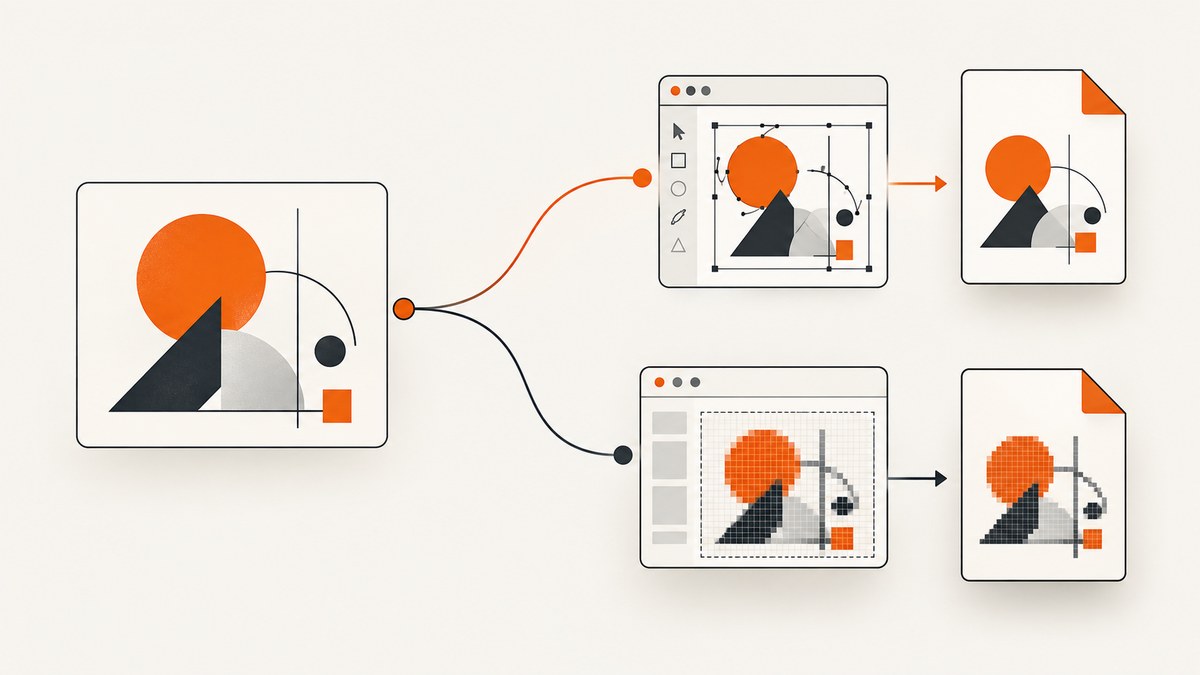
Direct answer: If you already have SVG artwork, put the SVG string (or a browser SVGElement) directly in pdfmake’s svg node. Give it a valid width and height, either inside the SVG or in the node definition. Use html2canvas when the thing you need in the PDF is an HTML or DOM component rather than standalone SVG. html2canvas renders a DOM representation into a canvas, so its result is raster output and it does not promise pixel-perfect browser screenshots.
This distinction determines the implementation, quality, runtime, and failure modes. Native pdfmake SVG insertion keeps vector artwork in the PDF workflow. html2canvas is useful for a rendered web component, but it runs in a browser, supports only the CSS properties it implements, and needs same-origin or CORS access to remote assets.
1. Choose the right pipeline
| Situation | Recommended path | Why |
|---|---|---|
| You have an SVG string or file | pdfmake svg node |
Direct SVG input; no rasterization step is required. |
| You need a DOM card, chart, or component | html2canvas, then pdfmake image | html2canvas converts the selected element into canvas data. |
| You need exact browser pixels | Browser screenshot capture | html2canvas reconstructs from DOM and CSS; it is not a native screenshot. |
| Code runs only in Node.js | Use pdfmake for SVG, or a browser-based capture service for DOM | html2canvas depends on window and document. |
These recommendations follow the interfaces and limitations documented by pdfmake and html2canvas. The html2canvas project explicitly describes its output as a reconstruction from information available in the DOM, rather than a capture of the browser’s actual pixels.
2. Add an SVG directly to a pdfmake document
For existing artwork, this is the shortest and most faithful route. pdfmake’s SVG node accepts SVG markup as a string. In a browser, supported pdfmake versions also accept an SVGElement. The SVG must have usable dimensions, or you must supply dimensions on the node.
Browser example: SVG string
<script src="https://cdnjs.cloudflare.com/ajax/libs/pdfmake/0.3.2/pdfmake.min.js"></script>
<script>
const logoSvg = `
<svg xmlns="http://www.w3.org/2000/svg" width="320" height="100" viewBox="0 0 320 100">
  <rect width="320" height="100" rx="16" fill="#2563eb"/>
  <circle cx="52" cy="50" r="24" fill="#fff"/>
  <path d="M42 50l8 8 18-20" fill="none" stroke="#2563eb" stroke-width="7"/>
  <text x="92" y="61" fill="#fff" font-size="34" font-family="Arial">Report</text>
</svg>`;

const docDefinition = {
  content: [
    { text: 'Project report', style: 'heading' },
    { svg: logoSvg, width: 320 },
    { text: 'The SVG remains the source artwork for pdfmake.' }
  ],
  styles: { heading: { fontSize: 20, bold: true, marginBottom: 12 } }
};

pdfMake.createPdf(docDefinition).download('svg-report.pdf');
</script>
Supplying only width scales proportionally. Supplying only height also scales proportionally. The fit option scales the SVG into a bounding box. Supplying both width and height forces those dimensions and can stretch the artwork, so do that only when distortion is intended.
Browser example: pass an SVGElement
const svgElement = document.querySelector('#report-mark');

const docDefinition = {
  content: [
    { text: 'Element-backed SVG' },
    { svg: svgElement, fit: [240, 80] }
  ]
};

pdfMake.createPdf(docDefinition).open();
SVGElement support requires pdfmake 0.3.1 or later; the documented SVG usage shown here is for the 0.3.x line, with the current documentation identifying 0.3.2 for the example. Check your installed version before copying a definition from the latest docs. The pdfmake 0.3.2 changelog also calls out the requirement to specify SVG width and height in the SVG itself, the element, or the svg node.
Keep the SVG valid
- Include the SVG namespace:
xmlns="http://www.w3.org/2000/svg". - Set
widthandheight, or use aviewBoxwith node dimensions. - Use embedded styles and assets where possible. External font and image loading can vary by environment.
- Escape the SVG correctly when building a JavaScript template string.
3. Render a DOM region with html2canvas, then place it in pdfmake
Use this path when the source is an HTML component: an invoice card, dashboard panel, chart wrapper, or assembled layout. html2canvas returns a Promise that resolves to a canvas. Convert that canvas to a data URL and pass it to pdfmake’s image node.
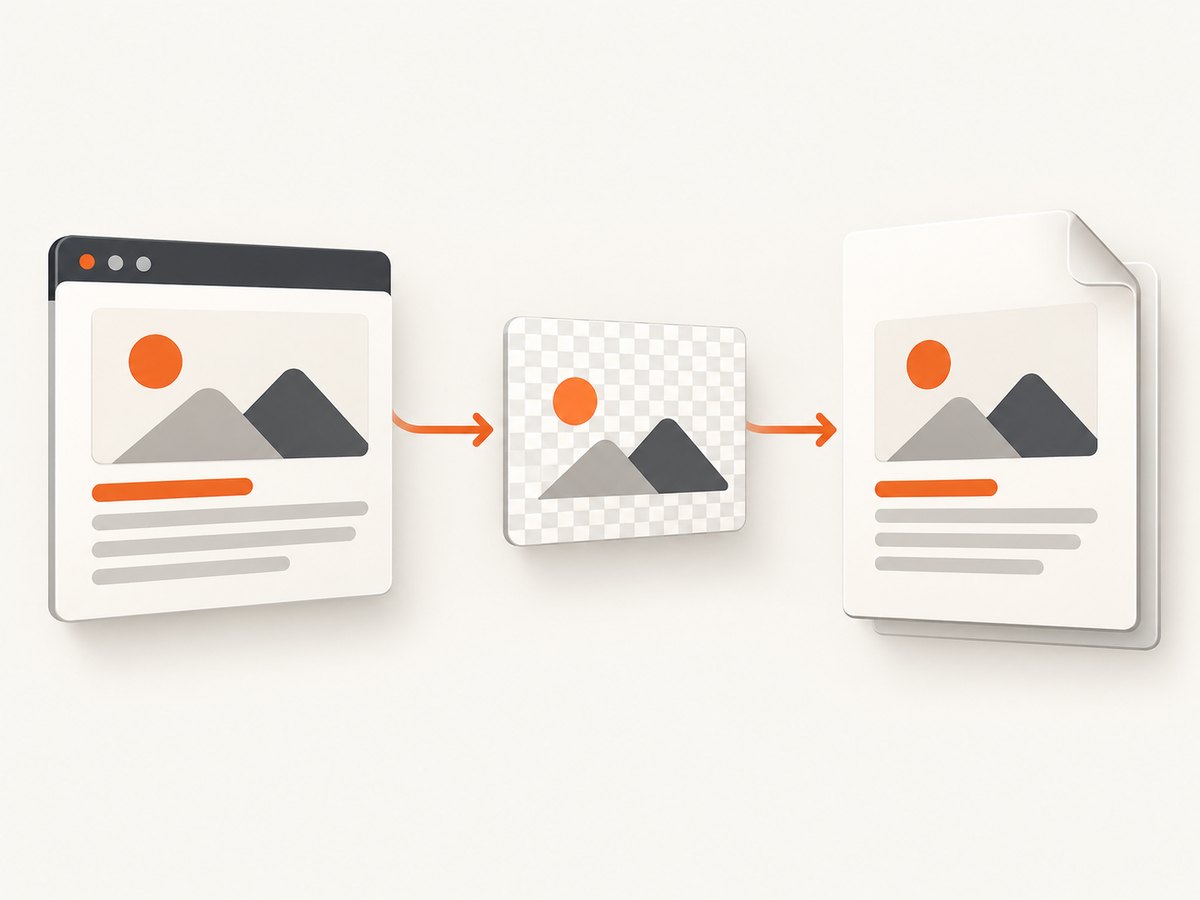
Complete browser example
<script src="https://cdnjs.cloudflare.com/ajax/libs/html2canvas/1.4.1/html2canvas.min.js"></script>
<script src="https://cdnjs.cloudflare.com/ajax/libs/pdfmake/0.3.2/pdfmake.min.js"></script>
<script>
async function componentToPdf() {
  const element = document.querySelector('#invoice');
  if (!element) throw new Error('Missing #invoice element');

  // Wait for fonts and images that are already in the document.
  if (document.fonts?.ready) await document.fonts.ready;
  await Promise.all(Array.from(element.querySelectorAll('img')).map(img => {
    if (img.complete) return Promise.resolve();
    return new Promise(resolve => {
      img.addEventListener('load', resolve, { once: true });
      img.addEventListener('error', resolve, { once: true });
    });
  }));

  const canvas = await html2canvas(element, {
    scale: window.devicePixelRatio || 1,
    backgroundColor: '#ffffff',
    useCORS: true,
    logging: false,
    // foreignObjectRendering is optional and browser-dependent.
    foreignObjectRendering: false
  });

  const imageData = canvas.toDataURL('image/png');
  const docDefinition = {
    pageSize: 'A4',
    pageMargins: [36, 36, 36, 36],
    content: [
      { text: 'Invoice', style: 'title' },
      { image: imageData, width: 520 }
    ],
    styles: { title: { fontSize: 18, bold: true, marginBottom: 12 } }
  };

  pdfMake.createPdf(docDefinition).download('invoice.pdf');
}
</script>
The canvas is a raster snapshot. Inspect it at the size at which it will appear in the PDF. Increasing scale can improve text and line sharpness, but it also increases memory use and can hit browser canvas limits.
Control what html2canvas captures
const canvas = await html2canvas(element, {
  backgroundColor: null,       // transparent canvas
  scale: 2,                    // higher pixel density
  width: 900,
  height: 500,
  x: 0,
  y: 0,
  scrollX: 0,
  scrollY: -window.scrollY,
  windowWidth: 1280,
  windowHeight: 900,
  useCORS: true,
  allowTaint: false,
  imageTimeout: 15000,
  onclone: clonedDocument => {
    clonedDocument.querySelectorAll('.no-print').forEach(node => node.remove());
  }
});
Options such as useCORS, allowTaint, dimensions, scroll offsets, imageTimeout, and onclone help you control the cloned document. They do not bypass browser security policy. foreignObjectRendering defaults to false; enabling it is not a universal compatibility fix.
4. Remote images, fonts, and CORS
Canvas security is the most common reason a DOM capture loses images or cannot be exported. A remote image must grant cross-origin access through appropriate response headers, or it must be served through a proxy you control. Set useCORS: true when the image server sends the required CORS header. html2canvas cannot override a site’s content security policy or the browser’s same-origin rules.
const canvas = await html2canvas(document.querySelector('#chart'), {
  useCORS: true,
  proxy: 'https://your.example.com/html2canvas-proxy'
});
Also check font readiness. A capture started before web fonts finish loading can contain fallback text. Wait for document.fonts.ready, preload important fonts, and avoid relying on fonts that are unavailable to the browser context.
5. Node.js: what works and what does not
html2canvas itself is browser-only because it uses browser APIs including window and document. Importing it in a plain Node.js process will fail. pdfmake’s SVG workflow can run in a server-side application when you provide the appropriate pdfmake setup and fonts, because the SVG is data rather than a live DOM capture.
If your server must capture arbitrary web pages or DOM components, run a real browser (for example, through your own browser automation stack) or use a capture API. Keep the browser work separate from pdfmake’s document assembly: capture first, then pass the resulting image data to the PDF generator.
6. PDF sizing and print quality
Native SVG
Prefer a viewBox that describes the artwork’s coordinate system and set one dimension in the pdfmake node. This preserves aspect ratio. Use fit: [maxWidth, maxHeight] when the available content box varies. If the SVG contains text, make sure the selected font is available to the renderer; SVG text does not automatically guarantee that a particular web font will be embedded.
Canvas image
Decide the physical PDF width first, then calculate the pixel width needed for acceptable print density. A canvas that is only a few hundred pixels wide may look fine on screen but soft when printed. Very large width, height, or scale values consume more memory and can exceed browser-specific canvas area limits. Those limits vary by browser and platform; blank or truncated output can occur without a useful exception.
For long pages, capture smaller sections and place multiple images in the PDF rather than creating one enormous canvas. This also makes pagination predictable.
7. Troubleshooting checklist
| Symptom | Likely cause | Fix |
|---|---|---|
| “Invalid SVG” or missing artwork | Malformed markup or missing namespace | Validate the string, add the SVG namespace, and inspect the generated markup. |
| SVG is blank | No dimensions or unsupported content | Add width/height or node dimensions; simplify filters, masks, and external assets. |
| SVG is stretched | Both width and height force a different aspect ratio | Provide one dimension or use fit. |
| Images missing from html2canvas | Cross-origin response lacks CORS permission | Serve images with CORS headers, use a proxy, or host assets on the same origin. |
| Canvas export throws a security error | The canvas is tainted by a cross-origin resource | Fix CORS and keep allowTaint false while diagnosing. |
| Styles differ from the page | html2canvas does not implement every CSS property | Use supported CSS, simplify the component, or choose native browser capture. |
| Capture starts too early | Images or fonts have not loaded | Await image completion and document.fonts.ready. |
| Huge capture is blank or cut off | Browser canvas dimension or memory limit | Reduce scale and dimensions, split the capture, and test target browsers. |
| Works in browser, fails in Node | html2canvas needs DOM APIs | Move capture into a browser context or use a server-capable capture service. |
foreignObjectRendering makes output worse |
Browser support and embedded-resource behavior vary | Leave it disabled unless a specific target browser and component require it. |
8. Or skip the browser setup
If the input is a public URL and you need a clean screenshot or PDF, ScreenshotNeo provides a one-call website screenshot API and MCP server. It accepts the URL and returns PNG, JPEG, WebP, or PDF. Before capture it accepts cookie and consent banners and removes more than 60 known consent platforms, newsletter popups, and chat widgets; each cleanup step can be disabled.

Only clean shots are billed. Bot checks, CAPTCHAs, blank pages, timeouts, failed loads, and cache hits cost nothing, and the response reports the result with X-Page-Verdict and X-Billed headers. An MCP server exposes take_screenshot, get_page_info, and capture_pdf to Claude, Cursor, and other MCP clients.
For API options and response details, see the ScreenshotNeo documentation.
curl -G "https://api.screenshotneo.com/v1/shot" \
  -d access_key=YOUR_API_KEY \
  --data-urlencode url=https://stripe.com \
  -o shot.webp
import requests
r = requests.get(
"https://api.screenshotneo.com/v1/shot",
params={"access_key": "YOUR_API_KEY", "url": "https://stripe.com"},
timeout=90,
)
r.raise_for_status()
open("shot.webp", "wb").write(r.content)const q = new URLSearchParams({
access_key: 'YOUR_API_KEY',
url: 'https://stripe.com'
});
const res = await fetch(`https://api.screenshotneo.com/v1/shot?${q}`);
if (!res.ok) throw new Error(`HTTP ${res.status}`);
const buffer = Buffer.from(await res.arrayBuffer());
require('fs').writeFileSync('shot.webp', buffer);You can still choose full-page capture, an element selector, dark mode, device presets or custom viewports, retina scale, PDF paper size and margins, custom CSS and JavaScript, clicks, waits, blocked resource types, headers, cookies, user agents, timezone, geolocation, transparent backgrounds, resizing, caching, signed links, asynchronous jobs, webhooks, bulk capture, and the usage API. Parameter names used by other screenshot APIs also work, which can simplify migration.
There are 1,000 free screenshots each month with no card. Paid plans start at $5 for 3,000 shots; yearly billing gives two months free. Create a free ScreenshotNeo account.
9. Performance, reliability, and cost
- Prefer native SVG for artwork: it avoids a DOM clone and canvas allocation.
- Limit html2canvas scope: capture the target element instead of the whole document.
- Use sensible scale: increase it only when the PDF display size needs more pixels.
- Wait deterministically: use a selector, font readiness, image completion, or an explicit delay rather than a fragile fixed guess.
- Cache stable captures: repeated pages do not need to be rendered on every request.
- Handle failures explicitly: log URL, viewport, dimensions, resource errors, and whether the canvas was blank.
- For service calls: set a client timeout, retry transient network failures with backoff, and inspect
X-Page-VerdictandX-Billedwhen using ScreenshotNeo.
There is no universal quality or speed number for html2canvas or pdfmake. Output depends on DOM size, CSS, assets, fonts, browser, viewport, and canvas limits. Test representative pages in the browser and paper sizes you actually support.
10. FAQ
Can pdfmake preserve SVG as vector data?
Use the native svg node for SVG input. That is the direct pdfmake SVG workflow; html2canvas produces a raster canvas instead.
Can I call html2canvas from a Node.js script?
Not by itself. It requires browser APIs, so run it inside a browser context or choose another server-capable renderer.
Should I always enable foreignObjectRendering?
No. It is optional and browser-dependent. Enable it only for a tested case where it improves the required component.
Why does my SVG have the wrong size?
Check the SVG’s width, height, and viewBox, then inspect the pdfmake node’s width, height, or fit settings. Supplying both dimensions can stretch the artwork.
What is the simplest option for a URL that must become a PDF?
Use a browser capture service such as ScreenshotNeo when you do not want to maintain browser startup, consent cleanup, asset loading, and failure handling yourself.


