Rendering Emojis Correctly in Website Screenshots
Emoji can change or disappear in screenshots when the capture browser lacks the right font or environment. Diagnose fallback, load fonts before capture, and stabilize visual tests.
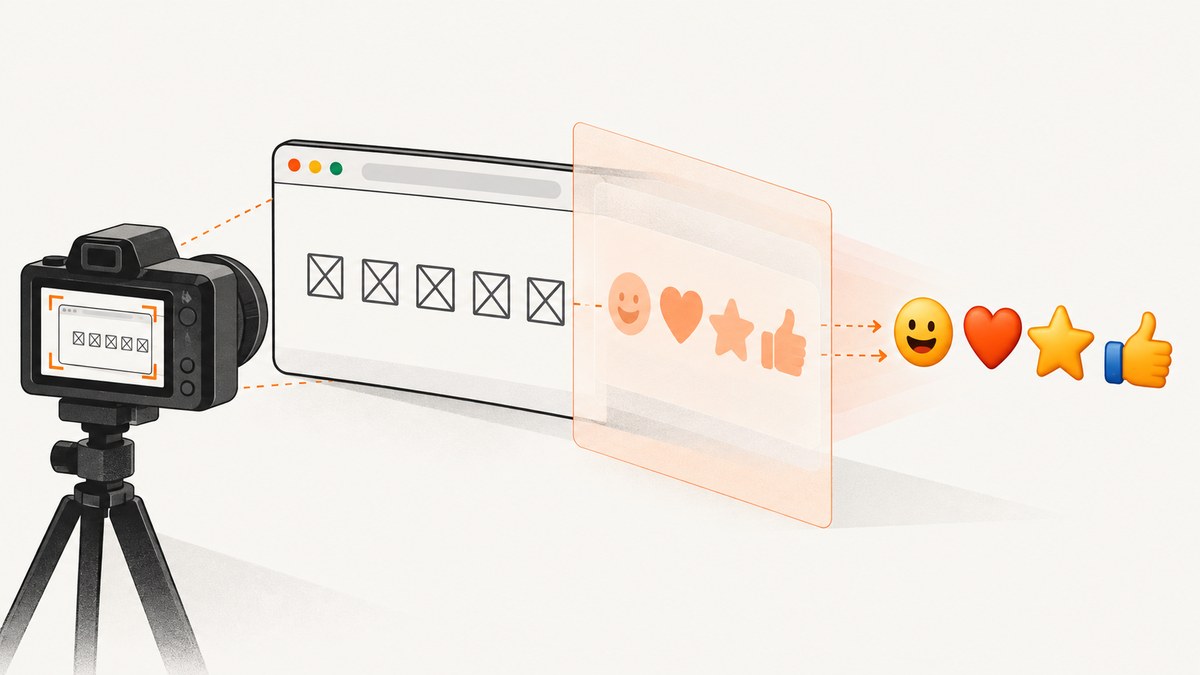
To make emojis render correctly in website screenshots, reproduce the capture in the same browser and operating-system environment that produces the screenshot, check that its font fallback can render the exact emoji, and load a known font before capture if it cannot. Keep screenshot baselines and later captures in the same environment. A CSS font stack alone cannot guarantee identical emoji artwork across platforms.
Emoji are text glyphs drawn by fonts available to the browser. If the requested font has no matching glyph, the browser must find a fallback; the available fonts and fallback behavior vary by platform. Some emoji are sequences of code points, so a font or rendering issue may affect a family, flag, or skin-tone variant even when a simple smile works. [Chromium’s font fallback notes]
1. Why do emojis look different in screenshots?
The screenshot is a picture of what the capture browser rendered, not a universal rendering of the page. The browser engine, browser version, host OS, installed fonts, font fallback, headless mode, and other environment settings can all matter. A page that looks correct in a developer’s desktop browser can look different in a Linux CI runner or a managed browser service.
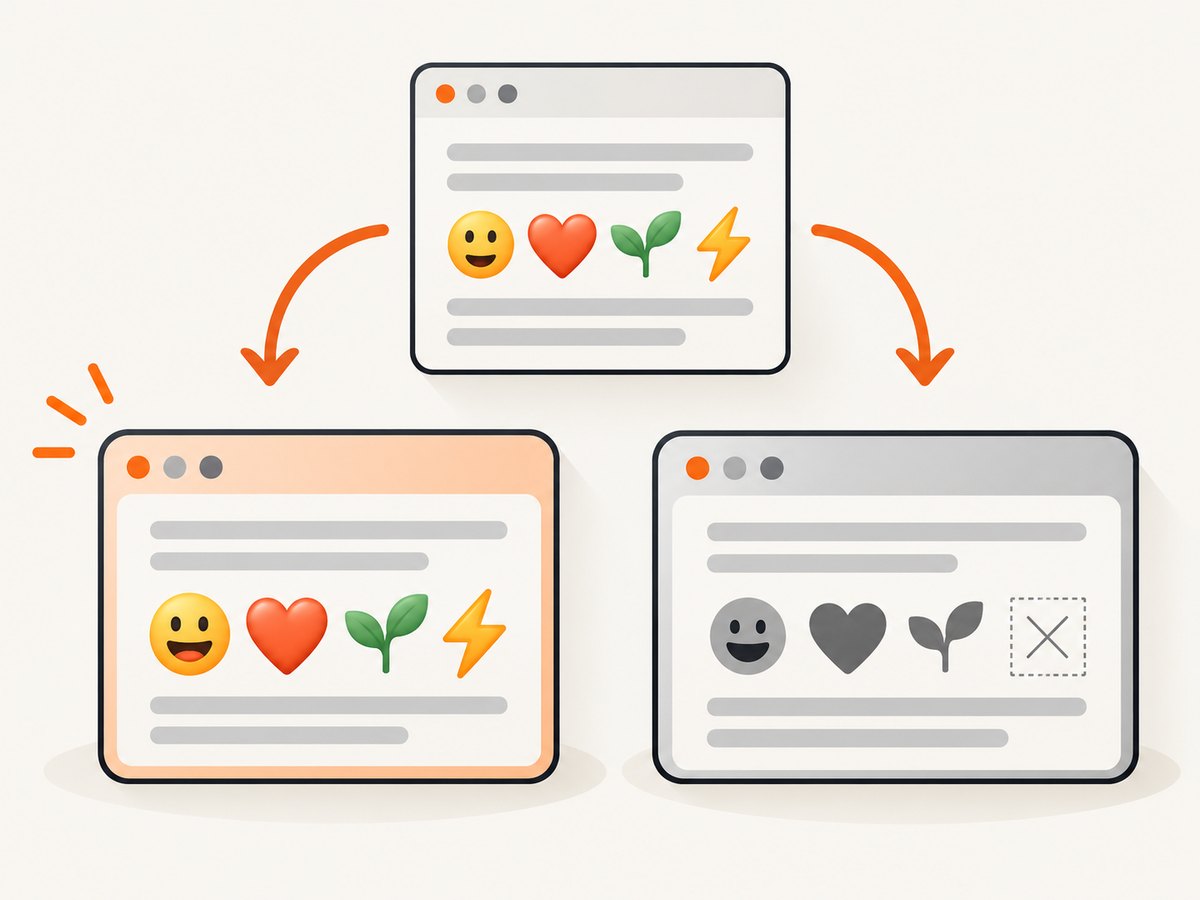
Chromium Blink says its emoji fallback aims to find emoji-capable fonts and prioritize color emoji fonts over monochrome fonts that happen to contain a glyph. The actual installed-font fallback path varies by platform: for example, Blink’s implementation notes describe different handling on Android, Linux, Windows, and macOS. [Chromium Blink: Locale uses in Fonts]
| What you see | Likely area to inspect |
|---|---|
| Monochrome glyph instead of color | Which font supplied the glyph and the platform’s fallback order |
| Empty space, box, or replacement symbol | Whether any available font supports the character or complete sequence |
| Only some flags or people render incorrectly | Multi-code-point sequences and coverage in the selected font |
| Local screenshot differs from CI | Browser build, OS image, installed fonts, headless mode, and capture timing |
| Emoji are occasionally wrong | Whether the font resource loaded before capture and whether the page was ready |
Do not assume a font present in one managed service is installed on another machine. Cloudflare Browser Run, for example, documents a managed font set that includes Noto Color Emoji; that describes its own environment, not every Linux container or CI image. [Cloudflare Browser Run: Custom fonts]
2. Reproduce the exact capture environment
- Record the capture browser and version, host image or operating system, and whether the run is headed or headless.
- Capture the same URL, viewport, device scale factor, and page state as the failing run.
- Put the specific failing emoji on a small test page alongside a plain emoji and the site’s relevant flags, modifiers, and joined sequences.
- Compare the result in the capture environment. Avoid diagnosing only from a desktop browser that is not used for the screenshot.
For visual comparisons, Playwright warns that rendering can vary with the host OS, browser version, settings, hardware, power source, and headless mode. Its guidance is to generate and compare snapshots in the same environment. [Playwright: Visual comparisons]
Keep your CI image and browser version stable where practical. When you deliberately update either one, review the resulting baselines as a rendering change. A baseline created on macOS is not a reliable pixel-level reference for a Linux container just because both use Chromium.
3. Check the font and the actual emoji sequences
First check whether the capture environment has a font that supports the glyphs you need. The font named in CSS might not exist in that environment, and the renderer will fall back to another available font. Check the computed styles and browser console, and inspect font-load failures in the network log. If you control the image, verify its installed fonts there; do not infer font availability from your laptop or from another provider’s documentation.
Test more than one smiling face. Emoji may comprise multiple code points. A skin-tone modifier (U+1F3FB–U+1F3FF), for example, combines with another emoji. The rainbow flag combines a white flag and a rainbow using a joiner. Chromium engineers have documented a historical segmentation issue with such sequences in Chrome’s browser UI; that example illustrates why sequence handling matters, but it is not evidence that every current webpage screenshot has the same bug. [Chromium engineering post]
A practical smoke-test set should include the exact sequences your product uses: plain emoji, a skin-tone variant, a national flag, a keycap if relevant, and a joined family or profession emoji. If only one sequence fails, investigate that sequence’s coverage and rendering before changing the entire page’s typography.
4. Load a known font before taking the screenshot
If the capture environment lacks a suitable font, supply one deliberately. Use a font asset whose license, glyph coverage, and visual style fit your project. A font file may not cover every emoji sequence, so validate your actual test cases. Inject its @font-face rule and apply it to the relevant element before capturing. Cloudflare’s Browser Run documentation describes this pattern with Puppeteer’s page.addStyleTag(); adapt it to your own browser automation setup. [Cloudflare Browser Run: Custom fonts]
import { chromium } from 'playwright';

const browser = await chromium.launch({ headless: true });
const page = await browser.newPage({ viewport: { width: 1280, height: 900 } });

try {
  await page.goto('https://example.com', { waitUntil: 'domcontentloaded' });
  await page.addStyleTag({
    content: `
      @font-face {
        font-family: 'ProjectEmoji';
        src: url('https://your-cdn.example/fonts/emoji-font.woff2') format('woff2');
        font-style: normal;
        font-weight: 400;
        font-display: block;
      }
      .emoji { font-family: 'ProjectEmoji', sans-serif; }
    `,
  });

  // Wait for web fonts before capturing. This resolves when fonts are ready
  // for the document, but still check that the font file loaded successfully.
  await page.evaluate(() => document.fonts.ready);
  await page.locator('.emoji').screenshot({ path: 'emoji.png' });
} finally {
  await browser.close();
}
Replace the example domain and selector with your own font asset and page. If a cross-origin font request fails, configure the font host to allow the browser’s request. A font can be declared in CSS while failing to load; wait for readiness and check network errors instead of treating the declaration as proof that the glyph is available. Applying the font only to an emoji class can also avoid changing the page’s ordinary text.
5. Make screenshot tests repeatable
For visual regression tests, treat the browser environment as part of the test input. Pin the browser and CI image where feasible, keep viewport and scale settings consistent, and generate reference images using the same setup as future comparisons. Playwright’s visual comparison guidance calls out environment differences as sources of rendering variation. [Playwright: Visual comparisons]
- Use stable capture settings: fix viewport, device scale factor, color scheme, locale, and browser mode.
- Wait for the page state you need: prefer a meaningful selector or application-ready signal to an arbitrary short delay.
- Wait for fonts: await
document.fonts.ready, then confirm the font resource did not fail. - Keep test content deterministic: use fixed text and data so unrelated changes do not obscure a glyph issue.
- Review environment upgrades: browser and OS image updates can change rendering; inspect new diffs before accepting a new baseline.
For exact artwork across operating systems, a font stack is not a pixel-identity guarantee. If identical pixels are a product requirement, consider using image assets for the relevant emoji artwork and test their layout at the target sizes. This gives you control of the image but changes how the artwork participates in text flow, accessibility, and scaling.
6. Troubleshooting common emoji screenshot failures
| Symptom | Cause to check | Fix |
|---|---|---|
| Emoji becomes a square or question mark | No available font covers the character or sequence | Check the capture image’s fonts; add a suitable font asset and verify its coverage for that exact sequence. |
| Emoji is black and white | A monochrome font supplied the glyph, or the platform chose a different fallback | Inspect the capture environment and available emoji fonts; test the target font and sequence on that platform. |
| Font CSS has no visible effect | The font URL failed, the selector missed, or the screenshot happened before loading | Inspect network and console errors, verify the selector, await document.fonts.ready, and capture again. |
| Only skin tones, flags, or joined emoji fail | The sequence needs multiple code points that may not be covered or rendered as expected | Test the complete sequence in the target browser and font, not just its component glyphs. |
| CI differs from local output | Different OS, browser build, fonts, or headed/headless settings | Reproduce in CI and use that same environment for the baseline and subsequent runs. |
| Emoji are wrong only in a full-page capture | The capture path or timing differs; there is not enough evidence to assume a universal full-page bug | Compare the same page state and environment, inspect the font request and capture timing, then reduce to a small reproducer. |
A 2024 Playwright issue report described one user’s intermittent font difference in full-page screenshots with Playwright 1.42.1, while their reported non-full-page capture did not reproduce it. The issue was closed as not planned; treat it as a version-specific report, not a general rule. [Playwright issue tracker]
7. Performance, reliability, and cost considerations
Adding a font introduces a resource the browser must fetch and decode. Hosting it close to the capture environment, using a suitably sized font file, and waiting on the actual font readiness can help avoid taking a screenshot during fallback. A remote font host also creates a dependency: if it is unreachable or blocks the request, the screenshot may silently use fallback. For repeatable CI, a controlled asset or environment can make that dependency easier to diagnose.
Use targeted font rules when possible. Applying a custom font to every element can alter ordinary text metrics and cause layout changes beyond emoji. After adding a font, recheck line wrapping, element dimensions, and screenshot baselines.
Managed screenshot services remove browser installation and maintenance from an application, but their font availability is specific to that service. Confirm the target sequences in the actual service output. The sources cited here do not provide an exhaustive compatibility matrix for every emoji, browser, and operating system, so no single stack can be promised to render all emoji identically.
8. Or skip the browser setup
ScreenshotNeo is a website screenshot API and MCP server. Use its one-call API when you want a screenshot without installing and maintaining a browser. See the ScreenshotNeo API docs for configuration and additional options.
curl -G "https://api.screenshotneo.com/v1/shot" \
  -d access_key=YOUR_API_KEY \
  --data-urlencode url=https://stripe.com \
  -o shot.webp
import requests
r = requests.get(
"https://api.screenshotneo.com/v1/shot",
params={"access_key": "YOUR_API_KEY", "url": "https://stripe.com"},
timeout=90,
)
r.raise_for_status()
open("shot.webp", "wb").write(r.content)const q = new URLSearchParams({
access_key: 'YOUR_API_KEY',
url: 'https://stripe.com'
});
const res = await fetch(`https://api.screenshotneo.com/v1/shot?${q}`);
if (!res.ok) throw new Error(`Screenshot request failed: ${res.status}`);
await Bun.write('shot.webp', res);ScreenshotNeo removes cookie banners, newsletter popups, and chat widgets before the shot; bot checks, blank pages, and failed loads are never billed. Its MCP server lets AI agents take screenshots, and 1,000 screenshots a month are free with no card; paid plans start at $5 for 3,000. To keep emoji output consistent, still validate your target page and rendering requirements in the capture output.
Sign up for ScreenshotNeo’s free plan: 1,000 screenshots a month, no card required.
9. Frequently asked questions
Can CSS force every browser to show the same emoji design?
No. A CSS font list identifies preferred fonts, but installed fonts and fallback differ by environment. Validate the required output on each supported capture target.
Should I put emoji font names in my site-wide font stack?
Only if that matches your design. For capture-specific fixes, apply the font to the emoji elements so ordinary text does not inherit different metrics.
Does a successful font-ready check prove every emoji exists?
No. It indicates document fonts have reached a ready state; it does not prove a particular font contains every code point or sequence. Inspect the resource and verify the actual glyphs in screenshots.
Why does the same emoji look different on two machines?
The machines can use different emoji fonts or platform-specific fallback. For stable comparisons, capture and compare within the same controlled environment.


