How to Repeat a Background Image on Every HTML-to-PDF Page
Enable background printing in your PDF renderer, then define the image in print CSS or a page rule. Here are runnable examples and fixes for Puppeteer, Playwright, and WeasyPrint.
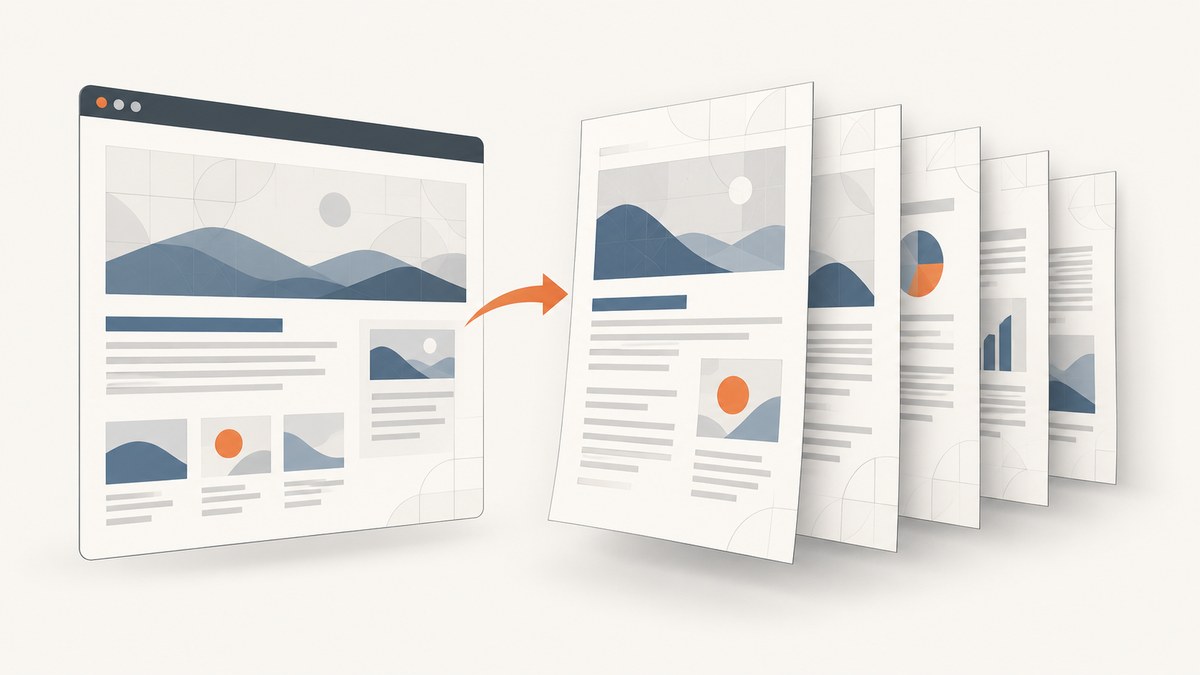
To repeat a background image on every HTML-to-PDF page, do two things: define the background in the renderer’s print CSS, and enable background printing in the PDF-generation options. In Puppeteer and Playwright, that option is printBackground: true; both generate PDFs using print CSS media by default. For WeasyPrint, you can style the page box with an @page rule and a background image. The exact placement and repetition still depend on the CSS target and renderer, so inspect the PDF produced by your installed version.
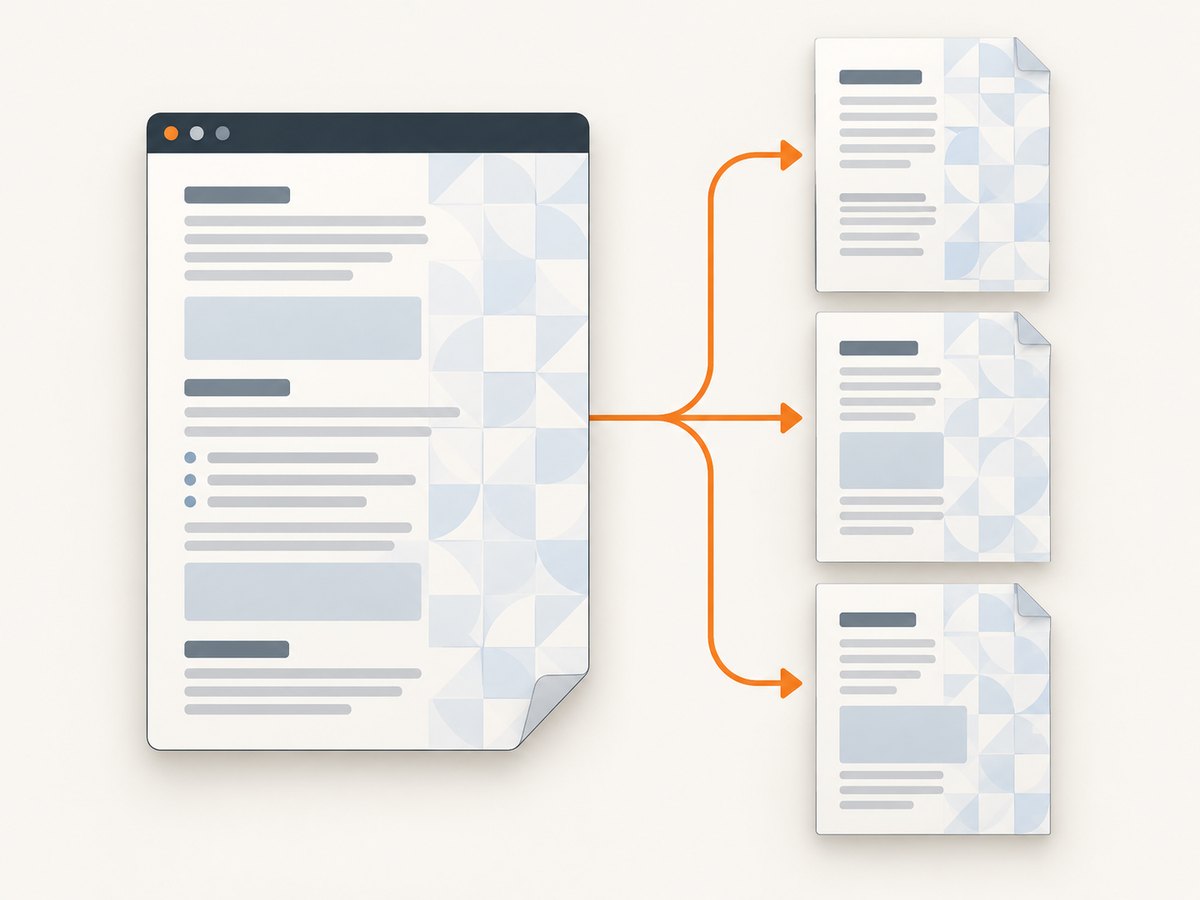
A background on the document body and a background on each printed page are different layout choices. Use a body background when you want it associated with the document’s content area. Use @page when you want the image associated with each PDF page box. Neither approach removes the need to check page breaks, image loading, and the renderer’s output.
1. Identify the PDF renderer and choose the target
Start by finding the code that creates the PDF. HTML-to-PDF libraries do not all expose the same settings or implement every print feature in the same way. The title alone does not tell you whether the project uses Chromium, WeasyPrint, or another engine.
- Find the PDF call. Look for
page.pdf()in a Puppeteer or Playwright project, or the WeasyPrint HTML-to-PDF API call. - Check the installed version. Read the documentation for that version when possible. Renderer support and options can change between versions.
- Choose what the image should cover. A background on the document element or body follows document styling; a page background targets the printed page. Decide whether the pattern should cover the printable page, content area, or a particular element.
- Make the CSS apply in print. Put the rule in ordinary stylesheets or a
@media printblock. Check for other print rules that override it. - Enable background output if the renderer requires it. In Puppeteer and Playwright, set
printBackground: true. - Render a multipage sample. Check the first, middle, and last pages, as well as pages around a forced break.
For Chromium-based PDF calls, backgrounds are disabled by default. The flag permits CSS backgrounds to appear; it does not select an image, set its size, or guarantee a particular placement on each page. Puppeteer’s Page.pdf() documentation describes print media behavior, and its PDF options reference documents the background option. Playwright documents the corresponding behavior in its Page API.
2. Puppeteer: enable backgrounds and define print CSS
This runnable Node.js example writes a small HTML document to a local file, loads it in headless Chromium, and generates a PDF. Save it as make-pdf.cjs. Install Puppeteer with npm install puppeteer, then run node make-pdf.cjs. The CSS background uses a remote image URL as an example; in a real project, substitute a URL the renderer can reach or a local asset URL that resolves in the page.
const fs = require('node:fs/promises');
const path = require('node:path');
const puppeteer = require('puppeteer');

async function main() {
  const html = `<!doctype html>
<html>
<head>
  <meta charset="utf-8">
  <style>
    @page { size: A4; margin: 18mm; }
    html, body { margin: 0; }
    body {
      font: 16px/1.5 system-ui, sans-serif;
      background-image: url("https://example.com/pattern.png");
      background-position: top left;
      background-repeat: repeat;
      background-size: 240px auto;
    }
    .page-content { min-height: 1100px; }
    @media print {
      body { -webkit-print-color-adjust: exact; print-color-adjust: exact; }
      .new-page { break-before: page; }
    }
  </style>
</head>
<body>
  <section class="page-content"><h1>First page</h1><p>Example content.</p></section>
  <section class="page-content new-page"><h1>Second page</h1><p>More content.</p></section>
</body>
</html>`;

  const inputPath = path.resolve('input.html');
  const outputPath = path.resolve('output.pdf');
  await fs.writeFile(inputPath, html, 'utf8');

  const browser = await puppeteer.launch({ headless: true });
  try {
    const page = await browser.newPage();
    await page.goto(`file://${inputPath}`, { waitUntil: 'networkidle0' });
    await page.pdf({
      path: outputPath,
      format: 'A4',
      printBackground: true,
      preferCSSPageSize: true,
    });
  } finally {
    await browser.close();
  }
}

main().catch((error) => {
  console.error(error);
  process.exitCode = 1;
});
The important PDF setting is printBackground: true. preferCSSPageSize: true tells Puppeteer to prefer the page dimensions in CSS, which is useful when you specify @page { size: A4 }. If you set format and CSS page size differently, decide which should control the result and verify the output. The print-color adjustment declaration is a CSS hint; the PDF option remains necessary to include backgrounds in the first place.
The sample includes a forced break to make a two-page output easy to inspect. Remove that break and the artificial minimum height in production. Natural pagination depends on content, fonts, margins, and page dimensions.
3. Playwright: use the equivalent PDF option
Playwright’s Chromium page API accepts the same printBackground option. The example below assumes npm install playwright and a Playwright browser installation for your environment. Save it as make-pdf.mjs and run node make-pdf.mjs.
import { chromium } from 'playwright';

const browser = await chromium.launch({ headless: true });
try {
  const page = await browser.newPage();
  await page.setContent(`<!doctype html>
    <html><head><meta charset="utf-8">
    <style>
      @page { size: A4; margin: 18mm; }
      body {
        font: 16px/1.5 system-ui, sans-serif;
        background: url("https://example.com/pattern.png") repeat top left / 240px auto;
      }
      @media print {
        body { -webkit-print-color-adjust: exact; print-color-adjust: exact; }
        .page { min-height: 1100px; }
        .new-page { break-before: page; }
      }
    </style></head><body>
      <section class="page"><h1>First page</h1><p>Example content.</p></section>
      <section class="page new-page"><h1>Second page</h1><p>More content.</p></section>
    </body></html>`, { waitUntil: 'networkidle' });

  await page.pdf({
    path: 'output.pdf',
    format: 'A4',
    printBackground: true,
    preferCSSPageSize: true,
  });
} finally {
  await browser.close();
}
Playwright documents that PDF generation uses print CSS media and that background printing is controlled by the PDF option. See its Page API reference. If your project uses a non-Chromium browser, confirm that the required PDF API and behavior apply to that browser; do not assume every Playwright browser has identical PDF support.
4. WeasyPrint: style the page box with @page
WeasyPrint has a page-oriented CSS model. Its stable API reference documents background properties and page selectors, including backgrounds on @page. A minimal Python example can render a document containing an explicit page background:
from weasyprint import HTML

html = """<!doctype html>
<html>
<head>
  <meta charset="utf-8">
  <style>
    @page {
      size: A4;
      margin: 18mm;
      background-image: url("pattern.png");
      background-repeat: repeat;
      background-position: top left;
    }
    body { font: 16px/1.5 sans-serif; }
    .page { break-after: page; min-height: 240mm; }
  </style>
</head>
<body>
  <section class="page"><h1>First page</h1><p>Example content.</p></section>
  <section><h1>Second page</h1><p>More content.</p></section>
</body>
</html>"""

HTML(string=html, base_url=".").write_pdf("output.pdf")
Install WeasyPrint according to the official API reference and your operating system’s requirements. base_url="." gives relative asset references such as pattern.png a base directory; change it to the directory containing your HTML and image. Without a resolvable base URL, a relative background image may not load.
The sample uses @page because the requirement is a page-level background. It also uses a page break to demonstrate multiple pages. WeasyPrint’s documented CSS support includes background, background-image, background-repeat, background-position, and related properties. Consult the docs for the installed version and verify that the resulting page boxes match your needs.
5. Choose CSS that matches the image and layout
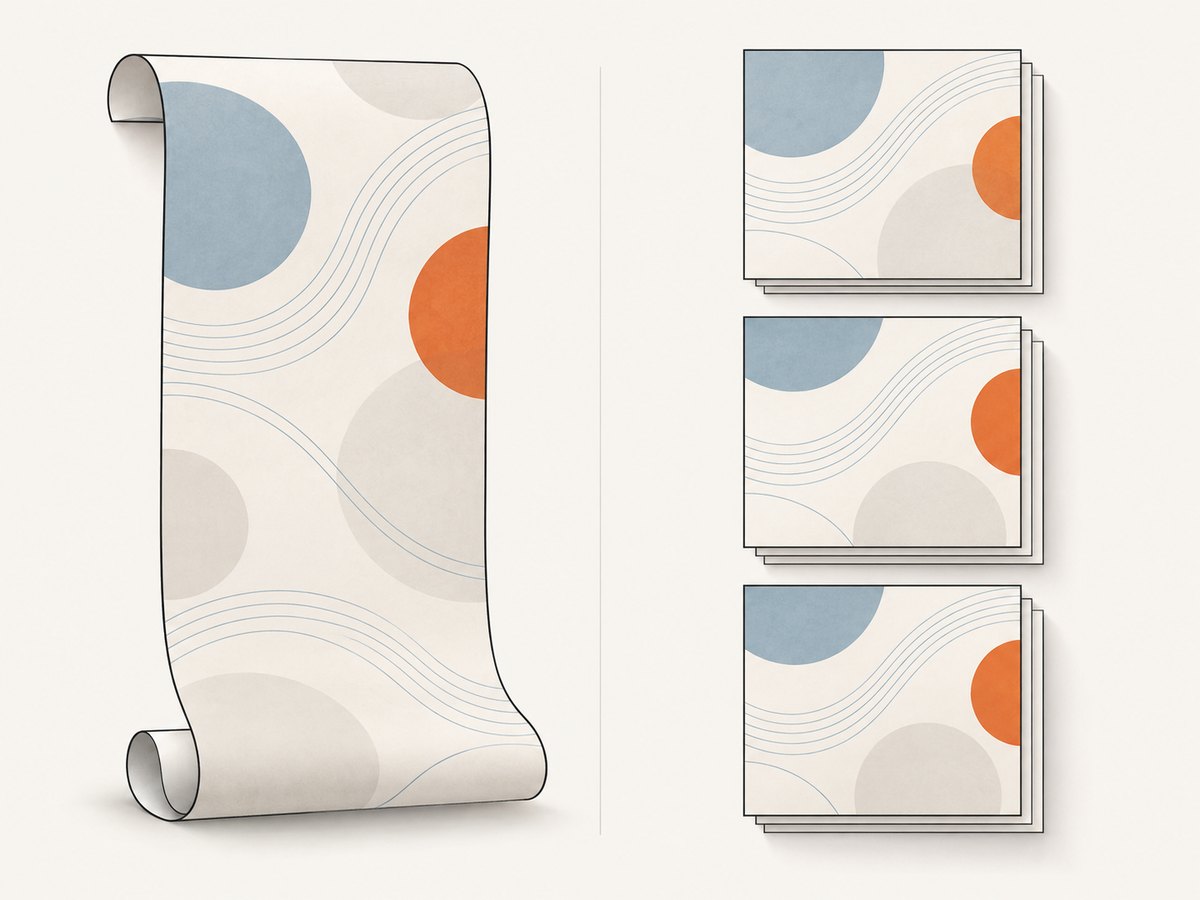
Once backgrounds are enabled, the CSS determines which image is drawn and how it is laid out. These are the common controls:
| CSS choice | What it changes | When to use it |
|---|---|---|
background-repeat: repeat |
Tiles the image in both directions. | Small patterns intended to continue across the page. |
background-repeat: no-repeat |
Draws one image instance. | A single page decoration or watermark. |
background-size: cover |
Scales the image to cover its background box, potentially cropping it. | A large image where filling the box matters more than showing every edge. |
background-size: contain |
Scales the image to fit inside the background box, possibly leaving space. | When the complete image should remain visible. |
background-size: 240px auto |
Sets a fixed width and preserves the intrinsic ratio with auto. |
Controlling the tile size of a repeatable pattern. |
background-position |
Sets the starting position of the image. | Aligning a motif consistently with the page or content. |
For a body-level background, a page break does not necessarily mean the CSS box itself restarts at the top of each physical page. If the image appears continuous across the document or its position changes at a break, use the renderer’s page-level approach where supported, or restructure the document into page elements if your layout allows it. A page element with a background can make the intended repetition explicit, but fixed-height page containers need careful handling when content overflows. Avoid hiding overflow just to force a visual result; that can clip content.
Margins matter too. A background on a page box may occupy a different area than a background on the content element. A nonzero page margin can leave the page background visible behind the margin area, while a body background is tied to the body’s painted area. Check printed page dimensions and margins in the PDF, especially if the graphic must extend to the edge.
6. Test repetition, loading, and page breaks
A one-page preview cannot prove that a background repeats correctly. Make a small fixture with enough content to create at least three pages, and inspect pages at different positions in the document.
- Use a visible test pattern. Choose an image with an identifiable corner or repeated motif so that scaling and alignment are easy to see.
- Test natural and forced pagination. Include a forced break and a paragraph long enough to flow across a page boundary.
- Check image readiness. Confirm the image URL is reachable from the machine or container running the renderer. Wait for page load and, when necessary, check that the image has loaded before calling the PDF API.
- Review print CSS. Look for
@media printrules that replace backgrounds, setbackground: none, or change the element’s dimensions. - Inspect the actual PDF. Check that the image appears on every intended page, is not unexpectedly cropped, and does not obscure text.
- Repeat after upgrades. Render the same fixture after changing the browser or library version.
The W3C CSS Print Profile discusses print behavior and page breaks, including preserving content when long elements cross page boundaries. It does not establish one universal implementation rule for every HTML-to-PDF renderer. The renderer’s own documentation and your generated output are the practical references.
7. Troubleshooting common failures
| Symptom | Likely cause | Fix |
|---|---|---|
| Text prints but no background appears. | Background printing is disabled in the PDF API. | Set printBackground: true for Puppeteer or Playwright, then render again. |
| The CSS rule works in a browser window but not in the PDF. | The PDF uses print media, or a print rule overrides the screen style. | Put the desired background in print CSS and inspect all applicable @media print rules. |
| The first page has a background, later pages do not or look different. | The background is attached to a content box whose pagination or height does not match the page layout. | Try a supported page-level rule such as WeasyPrint’s @page background, or restructure content into deliberate page containers. Verify with a multipage fixture. |
| The image is missing entirely. | The renderer cannot resolve the URL, network access is blocked, or a relative URL has no base directory. | Use a reachable absolute URL or configure the document base path; check server logs and asset permissions. |
| The PDF sometimes omits the image. | The capture started before the image finished loading, or the remote asset was slow or unavailable. | Wait for page navigation and image readiness; for remote assets, consider hosting a stable local copy or handling load failures explicitly. |
| The image tiles at an unexpected scale. | The source dimensions or default background sizing do not match the intended pattern. | Specify background-size, position, and repeat behavior explicitly. |
| The background is clipped at the page edge. | Page size, margins, or the selected background box differs from the design assumption. | Set and align CSS page size and PDF options; decide whether the image belongs on the page box or content box. |
| Text becomes hard to read over the image. | The pattern is too dark or busy beneath content. | Use a low-contrast image, add an opaque content surface, or limit the background to selected page regions. |
| A break splits a card or image unexpectedly. | The content element crosses a page boundary and the engine paginates it according to its print layout. | Adjust print layout and break rules, then test the overflowing case. Avoid fixed page heights that clip content. |
8. Performance, reliability, and cost considerations
Backgrounds add image data to the rendering workload and often to the PDF. A small repeating texture is usually a more practical input than an oversized full-resolution photograph, but the useful choice depends on the required output quality and file size. Choose dimensions close to the printed scale, and avoid downloading the same asset repeatedly when the application can provide it locally or use normal browser caching.
Remote images introduce a dependency on DNS, network access, certificates, redirects, and the image host’s availability. For repeatable server-side output, use an asset path the renderer can resolve consistently. Set a deliberate navigation or job timeout, and make image readiness part of the capture process if the document can render before the CSS asset arrives. A successful page load does not by itself prove every background asset loaded.
PDF output also depends on fonts, page size, margins, CSS, browser or library version, and operating environment. Keep a small representative HTML fixture and compare output when any of these change. For business-critical PDFs, log the renderer version and useful error details so missing assets and failed jobs can be diagnosed.
Cost depends on your rendering setup: local CPU and memory, hosted browser execution, storage, and bandwidth for assets. This research provides no comparable benchmark across engines, so measure your own documents rather than relying on a generic pages-per-second estimate. Keep page count and asset sizes within the needs of the document.
9. Or skip the browser setup
If your goal is a website screenshot or PDF and you do not need to manage a browser renderer, ScreenshotNeo provides a website screenshot API and MCP server. Its PDF support includes page settings such as paper size, margins, landscape, and page ranges. Check the ScreenshotNeo API documentation for the current request options. The one-call example below captures a PDF:
curl -G "https://api.screenshotneo.com/v1/shot" \
  -d access_key=YOUR_API_KEY \
  --data-urlencode url=https://stripe.com \
  -d format=pdf \
  -o page.pdf
ScreenshotNeo accepts cookie and consent banners before capture and removes more than 60 known consent platforms, newsletter popups, and chat widgets; each step can be turned off. Bot checks and CAPTCHAs, blank pages, timeouts, failed loads, and cache hits are not billed, and the response identifies the page verdict and billing status in headers. Its MCP server provides take_screenshot, get_page_info, and capture_pdf for Claude, Cursor, and other MCP clients. The free plan includes 1,000 shots a month with no card; paid plans start at $5 for 3,000 shots. Every feature is on every plan.
Sign up free for 1,000 screenshots a month, with no card required.
10. FAQ
Does printBackground: true create a background image?
No. It allows CSS backgrounds to be printed. You still need a CSS rule that points to the image and sets its desired position, size, and repeat behavior.
Should the image go on body or @page?
Use the element background when it should follow the document’s content styling. Use a page rule when the renderer supports it and the image should belong to the PDF page box. Test the output because the two targets can paint different areas.
Will the same CSS work in every HTML-to-PDF library?
Do not assume so. Confirm the relevant CSS and PDF options in the documentation for your renderer and version, then inspect a multipage output.
Why does the image appear only in print preview or only in the PDF?
The preview and PDF may use different media rules, settings, or renderer versions. Compare the effective print CSS and the PDF API options used by the application.


