How to Repeat a Background Image on Every Page in Puppeteer PDFs
Make Puppeteer PDF backgrounds repeat reliably: print CSS, printBackground, @page options, loading, pagination traps, and fixes.
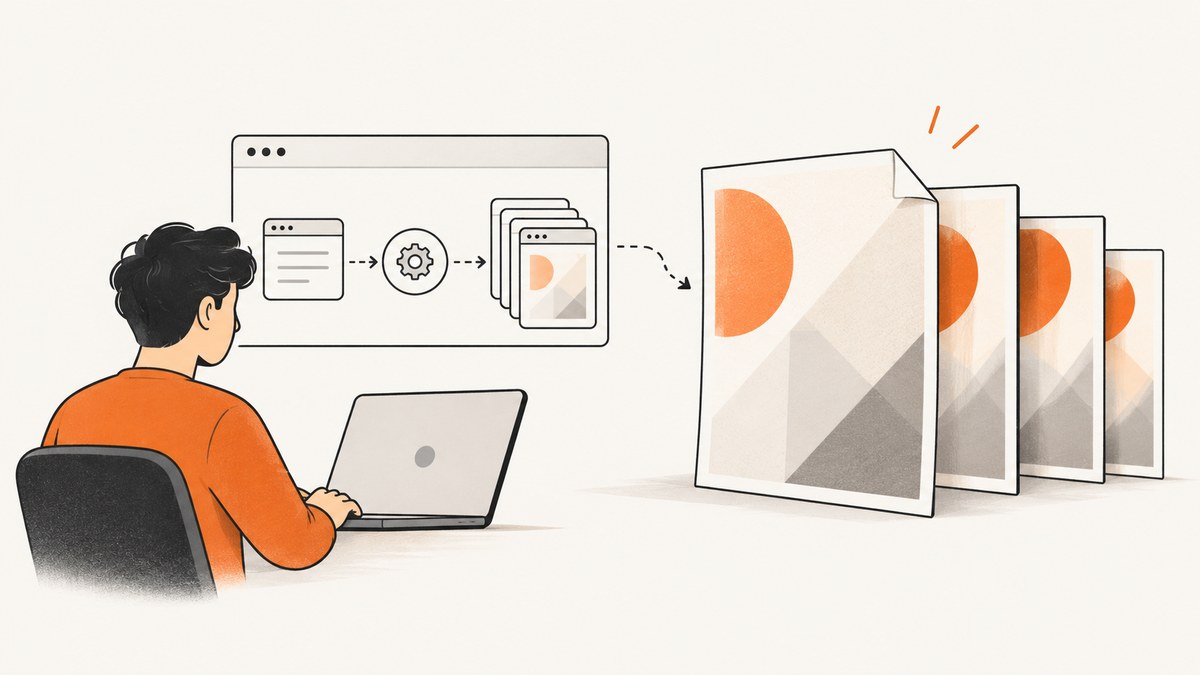
Direct answer: Puppeteer renders PDFs with print media. Put the background image in print-active CSS, call page.pdf({ printBackground: true }), and choose whether you need a tiled background inside a content element or a page-level background for every physical sheet. background-repeat controls tiling inside a painting area; it does not by itself guarantee one image on every generated PDF page. For page-by-page artwork, test @page rules (or a page-sized layout) in the exact Chromium version you deploy.
This guide shows a reproducible implementation, explains the layout and pagination traps, and gives a verification checklist. The examples use a multi-page invoice-like document so you can inspect the first page, a page break, and the final page.
1. Understand what Puppeteer is printing
page.pdf() uses the print CSS media type by default, as documented in the Puppeteer Page.pdf API. Screen-only declarations can therefore disappear from the PDF. Put PDF-specific rules in a print stylesheet or an @media print block.
There are two different meanings of “repeat”:
- Tile in a region: an element background repeats across that element’s painted area. Use
repeat,repeat-y, orrepeat-x. - One image on every sheet: each generated PDF page gets its own artwork. This involves page fragmentation, margins, and browser support; it is not solved by
background-repeatalone.
2. A minimal, runnable Puppeteer example
Install Puppeteer, save the following as repeat-bg.js, and run it with Node.js. The data URL keeps the fixture self-contained; replace it with a hosted image after you have verified pagination.
const puppeteer = require('puppeteer');

(async () => {
  const browser = await puppeteer.launch({headless: true});
  const page = await browser.newPage();

  const rows = Array.from({length: 90}, (_, i) =>
    `<tr><td>Line ${i + 1}</td><td>Description for item ${i + 1}</td><td>$${(i + 1) * 3}.00</td></tr>`
  ).join('');

  await page.setContent(`
    <!doctype html>
    <html>
    <head>
      <meta charset="utf-8">
      <style>
        html, body { margin: 0; }
        body { font: 12px/1.4 Arial, sans-serif; }
        .sheet { min-height: 260mm; padding: 18mm; box-sizing: border-box; }
        .tile-region {
          background-image: url("data:image/svg+xml,%3Csvg xmlns='http://www.w3.org/2000/svg' width='80' height='80'%3E%3Cpath d='M0 40h80M40 0v80' stroke='%23e5e7eb'/%3E%3C/svg%3E");
          background-repeat: repeat;
        }
        table { width: 100%; border-collapse: collapse; }
        td { border-bottom: 1px solid #ddd; padding: 5px; }
        @media print {
          .tile-region { background-repeat: repeat; }
        }
        @page { size: A4; margin: 10mm; }
      </style>
    </head>
    <body>
      <main class="sheet tile-region">
        <h1>Repeated background test</h1>
        <p>This content intentionally spans several pages.</p>
        <table>${rows}</table>
      </main>
    </body>
    </html>`);

  await page.pdf({
    path: 'output.pdf',
    format: 'A4',
    printBackground: true,
    preferCSSPageSize: true,
    margin: {top: '10mm', right: '10mm', bottom: '10mm', left: '10mm'}
  });
  await browser.close();
})();
The key switch is printBackground: true. Puppeteer documents it as enabling background graphics; it does not create a background or choose how it repeats. The PDFOptions reference lists the related page-size, margin, scale, and media options.
3. Make a tiled element background survive pagination
For a texture that should tile wherever one element paints, use ordinary CSS:
@media print {
  .report {
    background-image: url("/assets/grid.png");
    background-repeat: repeat;   /* both axes */
    background-position: top left;
    background-size: 80px 80px;
  }
  .vertical-stripe {
    background-image: url("/assets/stripe.png");
    background-repeat: repeat-y;  /* vertical only */
  }
}
According to MDN’s background-repeat documentation, the image repeats to cover the background painting area. If the element is fragmented across PDF pages, the browser decides how that painting area is fragmented. A tile can restart, clip at a break, or stop when the element’s box ends. That is why a successful single-page test does not prove every page will look identical.
4. Put artwork on every physical PDF page
If the requirement is a logo, watermark, or border on every sheet, investigate a page-level rule and compare it with a page-sized element approach.
@page {
  size: A4;
  margin: 14mm;
  /* Test page-level background support in your Chromium build. */
  background: url("/assets/watermark.png") center / 35mm 35mm no-repeat;
}

@media print {
  .content { background: none; }
}
MDN’s @page reference describes page size, orientation, and margins, but support for individual page features varies. Chrome’s print-margin work also evolves by version (see the Chrome for Developers overview). Treat this as a version-specific experiment, not a universal guarantee.
A fallback is to render a fixed page frame in your document and repeat it in your own pagination model:
.page {
  position: relative;
  width: 210mm;
  min-height: 297mm;
  break-after: page;
  box-sizing: border-box;
  padding: 18mm;
}
.page::before {
  content: "";
  position: absolute;
  inset: 0;
  background: url("/assets/watermark.png") center / 35mm 35mm no-repeat;
  pointer-events: none;
}
.page > * { position: relative; }
@media print { .page:last-child { break-after: auto; } }
This gives you explicit page boxes, but you must split content yourself. It is useful when exact placement matters more than automatic flow.
5. Coordinate page size, margins, and scaling
Page dimensions change the area in which a background is painted. Keep these settings consistent:
| Concern | What to check |
|---|---|
| CSS page size | @page { size: A4; } or a custom width/height. |
| Puppeteer size | format, width, and height can override assumptions. |
| Margins | API margins and CSS margins alter the content and painting areas. |
| CSS priority | preferCSSPageSize: true gives CSS @page size priority. |
| Scale | Non-default scale can make tiles appear larger or smaller. |
Choose one source of truth for paper size, then inspect the resulting PDF dimensions. If a watermark is clipped, first remove custom margins and scale, then add them back one at a time.
6. Ensure the image is loaded before PDF generation
Puppeteer waits for fonts during PDF generation, but that does not guarantee every external CSS image has finished downloading. Wait for the image explicitly when it is remote:
await page.goto('https://example.com/report', {waitUntil: 'networkidle0'});
await page.waitForFunction(() => {
  return [...document.images].every(img => img.complete && img.naturalWidth > 0);
});
await page.evaluate(() => document.fonts.ready);
await page.pdf({path: 'output.pdf', printBackground: true});
For CSS backgrounds, preload the asset or check it in page context:
await page.evaluate(async () => {
  const img = new Image();
  img.src = '/assets/watermark.png';
  await img.decode();
});
Use a timeout appropriate to your environment. networkidle0 can hang on analytics or streaming connections; in that case wait for a specific selector plus a bounded delay.
7. Choose the repetition strategy
- Tile a region: use
background-repeat: repeat(orrepeat-y/repeat-x) on an element that spans the intended area. - One mark per sheet: test
@pagein the deployed Chromium version. - Exact branded pages: create explicit
.pageboxes and repeat a pseudo-element. - Header/footer content: use Puppeteer’s
displayHeaderFooterand templates for text or simple markup; do not assume a CSS background in the header template behaves like the document background.
Do not combine all three approaches until you know which layer owns the artwork. Overlapping backgrounds are a common source of double watermarks and unexpected clipping.
8. Verification checklist for multi-page PDFs
- Generate at least three pages with a forced page break and a long final page.
- Open page 1, the first page after a break, and the final page.
- Check that the image exists, repeats in the intended direction, and is not clipped by margins.
- Compare a PDF made with
printBackground: falseto confirm your test is actually exercising the switch. - Record Puppeteer and Chromium versions in CI; rendering can change after upgrades.
- Check print color adjustment. Chromium may modify colors for print; use
-webkit-print-color-adjust: exactonly when that behavior is required.
9. Troubleshooting
Background is completely missing
Cause: printBackground is false (the default), the rule is screen-only, or the URL is blocked. Fix: set printBackground: true, move the declaration into print CSS, and verify the asset URL from the page context.
It appears on page one but not later pages
Cause: the element’s painted area ends or is fragmented at the page break. Fix: test an @page rule or explicit page frames; do not rely on background-repeat to create new page boxes.
The tile is stretched or unexpectedly tiny
Cause: background-size, PDF scale, or a different paper size. Fix: set an explicit tile size, use scale: 1, and align @page with preferCSSPageSize.
Edges are cut off
Cause: margins or a painting area that is not an exact multiple of the tile. Fix: adjust background-position, tile dimensions, or margins; clipping at the edge is normal for CSS tiling.
Remote image sometimes disappears
Cause: PDF generation starts before the CSS image loads, or the request needs authentication. Fix: preload and await decode(), use request interception or headers, and capture a bounded diagnostic screenshot before generating the PDF.
Colors differ from the browser
Cause: print color adjustment. Fix: compare with and without -webkit-print-color-adjust: exact and keep the choice consistent in your target Chromium version.
PDF generation hangs
Cause: networkidle0 never occurs because of long-lived requests. Fix: wait for a known selector, then use a finite delay and an overall timeout.
10. Performance, reliability, and cost
Large background bitmaps increase download, decode, and PDF size costs. Prefer a small tile for patterns, modern image formats where your Chromium build supports them, and a stable cache URL. Avoid embedding a multi-megabyte image as a data URL on every page. Reuse one browser instance for batches, but create a fresh page per document and close pages promptly.
Reliability comes from deterministic inputs: pin Puppeteer/Chromium versions, serve assets from an endpoint available to the renderer, set timeouts, and retain a fixture PDF in CI for visual comparison. A CSS rule that works in one browser build can change after an upgrade, especially for page-margin and @page features.
11. Or skip the browser setup
If your goal is a clean screenshot or PDF of a URL rather than maintaining Chromium, ScreenshotNeo provides a single GET endpoint. Cookie and consent banners are accepted and removed before capture, along with 60+ known consent platforms, newsletter popups, and chat widgets. Bot checks, blank pages, timeouts, failed loads, and cache hits are not billed, and response headers identify the verdict and billing status. Its MCP server exposes take_screenshot, get_page_info, and capture_pdf for Claude, Cursor, and other MCP clients.
See the ScreenshotNeo API documentation for all options.
curl -G "https://api.screenshotneo.com/v1/shot" -d access_key=YOUR_API_KEY --data-urlencode url=https://stripe.com -o shot.webpimport requests
r = requests.get("https://api.screenshotneo.com/v1/shot", params={"access_key": "YOUR_API_KEY", "url": "https://stripe.com"}, timeout=90)
open("shot.webp", "wb").write(r.content)const q = new URLSearchParams({ access_key: 'YOUR_API_KEY', url: 'https://stripe.com' });
const res = await fetch(`https://api.screenshotneo.com/v1/shot?${q}`);
const data = await res.arrayBuffer();
require('fs').writeFileSync('shot.webp', Buffer.from(data));Use it when you want the browser setup handled for you, predictable clean captures, and an agent-accessible API. The free plan includes 1,000 screenshots each month with no card; paid plans start at $5 for 3,000. Create a free ScreenshotNeo account.
12. FAQ
Does background-repeat: repeat guarantee repetition on every PDF page?
No. It tiles an element’s painting area. Page fragmentation and page-level painting are separate concerns.
Should I use page.emulateMediaType('screen')?
Only when the PDF should use screen styles. The default is print media; choose deliberately based on the design you want.
What is the safest way to test an upgrade?
Generate a fixed multi-page fixture with the exact production versions and compare representative pages for presence, placement, and clipping.
Can I use a different image on each page?
Yes, with explicit page elements or generated per-page markup. A single CSS background rule does not provide page-index logic.


