How to Repeat Table Headings on Every Page in Puppeteer PDFs
Use a semantic <thead> and print CSS to repeat table headings in Puppeteer PDFs. Get runnable code, pagination options, and fixes for common Chromium layout problems.
To repeat table headings on every page of a Puppeteer PDF, put the column heading row inside a semantic <thead>, put data rows inside <tbody>, and preserve the header group’s print display role. Then generate the PDF with page.pdf(). A reliable baseline is:
<table class="report">
  <thead>
    <tr>
      <th scope="col">Item</th>
      <th scope="col">Status</th>
      <th scope="col">Total</th>
    </tr>
  </thead>
  <tbody>
    <!-- data rows -->
  </tbody>
</table>
@media print {
thead { display: table-header-group; }
}await page.pdf({
path: 'report.pdf',
format: 'A4',
printBackground: true
});Puppeteer renders PDFs using the print CSS media type, and its PDF options let you control paper dimensions, margins, and CSS page-size priority. The HTML standard maps <thead> to display: table-header-group; CSS describes that role as a header group that print user agents may repeat across pages. Puppeteer page.pdf(), HTML rendering rules, CSS 2.2 table model.
1. Why the header repeats
Printed pages divide a long document into fragments. A properly structured table tells the renderer which rows are column labels and which are ordinary data. The browser can then draw the header group again when the table continues on another page. In a web document, the browser’s default styling already assigns <thead> the table-header-group display value; stating it inside @media print makes the intended print behavior explicit and easier to inspect.
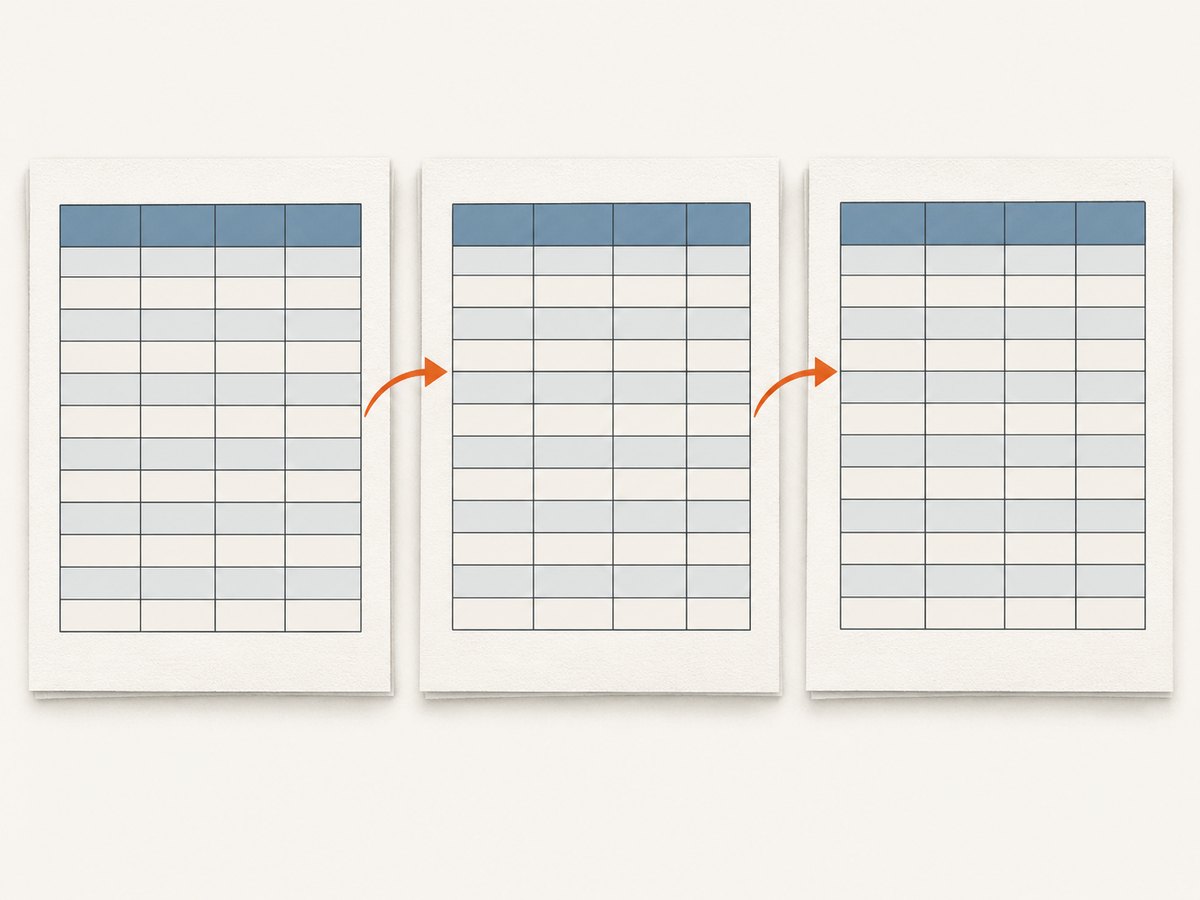
Chromium’s printing fixture specifically covers table header groups repeating at the top of each page. This is the behavior to aim for, but it is not a guarantee that every complex layout or every browser version will produce identical output. Puppeteer issue #10020 documents a version/layout case where the display value was ignored. Treat that issue as a reason to validate your actual production stack, not as proof that current releases always fail. Chromium printing tests, Puppeteer issue #10020.
Use an actual table when the content is tabular. A collection of styled <div> elements may look like a table on screen, but it does not provide the table row-group structure Chromium needs for native repeated headers.
2. Complete runnable Puppeteer example
The following Node.js script creates a small HTML report with enough rows to cross multiple pages, launches Puppeteer, waits for the document to load, and writes report.pdf. Install Puppeteer in your project with npm install puppeteer, save this as make-report.js, then run node make-report.js.
const puppeteer = require('puppeteer');

async function main() {
  const rows = Array.from({ length: 100 }, (_, i) => `
    <tr>
      <td>Item ${i + 1}</td>
      <td>${i % 3 === 0 ? 'Complete' : 'In progress'}</td>
      <td>$${(i * 17.25).toFixed(2)}</td>
    </tr>
  `).join('');

  const html = `<!doctype html>
  <html>
    <head>
      <meta charset="utf-8">
      <title>Monthly report</title>
      <style>
        @page { size: A4; margin: 18mm 15mm; }
        body { font: 12px Arial, sans-serif; color: #222; }
        h1 { font-size: 20px; }
        table { width: 100%; border-collapse: collapse; }
        th, td { border: 1px solid #bbb; padding: 7px; text-align: left; }
        th { background: #e8eef5; }
        @media print {
          thead { display: table-header-group; }
          tr { break-inside: avoid; }
        }
      </style>
    </head>
    <body>
      <h1>Monthly report</h1>
      <table>
        <thead>
          <tr><th>Item</th><th>Status</th><th>Total</th></tr>
        </thead>
        <tbody>${rows}</tbody>
      </table>
    </body>
  </html>`;

  const browser = await puppeteer.launch({ headless: true });
  try {
    const page = await browser.newPage();
    await page.setContent(html, { waitUntil: 'load' });
    await page.pdf({
      path: 'report.pdf',
      format: 'A4',
      printBackground: true,
      margin: { top: '18mm', right: '15mm', bottom: '18mm', left: '15mm' },
      preferCSSPageSize: true,
      waitForFonts: true
    });
  } finally {
    await browser.close();
  }
}

main().catch((error) => {
  console.error(error);
  process.exitCode = 1;
});
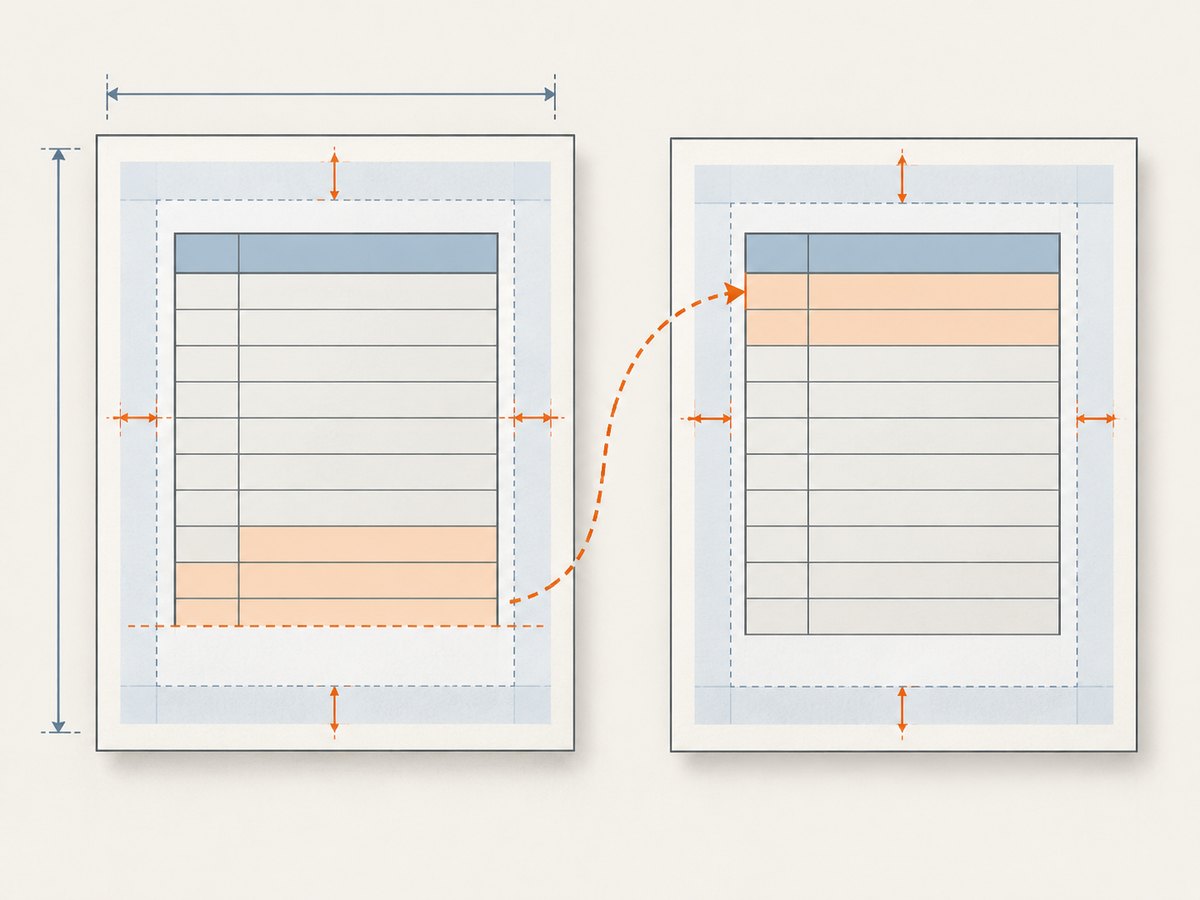
The sample includes both CSS @page dimensions and matching PDF margins. Keeping those settings coordinated avoids accidental scaling or clipping. The repeated-header rule is the key piece; the rest controls the document’s appearance and makes the example exercise pagination.
3. Set up print CSS and table markup
- Separate headings from records. Put all column-label rows in
<thead>. Put report records in one or more<tbody>sections. Use<th scope="col">for column headers where it fits your table. - Keep the table display model intact. Avoid print resets that set
theador a table ancestor todisplay: block,display: none, flex, or grid. Those rules can remove or alter the row-group behavior. - Add print-specific styling. Put
thead { display: table-header-group; }under@media print. Keep screen-only layout rules outside the print block where possible. - Make a real multi-page fixture. A one-page sample cannot establish that a header repeats. Include enough realistic rows to cross at least one page boundary and inspect the resulting PDF.
- Control row splitting only when needed.
break-inside: avoidon rows can help keep short records intact. Extremely tall rows cannot fit on a page, so a no-break request cannot solve that case; shorten or restructure such content.
Multiple header rows can be placed inside the same <thead> if the report has grouped labels. CSS 2.2 says that when a table has multiple elements with display: table-header-group, only the first is rendered as the header and later groups are treated as row groups. Prefer one <thead> containing all the header rows rather than separate header groups. Avoid nested tables for the repeated heading itself; nested and unusual layouts add pagination complexity.
4. Puppeteer PDF options that affect pagination
page.pdf() uses print media by default. You generally do not need to call page.emulateMediaType('print') before it. If you are inspecting layout in the page before generating a PDF, remember that screen media may not use your print rules; you can explicitly emulate print for that inspection. Puppeteer emulateMediaType().
| Option | What it controls | How it can affect a table |
|---|---|---|
format |
Named paper size, such as A4 or Letter. | Changes available page area and therefore where rows break. |
width, height |
Explicit paper dimensions. | Use when you need a nonstandard sheet; coordinate with CSS @page. |
margin |
Top, right, bottom, and left printable margins. | Larger margins leave less room for rows and headings. |
preferCSSPageSize |
Whether a CSS @page size takes priority over PDF width, height, or format. |
Set true when CSS page dimensions should determine the sheet size; otherwise Puppeteer may scale content to fit the PDF paper size. |
landscape |
Page orientation. | Can help wide tables fit without shrinking text excessively. |
scale |
Scales rendered page content. | Can fit dense reports, but inspect readability and line wrapping. |
printBackground |
Includes background graphics. | Use true if colored heading fills carry meaning or improve contrast. |
displayHeaderFooter, templates |
Document-level page header/footer, including page number classes. | These are not table headings and do not replace a repeating <thead>. |
pageRanges |
Subset of pages to emit. | Useful for output selection; it does not change the table’s header structure. |
See the Puppeteer PDFOptions reference for option types and defaults. A frequent source of confusion is mixing a CSS @page size with format or explicit dimensions. Choose which setting owns paper size, then set preferCSSPageSize accordingly. Table column headings belong in the table. Puppeteer’s headerTemplate and footerTemplate are for document-wide material such as title, date, URL, and page numbers.
5. Troubleshooting headers that disappear
| Symptom | Likely cause | Fix |
|---|---|---|
| Header appears only on page one. | The heading row is outside <thead>, or print CSS overrides its display role. |
Move the row into <thead>; inspect computed print styles and restore table-header-group. |
| No repeated header at all. | The table never crosses a page boundary, or the printed element is not a semantic table. | Add enough fixture rows to span pages; keep real table markup. |
| Heading or table is missing. | A print selector hides it or changes an ancestor’s display. | Search all print styles for display: none, display: block, flex, grid, and visibility rules on the table and its ancestors. |
| First-page layout is correct, later pages clip. | Margins, paper size, wide columns, or tall rows leave insufficient page area. | Review @page, PDF margins, orientation, font sizes, and row content together. Try landscape for genuinely wide data. |
| CSS size seems ignored or content is scaled. | format, width/height, and @page are competing. |
Choose one source of page size and set preferCSSPageSize to match that choice. |
| Output differs after a deployment. | Puppeteer/Chromium version or document layout changed. | Render a known multi-page fixture using the deployed versions and inspect the PDF after upgrades. |
| Rows break in awkward places. | A row’s content exceeds the remaining printable area or break rules conflict. | Use break-inside: avoid for normal rows, but split or shorten oversized cell content. |
When a problem is hard to isolate, reduce the document to one table, one print stylesheet, and enough rows for two pages. Add the surrounding layout back in stages. This distinguishes a table-group issue from a page-size, ancestor display, or forced-break issue.
6. Validate reliability, performance, and cost
Repeated headers are native print layout, so the maintainable approach is to preserve semantic table markup and let Chromium paginate it. Avoid manually inserting a duplicate heading row after every fixed number of records: page capacity changes with paper size, margins, font loading, content wrapping, and orientation. Hard-coded duplication can produce orphan headings or duplicated rows when those inputs change.
For reliability, generate a representative fixture in the same Puppeteer and Chromium versions used by the application. Include narrow and wide content, a row near a page boundary, multiple header rows if applicable, and your actual margin and paper settings. Inspect the PDF visually after changing CSS or renderer versions. Chromium’s fixture establishes expected behavior, while issue reports show why a version-specific visual check remains useful.
For performance, page count, document complexity, external assets, and font readiness all affect the time and resources needed to render a PDF. Keep the print DOM focused on the report, avoid unnecessary remote resources, and wait for fonts when typography changes wrapping. Puppeteer’s PDF option waitForFonts defaults to true in its reference; if a page is in the background, the documentation notes that bringing it to the front may be needed for font readiness.
For cost, self-hosted Puppeteer means operating the browser process and the service that supplies data, stores output, and handles retries. The supplied research gives no benchmark or fixed operating cost, so estimate using your own workload and infrastructure. For a hosted screenshot or PDF API, compare rendering fidelity, paper and margin controls, header/footer support, reproducibility, usage pricing, and operational burden before choosing. Do not infer that a screenshot endpoint supports a specific PDF layout feature unless its documentation says so.
7. Or skip the browser setup
If you need a hosted capture call instead of managing a local browser, ScreenshotNeo is a website screenshot API and MCP server. Its API can return a screenshot or PDF. The complete Puppeteer workflow above remains the approach when you specifically need to control and verify Chromium table pagination yourself; use the API when a managed capture request better fits the job. See the ScreenshotNeo API documentation for request options.
curl -G "https://api.screenshotneo.com/v1/shot" -d access_key=YOUR_API_KEY --data-urlencode url=https://stripe.com -o shot.webpimport requests
r = requests.get("https://api.screenshotneo.com/v1/shot", params={"access_key": "YOUR_API_KEY", "url": "https://stripe.com"}, timeout=90)
open("shot.webp", "wb").write(r.content)const q = new URLSearchParams({ access_key: 'YOUR_API_KEY', url: 'https://stripe.com' });
const res = await fetch(`https://api.screenshotneo.com/v1/shot?${q}`);ScreenshotNeo removes cookie banners, popups, and chat widgets before the shot. Bot checks, blank pages, and failed loads are never billed. Its MCP server lets AI agents take screenshots, and 1,000 screenshots per month are free with no card; paid plans start at $5 for 3,000. Create a free account and get 1,000 screenshots a month with no card.
8. FAQ
Does Puppeteer repeat every row in the table header?
Put all heading rows that should repeat inside the table’s single <thead>. Multiple rows within that group can form a multi-line heading.
Can I use Puppeteer’s PDF header template for column labels?
No. A template is a document-level header or footer, separate from a table’s repeating heading group. Use <thead> for columns and templates for page labels or numbers.
Should I manually add a heading row after each page break?
Usually not. Native table pagination follows actual page dimensions and content. Fixed-position duplication becomes fragile when rows wrap or print settings change.
Will this work with any HTML-to-PDF renderer?
This article describes Puppeteer and Chromium. Other renderers can differ in their CSS support and pagination behavior; check the renderer’s documentation and test its output.
What is the quickest diagnostic when it stops working?
Confirm the row is inside <thead>, confirm print CSS has not changed the table display roles, then generate a deliberately multi-page fixture with the exact deployed renderer version.


