How to Repeat User Information on Every HTML-to-PDF Page
Learn how to repeat user data on every PDF page with CSS, Puppeteer, WeasyPrint, and wkhtmltopdf, plus fixes for margins, templates, and page breaks.

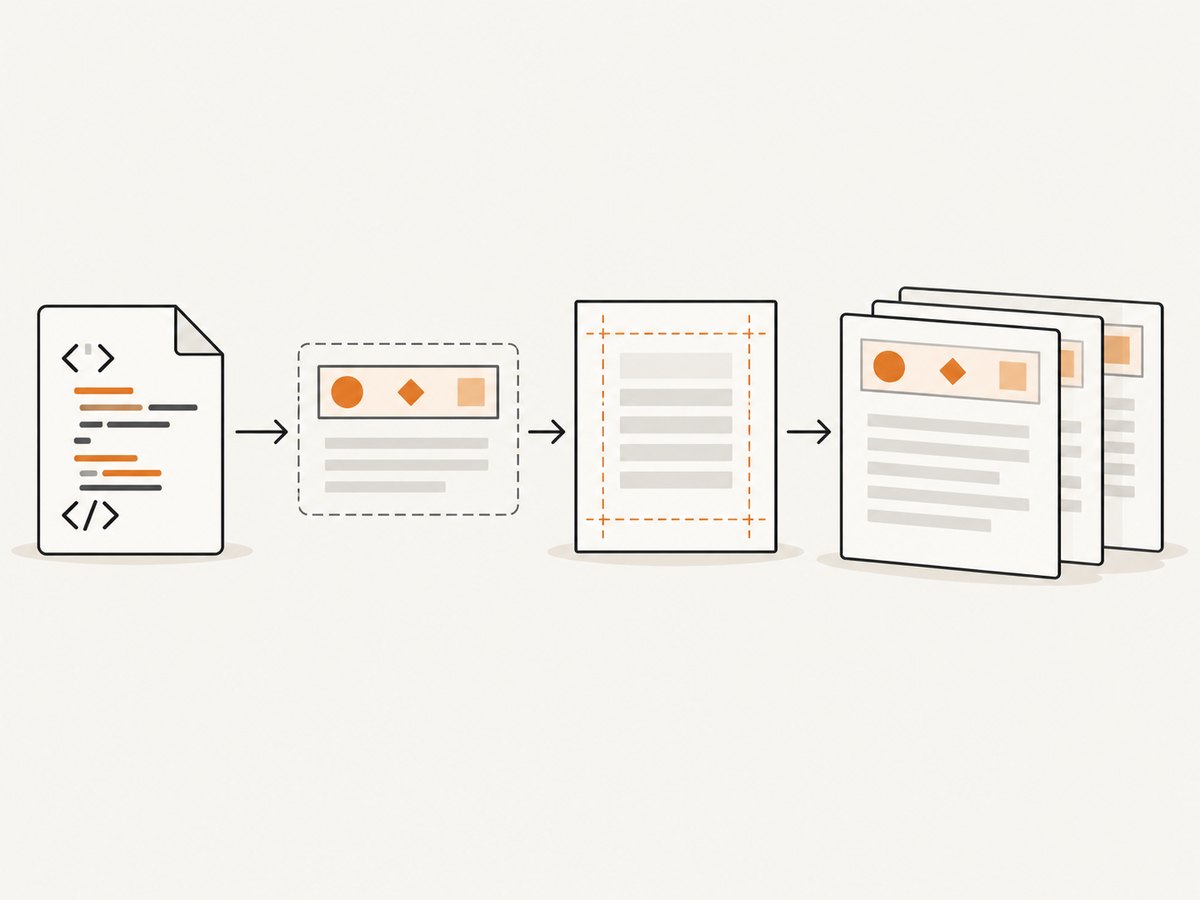
Put the user information in a PDF header or footer supplied by your renderer. An ordinary element at the top of the HTML body appears once; page-level furniture is repeated by the print engine. Use the mechanism your renderer actually implements: CSS paged-media margin boxes and running elements in WeasyPrint, header/footer templates in Puppeteer, or header/footer options and HTML templates in wkhtmltopdf. Reserve enough page margin for the repeated content and verify the exact renderer version in production.
This guide shows complete implementations, explains when each approach fits, and lists the failures that make headers disappear or overlap document content.
1. Choose a page-level repetition mechanism
| Requirement | Use | Verify |
|---|---|---|
| Simple title, page number, or date | Renderer placeholders or special template classes | Exact placeholder names and whether the template is enabled |
| Styled or structured user information | CSS running elements or an HTML header/footer template | Support in the deployed renderer and version |
| Text that changes by section | CSS named strings | Which element value is selected for each page |
| Minimal changes to source HTML | Separate renderer header/footer template | How application data is passed safely into the template |
| Exact page and total counts | Page counters or renderer-injected values | Numbering format and availability in your build |
The W3C paged-media model describes named strings for copied text and running elements for structured content moved into page-margin boxes. It is a Working Draft, so treat implementation as renderer-specific: CSS Generated Content for Paged Media.

2. WeasyPrint: running elements and named strings
WeasyPrint supports @page, page-margin boxes, page counters, running elements, and named strings. Use a running element when the repeated information needs HTML structure or styling. Use a named string when you only need text captured from document content. The stable API documents that element() does not support the start parameter, so test section-transition behavior with your installed version: WeasyPrint CSS generated content.
Complete Python example with a running header
from weasyprint import HTML

user = {
    "name": "Ada Lovelace",
    "account_id": "acct_4821"
}

# Escape values before inserting them into HTML in real applications.
html = f"""
<!doctype html>
<html>
<head>
<meta charset=\"utf-8\">
<style>
  @page {{
    size: A4;
    margin: 28mm 18mm 20mm;
    @top-center {{ content: element(user-header) }}
    @bottom-right {{
      content: "Page " counter(page) " of " counter(pages);
      font-size: 9pt;
      color: #666;
    }}
  }}

  #user-header {{
    position: running(user-header);
    font: 10pt Arial, sans-serif;
    color: #333;
    border-bottom: 1px solid #bbb;
    padding-bottom: 4mm;
  }}

  h1 {{ break-before: page; }}
  h1:first-of-type {{ break-before: auto; }}
  p {{ font: 11pt/1.45 Arial, sans-serif; }}
</style>
</head>
<body>
  <div id=\"user-header\">
    <strong>{user['name']}</strong> · Account {user['account_id']}
  </div>
  <h1>Report</h1>
  <p>First page content.</p>
  <h1>Details</h1>
  <p>Additional content continues across pages.</p>
</body>
</html>
"""

HTML(string=html).write_pdf("report.pdf")
Named string example
@page {
  @top-left { content: string(current-user); }
}

.user-name {
  string-set: current-user content();
}
Place string-set on the element whose text should be copied. Named strings are best for plain text such as a user or chapter name; use a running element for badges, multiple fields, or complex markup.
3. Puppeteer: HTML header and footer templates
Puppeteer exposes displayHeaderFooter, headerTemplate, and footerTemplate in page.pdf(). The templates can use documented classes for print date, title, URL, current page, and total pages. The API also provides PDF margin options. See the Puppeteer PDFOptions reference.
Complete runnable Node.js example
import puppeteer from "puppeteer";

const user = {
  name: "Ada Lovelace",
  accountId: "acct_4821"
};

// Escape values before placing them in a template in production.
const headerTemplate = `
  <div style=\"width:100%;font-size:9px;color:#333;border-bottom:1px solid #bbb;padding:0 12mm 4px;\">
    <span>${user.name}</span> · Account ${user.accountId}
  </div>`;

const footerTemplate = `
  <div style=\"width:100%;font-size:9px;color:#666;text-align:right;padding:4px 12mm 0;\">
    Page <span class=\"pageNumber\"></span> of <span class=\"totalPages\"></span>
  </div>`;

const browser = await puppeteer.launch({ headless: "new" });
try {
  const page = await browser.newPage();
  await page.setContent(`
    <html><body>
      <h1>Report</h1>
      <p>Content that spans multiple pages...</p>
    </body></html>`, { waitUntil: "networkidle0" });

  await page.pdf({
    path: "report.pdf",
    format: "A4",
    printBackground: true,
    displayHeaderFooter: true,
    headerTemplate,
    footerTemplate,
    margin: {
      top: "25mm",
      right: "15mm",
      bottom: "20mm",
      left: "15mm"
    }
  });
} finally {
  await browser.close();
}
Header and footer templates are separate HTML fragments. Do not assume arbitrary elements from the page body are copied automatically. Pass application data into the template using your own safe templating layer, and escape user-controlled values.
Built-in Puppeteer template classes
| Class | Value |
|---|---|
date |
Formatted print date |
title |
Document title |
url |
Document URL |
pageNumber |
Current page number |
totalPages |
Total page count |
4. wkhtmltopdf: header/footer switches and HTML templates
wkhtmltopdf provides --header-* and --footer* options, text substitutions such as [page], [topage], [title], and [webpage], plus an HTML header/footer route. Its manual describes values passed to HTML templates in GET-style fashion. Check the exact build you deploy: wkhtmltopdf usage manual.
Simple text header
wkhtmltopdf \
  --margin-top 25mm \
  --margin-bottom 20mm \
  --header-left "Ada Lovelace · Account acct_4821" \
  --header-font-size 9 \
  --footer-right "Page [page] of [topage]" \
  input.html report.pdf
HTML header template
wkhtmltopdf \
  --margin-top 28mm \
  --header-html header.html \
  --footer-html footer.html \
  input.html report.pdf
<!-- header.html -->
<html><head><style>
  body { margin: 0; font: 9pt Arial; }
  .header { border-bottom: 1px solid #bbb; padding-bottom: 4px; }
</style></head>
<body>
  <div class="header">Ada Lovelace · Account acct_4821</div>
</body></html>

<!-- footer.html -->
<html><body style="font:9pt Arial;text-align:right;">
  Page <span class="page"></span> of <span class="topage"></span>
</body></html>
Leave enough top or bottom margin for the template. If the margin is smaller than the header, content can overlap or the header can be clipped.
5. Safe data handling and layout rules
- Escape user values. Treat names, account IDs, and labels as untrusted input. Escape for the HTML context used by your renderer.
- Reserve margin space. Set top or bottom margins larger than the rendered header/footer height, including borders and padding.
- Keep repeated data short. Long email addresses or addresses can wrap and collide with body content.
- Choose stable typography. Embed or consistently install fonts when exact line breaks matter.
- Test page breaks. Render short, average, and very long values; test tables, images, and headings near page boundaries.
- Verify output. Inspect the PDF itself, not only a browser preview. Confirm the header appears on the first, middle, and final pages.
6. Common failures and fixes
| Symptom | Likely cause | Fix |
|---|---|---|
| Header appears once at the top | It is a normal body element | Use a running element, named string, or renderer header template. |
| Puppeteer header is missing | displayHeaderFooter is false or omitted |
Set it to true and provide headerTemplate. |
| Header is clipped | Top margin is too small | Increase the PDF top margin to exceed header height. |
| Body overlaps footer | Bottom margin does not reserve footer space | Increase bottom margin and reduce footer padding. |
| Page numbers show literal text | Wrong placeholder syntax for the renderer | Use Puppeteer classes or wkhtmltopdf substitutions documented for your build. |
| Values are blank in a template | Application data was not passed into the template | Render the template with escaped values before calling the PDF API. |
| Section header is stale | Named-string or running-element selection differs by engine | Check renderer support and test pages around section breaks. |
| CSS works in browser but not PDF | Browser CSS support differs from the PDF engine | Use the renderer’s documented feature set and inspect generated output. |
| Only some pages contain the header | Invalid HTML, overflow, or a renderer limitation | Validate markup, simplify the template, and test the installed version. |
7. Performance, reliability, and cost
- Rendering cost: Browser-based engines start a browser process and may be expensive at high concurrency. Reuse controlled browser instances where your deployment allows it, while isolating jobs that need different settings.
- Reliability: Pin the renderer version, fonts, and launch flags. Keep representative fixtures in CI so upgrades reveal changed pagination or template behavior.
- Network assets: Wait for required fonts and images before rendering. A header that depends on a remote asset can change height or disappear when the asset times out.
- Data privacy: Put only the user information required by the document in repeated furniture. Avoid leaking identifiers into URLs or logs.
- Cost control: Cache stable source HTML and assets where appropriate, but invalidate caches when user information changes. Measure PDF size and render time for long documents.
8. Or skip the browser setup
ScreenshotNeo is a website screenshot API and MCP server. For HTML-to-PDF workflows, you can send a URL and receive a PDF without maintaining a browser process. See the ScreenshotNeo documentation for the available parameters and options.
curl -G "https://api.screenshotneo.com/v1/shot" -d access_key=YOUR_API_KEY --data-urlencode url=https://stripe.com -o shot.webpimport requests
r = requests.get("https://api.screenshotneo.com/v1/shot", params={"access_key": "YOUR_API_KEY", "url": "https://stripe.com"}, timeout=90)
open("shot.webp", "wb").write(r.content)const q = new URLSearchParams({ access_key: 'YOUR_API_KEY', url: 'https://stripe.com' }); const res = await fetch(`https://api.screenshotneo.com/v1/shot?${q}`);Cookie banners, newsletter popups, and chat widgets are removed before the shot. Bot checks, blank pages, timeouts, failed loads, and cache hits are not billed, and response headers identify the page verdict and billing status. Its MCP server lets AI agents take screenshots, and the service supports PDF capture plus controls such as waits, custom CSS and JavaScript, headers, cookies, user agents, and page ranges. The free plan includes 1,000 screenshots a month with no card; paid plans start at $5 for 3,000 shots. Create a free ScreenshotNeo account.
9. Verification checklist
- Header/footer feature is enabled.
- Renderer version is pinned and recorded.
- Top and bottom margins exceed template height.
- User values are escaped for the template context.
- First, middle, and last pages show the expected information.
- Long names, missing values, non-ASCII characters, and narrow pages are covered.
- Page numbers and totals match the final PDF.
- Fonts, images, and external assets load before capture.
10. FAQ
Can I repeat an element from the body automatically?
Only when the renderer implements a mechanism such as CSS running elements or explicitly supports copying content. A normal body element is not automatically repeated.
Should the user information be in a header or footer?
Use a header when it identifies the document or account; use a footer for audit labels, confidentiality notices, or page numbers. Both are page-level furniture.
Why does a browser preview differ from the PDF?
PDF engines implement a different subset of CSS and pagination rules. Validate with the actual renderer and version that generates production files.
How do I repeat different information on different sections?
Use named strings or running elements where supported, or generate separate templates and document sections when the renderer cannot select section-specific content.


