How to Replace PhantomJS readPdf() with Chrome or Puppeteer
Replace PhantomJS readPdf() with Chrome’s headless PDF mode or Puppeteer. Map paper settings, preserve rendering behavior, and handle failures safely.

Direct answer: replace PhantomJS readPdf() with Puppeteer when your application needs navigation, authentication, DOM interaction, explicit waits, or per-page PDF settings. For a URL-only command-line job, use Chrome’s --headless --print-to-pdf. PhantomJS and Chromium render differently, so validate print styles, fonts, page size, margins, headers, and timing against a known output.
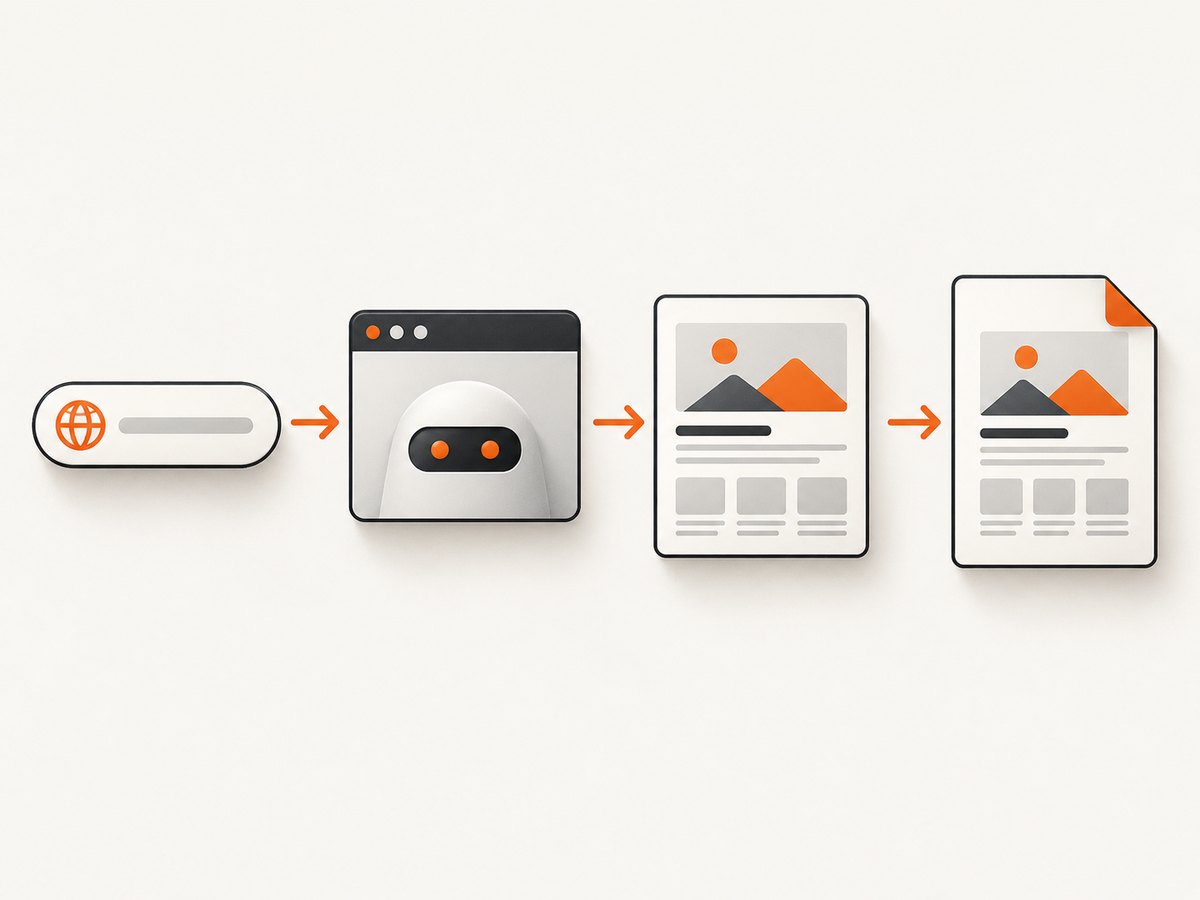
Puppeteer is a JavaScript library for automating Chrome and Firefox and generating PDFs. Its Page.pdf() method uses the print CSS media type. Chrome’s headless command line is a smaller fit when a URL and output path are all you need. This guide covers both paths, translates common paperSize settings, and shows how to keep a migration from leaking browser processes.
1. Choose Puppeteer or Chrome CLI
| Need | Use | Reason |
|---|---|---|
| Just print a URL to a PDF | Chrome CLI | One shell command; no application code or browser automation layer. |
| Authentication, cookies, headers, or DOM interaction | Puppeteer | Programmatic navigation and page control before printing. |
| Per-request margins, format, templates, or CSS choices | Puppeteer | PDF settings can be selected for each page operation. |
Existing app uses callback-based readPdf() |
Puppeteer | Keep the wrapper’s input contract and adapt completion to a promise. |
Both options use Chromium rendering, not PhantomJS’s rendering engine. Treat the migration as a rendering change as well as an API change. Differences can appear in CSS support, font selection, image loading, JavaScript timing, and print behavior.
2. Install Puppeteer and generate a PDF
In a Node.js project, install Puppeteer:
npm install puppeteerThe puppeteer package downloads a compatible Chrome for Testing during installation when install scripts are allowed. If your deployment provides its own browser, use puppeteer-core instead and configure the executable path or channel explicitly. In either case, confirm that the runtime environment can launch the browser binary.
Save this as render-pdf.mjs. It accepts a URL, writes output.pdf, and closes Chrome even when navigation or PDF generation fails:
import puppeteer from 'puppeteer';

const url = process.argv[2];
if (!url) {
  throw new Error('Usage: node render-pdf.mjs https://example.com');
}

const browser = await puppeteer.launch();
try {
  const page = await browser.newPage();
  await page.goto(url, {
    waitUntil: 'networkidle2',
    timeout: 60_000,
  });

  await page.pdf({
    path: 'output.pdf',
    format: 'A4',
    printBackground: true,
    preferCSSPageSize: true,
    margin: {
      top: '12mm',
      right: '12mm',
      bottom: '12mm',
      left: '12mm',
    },
  });
} finally {
  await browser.close();
}
Run it with node render-pdf.mjs https://example.com. The example uses networkidle2 to allow a page to settle before printing, but some applications keep network connections open or load important data later. Choose a wait condition that matches the site, and add a selector or application-specific readiness check when network idleness is not a reliable signal.
Puppeteer waits for fonts before generating a PDF by default. Keep that behavior unless you have a measured reason to change it. Missing or late fonts can change line wrapping and pagination, so verify that the page’s font files load successfully in the deployment environment.
Preserve screen-media rendering when needed
Page.pdf() renders with print CSS. If the old PhantomJS output used screen styles, opt into screen media before printing:
await page.emulateMediaType('screen');
await page.pdf({ path: 'output.pdf', printBackground: true });
Use this only when the old output’s appearance depended on screen rules. Also inspect the site’s @media print and @page CSS: these can hide navigation, change colors, or set paper dimensions and margins.
Preserve an application wrapper
readPdf() is a PhantomJS wrapper convention, not a standard Puppeteer API. Keep your existing function’s inputs and callback contract if callers depend on them, but implement its work with a promise. A minimal callback adapter might look like this:
import puppeteer from 'puppeteer';

export function readPdf(url, options, callback) {
  renderPdf(url, options)
    .then((result) => callback(null, result))
    .catch((error) => callback(error));
}

async function renderPdf(url, options = {}) {
  const browser = await puppeteer.launch();
  try {
    const page = await browser.newPage();
    await page.goto(url, { waitUntil: 'networkidle2' });
    return await page.pdf({
      path: options.path ?? 'output.pdf',
      format: options.format ?? 'A4',
      printBackground: options.printBackground ?? true,
      margin: options.margin,
      landscape: options.landscape ?? false,
      preferCSSPageSize: options.preferCSSPageSize ?? true,
    });
  } finally {
    await browser.close();
  }
}
In a long-running service, you may reuse a browser process and create a fresh page or context per job to avoid repeated launch overhead. If you do, define cleanup for pages and contexts, monitor crashed browser processes, and avoid sharing authenticated state between unrelated jobs.
3. Generate a PDF with Chrome’s command line
For a shell-oriented workflow, Chrome provides direct headless PDF output:
chrome --headless --print-to-pdf=output.pdf https://example.comSuppress Chrome’s default PDF header and footer with:
chrome --headless --print-to-pdf=output.pdf --no-pdf-header-footer https://example.comChrome’s headless reference documents --timeout=5000 for a bounded wait before capture and --virtual-time-budget=42000 to advance timers or animations before capture. For example:
chrome --headless --timeout=5000 --print-to-pdf=output.pdf https://example.com
chrome --headless --virtual-time-budget=42000 --print-to-pdf=output.pdf https://example.com
Use a timeout that reflects the page’s loading behavior. A fixed delay can be wasteful on fast pages and too short on slow ones; it does not prove that application data or fonts are ready. If you need selector-based waits, custom headers, cookies, or precise paper configuration, Puppeteer gives you more control.
4. Translate PhantomJS paperSize settings
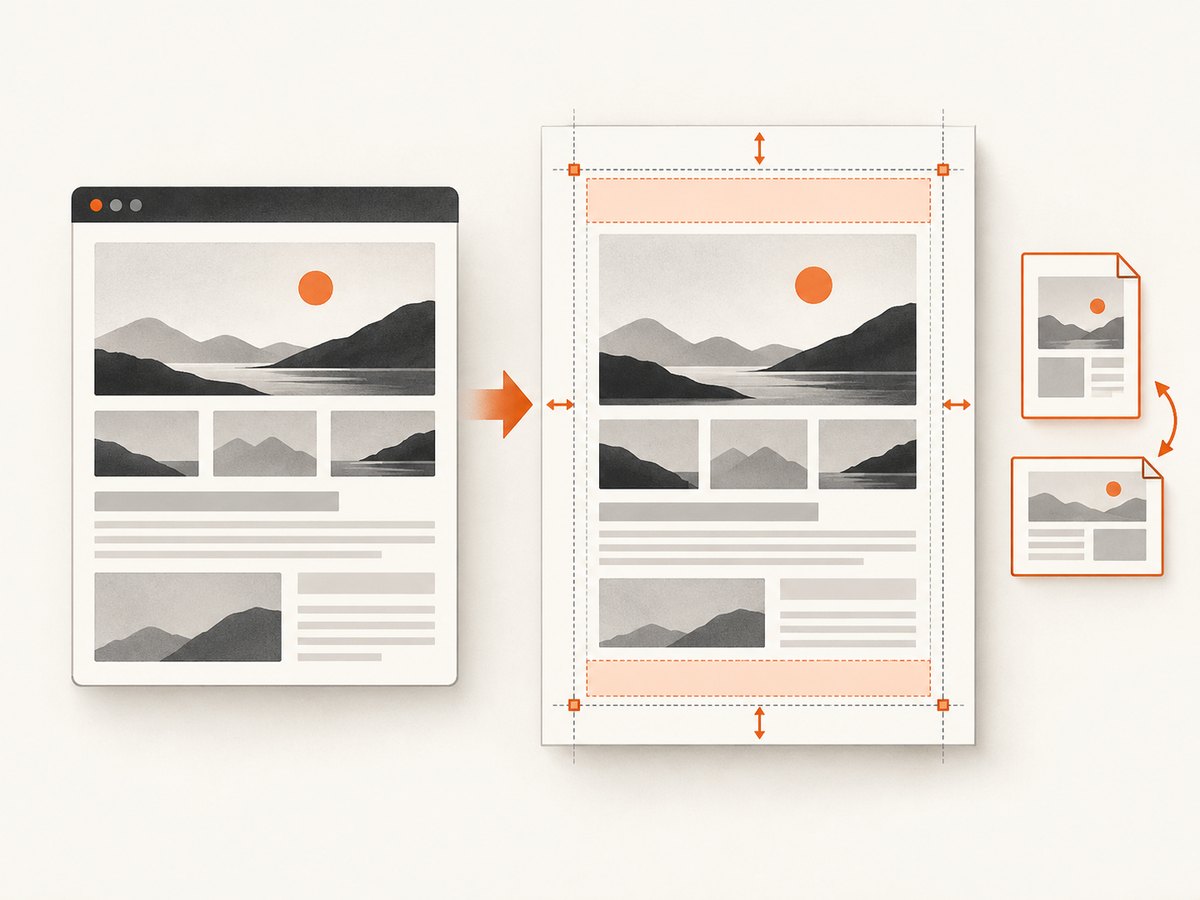
PhantomJS paperSize supports standard formats, custom dimensions, margins, orientation, and repeating headers or footers. Map the old configuration into Puppeteer’s PDF options as follows:
| PhantomJS setting | Puppeteer equivalent | Notes |
|---|---|---|
| Standard paper format such as A4, A3, Letter, Legal | format |
Use the matching supported format name. |
| Custom width and height | width and height |
Use CSS units such as mm, cm, in, or px. |
| Margins | margin |
Supply top, right, bottom, and left values with units. |
| Landscape orientation | landscape: true |
Compare the resulting page dimensions and content flow. |
Document @page size |
preferCSSPageSize: true |
Lets CSS control paper size when present. |
| Printed backgrounds | printBackground: true |
Enable when the previous PDF included background graphics. |
| Repeating header/footer | displayHeaderFooter, headerTemplate, footerTemplate |
Rebuild and validate templates; they are not automatically equivalent to PhantomJS markup. |
A custom-size example:
await page.pdf({
  path: 'custom.pdf',
  width: '210mm',
  height: '297mm',
  margin: { top: '10mm', right: '12mm', bottom: '10mm', left: '12mm' },
  landscape: false,
  printBackground: true,
});
When both an explicit format and CSS page-size rules exist, decide which source should control the result and validate it. preferCSSPageSize: true gives the document’s @page rule priority. Test header and footer behavior separately: Chrome’s CLI suppression switch and Puppeteer’s templates are different controls.
5. Handle navigation, authentication, and readiness
For protected pages, set cookies or other required state before navigating. The exact authentication mechanism depends on the application. This example demonstrates a cookie-based flow:
const page = await browser.newPage();
await page.setCookie({
  name: 'session',
  value: process.env.SESSION_COOKIE,
  domain: 'example.com',
  path: '/',
  secure: true,
});
await page.goto('https://example.com/account/report', {
  waitUntil: 'domcontentloaded',
  timeout: 60_000,
});
await page.waitForSelector('[data-report-ready="true"]', { timeout: 20_000 });
await page.pdf({ path: 'report.pdf', format: 'A4', printBackground: true });
Keep secrets in environment or secret-management facilities, not in source code or logs. If the page needs a bearer token or custom request headers, configure the request context before navigation and make sure credentials are scoped to the intended origin.
Pick readiness signals carefully:
domcontentloadedwaits for the document to be parsed, but not necessarily for images or application data.loadwaits for load-event resources, but pages may continue fetching data.networkidle2waits for a period with few active network connections; analytics or long polling can make network-based readiness unsuitable.waitForSelector()can target a page-specific signal that indicates the report or data is ready.
For long documents, also verify image and font loading. Lazy-loaded content may appear only after scrolling; if the PDF omits it, trigger the page’s loading behavior and confirm content is present before printing. Do not assume matching HTML guarantees matching layout between browser engines.
6. Validate the migration
- Keep a representative PhantomJS PDF as a visual reference, including a long document and pages with tables, images, and custom fonts.
- Compare paper size, orientation, margins, background colors, and page breaks.
- Check whether the old output used screen media or print media; inspect
@pagerules and test both where needed. - Confirm authentication, cookies, selectors, external image access, web fonts, and JavaScript-driven data.
- Test headers and footers independently, including suppression and page numbering.
- Exercise custom dimensions, page ranges if your workflow uses them, and failure cleanup.
- Pin the Puppeteer and Chrome versions used in production, then review upgrades against the reference PDFs because browser rendering and defaults can change.
Automated PDF byte-for-byte comparison is often too strict because generated metadata or rendering details may vary. For migration checks, compare page count, dimensions, extracted text, and rendered page images alongside application-level assertions.
7. Troubleshooting
| Symptom | Likely cause | Fix |
|---|---|---|
| Browser fails to launch in CI or a container | Chrome is absent, the package install script was blocked, or the runtime cannot execute the selected binary. | Install a compatible browser or use puppeteer-core with an explicit executable path/channel. Verify the binary in the actual runtime image. |
| PDF is blank or missing application data | Printing began before client-side rendering completed, or navigation reached an error/empty page. | Check navigation status and URL, then wait for an application-specific selector or readiness signal before printing. |
| Layout differs from PhantomJS | Different rendering engines, media type, CSS, fonts, or page-size precedence. | Check print versus screen media, @page, font loads, margins, and CSS support. Adjust styles deliberately and compare representative pages. |
| Background colors disappear | Background printing is disabled. | Set printBackground: true and confirm print CSS does not remove the background. |
| Content is clipped or pages break differently | Paper dimensions, margins, orientation, or CSS page rules differ. | Compare the old paperSize values with format, dimensions, margins, and preferCSSPageSize. |
| Fonts are substituted or text wraps differently | Font files are inaccessible, late, or unavailable in the runtime. | Check network access and font responses; retain Puppeteer’s default font wait and verify fonts before capture. |
| PDF generation hangs | Navigation waits on a never-idle connection, or the page has no finite readiness signal. | Use a suitable navigation condition plus a bounded timeout, then wait for the page-specific content you need. |
| Chrome processes accumulate after errors | Browser shutdown is skipped on a rejection. | Put browser.close() in a finally block. In a browser pool, also clean up each page/context and restart crashed processes. |
| Header/footer differs or appears unexpectedly | CLI behavior and Puppeteer template settings were treated as equivalent. | Test --no-pdf-header-footer for CLI separately from displayHeaderFooter and templates in Puppeteer. |
8. Performance, reliability, and cost
PDF creation runs a full browser rendering pipeline: navigation, JavaScript, style calculation, font and image loading, pagination, and PDF output. The main practical cost is browser startup and page workload. A short CLI job is simple to operate; a service can reuse a browser process to reduce repeated launches, but must isolate pages and credentials, close per-job resources, and handle browser crashes.
Set bounded navigation and selector timeouts so one slow page does not hold a worker indefinitely. Avoid relying on an arbitrary long sleep for every URL; page-specific readiness conditions reduce wasted waiting and premature output. For reliability, pin versions, verify browser availability in the deployment image, retain error context without logging secrets, and keep a known-output regression set.
There is no universal generation time or infrastructure cost: it depends on page complexity, assets, concurrency, browser deployment, and how often the browser is launched. Measure your own representative workload before choosing worker counts or pooling. Account for browser memory and CPU as well as the PDF file size, and apply queue limits when processing many pages.
9. Or skip the browser setup
If you only need a screenshot or PDF from a URL and do not need to run your own Chrome process, ScreenshotNeo is a website screenshot API and MCP server. Its API uses one GET request and supports PNG, JPEG, WebP, or PDF output. See the API documentation for parameters.
curl -G "https://api.screenshotneo.com/v1/shot" -d access_key=YOUR_API_KEY --data-urlencode url=https://stripe.com -o shot.webpimport requests
r = requests.get(
"https://api.screenshotneo.com/v1/shot",
params={"access_key": "YOUR_API_KEY", "url": "https://stripe.com"},
timeout=90,
)
open("shot.webp", "wb").write(r.content)const q = new URLSearchParams({ access_key: 'YOUR_API_KEY', url: 'https://stripe.com' });
const res = await fetch(`https://api.screenshotneo.com/v1/shot?${q}`);ScreenshotNeo removes cookie banners, newsletter popups, and chat widgets before capture. Bot checks, blank pages, and failed loads are never billed; response headers identify the page verdict and billing status. Its MCP server gives AI agents tools to take screenshots, get page information, and capture PDFs. The free plan includes 1,000 screenshots a month with no card; paid plans start at $5 for 3,000. Each step of the cleanup can be turned off.
Sign up for ScreenshotNeo’s free 1,000 screenshots a month, with no card required.
10. FAQ
Is readPdf() a Puppeteer method?
No. It is a PhantomJS wrapper or application-level method. Implement its contract with Puppeteer navigation and page.pdf(), and adapt the callback to promise completion if existing callers require it.
Does Puppeteer print the same media as PhantomJS?
Not necessarily. Puppeteer’s PDF method uses print media by default. Use emulateMediaType('screen') when the previous output depended on screen styles, then compare results.
Should I use puppeteer or puppeteer-core?
Use puppeteer when its installation can download the compatible browser. Use puppeteer-core when deployment manages Chrome and you can provide its path or channel.
Can Chrome CLI replace every Puppeteer feature?
No. CLI printing is convenient for URL-to-PDF jobs, while application-controlled authentication, DOM actions, selector waits, and per-page settings fit Puppeteer better.
Will Puppeteer support the same paper sizes as PhantomJS?
Map standard formats to format, custom dimensions to width/height, and preserve margins and orientation explicitly. Verify page size and page breaks in the produced PDF.


