How to Replay a Chrome Recorder Puppeteer Script in Python
Chrome DevTools Recorder exports Puppeteer scripts as JavaScript, not Python. Replay the original JSON with Puppeteer Replay or translate its actions into Python with Playwright or Selenium.
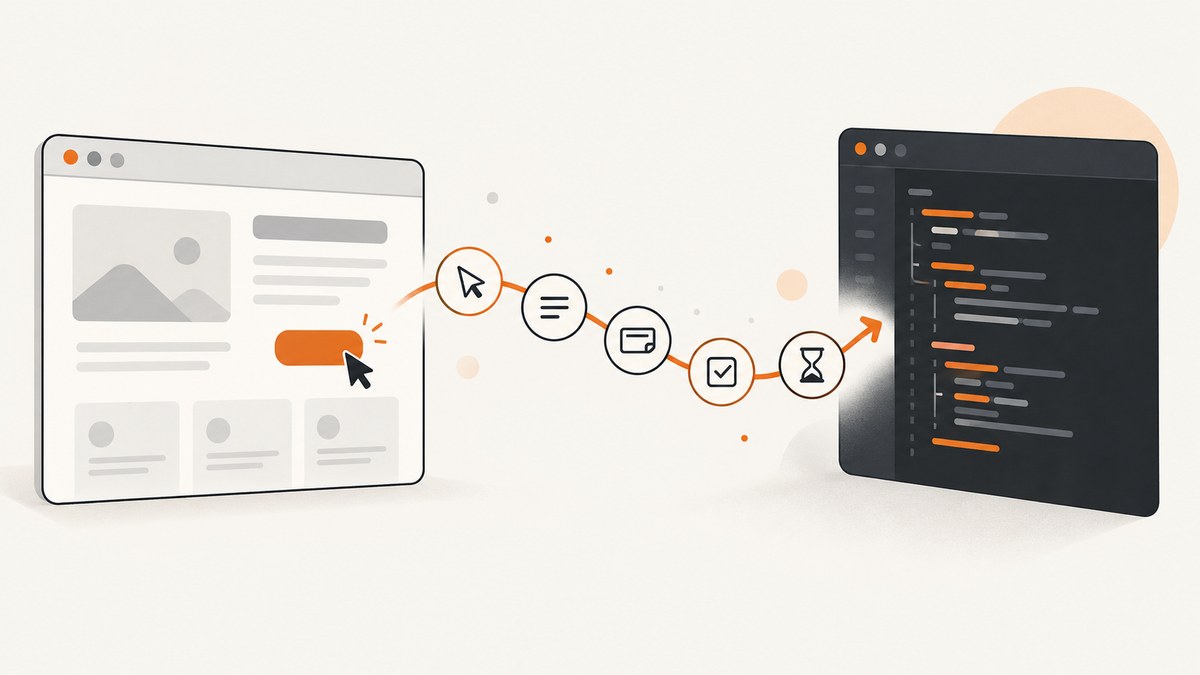
Short answer: Chrome DevTools Recorder does not document a native Python export for its Puppeteer script. Its Puppeteer export is JavaScript. To use Python, export the flow as JSON or inspect the Puppeteer script, then translate each recorded action into a Python browser automation library such as Playwright or Selenium. If you want to replay the same Recorder JSON without translating it, use Puppeteer Replay, which runs in the Puppeteer JavaScript ecosystem.
This guide shows both routes, with a runnable Playwright translation and a Selenium alternative. The exact translation depends on the actions, selectors, and current state of the website you recorded; the examples below are starting points, not an automatic conversion of an arbitrary flow.
1. Choose between replaying JSON and translating to Python
| Your goal | Use | What to expect |
|---|---|---|
| Run the original Recorder recording with minimal changes | Puppeteer Replay | Pass the exported JSON to its CLI or use its JavaScript API. This is not a Python runtime. |
| Own and maintain the automation in Python | Playwright Python | Translate the actions and selectors. It has synchronous and asynchronous APIs. |
| Use WebDriver conventions or an existing Selenium project | Selenium Python | Translate the actions to WebDriver commands and configure browser/session setup. |
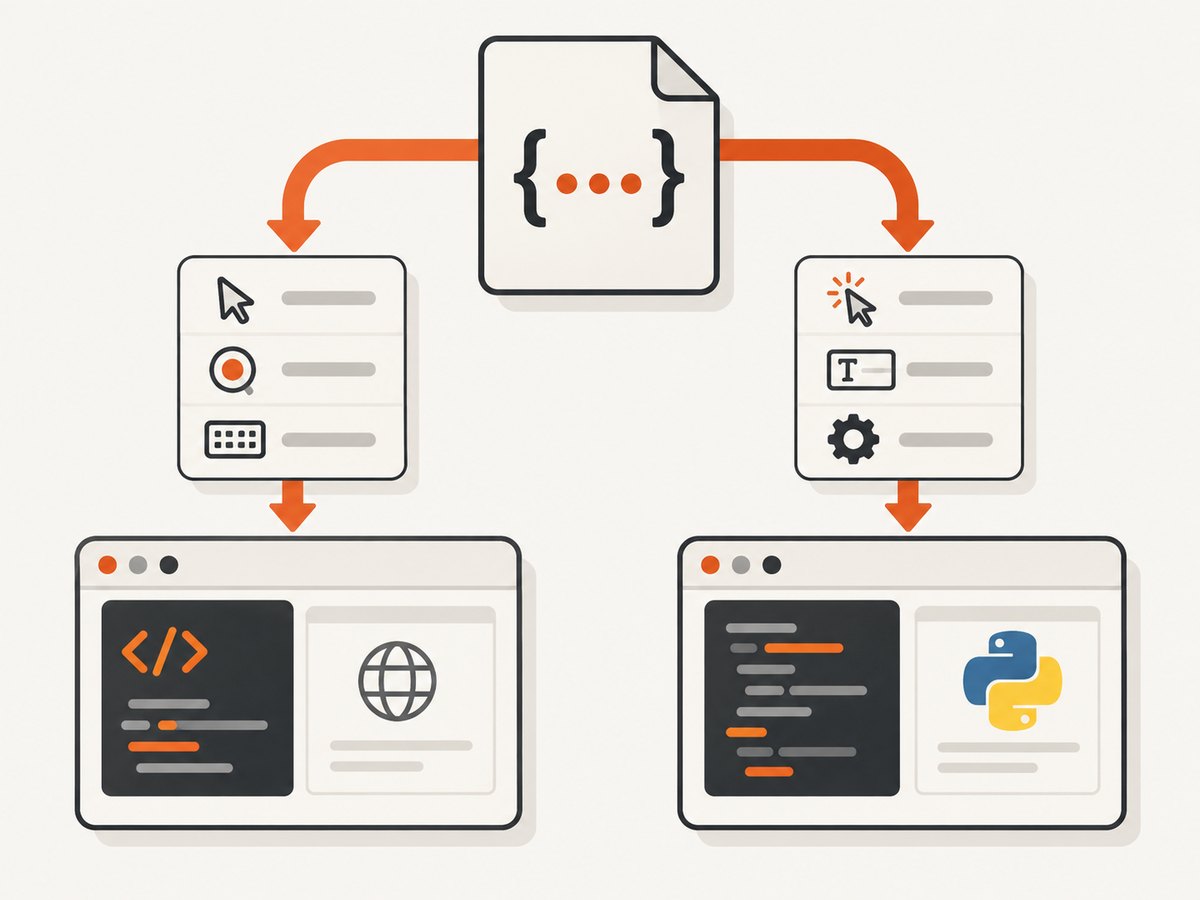
Chrome Recorder can export Puppeteer, Puppeteer Replay, or plain JSON; JSON can be imported back into Recorder. See the Chrome for Developers overview of Recorder export and replay and the Recorder reference. Puppeteer Replay provides a CLI and API for Recorder recordings in the JavaScript ecosystem; see its project documentation.
2. Export a recording from Chrome DevTools Recorder
- Open Chrome DevTools and select the Recorder panel. Record or open the user flow you want to automate.
- Use the export option to save the recording as JSON if you want an editable action source. Export Puppeteer too if you want to refer to its generated JavaScript while mapping actions.
- Keep the JSON unchanged as a reference copy. Note the starting URL, viewport, actions, selectors, and any navigation or popup behavior the flow depends on.
The JSON is a description of the recorded flow, not Python source code. There is no general one-to-one conversion that can guarantee a working Python script: selectors can be brittle, and a site may have changed since recording.
3. Replay the original Recorder JSON with Puppeteer Replay
If Python is not a hard requirement and preserving the Recorder action sequence matters most, run the JSON through Puppeteer Replay. Install Node.js first, then in a project directory:
npm install --save-dev @puppeteer/replay
npx @puppeteer/replay recording.json
Replace recording.json with the exported file path. To replay in a visible browser for debugging, the project documents this environment setting:
PUPPETEER_HEADLESS=false npx @puppeteer/replay recording.jsonThe CLI also accepts a folder to run recordings in that folder. For supported options, run npx @puppeteer/replay --help. This option replays the JSON through Puppeteer Replay; it does not convert the recording to Python.
The project also documents a JavaScript API using parse and createRunner:
import fs from 'node:fs';
import { createRunner, parse } from '@puppeteer/replay';

const input = fs.readFileSync('./recording.json', 'utf8');
const recording = parse(JSON.parse(input));
const runner = await createRunner(recording);
await runner.run();
Consult the Puppeteer Replay documentation for its current CLI flags and extension points.
4. Translate the flow into Python with Playwright
For a Python-owned flow, Playwright is a practical starting point. Install the library and Chromium browser:
python -m pip install playwright
python -m playwright install chromium
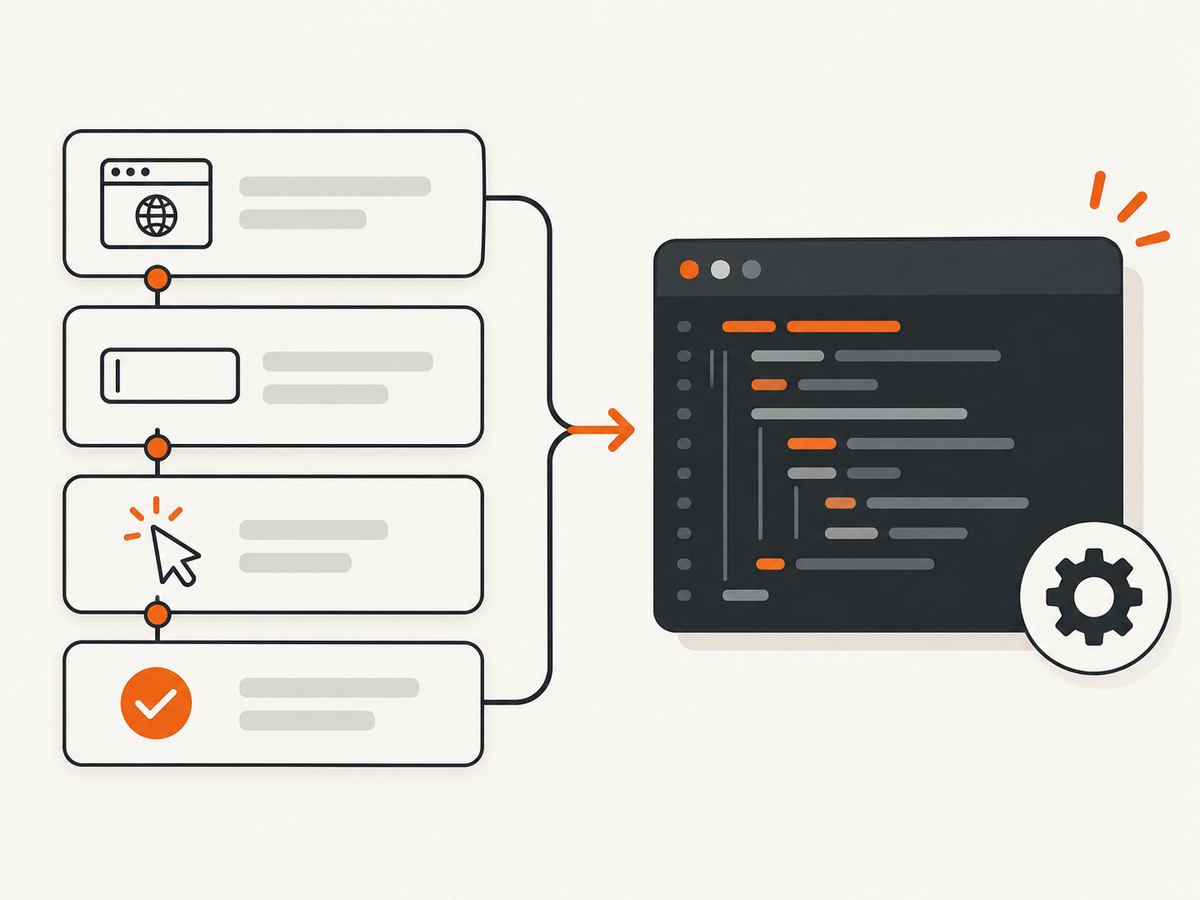
Map each Recorder step into Python: navigation to page.goto, locating elements with a locator, typing with fill, clicking with click, selecting values with select_option, and checking the resulting state with an assertion. Prefer role, label, or other user-facing locators where they identify the intended control clearly. The official docs cover the Playwright Python library, locators, and actionability and auto-waiting.
Runnable synchronous example
This example demonstrates the shape of a translated flow: open a page, interact with a labeled search field, submit, and assert a result. Replace the example URL, labels, and expected text with the actual page and steps from your recording.
from playwright.sync_api import expect, sync_playwright

URL = "https://example.com"

with sync_playwright() as p:
    browser = p.chromium.launch(headless=True)
    page = browser.new_page(viewport={"width": 1280, "height": 800})

    try:
        page.goto(URL, wait_until="domcontentloaded", timeout=30_000)
        page.get_by_role("link", name="More information").click()
        expect(page).to_have_url("https://www.iana.org/help/example-domains")
    finally:
        browser.close()
The link and expected destination in this sample belong to the example domain; change them to the recorded flow. Use a locator that matches the actual page. For example, a text input can be filled with page.get_by_label("Email").fill("person@example.com"), and a button can be clicked with page.get_by_role("button", name="Continue").click().
Equivalent asynchronous pattern
Use the async API if the surrounding Python application already uses asyncio:
import asyncio
from playwright.async_api import async_playwright, expect

async def main():
    async with async_playwright() as p:
        browser = await p.chromium.launch(headless=True)
        page = await browser.new_page(viewport={"width": 1280, "height": 800})
        try:
            await page.goto("https://example.com", wait_until="domcontentloaded")
            await page.get_by_role("link", name="More information").click()
            await expect(page).to_have_url(
                "https://www.iana.org/help/example-domains"
            )
        finally:
            await browser.close()

asyncio.run(main())
Do not call synchronous Playwright methods from an async flow. Use the matching async_api methods and await each browser operation.
5. Map common Recorder actions to Playwright
| Recorded intent | Playwright Python pattern | Things to check |
|---|---|---|
| Navigate | page.goto(url) |
Choose a meaningful readiness condition; the app may continue rendering after the initial document loads. |
| Click a link or button | page.get_by_role("button", name="Continue").click() |
Make the accessible name specific enough to identify the intended control. |
| Type into a field | page.get_by_label("Email").fill(value) |
Use fill for replacing a field value; use press_sequentially only when per-key behavior matters. |
| Select an option | page.get_by_label("Plan").select_option(label="Basic") |
Confirm the control is a native select. Custom dropdowns usually need click and option locators. |
| Wait for a page state | page.locator("[data-ready='true']").wait_for() |
Wait for a condition tied to the action, not an arbitrary long sleep. |
| Assert text or visibility | expect(page.get_by_text("Saved")).to_be_visible() |
Assert the outcome that matters, not only that a click returned. |
| Set viewport | page.set_viewport_size({"width": 1280, "height": 800}) |
Set it before the actions whose responsive layout depends on it. |
| Handle a new tab | with page.expect_popup() as popup_info: ... |
Capture the popup while performing the click, then use popup_info.value. |
| Capture a screenshot | page.screenshot(path="result.png", full_page=True) |
Use only if the translated flow needs a visual artifact. |
For a popup opened by a click:
with page.expect_popup() as popup_info:
    page.get_by_role("link", name="Open report").click()
popup = popup_info.value
popup.wait_for_load_state("domcontentloaded")
print(popup.url)
Recorder’s generated selectors may be useful clues, but review each one. Prefer a locator that describes the control’s role or label; use a CSS selector when the page lacks a stable user-facing locator. If a CSS selector is necessary, a stable test attribute such as data-testid is generally less sensitive to layout changes than a long chain of structural selectors.
6. Translate to Selenium instead
If your project already uses WebDriver, Selenium’s Python bindings are another route. Follow the official Selenium WebDriver getting-started guide for current installation and browser setup. Here is a small example using Selenium 4 and explicit waits:
from selenium import webdriver
from selenium.webdriver.common.by import By
from selenium.webdriver.support import expected_conditions as EC
from selenium.webdriver.support.ui import WebDriverWait

options = webdriver.ChromeOptions()
options.add_argument("--headless")

driver = webdriver.Chrome(options=options)
try:
    driver.set_window_size(1280, 800)
    driver.get("https://example.com")

    link = WebDriverWait(driver, 10).until(
        EC.element_to_be_clickable((By.LINK_TEXT, "More information"))
    )
    link.click()

    WebDriverWait(driver, 10).until(EC.url_contains("iana.org/help"))
    assert "Example Domains" in driver.title
finally:
    driver.quit()
Replace the locator and assertion with the corresponding action and expected state from your recording. Selenium setup involves the Python bindings, browser, and a compatible driver; current Selenium releases may manage drivers through Selenium Manager, but consult its documentation for your environment and any driver-resolution error.
7. Validate the translated flow
- Start from a clean browser context and the same initial URL and viewport used by the recording where those details matter.
- Translate every action in order. Include navigation, field values, clicks, selections, dialogs, new tabs, and any relevant scroll or viewport changes.
- Add an assertion after meaningful transitions so a failed flow identifies where the expected result stopped occurring.
- Run the script against the actual site. Repair selectors and waits when the site state or markup differs from the recording.
- Re-run after changes to the site or browser automation dependencies. The dossier sources do not establish that any specific recording will work unchanged after translation.
For repeatable test suites, use a test runner and isolate browser state per test. The Playwright Python documentation recommends its Pytest plugin for end-to-end tests; see the Playwright Python introduction.
8. Configuration and edge cases
Browser, headless mode, and viewport
Playwright’s library supports Chromium, Firefox, and WebKit, but install the browser binaries required for the project with python -m playwright install chromium or the appropriate browser name. To debug with a visible browser, launch with headless=False. Keep the browser package and installed browser binaries aligned after upgrades; see Playwright browser installation guidance.
Waits and navigation
A click that triggers navigation or an app update should be followed by a condition that represents the expected result. Avoid copying fixed delays blindly: network and rendering time vary. Playwright actions auto-wait for actionability, and assertions can wait for their expected state. A site that uses client-side routing may not cause a full navigation at all, so assert a changed URL, visible content, or other app state instead.
Authentication and state
Recorded logins can contain sensitive credentials or depend on session state. Keep secrets outside committed source files, and decide whether each run should start logged out or load a deliberately prepared authenticated state. A recording that relies on a prior session, local storage, or a one-time challenge needs that dependency represented in the test setup; replaying only the visible clicks may not recreate it.
Dialogs, downloads, and frames
Handle JavaScript dialogs explicitly when the flow triggers them. For downloads, use the library’s download event and save the result to a controlled path. For controls inside an iframe, locate the frame first and perform the action within that frame. These cases cannot be assumed from a generic Recorder-to-Python conversion; inspect the recorded flow and page behavior.
Dynamic selectors and duplicate elements
If a locator matches multiple controls, narrow it using a containing region, accessible name, or stable attribute. Avoid relying on a positional selector such as “the second button” unless order is part of the behavior being tested. Generated selectors can stop matching after a redesign even when the user journey still works.
9. Performance, reliability, and cost
Browser automation starts a real browser process, so it uses more memory and startup time than a direct HTTP request. For test suites, reuse a browser process where appropriate while giving tests isolated contexts; avoid uncontrolled parallel browser launches on a resource-limited machine. Install only the browser engine you need, and use headless mode for routine runs when visual debugging is unnecessary.
Reliability comes from stable locators, state-based waits, isolated sessions, and assertions that explain the expected outcome. Keep timeouts bounded and report the failing step so a slow site, broken selector, or changed page is distinguishable. Retries can hide flaky behavior if they are used without diagnosis.
Playwright and Selenium are software libraries; this workflow has no per-screenshot service charge. Its practical costs are the machine or CI capacity, browser installation and maintenance, and engineering time to adapt and maintain the flow. Puppeteer Replay uses the Node/Puppeteer route and likewise requires an environment to run the browser.
10. Troubleshooting
| Symptom | Likely cause | Fix |
|---|---|---|
ModuleNotFoundError: No module named 'playwright' |
Playwright is not installed in the Python environment running the script. | Activate the intended environment, run python -m pip install playwright, and invoke the script with that same Python. |
| Browser executable missing | The Python package is installed, but its browser binary is not. | Run python -m playwright install chromium (or install the browser you launch). |
| Locator times out or finds no element | The selector is stale, the page is in a different state, or the element is inside a frame. | Inspect the current page and accessible names; update the locator, wait for the relevant state, or target the correct frame. |
| Click completes but expected page is absent | The click target or expected transition differs; a new tab or client-side update may be involved. | Handle popup events when applicable and assert the actual resulting URL or page content. |
| Flow passes locally but fails in CI | Browser binaries, OS dependencies, viewport, authentication, or timing differ. | Install the required browser and system dependencies in CI, make state explicit, and replace fixed sleeps with condition-based waits. |
| Selenium cannot create a Chrome session | Chrome or driver setup is missing, incompatible, or unavailable in the runtime. | Follow the current Selenium browser setup guide and resolve driver/browser installation for that machine. |
| Puppeteer Replay reports an invalid recording | The wrong file was supplied, JSON is malformed, or the file is not a Recorder recording in a supported format. | Re-export the flow as Recorder JSON and consult the current Replay CLI documentation. |
| Replay succeeds but checks the wrong thing | The original recording captured interactions but not the intended success criterion. | Add an explicit Python assertion for the page state that represents success. |
11. Or skip the browser setup
If your goal is a screenshot of a page rather than replaying its interactions, ScreenshotNeo is a website screenshot API and MCP server. One GET request returns an image or PDF; see the API documentation for the available options.
cURL
curl -G "https://api.screenshotneo.com/v1/shot" \
  -d access_key=YOUR_API_KEY \
  --data-urlencode url=https://example.com \
  -o shot.webp
Python
import requests

r = requests.get(
    "https://api.screenshotneo.com/v1/shot",
    params={"access_key": "YOUR_API_KEY", "url": "https://example.com"},
    timeout=90,
)
open("shot.webp", "wb").write(r.content)
Node.js
const q = new URLSearchParams({
  access_key: 'YOUR_API_KEY',
  url: 'https://example.com',
});
const res = await fetch(`https://api.screenshotneo.com/v1/shot?${q}`);
if (!res.ok) throw new Error(`Screenshot request failed: ${res.status}`);
const image = Buffer.from(await res.arrayBuffer());
await import('node:fs/promises').then(fs => fs.writeFile('shot.webp', image));
Cookie banners, popups, and chat widgets are removed before the shot; bot checks, blank pages, and failed loads are never billed. An MCP server lets AI agents take screenshots. The free plan includes 1,000 screenshots a month with no card, and paid plans start at $5 for 3,000. Sign up for the free plan.
Important distinction: a screenshot API captures a page; it does not replay a multi-step Recorder flow such as signing in, filling forms, and submitting them. Use the browser automation route when those interactions are the task. For a single page capture, the API call avoids installing and managing a browser.
12. FAQ
Can I export Chrome DevTools Recorder directly to Python?
The documented built-in export formats do not include a native Python export for the Puppeteer script. Export JSON or inspect the generated JavaScript, then translate the actions into a Python automation library.
Can Python execute a Puppeteer script?
Puppeteer scripts are JavaScript. Run the script with Node.js, or use Puppeteer Replay for Recorder JSON. For a Python implementation, translate the flow to Playwright or Selenium.
Should I choose Playwright or Selenium?
Choose the library that fits your existing project and test conventions. Playwright provides sync and async Python APIs; Selenium fits projects built around WebDriver. Both require translating and validating the recorded actions.
Will a translated script keep working when the site changes?
Not necessarily. Recheck selectors and expected states after site changes, especially when they depend on page structure or transient content.
Does a screenshot replace replaying the flow?
No. A screenshot captures a page state. It does not perform the preceding clicks, typing, or navigation needed to reach that state.
Sources
- Chrome for Developers: Customize and automate user flows beyond Chrome DevTools Recorder
- Chrome DevTools Recorder reference
- Puppeteer Replay project documentation
- Playwright Python library documentation
- Playwright Python installation and introduction
- Playwright browser installation documentation
- Selenium WebDriver getting started


