How to Reproduce Mobile Geolocation in Playwright
Set mobile device characteristics, grant geolocation permission, and control coordinates in Playwright with complete test and library examples.
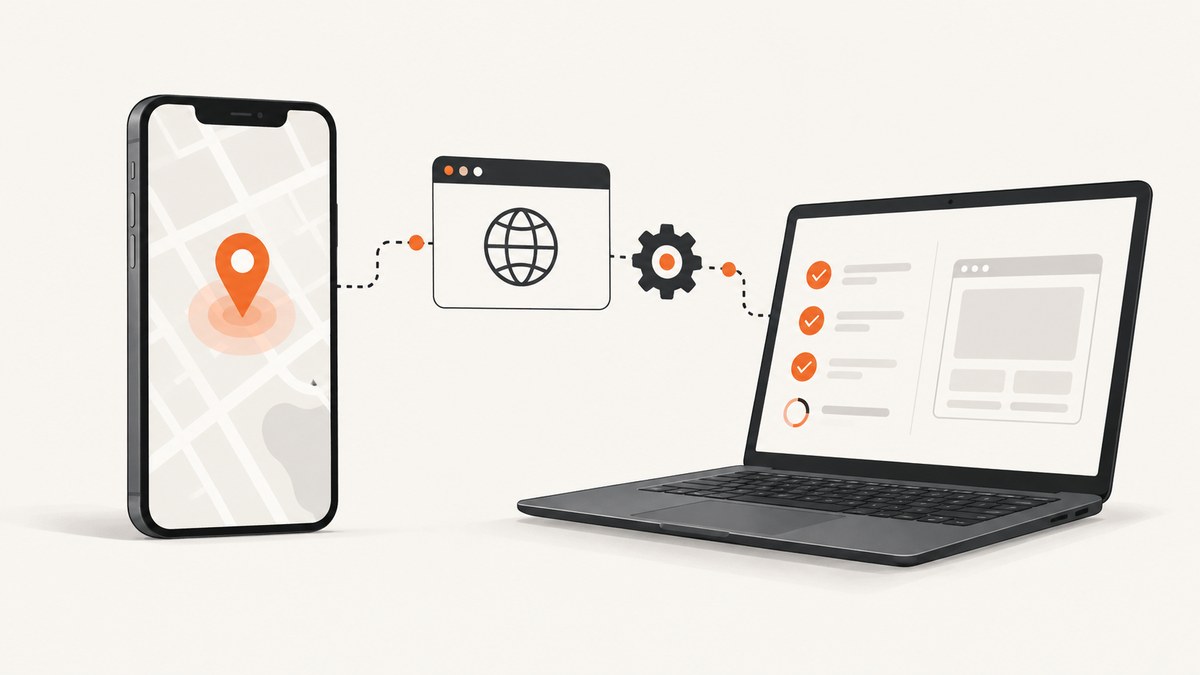
Direct answer: In Playwright, reproduce mobile geolocation by combining a mobile device descriptor with a browser context location and permission. Set geolocation: { latitude, longitude }, grant the geolocation permission, and use a device profile such as devices['iPhone 13']. For a location that changes during a test, call context.setGeolocation(). The device profile emulates browser-facing mobile characteristics; it does not make the test equivalent to running on a physical handset.
The examples below use illustrative coordinates. They do not represent a real user’s position. Playwright’s official guides cover emulation, the BrowserContext API, code generation, and the separate Android automation API.
What you need to configure
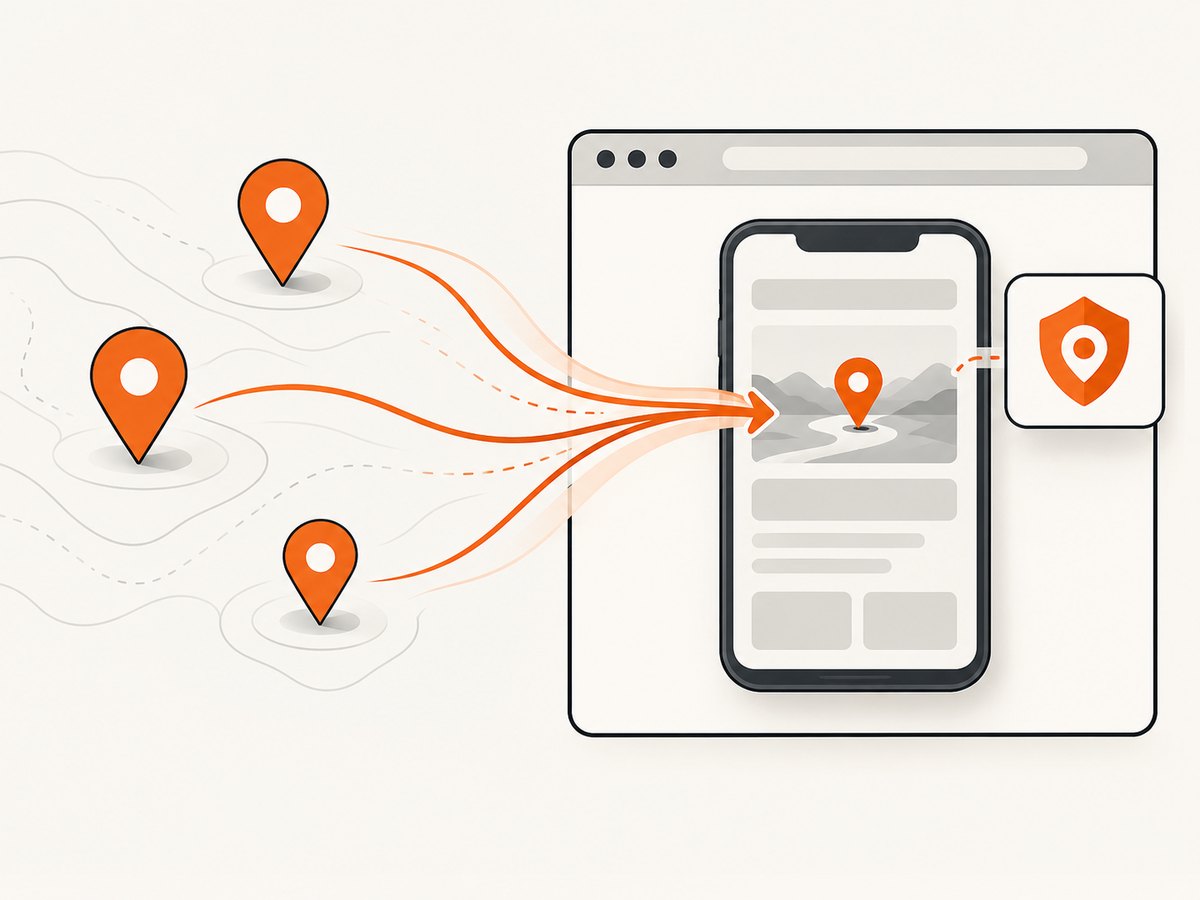
There are three independent controls:
- Mobile characteristics: a device descriptor sets values such as user agent, viewport, screen size, touch behavior, and related browser settings.
- Location: the context’s
geolocationoption supplies latitude, longitude, and optional accuracy. - Permission: the context must have the
geolocationpermission or the page may be unable to read the supplied position.
Playwright documents isMobile as the switch that affects meta-viewport handling and touch events. It is unsupported in Firefox. A location does not automatically set the browser timezone; configure timezoneId separately when the scenario needs it.
Playwright Test: configure a mobile location
For Playwright Test, put the defaults in playwright.config.js. This makes every test in the project use the same mobile profile and location unless a test overrides them.
import { defineConfig, devices } from '@playwright/test';

export default defineConfig({
  projects: [
    {
      name: 'mobile-location',
      use: {
        ...devices['iPhone 13'],
        geolocation: {
          latitude: 41.890221,
          longitude: 12.492348,
          accuracy: 50,
        },
        permissions: ['geolocation'],
        timezoneId: 'Europe/Rome',
      },
    },
  ],
});
The device name must exist in the device registry shipped with your installed Playwright version. If a descriptor is unavailable, inspect the version’s registry or choose another documented device. The coordinate values are examples. Latitude must be between -90 and 90, longitude between -180 and 180, and accuracy must be non-negative.
A test that reads the emulated position
import { test, expect } from '@playwright/test';

test('shows content for the emulated area', async ({ page }) => {
  await page.goto('https://example.com/location');

  // Your application must call navigator.geolocation.getCurrentPosition()
  // or watchPosition() for the browser location to be used.
  await expect(page.getByTestId('location-status')).toContainText('Rome');
});
Permissions and geolocation are context-level settings. All pages created by the test’s context inherit them. If your application opens a new tab in that same context, it receives the same emulated location.
Library use: create a BrowserContext directly
When you are using Playwright as a library instead of Playwright Test, pass the device settings and geolocation options to browser.newContext().
import { chromium, devices } from 'playwright';

const browser = await chromium.launch();
const context = await browser.newContext({
  ...devices['iPhone 13'],
  geolocation: {
    latitude: 41.890221,
    longitude: 12.492348,
    accuracy: 50,
  },
  permissions: ['geolocation'],
  timezoneId: 'Europe/Rome',
});

const page = await context.newPage();
await page.goto('https://example.com/location');
await page.screenshot({ path: 'mobile-location.png', fullPage: true });

await context.close();
await browser.close();
Granting permission in the context is the compact, documented setup. You can also use browserContext.grantPermissions() when permission must be applied after context creation:
await context.grantPermissions(['geolocation'], {
  origin: 'https://example.com',
});
Use an origin when you want to limit permission to one site. Use the context-level permission when all pages in the isolated context are part of the same test scenario.
Change the location while a test is running
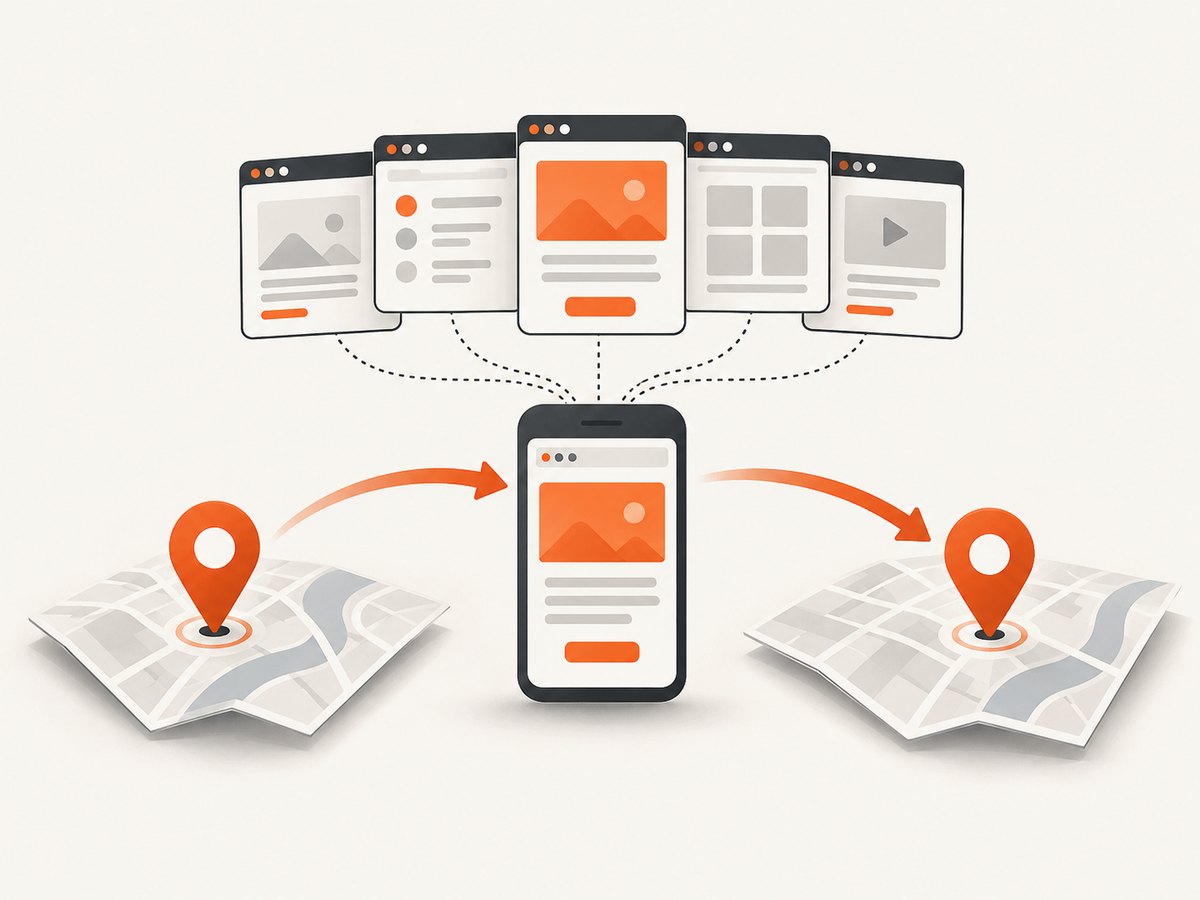
Use context.setGeolocation() when a route, delivery estimate, regional feature, or permission flow changes location during one scenario.
const context = await browser.newContext({
  ...devices['iPhone 13'],
  geolocation: { latitude: 40.7128, longitude: -74.0060 },
  permissions: ['geolocation'],
});

const page = await context.newPage();
await page.goto('https://example.com/location');

await context.setGeolocation({
  latitude: 34.0522,
  longitude: -118.2437,
  accuracy: 100,
});

await page.reload();
The update applies to every page in that context. Keep pages that must observe the same transition in one context; separate contexts intentionally isolate their state.
Emulate an unavailable position
Passing null or undefined represents an unavailable position:
await context.setGeolocation(null);Test both the success and error callbacks in your application. A robust page should handle a denied permission, an unavailable position, and a timeout rather than assuming coordinates always exist.
Mobile browser emulation versus Android automation
| Approach | Use it when | Setup and limits |
|---|---|---|
| Playwright Test project | You want repeatable defaults shared by a test project. | Configure use; easy to override per test or project. |
| Direct BrowserContext | You need explicit setup in a script, fixture, or custom runner. | Every context must receive its own device, location, and permissions. |
| Preconfigured geolocation | The whole scenario uses one stable position. | Simple and deterministic. |
setGeolocation() |
The user moves or the test compares regions. | Context-wide; all relevant pages must share that context. |
| Mobile device descriptor | You need mobile browser-facing behavior. | Emulates browser parameters, not every physical-device behavior. |
| Android API | You specifically need Chrome for Android or Android WebView on an Android device or AVD. | Playwright documents this path as experimental; it requires Android and authenticated ADB setup and has additional limitations. |
Do not choose Android automation merely because the scenario says “mobile.” For most responsive-layout and location tests, a browser context with a device descriptor is the smaller, more maintainable setup. Choose the Android route when a real Android browser or WebView is the fidelity target.
Useful options and test patterns
Accuracy
accuracy is optional and defaults to zero. Supply a non-negative value when application logic displays or branches on reported accuracy. It does not turn a browser test into a GPS sensor simulation.
Timezone and locale
Coordinates and timezone are separate. Add timezoneId for date, scheduling, or local-time behavior. Configure locale independently when the test also needs translated content or regional formatting.
One context per scenario
Contexts provide isolation. Create one context for each location scenario unless the purpose of the test is to observe two pages sharing a moving location. This prevents cookies, permissions, and location changes from leaking between cases.
Permission scope
Granting geolocation at context creation is usually clearest. If your test verifies the permission prompt itself, do not pre-grant it; instead, exercise the application’s request flow and assert the resulting state. Browser permission support can vary by browser and version, and Playwright warns that support may change after an update.
Complete runnable script with two locations
import { chromium, devices } from 'playwright';

const browser = await chromium.launch();
const context = await browser.newContext({
  ...devices['iPhone 13'],
  geolocation: { latitude: 48.8566, longitude: 2.3522, accuracy: 25 },
  permissions: ['geolocation'],
});

try {
  const page = await context.newPage();
  await page.goto('https://example.com/location', { waitUntil: 'domcontentloaded' });
  await page.screenshot({ path: 'paris.png' });

  await context.setGeolocation({
    latitude: 35.6762,
    longitude: 139.6503,
    accuracy: 25,
  });
  await page.reload({ waitUntil: 'domcontentloaded' });
  await page.screenshot({ path: 'tokyo.png' });
} finally {
  await context.close();
  await browser.close();
}
Reloading is useful when the application reads location only during startup. Applications using watchPosition() may react without a reload; wait for the UI’s observable state rather than adding an arbitrary delay.
Troubleshooting
| Symptom | Likely cause | Fix |
|---|---|---|
| The page reports permission denied. | Coordinates were set but geolocation permission was not granted, or permission was granted for another origin. |
Add permissions: ['geolocation'] to the context or grant it for the exact origin. |
| The page still shows the old position. | The application cached the value or reads location only on startup. | Reload, trigger the application’s refresh action, or wait for its watchPosition() callback. |
| One tab changed while another did not. | The pages belong to different contexts. | Keep pages that must share updates in one context; setGeolocation is context-wide. |
| Context creation fails validation. | Latitude, longitude, or accuracy is outside the documented range. | Use latitude -90..90, longitude -180..180, and a non-negative accuracy. |
| Timezone-based assertions fail. | Location does not set timezone automatically. | Set timezoneId explicitly and test timezone separately from coordinates. |
| A device name is undefined. | The installed Playwright version has a different device registry. | Use a device descriptor present in that version, then pin the Playwright version in CI. |
| Behavior differs after a browser update. | Supported permissions and browser behavior can vary by browser and version. | Check the current Playwright and browser versions, review permission support, and run the scenario in the browser you ship against. |
| The test expects physical Android behavior. | Browser emulation was used for a requirement that targets Android Chrome or WebView. | Evaluate the documented experimental Android automation path with an awake device and authenticated ADB. |
Performance, reliability, and cost considerations
- Keep contexts focused: a small context per scenario reduces cross-test state and makes location changes predictable.
- Prefer observable waits: wait for a location label, network response, or application event instead of sleeping for a fixed duration.
- Pin versions in CI: browser and permission support can change; reproducible versions make failures diagnosable.
- Separate concerns: test location, timezone, locale, and responsive layout independently before combining them in an end-to-end case.
- Use deterministic coordinates: fixed examples make snapshots and assertions repeatable. Avoid coordinates that place the test near a regional boundary unless that boundary is the behavior under test.
- Capture only when useful: screenshots and traces help debug failures but add storage and execution work. Enable them according to your CI retention policy.
Or skip the browser setup
If your goal is a rendered screenshot of a page at a URL rather than interaction with the page’s geolocation API, ScreenshotNeo provides a single request. See the ScreenshotNeo API documentation for all options.
curl -G "https://api.screenshotneo.com/v1/shot" -d access_key=YOUR_API_KEY --data-urlencode url=https://stripe.com -o shot.webpimport requests
r = requests.get("https://api.screenshotneo.com/v1/shot", params={"access_key": "YOUR_API_KEY", "url": "https://stripe.com"}, timeout=90)
open("shot.webp", "wb").write(r.content)const q = new URLSearchParams({ access_key: 'YOUR_API_KEY', url: 'https://stripe.com' });
const res = await fetch(`https://api.screenshotneo.com/v1/shot?${q}`);ScreenshotNeo removes cookie and consent banners, newsletter popups, and chat widgets before capture. Bot checks, blank pages, timeouts, failed loads, and cache hits are not billed, and response headers identify the page verdict and billing result. Its MCP server provides take_screenshot, get_page_info, and capture_pdf tools for Claude, Cursor, and other MCP clients. The Free plan includes 1,000 screenshots per month with no card; paid plans start at $5 for 3,000 shots. These captures do not replace Playwright when you must exercise a page’s location API, permissions, or user interactions, but they remove browser setup for URL-to-image work. Create a free ScreenshotNeo account.
FAQ
Does setting geolocation automatically make the browser mobile?
No. Geolocation is independent of mobile emulation. Spread a device descriptor into the context and set geolocation explicitly.
Can I update location for only one page?
Not within a shared context. setGeolocation updates the context, so use separate contexts for independent page locations.
Should I set a timezone whenever I set coordinates?
Only when local-time behavior matters. Playwright treats timezone as a separate emulation option.
Is an Android emulator required?
No. Browser-context emulation covers many mobile web tests. Android automation is a separate experimental path for Chrome for Android or Android WebView requirements.
Why does my test pass in Chromium but fail in another browser?
Permission support and browser behavior differ. Check the browser/version combination and the current Playwright documentation before treating the result as an application defect.


