How to Resize an Animated GIF Automatically
Resize animated GIFs without broken frames: browser steps, repeatable Gifsicle and ImageMagick commands, quality settings, optimization, and fixes for flicker.
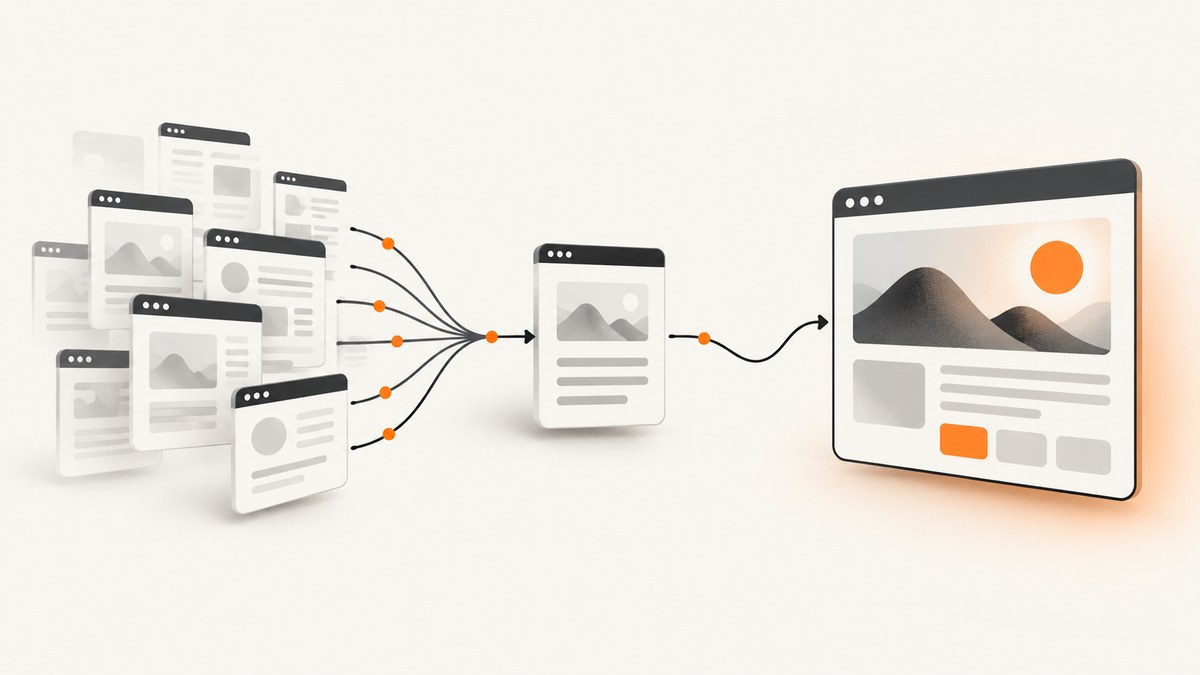
Short answer: For a one-off resize, use Ezgif’s animated image resizer: upload the GIF, enter a width, height, or percentage, choose how to handle the aspect ratio, and download the result. For repeatable automation, use Gifsicle’s --resize-width, --resize-height, --resize-fit, or --scale options. Use ImageMagick when you need frame processing or coalescing to fix optimized-frame artifacts.
Choose the right workflow
| Method | Best for | Trade-offs |
|---|---|---|
| Ezgif | One-off work with no installation | Upload and download workflow; inspect the complete animation after export |
| Gifsicle | Scripts, CI jobs, and repeatable resizing | Fast and controllable, but anti-aliasing can be weaker than other methods |
| ImageMagick | Frame-level processing and difficult optimized-frame inputs | Coalescing is slower and can create larger intermediate files |
| Photoshop | Manual inspection and optimization of individual frames | Desktop workflow rather than a simple unattended command |
Resize an animated GIF in a browser with Ezgif
- Open Ezgif’s animated GIF resizer.
- Upload the GIF or provide a direct URL.
- Enter a target width and height in pixels, or use a percentage.
- Select the aspect-ratio behavior: preserve proportions, crop, stretch, or add padding.
- Run the resize and inspect the beginning, middle, and end of the animation, including transparent edges and text.
- Download the result only after checking that looping, timing, and frame alignment are correct.
Ezgif says uploaded files are automatically deleted after one hour and that animated inputs are supported. Its documentation also notes that animated resizing may require trying different methods when artifacts appear.
Picking dimensions
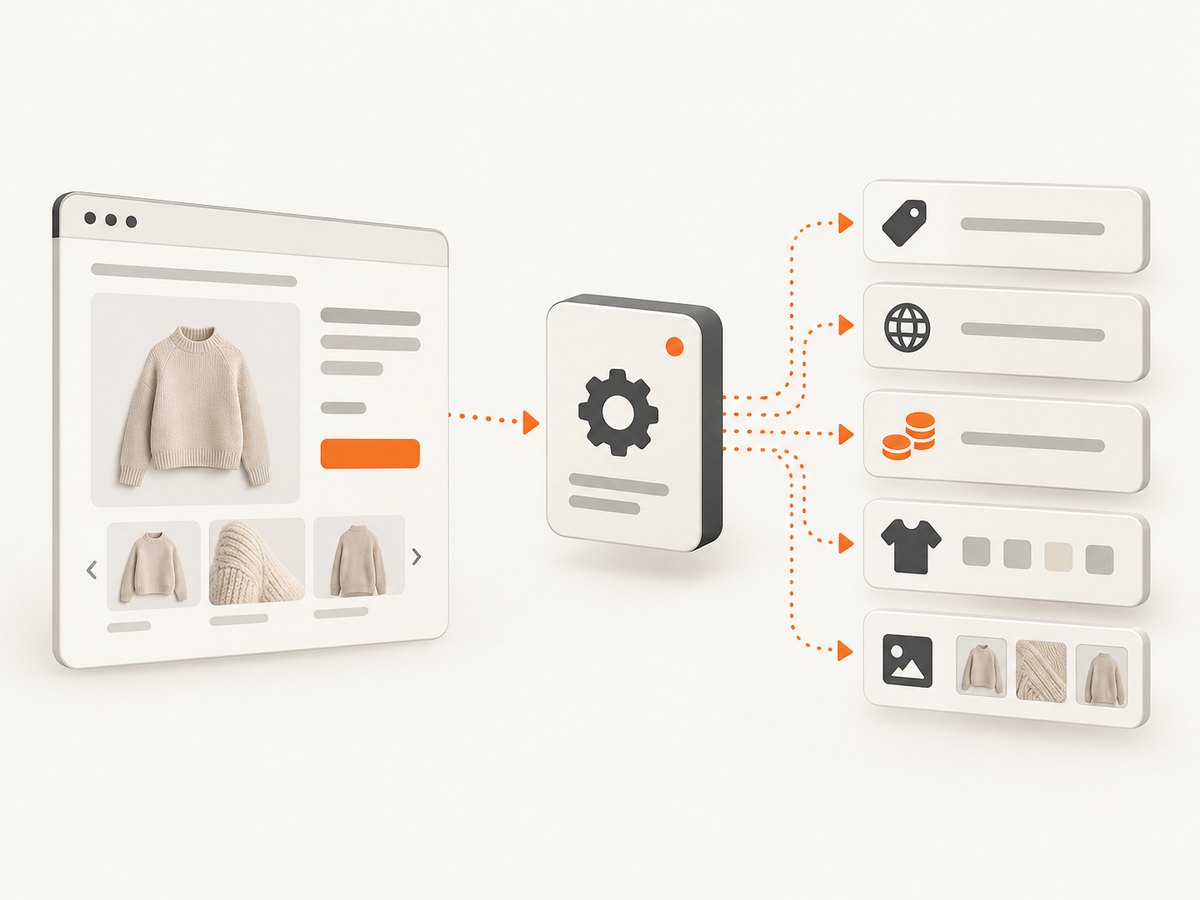
- Preserve the aspect ratio for most images. Set one dimension and calculate the other automatically.
- Use fit when the GIF must fit inside a maximum box without distortion.
- Crop when a fixed canvas matters more than showing the entire source.
- Stretch only when distortion is intentional.
- Downscale before other optimization. Smaller pixel dimensions normally produce a substantially smaller file.
Automate resizing with Gifsicle
Install Gifsicle using your operating system’s package manager, then run one of these commands. Keep the original file so you can compare every frame.
# Resize to a fixed width; height keeps the original aspect ratio
gifsicle input.gif --resize-width 480 -o output-width.gif

# Resize to a fixed height; width keeps the original aspect ratio
gifsicle input.gif --resize-height 360 -o output-height.gif

# Fit inside a 480×360 box while preserving proportions
gifsicle input.gif --resize-fit 480x360 -o output-fit.gif

# Scale both dimensions by 50 percent
gifsicle input.gif --scale 0.5 -o output-half.gif
Gifsicle resizes after frames are combined and before optimization. Its geometry syntax can use an underscore for a dimension that should be calculated to preserve the aspect ratio. When shrinking, choose the best available resize method for your build; mix uses bilinear interpolation and generally looks better than a simple sample.
# Example with an explicit resize method, if supported by your Gifsicle version
gifsicle input.gif --resize-fit 480x360 --resize-method mix -o output-mix.gif
Run gifsicle --help if your package uses a different option spelling for resize methods.
A repeatable shell script
#!/usr/bin/env bash
set -euo pipefail

input=${1:?Usage: ./resize-gif.sh input.gif output.gif width height}
output=${2:?Usage: ./resize-gif.sh input.gif output.gif width height}
width=${3:?Usage: ./resize-gif.sh input.gif output.gif width height}
height=${4:?Usage: ./resize-gif.sh input.gif output.gif width height}

gifsicle "$input" --resize-fit "${width}x${height}" -o "$output"
echo "Wrote $output"
Save it as resize-gif.sh, make it executable with chmod +x resize-gif.sh, and call it with ./resize-gif.sh input.gif output.gif 480 360.
Use ImageMagick when frames flicker or disappear
ImageMagick can apply -resize to animation frames, but optimized GIFs often store only the changed region of each frame. Processing those partial frames independently can cause color-reduction, dithering, missing-content, or flicker artifacts.
# Simple resize; inspect the result carefully
magick input.gif -resize 480x output.gif

# Coalesce frames first, resize complete frames, then write the GIF
magick input.gif -coalesce -resize 480x -layers Optimize output-coalesced.gif
-coalesce expands each frame into a complete image before resizing. This is more robust for troublesome inputs, but it uses more memory, runs slower, and may produce a larger intermediate or final file.
Keep a source copy, test both the simple and coalesced commands, and compare the full animation. If a particular GIF still fails, try another resize method or Gifsicle.
Optimize the GIF after resizing
- Resize or crop to the smallest dimensions that meet the destination requirement.
- Remove unnecessary frames when the motion still reads correctly.
- Reduce frame rate when the destination does not need every frame.
- Reduce the color count carefully; GIF’s limited palette can introduce banding and dithering.
- Optimize transparency and unchanged pixels.
- Try lossy GIF compression only after checking quality. Ezgif reports typical reductions of roughly 30%–50% for its lossy method, with some added dithering and noise.
If the GIF remains too large or looks poor, evaluate a modern animated format supported by the actual destination. Do not assume every browser, chat app, CMS, or email client accepts the same formats.
Photoshop workflow for manual frame control
- Open the GIF and show the Timeline panel.
- Use Optimize Animation before export.
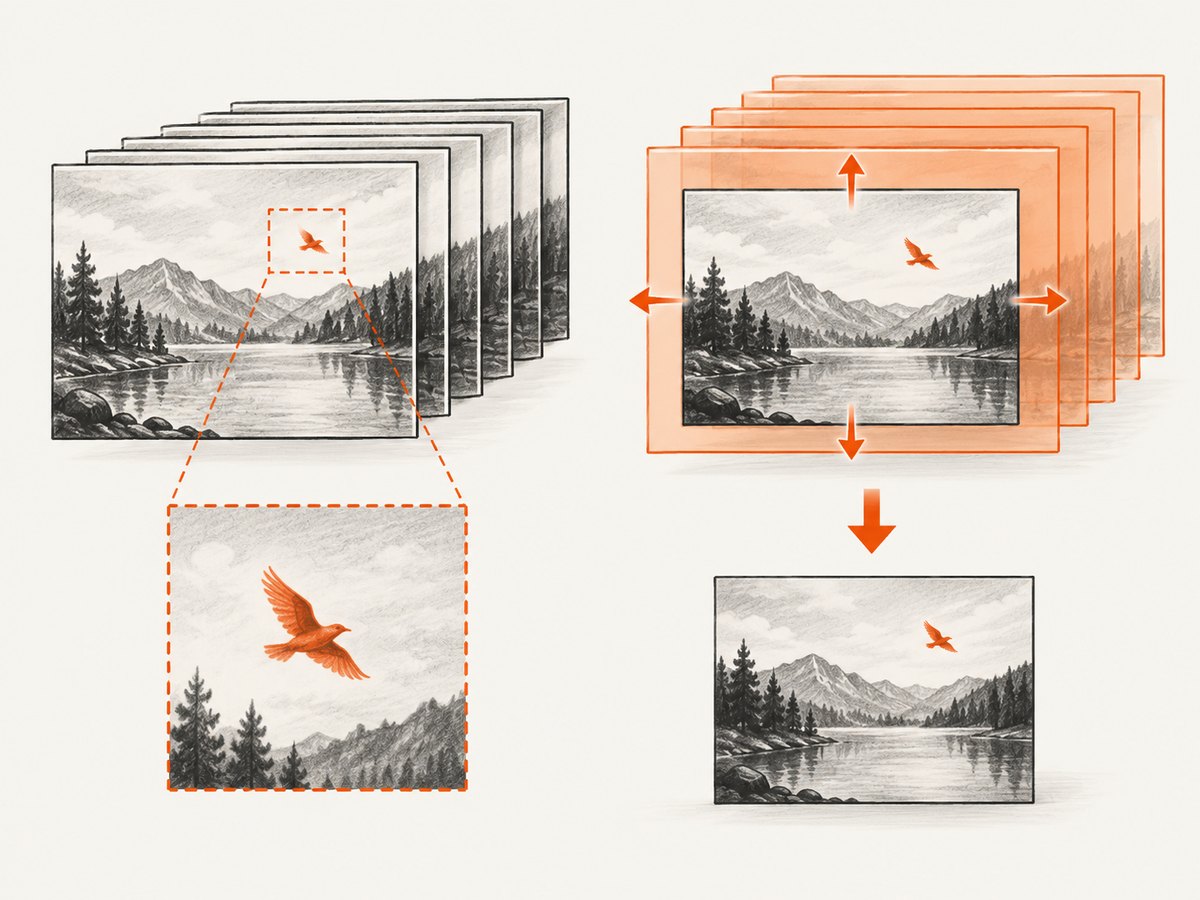
- Choose Bounding Box to crop each frame to changed areas.
- Choose Redundant Pixel Removal to make unchanged pixels transparent.
- Resize the image while preserving the intended aspect ratio.
- Export with consistent dithering and a suitable palette such as Adaptive, Perceptual, or Selective.
Adobe defines Bounding Box as cropping each frame to only the changed areas. Always preview the complete loop after export.
Quality rules that prevent common failures
- Do not enlarge expecting new detail. Upscaling cannot recreate information and may look blurry or pixelated.
- Preserve proportions. Independent width and height changes stretch circles, faces, and text.
- Expect palette changes. GIF’s color limits mean resizing can change dithering, especially when frames are processed independently.
- Check transparency. Matte colors around transparent edges can become visible on a different background.
- Check timing and looping. A visually correct first frame can hide a broken delay or loop count later.
- Inspect text and thin lines. They are the first details to flicker or disappear after downscaling.
Troubleshooting
| Symptom | Likely cause | Fix |
|---|---|---|
| Frames flicker | Optimized partial frames were resized independently | Use ImageMagick with -coalesce, then resize and optimize; compare with Gifsicle |
| Content disappears | Frame disposal or transparency was interpreted incorrectly | Coalesce the source before resizing and verify transparency against the destination background |
| GIF looks stretched | Width and height were forced independently | Use Gifsicle width, height, or fit options, or enable preserve-proportions in Ezgif |
| Output is blurry | The source was enlarged or a low-quality sampling method was used | Downscale instead, choose a better interpolation method, or start with a higher-resolution source |
| Colors look noisy | Palette reduction and dithering changed across frames | Use a consistent palette, try another method, and avoid unnecessary repeated conversions |
| File is still too large | Too many pixels, frames, colors, or long delays | Resize first, then remove frames, reduce frame rate or colors, optimize transparency, and test lossy compression |
| Animation no longer loops | Export settings dropped the loop metadata | Check loop settings in the browser or desktop exporter and inspect the downloaded file |
| Command fails on a large GIF | Memory or temporary-file pressure | Use a smaller target, process on a machine with more memory, or avoid coalescing unless it is needed |
Performance, reliability, and cost considerations
- Browser tools: fastest setup for occasional files, but manual review is required for each output.
- Gifsicle: practical for batch jobs because dimensions and output paths are deterministic. Add a validation step that checks the output exists and can be decoded.
- ImageMagick coalescing: more reliable for optimized-frame edge cases, but slower and more memory-intensive.
- Quality: downscaling usually reduces file size; upscaling increases pixels without restoring detail.
- Cost: local Gifsicle, ImageMagick, and Photoshop workflows have no per-image API charge, but they consume local CPU, memory, and storage. Online services may impose upload, retention, or usage limits; check the current service terms before processing sensitive files.
Or skip the browser setup
ScreenshotNeo is a website screenshot API rather than a GIF resizer, but it is useful when the asset you need is a clean capture of a web page. One GET request returns a PNG, JPEG, WebP, or PDF. Before capture, it accepts cookie or consent banners and removes more than 60 known consent platforms, newsletter popups, and chat widgets; each step can be turned off. Bot checks, blank pages, timeouts, failed loads, and cache hits are not billed, and response headers identify the page verdict and whether it was billed.
See the ScreenshotNeo API documentation for the complete option list, including full-page capture, element selectors, dark mode, device presets, retina scale, custom CSS and JavaScript, waits, request blocking, cookies, headers, geolocation, caching, signed links, asynchronous jobs, bulk capture, and usage reporting.
curl -G "https://api.screenshotneo.com/v1/shot" -d access_key=YOUR_API_KEY --data-urlencode url=https://stripe.com -o shot.webpimport requests
r = requests.get("https://api.screenshotneo.com/v1/shot", params={"access_key": "YOUR_API_KEY", "url": "https://stripe.com"}, timeout=90)
open("shot.webp", "wb").write(r.content)const q = new URLSearchParams({ access_key: 'YOUR_API_KEY', url: 'https://stripe.com' });
const res = await fetch(`https://api.screenshotneo.com/v1/shot?${q}`);ScreenshotNeo also provides an MCP server with take_screenshot, get_page_info, and capture_pdf tools for Claude, Cursor, and other MCP clients. The free plan includes 1,000 screenshots per month with no card; paid plans start at $5 for 3,000. Create a free ScreenshotNeo account.
FAQ
Can I resize an animated GIF by percentage?
Yes. Ezgif accepts a percentage, and Gifsicle’s --scale applies the same multiplier to both dimensions.
Should I resize before or after optimizing?
Resize or crop first, then optimize frames, colors, transparency, and compression. Optimizing first can be wasted work when the pixel dimensions change.
Why does coalescing make the file larger?
It expands partial frames into complete frames. That improves correctness for difficult inputs but increases temporary data and can reduce the savings from frame-delta optimization.
Is GIF always the best animated format?
No. If the destination supports a modern animated format, it may provide better quality or compression. Verify support for the specific browser, app, CMS, or email client before switching.


