How to Resize a Java BufferedImage and Reduce Its Quality
Resize a BufferedImage with Graphics2D, then control JPEG compression with ImageWriteParam, including aspect ratios, transparency, errors and performance.
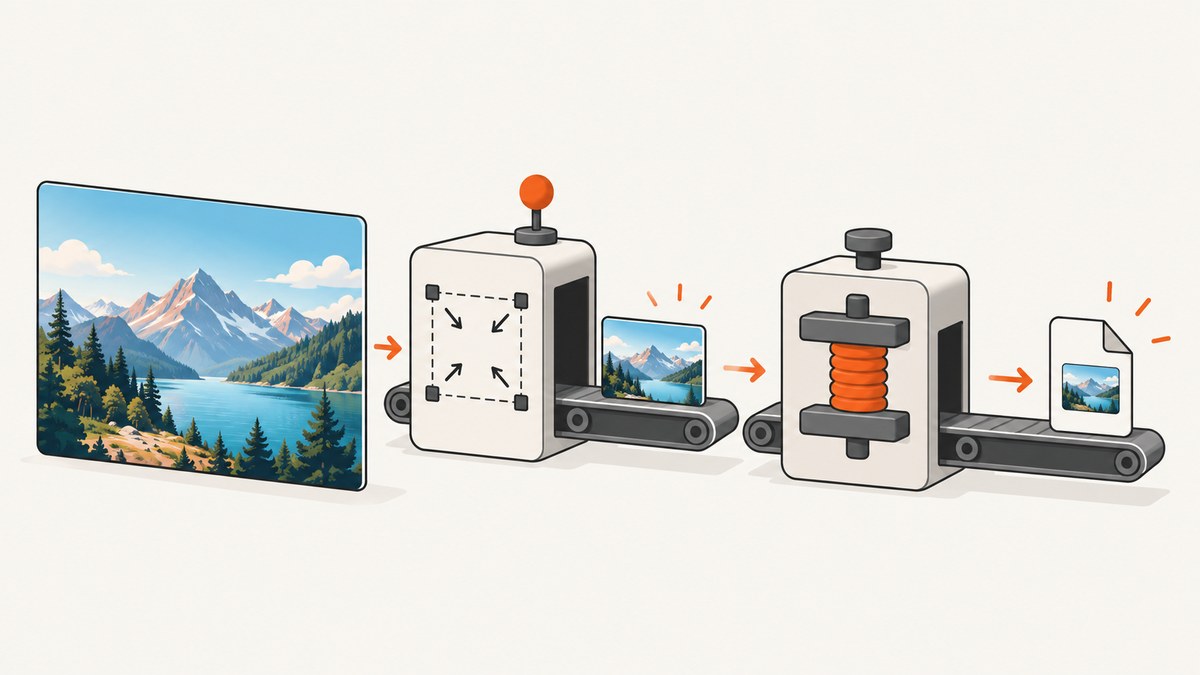
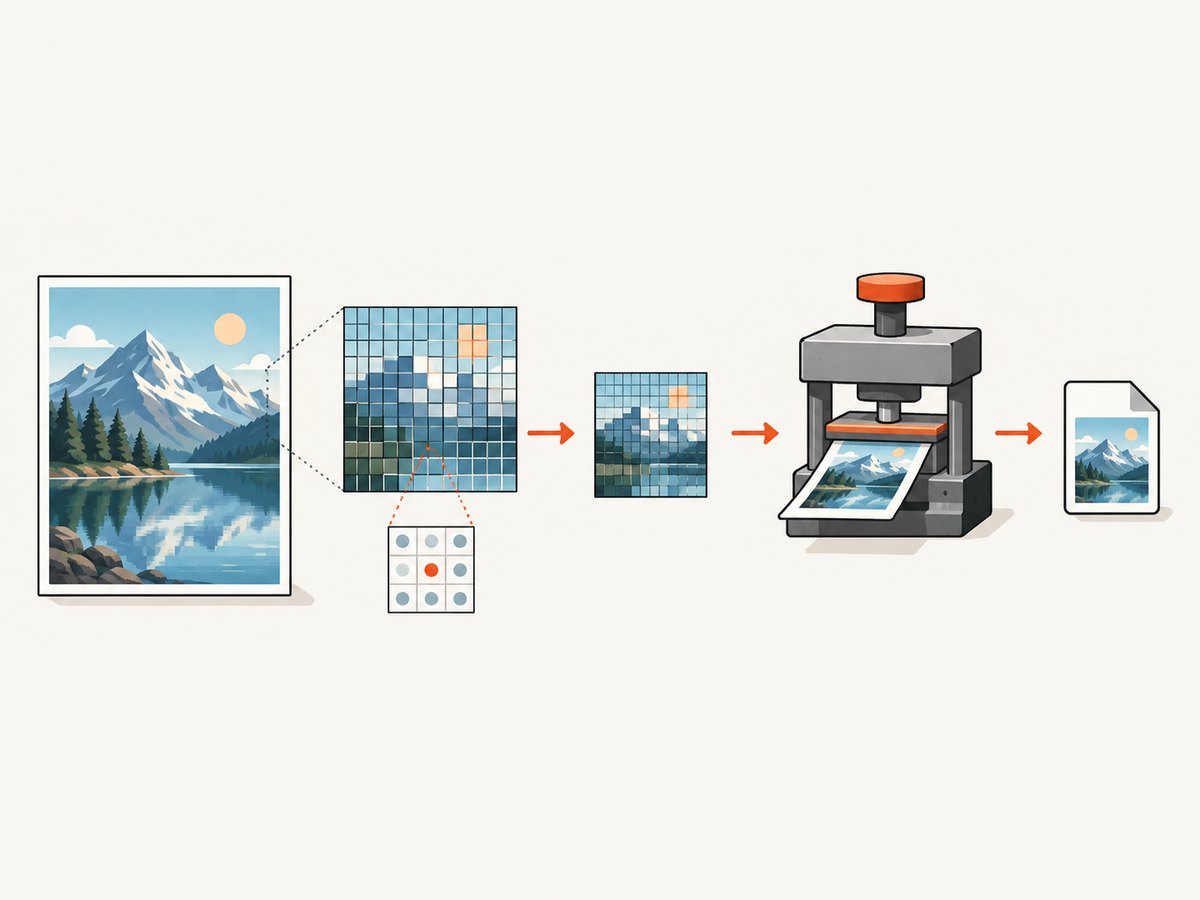
Direct answer: resizing and reducing encoded image quality are separate operations. Render the source into a new BufferedImage at the target dimensions with Graphics2D, then configure the output encoder. For JPEG, use an ImageWriter and ImageWriteParam#setCompressionQuality with a value from 0.0f to 1.0f. Lower values generally produce smaller files and more visible artifacts; the exact result depends on the image and writer.
The Java 2D interpolation constants are advisory: implementations may ignore them, so compare output on the images and JDK runtime you deploy. See the RenderingHints API, ImageWriteParam API and JPEGImageWriteParam API.
1. The complete Java example
This program reads an image, scales it to a requested width, preserves the aspect ratio, and writes a JPEG with explicit compression quality. JPEG has no alpha channel, so transparent pixels are composited over a chosen background color.
import java.awt.Color;
import java.awt.Graphics2D;
import java.awt.RenderingHints;
import java.awt.image.BufferedImage;
import java.io.File;
import java.io.IOException;
import java.util.Iterator;
import javax.imageio.IIOImage;
import javax.imageio.ImageIO;
import javax.imageio.ImageWriteParam;
import javax.imageio.ImageWriter;
import javax.imageio.stream.ImageOutputStream;

public final class ResizeAndCompress {
    private ResizeAndCompress() {}

    public static void main(String[] args) throws IOException {
        if (args.length != 4) {
            System.err.println("Usage: java ResizeAndCompress input output.jpg width quality");
            System.err.println("Example: java ResizeAndCompress input.png output.jpg 1200 0.80");
            System.exit(2);
        }

        File input = new File(args[0]);
        File output = new File(args[1]);
        int targetWidth = Integer.parseInt(args[2]);
        float quality = Float.parseFloat(args[3]);

        if (targetWidth <= 0) {
            throw new IllegalArgumentException("width must be positive");
        }
        if (quality < 0.0f || quality > 1.0f) {
            throw new IllegalArgumentException("quality must be between 0 and 1");
        }

        BufferedImage source = ImageIO.read(input);
        if (source == null) {
            throw new IOException("No ImageIO reader found for " + input);
        }

        int targetHeight = Math.max(1,
                (int) Math.round((double) source.getHeight() * targetWidth / source.getWidth()));
        BufferedImage resized = resizeForJpeg(source, targetWidth, targetHeight, Color.WHITE);
        writeJpeg(resized, output, quality);
    }

    static BufferedImage resizeForJpeg(BufferedImage source, int width, int height,
                                       Color background) {
        BufferedImage destination = new BufferedImage(width, height, BufferedImage.TYPE_INT_RGB);
        Graphics2D graphics = destination.createGraphics();
        try {
            graphics.setColor(background);
            graphics.fillRect(0, 0, width, height);
            graphics.setRenderingHint(RenderingHints.KEY_INTERPOLATION,
                    RenderingHints.VALUE_INTERPOLATION_BICUBIC);
            graphics.setRenderingHint(RenderingHints.KEY_RENDERING,
                    RenderingHints.VALUE_RENDER_QUALITY);
            graphics.setRenderingHint(RenderingHints.KEY_ANTIALIASING,
                    RenderingHints.VALUE_ANTIALIAS_ON);
            graphics.drawImage(source, 0, 0, width, height, null);
        } finally {
            graphics.dispose();
        }
        return destination;
    }

    static void writeJpeg(BufferedImage image, File destination, float quality)
            throws IOException {
        Iterator<ImageWriter> writers = ImageIO.getImageWritersByFormatName("jpeg");
        if (!writers.hasNext()) {
            throw new IOException("No JPEG writer is available");
        }

        ImageWriter writer = writers.next();
        try (ImageOutputStream output = ImageIO.createImageOutputStream(destination)) {
            if (output == null) {
                throw new IOException("Could not open output: " + destination);
            }
            writer.setOutput(output);
            ImageWriteParam parameters = writer.getDefaultWriteParam();
            if (!parameters.canWriteCompressed()) {
                throw new IOException("This JPEG writer does not expose compression control");
            }
            parameters.setCompressionMode(ImageWriteParam.MODE_EXPLICIT);
            parameters.setCompressionQuality(quality);
            writer.write(null, new IIOImage(image, null, null), parameters);
        } finally {
            writer.dispose();
        }
    }
}
Compile and run it with a JDK:
javac ResizeAndCompress.java
java ResizeAndCompress input.png output.jpg 1200 0.80
The setCompressionMode call must come before setCompressionQuality. The quality number is not a universal visual score or guaranteed percentage reduction. Measure the resulting bytes and inspect representative images.
2. Resize without distorting the aspect ratio
Choose one dimension and calculate the other from the source dimensions:
int targetWidth = 1200;
int targetHeight = Math.max(1, (int) Math.round(
        (double) source.getHeight() * targetWidth / source.getWidth()));
If you are fitting inside a box, calculate a single scale factor instead:
double scale = Math.min((double) maxWidth / source.getWidth(),
                        (double) maxHeight / source.getHeight());
int width = Math.max(1, (int) Math.round(source.getWidth() * scale));
int height = Math.max(1, (int) Math.round(source.getHeight() * scale));
To deliberately crop, calculate the crop rectangle first, then draw that source rectangle into the destination. Do not pass independent width and height values unless stretching is intentional.
3. Choosing interpolation
| Hint | Typical use | Tradeoff |
|---|---|---|
VALUE_INTERPOLATION_NEAREST_NEIGHBOR |
Pixel art, masks, fastest simple scaling | Can look blocky on photographs |
VALUE_INTERPOLATION_BILINEAR |
General-purpose moderate scaling | Usually smoother than nearest neighbor with less work than bicubic |
VALUE_INTERPOLATION_BICUBIC |
Photographs and quality-focused output | May take more processing time; results vary by implementation |
These are rendering requests, not guarantees. The Java API says implementations are free to ignore hints. Compare the actual output at the final display size, especially for small icons, text in screenshots and strong downscaling.
4. Reducing JPEG quality correctly
Quality is an encoder setting, not a Graphics2D setting. Obtain a JPEG writer, enable explicit compression mode, set the quality, and write through an ImageOutputStream.
- 0.90–1.00: usually prioritizes fidelity and produces larger files.
- 0.70–0.89: a practical range to evaluate for photographs.
- 0.40–0.69: smaller files with increasing block and ringing artifacts.
- 0.00–0.39: often visibly degraded; use only when the size requirement justifies it.
Those ranges are starting points, not promises. Image content, chroma detail, writer implementation and runtime all affect bytes and appearance. The built-in JPEG parameter documentation describes a default quality of 0.75 for that writer; set your value explicitly when reproducibility matters.
5. PNG, alpha and other format decisions
PNG
PNG is lossless. A PNG writer may expose compression controls that trade encoding time against file size, but they do not work like JPEG’s visual quality control. Do not expect a PNG quality number to create JPEG-style degradation. Check the selected writer’s ImageWriteParam support.
Transparency
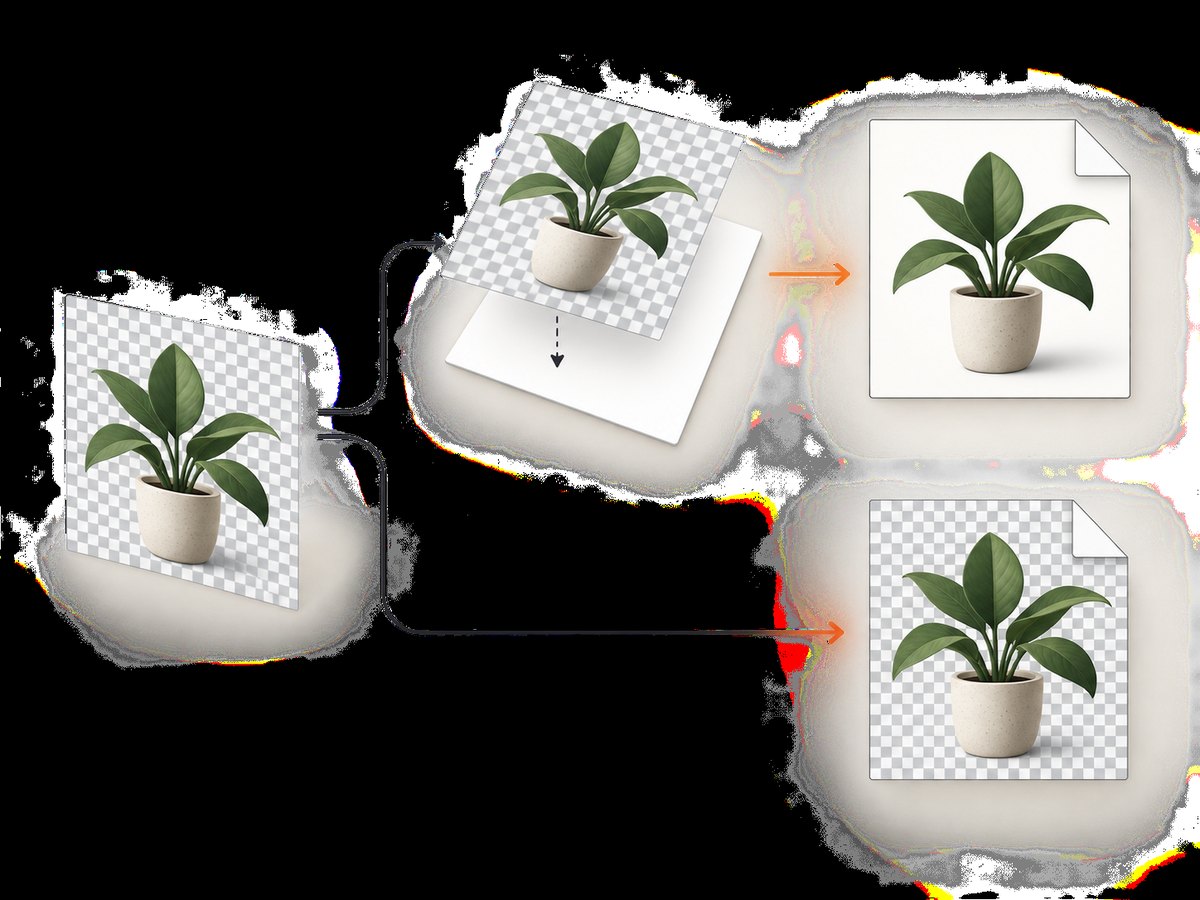
The example creates TYPE_INT_RGB, which intentionally discards alpha after painting transparent pixels white. For a transparent result, use BufferedImage.TYPE_INT_ARGB and write PNG:
BufferedImage destination = new BufferedImage(width, height,
        BufferedImage.TYPE_INT_ARGB);
Graphics2D g = destination.createGraphics();
try {
    g.setRenderingHint(RenderingHints.KEY_INTERPOLATION,
            RenderingHints.VALUE_INTERPOLATION_BICUBIC);
    g.drawImage(source, 0, 0, width, height, null);
} finally {
    g.dispose();
}
ImageIO.write(destination, "png", outputFile);
If you need JPEG from an image with transparency, define the background policy explicitly: white, black, a brand color or another supplied color. Otherwise the result can contain unexpected dark or transparent-looking regions.
6. Useful variations and validation
- Validate that the source decoded successfully;
ImageIO.readreturnsnullwhen no reader can decode the input. - Reject zero or negative dimensions before allocating the destination.
- Clamp calculated dimensions to at least one pixel.
- Use a temporary output file and an atomic move when replacing an existing asset.
- Preserve metadata only when you have a deliberate metadata policy; the simple writer call does not promise to retain every source field.
- For very large images, process them in a bounded worker pool and enforce input pixel and byte limits to protect heap memory.
7. Troubleshooting
| Symptom | Cause | Fix |
|---|---|---|
IllegalStateException when setting quality |
Compression mode was not set to explicit. | Call setCompressionMode(ImageWriteParam.MODE_EXPLICIT) first. |
| Output is stretched | Width and height were chosen independently. | Calculate the second dimension from the source ratio or crop intentionally. |
| JPEG has a black background | Transparent source pixels were converted without a background policy. | Paint the destination background before drawing, or keep alpha and write PNG. |
| Quality setting appears ignored | The selected writer does not support compression control, or the wrong format writer was selected. | Check canWriteCompressed(), select a JPEG writer and inspect the encoded output. |
ImageIO.read returns null |
No installed ImageIO reader recognized the input. | Verify the file, format and runtime plugins; report an unsupported format clearly. |
| OutOfMemoryError | Large source and destination rasters require substantial heap. | Limit dimensions, downscale in stages where appropriate, process fewer images concurrently and size the JVM heap for the workload. |
| Text or thin lines look soft | Downscaling removed high-frequency detail. | Render at a suitable target size, compare interpolation modes and consider a lossless format for UI assets. |
8. Performance and reliability notes
Resizing cost depends on source pixels, destination pixels, interpolation implementation and concurrency. JPEG encoding adds work after rendering. Benchmark with your actual images and target dimensions; the Java API does not define a universal speed or quality ranking for these hints.
- Reuse your application infrastructure, but do not share a mutable
Graphics2DorImageWriteracross threads without synchronization. - Dispose every graphics context and writer, and close every
ImageOutputStream. - Write to a new file, flush and close it before publishing the path to another thread or process.
- Record source dimensions, destination dimensions, format, quality, output bytes and elapsed time so a production change is observable.
- Keep the original when later re-encoding may be required; repeated JPEG encoding compounds loss.
9. Or skip the browser setup
If your actual job is capturing web pages before resizing them, ScreenshotNeo provides the screenshot step through one GET request. The API accepts PNG, JPEG or WebP output, and its options include resizing, custom CSS and JavaScript, full-page capture, element capture and device or viewport settings. See the ScreenshotNeo API documentation.
curl -G "https://api.screenshotneo.com/v1/shot" \
  -d access_key=YOUR_API_KEY \
  --data-urlencode url=https://stripe.com \
  -o shot.webp
import requests
r = requests.get(
"https://api.screenshotneo.com/v1/shot",
params={"access_key": "YOUR_API_KEY", "url": "https://stripe.com"},
timeout=90,
)
r.raise_for_status()
open("shot.webp", "wb").write(r.content)const q = new URLSearchParams({
access_key: 'YOUR_API_KEY',
url: 'https://stripe.com'
});
const res = await fetch(`https://api.screenshotneo.com/v1/shot?${q}`);
if (!res.ok) throw new Error(`HTTP ${res.status}`);
const bytes = new Uint8Array(await res.arrayBuffer());
await Bun.write('shot.webp', bytes);Cookie banners, newsletter popups and chat widgets are removed before the shot. Bot checks, blank pages and failed loads are never billed, and response headers identify the page verdict and whether it was billed. An MCP server lets AI agents use take_screenshot, get_page_info and capture_pdf. The Free plan includes 1,000 screenshots a month with no card; paid plans start at $5 for 3,000. Create a free ScreenshotNeo account.
10. FAQ
Does lowering JPEG quality resize the image?
No. Resizing changes pixel dimensions; quality controls encoding. Perform both steps explicitly.
Can I use ImageIO.write for quality control?
Use the simpler overload when defaults are sufficient. For explicit JPEG quality, use an ImageWriter, ImageWriteParam and IIOImage as shown above.
What quality value should I ship?
There is no universal value. Test representative images against your byte and visual-fidelity requirements, then set the chosen value explicitly.
Why not always use bicubic?
It is a useful quality-oriented starting point, but interpolation hints are advisory and the best choice depends on scale ratio, image content and runtime.


