How to Resize HTML Before Exporting It to PDF With jsPDF’s html() Method
Control PDF width with jsPDF’s width option, CSS layout with windowWidth, and image sharpness with html2canvas.scale.
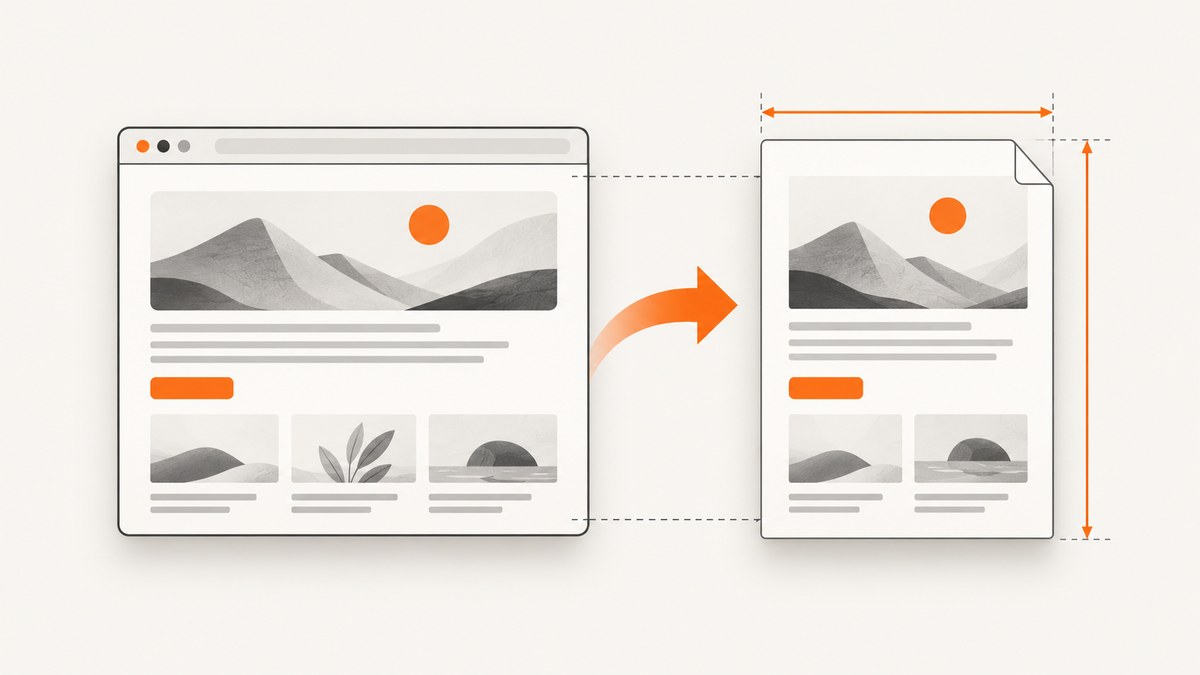
Use jsPDF’s width option to set the rendered element’s width in PDF units, and use windowWidth to control the CSS-pixel layout that is rendered. Put renderer settings such as scale, useCORS, windowHeight, and canvas dimensions inside html2canvas. The two width settings solve different problems.
If the output is too wide, set width to the available page width and set windowWidth to the CSS width you want the layout to use. Do not set html2canvas.scale when you expect jsPDF to calculate the width automatically: jsPDF documents that width has no effect when html2canvas.scale is specified or when windowWidth is omitted. See the jsPDF html() documentation for the option definitions.
1. A working browser example
This example exports an element at the width of an A4 page minus 24-point margins. The element keeps a deliberate CSS layout width, while jsPDF scales that rendered layout into the PDF width.
import { jsPDF } from 'jspdf';

const element = document.querySelector('#export');
const pdf = new jsPDF({
  unit: 'pt',
  format: 'a4',
  orientation: 'portrait'
});

const margin = 24;
const pageWidth = pdf.internal.pageSize.getWidth();
const cssWidth = element.scrollWidth;
const cssHeight = element.scrollHeight;

pdf.html(element, {
  margin,
  width: pageWidth - (margin * 2),
  windowWidth: cssWidth,
  autoPaging: 'text',
  html2canvas: {
    scale: 1,
    windowWidth: cssWidth,
    windowHeight: cssHeight,
    useCORS: true
  },
  callback: (doc) => doc.save('export.pdf')
});
In this setup, width is measured in the document’s unit (points here). windowWidth is measured in CSS pixels. html2canvas.scale controls the raster resolution of the canvas, not the PDF’s logical placement width.
2. How the two width options interact
| Option | Where it goes | What it controls | Typical value |
|---|---|---|---|
width |
Top level of pdf.html() |
Target width in PDF units; jsPDF scales the rendered element to fit | pageWidth - margins |
windowWidth |
pdf.html() |
CSS-pixel width of the rendered container and layout | element.scrollWidth or a fixed design width |
html2canvas.scale |
html2canvas |
Pixel density and sharpness of the raster canvas | 1, devicePixelRatio, or a tested value |
html2canvas.width |
html2canvas |
Canvas capture width in CSS pixels | Usually leave unset |
html2canvas.windowHeight |
html2canvas |
Virtual viewport height used during capture | element.scrollHeight |
windowWidth only has an effect when width is also supplied. It changes the container’s size; it does not change CSS media queries. If your stylesheet switches at a breakpoint, set the desired responsive state explicitly with CSS or render at a width that naturally selects that state.
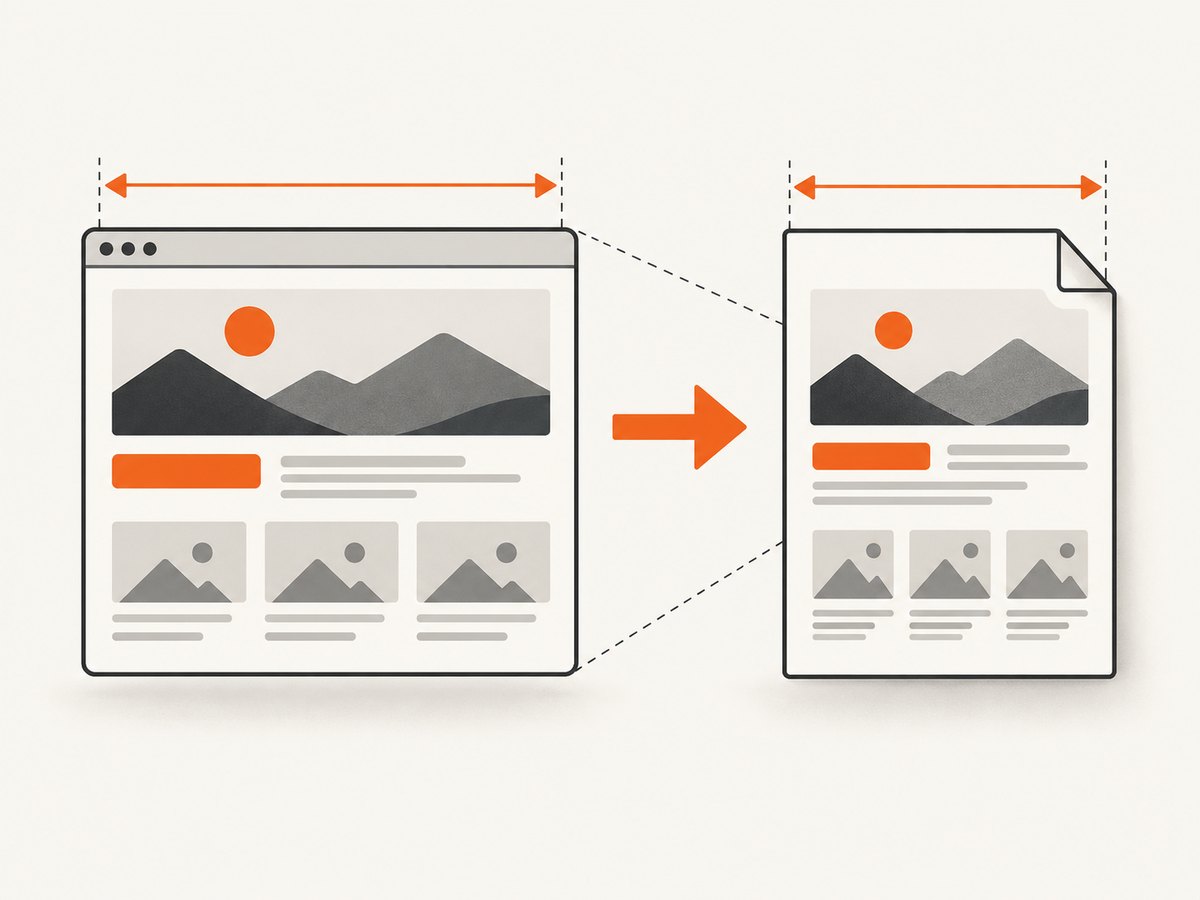
3. Decide what “resize” means in your export
Fit a desktop layout onto a page
Choose a fixed CSS width such as 1024 pixels and map it into the printable page width:
const pdf = new jsPDF({ unit: 'mm', format: 'a4' });
pdf.html(document.querySelector('#dashboard'), {
  margin: 12,
  width: pdf.internal.pageSize.getWidth() - 24,
  windowWidth: 1024,
  autoPaging: 'text',
  html2canvas: { scale: 1, useCORS: true },
  callback: doc => doc.save('dashboard.pdf')
});
This preserves the desktop composition and shrinks it to fit. It is useful for tables and dashboards, but small text may become difficult to read.
Use a mobile or narrow layout
Set windowWidth to a narrow CSS width, then provide the PDF width separately:
pdf.html(element, {
  margin: 20,
  width: pageWidth - 40,
  windowWidth: 390,
  html2canvas: { scale: 1 },
  callback: doc => doc.save('mobile-layout.pdf')
});
Because windowWidth controls the rendered container, flex and grid layouts may reflow. Inspect the element at that width before exporting.
Increase sharpness without changing layout
Raise html2canvas.scale while keeping width and windowWidth unchanged:
pdf.html(element, {
  margin: 24,
  width: pageWidth - 48,
  windowWidth: element.scrollWidth,
  html2canvas: {
    scale: 2,
    useCORS: true
  },
  callback: doc => doc.save('sharp-export.pdf')
});
A higher scale creates a larger bitmap and can increase memory use and file size. It does not make unsupported CSS render correctly.
4. Complete HTML and JavaScript setup
Load jsPDF and keep the export element stable while rendering. Hide interactive controls with an export-only class.
<button id="download">Download PDF</button>
<main id="export" class="invoice">
  <h1>Invoice 1042</h1>
  <p>Prepared for Example Co.</p>
  <table>...</table>
</main>

<script type="module">
  import { jsPDF } from 'jspdf';

  document.querySelector('#download').addEventListener('click', () => {
    const element = document.querySelector('#export');
    const pdf = new jsPDF({ unit: 'pt', format: 'a4' });
    const margin = 32;
    const width = pdf.internal.pageSize.getWidth() - margin * 2;

    document.body.classList.add('pdf-exporting');
    pdf.html(element, {
      margin,
      width,
      windowWidth: element.scrollWidth,
      autoPaging: 'text',
      html2canvas: {
        scale: 1,
        windowWidth: element.scrollWidth,
        windowHeight: element.scrollHeight,
        useCORS: true,
        backgroundColor: '#ffffff'
      },
      callback: doc => {
        doc.save('invoice-1042.pdf');
        document.body.classList.remove('pdf-exporting');
      }
    });
  });
</script>
.pdf-exporting .toolbar,
.pdf-exporting .collapse-control {
display: none;
}
#export {
background: white;
color: #111;
}5. Pagination and page breaks
The autoPaging option accepts false, true (also called 'slice'), or 'text'. Slice mode can cut text, borders, and shapes at a page boundary. Text mode tries to avoid cutting text in half and is usually the better starting point for documents that are mostly paragraphs.
pdf.html(element, {
  margin: [36, 32, 36, 32],
  width: pageWidth - 64,
  windowWidth: element.scrollWidth,
  autoPaging: 'text',
  callback: doc => doc.save('report.pdf')
});
For cards, charts, or invoices, avoid elements taller than a page. You can request a break with CSS, although support depends on the renderer:
.page-break {
  break-before: page;
  page-break-before: always;
}
.avoid-break {
  break-inside: avoid;
  page-break-inside: avoid;
}
Large tables may still split awkwardly. Consider rendering each logical section separately and adding pages yourself when exact pagination matters.
6. Images, fonts, and CSS fidelity
html2canvas reconstructs a page from DOM and computed styles; it is not a browser print engine. Its FAQ explains that every CSS property must be implemented individually, so full CSS support is not possible. Test gradients, filters, transforms, pseudo-elements, sticky positioning, and custom fonts in every browser you support.
Cross-origin images can taint the canvas. Set useCORS: true only when the image server sends an appropriate Access-Control-Allow-Origin header. Otherwise, serve the image from the same origin or use a server-side proxy that adds the required CORS header.
html2canvas: {
  useCORS: true,
  imageTimeout: 15000,
  backgroundColor: '#fff'
}
Wait for fonts and images before calling html():
await document.fonts.ready;
await Promise.all(
  [...document.images].map(img => img.complete
    ? Promise.resolve()
    : new Promise(resolve => {
        img.addEventListener('load', resolve, { once: true });
        img.addEventListener('error', resolve, { once: true });
      }))
);
7. Avoid blank, clipped, or oversized canvases
Match the virtual viewport to the element’s scroll dimensions when capturing a long element. Browser canvas limits vary; html2canvas warns that exceeding them can produce blank or partial output without a useful exception.
const cssWidth = Math.ceil(element.scrollWidth);
const cssHeight = Math.ceil(element.scrollHeight);

pdf.html(element, {
  width: pageWidth - 48,
  windowWidth: cssWidth,
  html2canvas: {
    windowWidth: cssWidth,
    windowHeight: cssHeight,
    scale: 1
  },
  callback: doc => doc.save('long-page.pdf')
});
If the document is extremely tall, split it into sections or pages rather than increasing one canvas indefinitely. Reduce scale, remove off-screen decoration, and avoid exporting hidden duplicate layouts.
8. Browser versus server-side generation
html2canvas requires browser APIs such as window, document, and computed styles. It cannot run directly in Node.js. For server-side rendering, use a browser-driving tool such as Puppeteer or Playwright, or call a screenshot/PDF API.
The related html2pdf.js project combines html2canvas and jsPDF entirely client-side, but its documentation notes that the root element is resized to fit the PDF page. That can cause internal reflow. Its output is image-based, so text is not selectable or searchable and files can be large.
9. Troubleshooting checklist
| Symptom | Likely cause | Fix |
|---|---|---|
width appears ignored |
windowWidth is missing or html2canvas.scale is explicitly set |
Supply both width and windowWidth; remove an explicit scale while diagnosing |
| Content reflows unexpectedly | The CSS container is rendered at a different width | Set windowWidth to the intended CSS width and verify breakpoints |
| PDF is blurry | Canvas scale is too low | Try scale: 2, then check memory and file size |
| PDF is blank or clipped | Canvas dimensions exceed browser limits or viewport height is too small | Match windowHeight to scrollHeight; split very long content |
| Images are missing | Cross-origin canvas tainting or image failures | Use same-origin assets or useCORS: true with server CORS headers |
| Fonts differ | Font files were not loaded before capture | Await document.fonts.ready and verify font URLs |
| Text is cut between pages | Slice pagination or an oversized block | Use autoPaging: 'text' and add break-avoidance CSS |
| Node throws “window is not defined” | html2canvas is running outside a browser | Use Puppeteer, Playwright, or a PDF API |
10. Performance, reliability, and cost considerations
- Measure before choosing scale: canvas pixels grow with both the element dimensions and
scale. Start at1, then increase only when printed text or diagrams need it. - Reduce work: export only the target subtree, hide animations and video, and avoid loading content that will not appear in the PDF.
- Make output deterministic: wait for fonts, images, charts, and asynchronous data before capture. Freeze timestamps and random values when reproducibility matters.
- Handle failures: wrap the export in a promise or callback path that restores temporary CSS classes even when an image fails.
- Expect browser variation: layout and canvas limits depend on the browser, device memory, document size, and image dimensions. There is no universal performance number for this workflow.
11. Or skip the browser setup
If you need a clean screenshot or PDF from a URL without wiring up a browser, ScreenshotNeo provides a GET endpoint and an MCP server for AI agents. It accepts cookie and consent banners before capture and removes more than 60 known consent platforms, newsletter popups, and chat widgets. Bot checks, blank pages, timeouts, failed loads, and cache hits are not billed, and the response reports the result with X-Page-Verdict and X-Billed headers.
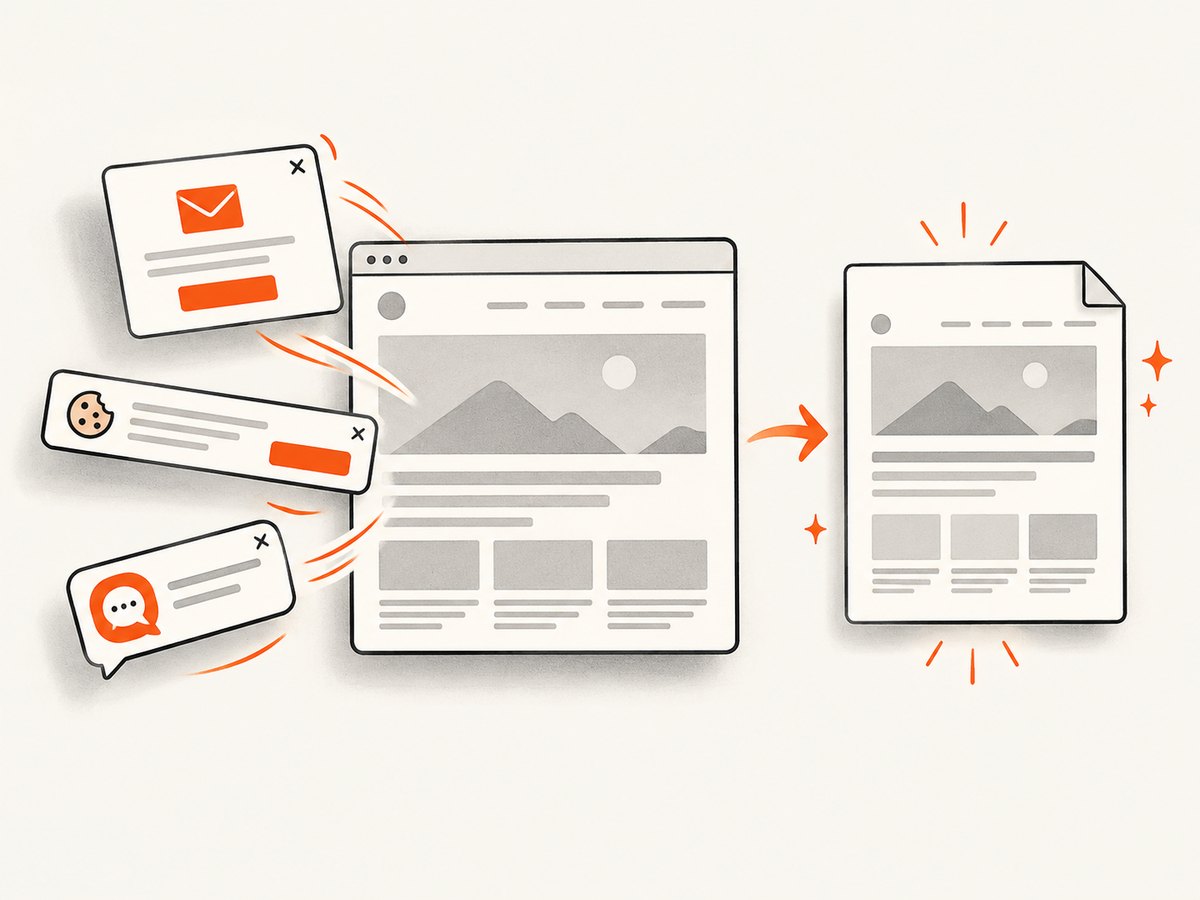
See the ScreenshotNeo API documentation for all options, including PDF paper size, margins, landscape mode, page ranges, custom CSS and JavaScript, waiting rules, headers, cookies, blocking, caching, asynchronous jobs, signed webhooks, bulk capture, and usage reporting.
cURL
curl -G "https://api.screenshotneo.com/v1/shot" \
  -d access_key=YOUR_API_KEY \
  --data-urlencode url=https://stripe.com \
  -o shot.webp
Python
import requests

r = requests.get(
    "https://api.screenshotneo.com/v1/shot",
    params={"access_key": "YOUR_API_KEY", "url": "https://stripe.com"},
    timeout=90,
)
r.raise_for_status()
open("shot.webp", "wb").write(r.content)
Node.js
const q = new URLSearchParams({
  access_key: 'YOUR_API_KEY',
  url: 'https://stripe.com'
});
const res = await fetch(`https://api.screenshotneo.com/v1/shot?${q}`);
if (!res.ok) throw new Error(`HTTP ${res.status}`);
const buffer = Buffer.from(await res.arrayBuffer());
await import('node:fs/promises').then(fs => fs.writeFile('shot.webp', buffer));
An MCP server is included for Claude, Cursor, and other MCP clients, with take_screenshot, get_page_info, and capture_pdf tools. The Free plan includes 1,000 shots each month with no card; paid plans start at $5 for 3,000 shots. Create a free ScreenshotNeo account.
12. FAQ
Does windowWidth change my CSS media queries?
No. It changes the rendered container size. Media-query behavior still follows the browser’s CSS viewport rules, so test the resulting layout at the width you choose.
Should I set width in pixels?
Use the unit configured when creating jsPDF. With unit: 'pt', use points; with unit: 'mm', use millimeters. Convert your available page width after subtracting margins.
Can jsPDF produce selectable text with this method?
The html2canvas path renders the DOM to a canvas, so text is generally part of an image. If searchable text is required, use a PDF generation approach that writes text and layout primitives directly.
Why does a high scale make the file huge?
Scale increases the number of canvas pixels. Large images, long pages, and high scale multiply memory use and output size.
Can I run this exact code in Node.js?
No. html2canvas needs browser globals. Use a real browser through Puppeteer or Playwright, or use a hosted capture service such as ScreenshotNeo.


