How to Resize html2canvas Output for Printing
Set html2canvas scale, capture full scroll dimensions, and fit the bitmap to jsPDF without blur, distortion, or clipped content.
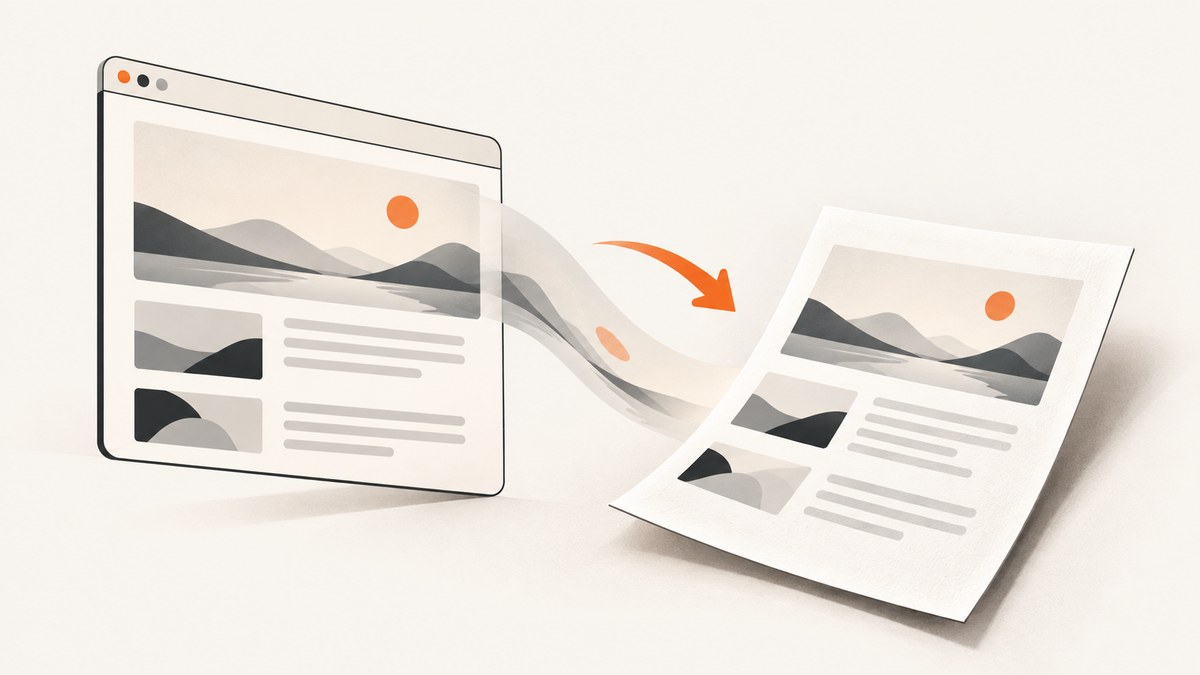
Direct answer: html2canvas controls the bitmap resolution and capture area; jsPDF controls the bitmap’s physical size on the PDF page. Choose an intentional scale, capture the element’s full scroll dimensions when necessary, and calculate the PDF height from the target width:
const printHeight = canvas.height * printWidth / canvas.width;That preserves the aspect ratio. Increasing scale adds source pixels for sharper printing without changing the displayed PDF width. It does not change the paper size.
How the sizing model works
There are three separate dimensions:
| Layer | Controls | Typical settings |
|---|---|---|
| DOM capture | Which pixels html2canvas renders | width, height, x, y, windowWidth, windowHeight |
| Bitmap density | How many pixels are rendered per CSS pixel | scale |
| PDF placement | Physical size on the page | jsPDF x, y, width, height |
The html2canvas default scale is window.devicePixelRatio. Its examples recommend matching scale to the device pixel ratio for sharp retina output (html2canvas examples). The width and height options constrain the capture; x and y crop from an offset. None of those options sets A4, Letter, or another physical paper size.
Complete browser example: capture a long element and create an A4 PDF
Install the libraries or load equivalent browser bundles for html2canvas and jsPDF. This example captures the entire scrollable element, renders at 2× density, and fits it to an A4 page width.
<!doctype html>
<html lang="en">
<head>
  <meta charset="utf-8">
  <meta name="viewport" content="width=device-width, initial-scale=1">
  <title>Print html2canvas output</title>
  <script src="https://cdnjs.cloudflare.com/ajax/libs/html2canvas/1.4.1/html2canvas.min.js"></script>
  <script src="https://cdnjs.cloudflare.com/ajax/libs/jspdf/2.5.1/jspdf.umd.min.js"></script>
  <style>
    #capture { width: 900px; background: #fff; color: #111; padding: 32px; }
  </style>
</head>
<body>
  <button id="print">Create PDF</button>
  <main id="capture">
    <h1>Report</h1>
    <p>All content inside this element is captured.</p>
    <!-- long content here -->
  </main>
  <script>
    document.querySelector('#print').addEventListener('click', async () => {
      const element = document.querySelector('#capture');
      const scale = 2;
      const canvas = await html2canvas(element, {
        scale,
        width: element.scrollWidth,
        height: element.scrollHeight,
        windowWidth: element.scrollWidth,
        windowHeight: element.scrollHeight,
        useCORS: true,
        backgroundColor: '#fff'
      });

      const { jsPDF } = window.jspdf;
      const pdf = new jsPDF({ orientation: 'portrait', unit: 'pt', format: 'a4' });
      const pageWidth = pdf.internal.pageSize.getWidth();
      const pageHeight = pdf.internal.pageSize.getHeight();
      const margin = 24;
      const printWidth = pageWidth - margin * 2;
      const printHeight = canvas.height * printWidth / canvas.width;
      const image = canvas.toDataURL('image/png');

      // This simple version places the whole image on one page.
      // Use page splitting below when printHeight exceeds the usable page height.
      pdf.addImage(image, 'PNG', margin, margin, printWidth, printHeight);
      pdf.save('print.pdf');
    });
  </script>
</body>
</html>
For a multi-page document, do not shrink a very tall canvas until text is unreadable. Split the source into page-sized sections or slice the canvas and add each slice to a new page.
Choosing scale, width, and height
scale: sharpness versus memory
scale: 1uses one rendered pixel per CSS pixel. It minimizes memory and is useful when exact pixel dimensions matter.scale: 2is a practical print starting point for many layouts.- Higher values can improve small text and line sharpness, but they multiply bitmap width and height, increasing memory use and the chance of browser canvas limits.
Keep the PDF insertion width unchanged while changing scale. The PDF layout stays the same; only the source density changes.
Full-page dimensions
Viewport dimensions can truncate content below the fold. For a complete element, use element.scrollWidth and element.scrollHeight for width, height, windowWidth, and windowHeight. The html2canvas FAQ warns that oversized canvases can become blank or partially rendered without an exception and recommends matching the window dimensions to the element’s scroll dimensions (html2canvas FAQ).
Cropping with x and y
Use x and y when you need an offset crop. They change which source region is rendered; they do not resize the PDF page.
Fit an image proportionally in jsPDF
First choose the paper format and margins. Then derive one output dimension from the other:
const pageWidth = pdf.internal.pageSize.getWidth();
const margin = 24;
const printWidth = pageWidth - margin * 2;
const printHeight = canvas.height * printWidth / canvas.width;
pdf.addImage(canvas.toDataURL('image/png'), 'PNG', margin, margin, printWidth, printHeight);
Never calculate width and height independently unless you deliberately want distortion. jsPDF’s HTML documentation describes target width in PDF units and notes that behavior also depends on html2canvas scale and windowWidth (jsPDF HTML module documentation).
Multi-page output without unreadable shrinking
If the computed image height is larger than the usable page height, use one of these approaches:
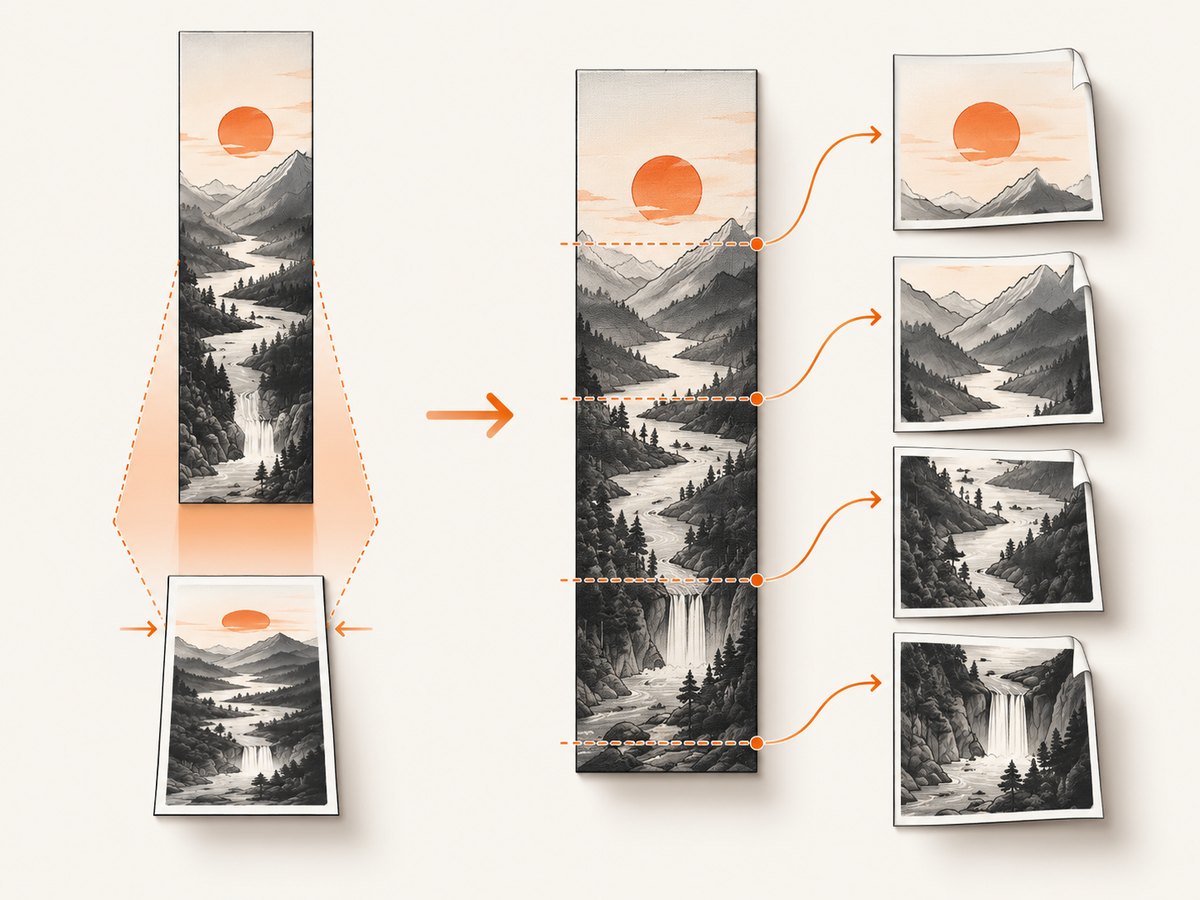
- Render page-sized sections. Divide the DOM into sections with controlled heights, render each section, and call
pdf.addPage()between sections. - Slice one canvas. Render once, copy page-height bands to temporary canvases, and add each band at the same print width.
- Use an HTML-to-PDF flow. For content that must paginate like a document, a layout engine may be more suitable than one giant bitmap.
function addCanvasPages(pdf, canvas, margin = 24) {
  const pageWidth = pdf.internal.pageSize.getWidth();
  const pageHeight = pdf.internal.pageSize.getHeight();
  const printWidth = pageWidth - margin * 2;
  const usableHeight = pageHeight - margin * 2;
  const pixelsPerPage = Math.floor(canvas.width * usableHeight / printWidth);
  let offset = 0;
  let first = true;

  while (offset < canvas.height) {
    const sliceHeight = Math.min(pixelsPerPage, canvas.height - offset);
    const slice = document.createElement('canvas');
    slice.width = canvas.width;
    slice.height = sliceHeight;
    slice.getContext('2d').drawImage(
      canvas, 0, offset, canvas.width, sliceHeight,
      0, 0, canvas.width, sliceHeight
    );

    if (!first) pdf.addPage();
    first = false;
    const placedHeight = sliceHeight * printWidth / canvas.width;
    pdf.addImage(slice.toDataURL('image/png'), 'PNG', margin, margin, printWidth, placedHeight);
    offset += sliceHeight;
  }
}

// After html2canvas:
addCanvasPages(pdf, canvas);
pdf.save('print.pdf');
Slicing can cut a paragraph or card at a page boundary. Rendering intentional sections gives you control over breaks. The jspdf-html2canvas package documents node-list multi-page handling and automatic snapshot fitting (package documentation).
Images, fonts, and cross-origin content
- Remote images:
useCORS: trueworks only when the image server sends the required CORS headers. Otherwise use same-origin assets or a server-side proxy. - Fonts: wait for
document.fonts.readybefore capture so fallback fonts do not change line wrapping. - Lazy content: scroll or otherwise load lazy images before measuring
scrollHeight. - Fixed elements: fixed headers and chat controls can be duplicated or shifted in the cloned document. Hide them with a print class or the html2canvas
ignoreElementscallback. - Backgrounds: set
backgroundColor: '#fff'for a predictable white page, or usenullwhen transparency is required.
await document.fonts.ready;
const canvas = await html2canvas(element, {
  scale: 2,
  useCORS: true,
  backgroundColor: '#fff',
  ignoreElements: node => node.matches('.no-print')
});
Common errors and fixes
| Symptom | Cause | Fix |
|---|---|---|
| Blurry PDF | Too few source pixels | Increase scale moderately; leave PDF insertion width unchanged. |
| Blank or partly blank canvas | Canvas dimensions exceed browser or device limits | Lower scale, reduce capture dimensions, or split into sections. Oversized canvases may fail silently. |
| Bottom or right edge missing | Only the viewport was captured | Use scrollWidth/scrollHeight for capture and window dimensions. |
| Remote images absent | CORS headers are missing | Enable useCORS only with a correctly configured image server, or proxy the images. |
| White strip or shifted content | Scroll state or fixed-position elements changed in the cloned document | Normalize scroll settings, hide fixed elements, and inspect the clone. |
| Stretched or squashed output | Width and height were forced independently | Calculate one dimension from the canvas aspect ratio. |
| Text wraps differently | Fonts or viewport width were not ready or did not match | Await document.fonts.ready and set windowWidth to the intended layout width. |
Performance, reliability, and cost considerations
- Memory grows with total canvas pixels: increasing both dimensions through
scalecan multiply memory quickly. - Measure first, then choose the smallest scale that meets print sharpness needs.
- Split long pages before hitting browser canvas limits; this also makes pagination more predictable.
- Capture after animations, asynchronous data, fonts, and lazy images have settled.
- PNG preserves text edges and transparency but can be large; JPEG can reduce size for photographic content at the cost of compression artifacts.
- Client-side capture uses the reader’s browser resources. A server API shifts rendering work away from the browser and can provide repeatable options and retries.
Or skip the browser setup
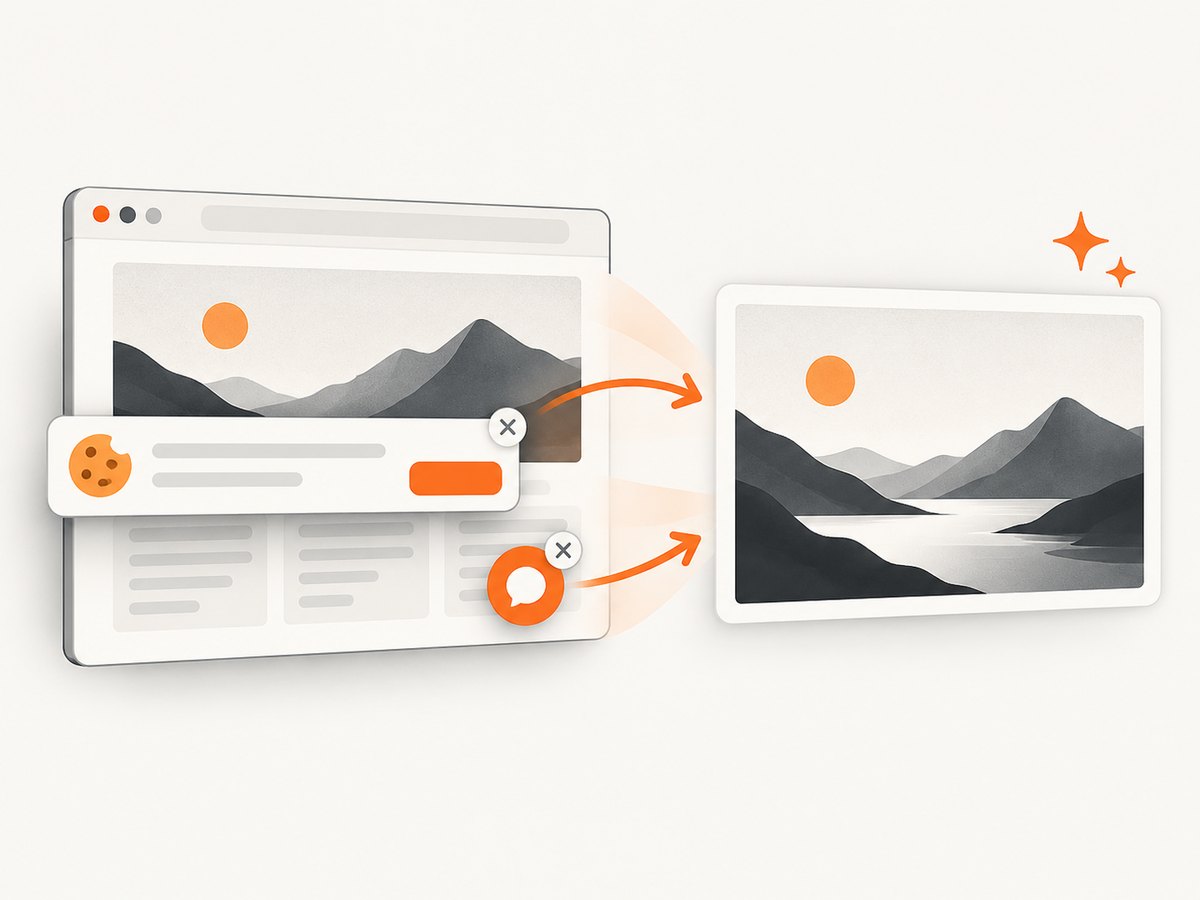
ScreenshotNeo returns a PNG, JPEG, WebP, or PDF from one GET request. Cookie and consent banners, newsletter popups, and chat widgets are removed before the shot. Bot checks, blank pages, timeouts, failed loads, and cache hits are not billed, and response headers identify the page verdict and billing result. Its MCP server lets Claude, Cursor, and other MCP clients use take_screenshot, get_page_info, and capture_pdf.
See the ScreenshotNeo API documentation for all options. A minimal request is:
curl -G "https://api.screenshotneo.com/v1/shot" -d access_key=YOUR_API_KEY --data-urlencode url=https://stripe.com -o shot.webpimport requests
r = requests.get("https://api.screenshotneo.com/v1/shot", params={"access_key": "YOUR_API_KEY", "url": "https://stripe.com"}, timeout=90)
open("shot.webp", "wb").write(r.content)const q = new URLSearchParams({ access_key: 'YOUR_API_KEY', url: 'https://stripe.com' });
const res = await fetch(`https://api.screenshotneo.com/v1/shot?${q}`);You can set full-page capture, CSS selectors, dark mode, device or custom viewports, retina scale, PDF paper size and margins, waits, custom CSS and JavaScript, click actions, hidden selectors, request blocking, headers, cookies, user agents, timezone, geolocation, transparent backgrounds, resizing, caching TTLs, signed links, async webhooks, bulk capture, and usage reporting. The Free plan includes 1,000 screenshots each month without a card; paid plans start at $5 for 3,000. Create a free ScreenshotNeo account.
FAQ
Does increasing PDF width make the image sharper?
No. It changes displayed size. Increase html2canvas scale to render more source pixels, then preserve the intended PDF width.
Should I always use scale: 2?
No. Start at 1 when memory and exact dimensions matter; increase only as needed for print clarity.
Why is my long page cut off?
The capture probably used viewport dimensions. Capture with the element’s scroll dimensions and matching window dimensions.
Can one huge canvas contain an entire report?
Sometimes, but browser limits vary and failures may be silent. Page-sized sections or canvas slicing are safer for long reports.
Does useCORS bypass image security?
No. The remote image server must permit the request with appropriate CORS headers, or the image must be served through a same-origin path.


