How to Restore Browser Focus After AutoIt Windows Authentication in Robot Framework
Handle native Windows authentication with AutoIt, then return focus to the right browser window and page element in Robot Framework.
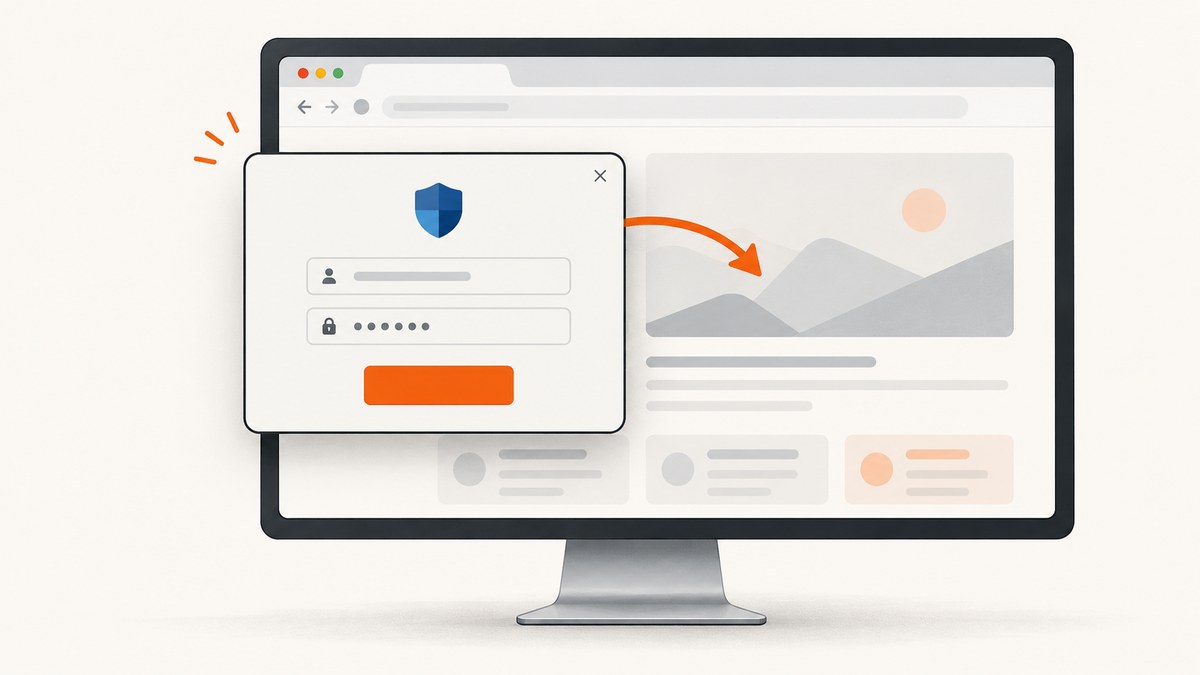
When AutoIt finishes handling a Windows authentication prompt, Selenium does not automatically regain desktop or page focus. Wait for the native dialog to close, select the intended browser window with SeleniumLibrary, and then focus the page element you need. These are separate steps: AutoIt works with Windows windows and controls; SeleniumLibrary works with browser windows and the page DOM.
The reliable sequence is: identify and wait for the dialog, focus and fill its controls, submit, wait for it to disappear, select the correct browser window, wait for the page to be ready, and then use Set Focus To Element. Do not use DOM locators for a native Windows dialog.
1. Understand which focus needs restoring
“Focus” can mean three different things in this workflow:
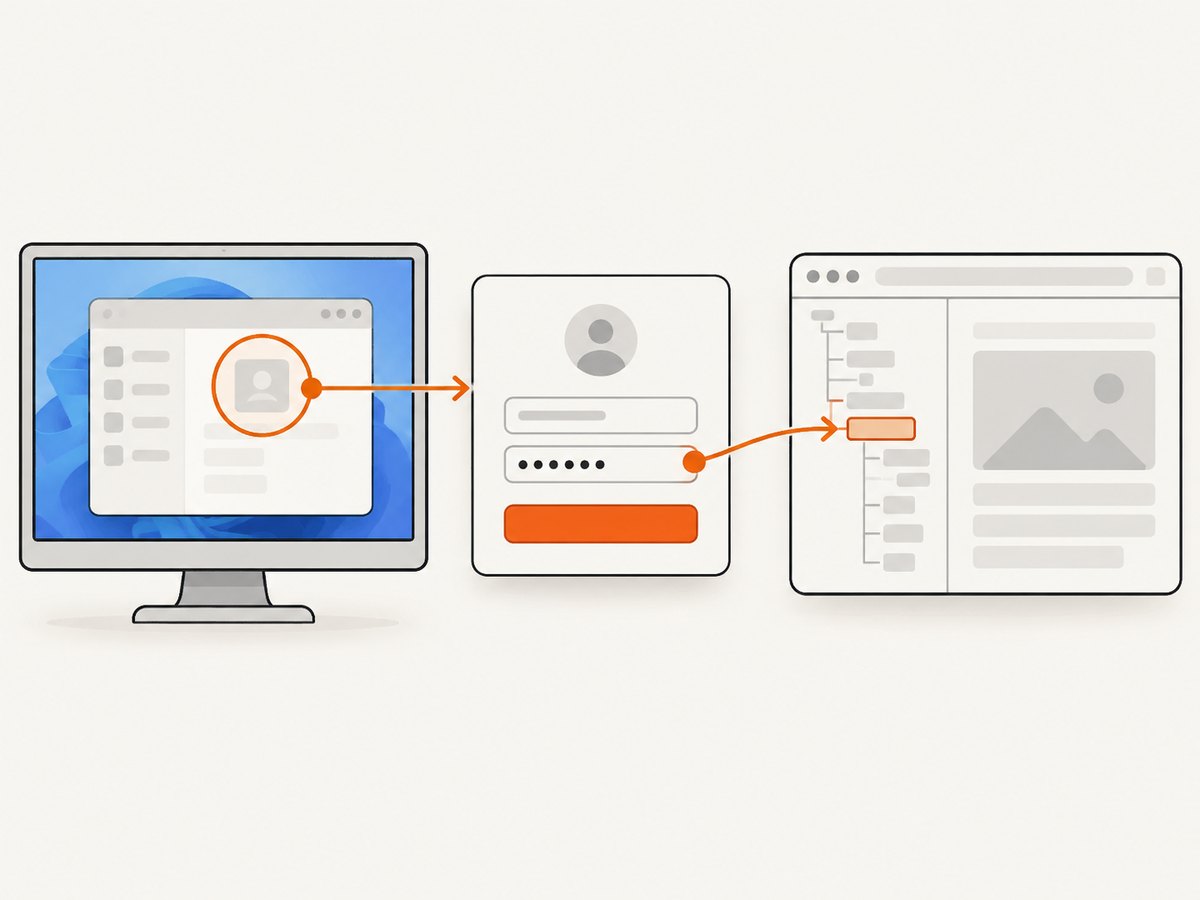
- Windows foreground window: which top-level application window receives desktop input. AutoIt functions such as
WinActiveand window activation address this layer. - Native control focus: which edit box or button inside the authentication dialog receives input. Use AutoIt
ControlFocusand, where suitable,ControlSend. - DOM element focus: which HTML element in the browser page is focused. SeleniumLibrary’s
Set Focus To Elementaddresses this after the browser is selected and the page is ready.
A native Windows authentication prompt is outside the browser DOM. Selenium cannot locate its username box as an HTML input. Likewise, focusing a DOM element does not activate the browser’s Windows window. The transition between the layers must be explicit.
2. Inspect the dialog before writing selectors
- Run AutoIt’s Window Info Tool in the same desktop environment and inspect the prompt, its title or visible text, class, and control identifiers.
- Record the username field, password field, and submit control identifiers. Use stable control attributes where possible instead of screen coordinates.
- Put environment-specific titles and identifiers into variables or configuration. Windows language, browser versions, and enterprise policies can change the dialog title or control structure.
- Check the installed AutoItLibrary HTML help for the exact keyword names and argument conventions. Its keywords wrap AutoIt through the AutoItX COM interface, but details can vary by installed version.
The example below uses illustrative title and control identifiers. Replace them with values observed in your own environment; the sample identifiers are not universal.
3. Robot Framework example: authenticate and resume Selenium
This pattern handles the native dialog with AutoItLibrary and then returns to SeleniumLibrary. It assumes the Selenium browser session has already been started and the authentication prompt appears during navigation or an application action.
*** Settings ***
Library    SeleniumLibrary
Library    AutoItLibrary

*** Variables ***
${AUTH_TITLE}      Authentication Required
${USER_CONTROL}    [CLASS:Edit; INSTANCE:1]
${PASS_CONTROL}    [CLASS:Edit; INSTANCE:2]
${SUBMIT_CONTROL}  [CLASS:Button; INSTANCE:1]
${USERNAME}        %{APP_USERNAME}
${PASSWORD}        %{APP_PASSWORD}

*** Keywords ***
Authenticate With Native Dialog And Resume Browser
    # Wait until the native Windows prompt is active before sending input.
    Win Wait Active    ${AUTH_TITLE}    timeout=20s
    Control Focus      ${AUTH_TITLE}    ${EMPTY}    ${USER_CONTROL}
    Control Send       ${AUTH_TITLE}    ${EMPTY}    ${USER_CONTROL}    ${USERNAME}
    Control Focus      ${AUTH_TITLE}    ${EMPTY}    ${PASS_CONTROL}
    Control Send       ${AUTH_TITLE}    ${EMPTY}    ${PASS_CONTROL}    ${PASSWORD}

    # Some controls accept a click only when their parent window is active.
    Win Activate       ${AUTH_TITLE}
    Control Click      ${AUTH_TITLE}    ${EMPTY}    ${SUBMIT_CONTROL}

    # Do not issue browser actions while the native prompt is closing.
    Wait Until Keyword Succeeds    20s    500ms    Authentication Dialog Should Be Closed

    # MAIN is SeleniumLibrary's conventional handle for the initial window.
    # Select the actual intended handle if your test opens multiple windows.
    Select Window    MAIN
    Wait Until Page Contains Element    css:body    timeout=20s
    Set Focus To Element    css:body

Authentication Dialog Should Be Closed
    ${active}=    Win Active    ${AUTH_TITLE}
    Should Be Equal As Integers    ${active}    0
In a real suite, the desired browser window may not be MAIN. If the test opens tabs or windows, enumerate/select the right one using SeleniumLibrary’s window keywords. Choose by the window handle or another reliable property available in your library version, not by assuming the newest tab is always correct.
Also choose a useful DOM element for Set Focus To Element. Focusing css:body demonstrates the handoff, but many pages behave better when focus is set to the next input or interactive element the test will use. SeleniumLibrary implements this keyword by finding the element and executing the page’s focus operation.
4. Make the handoff reliable
Wait for the state you need
A fixed sleep may appear to solve a race on one machine, then fail on a slower runner. Prefer state-based waits: wait for the dialog to become active before typing; wait for it to close after submit; then wait for a page element or other application readiness condition before continuing. The dialog closing and the page becoming usable are not necessarily simultaneous.
Target the control rather than the desktop
ControlFocus sets input focus to a named control. ControlSend sends characters to a control, and AutoIt documents it as generally more reliable for normal windows than global Send. The target control may need to be focused first. Global keystrokes go to whichever window happens to be active, so a timing slip can send credentials to the wrong place.
Activate before clicking when needed
Some controls resist ControlClick unless their parent window is active. Activate the dialog before clicking its submit control. If the control can submit on Enter, a control-directed key can be an alternative, but confirm that behavior against the actual dialog and installed library.
Keep secrets out of the test file
The example reads credentials from environment variables. Supply them through the test runner or your CI secret store, and avoid logging their values. Do not put real passwords in source control, command output, or failure screenshots.
5. cURL, Python, and Node.js: inspect the resulting page without desktop focus
These are not replacements for AutoIt when the task specifically requires interacting with a native Windows prompt. They are useful after authentication is handled by a browser session or a supported noninteractive mechanism and you need a screenshot of the resulting page. A screenshot API captures a URL in its own browser environment; it does not take over the interactive desktop session or inherit credentials from your Robot Framework run.
cURL
curl -G "https://api.screenshotneo.com/v1/shot" \
  -d access_key=YOUR_API_KEY \
  --data-urlencode url=https://stripe.com \
  -o shot.webp
Python
import requests

r = requests.get(
    "https://api.screenshotneo.com/v1/shot",
    params={"access_key": "YOUR_API_KEY", "url": "https://stripe.com"},
    timeout=90,
)
r.raise_for_status()
with open("shot.webp", "wb") as f:
    f.write(r.content)
Node.js
const q = new URLSearchParams({
  access_key: 'YOUR_API_KEY',
  url: 'https://stripe.com'
});
const res = await fetch(`https://api.screenshotneo.com/v1/shot?${q}`);
if (!res.ok) throw new Error(`Screenshot request failed: ${res.status}`);
const bytes = new Uint8Array(await res.arrayBuffer());
await import('node:fs/promises').then(fs => fs.writeFile('shot.webp', bytes));
See the ScreenshotNeo API documentation for the endpoint and supported parameters. These examples use the product’s documented one-call format and a public sample URL. For a protected application, use a supported authentication configuration for the capture request rather than assuming browser cookies from another process will be available.
6. Troubleshooting common failures
| Symptom | Likely cause | Fix |
|---|---|---|
| Typing goes nowhere | The dialog is not active, or the control identifier is wrong. | Wait for the active dialog, inspect it with Window Info Tool, then use ControlFocus followed by ControlSend. |
| Text appears in the wrong field or window | Global Send went to whichever window had foreground focus, or the field selector points at the wrong control. |
Target the field with a verified control identifier. Re-check the dialog after browser, language, or policy changes. |
| Submit click is ignored | The parent dialog is not active, or the control does not respond to the selected click method. | Activate the dialog before ControlClick; verify the button control. Test Enter submission only if the prompt supports it. |
| Selenium acts on the wrong tab or window | The WebDriver context is not the intended browser window. | Use SeleniumLibrary’s window handling keywords to enumerate and select the intended window before page actions. |
Set Focus To Element fails after login |
The dialog is still closing, navigation is underway, or the target element is not yet present. | Wait for dialog closure, then wait for a page readiness condition and the target element before setting DOM focus. |
| Works locally but fails on a runner | Different title, localized text, control order, desktop session, or timing. | Inspect the runner’s prompt with Window Info Tool and parameterize environment-specific identifiers. Keep state-based waits and avoid coordinate-only input. |
| Dialog wait times out | The application did not show a native prompt, the title does not match, or the prompt appeared in another desktop/session. | Verify the actual authentication flow and window title. Confirm the test runs in the interactive Windows session where the prompt appears. |
7. Performance, reliability, and cost considerations
The main cost of this pattern is synchronization and desktop dependence, not the focus keyword itself. Keep waits bounded, use short polling intervals appropriate to the suite, and wait on meaningful states rather than adding long sleeps everywhere. A control-targeted flow is generally more deterministic than coordinate clicks or global keystrokes, but native dialog structure and enterprise configuration can still vary.
Native authentication may be avoidable if the application supports a noninteractive authentication mechanism or presents an ordinary HTML login form. Use the mechanism supported by the application and your security policy; a Selenium DOM flow is simpler when the login controls are actually in the page. Do not try to force a native prompt into Selenium locators.
For visual checks, an API capture can avoid maintaining a separate local browser setup, but it is a distinct capture context. Consider authentication, access to private network resources, dynamic content, and whether a remote page capture is appropriate for the data involved. With ScreenshotNeo, clean captures are billed; bot checks/CAPTCHAs, blank pages, timeouts, failed loads, and cache hits cost nothing, with verdict and billing information in response headers. Its free tier is 1,000 shots per month with no card; paid plans start at $5 for 3,000, and yearly billing gives two months free.
8. Or skip the browser setup
For a page that ScreenshotNeo can access, one GET request returns an image or PDF. This does not automate the Windows authentication dialog in your existing Robot Framework desktop session. It is useful when the goal is simply to capture a reachable page.
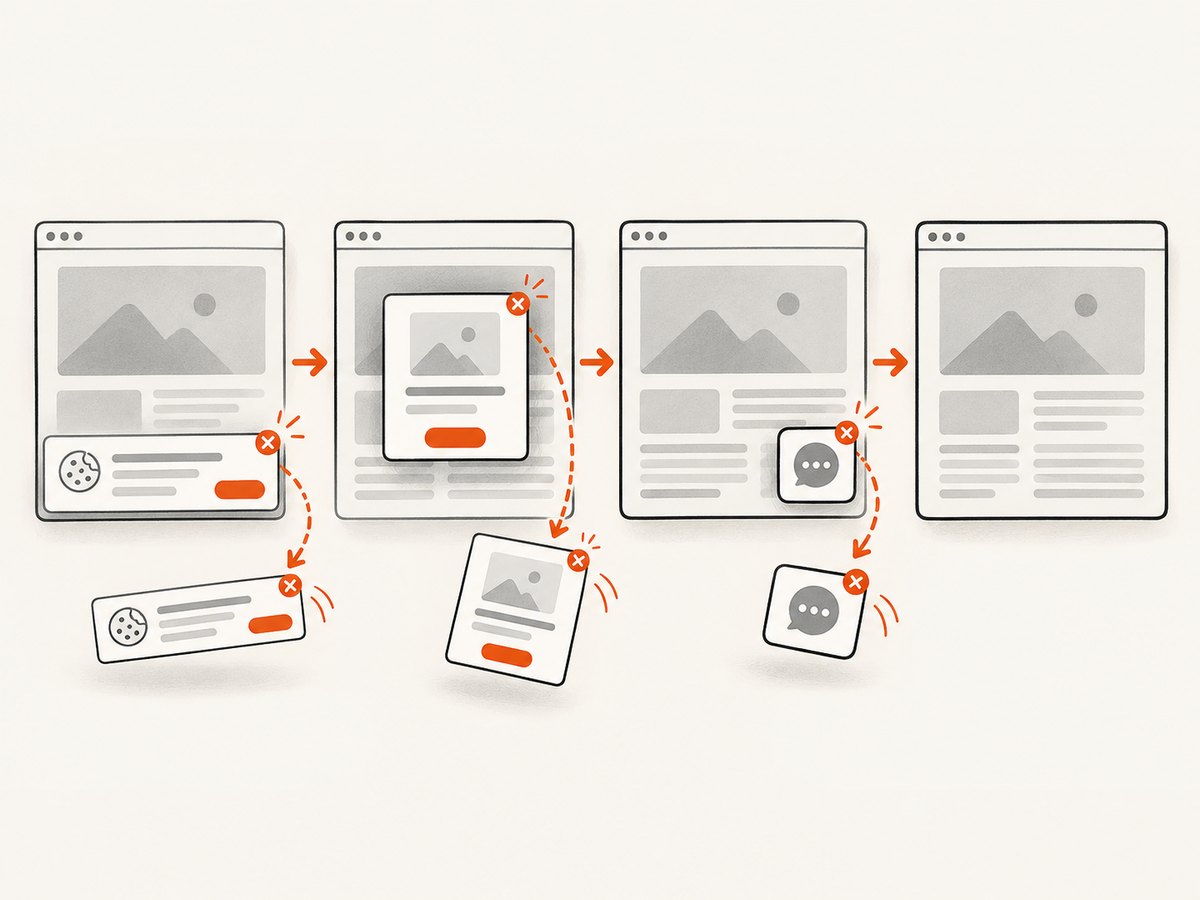
curl -G "https://api.screenshotneo.com/v1/shot" -d access_key=YOUR_API_KEY --data-urlencode url=https://stripe.com -o shot.webpScreenshotNeo removes cookie banners, popups, and chat widgets before the shot. Bot checks, blank pages, and failed loads are never billed. An MCP server lets AI agents take screenshots. The free plan includes 1,000 screenshots a month with no card; paid plans start at $5 for 3,000. Learn more at ScreenshotNeo and see the API documentation. Sign up for 1,000 free screenshots a month, no card required.
9. Practical checklist
- Identify the prompt and controls with Window Info Tool on the target Windows environment.
- Wait until the native dialog is active before sending credentials.
- Focus and send text to the specific controls; activate the dialog before clicking if necessary.
- Wait until the native prompt is gone before issuing browser actions.
- Select the intended Selenium window and wait for the page state you need.
- Use
Set Focus To Elementfor a DOM target only after the browser handoff. - Keep credentials in environment or secret configuration and keep identifiers environment-specific.
10. FAQ
Does closing the Windows prompt restore the browser’s DOM focus?
No. The prompt disappearing does not guarantee that the browser window is selected or that an HTML element is focused. Restore each layer explicitly.
Can I use SeleniumLibrary’s Set Focus To Element on the authentication prompt?
No. It finds a page element in the DOM. Use AutoIt for native Windows controls, then SeleniumLibrary for elements in the web page.
Why does the sample use MAIN?
It is SeleniumLibrary’s conventional handle for the initial browser window. If the test opens more windows, select the handle that actually contains the page under test.
Can ScreenshotNeo use the login I just completed in AutoIt?
No. The API request is a separate capture context and does not reuse the interactive browser’s Windows session. Use it for pages it can access with the request’s supported configuration.
Sources
- AutoIt ControlFocus and ControlSend references.
- AutoIt WinActive and ControlClick references.
- SeleniumLibrary keyword documentation for window selection and element focus.
- AutoItLibrary project documentation for the AutoItX wrapper and library usage.


