How to Retrieve Page Content After a Timeout in Puppeteer
Catch Puppeteer navigation timeouts, read the current HTML safely, validate readiness, and troubleshoot partial pages with runnable Node.js patterns.

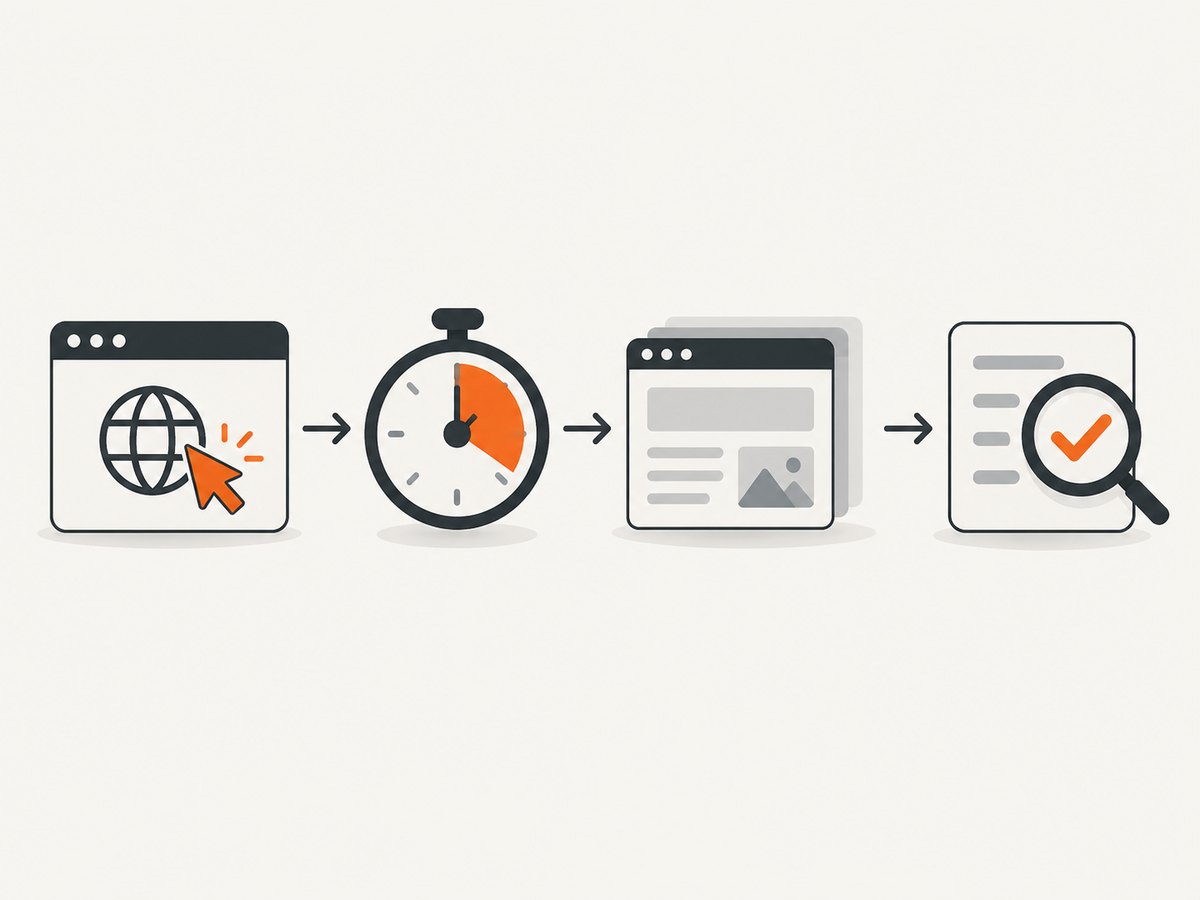
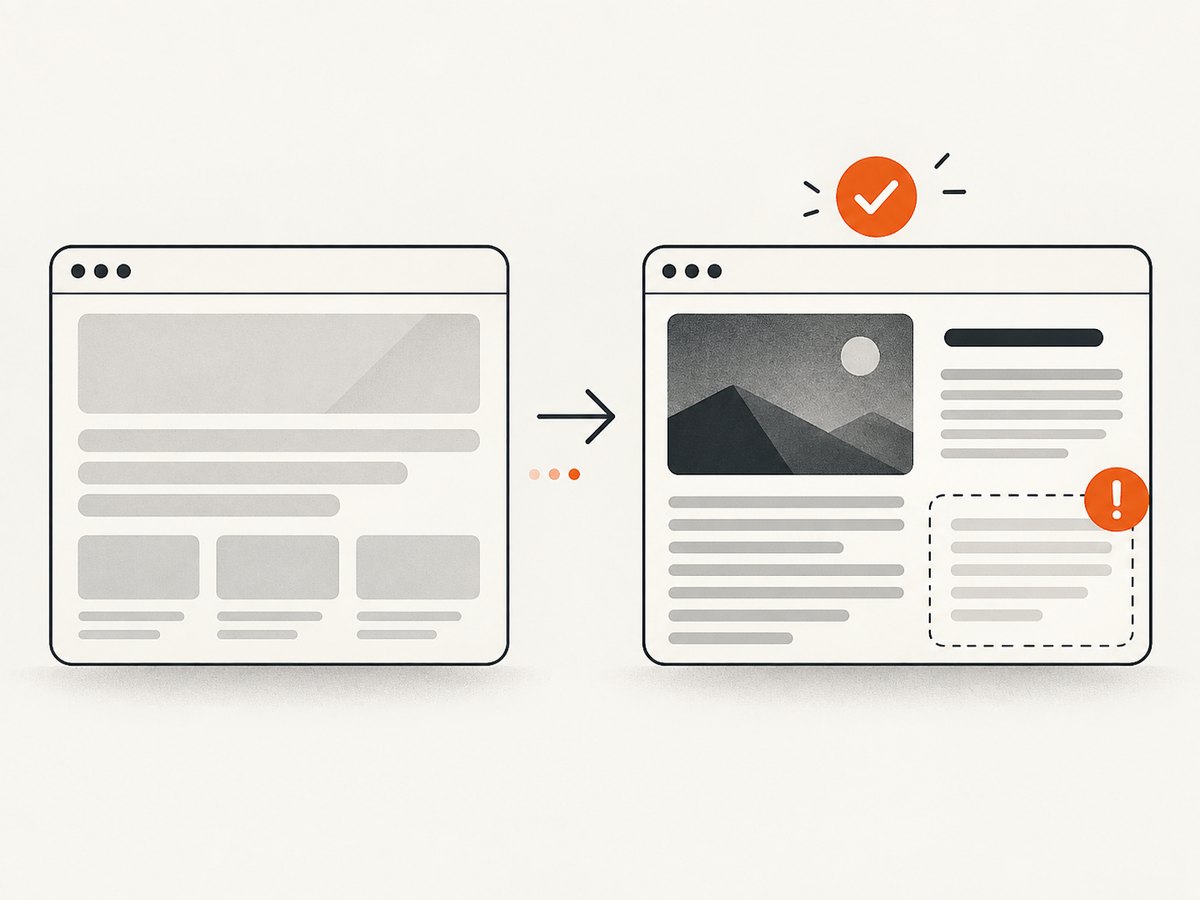
Short answer: catch the rejected page.goto() promise, then call await page.content() if the page and frame are still usable. A navigation timeout only means that the selected wait condition did not finish in time. It does not prove that the DOM is empty or that the page contains the content your job needs. Treat the returned HTML as a candidate result and verify an application-specific marker before using it.
page.content() returns the complete current HTML, including the DOCTYPE, as a promise. It is separate from navigation, so it can succeed after a timeout. It is not a readiness guarantee: a page may still be rendering, may show an error document, or may never have loaded the data you expected. See the Page.content() API reference and Page.goto() documentation.
1. The safe recovery pattern
Use a narrow navigation timeout, remember the error, extract the current document, and validate the result. This complete Node.js example writes HTML only when a required marker is present.
import puppeteer from 'puppeteer';
import { writeFile } from 'node:fs/promises';

const url = 'https://example.com/report';
const browser = await puppeteer.launch({ headless: true });
const page = await browser.newPage();
let navigationError = null;

try {
  await page.goto(url, {
    waitUntil: 'domcontentloaded',
    timeout: 15_000,
  });
} catch (error) {
  navigationError = error;
}

let html;
try {
  html = await page.content();
} catch (error) {
  await browser.close();
  throw new Error(`The page could not be read after navigation failed: ${error.message}`);
}

const requiredMarker = '<article';
if (!html.includes(requiredMarker)) {
  await browser.close();
  throw new Error(`Expected content was absent${navigationError ? `; navigation error: ${navigationError.message}` : ''}`);
}

await writeFile('page.html', html, 'utf8');
await browser.close();
console.log({ bytes: Buffer.byteLength(html), navigationError: navigationError?.message ?? null });
Whether partial results are acceptable is your application policy. For an archival capture, reject incomplete output. For diagnostics, saving the HTML and the original timeout is often exactly what you need.
2. Understand what timed out
First identify the rejected operation. page.goto() waits for a navigation lifecycle event; page.waitForNavigation() waits for a subsequent navigation; page.waitForSelector() waits for a DOM condition. They fail for different reasons, and calling page.content() addresses only the extraction step.
| Operation | What it waits for | Useful response |
|---|---|---|
goto |
URL navigation plus the chosen waitUntil event |
Catch, then inspect HTML and response status |
waitForNavigation |
A navigation caused by a click, form, history action, or script | Check the click/navigation pairing and timeout |
waitForSelector |
A selector becoming present or visible | Confirm the selector and application render state |
content |
Immediate serialization of the current document | Catch browser/page failures; validate completeness yourself |
A resolved navigation is not proof of success. In headless mode, goto can resolve for HTTP error responses such as 404 or 500, so inspect the response status when status matters.
3. Choose the right readiness condition
waitUntil controls when navigation is considered complete. Use domcontentloaded when the initial DOM is enough, load when subresources must finish, or networkidle0/networkidle2 only when the application’s network behavior makes those meaningful. Analytics streams and long polls can prevent network-idle conditions indefinitely.
await page.goto(url, {
  waitUntil: 'domcontentloaded',
  timeout: 15_000,
});
await page.waitForSelector('article h1', { timeout: 10_000 });
const html = await page.content();
Prefer a condition tied to the data you need. Puppeteer’s page interactions guide shows waiting for selectors and arbitrary functions. A fixed delay can handle a known time-based animation, but sleeping does not prove that an API response or component render completed.
await page.waitForFunction(
  () => document.querySelectorAll('article p').length >= 3,
  { timeout: 10_000 },
);
const paragraphs = await page.$$eval('article p', nodes =>
  nodes.map(node => node.textContent?.trim()).filter(Boolean),
);
4. Partial HTML versus complete data
The HTML snapshot includes the current DOM, not a promise that JavaScript has finished. Server-rendered markup may be complete while client-rendered sections are still placeholders. Conversely, a timeout after domcontentloaded may leave useful content even while images, fonts, or tracking requests continue.
- Accept partial HTML for debugging, forensic captures, or best-effort previews. Record the timeout and URL beside the artifact.
- Require complete content for indexing, billing, compliance, or data extraction. Assert a heading, record count, status element, or other marker.
- Extract one value with
page.$evalafter the relevant selector exists; do not serialize a whole document unnecessarily.
await page.waitForSelector('[data-report-ready="true"]', { timeout: 20_000 });
const title = await page.$eval('article h1', el => el.textContent?.trim() ?? '');
if (!title) throw new Error('The report title is empty');
5. Set timeouts narrowly
A per-call timeout keeps policy close to the slow operation:
await page.goto(url, { waitUntil: 'domcontentloaded', timeout: 30_000 });Use page.setDefaultNavigationTimeout(ms) when every navigation-like method on that page should share one limit. The setting affects goto, reload, setContent, waitForNavigation, goBack, and goForward, as documented in the API reference.
page.setDefaultNavigationTimeout(15_000);
await page.goto(url, { waitUntil: 'domcontentloaded' });
Raising a timeout helps only when the page legitimately needs more time. It does not fix a wrong selector, a never-ending request, a blocked resource, or a page that never renders the required state.
6. Avoid click and navigation races
When a click triggers navigation, start both promises together. Puppeteer warns that clicking first and then creating a navigation wait can miss the event and produce a race.
const [response] = await Promise.all([
  page.waitForNavigation({ waitUntil: 'domcontentloaded', timeout: 15_000 }),
  page.click('a.next'),
]);
const html = await page.content();
console.log('status', response?.status());
If the click updates the URL through client-side routing without a full navigation, wait for the destination selector or URL instead:
await page.click('button.load-more');
await page.waitForSelector('.results article:nth-child(20)', { timeout: 10_000 });
const html = await page.content();
7. Inspect status, frames, and browser health
Keep the response from goto and log the final URL. Redirects, authentication pages, bot checks, and server errors can all produce valid HTML that is wrong for your task.
const response = await page.goto(url, { waitUntil: 'domcontentloaded', timeout: 15_000 }).catch(error => {
  console.error('navigation failed', error.message);
  return null;
});
console.log({ finalUrl: page.url(), status: response?.status() ?? null });
const html = await page.content();
If content lives in an iframe, page.content() serializes the main document. Select the target frame and read its DOM separately:
const frame = page.frames().find(f => f.url().includes('/embedded-report'));
if (!frame) throw new Error('Report frame was not found');
await frame.waitForSelector('.report');
const frameHtml = await frame.content();
After “Target closed”, “Session closed”, or a disconnected browser error, do not assume recovery is possible. Create a fresh page or browser, then retry with a bounded policy. A page that is still actively navigating can also change underneath extraction; treat repeated failures as a failed job.
8. A reusable helper with explicit policy
export async function retrieveHtml(page, url, {
  navigationTimeout = 15_000,
  requiredSelector,
  waitUntil = 'domcontentloaded',
} = {}) {
  let navigationError = null;
  let response = null;
  try {
    response = await page.goto(url, { waitUntil, timeout: navigationTimeout });
  } catch (error) {
    navigationError = error;
  }

  const html = await page.content();
  if (requiredSelector) {
    await page.waitForSelector(requiredSelector, { timeout: 1_000 }).catch(() => {
      throw new Error(`Required selector ${requiredSelector} was absent after navigation`);
    });
  }
  return { html, finalUrl: page.url(), status: response?.status() ?? null, navigationError };
}
For strict jobs, call the helper with a required selector and fail if navigationError is non-null. For best-effort jobs, persist both fields so downstream code can distinguish clean and partial results.
9. Troubleshooting checklist
| Symptom | Likely cause | Fix |
|---|---|---|
page.content() also throws |
Closed page, crashed browser, or detached target | Check browser logs; create a new page/browser and retry once |
| HTML is only a shell | App renders after navigation | Wait for the data selector or a function condition |
Timeout with networkidle0 |
Long polling, analytics, or streaming request | Use domcontentloaded plus a task-specific selector |
| Expected text is absent | Redirect, login, bot check, 404/500, or wrong frame | Log final URL/status, inspect HTML, and select the correct frame |
| Click wait hangs | Navigation wait started after the click, or click is SPA-only | Use Promise.all, or wait for the SPA’s resulting selector/URL |
| Works locally, fails in CI | Resource limits, missing dependencies, or slower cold start | Set a bounded timeout, capture browser stderr, and avoid arbitrary huge timeouts |
10. Performance, reliability, and cost
Serializing a full DOM costs memory proportional to document size. If you need one title or price, extract that value instead of calling page.content(). Reuse a browser process for many pages, but isolate jobs in fresh pages and always close pages, contexts, and browsers in finally blocks.
Use bounded retries for transient DNS, connection, or server failures. Do not retry selector logic forever: a missing marker is usually a content or application-state problem. Record URL, final URL, status, elapsed time, timeout type, and whether validation passed. These fields make partial results auditable.
Browser automation also carries infrastructure cost: Chromium startup, CPU, memory, bandwidth, and waiting for slow resources. Blocking unnecessary resources can help, but do not block the API or script that renders required data. If your workload is simply “return a clean screenshot,” running a browser per request may be unnecessary.
11. Or skip the browser setup
ScreenshotNeo provides a website screenshot API and MCP server. Its capture pipeline accepts cookie and consent banners like a visitor, removes more than 60 known consent platforms plus newsletter popups and chat widgets, and lets each step be turned off. Only clean shots are billed; bot checks, blank pages, timeouts, failed loads, and cache hits cost nothing, with X-Page-Verdict and X-Billed headers explaining the result.
For a direct image response, see the ScreenshotNeo API docs:
curl -G "https://api.screenshotneo.com/v1/shot" \
  -d access_key=YOUR_API_KEY \
  --data-urlencode url=https://stripe.com \
  -o shot.webp
import requests
r = requests.get("https://api.screenshotneo.com/v1/shot", params={"access_key": "YOUR_API_KEY", "url": "https://stripe.com"}, timeout=90)
r.raise_for_status()
open("shot.webp", "wb").write(r.content)const q = new URLSearchParams({ access_key: 'YOUR_API_KEY', url: 'https://stripe.com' });
const res = await fetch(`https://api.screenshotneo.com/v1/shot?${q}`);
if (!res.ok) throw new Error(`Screenshot failed: ${res.status}`);You can configure full-page capture, CSS-element capture, device and viewport, dark mode, retina scale, custom CSS and JavaScript, waits, request blocking, headers, cookies, user agent, timezone, geolocation, resizing, caching, signed links, async webhooks, bulk capture, PDFs, HTML/CSS to image, and usage reporting. Its MCP server exposes take_screenshot, get_page_info, and capture_pdf to Claude, Cursor, and other MCP clients. Every plan includes every feature: 1,000 shots per month are free with no card; paid plans start at $5 for 3,000 shots.
Create your free ScreenshotNeo account to try the API without a card.
12. FAQ
Can I always call page.content() after a timeout?
No. It often works when the page remains usable, but a closed target, crashed browser, or unusable frame can make extraction fail.
Does page.content() include the DOCTYPE?
Yes. Puppeteer documents it as the full HTML contents, including the DOCTYPE.
Should I increase the timeout first?
Only when the page genuinely needs more time. First choose the correct lifecycle event and wait for the selector or function that represents readiness.
How do I know whether a timeout result is safe?
Check the final URL and response status, then validate a required marker or selector. Keep the timeout error with the extracted artifact.
What if the content is inside an iframe?
Find the target frame, wait inside it, and call frame.content(); the page’s main HTML does not contain the iframe document.


