How to Retrieve All Page URLs from a Browser Session
Learn how to collect URLs from open tabs, tab history, recently closed pages, and full browser history in Chrome and Firefox.
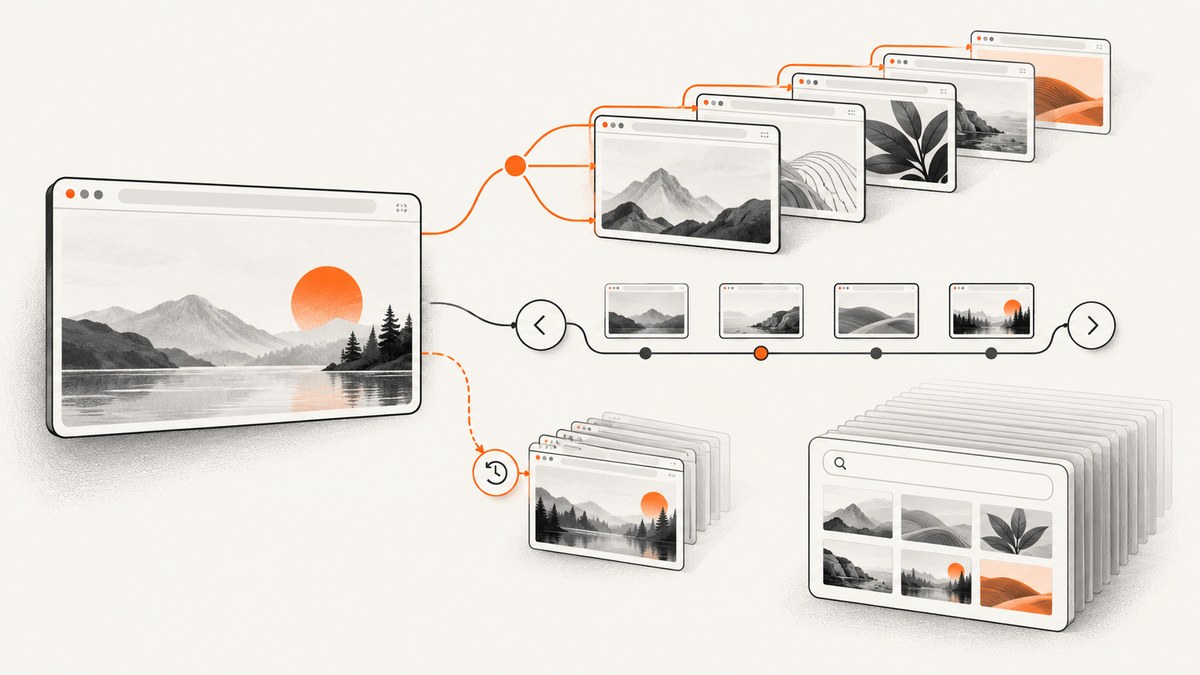
Short answer: “All page URLs from a browser session” can mean several different datasets. You might need the URLs in currently open tabs, every entry in each tab’s back/forward list, recently closed tabs, synced tabs, or the complete browsing history saved in a browser profile. These are separate sources, and no single cross-browser command exports all of them.
Chromium describes session history as the navigations kept for each tab so the browser can support Back, Forward, and session restore. Browser history is broader: it records main-frame URLs visited in any tab over the lifetime of a profile. Chromium’s session-history documentation makes that distinction explicit.
1. Decide which URLs you need
| What you mean by “all” | What it contains | Best documented route |
|---|---|---|
| Current tabs | The active URL in each open tab and window | Browser UI, browser automation, or an extension |
| Per-tab navigation history | URLs reachable with Back and Forward in each tab | Session APIs or browser-internal session data |
| Recently closed tabs/windows | Entries retained by session restoration | Recently closed menu or session API |
| Full profile history | Main-frame visits across tabs during the profile’s lifetime | History UI, account export, or a local profile database |
| Synced tabs | Tabs available from another signed-in device | Browser sync view, when sync is enabled |
Before writing code, answer three questions:
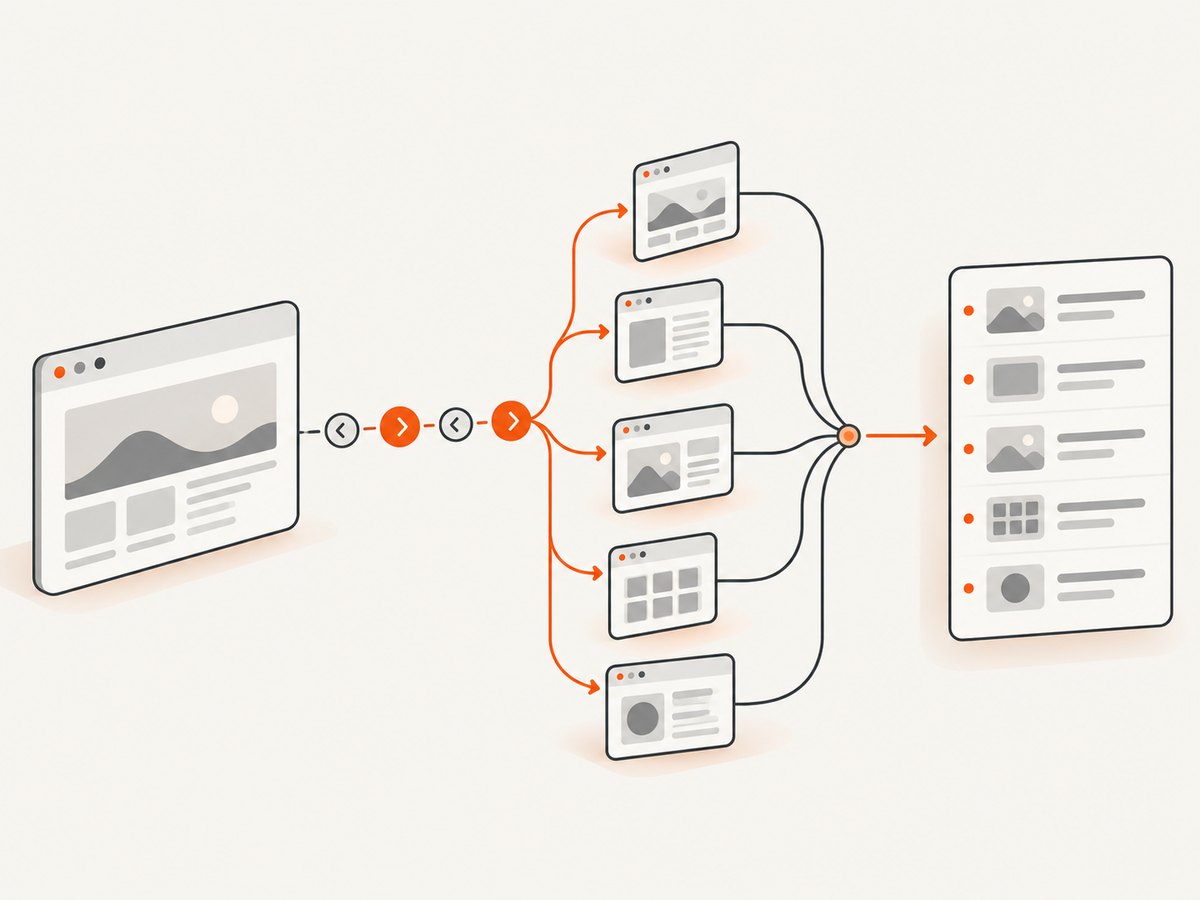
- Do you need only the current address of each open tab, or every back/forward entry?
- Should recently closed windows and tabs be included?
- Do you need a portable list (CSV, JSON, or text), or only the ability to view and restore pages?
Deleted history, data that was never synced, and session state that the browser no longer retains cannot be recovered through the documented APIs. A complete export also depends on the browser, operating system, profile, and account policy.
2. Get the current URLs from open tabs
Manual collection
For a small number of tabs, copy each address from the address bar. Chrome and Firefox can display all open tabs through their tab search or window controls, but the exact menu and keyboard shortcut vary by operating system and browser version. This approach captures the current URL only; it does not include earlier pages in a tab’s navigation stack.
Use an extension when you need a repeatable export
An extension can enumerate tabs and write their URLs to JSON, CSV, or the clipboard. In Chromium-based browsers, the extension needs the tabs permission to read tab URLs. A minimal Manifest V3 example is:
{
  "manifest_version": 3,
  "name": "Export Open Tab URLs",
  "version": "1.0.0",
  "permissions": ["tabs"],
  "action": { "default_popup": "popup.html" }
}
<button id="export">Export URLs</button>
<script src="popup.js"></script>document.querySelector('#export').addEventListener('click', async () => {
const tabs = await chrome.tabs.query({});
const rows = tabs.map(tab => ({
windowId: tab.windowId,
tabId: tab.id,
title: tab.title || '',
url: tab.url || ''
}));
const blob = new Blob([JSON.stringify(rows, null, 2)], {
type: 'application/json'
});
const link = document.createElement('a');
link.href = URL.createObjectURL(blob);
link.download = 'open-tabs.json';
link.click();
});This produces one record per currently open tab. Restricted pages such as browser settings, extension pages, and some PDF viewers may expose limited or unavailable URLs. Private windows also require the extension to be allowed in incognito mode.
3. Retrieve each tab’s Back and Forward URLs
Current-tab enumeration is not the same as exporting navigation entries. Chromium’s chrome.sessions API is designed to query and restore tabs and windows from a browsing session and requires the sessions permission. See the official Chrome sessions API reference.
The API is useful for finding recently closed tabs and windows, but it is not a universal “export every URL in every open tab’s complete history” command. Session data is owned by the browser, and the amount retained can vary. If you are building an extension, test the returned objects on the browser versions you support and treat missing fields as normal.
{
  "manifest_version": 3,
  "name": "Session Inspector",
  "version": "1.0.0",
  "permissions": ["sessions"],
  "action": { "default_popup": "popup.html" }
}
const sessions = await chrome.sessions.getRecentlyClosed({ maxResults: 25 });
for (const entry of sessions) {
if (entry.tab) {
console.log('closed tab', entry.tab.sessionId, entry.tab.url);
}
if (entry.window) {
console.log('closed window', entry.window.sessionId,
entry.window.tabs?.map(tab => tab.url));
}
}Do not confuse a session restore record with full profile history. A restored tab may include navigation state, scroll position, and form state, while the history database may contain visits from tabs that have since been closed.
4. Include recently closed tabs and windows
Chrome exposes recently closed entries through its sessions API and its user interface. Firefox documents Session Restore as persisting open and recently closed windows, tabs, and tab groups. Its stored per-tab state can include navigation history, scroll position, and form data. Mozilla’s WebExtensions sessions.restore() method restores a tab or window together with its navigation history. Read the Firefox Session Restore documentation and the MDN restore API reference for version-specific behavior.
Restoration is safer than trying to parse undocumented files while the browser is running. If you need a URL list, restore the session into a controlled profile, enumerate its tabs, and save the resulting records. Keep the original profile backed up before experimenting with low-level files.
5. Export full Chrome history
Full history is profile-wide visit data, not just the tabs visible right now. Google’s Chrome data-export guidance says an account export may include Chrome browser history, depending on available data and account settings. Exported data only covers history that still exists; deleted entries are not recreated. Work and school accounts can have additional restrictions.
- Open Google’s data export page while signed in to the relevant account.
- Select Chrome data when it is offered for your account.
- Choose an export format and destination.
- Download the archive and inspect the history files for URL records.
This path is appropriate when you need account-level history that may span devices. It does not prove that every open tab’s Back/Forward entries are included. Sync settings, profile selection, retention, and account policy determine what appears.
6. Work with Firefox Session Restore
Firefox’s Session Restore model is centered on reopening windows and tabs with their prior state. If your goal is “what pages can I get back after a crash or restart?”, use the browser’s restore controls or an extension using Mozilla’s sessions APIs. If your goal is a complete historical report, use Firefox’s history interface or an approved enterprise export process instead of assuming Session Restore contains every visit.
A practical workflow for developers is:
- Save or copy the current profile before changing session settings.
- Restore the required window or tab group.
- Use a tab-querying extension to collect current URLs.
- Record a separate field such as
source: "restored-session"so downstream systems know these are session entries.
7. Chrome and Firefox automation patterns
For repeatable collection, launch a dedicated browser profile with automation, open or restore the session, then query pages. Keep the browser profile isolated from personal browsing and protect the resulting URL files because URLs can contain search terms, account identifiers, or tokens.
# Playwright example: save the current pages in a controlled context
from playwright.sync_api import sync_playwright
import json

with sync_playwright() as p:
    browser = p.chromium.launch(headless=False)
    context = browser.new_context()
    page = context.new_page()
    page.goto("https://example.com")
    records = [{"url": p.url, "title": p.title()} for p in context.pages]
    with open("pages.json", "w", encoding="utf-8") as f:
        json.dump(records, f, indent=2)
    browser.close()
Automation can enumerate pages that your script opened, but it cannot magically access another running profile’s private session database. For an existing user session, use the browser’s supported extension APIs or export facilities.
8. Edge cases that change the result
- Multiple profiles: each profile has its own tabs, history, cookies, and session state.
- Private or incognito windows: they may be excluded from history and require explicit extension permission.
- Closed or crashed tabs: only entries retained by session restoration are available.
- Single-page applications: client-side route changes may not appear as separate main-frame history entries unless the app updates browser history.
- Redirects: the address you see may be the final URL, while intermediate redirects are not retained as separate user-visible pages.
- Fragments:
#sectionchanges can be represented differently from full navigations. - Downloads and PDF viewers: a download URL, local file, or internal viewer page may not behave like a normal tab.
- Sync delays: another device’s tabs may be stale or unavailable when it is offline.
- Deleted data: clearing history removes records that account export and browser APIs would otherwise return.
9. Troubleshooting
| Symptom | Likely cause | Fix |
|---|---|---|
| The extension returns empty URLs | Missing tabs permission or restricted page |
Add the permission, reload the extension, and skip browser-internal pages. |
| Recently closed tabs are missing | The browser no longer retains them, or the wrong profile is open | Check the active profile and session settings; query again soon after closing. |
| History export is incomplete | Deleted data, sync disabled, or account policy | Export from the correct account and profile; verify retention and sync settings. |
| Only one URL appears for a tab | You queried the current tab, not its navigation entries | Use the browser’s session API or restore the tab before enumerating it. |
| Private tabs do not appear | Incognito access is disabled for the extension | Enable “Allow in incognito” only when your privacy policy permits it. |
| URLs contain sensitive query strings | Tokens or identifiers are embedded in links | Redact query parameters before storage and restrict file access. |
10. Performance, reliability, and privacy
For hundreds or thousands of URLs, write records incrementally instead of holding the entire result in memory. Deduplicate by normalized URL only when your use case permits it; removing fragments or query parameters can merge pages that are meaningful to your application. Preserve the original URL alongside any normalized value.
Use a dedicated profile and deterministic timestamps. Record the browser name, profile identifier, window ID, tab ID, and retrieval time. If you are collecting session data for an audit, hash or encrypt the output and define a retention period. URLs can reveal private searches, internal hostnames, document IDs, and password-reset tokens.
Expect partial results. A browser can be closed before an extension finishes, sync can lag, and a session can be evicted. Make exports resumable, show a count of records found, and report which source produced each record: open-tab, recently-closed, account-history, or restored-session.
11. Or skip the browser setup
If what you really need is a clean image or PDF of each page URL after collecting the list, ScreenshotNeo can capture the URLs with one GET request. Its API accepts the URL and returns PNG, JPEG, WebP, or PDF. See the ScreenshotNeo API documentation for all parameters.

curl -G "https://api.screenshotneo.com/v1/shot" -d access_key=YOUR_API_KEY --data-urlencode url=https://stripe.com -o shot.webpimport requests
r = requests.get("https://api.screenshotneo.com/v1/shot", params={"access_key": "YOUR_API_KEY", "url": "https://stripe.com"}, timeout=90)
open("shot.webp", "wb").write(r.content)const q = new URLSearchParams({ access_key: 'YOUR_API_KEY', url: 'https://stripe.com' });
const res = await fetch(`https://api.screenshotneo.com/v1/shot?${q}`);Before capture, ScreenshotNeo accepts cookie and consent banners and removes more than 60 known consent platforms, newsletter popups, and chat widgets; each step can be disabled. Bot checks, blank pages, timeouts, failed loads, and cache hits are not billed, and the response identifies the result with X-Page-Verdict and X-Billed headers. Its MCP server provides take_screenshot, get_page_info, and capture_pdf tools for Claude, Cursor, and other MCP clients. The free plan includes 1,000 shots per month without a card; paid plans start at $5 for 3,000 shots.
Create a free ScreenshotNeo account and start with 1,000 screenshots each month at no charge.
12. FAQ
Can I export every URL from Chrome with one built-in command?
No universal command covers open tabs, per-tab navigation history, recently closed sessions, and full profile history together. Choose the dataset first, then use the matching UI, export, or extension API.
Does browser history include pages in closed tabs?
It can include their main-frame visits if they were retained in the profile history. Recently closed session state is a separate restoration dataset.
Will synced tabs include another device’s complete tab history?
Usually they represent tabs made available through sync, not a guaranteed export of every back/forward entry from that device.
Can a browser extension read incognito URLs?
Only when the user explicitly allows the extension to run in incognito or private mode, and browser policies may still limit access.
What should I store with each URL?
Store the URL, retrieval timestamp, browser/profile source, window and tab identifiers when available, and whether the record came from an open tab, restored session, recently closed entry, or history export.


