How to Create Reusable Carousel Templates for Social Media
Build a reusable social carousel master with consistent branding, editable slide roles, export checks, and a repeatable publishing workflow.
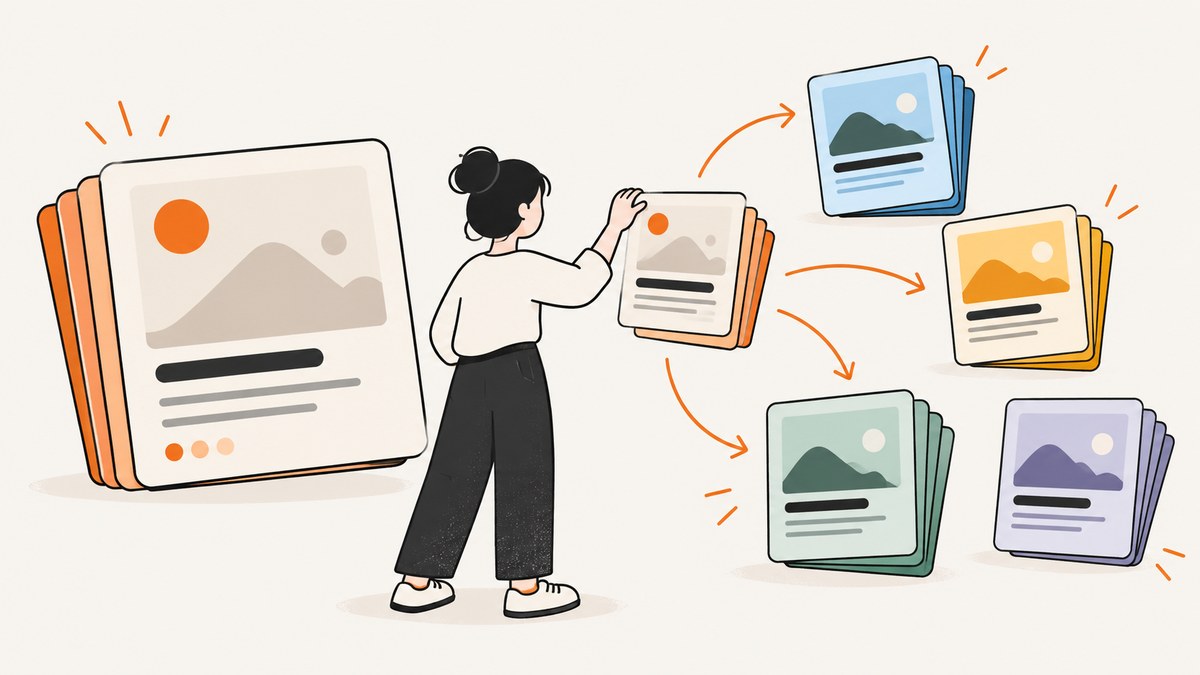
A reusable carousel template is a multi-page master layout with repeatable visual rules and editable content areas. You create the structure once, save a clean original, duplicate it for each topic, replace the copy and media, then review the complete sequence before exporting. This approach keeps posts recognizable while allowing every carousel to explain a different idea.
The most reliable process is:
- Choose one recurring purpose, such as a checklist, short explainer, product sequence or photo story.
- Define typography, colors, spacing, imagery and recurring graphic elements.
- Build a multi-page master with opening, body and closing slide roles.
- Save the master separately and duplicate it for each post.
- Replace content while preserving hierarchy and readable spacing.
- Review slide order, continuity, clipping and platform limits before export.
1. Choose a repeatable carousel purpose
Start with the reader outcome, not a visual style. A template works best when it supports one recurring type of post. A checklist needs a clear sequence of numbered items; an explainer needs a problem, steps and conclusion; a product feature carousel needs consistent feature cards and a call to action; a photo story needs image-led pages with short captions.
Write the purpose in one sentence, for example: “This carousel helps a reader complete one task in five steps.” Use that sentence to decide how many slides you need and what each slide must accomplish. Avoid one master that tries to serve every content type. Different outcomes usually need different pacing and information density.
Define slide roles before designing
| Slide role | Job | Questions to answer |
|---|---|---|
| Opening | Earn the swipe and state the promise | What will the reader learn or decide? |
| Context | Explain why the topic matters | What problem or situation is this addressing? |
| Body | Deliver one point per page | What single idea advances the sequence? |
| Example | Make an abstract point concrete | Can the reader see how to apply it? |
| Closing | Summarize or direct the next action | What should the reader do after swiping? |
Not every carousel needs every role. A three-page announcement can use opening, detail and action. A long tutorial may repeat a body pattern. The role names are design constraints that prevent random slide ordering.
2. Establish a visual system
Document the choices that should remain stable from post to post. Canva describes using Brand Kit to assign fonts and color schemes to content, which is useful when several people create designs. Keep the system small enough to apply consistently.
- Typography: choose a display style for headlines and a highly readable style for supporting text. Set a limited number of sizes and weights.
- Color: define a background, primary text color, accent color and any status colors. Check contrast on a phone-sized preview.
- Spacing: set page margins, headline spacing, text-to-image gaps and alignment guides.
- Logo placement: reserve a predictable area and keep the mark secondary to the message.
- Graphic language: decide whether recurring elements are borders, numbered badges, shapes, underlines or image treatments.
- Image treatment: specify crop behavior, corner radius, overlays and a fallback when no suitable image exists.
Consistency does not mean every page looks identical. It means repeated choices create a recognizable system while each slide still has enough variation to explain its point. Canva’s design guidance emphasizes clear hierarchy, intentional spacing and restraint; those principles matter more than decorative effects.
Create a short template specification
Put the rules in a note attached to the master file. Include the canvas dimensions required by your destination, safe margins, headline and body limits, approved colors, image sources, accessibility checks and export format. A short specification prevents a teammate from changing a style because a single slide feels empty.
3. Build the multi-page master
Canva provides customizable multi-page carousel templates, and Adobe Express describes making a seamless carousel with a multiple-page project. In either tool, create a new project at the destination’s current recommended size, then add the pages defined by your slide roles.
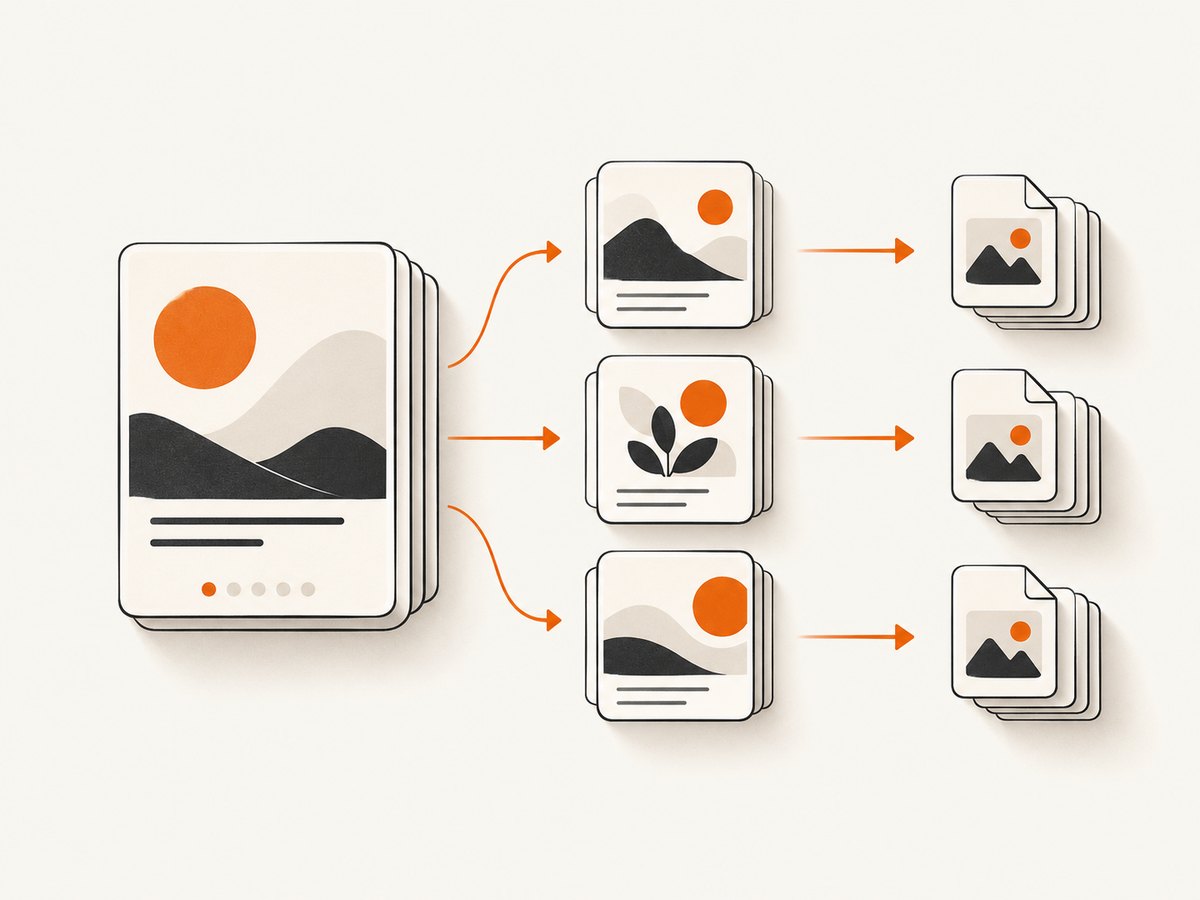
- Make the opening page. Reserve a large headline area, a short supporting line and a visual cue that signals more pages follow.
- Make one body page. Create a repeatable arrangement for a heading, explanation, image or example. Keep the content areas obvious to the next editor.
- Duplicate the body page. Use copies for each step so alignment and spacing stay stable.
- Add an optional example page. Include a before-and-after, mini diagram or worked example when the topic benefits from one.
- Make the closing page. Summarize the lesson or give one clear action. Do not add a call to action that conflicts with the carousel’s purpose.
- Label editable areas. Use layer names or placeholders such as “Headline,” “Step number,” “Body copy,” “Image,” and “Source.”
Keep the master free of topic-specific copy and imagery. If you need a sample to demonstrate line length, use clearly marked placeholder text so nobody mistakes it for publishable content.
Use a seamless transition only when it helps
A continuous image or shape can encourage swiping, but it also makes order and cropping mistakes harder to spot. If you use a spanning visual, align it across pages and add a review step that checks the joins at every boundary. A self-contained page layout is easier for teams to reuse and safer when a platform changes its crop behavior.
4. Save, duplicate and organize versions
Save the original as a protected master, then create a copy for each post. Use a predictable name such as Brand_CarouselMaster_v1 for the source and 2026-09-30_topic_slug_v1 for a working copy. Store the template specification, approved assets and export checklist beside it.
Canva documents sharing designs for comments or edits, while Adobe Express describes turning a design into a template. Choose permissions that match the workflow: reviewers can comment, editors can change copies, and only an owner or template manager should change the master. Record meaningful changes in the filename or a small changelog so an old copy is not accidentally reused.
5. Replace content without breaking the system
Work through the duplicated file page by page. Replace the headline first, then the supporting copy, then images and examples. This order reveals whether the original slide roles still fit the new topic.
- Keep each headline scannable and make it answer the page’s role.
- Give every page one central idea; move secondary detail to a later page or caption.
- Preserve the established margins, type hierarchy and alignment.
- Resize text only within the documented range. If copy does not fit, edit the copy before shrinking the type.
- Check that charts, screenshots and photos remain legible on a phone.
- Use descriptive alternative text or accessibility fields where the destination supports them.
- Keep sources and rights information in the project notes, even when they do not appear on the slide.
Brand consistency is a repeated set of decisions, not identical content on every page. A new topic may need a different image ratio or a shorter sequence, but it should still feel like it belongs to the same publishing system.
Example content map
| Page | Example for a checklist | Editable fields |
|---|---|---|
| 1 | “Five checks before publishing” | Title, subtitle, hero image |
| 2 | Check 1: audience and goal | Number, heading, explanation, icon |
| 3 | Check 2: readable hierarchy | Number, heading, example image |
| 4 | Check 3: sequence and pacing | Number, heading, short example |
| 5 | Check 4: export and crop | Number, heading, warning note |
| 6 | Check 5: final preview | Number, heading, checklist |
| 7 | Save or share the checklist | Summary, action, URL or handle |
6. Review the complete sequence
Preview all pages together before exporting. Read only the headlines first: they should form a coherent outline. Then read the body copy and verify that every page advances the same promise. Look for repeated information, abrupt jumps, missing context and a closing action that arrives too early.
Quality checklist
- Spelling, punctuation, names and numbers are correct.
- The opening page states a clear benefit or question.
- Every page has one dominant visual and one dominant message.
- Text is inside safe margins and is readable at phone size.
- Images are sharp enough for the chosen export and are cropped intentionally.
- Spanning elements align across page boundaries.
- Color contrast remains sufficient in the actual export.
- The final page has one understandable next step.
- Pages are in the intended order and have no hidden or blank duplicates.
7. Export and publish with platform constraints in mind
Export the pages in the format supported by the destination, then open the exported files rather than trusting the editor preview. Check for clipped text, changed line breaks, missing fonts, compression artifacts and unexpected color shifts.
Canva’s Instagram post creator says a carousel can contain up to 10 photos. Adobe Express’s scheduler specification lists Instagram feed carousel publishing with 10 images and/or videos, and notes that carousel publishing is unavailable for some other destinations. These are product-page statements rather than a complete independent verification of every current platform rule. Confirm the destination’s limits and the scheduler’s current capabilities at publication time.
When scheduling, verify whether the tool uploads one multi-page asset or separate images, whether videos are allowed, how captions and alt text are handled, and whether a post can be edited after scheduling. Keep the exported page files together so a later correction does not mix versions.
8. Canva and Adobe Express: choosing a workflow
Canva documents a carousel-template library, multi-page designs, Brand Kit font and color assignments, and sharing for comments or edits. Adobe Express describes templates, multi-page projects and converting a design into a reusable template. Both are plausible paths; compare the workflow against your team’s needs rather than assuming one product’s feature works the same way in the other.
| Decision | What to verify |
|---|---|
| Starting point | Does the template library match your recurring format? |
| Brand controls | Can your plan manage the fonts, colors and assets your team needs? |
| Reuse | Can you protect the master and create controlled copies? |
| Collaboration | Are comments, edit permissions and approvals clear? |
| Publishing | Does the scheduler support the destination, media mix and item count? |
| Cost | What are the current plan, licensing and feature restrictions? |
The researched sources do not establish a complete current pricing comparison. Verify pricing, licensing and plan restrictions directly before committing.
9. Automate visual checks with screenshots
If your team generates carousel assets from a web editor, preview page or content system, browser screenshots can catch clipping and responsive-layout problems before publication. A typical capture flow is: open the preview URL, wait for fonts and images, select the page or element, capture it, then inspect the resulting image.
<!-- Minimal preview page for a carousel slide -->
<main class="slide" aria-labelledby="title">
  <p class="eyebrow">CHECKLIST 01</p>
  <h1 id="title">Define the reader outcome</h1>
  <p>One slide should move the central idea forward.</p>
</main>

<style>
  .slide { width: 1080px; min-height: 1080px; padding: 96px;
           box-sizing: border-box; background: #fffaf2; color: #17202a; }
  h1 { max-width: 820px; font: 700 76px/1.05 system-ui, sans-serif; }
  p { max-width: 720px; font: 400 34px/1.35 system-ui, sans-serif; }
  .eyebrow { font-size: 24px; letter-spacing: .12em; }
</style>
10. Or skip the browser setup
ScreenshotNeo is a website screenshot API and MCP server. One GET request returns a PNG, JPEG, WebP or PDF. It can capture a full page, one element selected with CSS, a chosen viewport or a device preset, and it supports custom CSS and JavaScript, waits, hiding selectors and lazy-loaded images. See the ScreenshotNeo API documentation for the current parameter names and response details.
For a preview URL, the basic call is:
curl -G "https://api.screenshotneo.com/v1/shot" \
  -d access_key=YOUR_API_KEY \
  --data-urlencode url=https://example.com/carousel-preview \
  -o slide.webp
import requests
r = requests.get(
"https://api.screenshotneo.com/v1/shot",
params={"access_key": "YOUR_API_KEY", "url": "https://example.com/carousel-preview"},
timeout=90,
)
r.raise_for_status()
open("slide.webp", "wb").write(r.content)const q = new URLSearchParams({
access_key: 'YOUR_API_KEY',
url: 'https://example.com/carousel-preview'
});
const res = await fetch(`https://api.screenshotneo.com/v1/shot?${q}`);
if (!res.ok) throw new Error(`HTTP ${res.status}`);
const bytes = Buffer.from(await res.arrayBuffer());
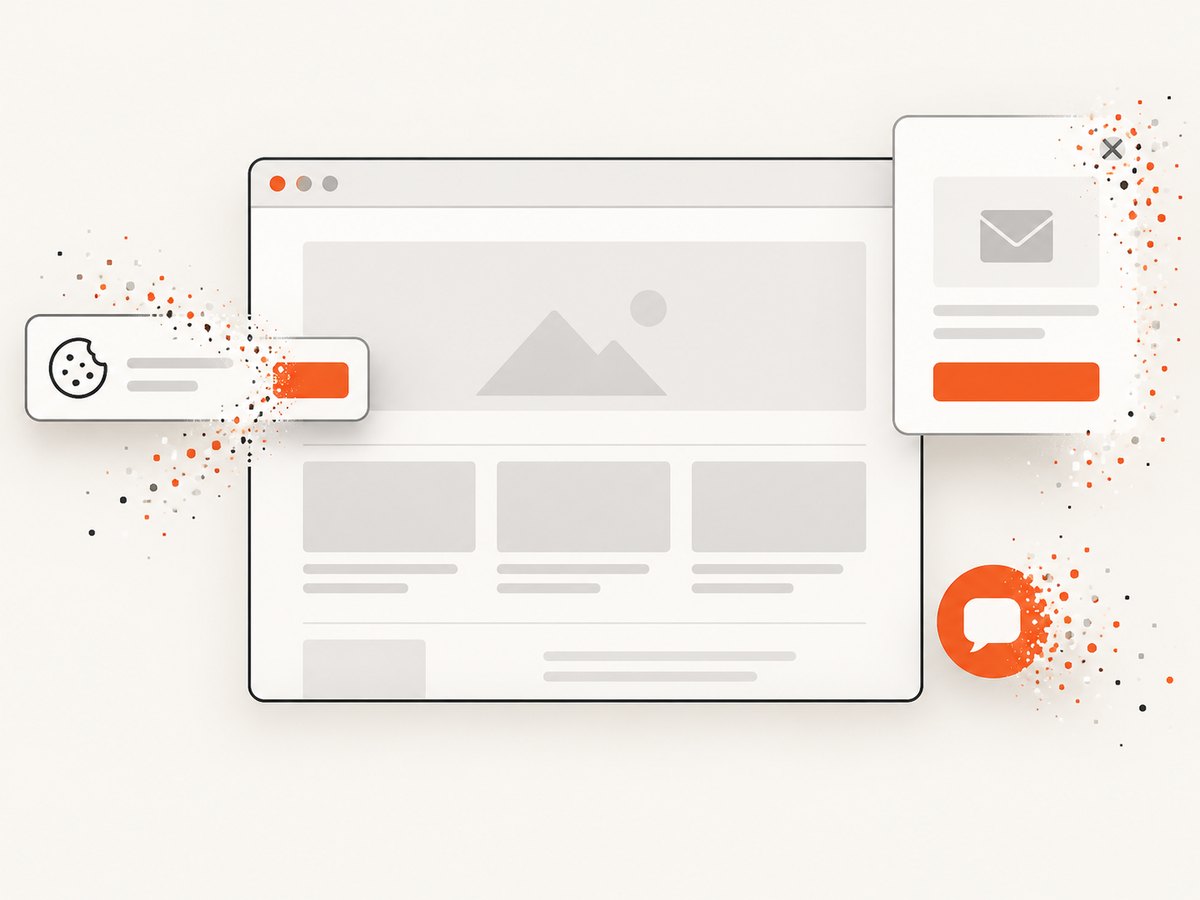
await Bun.write('slide.webp', bytes);ScreenshotNeo removes cookie and consent banners, newsletter popups and chat widgets before the shot. Bot checks, blank pages, timeouts, failed loads and cache hits are not billed; response headers identify the page verdict and whether the request was billed. Its MCP server provides take_screenshot, get_page_info and capture_pdf for Claude, Cursor and other MCP clients. You can also set viewport and retina scale, wait for a selector or network idle, block ads or resource types, send headers and cookies, use geolocation and timezone, resize images, cache with a chosen TTL, create signed image links, submit asynchronous jobs with signed webhooks, capture up to 100 URLs per bulk call and read usage through the API.
There are 1,000 screenshots per month free with no card. Paid plans start at $5 for 3,000 shots; yearly billing gives two months free, and every feature is on every plan. Create a free ScreenshotNeo account.
11. Troubleshooting reusable carousel templates
| Problem | Likely cause | Fix |
|---|---|---|
| Text is clipped after replacement | New copy is longer than the placeholder | Edit for brevity, use the approved type range, or split the idea across pages. |
| Slides feel disconnected | Each page was written independently | Read only the headlines and rewrite them as one outline. |
| Images look blurry | Low-resolution source or excessive crop | Use a larger source and check the exported files at actual viewing size. |
| Spanning artwork does not align | Page width, crop or spacing changed | Lock guides, duplicate the original pages and inspect every boundary. |
| Brand colors drift | Manual color entry or an unapproved asset | Use saved brand colors and replace the asset with an approved version. |
| Scheduler rejects the carousel | Destination limit or unsupported media mix | Check the destination’s current item, image and video rules before export. |
| Automated screenshot contains a popup | Preview was captured before cleanup or the element was not hidden | Wait for the page to settle, hide the selector, or use ScreenshotNeo’s cleanup options. |
| Screenshot response is not billed | It was a cache hit or failed/blank/bot-checked page | Inspect the X-Page-Verdict and X-Billed headers and fix the page or reuse the cache. |
12. Performance, reliability and cost practices
- Keep the master simple: fewer fonts, large optimized images and repeatable components make editing faster.
- Use a content limit for each placeholder so copy review happens before layout repair.
- Preview at phone size early; a desktop canvas can hide unreadable body text.
- Export once after the sequence is approved, then retain the source and exported files together.
- For automated previews, wait for a specific selector or network idle instead of relying only on a fixed delay.
- Cache stable preview URLs when repeated checks do not need fresh rendering.
- Use asynchronous jobs or bulk capture when reviewing many URLs, and monitor usage through the API.
- Keep a versioned master so a correction can be applied consistently to future copies without rewriting published posts.
13. FAQ
How many pages should a reusable carousel template have?
Use the smallest sequence that completes the recurring outcome. Start with opening, body and closing roles, then add context or example pages only when they improve understanding.
Can I use one template for every social network?
You can share the visual system, but create destination-specific page sizes, safe margins and export settings. Publishing support and item limits differ by destination.
Should every slide use the same layout?
No. Keep typography, color, spacing and graphic language consistent while allowing opening, body, example and closing slides to perform different jobs.
How do I prevent teammates from overwriting the master?
Protect the original, name it clearly, restrict editing where possible and require a duplicate for every new post.
When should I automate screenshots?
Automate when a web-based preview, responsive layout or many generated pages must be checked repeatedly. Capture after fonts and images load, and inspect verdict and billing headers when using an API.


