Reusable PDF Template Components with Snippets and Partials
Learn when to use template snippets, local partials, publishing components, or reusable PDF objects—and how to pass data and maintain each cleanly.

Reusable PDF template components let you define a piece once and use it wherever its scope permits. In PDFMonkey, use a Snippet for a block shared across templates and a Partial for a block reused within one template. Load snippets before including them; declare partials inline and include them where needed.
The phrase “reusable PDF template component” can also mean something at another layer: a publishing template’s page layouts and resources, or a reusable object embedded in the generated PDF. Those are different mechanisms with different data flows and maintenance responsibilities. This guide separates the layers, gives a practical PDFMonkey example, and provides a checklist for choosing an approach.
1. Identify which kind of reuse you need
Start by asking where the reused piece lives and where it needs to be available. “Reusable” does not mean the same thing in a template language, a publishing system, and the PDF object model.
| Reuse layer | Scope | Typical concern |
|---|---|---|
| Template-language block | One template or multiple templates | Markup and variables |
| Publishing-template component | Sections or page types in a publishing project | Page structure, styles, resources, settings |
| PDF document object | Multiple placements in a generated PDF | Position, size, clipping, rotation |
| Data-binding tag | Values supplied at generation time | Mapping input data into document fields |
These layers can coexist. For example, a template may use a shared header snippet, receive customer data through data-binding tags, and produce a PDF containing reusable graphics. The mechanisms solve different problems; a reusable source block is not automatically a reusable PDF object.
2. PDFMonkey Snippets and Partials
PDFMonkey defines two template-language reuse scopes. A Snippet is shared across templates: define it on the Snippets page, load it in a template, and include it. A Partial is local to one template: declare it inline, then include it multiple times in that template. Both use include, and variables can be passed as key-value pairs.
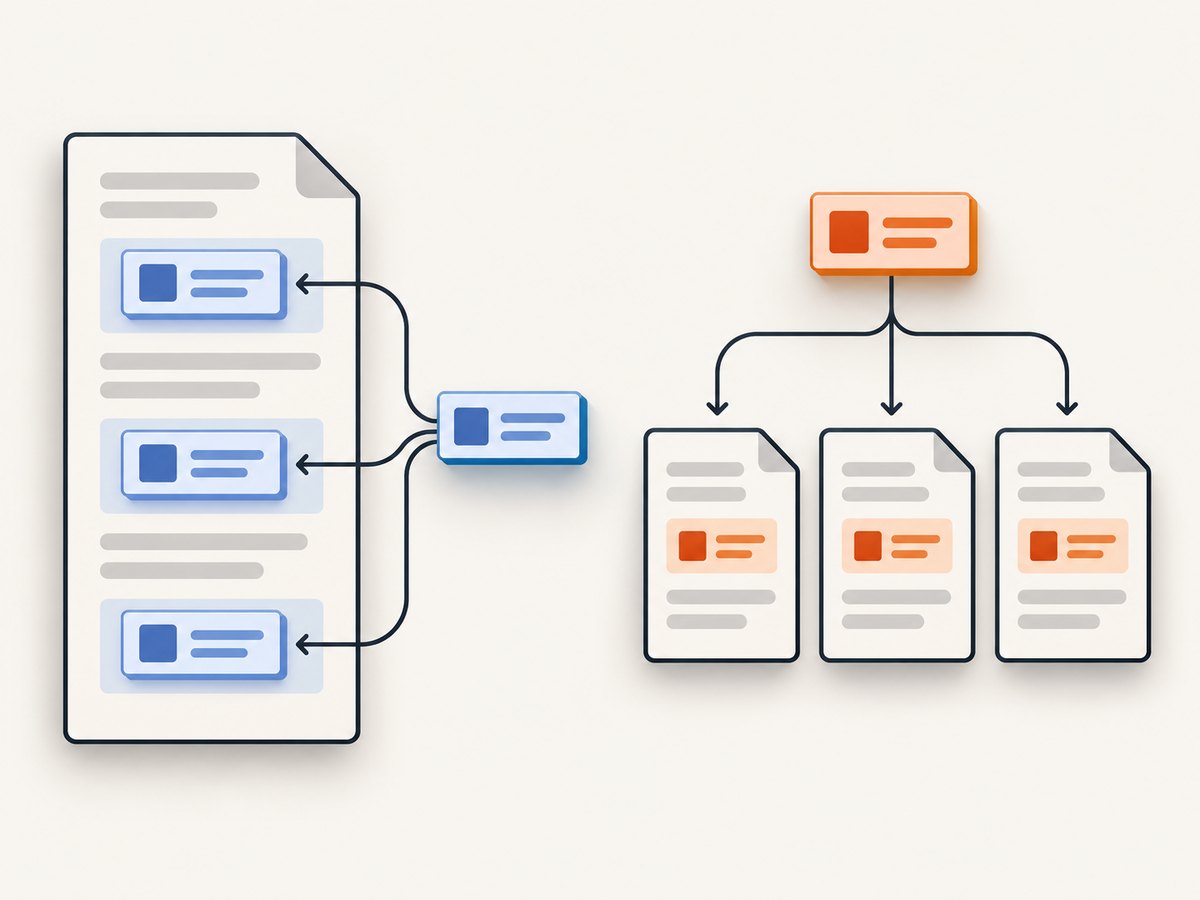
Use a Snippet across templates
Choose a Snippet when multiple templates need the same block—for example, a standard address panel, legal footer, or reusable line-item markup. The important operational detail is loading: Snippets must be loaded before inclusion. PDFMonkey recommends listing the needed snippets in one load_snippets call near the top of the template.
Conceptually, the template follows this sequence:
- Load the snippets the template uses.
- Include a loaded snippet at the point where its output belongs.
- Pass any values it needs as key-value arguments.
Keep the shared block focused. A snippet that silently assumes a particular page layout or a large set of undeclared variables is harder to reuse safely. Prefer explicit inputs and document any assumptions that cannot be expressed as inputs.
Use a Partial within one template
Choose a Partial when a block repeats in a single template but does not need to be shared with other templates. Declare it inline using partial and endpartial, then include it at each use site. This keeps local markup together with the template that owns it and avoids adding a cross-template dependency for a one-template need.
Partials are useful for repeated sections such as a repeated item row or a local callout. If another template later needs the same block, consider moving it to a Snippet and updating the template to load that shared definition.
Pass data deliberately
Both mechanisms support variables passed as key-value pairs. Treat those passed values as the block’s inputs. Name them consistently, pass the values each instance needs, and avoid relying on unrelated ambient template state when the content is expected to be portable. When a repeated block renders incorrectly, check both the include arguments and the names referenced inside the block.
3. A safe implementation workflow
- Find repetition. Identify the exact markup repeated and confirm whether it repeats within one template or across templates.
- Choose scope. Use a Partial for one-template reuse and a Snippet for cross-template reuse.
- List inputs. Write down every value the block consumes and pass those values as key-value pairs.
- Register before use. For Snippets, add required snippet names to one
load_snippetscall near the top of the template. - Declare and include. Define a Partial inline before its inclusion, or include a loaded Snippet where its output should appear.
- Check presentation. Review the rendered output for spacing, page breaks, missing data, and long values, not only for whether the include resolves.
- Propagate shared changes carefully. A Snippet change can affect every template that includes it. Review its consumers and render representative outputs.
Use version control or your normal template change process to keep edits reviewable. Give shared blocks names that communicate their purpose and keep responsibilities narrow enough that changes have predictable effects.
4. Publishing components are a separate layer
In Adobe Experience Manager Guides, a Native PDF template is described as having four components: Page Layouts, Stylesheets, Resources, and Settings. Page layouts control page structure such as headers, footers, and content areas. They can be assigned to sections including covers, chapters, indexes, and other page types. Adobe also documents sample factory templates as a starting point for custom templates.
This is a publishing-template architecture, not the same feature as a Liquid-like source-code partial. Use this model when the problem is organizing the structure and appearance of a published document across page types. A page layout decides where page regions appear; a stylesheet controls visual rules; resources provide supporting assets; settings configure the template. The publishing workflow owns these concerns rather than an inline reusable markup block.
5. Reusable objects inside the PDF
A PDF can also contain reusable content objects. DevExpress’s Java PDF Document API describes FormTemplate as a Form XObject: a self-contained content block that can include text, images, and graphics. Its bounds define the visible area and clip content outside those bounds. Instances can be placed on pages with their own position, scale, and rotation.

This is document-level reuse. The object exists in the PDF representation and can be placed more than once with different transforms. It is not equivalent to a template partial: changing source markup and placing a PDF object are operations at different stages and require different APIs. Consider this layer when working directly with PDF content and repeated graphical or composite elements.
6. Data tags are not shared components
Data binding is related to templating but answers a different question. Adobe PDF Services documents generation tags that are replaced with supplied data during document generation; the tags are JSONata compliant. That describes how input values enter a document. It does not, by itself, define a shared snippet or partial.
Keep the concerns distinct: a component defines reusable structure or content, while a data tag marks a place where generated content receives a value. A template can use both. This separation makes it easier to locate a defect: a missing block may be an include or loading problem, while an empty field may be a data mapping problem.
7. Compare approaches on the right dimensions
| Approach | Reuse scope | Data or variables | Registration | Layout owner and workflow |
|---|---|---|---|---|
| PDFMonkey Snippet | Across templates | Key-value variables can be passed | Load snippets before inclusion | Template authoring; markup reuse |
| PDFMonkey Partial | Inside one template | Key-value variables can be passed | Declare inline, then include | Template authoring; local markup reuse |
| AEM Guides Native PDF components | Publishing template and assigned page types | Not the focus of the component description | Configured as template components | Structured publishing; layouts, styles, resources, settings |
| DevExpress FormTemplate | Within the PDF object model | Content is part of the object | Create/use through the PDF API | Code-first PDF manipulation; placement and transforms |
| Adobe document-generation tags | Data placement in a template | Supplied data replaces tags | Tags are part of the document template | Document generation and data binding |
These are not direct product substitutes. Compare them by asking: which layer owns the repeated content, how does it receive values, what must be loaded or configured, who maintains layout and styling, and is the work code-first generation, structured publishing, or direct PDF editing?
8. Edge cases and maintenance checks
- Shared change with broad effects: a Snippet edit may alter many templates. Identify consumers before changing its markup or expected inputs.
- Missing snippet: inclusion can fail or produce unexpected output if the snippet was not loaded. Keep loading near the top and include each dependency.
- Input mismatch: if a block references a variable that an include did not pass, output may be incomplete. Compare the block’s expected keys with each call site.
- Long or optional values: test empty fields, long names, and missing optional values. Reuse does not make content fit every page automatically.
- Page boundaries: repeated markup may sit near a page break. Inspect actual rendered pages after changing spacing or content structure.
- Clipping in a Form XObject: content outside a FormTemplate’s bounds is clipped. Check its bounds as well as the placement transform.
- Wrong abstraction: do not choose a source partial to solve a page-layout problem, or expect a data tag to share markup. Recheck the layer before expanding the implementation.
9. Troubleshooting
| Symptom | Likely cause | Fix |
|---|---|---|
| Snippet include is unresolved | The snippet was not loaded, or its name does not match | Load required snippets near the template top and verify the included name. |
| Partial renders nowhere | The declaration is absent, misspelled, or not in the expected template scope | Confirm its inline partial/endpartial declaration and include it in that template. |
| Repeated block has blank fields | A required key-value input is missing or named differently | Compare include arguments with the variable names used in the block. |
| One template breaks after a shared edit | That template uses the Snippet differently or relies on an old input expectation | Review all consumers and make the shared contract explicit before changing it. |
| Content disappears at an edge | Page layout or PDF object bounds clip or move content | Inspect the assigned page layout or FormTemplate bounds and placement. |
| Data tag remains unreplaced | Generation input does not match the template tag expectation | Check the data supplied at generation time and the tag path; treat this as data binding, not include loading. |
10. Performance, reliability, and cost
The supplied product documentation establishes behavior and architecture, but provides no comparable performance benchmarks or named cost figures for these approaches. Do not assume a Snippet is faster than a Partial, or that a PDF object reuse mechanism changes generation cost, without measurements for your system and workload.
For reliability, reduce implicit dependencies: load shared snippets explicitly, keep interfaces small, validate representative data shapes, and render pages after changes. For performance questions, measure the end-to-end generation path with realistic templates, asset sizes, page counts, and input data. For cost decisions, consult current vendor pricing and deployment terms directly; the research used here does not establish prices.
11. Inspect a generated PDF with a screenshot
After assembling reusable template pieces, visual inspection helps catch clipping, broken page breaks, and missing content that source review cannot show. A screenshot workflow is useful for checking a rendered web page or other visual reference associated with a document workflow; it does not replace your PDF renderer or template system.
ScreenshotNeo is a website screenshot API and MCP server for developers. It is not a PDF template engine. Its screenshot capture options can help inspect a rendered page, while the reusable PDF structure remains in your chosen template or PDF tooling.
Do-it-yourself browser capture with Playwright
For a local HTML preview, a browser automation script can render the page and save a full-page screenshot. Install Playwright and its Chromium browser using the documented Playwright setup for your environment, then run this Node.js example:
import { chromium } from 'playwright';

const browser = await chromium.launch({ headless: true });
try {
  const page = await browser.newPage({ viewport: { width: 1440, height: 900 }, deviceScaleFactor: 1 });
  await page.goto('http://localhost:3000/preview', { waitUntil: 'networkidle', timeout: 30000 });
  await page.screenshot({ path: 'preview.png', fullPage: true });
} finally {
  await browser.close();
}
Change the preview URL and viewport to match your workflow. If the preview depends on a login, establish the required browser context or test against a safe preview route; do not put credentials directly into source code. Network-idle waits can be unsuitable for pages with persistent connections, so a specific selector or a bounded delay may be more reliable. Full-page capture can produce tall images; capture a target element when only one region needs review.
Or skip the browser setup
Make one API request to capture a URL. Replace the target URL and API key with your own values. See the ScreenshotNeo API documentation for request options.
curl -G "https://api.screenshotneo.com/v1/shot" -d access_key=YOUR_API_KEY --data-urlencode url=https://stripe.com -o shot.webpPython:
import requests
r = requests.get("https://api.screenshotneo.com/v1/shot", params={"access_key": "YOUR_API_KEY", "url": "https://stripe.com"}, timeout=90)
open("shot.webp", "wb").write(r.content)
Node.js:
const q = new URLSearchParams({ access_key: 'YOUR_API_KEY', url: 'https://stripe.com' });
const res = await fetch(`https://api.screenshotneo.com/v1/shot?${q}`);
ScreenshotNeo removes cookie banners, newsletter popups, and chat widgets before capture; each cleanup step can be turned off. Bot checks, blank pages, timeouts, failed loads, and cache hits are not billed, with response headers indicating the page verdict and billing status. Its MCP server provides take_screenshot, get_page_info, and capture_pdf tools for AI agents. The Free plan includes 1,000 screenshots per month without a card; paid plans start at $5 for 3,000 shots. These captures help inspect pages and visual references; they do not generate reusable PDF template components.
Sign up for ScreenshotNeo’s free plan to get 1,000 screenshots a month with no card.
12. FAQ
Can I use a Partial from another PDFMonkey template?
No. Partials are local to a single template. Use a Snippet for a block shared across templates.
Does a Snippet automatically load when I include it?
No. Load the required snippets before inclusion; PDFMonkey recommends one load_snippets call near the top.
Is a PDF Form XObject the same as a template Snippet?
No. A Form XObject is a reusable object in the PDF document model with bounds and placement behavior. A Snippet is shared template source content.
Are generation tags reusable components?
Tags provide data-binding positions that are replaced by supplied values. That is distinct from sharing a block of template code.


