How to Reuse an Open Browser for Multiple PDF Generations with Browsershot
Connect Browsershot to a running Chrome instance to generate multiple PDFs. Learn how to configure the endpoint, handle browser lifecycle, and troubleshoot failures.
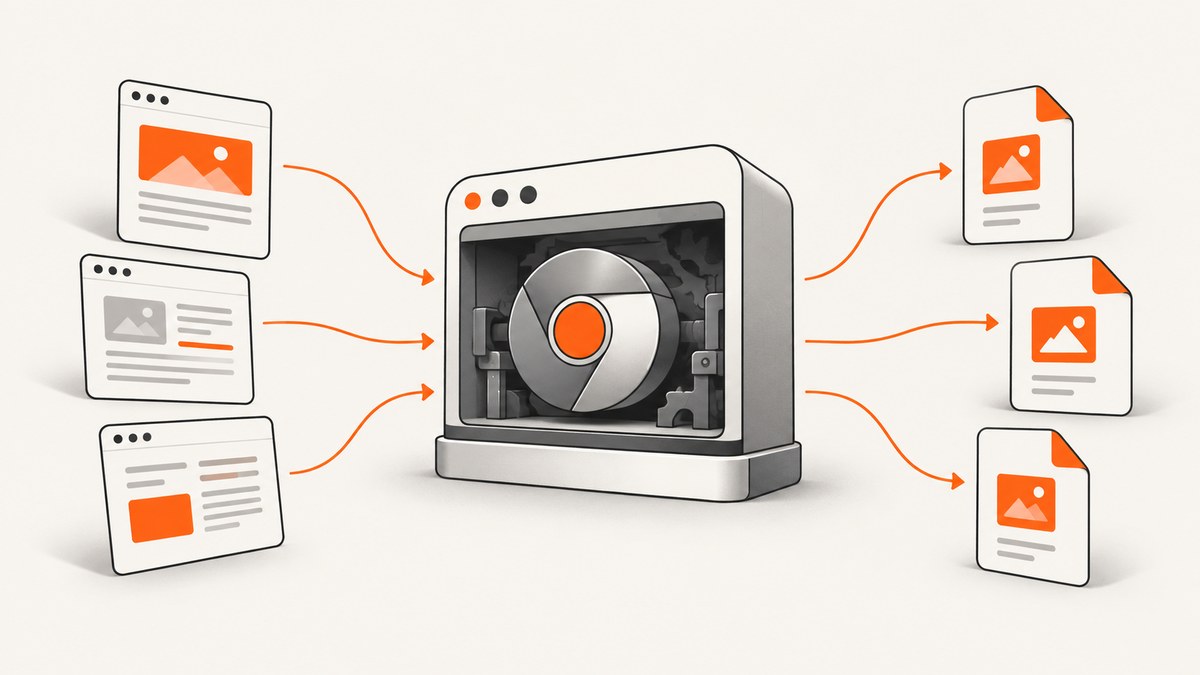
To reuse an already running Chrome or Chromium process for multiple PDF generations, configure it with a remote debugging port and point each Browsershot operation at that endpoint with setRemoteInstance(). Then generate each document with savePdf(), pdf(), or base64pdf(). Browsershot’s documented defaults are 127.0.0.1:9222; if that endpoint is unavailable, Browsershot falls back to launching Chromium. That fallback is not a browser pool and does not guarantee reuse across requests. [Spatie: remote Chrome connection]
1. What browser reuse means in Browsershot
Browsershot is a PHP package that uses Puppeteer to control headless Google Chrome. It accepts a URL or HTML and can produce screenshots or PDFs. With a remote instance configured, a Browsershot operation connects to the Chrome debugging endpoint rather than requiring you to start Chrome in that operation. [Remote instance documentation]
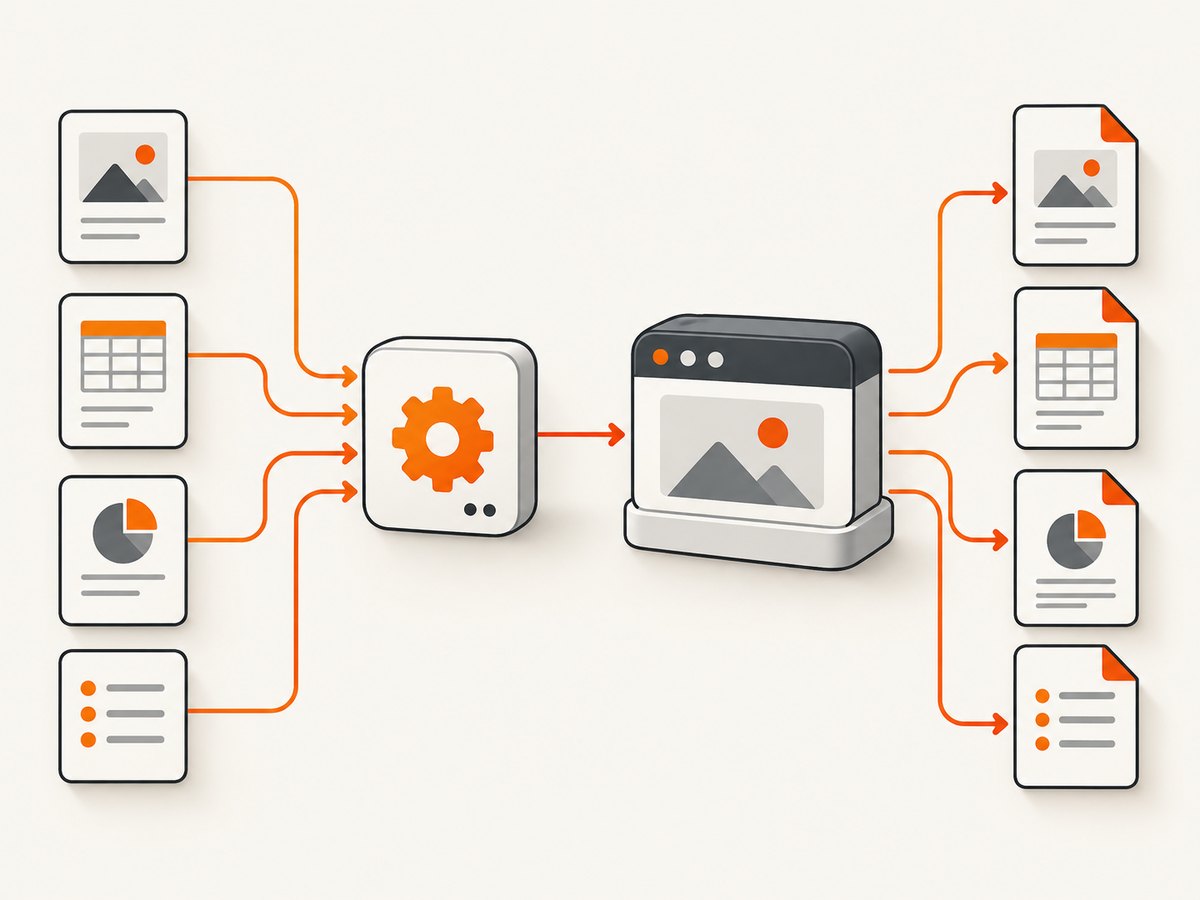
There are two separate lifecycles to account for:
- The browser process: your service, container, or process manager starts and supervises Chrome.
- The PDF operation: your PHP code creates a Browsershot operation, connects to the configured endpoint, and requests output.
setRemoteInstance() configures a connection. It does not itself start a persistent Chrome service, supervise that service, or promise that the same browser stays available between separate PHP requests. Those responsibilities belong to your deployment.
2. Start Chrome with remote debugging enabled
Start Chrome or Chromium as a distinct process and enable its remote debugging port. For a local development machine, the documented default endpoint is 127.0.0.1:9222. Choose an address reachable from the PHP worker. In a container or separate service, 127.0.0.1 refers to that container itself; use the hostname or network address that resolves to the browser service from the PHP process.
chromium --headless --no-sandbox --disable-dev-shm-usage --remote-debugging-port=9222Browser command-line switches depend on your Chrome build and hosting environment. The important connection setting is --remote-debugging-port. Keep the debugging endpoint on a trusted, private network: it grants control over the browser. Do not expose it as a public service without appropriate network restrictions.
For production, arrange for a service manager or container orchestrator to start the browser, restart it when it exits, and make its endpoint reachable by PHP workers. The package documentation describes connecting and its fallback behavior; it does not prescribe a process manager or deployment topology. Those choices must match your infrastructure.
3. Generate several PDFs through the same endpoint
Install Browsershot in your PHP project and configure each operation with the same host and port. This example saves two PDFs to disk:
<?php

require __DIR__ . '/vendor/autoload.php';

use Spatie\Browsershot\Browsershot;

$browserHost = '127.0.0.1';
$browserPort = 9222;

$documents = [
    'https://example.com' => __DIR__ . '/example.pdf',
    'https://www.php.net' => __DIR__ . '/php.pdf',
];

foreach ($documents as $url => $outputPath) {
    Browsershot::url($url)
        ->setRemoteInstance($browserHost, $browserPort)
        ->format('A4')
        ->showBackground()
        ->savePdf($outputPath);

    printf("Saved %s to %s\n", $url, $outputPath);
}
Each call explicitly uses the same configured endpoint. You can also use setRemoteInstance() inline:
Browsershot::url('https://example.com')
    ->setRemoteInstance('127.0.0.1', 9222)
    ->savePdf(__DIR__ . '/example.pdf');
The second operation can connect to the same browser service while that service remains running and reachable. Do not infer from this example that a browser process will survive a PHP worker restart or that simultaneous jobs are automatically queued or isolated.
4. Choose how your PHP code receives the PDF
Browsershot documents multiple PDF output methods. Use the one that matches how the application consumes the result. [Spatie: creating PDFs]
| Method | Use when |
|---|---|
savePdf($path) |
You want to write PDF output to a path. |
save($path) |
You want Browsershot to save output using a path-based method. |
pdf() |
Your application needs the PDF bytes in memory. |
base64pdf() |
You specifically need a base64-encoded PDF representation. |
For example, return the bytes in a web response after setting the same remote instance:
<?php

use Spatie\Browsershot\Browsershot;

$pdfBytes = Browsershot::url('https://example.com')
    ->setRemoteInstance('127.0.0.1', 9222)
    ->format('A4')
    ->pdf();

header('Content-Type: application/pdf');
header('Content-Disposition: attachment; filename="example.pdf"');
echo $pdfBytes;
Use in-memory output with care for large documents: PHP must hold the generated bytes while responding. Saving to a path can better suit a job that stores files or hands them to another process.
5. Set PDF layout options deliberately
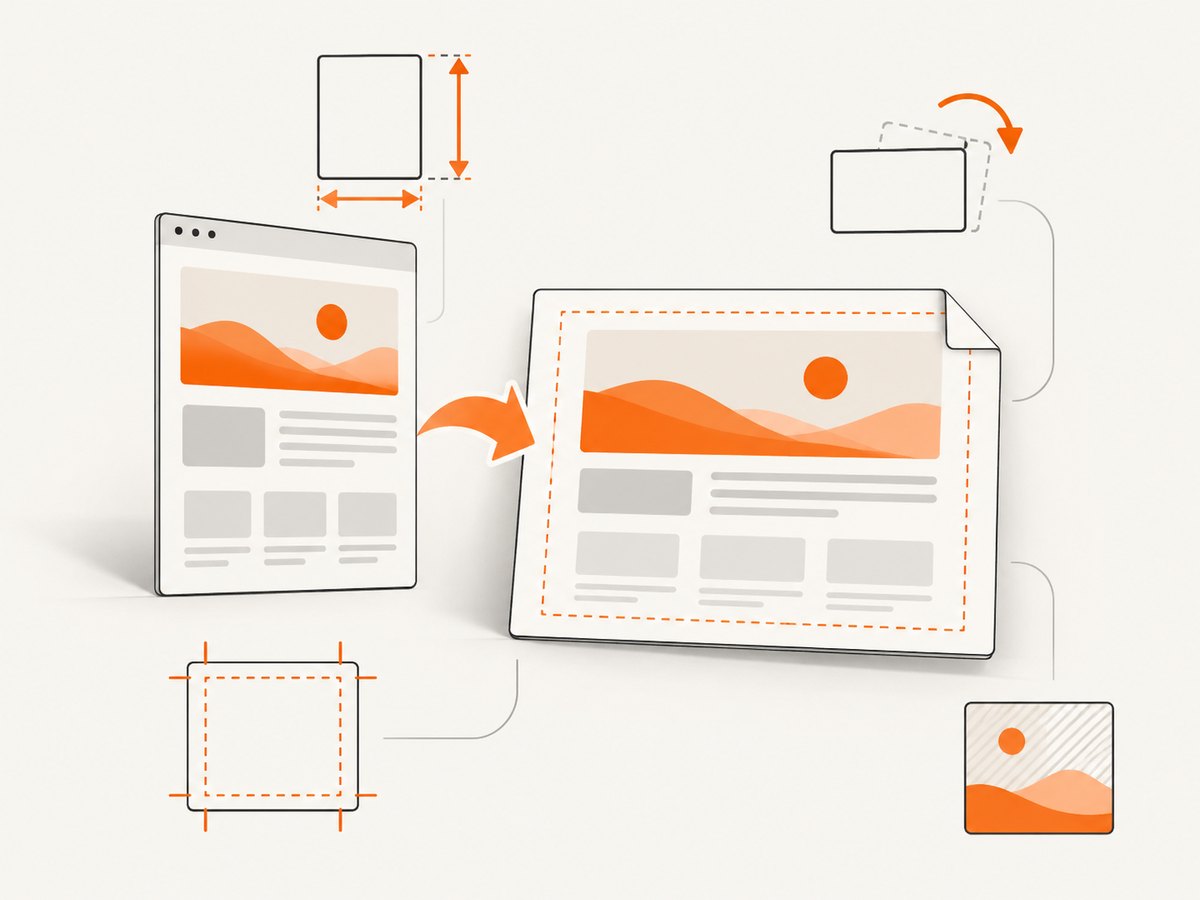
PDF output can be adjusted with options documented by Browsershot, including paper size, margins, headers and footers, background printing, orientation, scale, page ranges, and tagged output. [Creating PDFs]
Browsershot::url('https://example.com/report')
    ->setRemoteInstance('127.0.0.1', 9222)
    ->format('A4')
    ->margins(12, 12, 14, 12)
    ->showBackground()
    ->landscape()
->savePdf(__DIR__ . '/report.pdf');| Need | Option to consider |
|---|---|
| Standard page dimensions | format('A4') or another supported paper size. |
| More or less printable area | Set page margins explicitly. |
| Colored backgrounds and background graphics | showBackground(). |
| Wide tables or diagrams | landscape(). |
| Repeated page decorations | Configure headers and footers. |
| Only a subset of pages | Set a page range. |
| Accessibility-oriented output | Consider tagged PDF output where supported and appropriate. |
| Content scaling | Set a scale after checking legibility and pagination. |
These settings affect the rendered document, not whether Chrome is reused. For repeatable output, set the layout options in application code rather than relying on a browser’s incidental defaults.
6. Requirements and input safety
The current Browsershot v4 requirements page specifies Node.js 22.0 LTS or newer and Puppeteer Node library 23.0 or newer. Verify those requirements against the exact Browsershot release and deployment environment you install; version requirements can change. [Spatie: requirements]
Browsershot’s documentation says to validate URLs and HTML and pass only trusted input. This matters when a user can supply a URL or markup: a rendering service may request resources from addresses your application can reach. Apply an allowlist or other validation that matches your application’s needs, and do not treat a successful browser connection as input validation. [Creating PDFs and security note]
7. Operational checklist for reuse
- Start one browser service deliberately. Run Chrome with remote debugging enabled and decide which component owns restarts.
- Make the endpoint reachable. Confirm the host and port from the PHP worker’s network context, not just from your laptop.
- Configure every operation. Apply
setRemoteInstance($host, $port)to each PDF generation path. - Observe fallback behavior. The docs say Browsershot falls back to launching Chromium when the configured endpoint is unavailable. Detect and investigate endpoint failures rather than assuming reuse happened.
- Control concurrency. Decide how many jobs may use the browser service at once and what your worker does when the browser is busy or unavailable. The cited docs provide no concurrency limit or benchmark.
- Plan output handling. Use a file path, bytes, or base64 according to the consumer and expected document size.
- Keep the browser endpoint private. Restrict access to the debugging port to the processes that need it.
- Validate render inputs. Accept only URLs and HTML your application is prepared to load.
8. Performance, reliability, and cost
Connecting to a running browser can avoid starting a new Chromium process for a particular operation when the endpoint is healthy. The available documentation does not quantify the speedup, define a concurrency ceiling, or guarantee that the browser remains open across separate PHP requests. Measure in your deployment before making capacity or latency claims.
Reliability depends on both the PHP caller and the separately managed browser endpoint. The documented fallback may launch Chromium if the remote instance is unavailable, which can preserve a rendering path but changes the process path and may use different resources. Monitor failures and resource use for both cases. If consistent reuse is a requirement, make endpoint availability visible to your job system and decide how to handle a missing browser explicitly.
Cost depends on your own infrastructure, including the resources used to keep Chrome running and render documents. The research sources provide no pricing or benchmark figures. Compare the cost of a persistent browser service with the operational effort and resource usage of your workload rather than assuming reuse is automatically cheaper.
9. Troubleshooting
| Symptom | Likely cause | What to check or change |
|---|---|---|
| Browsershot launches Chromium instead of using the open browser | The configured remote endpoint is unavailable or unreachable. | Confirm Chrome started with the expected debugging port, then check the hostname and port from the PHP worker’s environment. |
| Connection refused | No process is listening at that host and port, or the address points to the wrong container. | Check browser process health and use the address reachable from PHP. Remember that container loopback addresses are local to each container. |
| Reuse works locally but not in deployment | The production topology separates PHP and Chrome or blocks the port. | Check service DNS, network policy, container ports, and whether the browser process is listening on an interface PHP can reach. |
| PDF layout differs from the expected printout | Paper size, margins, orientation, backgrounds, scale, or page range differ from the desired layout. | Set the relevant PDF options explicitly and inspect page breaks and output in the target environment. |
| Background colors are missing | Background printing is not enabled. | Use showBackground() and confirm the page itself provides the background styles. |
| PDF response consumes too much PHP memory | Large PDF bytes are held in memory by the response path. | Use a file output path when the application can process or serve a saved file instead of retaining all bytes. |
| Rendering fails after an upgrade | Runtime dependencies may not meet the installed Browsershot release’s requirements. | Check the version-specific requirements for Node.js and Puppeteer, then align the deployed versions. |
| Unexpected internal or sensitive page is rendered | Untrusted URL or HTML input was accepted. | Validate and restrict inputs before handing them to Browsershot, as the package documentation advises. |
10. Or skip the browser setup
If you need a screenshot or PDF without operating a Puppeteer and Chrome setup, ScreenshotNeo is a website screenshot API and MCP server. A single request can return an image or PDF, and the [API documentation] lists its options and response behavior.
curl -G "https://api.screenshotneo.com/v1/shot" \
  -d access_key=YOUR_API_KEY \
  --data-urlencode url=https://stripe.com \
  -o shot.pdf
For a PDF response, request PDF output using the API’s documented format parameter. The request above shows the one-call endpoint pattern; see the docs for exact PDF parameters. Python and Node.js examples using the same endpoint pattern:
import requests

r = requests.get(
    "https://api.screenshotneo.com/v1/shot",
    params={"access_key": "YOUR_API_KEY", "url": "https://stripe.com"},
    timeout=90,
)
r.raise_for_status()
open("shot.pdf", "wb").write(r.content)
const q = new URLSearchParams({
access_key: 'YOUR_API_KEY',
url: 'https://stripe.com'
});
const res = await fetch(`https://api.screenshotneo.com/v1/shot?${q}`);
if (!res.ok) throw new Error(`ScreenshotNeo returned ${res.status}`);
await Bun.write('shot.pdf', res);ScreenshotNeo removes cookie and consent banners, newsletter popups, and chat widgets before capture; each step can be turned off. Bot checks, blank pages, timeouts, failed loads, and cache hits are not billed, and response headers identify the page verdict and billing status. Its MCP server provides take_screenshot, get_page_info, and capture_pdf for AI agents. The free plan includes 1,000 screenshots a month with no card; paid plans start at $5 for 3,000. This is an API workflow rather than a way to reuse your own Chrome process.
Create a free ScreenshotNeo account for 1,000 screenshots a month, with no card required.
11. FAQ
Does Browsershot launch Chrome for every PDF?
When configured with a reachable remote instance, it can connect to that running browser. If the endpoint is unavailable, its documentation says it falls back to launching Chromium. The exact process lifecycle depends on your application and deployment.
Does setRemoteInstance() keep Chrome open between requests?
No lifecycle guarantee is documented. It tells a Browsershot operation where to connect; your service or process manager must keep Chrome running and reachable.
Can I generate PDFs concurrently through one browser endpoint?
The cited documentation does not specify a concurrency limit or pooling behavior. Validate concurrent jobs in your environment and set worker limits based on observed resource use.
Can I render HTML instead of a URL?
Browsershot accepts arbitrary HTML as well as URLs. Validate supplied markup and its referenced resources before rendering.


