How to Reuse Browser Profiles for Automation
Keep browser automation signed in across runs with Playwright persistent profiles or saved auth state, while avoiding profile conflicts and credential leaks.
To reuse browser state in automation, choose between a persistent browser profile and a saved authentication state. Use a persistent profile when the automation needs a continuing browser profile on disk. Use saved authentication state when each run should create an isolated browser context that starts signed in. In either case, use a dedicated automation profile or state file, never your everyday Chrome profile, and do not let simultaneous browser instances share one live profile directory.
This guide uses Playwright with Node.js. Its documented persistence mechanisms cover cookies and local storage; saved authentication state can also include IndexedDB and passkey-based authentication. Session storage needs separate handling. The saved files may contain credentials capable of impersonating the account, so protect them like secrets. See Playwright’s BrowserType and authentication documentation.
1. Choose a persistence method
| Method | What survives | Good fit | Main trade-off |
|---|---|---|---|
| Persistent user-data directory | Broad browser profile data, including cookies and local storage | A continuing automation browser that should retain its profile between launches | Only one browser instance can use the directory at a time |
| Saved authentication state | Cookies, local storage, IndexedDB, and supported passkey state | Tests that should start authenticated but use isolated contexts | The state file is sensitive; session storage is not included automatically |
| In-memory session | State while the browser session remains alive | Short-lived work that should not persist to disk | Closing the browser loses the state |
Use the persistent option when the browser itself is the continuing workspace: for example, a controlled QA job that revisits a site with the same browser profile. Use saved state for test suites that need repeatable, separate contexts. Each test can load the same prepared authentication state into its own context, avoiding shared mutable browser state. For parallel workers, create separate contexts from saved state or give each worker its own profile directory.
Playwright CLI sessions have a similar distinction: ordinary session data is in memory unless disk persistence is enabled. The CLI documents a --persistent option. Tool defaults and configuration differ, so check the documentation for the specific CLI or MCP tool you use. See Playwright CLI sessions and Playwright MCP profile and state.
2. Create a dedicated persistent profile
Install Playwright and its Chromium browser in a Node.js project:
npm init -y
npm install playwright
npx playwright install chromium
Save this as persistent-profile.mjs. It creates a dedicated data directory, opens a site, and leaves the browser running long enough for you to sign in manually. Close it normally after sign-in; the profile is saved on disk and can be reopened by the next run.
import { chromium } from 'playwright';
import path from 'node:path';

const userDataDir = path.resolve('./.automation/chrome-profile');
const context = await chromium.launchPersistentContext(userDataDir, {
  headless: false,
  viewport: { width: 1440, height: 900 },
});

const page = context.pages()[0] ?? await context.newPage();
await page.goto('https://example.com', { waitUntil: 'domcontentloaded' });
console.log('Sign in if needed, then close the browser to save this profile.');

// This context is the browser. Closing it also closes the browser.
await page.waitForTimeout(60_000);
await context.close();
Replace https://example.com with a site and account you are authorized to automate. For a one-time setup, run the script headed, complete the sign-in, and close the browser. Later runs can launch the same directory in headless mode if the workflow supports it. Keep the wait or replace it with your actual task; the one-minute pause is only a simple setup example.
launchPersistentContext(userDataDir) returns the browser’s only context. It is not the same as launching a browser and creating several independent contexts. Closing that context closes the browser. The directory retains browser session data such as cookies and local storage. See the Playwright BrowserType API.
Use the correct directory
Choose a new path owned by your automation project or environment, such as ./.automation/chrome-profile. Do not point automation at Chrome’s everyday user-data directory. Playwright warns that using Chrome’s main “User Data” directory is unsupported under recent Chrome policy changes and may cause pages not to load or the browser to exit.
If you are locating an existing Chromium profile for diagnostic purposes, chrome://version shows a profile path. The user-data directory is the parent of that profile path. For automation, make a separate directory instead of reusing the everyday one. Add the automation directory to .gitignore:
.automation/
playwright/.auth/
3. Save authentication state for isolated runs
For a test suite, first sign in once and save the authenticated state. Then load that file into a fresh browser context for each run. This keeps test contexts isolated while avoiding repeated interactive login.
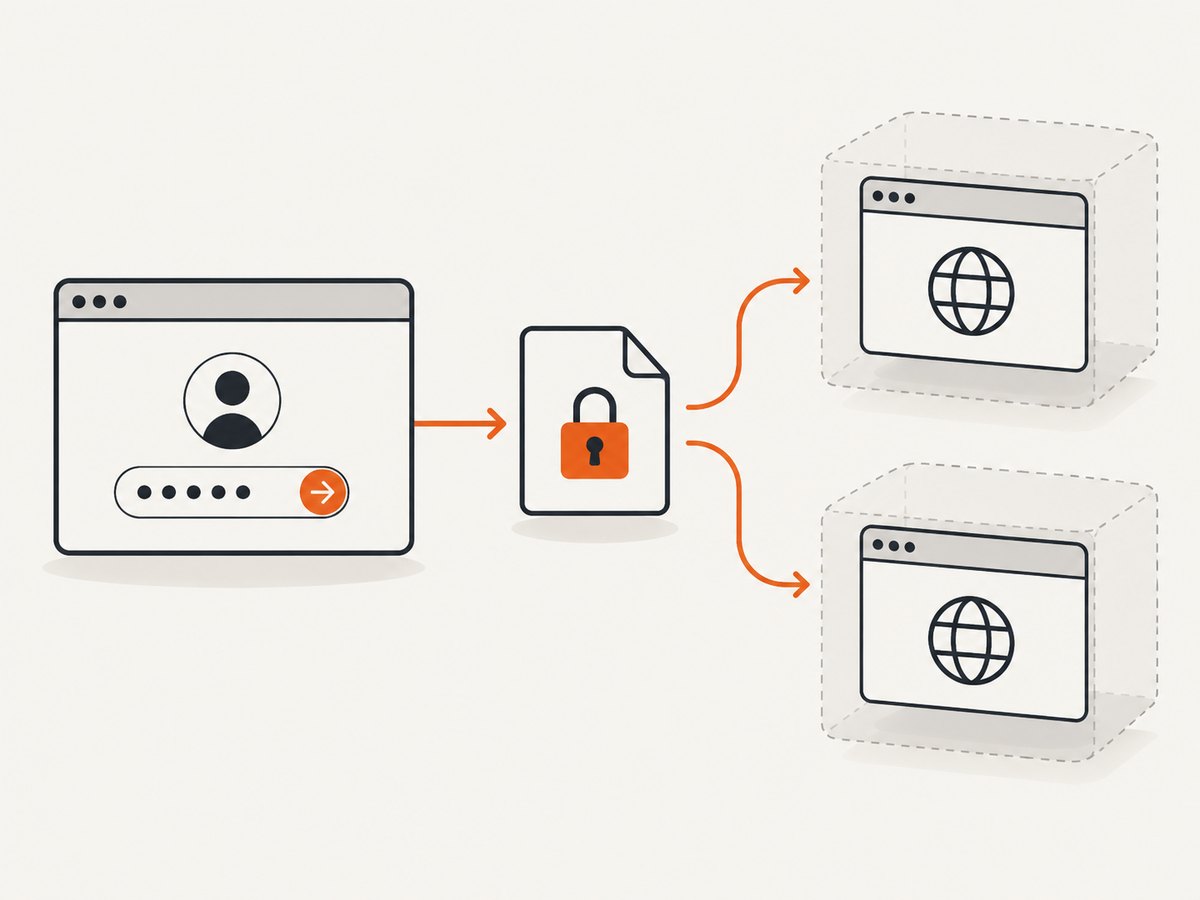
Create save-auth.mjs and run it in headed mode. The example waits for the user to complete sign-in and press Enter in the terminal, then saves cookies, local storage, and IndexedDB where supported by the installed Playwright version.
import { chromium } from 'playwright';
import { mkdir } from 'node:fs/promises';
import path from 'node:path';
import readline from 'node:readline/promises';
import { stdin as input, stdout as output } from 'node:process';

const authDir = path.resolve('playwright/.auth');
const statePath = path.join(authDir, 'user.json');
await mkdir(authDir, { recursive: true });

const browser = await chromium.launch({ headless: false });
const context = await browser.newContext();
const page = await context.newPage();
await page.goto('https://example.com/login');

const terminal = readline.createInterface({ input, output });
await terminal.question('Sign in in the browser, then press Enter here. ');
terminal.close();

await context.storageState({ path: statePath, indexedDB: true });
await browser.close();
console.log(`Saved authentication state to ${statePath}`);
The indexedDB option is available in current Playwright documentation; if your installed version does not recognize it, update Playwright or omit it when your application does not keep authentication data there. Keep the saved file local and private.
Load the state into a new context with browser.newContext({ storageState }):
import { chromium } from 'playwright';

const browser = await chromium.launch();
const context = await browser.newContext({
  storageState: 'playwright/.auth/user.json',
});
const page = await context.newPage();
await page.goto('https://example.com/account');
console.log(await page.title());
await browser.close();
Do not confuse this state file with a full browser profile. It is intended to transfer authentication-related state into a new context; it does not reproduce every preference, extension, cache entry, or browser setting. If the application uses session storage, Playwright’s built-in storage-state file does not preserve it. The Playwright auth guide documents a custom save/load approach for session storage; use that only when your application actually depends on it.
4. Handle concurrency and profile locks
Browsers do not allow multiple instances to use the same user-data directory at once. If two jobs launch the same persistent directory, the second can fail, find the profile locked, or behave unpredictably. Do not use one shared live profile for parallel workers.
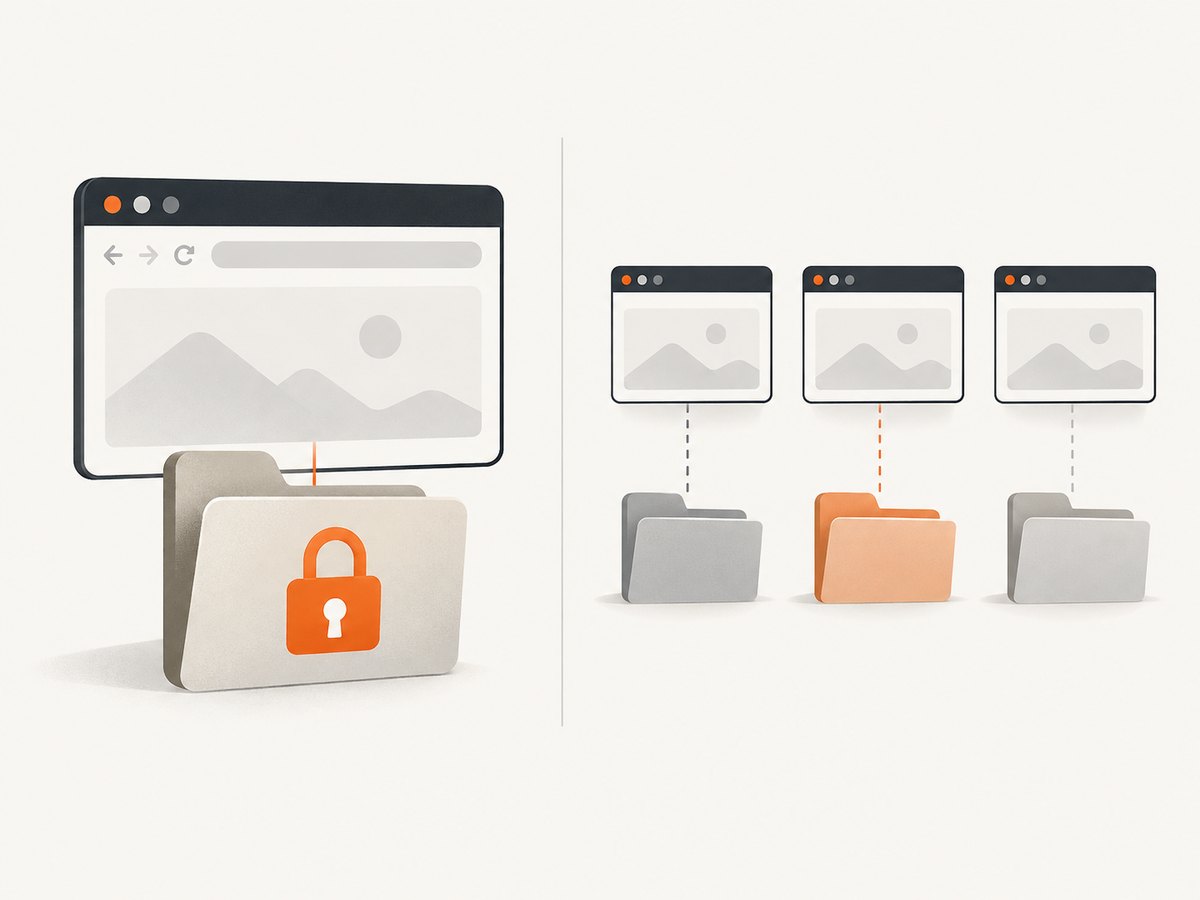
- For a single continuing browser: serialize jobs that use the directory. Ensure the previous browser has closed before launching the next.
- For parallel tests: use saved authentication state to create separate contexts, or provision a separate profile directory per worker.
- For retries: make sure a previous process has exited and released the profile before retrying.
- For CI: create the profile or state file in the job’s private workspace, and avoid sharing writable profile directories across jobs.
Saved state is itself shared credential material. Although contexts can be isolated, multiple workers loading the same state may still act as the same account. If tests mutate server-side account data, use separate test accounts or coordinate the test data. This is a reliability practice based on the shared identity, not a Playwright guarantee.
5. Protect reusable browser state
Authentication state may contain cookies and headers that can impersonate the account. A persistent profile can contain equivalent access-bearing session data. Treat both as credentials:
- Keep generated profiles and auth files out of source control. Ignore their directories in Git.
- Restrict filesystem and CI artifact access to the people and jobs that need it.
- Use dedicated test accounts with limited permissions where possible.
- Do not attach profile folders or state JSON files to public bug reports or issue trackers.
- Delete state when the workflow ends; if it may have been exposed, revoke sessions or rotate credentials through the service.
- Do not use profile reuse to bypass access controls, anti-abuse checks, or a site’s rules.
Playwright explicitly warns against checking authentication state into repositories because the file can enable impersonation. Limiting access and deleting unneeded artifacts follow from that documented risk. See Playwright authentication guidance.
6. Troubleshooting
| Symptom | Likely cause | Fix |
|---|---|---|
| Browser exits immediately or pages fail to load | Automation points at Chrome’s default user-data directory or a directory with incompatible state | Create a fresh, dedicated automation directory and launch that path. Do not use your everyday profile. |
| “Profile in use,” lock, or launch failure | Another browser process is using the same user-data directory | Close the prior process, serialize access, or use a separate directory per worker. |
| Tests unexpectedly appear signed out | State was not saved after login, the wrong state path was loaded, or authentication expired | Re-run the setup script, check the path, and confirm the saved file is available to the job. Verify the account’s session policy. |
| Login works in headed mode but not in CI | Environment differences, missing state artifact, or a sign-in flow that requires additional interaction | Save state in the same environment where it will be consumed when possible; verify artifact permissions and wait for a clear post-login condition before saving. |
| Only some pages remain signed in | Auth may depend on a different domain, IndexedDB, or session storage | Check the app’s auth storage. Save IndexedDB where needed; implement the documented custom session-storage handling if that is the dependency. |
| One parallel worker changes another worker’s browser | Workers share a persistent directory or mutable page/context | Give each worker an isolated context or profile. Coordinate server-side test data separately. |
| Auth JSON appears in a commit | Generated state was not ignored or staged files were not reviewed | Remove it from the repository history as appropriate, revoke affected sessions, and add its directory to ignore rules. |
7. Performance, reliability, and cost
Reusing a profile avoids repeating interactive sign-in, but it does not make every run deterministic. Cookies can expire, accounts can require reauthentication, and server-side state can change. Build a clear check into the automation: after loading the profile or state, navigate to a known authenticated page and verify an account-specific element before performing the main task. If that check fails, report an authentication problem instead of continuing as though the session were valid.
A persistent directory can grow as the browser accumulates data, while saved auth state is more focused and easier to provision to isolated contexts. Neither method removes the cost of launching the browser and loading pages. Keep state in a local or job-local location to avoid unnecessary file transfer, and avoid saving a new state file after every test unless the workflow intentionally updates authentication.
Profile reuse is most reliable when the browser version, automation environment, and state lifecycle are controlled. Refresh state deliberately, keep a backup setup path for an expired login, and make cleanup explicit. Do not treat an auth file as a permanent backup: it is an active credential, not merely test fixture data.
Or skip the browser setup
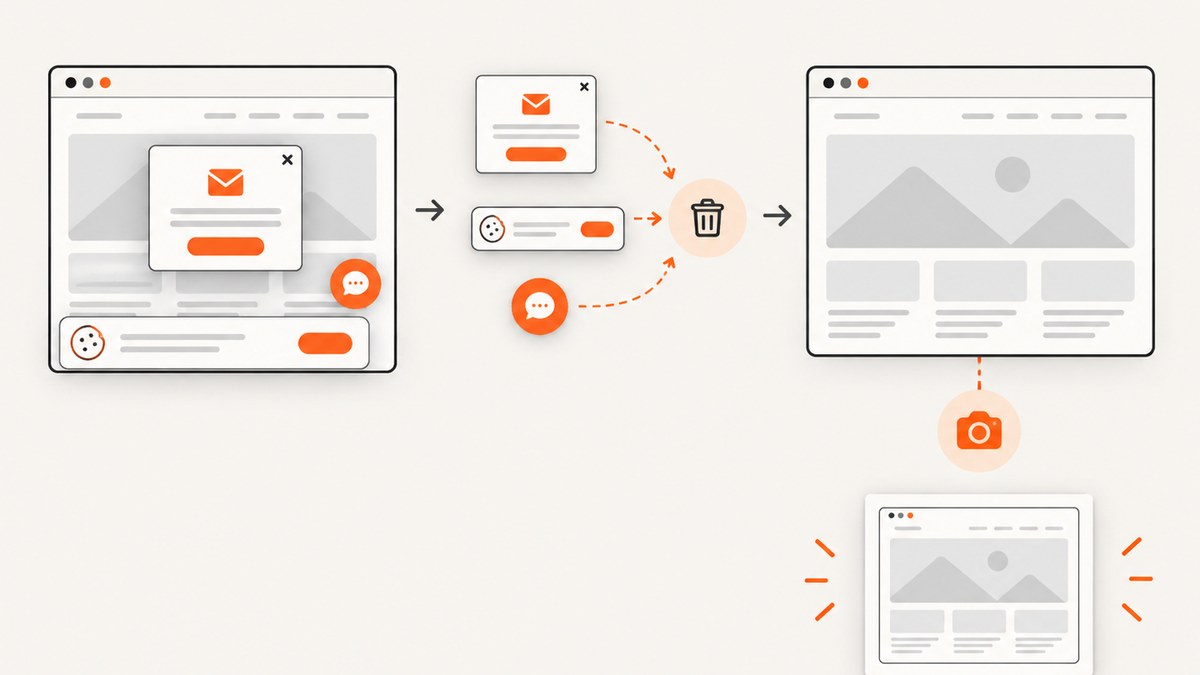
If your task is to capture a public page rather than run an authenticated browser workflow, ScreenshotNeo is a website screenshot API and MCP server. A single GET request returns a PNG, JPEG, WebP, or PDF. See the API documentation for options.
curl -G "https://api.screenshotneo.com/v1/shot" -d access_key=YOUR_API_KEY --data-urlencode url=https://stripe.com -o shot.webpimport requests
r = requests.get("https://api.screenshotneo.com/v1/shot", params={"access_key": "YOUR_API_KEY", "url": "https://stripe.com"}, timeout=90)
open("shot.webp", "wb").write(r.content)const q = new URLSearchParams({ access_key: 'YOUR_API_KEY', url: 'https://stripe.com' });
const res = await fetch(`https://api.screenshotneo.com/v1/shot?${q}`);ScreenshotNeo removes cookie banners, newsletter popups, and chat widgets before the shot. Bot checks, blank pages, and failed loads are never billed. Its MCP server lets AI agents take screenshots. The free plan includes 1,000 screenshots a month with no card; paid plans start at $5 for 3,000. It is for screenshots, not a substitute for authenticated test sessions like the Playwright workflows above.
Create a free ScreenshotNeo account for 1,000 screenshots a month with no card.
FAQ
Can I reuse my normal Chrome profile?
Use a separate automation profile. Playwright warns that automating Chrome’s default user-data directory is unsupported and may fail to launch or load pages.
Does saved authentication state include session storage?
No. The built-in storage-state mechanism does not persist session storage. Use the custom approach in Playwright’s auth documentation if the application requires it.
Can two workers share one profile?
They should not share one live persistent directory. Use separate directories or isolated contexts loaded from saved state, and account for shared server-side test data.
When should I choose a persistent context over an auth file?
Choose a persistent context when you need the broader continuing browser profile. Choose saved auth state when repeatable, isolated contexts are the priority.
Is the state file safe to upload as a CI artifact?
Only if access is restricted to the required jobs and people, retention is limited, and the file is handled as a credential. Prefer passing it through a protected secret or artifact mechanism rather than making it broadly available.


