Why Browsers Never Open for Robot Framework Tests in Jenkins
A Jenkins test with no visible browser may be running headlessly or failing to start. Follow this checklist to identify the library, agent, launch mode, and exact failure.
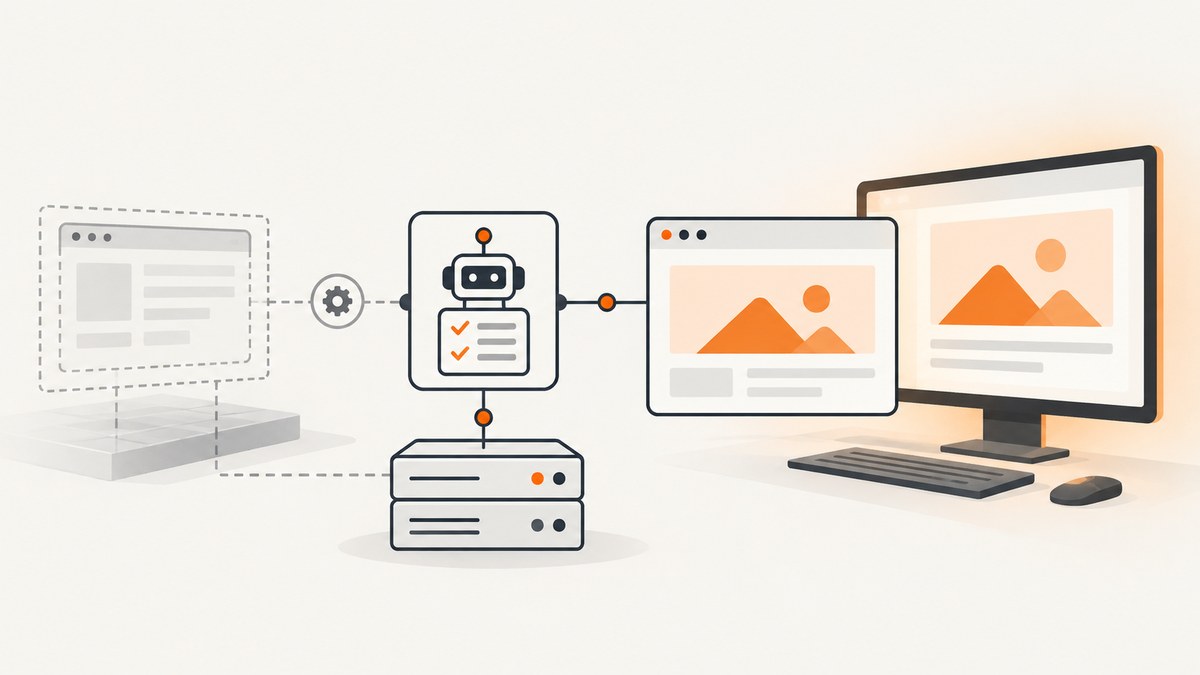
A browser window that never appears in a Jenkins job can mean two different things: the test started a headless browser, which has no visible window by design, or the browser session failed to start. First check the Robot Framework output and browser startup logs to distinguish those cases. Then verify which browser library the suite uses, what launch mode it requests, and whether the Jenkins agent has the required dependencies and display access.
The test runs in the job’s assigned Jenkins node or agent, not automatically on the controller or your workstation. A package, browser, driver, environment variable, or desktop session available locally may be missing or inaccessible to the account running the job. The title alone does not establish which of these layers is failing.
1. Decide whether the browser failed or is simply invisible
Start with the test result and startup logs, not with the absence of a desktop window. If the test passes, or logs show a browser session was created, the browser may be running headlessly. If it fails during browser startup, read the first complete error and identify the failing layer before changing configuration.
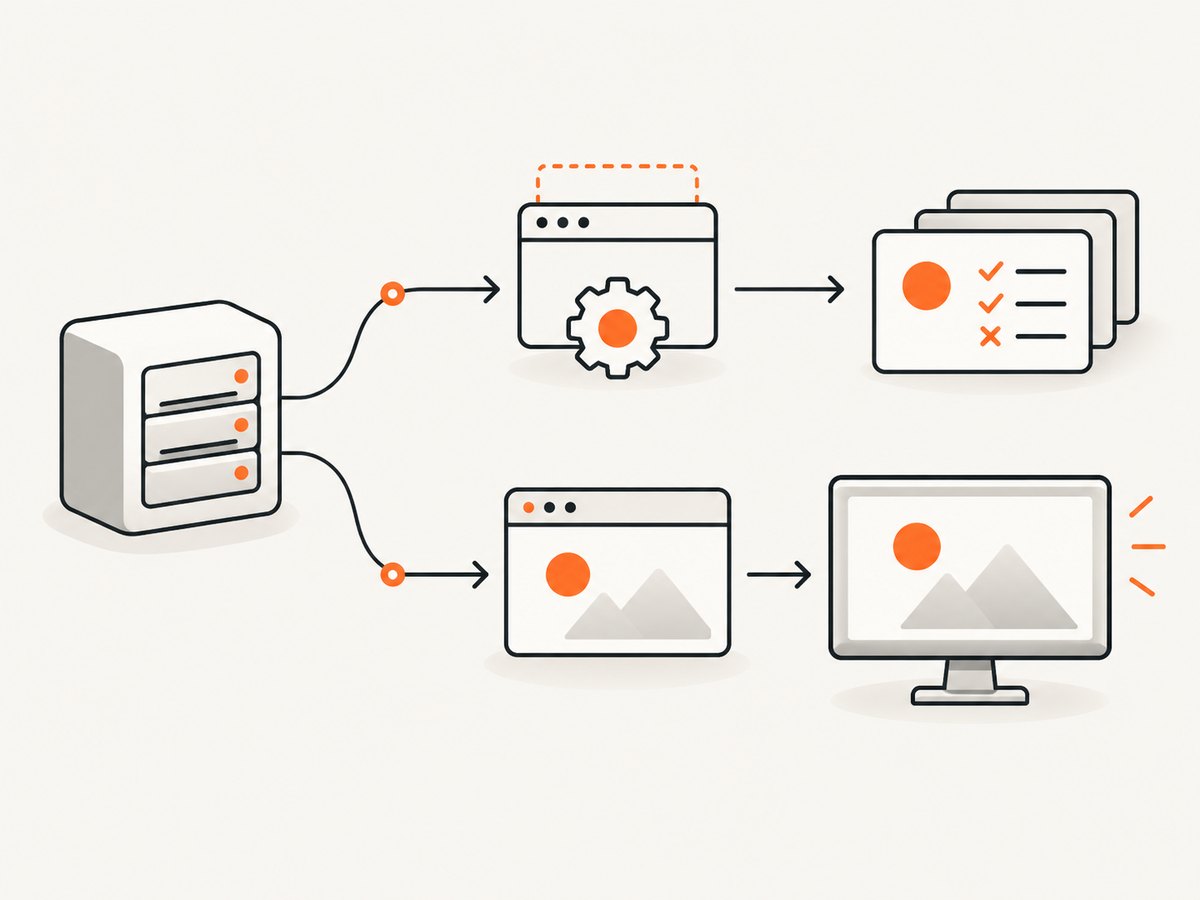
| What you observe | Likely interpretation | What to check next |
|---|---|---|
| Test passes, no window appears | Headless execution may be intentional. | Inspect the browser name or launch options. |
| Failure while creating a session | The browser, driver, library, permissions, or launch environment may be unavailable. | Read the full exception and agent logs. |
| Browser starts, then exits or hangs | A crash, page-load wait, resource problem, or test flow may be involved. | Check browser logs and the last Robot keyword that completed. |
Capture these facts before applying a fix: agent operating system and label, job account, Robot Framework version, library and version, browser and driver versions if applicable, Jenkins agent launch method, relevant environment variables, and the full startup error. This record prevents a headless visibility issue from being confused with a missing dependency.
2. Identify the browser library and use its setup path
Robot Framework commonly uses either SeleniumLibrary or Browser Library for web automation. They have different engines and configuration. SeleniumLibrary uses Selenium and its Open Browser keyword; Browser Library is Playwright-powered and has its own installation, initialization, and browser launch options. Do not apply Selenium browser-name syntax to Browser Library.
If the suite uses SeleniumLibrary
SeleniumLibrary documents browser names including Chrome, Firefox, headlesschrome, and headlessfirefox. A headless browser name intentionally launches without a visible window. Its Open Browser keyword also accepts browser options. The chosen browser needs a matching driver; Selenium Manager can manage drivers automatically in current SeleniumLibrary documentation, but confirm the actual versions and setup on the agent.
Example Robot Framework suite using SeleniumLibrary:
*** Settings ***
Library    SeleniumLibrary

*** Test Cases ***
Open A Page In Chrome
    Open Browser    https://example.com    chrome
    Title Should Be    Example Domain
    Close Browser
For an intentional headless run, select the corresponding headless browser name:
*** Test Cases ***
Open A Page Headlessly
    Open Browser    https://example.com    headlesschrome
    Title Should Be    Example Domain
    Close Browser
If the test should be visible, use a visible browser choice and ensure the job can access a desktop session on its agent. Merely changing headlesschrome to chrome does not create a display or grant an agent access to one.
If the suite uses Browser Library
Browser Library is Playwright-powered. Its documented setup includes Node.js, Python, Robot Framework, and the Browser Library package, followed by rfbrowser init to install its dependencies. The Jenkins guide also describes setting PLAYWRIGHT_BROWSERS_PATH when using a configured browser location. Follow the current library documentation for version-specific requirements and launch options.
A minimal suite illustrates the library’s Robot syntax; the browser installation and initialization must already be complete in the execution environment:
*** Settings ***
Library    Browser

*** Test Cases ***
Open A Page
    New Browser    chromium    headless=${TRUE}
    New Page    https://example.com
    Get Title    ==    Example Domain
    Close Browser
To investigate a visibility request, inspect the Browser/Playwright launch options used by the suite and the agent’s display environment. Do not assume a SeleniumLibrary browser alias controls Playwright.
The official guides cover [Jenkins setup for Robot Framework](https://docs.robotframework.org/docs/using_rf_in_ci_systems/ci/jenkins), [SeleniumLibrary](https://robotframework.org/SeleniumLibrary/SeleniumLibrary.html), and [Browser Library installation](https://docs.robotframework.org/docs/different_libraries/browser).
3. Check what is installed on the Jenkins agent
Jenkins assigns each job to a node or agent. Verify dependencies on that exact agent, under the same account and environment used by the job. Checking the controller or a developer workstation is not sufficient when execution happens elsewhere.
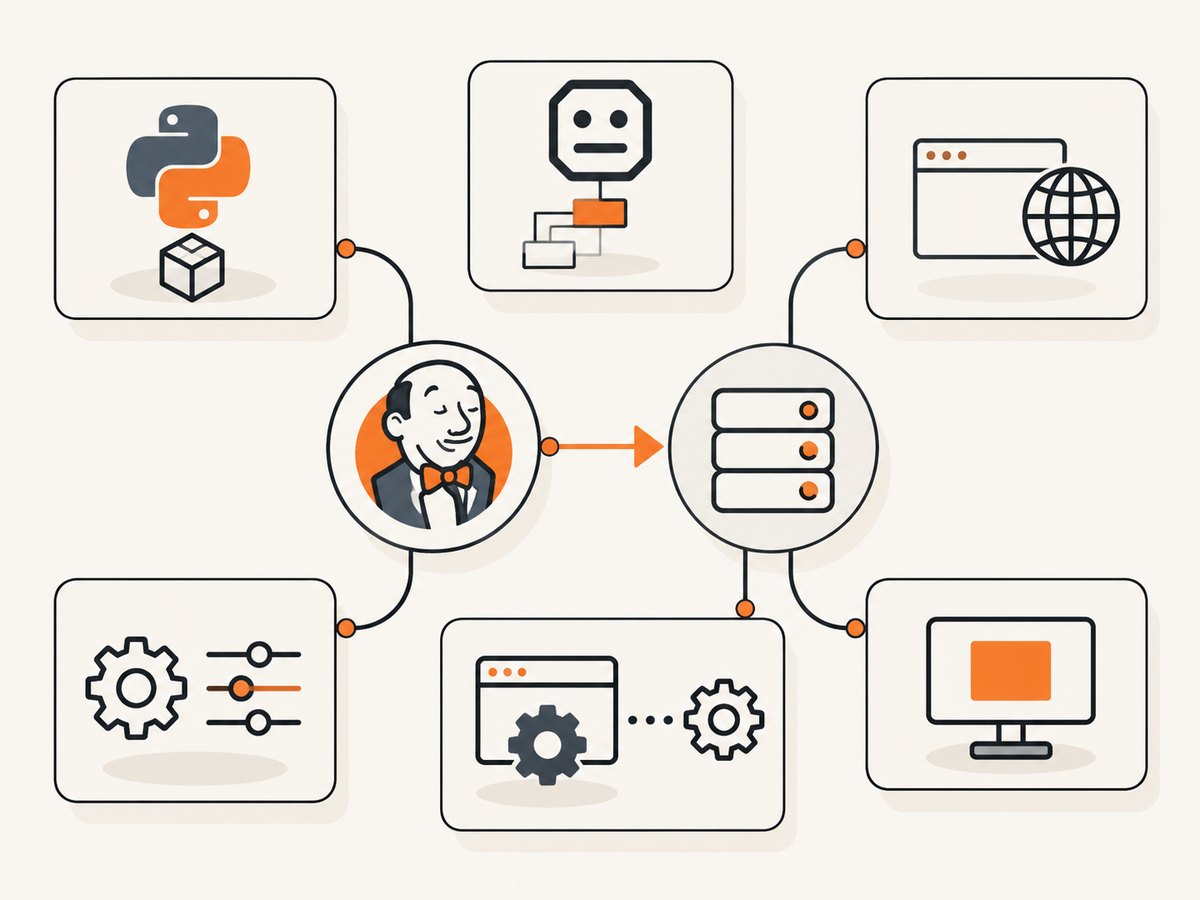
- Confirm the selected node. Review the job’s agent label and identify the node or container that actually ran the build.
- Inspect the job account’s environment. Confirm
PATH, file permissions, available disk space, and access to the browser installation and cache directories. - Verify the library-specific prerequisites. For SeleniumLibrary, check the browser and matching driver or Selenium Manager behavior. For Browser Library, check the Node.js runtime, Python packages, Browser Library installation, and Playwright browser dependencies.
- Check network and cache assumptions. Browser initialization may need to obtain browser dependencies. If the agent cannot access the required network resources, follow the library’s documented setup for preinstalled browsers and a configured browser path.
- Compare versions in the job itself. Print or record the versions from the build environment; versions on another machine do not establish what Jenkins used.
The Robot Framework Jenkins guide’s example selects an agent and runs the tests there; its setup guidance calls for installing the relevant software on the agent. For Browser Library it describes installing Node.js, Python, Robot Framework, and Browser Library, setting PLAYWRIGHT_BROWSERS_PATH where applicable, and running rfbrowser init.
A simple pipeline shape is:
pipeline {
    agent { label 'robot-agent' }
    stages {
        stage('Robot tests') {
            steps {
                sh 'python -m robot --outputdir results tests/'
            }
        }
    }
}
The label is an example and must match a real Jenkins agent in your environment. If the job runs in a container, validate the dependencies and paths inside that container, not just on the host.
4. If a visible window is required, verify display access
Visible UI automation needs an operating-system session that the Jenkins agent can access. Diagnose this only after confirming that the test is supposed to show a window. A headless browser does not need to draw a desktop window, while a visible browser can fail or remain inaccessible if the job’s session lacks a usable display.
Linux agents
Inspect the job’s display environment and whether the agent account can connect to the configured display. A Linux CI forum discussion mentions DISPLAY and Xvfb as troubleshooting leads; whether Xvfb is appropriate depends on the actual agent and browser setup. Verify that the display server is running, that its address is available to the build process, and that permissions allow access.
macOS and Windows agents
The available research does not establish a universal service-session fix for these platforms. The way an agent is launched can affect its access to an interactive user session. One macOS community report describes a service-launched agent that could not access the UI and reports success after launching through SSH. Treat that as a case-specific clue, not a general Jenkins rule. Check the operating system’s session, account, and service behavior for the specific agent.
For visual debugging, consider whether a visible desktop is actually necessary. Many CI suites only need to verify page behavior and can run headlessly; choose that deliberately and make sure the test does not depend on human-visible UI state.
5. Troubleshoot by the exact startup error
| Symptom or error family | Possible cause | Next action |
|---|---|---|
| No window, but the test succeeds | Headless mode is selected. | Inspect the Selenium browser name or Browser Library launch options. A headless run is expected to have no visible desktop window. |
| Browser or driver executable not found | The job’s agent lacks the executable, or the job account cannot find it through its path and permissions. | Check installation and paths on the assigned agent under the build account. For SeleniumLibrary, verify browser/driver compatibility or Selenium Manager setup. |
| Browser Library cannot launch after installation | Initialization or Playwright browser dependencies may be missing, or the configured browser path may differ from the job’s path. | Check the agent’s Node.js and package setup, run the documented Browser Library initialization, and verify PLAYWRIGHT_BROWSERS_PATH when used. |
| Session creation fails with a version or compatibility error | Browser and driver versions may be incompatible, or the agent may resolve a different executable than expected. | Collect actual versions and resolved executable paths from the job. Correct the agent setup based on the library’s current documentation. |
| Permission denied or browser exits immediately | The build account may lack access to the browser, cache, profile, or required runtime files. | Check ownership and permissions for the job account and inspect the browser’s startup logs. |
| Visible launch fails on Linux | The process may not have access to a usable display. | Inspect DISPLAY, display availability, and account permissions. Evaluate Xvfb only if it fits the agent configuration. |
| Browser opens but page navigation times out | The browser session may work while the page or network request does not complete. | Separate session startup from page-load failure; inspect the last completed keyword, network access, and timeout configuration. |
Do not “fix” a missing driver, incompatible version, inaccessible display, and page timeout with the same change. Save the full console output and Robot logs, then map the first failing operation to its component. Redact credentials or sensitive headers before sharing logs.
6. Make Jenkins runs more reliable
- Keep agent setup repeatable. Install or provision the same library and browser dependencies each time the agent image is built. Record versions in the job output.
- Use a deliberate execution mode. Pick headless for ordinary unattended tests unless a visible session is a requirement. For visual debugging, establish display access as a separate part of agent setup.
- Separate launch from page failures. Log the browser/library initialization and the first navigation independently so a slow page is not mistaken for a launch failure.
- Use bounded waits. Set timeouts according to the test’s needs. Excessively short waits make slow agents flaky; unbounded waits can leave a build stuck.
- Keep browser state controlled. Close sessions after each test or suite as appropriate, and avoid sharing a profile or writable cache between parallel jobs unless the library and setup support it.
- Preserve useful artifacts. Archive Robot Framework output and browser logs so failures can be diagnosed from the job rather than inferred from whether a window appeared.
Performance depends on agent capacity, browser startup, page complexity, network access, and the number of concurrent sessions. No benchmark or universal speed difference is established here. If jobs slow down, compare startup time, page-load time, and resource use separately before scaling agents or changing browser mode.
7. When a screenshot is the goal, use a screenshot API
Robot Framework is appropriate when you need to interact with a page and assert its behavior. If your task only needs a website screenshot, maintaining an interactive browser and desktop session can add setup that the task does not require. ScreenshotNeo is a website screenshot API and MCP server from [Yorker Media](https://screenshotneo.com); it returns a PNG, JPEG, WebP, or PDF from a URL. Its screenshot output does not replace browser automation for clicking through a workflow or asserting application behavior.
Or skip the browser setup
Use one GET request to capture a page with [ScreenshotNeo](https://screenshotneo.com/docs/). Replace the example URL and API key with your own:
curl -G "https://api.screenshotneo.com/v1/shot" \
  -d access_key=YOUR_API_KEY \
  --data-urlencode url=https://example.com \
  -o shot.webp
Or use Python:
import requests

r = requests.get(
    "https://api.screenshotneo.com/v1/shot",
    params={"access_key": "YOUR_API_KEY", "url": "https://example.com"},
    timeout=90,
)
open("shot.webp", "wb").write(r.content)
Or Node.js:
const q = new URLSearchParams({
  access_key: 'YOUR_API_KEY',
  url: 'https://example.com'
});
const res = await fetch(`https://api.screenshotneo.com/v1/shot?${q}`);
ScreenshotNeo removes cookie and consent banners, newsletter popups, and chat widgets before the shot; each step can be turned off. Bot checks, blank pages, timeouts, failed loads, and cache hits cost nothing, with response headers indicating the page verdict and whether the request was billed. Its MCP server lets Claude, Cursor, and other MCP clients take screenshots. The free plan includes 1,000 screenshots a month with no card; paid plans start at $5 for 3,000. See the [API docs](https://screenshotneo.com/docs/) for the available options, including full-page capture, element capture, PDF, custom CSS and JavaScript, waits, caching, and async jobs. [Sign up for 1,000 free screenshots a month, with no card](https://screenshotneo.com/account/sign-up/).
8. Frequently asked questions
Does Jenkins always run Robot Framework browsers headlessly?
No. The symptom does not identify the launch mode. Check the library configuration and logs on the assigned agent; headless mode is a possible explanation, not a Jenkins-wide rule.
Should I install a browser on the Jenkins controller?
Install required software where the job executes. If the job is assigned to an agent, verify that agent’s environment rather than assuming the controller’s software is available there.
Can I use ScreenshotNeo to fix an interactive Robot test?
No. ScreenshotNeo captures a URL as an image or PDF; it is useful when the deliverable is a capture. It does not replace Robot Framework for interacting with a page and checking behavior.
What information should I include when asking for help?
Include the full startup error, agent OS and launch method, library and version, browser and driver versions when relevant, job account context, and relevant environment variables. Remove secrets from logs first.


