How to Name Robot Framework Failure Screenshots After Test Cases
Name Robot Framework failure screenshots after their test cases with `${TEST NAME}`, unique indexes, safe paths, and reliable CI artifact storage.
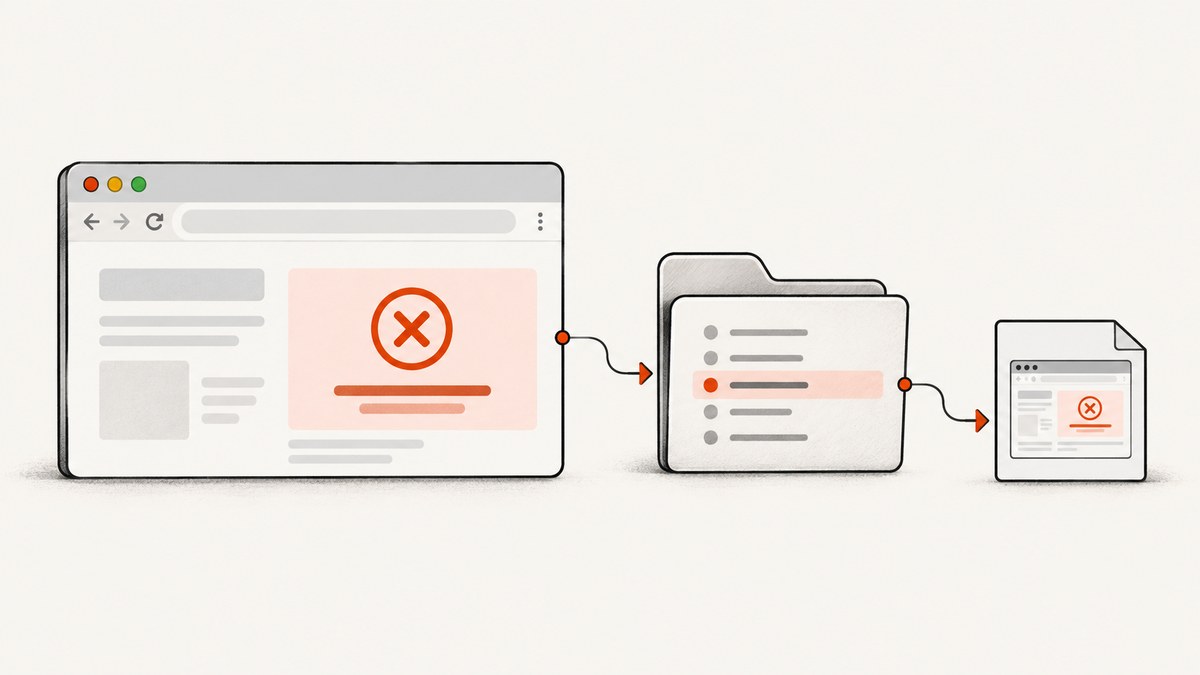
Use Robot Framework’s built-in ${TEST NAME} variable when you call Capture Page Screenshot. A practical SeleniumLibrary filename is ${TEST NAME}_FAILURE_{index}.png. The test name identifies the case, _FAILURE makes the artifact easy to find, and {index} prevents later captures from overwriting earlier ones.
This pattern works in a test teardown, where one screenshot is captured after a failed test, or in a run-on-failure hook, where screenshots can be captured after failed keywords. SeleniumLibrary expands {index} to a running number beginning at 1 and also supports formatting such as {index:03}. See the SeleniumLibrary keyword documentation.
Recommended SeleniumLibrary setup
A teardown is the clearest default when you want one final browser image per failed test case:
*** Settings ***
Library    SeleniumLibrary
Test Teardown    Capture Failure Screenshot

*** Keywords ***
Capture Failure Screenshot
    Run Keyword If Test Failed    Capture Page Screenshot    ${TEST NAME}_FAILURE_{index}.png

*** Test Cases ***
Checkout rejects an expired card
    Open Browser    https://example.test/checkout    chrome
    Input Text    id=card-number    4000000000000002
    Click Button    id=pay
    Page Should Contain    Payment failed
    [Teardown]    Close All Browsers
If the test fails, the screenshot filename will contain the test case name, the failure marker, and a unique number. For example, a case named Checkout rejects an expired card can produce Checkout rejects an expired card_FAILURE_1.png.
The keyword returns the absolute path of the created file. That makes it possible to log the path, copy the file to another artifact directory, or pass it to a reporting step. If no screenshot directory is configured, SeleniumLibrary saves the file where the Robot Framework log is written.
Choose the capture trigger
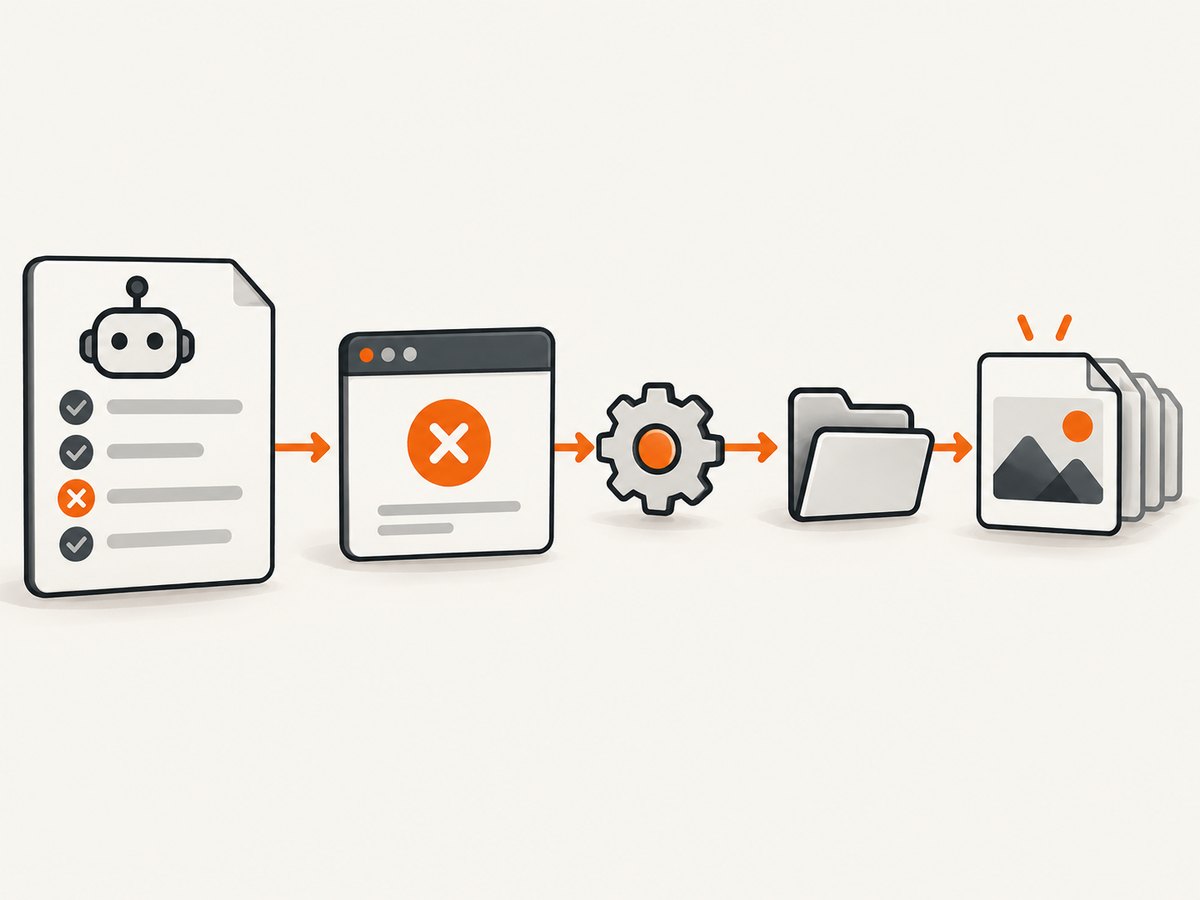
Test teardown: one final failure image
Use a test teardown when the useful state is the final state of the test. It keeps artifact volume predictable and captures only failed tests when combined with Run Keyword If Test Failed.
*** Settings ***
Library    SeleniumLibrary
Test Teardown    Capture Failure Screenshot

*** Keywords ***
Capture Failure Screenshot
    Run Keyword If Test Failed    Capture Page Screenshot    ${TEST NAME}_FAILURE_{index:03}.png
The formatted index gives names such as _001 and _002, which sort correctly in file listings.
Run-on-failure: capture after a failed keyword
SeleniumLibrary uses Capture Page Screenshot as its default run-on-failure keyword. You can configure another keyword when importing the library:
*** Settings ***
Library    SeleniumLibrary    run_on_failure=Capture Page Screenshot
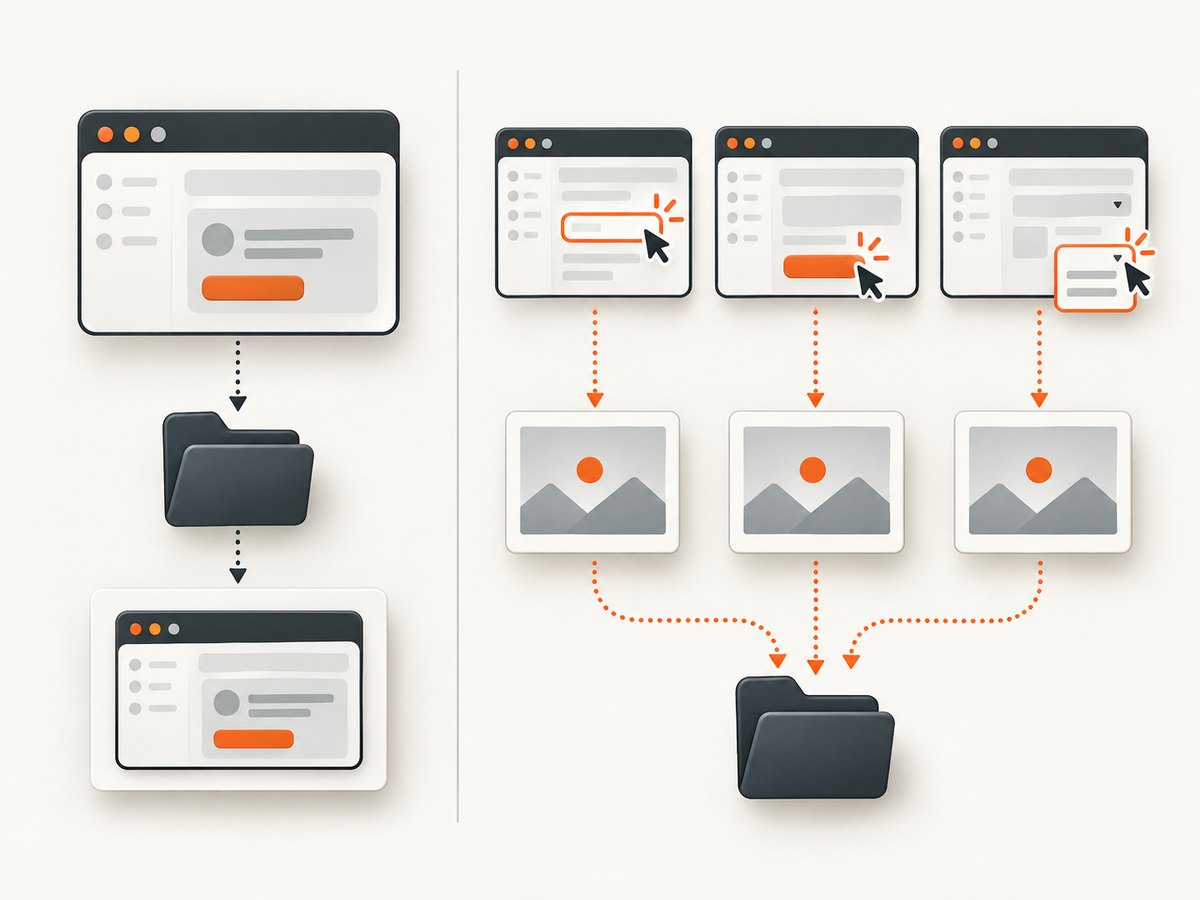
This mode is useful when the failure occurs before the test reaches its teardown, or when you need the browser state immediately after the failing SeleniumLibrary keyword. It can create several images during one test, so include {index} in any custom naming scheme.
To include the test name in every automatic capture, create a wrapper keyword and register it:
*** Settings ***
Library    SeleniumLibrary

Suite Setup    Configure Failure Capture

*** Keywords ***
Configure Failure Capture
    Register Keyword To Run On Failure    Capture Named Failure Screenshot

Capture Named Failure Screenshot
    Capture Page Screenshot    ${TEST NAME}_FAILURE_{index}.png
The wrapper computes the filename at capture time, when ${TEST NAME} identifies the active test. Keep this wrapper small: a failure hook that raises another error can hide the original problem.
Make filenames safe for every filesystem
Robot test names are written for people, while filenames must work on the operating system and in CI artifact stores. Spaces are normally acceptable, but slashes, colons, backslashes, wildcard characters, and control characters can cause errors or create unintended directories. The SeleniumLibrary documentation defines filename and index handling but does not prescribe one universal sanitization algorithm.
Pick one policy and apply it consistently. Common choices are:
- Replace path separators and punctuation with underscores.
- Collapse repeated whitespace into one underscore.
- Limit the final name to a fixed length.
- Preserve a short stable identifier if two tests become identical after sanitization.
For example, a test called Profile / deletes account: confirmation could become Profile_deletes_account_confirmation_FAILURE_001.png. If you sanitize names in a pre-processing step, make sure the same mapping is used in the report links so developers can find the file.
Prevent overwrites and parallel-run collisions
A plain ${TEST NAME}.png is deterministic, but it is unsafe when a test can capture more than once, retry after failure, or run in parallel. Add {index} whenever repeated captures are possible. SeleniumLibrary starts the index at 1 for the captures it creates.
Parallel workers can still write the same filename if they share a directory and each worker starts its own index at 1. Give each worker a separate output directory, or add a worker identifier to the directory path:
*** Settings ***
Library    SeleniumLibrary    screenshot_directory=${OUTPUT DIR}${/}screenshots${/}${WORKER_ID}
Test Teardown    Capture Failure Screenshot
The exact worker variable depends on the parallel runner. If your runner does not expose one, configure separate output directories at the process level. Do not rely on timestamps alone: clocks can have low resolution, and identical names are easier to search in CI.
Configure screenshot storage
By default, SeleniumLibrary follows the Robot Framework log location. That is convenient locally because screenshots sit beside log.html, but CI systems often collect only a dedicated artifact directory. Configure that directory when importing the library or pass an explicit path to the screenshot keyword.
*** Settings ***
Library    SeleniumLibrary    screenshot_directory=${OUTPUT DIR}${/}failure-screenshots
Robot Framework’s built-in Screenshot library also defaults to the log directory and supports an explicit location through screenshot_directory or Set Screenshot Directory. Its behavior is separate from SeleniumLibrary, so check which library owns the screenshot keyword in your suite. See the Robot Framework Screenshot library documentation.
Robot Framework Browser alternative
If your suite uses Robot Framework Browser rather than SeleniumLibrary, the documented failure filename convention is ${TEST NAME}_FAILURE_SCREENSHOT_{index}. Register Take Screenshot as the run-on-failure keyword and provide a custom prefix when needed. The same naming decisions apply: use the test name for identity, a failure marker for filtering, and an index for uniqueness. See the Browser library screenshot keyword reference.
Complete patterns for common projects
One screenshot after each failed test
*** Settings ***
Library    SeleniumLibrary    screenshot_directory=${OUTPUT DIR}${/}screenshots
Test Teardown    Capture Failure Screenshot

*** Keywords ***
Capture Failure Screenshot
    Run Keyword If Test Failed    Capture Page Screenshot    ${TEST NAME}_FAILURE_{index:03}.png
Capture every failed keyword
*** Settings ***
Library    SeleniumLibrary    run_on_failure=Capture Page Screenshot

*** Test Cases ***
Search shows results
    Open Browser    https://example.test/search    chrome
    Input Text    id=query    robot framework
    Click Button    id=search
    Page Should Contain    Results
Keep teardown cleanup separate
*** Settings ***
Library    SeleniumLibrary
Test Teardown    Run Keywords    Capture Failure Screenshot    AND    Close All Browsers

*** Keywords ***
Capture Failure Screenshot
    Run Keyword If Test Failed    Capture Page Screenshot    ${TEST NAME}_FAILURE_{index}.png
Capture before closing the browser. Once the browser is closed, SeleniumLibrary cannot capture the page that failed.
Troubleshooting
| Symptom | Cause | Fix |
|---|---|---|
| The filename is always the same | The filename omits {index}, or each parallel worker uses one shared path. |
Add {index} and isolate worker output directories. |
| No screenshot appears | The teardown is not running, the test passed, or the browser was already closed. | Confirm the test failed, place capture before browser cleanup, and inspect the Robot log directory. |
| The name contains an invalid path | The test name includes slashes, colons, or other OS-specific characters. | Sanitize the test name before constructing the filename. |
| Several screenshots are created unexpectedly | Run-on-failure captures after every failed keyword. | Use a test teardown for one final image, or keep the hook and expect indexed files. |
| The screenshot is blank | The failure happened before navigation completed, or the browser page was replaced. | Capture with run-on-failure to preserve the earlier state and add explicit waits for the page you need. |
| The report links break in CI | Files were saved outside the collected artifact directory. | Set a dedicated screenshot directory under the CI output path and publish it with the Robot report. |
| The original error is obscured | The failure hook itself failed, often because the browser session is gone. | Keep the hook defensive and ensure cleanup runs after the capture step. |
Performance, reliability, and cost considerations
A screenshot adds browser rendering and image encoding work to the failure path. Test failures are less frequent than ordinary steps, so one teardown image usually has negligible suite impact. Capturing after every failed keyword can produce many files and slow cleanup, artifact upload, and report rendering. Use test teardown for routine CI runs and run-on-failure when diagnosing intermittent failures.
Use PNG when text and sharp edges matter. Use JPEG or WebP only when your reporting system supports them and smaller artifacts are more valuable. Keep the browser viewport consistent so visual comparisons are meaningful. Full-page images can be large; capture the relevant element when the failure is localized.
For reliable artifact retention, create the output directory before the run, publish it even when tests fail, and keep the Robot log and screenshots under the same run identifier. When retries are enabled, retain each indexed image instead of allowing the retry to replace the first failure.
Or skip the browser setup
If you need screenshots of pages outside a Robot test, or want a separate capture service for reports, ScreenshotNeo returns an image or PDF from one GET request. The API accepts the URL and supports PNG, JPEG, and WebP output. Its clean-shot flow accepts cookie and consent banners before capture, then removes more than 60 known consent platforms, newsletter popups, and chat widgets. Each step can be turned off.
Only clean shots are billed. Bot checks and CAPTCHAs, blank pages, timeouts, failed loads, and cache hits cost nothing, and the response identifies the result with X-Page-Verdict and X-Billed headers. ScreenshotNeo also provides an MCP server with take_screenshot, get_page_info, and capture_pdf tools for Claude, Cursor, and other MCP clients.
See the ScreenshotNeo API documentation for authentication and options.
cURL
curl -G "https://api.screenshotneo.com/v1/shot" -d access_key=YOUR_API_KEY --data-urlencode url=https://stripe.com -o shot.webpPython
import requests
r = requests.get("https://api.screenshotneo.com/v1/shot", params={"access_key": "YOUR_API_KEY", "url": "https://stripe.com"}, timeout=90)
open("shot.webp", "wb").write(r.content)
Node.js
const q = new URLSearchParams({ access_key: 'YOUR_API_KEY', url: 'https://stripe.com' });
const res = await fetch(`https://api.screenshotneo.com/v1/shot?${q}`);
ScreenshotNeo includes full-page capture with lazy images loaded, CSS-selector element capture, dark mode, 12 device presets, custom viewports, retina scale, custom CSS and JavaScript, clicks, selector or network-idle waits, blocked ads and trackers, custom headers and cookies, user agent and Authorization headers, timezone and geolocation, transparent backgrounds, resizing, selectable cache TTLs, signed links, asynchronous jobs with signed webhooks, bulk capture for up to 100 URLs per call, a usage API, and an OpenAPI specification. Parameter names used by other screenshot APIs also work to make migration easier.
The Free plan includes 1,000 shots each month with no card. Paid plans start at $5 for 3,000 shots; yearly billing gives two months free. Create a free ScreenshotNeo account and start with the monthly free allowance.
FAQ
What variable contains the current Robot test name?
Use the built-in ${TEST NAME} variable. It is the natural identity component for a failure screenshot filename.
What does {index} do?
SeleniumLibrary expands it to a unique running number beginning at 1. Use {index:03} for zero-padded values such as 001.
Should I use teardown or run-on-failure?
Use teardown for one final image per failed test. Use run-on-failure when the failing keyword’s immediate browser state is the important evidence.
Where are screenshots saved by default?
SeleniumLibrary saves them where the Robot Framework log is written unless you configure a screenshot directory. Robot Framework’s Screenshot library follows the same log-directory default and has its own directory settings.
Why should I sanitize test names?
Names can contain characters that are separators or invalid on a target filesystem. A consistent replacement policy keeps filenames portable and CI artifact links predictable.


