How to Capture Full-Page Screenshots with Robot Framework
Capture complete web pages in Robot Framework with SeleniumLibrary, browser APIs, JavaScript sizing, stitching, CI tips, and a no-setup API option.

Short answer: SeleniumLibrary’s Capture Page Screenshot is the normal starting point, but it usually captures the current browser viewport. A true full-page image requires a browser-driver full-page command, or a custom workflow that measures the document, resizes the viewport, and restores it. If resizing is unreliable, capture overlapping scroll segments and stitch them together.
This guide shows how to build each approach in Robot Framework, how to wait for dynamic content and lazy-loaded images, how to keep artifacts stable in CI, and how to diagnose the failures that make a screenshot look complete when it is not.
1. What “full page” means in Robot Framework
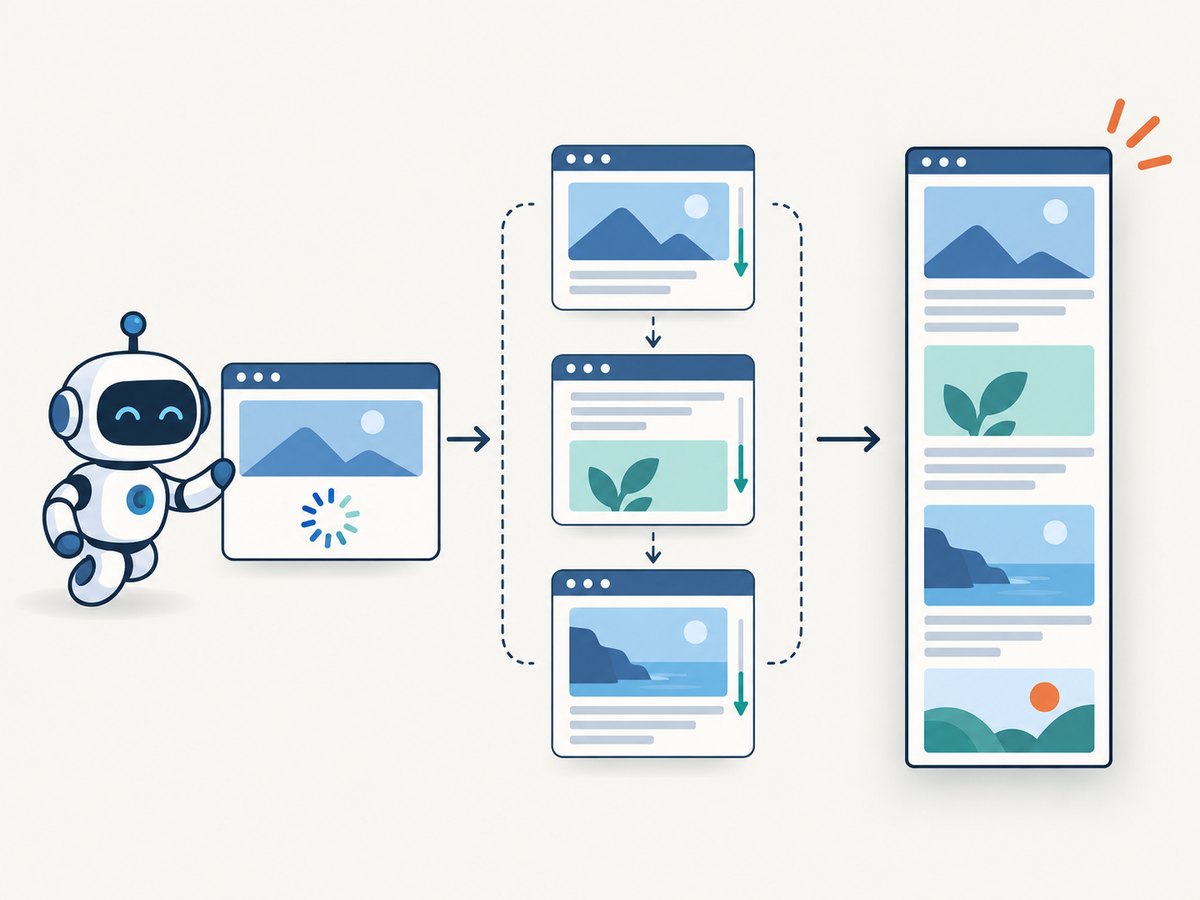
A viewport screenshot is the visible browser window. A full-page screenshot covers the document from its top edge through its maximum scrollable height, including content below the fold. Those are different operations.
SeleniumLibrary documents Capture Page Screenshot as taking a screenshot of the current page and embedding it into a log file. It accepts an optional filename, writes to the configured screenshot directory (or the Robot Framework log directory by default), and returns the path. See the SeleniumLibrary documentation.
The keyword can produce useful evidence immediately:
*** Settings ***
Library    SeleniumLibrary

*** Test Cases ***
Capture viewport evidence
    Open Browser    https://example.com    chrome
    Set Screenshot Directory    ${OUTPUTDIR}/screenshots
    Wait Until Page Contains Element    css:main
    Capture Page Screenshot    example-viewport-{index}.png
    [Teardown]    Close All Browsers
{index} is replaced with an incrementing number, so repeated captures do not overwrite one another. SeleniumLibrary also supports EMBED and, in supported versions, BASE64 for report embedding and encoded output.
2. Choose a full-page strategy
| Strategy | Coverage | When to use it | Main limitation |
|---|---|---|---|
| Driver-specific full-page command | Usually one document image | Your browser and driver expose a tested full-page endpoint | Support varies by browser and driver |
| Resize, capture, restore | One tall image | The page is stable and the driver permits large window sizes | Very tall pages, sticky elements, and OS limits can break it |
| Scroll segments and stitch | Document coverage with controlled overlap | Viewport resizing is unreliable or impossible | Requires image processing and careful handling of fixed headers |
| Desktop Screenshot library | Physical display | You need evidence of the whole desktop | It does not guarantee the complete browser document |
Use the first method your driver supports reliably. Keep the resize and stitching paths available for headless CI, cross-browser suites, and pages whose height changes while they load.
3. Wait for the page before measuring it
Measuring too early is the most common reason a “full-page” capture ends at the middle of the page. Wait for the application shell, then wait for the content that determines the final height. For image-heavy pages, wait until images report that they are complete.
*** Settings ***
Library    SeleniumLibrary

*** Keywords ***
Wait For Images
    ${pending}=    Execute Javascript
    ...    return Array.from(document.images).filter(img => !img.complete).length;
    Wait Until Keyword Succeeds    30 sec    500 ms    Images Should Be Ready

Images Should Be Ready
    ${pending}=    Execute Javascript
    ...    return Array.from(document.images).filter(img => !img.complete).length;
    Should Be Equal As Integers    ${pending}    0

*** Test Cases ***
Prepare page
    Open Browser    https://example.com    chrome
    Set Screenshot Directory    ${OUTPUTDIR}/screenshots
    Wait Until Page Contains Element    css:main
    Wait For Images
This check does not prove that an image loaded successfully; it only waits for the browser to finish each image request. Add an application-specific selector or network-idle condition when your site renders content after an API call.
4. Resize the browser to the document dimensions
The resize pattern reads document.documentElement.scrollWidth and scrollHeight, saves the original window size, resizes the browser, captures, and restores the original size in teardown. The restoration matters when several tests share a browser session.
*** Settings ***
Library    SeleniumLibrary

*** Keywords ***
Capture Full Page By Resize
    [Arguments]    ${filename}
    ${size}=    Get Window Size
    ${dimensions}=    Execute Javascript
    ...    return {width: Math.max(document.documentElement.scrollWidth, document.body.scrollWidth), height: Math.max(document.documentElement.scrollHeight, document.body.scrollHeight)};
    ${width}=    Get From Dictionary    ${dimensions}    width
    ${height}=    Get From Dictionary    ${dimensions}    height
    Set Window Size    ${width}    ${height}
    Sleep    500ms
    Capture Page Screenshot    ${filename}
    Set Window Size    ${size.width}    ${size.height}

*** Test Cases ***
Capture complete document
    Open Browser    https://example.com    chrome
    Set Screenshot Directory    ${OUTPUTDIR}/screenshots
    Wait Until Page Contains Element    css:main
    Capture Full Page By Resize    example-full-{index}.png
    [Teardown]    Close All Browsers
Depending on your SeleniumLibrary version, dictionary access may require the Collections library:
*** Settings ***
Library    SeleniumLibrary
Library    Collections
The exact window-size behavior is driver dependent. Operating systems may impose maximum dimensions, and some headless drivers ignore a requested height. Treat this as an implementation pattern rather than a universal Selenium guarantee. If the resulting image is clipped, use a driver command or stitching.
5. Capture overlapping segments and stitch them
Stitching avoids giant-window limits. Scroll by less than one viewport height so adjacent images overlap. The overlap gives you a seam you can inspect and helps avoid gaps when the browser rounds scroll positions.
One practical design is a Robot keyword that returns screenshots from Selenium, plus a small Python library that combines them. The following library uses Pillow:
# page_stitcher.py
from pathlib import Path
from PIL import Image

class PageStitcher:
    def stitch(self, files, output, overlap=80):
        images = [Image.open(Path(name)).convert("RGB") for name in files]
        if not images:
            raise ValueError("No screenshot files supplied")
        width = max(image.width for image in images)
        height = images[0].height + sum(image.height - overlap for image in images[1:])
        canvas = Image.new("RGB", (width, height), "white")
        y = 0
        for index, image in enumerate(images):
            crop_top = overlap if index else 0
            canvas.paste(image.crop((0, crop_top, image.width, image.height)), (0, y))
            y += image.height - crop_top
        canvas.save(output)
        return str(output)
Install Pillow in the environment that runs Robot Framework:
python -m pip install pillowA Robot implementation can scroll, save each segment, then call the library:
*** Settings ***
Library    SeleniumLibrary
Library    page_stitcher.PageStitcher

*** Keywords ***
Capture Full Page By Stitching
    [Arguments]    ${prefix}    ${output}
    ${viewport}=    Execute Javascript    return window.innerHeight;
    ${total}=    Execute Javascript    return Math.max(document.documentElement.scrollHeight, document.body.scrollHeight);
    ${step}=    Evaluate    ${viewport} - 80
    ${files}=    Create List
    ${top}=    Set Variable    0
    ${index}=    Set Variable    0
    WHILE    ${top} < ${total}
        Execute Javascript    window.scrollTo(0, ${top});
        Sleep    300ms
        ${file}=    Set Variable    ${OUTPUTDIR}/screenshots/${prefix}-${index}.png
        Capture Page Screenshot    ${file}
        Append To List    ${files}    ${file}
        ${top}=    Evaluate    ${top} + ${step}
        ${index}=    Evaluate    ${index} + 1
    END
    Execute Javascript    window.scrollTo(0, 0);
    Stitch    ${files}    ${output}    overlap=80

*** Test Cases ***
Stitch long page
    Open Browser    https://example.com    chrome
    Set Screenshot Directory    ${OUTPUTDIR}/screenshots
    Wait Until Page Contains Element    css:main
    Capture Full Page By Stitching    example-page    ${OUTPUTDIR}/example-full.png
    [Teardown]    Close All Browsers
Add the Collections library if your Robot version requires it for Create List and Append To List. For a production keyword, recalculate the document height after each scroll: lazy-loaded sections can increase the page while you move downward.
6. Handle sticky headers, lazy loading, and moving pages
- Sticky headers: A fixed header appears in every segment and creates repeated bands in the stitched image. Temporarily hide it with JavaScript or crop the overlap consistently. Record the selector as a site-specific setting.
- Lazy loading: Scroll gradually and wait after each step. A single initial height measurement can miss content inserted later.
- Animations: Disable transitions where possible with injected CSS, or wait for the animation state your application uses.
- Infinite scroll: There may be no final height. Define a stopping condition such as an item count, a “no more results” selector, or a maximum number of segments.
- Cookie and consent dialogs: Close them before measuring. Otherwise the dialog can cover content or change the document height.
- Responsive layouts: Set the intended viewport width before measuring. A width change can reflow text and alter the number of segments.
*** Keywords ***
Hide Fixed UI
    Execute Javascript
    ...    document.querySelectorAll('[data-sticky], .sticky, .fixed').forEach(el => el.style.visibility='hidden');
Use a narrowly scoped selector on your own application. Hiding every element with a generic class can remove legitimate content.
7. SeleniumLibrary options that affect evidence
| Setting or keyword | Purpose |
|---|---|
Set Screenshot Directory |
Places screenshots in a predictable artifact directory. |
Capture Page Screenshot |
Captures the current page and embeds it in the Robot log. |
Capture Element Screenshot |
Captures one located element; browser-vendor support is limited, so it is not a dependable whole-document replacement. |
EMBED |
Embeds the image in log.html when supported by the keyword. |
BASE64 |
Returns encoded image data while embedding it in supported SeleniumLibrary versions. |
For desktop evidence, Robot Framework’s built-in Screenshot library needs a physical or virtual display and a supported operating-system tool or Python module. It captures the machine desktop, not necessarily the complete browser document.
8. CI and reliability checklist
- Pin the browser, driver, Robot Framework, SeleniumLibrary, and image-processing versions used by the suite.
- Use a fixed viewport width and a consistent device scale factor.
- Wait for the main content selector and for asynchronous images before measuring.
- Close consent dialogs and other overlays before capture.
- Save screenshots under
${OUTPUTDIR}so Robot’s report artifacts contain them. - Use indexed names or a test-specific prefix to prevent parallel workers overwriting files.
- Restore the window size and scroll position in teardown, even after a failed capture.
- Keep a failure screenshot of the viewport as well as the assembled full-page image; it makes diagnosis faster.
- For stitching, inspect overlap seams on pages with fixed headers, video, carousels, or rapidly changing data.
9. Troubleshooting common failures
| Symptom | Likely cause | Fix |
|---|---|---|
| Only the visible viewport is saved | Capture Page Screenshot was used alone |
Use a driver full-page command, resize workflow, or stitching. |
| Bottom content is missing | Capture happened before asynchronous or lazy content loaded | Wait for selectors and images; recalculate height after scrolling. |
| Image is clipped after resize | Driver or operating system rejected a very large window | Switch to driver support or overlapping segments. |
| Repeated header bands appear | Sticky header was captured in every segment | Hide it temporarily or remove the repeated overlap during stitching. |
| Large blank area appears | Document height includes a spacer, collapsed layout, or delayed content | Inspect scrollHeight, wait for layout stabilization, and use application-specific readiness checks. |
| Screenshot files overwrite each other | Static filenames were reused | Use {index}, a test name, or a worker-specific directory. |
| Element capture fails on one browser | Element screenshot support differs by browser vendor | Use page capture or a browser-specific command and document the supported matrix. |
| Desktop screenshot fails in headless CI | No physical or virtual display is available | Use browser document capture, or configure a virtual display for the desktop library. |
10. Performance, reliability, and cost considerations
A single driver-level full-page command is usually the simplest path when it works in your browser matrix. Resizing adds little orchestration but can create huge bitmap dimensions. Stitching makes memory use and upload size grow with the number of segments; choose an overlap that removes gaps without duplicating excessive pixels.
Capture after the page reaches a deterministic state. A fast screenshot taken during a layout shift is less useful than a slower, repeatable artifact. In CI, retain only the artifacts needed for debugging and compress or resize them after capture when the original resolution is unnecessary.
If you need screenshots outside a test runner, an API can remove browser and driver maintenance. ScreenshotNeo returns PNG, JPEG, WebP, or PDF from one GET request and also supports full-page capture with lazy images loaded, selectors, custom JavaScript and CSS, waiting conditions, blocking rules, caching, async jobs, bulk capture, and more.
11. Or skip the browser setup
ScreenshotNeo provides a hosted capture path when you do not want to maintain Selenium drivers and stitching code. The API base is https://api.screenshotneo.com/v1/shot. Full documentation, including the available parameters, is at screenshotneo.com/docs/.

curl -G "https://api.screenshotneo.com/v1/shot" -d access_key=YOUR_API_KEY --data-urlencode url=https://stripe.com -o shot.webpimport requests
r = requests.get("https://api.screenshotneo.com/v1/shot", params={"access_key": "YOUR_API_KEY", "url": "https://stripe.com"}, timeout=90)
open("shot.webp", "wb").write(r.content)const q = new URLSearchParams({ access_key: 'YOUR_API_KEY', url: 'https://stripe.com' });
const res = await fetch(`https://api.screenshotneo.com/v1/shot?${q}`);Before capture, ScreenshotNeo accepts cookie and consent banners and removes more than 60 known consent platforms, newsletter popups, and chat widgets; each step can be turned off. Bot checks and CAPTCHAs, blank pages, timeouts, failed loads, and cache hits are not billed, and the response reports the result with X-Page-Verdict and X-Billed headers. An MCP server provides take_screenshot, get_page_info, and capture_pdf tools for Claude, Cursor, and other MCP clients.
The free plan includes 1,000 screenshots per month with no card. Paid plans start at $5 for 3,000 shots; every feature is available on every plan. Create a free ScreenshotNeo account.
12. FAQ
Does Capture Page Screenshot always create a full-page image?
No. It is the standard page screenshot keyword and commonly captures the current viewport. Full-document coverage depends on a browser-driver capability or your own resize or stitching workflow.
Can I use Capture Element Screenshot for the whole page?
Only if the page is represented by one element and your browser supports that operation correctly. SeleniumLibrary documents browser-vendor limitations, so it is not a universal full-page solution.
Should I scroll before measuring scrollHeight?
Measure after the initial content is ready, then scroll progressively when lazy loading or infinite scrolling can add content. Recalculate the height as needed.
Why restore the window size?
Shared browser sessions and later tests inherit the changed dimensions otherwise. Restoring size and scroll position keeps subsequent evidence comparable.
When is the desktop Screenshot library appropriate?
Use it when the subject is the physical desktop, browser chrome, or another application outside the document. It requires a physical or virtual display and does not guarantee full browser-document coverage.


