How to Use the Roboto Font in Puppeteer-Generated PDFs
Load Roboto correctly, wait for font readiness, apply print CSS, and troubleshoot missing or unembedded fonts in Puppeteer PDFs.

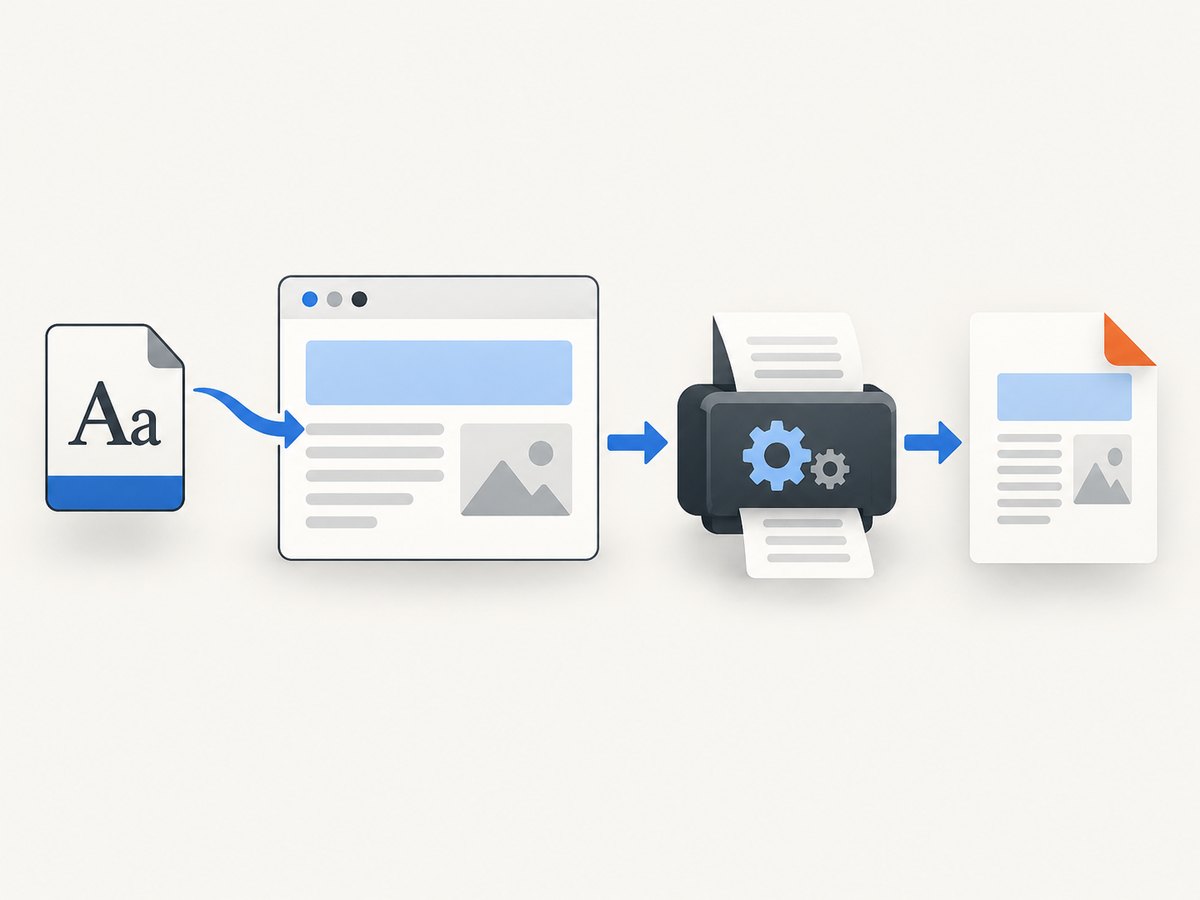
To use Roboto in a Puppeteer-generated PDF, make the font available to the page with CSS, apply the correct family and weights in your print stylesheet, and wait until the browser has loaded the fonts before calling page.pdf(). Current Puppeteer documentation says PDF generation waits for fonts by default with waitForFonts: true, which waits for document.fonts.ready. That default helps, but it does not prove that the intended Roboto file loaded, that the requested weight exists, or that the final PDF embeds the font. Inspect the output when embedding matters.
This guide shows a complete self-hosted setup, a Google Fonts option, print-media controls, diagnostics, and production fixes for missing or substituted Roboto.
1. The complete Puppeteer example
Create a page whose CSS declares the exact Roboto files used by your deployment. The family name in @font-face must match the family used by your content.
const puppeteer = require('puppeteer');

(async () => {
  const browser = await puppeteer.launch({ headless: true });
  const page = await browser.newPage();

  const html = `<!doctype html>
  <html>
    <head>
      <meta charset="utf-8">
      <style>
        @font-face {
          font-family: "Roboto";
          src: url("http://localhost:3000/fonts/Roboto-Regular.woff2") format("woff2");
          font-style: normal;
          font-weight: 400;
          font-display: swap;
        }
        @font-face {
          font-family: "Roboto";
          src: url("http://localhost:3000/fonts/Roboto-Bold.woff2") format("woff2");
          font-style: normal;
          font-weight: 700;
          font-display: swap;
        }
        @page { size: A4; margin: 18mm; }
        body {
          font-family: "Roboto", sans-serif;
          color: #202124;
          line-height: 1.45;
        }
        h1 { font-weight: 700; }
        .avoid-break { break-inside: avoid; }
        @media print {
          .screen-only { display: none; }
        }
      </style>
    </head>
    <body>
      <h1>Roboto PDF report</h1>
      <p>This paragraph is rendered with the regular Roboto face.</p>
      <p class="avoid-break">This block should stay together when possible.</p>
    </body>
  </html>`;

  await page.setContent(html, { waitUntil: 'networkidle0' });
  await page.evaluate(() => document.fonts.ready);
  await page.pdf({
    path: 'output.pdf',
    format: 'A4',
    printBackground: true,
    preferCSSPageSize: true,
    waitForFonts: true
  });

  await browser.close();
})();
The URL paths above are examples. Replace them with files that your browser process can actually reach. If you serve the HTML from a real origin, use absolute or correctly resolved font URLs and verify that the response has a font MIME type and permits the request.
Why wait for both navigation and fonts?
networkidle0 describes navigation activity. It does not confirm that the browser selected Roboto for every element. The CSS Font Loading API resolves document.fonts.ready after fonts used by the document have loaded and layout has completed. Declared but unused faces do not necessarily load. Waiting explicitly is useful for diagnosis and for code that changes content or styles after navigation.
Puppeteer’s PDF options documentation states that waitForFonts defaults to true. If a background page does not progress while waiting, the documentation recommends bringing it to the foreground:
await page.bringToFront();
await page.evaluate(() => document.fonts.ready);
await page.pdf({ path: 'output.pdf', waitForFonts: true });
2. Declare Roboto correctly with @font-face
Each weight and style that your document requests needs a matching face. A regular face cannot reliably satisfy a request for 700-weight text. Use the actual files shipped with your application:
@font-face {
  font-family: "Roboto";
  src: url("/fonts/Roboto-Regular.woff2") format("woff2");
  font-style: normal;
  font-weight: 400;
  font-display: swap;
}

@font-face {
  font-family: "Roboto";
  src: url("/fonts/Roboto-Bold.woff2") format("woff2");
  font-style: normal;
  font-weight: 700;
  font-display: swap;
}

body { font-family: "Roboto", sans-serif; }
strong, h1, h2 { font-weight: 700; }
The font-family string is an identifier, not a filename. Keep spelling and capitalization consistent between @font-face and the declarations on elements. Add italic faces separately if the PDF uses them. If a requested face is absent, Chromium may synthesize bold or italic styling or fall back to another family.
Self-hosted files versus Google Fonts
Self-hosting gives your render job an explicit resource location and lets you control which files are available. A Google Fonts stylesheet is another delivery method: the browser downloads CSS and then the font files selected by that CSS. Google documents this CSS delivery flow at developers.google.com/fonts. Either approach can work; your deployment must allow the browser to reach the stylesheet and font files at render time. Do not assume that an idle network means the desired face was selected.
For a Google-hosted stylesheet, include it before printing and still wait for used fonts:
await page.setContent(`
  <link rel="stylesheet" href="https://fonts.googleapis.com/css2?family=Roboto:wght@400;700">
  <style>body { font-family: Roboto, sans-serif; }</style>
  <h1>Roboto</h1>
`, { waitUntil: 'networkidle0' });
await page.evaluate(() => document.fonts.ready);
3. Print CSS, page size, and media type
page.pdf() uses print CSS by default. Rules inside @media print therefore affect the PDF even when the page looked correct on screen. Use print rules for visibility, colors, spacing, and typography:

@media print {
  body { font-family: "Roboto", sans-serif; }
  .screen-only { display: none; }
  a { color: #202124; text-decoration: none; }
}
If you need the PDF to reflect screen styles, call await page.emulateMediaType('screen') before page.pdf(). Otherwise, keep print rules explicit. Set printBackground: true when backgrounds are part of the design, and use preferCSSPageSize: true when the document defines an @page size.
| Option | Use |
|---|---|
format |
Standard paper such as A4 or Letter. |
width/height |
Custom paper dimensions. |
margin |
Page margins independent of content padding. |
printBackground |
Include CSS background colors and images. |
preferCSSPageSize |
Honor the CSS @page size. |
pageRanges |
Export selected pages after layout. |
displayHeaderFooter |
Add Chromium header and footer templates. |
4. Verify that Roboto actually loaded
Use the Font Loading API inside the page to inspect the faces your content uses:
const fontStatus = await page.evaluate(async () => {
  await document.fonts.ready;
  return {
    regular: document.fonts.check('400 16px "Roboto"'),
    bold: document.fonts.check('700 16px "Roboto"'),
    status: document.fonts.status,
    loaded: [...document.fonts].map(font => ({
      family: font.family,
      weight: font.weight,
      style: font.style,
      status: font.status
    }))
  };
});
console.log(fontStatus);
document.fonts.ready concerns fonts used by the document and completed layout. It is not a guarantee that every declared face loaded, nor does it prove how a PDF viewer will report embedded or subsetted fonts. If embedding is a requirement, inspect the generated PDF with a suitable font-inspection utility and review the result visually.
5. Common failures and fixes
| Symptom | Likely cause | Fix |
|---|---|---|
| Roboto never appears | Font URL returns 404, is blocked, or is inaccessible from Chromium. | Open the exact URL from the render environment, check response status and server logs, and use an absolute reachable URL. |
| Only regular text looks right | No matching 700 or italic face was declared. | Add an @font-face entry for every weight and style used. |
| PDF differs from the browser preview | Print media rules changed the family or visibility. | Inspect @media print; call emulateMediaType('screen') only when screen CSS is intended. |
| Text is clipped or reflows | Font metrics changed after layout or page dimensions are too small. | Wait for document.fonts.ready, then review width, margins, line height, and page breaks. |
| Generation hangs while waiting | Font loading is stalled on a background page or an unreachable resource. | Call page.bringToFront(), fix the resource, and apply an operation timeout in your job runner. |
| Fonts work locally but not in production | Different network policy, container files, origin, or browser version. | Package the font files, log response failures, and pin and review your Puppeteer/Chrome versions. |
| PDF passes a visual check but does not embed Roboto | CSS loading and PDF embedding are separate outcomes. | Run a PDF font inspection tool and confirm the license and distribution terms for your files. |
6. Production reliability and performance
- Package predictable assets. Keep the exact WOFF2 files and CSS versioned with the application when external availability is a concern.
- Reuse a browser process. For batches, keep one Chromium process and create isolated pages; launching a browser for every document adds avoidable startup work.
- Wait for the smallest correct condition. Use a page-specific readiness marker plus
document.fonts.readyinstead of an unnecessarily long fixed delay. - Set job timeouts. A missing font server or blocked request should fail clearly rather than consume a worker forever.
- Record diagnostics. Log the page URL, Puppeteer/Chrome versions, font URLs, response failures, font status, and PDF options.
- Check output after upgrades. Browser and Puppeteer versions can change pagination, font shaping, and defaults. Pin versions and review the supported browser matrix in the current documentation.
Self-hosted fonts reduce a render-time dependency on a third-party stylesheet, while Google Fonts can simplify distribution. The available documentation explains delivery mechanics but does not establish a universal performance or reliability winner. Measure the path that matches your deployment constraints.
7. Or skip the browser setup
If your task is simply to obtain a clean PDF or screenshot of a URL, ScreenshotNeo provides a website screenshot API and MCP server. One GET request can return PNG, JPEG, WebP, or PDF. Its capture options include paper size, margins, landscape mode, page ranges, custom CSS and JavaScript, waits, headers, cookies, user agents, authorization, timezone, geolocation, and caching. For AI workflows, the MCP server exposes take_screenshot, get_page_info, and capture_pdf.
Use the ScreenshotNeo API documentation for the full option list. A minimal PDF or image request looks like this:
curl -G "https://api.screenshotneo.com/v1/shot" \
  -d access_key=YOUR_API_KEY \
  --data-urlencode url=https://stripe.com \
  -o shot.webp
import requests
r = requests.get(
"https://api.screenshotneo.com/v1/shot",
params={"access_key": "YOUR_API_KEY", "url": "https://stripe.com"},
timeout=90,
)
r.raise_for_status()
open("shot.webp", "wb").write(r.content)const q = new URLSearchParams({ access_key: 'YOUR_API_KEY', url: 'https://stripe.com' });
const res = await fetch(`https://api.screenshotneo.com/v1/shot?${q}`);
if (!res.ok) throw new Error(`HTTP ${res.status}`);
const body = Buffer.from(await res.arrayBuffer());
require('fs').writeFileSync('shot.webp', body);Cookie banners, newsletter popups, and chat widgets are removed before the shot. Bot checks, blank pages, failed loads, timeouts, and cache hits are not billed; response headers identify the page verdict and billing status. The service offers 1,000 screenshots a month free with no card, and paid plans start at $5 for 3,000. Create a free ScreenshotNeo account.
8. FAQ
Does Puppeteer embed Roboto automatically?
No. CSS makes the font available to the page, and Chromium decides how it is represented in the PDF. Inspect the PDF when embedding is a requirement.
Is networkidle2 enough?
No. It describes network activity. Wait for document.fonts.ready and verify the relevant faces with document.fonts.check().
Why does a declared font not download?
Browsers generally load faces when they are used. Make sure an element requests the family, weight, and style you declared.
Should I use WOFF or WOFF2?
Use the format supported by your deployment and browser version; WOFF2 is common for modern Chromium. Verify the actual files and response headers rather than relying on the extension.
Can I use a different font for print?
Yes. Set the desired family in @media print, then wait for the used print fonts before calling page.pdf().


