How to Capture Screenshots of Authenticated Pages in Ruby
Sign in with Capybara or Selenium, verify the protected page loaded, then capture it safely in Ruby.
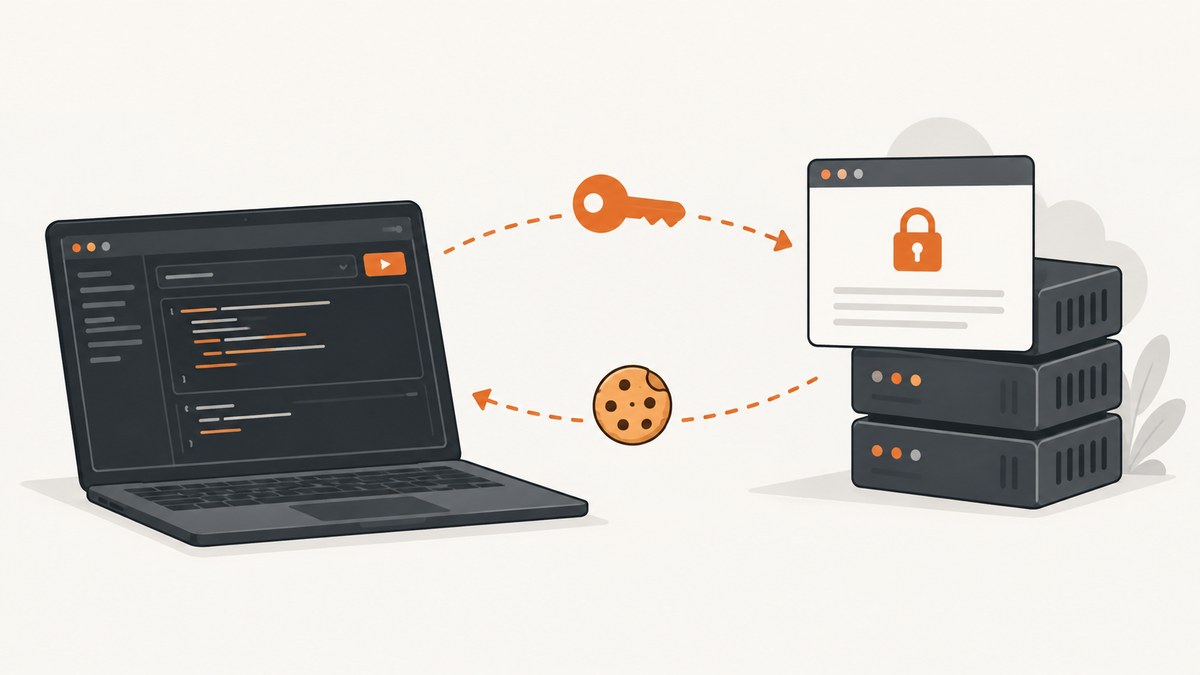
To capture a screenshot of an authenticated page in Ruby, use a real browser driver, sign in through the site’s normal authorized flow, confirm that the protected page loaded, and save the screenshot from that same browser session. Capybara is a good fit when it is already part of a Rails or test setup; Selenium gives you direct control of the browser. The examples below use Chrome and illustrative selectors: replace them with the sign-in form and signed-in page markers for your application.
Keep the sign-in, protected-page navigation, and capture in one session. A screenshot taken after a redirect to the login page is still a valid image file, but it is not the page you meant to capture.
1. Choose Capybara or Selenium
Both libraries can drive a browser and save a screenshot. Capybara provides a higher-level session API and delegates browser work to its configured driver. It is convenient when your project already uses Capybara for system tests. Selenium is useful when you want direct access to browser navigation and WebDriver methods.
| Choose | When it fits | Screenshot call |
|---|---|---|
| Capybara | Your application or tests already use Capybara; you want its visit, find, and wait APIs. | session.save_screenshot(path) |
| Selenium | You want to control WebDriver directly or already use Selenium in a Ruby script. | driver.save_screenshot(path) |
Capybara’s default rack_test driver does not run a remote browser. For JavaScript-heavy pages or external URLs, choose a browser-backed driver such as Selenium. See the Capybara project documentation, its session API, and the Selenium Ruby API.
2. Capture an authenticated page with Selenium
Install the Selenium Ruby gem and make Chrome available in the environment. Selenium Manager can help obtain a matching driver in supported setups; browser and driver installation details depend on your operating system and runtime. This script uses environment variables for credentials, waits for an application-specific signed-in marker, visits the protected URL, checks a second marker, and saves a viewport screenshot.
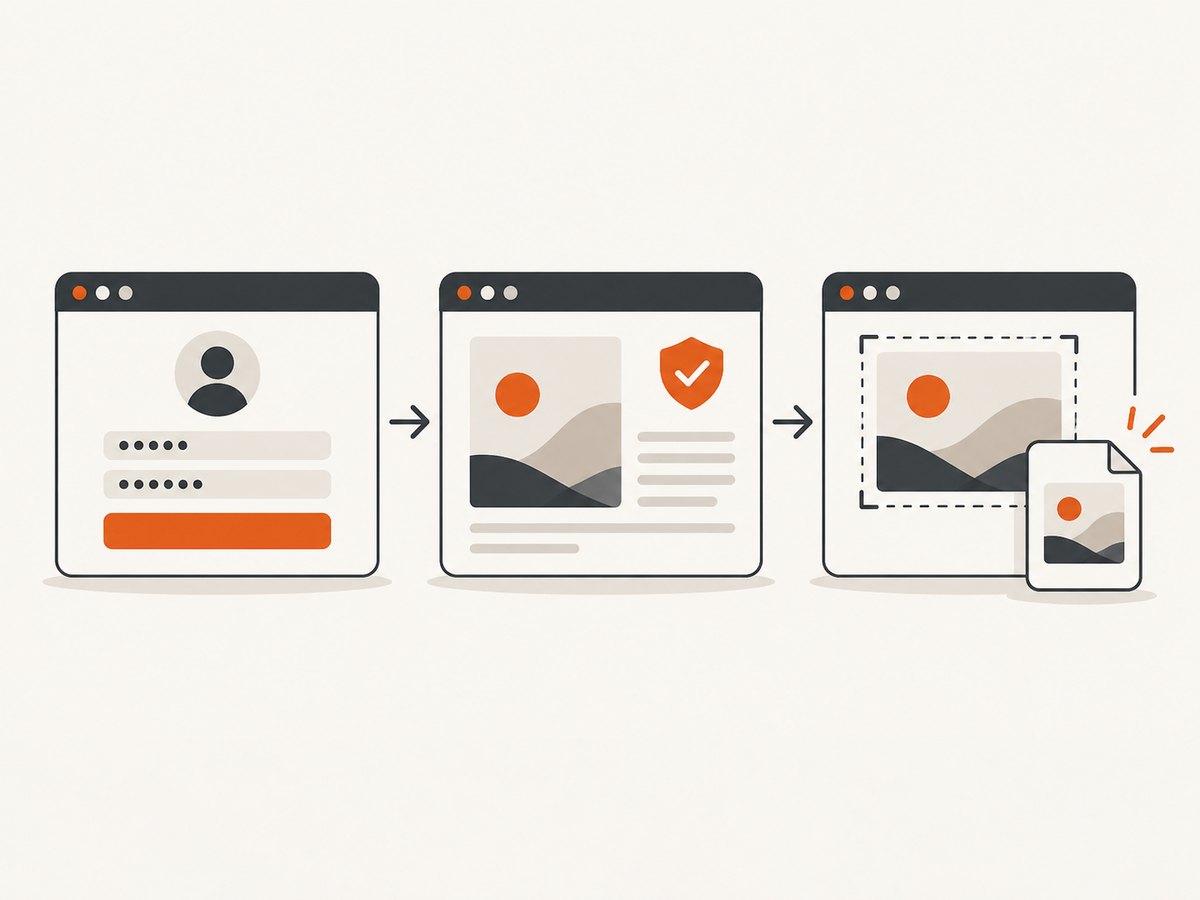
gem install selenium-webdriverSet LOGIN_URL, PROTECTED_URL, LOGIN_EMAIL, and LOGIN_PASSWORD in the process environment before running this script. Change the CSS selectors to match your site. Do not commit credentials to the repository.
require "selenium-webdriver"
require "fileutils"

login_url = ENV.fetch("LOGIN_URL")
protected_url = ENV.fetch("PROTECTED_URL")
email = ENV.fetch("LOGIN_EMAIL")
password = ENV.fetch("LOGIN_PASSWORD")
output_path = "tmp/account.png"

FileUtils.mkdir_p(File.dirname(output_path))

options = Selenium::WebDriver::Chrome::Options.new
# In a container or CI environment, configure headless mode as appropriate.
# options.add_argument("--headless=new")

driver = Selenium::WebDriver.for(:chrome, options: options)
wait = Selenium::WebDriver::Wait.new(timeout: 20)

begin
  driver.navigate.to(login_url)

  # Replace these selectors with the actual login form selectors.
  driver.find_element(css: "input[name='email']").send_keys(email)
  driver.find_element(css: "input[name='password']").send_keys(password)
  driver.find_element(css: "button[type='submit']").click

  # Wait on a real signed-in signal rather than an arbitrary sleep.
  wait.until do
    driver.find_elements(css: "[data-testid='signed-in-user']").any?
  end

  driver.navigate.to(protected_url)

  # Verify the protected view is present before saving an image.
  wait.until do
    driver.find_elements(css: "[data-testid='account-page']").any?
  end

  driver.save_screenshot(output_path)
  puts "Saved #{output_path}"
ensure
  driver.quit
end
The example assumes a form-based sign-in and a page that exposes stable test IDs. For single sign-on, multifactor authentication, or a flow that opens a new window, adapt the interaction to your authorized test account and wait for the correct window and completion signal. Do not disable the site’s access controls to make automation easier.
3. Capture with Capybara
Use an explicit Selenium-backed session for a standalone script. In a Rails system-test suite, you may already have a configured driver and session; reuse that configuration so the browser, host settings, and test environment agree.
gem install capybara selenium-webdriverrequire "capybara"
require "fileutils"
login_url = ENV.fetch("LOGIN_URL")
protected_url = ENV.fetch("PROTECTED_URL")
email = ENV.fetch("LOGIN_EMAIL")
password = ENV.fetch("LOGIN_PASSWORD")
output_path = "tmp/account.png"
FileUtils.mkdir_p(File.dirname(output_path))
session = Capybara::Session.new(:selenium)
begin
session.visit(login_url)
session.fill_in "Email", with: email
session.fill_in "Password", with: password
session.click_button "Sign in"
# Capybara's waiting matchers poll until the element appears or time out.
session.has_css?("[data-testid='signed-in-user']", wait: 20) or
raise "Sign-in marker did not appear"
session.visit(protected_url)
session.has_css?("[data-testid='account-page']", wait: 20) or
raise "Protected page marker did not appear"
session.save_screenshot(output_path)
puts "Saved #{output_path}"
ensure
session.driver.quit
endCapybara’s fill_in labels must match labels or supported field identifiers on the page. If your form is not labeled accessibly, use a stable CSS selector with find and interact with the returned element. A missing marker should fail the run instead of silently producing a misleading screenshot.
4. Decide what part of the page to capture
Viewport screenshot
The Selenium Ruby screenshot call saves the browser viewport by default. Set the window size before navigation or capture when a repeatable viewport matters:
driver.manage.window.resize_to(1440, 1000)
driver.save_screenshot("tmp/account.png")
Use the same viewport in local and CI runs when comparing images. Responsive breakpoints, sidebars, and sticky elements can change when the dimensions differ.
Full-page screenshot
Do not assume that full_page is supported by every Selenium browser driver. Support depends on the installed driver and version. Check the API for your version, and verify the resulting dimensions and content. If full-page capture is unavailable or inconsistent, capture the viewport or use a browser automation path that explicitly supports full-page images.
Element screenshot
When only a panel or chart is needed, locate the element after it is visible and save the element screenshot:
panel = wait.until do
  element = driver.find_element(css: "[data-testid='account-summary']")
  element if element.displayed?
end
panel.save_screenshot("tmp/account-summary.png")
Element screenshots can omit content outside the element’s bounds, and fixed or overflowing content may render differently than expected. Confirm the saved image includes the intended edges and state.
5. Wait for the right state
Authentication commonly involves redirects and asynchronous page updates. Prefer a condition tied to the application’s state over sleep 5. Useful signals include:
- A known signed-in element, such as an account menu or user marker.
- The final URL after an expected redirect.
- A protected-page heading or stable page-specific element.
- A loading indicator disappearing, if the application exposes one reliably.
Check both after login and after navigating to the protected URL. A successful login does not guarantee authorization for every route. A session can expire, a user may lack permission, or the destination may redirect independently. Playwright’s authentication guide recommends waiting for a final URL or a signed-in UI signal before saving state; the same practical principle helps prevent premature captures in browser workflows.
6. Reuse sessions carefully
For a one-off capture, signing in during each run keeps the flow straightforward. For repeated captures, a project may reuse browser state to avoid repeating login. State files can contain cookies or headers that allow someone to impersonate the account. Treat them as credentials:
- Store state outside the repository, or in a location excluded by version control.
- Restrict file permissions and access in CI artifact storage.
- Use a dedicated, low-privilege test account and rotate its credentials.
- Do not print cookies, authorization headers, passwords, or storage contents in logs.
- Expire and regenerate state when the account or session policy requires it.
State reuse must cover the mechanisms your application actually uses. Cookie-only persistence may not preserve local storage or other browser state. Playwright’s guide describes cookies, local storage, IndexedDB, and passkeys, and notes that session storage requires a custom workaround; those details describe Playwright’s model and should not be assumed to configure Selenium automatically. The general lesson is to identify your app’s auth mechanism and validate reused state in the browser you run.
7. Handle failures and protect the output
| Symptom | Likely cause | Fix |
|---|---|---|
| Screenshot shows the login form | Login did not complete, the session expired, or the target redirected. | Wait for a signed-in marker, inspect the final URL, and assert the protected-page marker before capture. |
| Element lookup times out | Selector does not match, the page is still loading, or the element is inside a frame. | Inspect the page structure, use a stable selector, wait for visibility, and switch to the correct frame when needed. |
| Chrome or driver fails to start | Browser is missing, driver compatibility is wrong, or the runtime lacks required libraries. | Install a supported browser, use the environment’s driver setup guidance, and inspect the original startup exception. |
| Works locally but fails in CI | Different viewport, missing fonts, slower rendering, headless differences, or unavailable secrets. | Match browser versions and viewport, provide secrets through CI configuration, and wait on app state rather than fixed timing. |
| Image is blank or partly rendered | Capture occurred before client rendering or a lazy-loaded section entered view. | Wait for a content-specific element; scroll the relevant area into view if the app loads content lazily. |
| Permission denied on output | Destination directory does not exist or process cannot write there. | Create the directory and choose a writable path, as the examples do with FileUtils.mkdir_p. |
Protect screenshots as well as credentials. An authenticated image may expose names, billing details, internal projects, or customer records. Use synthetic data where possible, limit retention, and avoid uploading sensitive captures to public issue trackers.
Or skip the browser setup
ScreenshotNeo is a website screenshot API and MCP server. For a public page, one GET request returns an image or PDF; the call below follows the documented request pattern and saves the response body:
curl -G "https://api.screenshotneo.com/v1/shot" -d access_key=YOUR_API_KEY --data-urlencode url=https://stripe.com -o shot.webpSee the ScreenshotNeo API documentation for API setup. For an authenticated page, ScreenshotNeo supports custom headers, cookies, and Authorization, but use the documented parameter names and keep secrets out of source code and logs. Do not assume the public-page example above authenticates a private account.
ScreenshotNeo removes cookie banners, newsletter popups, and chat widgets before capture. Bot checks, blank pages, and failed loads are never billed; response headers report the page verdict and billing status. Its MCP server gives AI agents screenshot, page-info, and PDF tools. The free plan includes 1,000 screenshots per month with no card, and paid plans start at $5 for 3,000. Create a free account and get 1,000 screenshots a month with no card.
Performance, reliability, and cost
Browser startup and login often take longer than writing the image file. For a batch, consider keeping one browser session open and navigating between authorized pages, while checking authentication and page-specific readiness on every route. Reusing a session reduces repeated setup but increases the impact of a leaked or stale session. Close the driver in an ensure block so exceptions do not leave browser processes running.
Make captures repeatable by fixing the viewport, browser version, locale, and test data where the environment allows. Avoid arbitrary pauses: they slow successful runs and still fail when a page is slower than expected. For reliability, save to a unique or controlled path, verify that the output file exists and has nonzero size, and fail the job if the expected signed-in marker never appears.
Self-hosted browser captures incur the runtime cost of the machine and browser, plus engineering time maintaining drivers, dependencies, and test accounts. ScreenshotNeo offers a free tier of 1,000 shots monthly and paid plans from $5 for 3,000; yearly billing gives two months free. Only clean shots are billed, and cache hits cost nothing. These are product plan facts, not a claim that an API is always cheaper than running your own browser: compare your capture volume, concurrency, auth setup, and maintenance needs.
Frequently asked questions
Can Capybara take screenshots of pages outside my Rails app?
Yes, when configured with a browser-backed driver. The default rack_test driver does not provide a remote browser for external pages or JavaScript rendering.
Does Selenium save the entire page?
The standard Ruby screenshot call captures the viewport. Full-page behavior depends on driver support, so verify it for your environment rather than relying on it by default.
Can I use my personal account?
Use only accounts and pages you are authorized to access. A dedicated test account with minimal permissions is safer and easier to manage for repeatable automation.
Why is my capture different between runs?
Dynamic data, viewport changes, fonts, animations, and timing can all affect rendering. Stabilize test data and dimensions, then wait for a meaningful page condition before capture.


