How to Handle Page Load Errors When Converting HTML to PDF in Ruby
Diagnose Ruby HTML-to-PDF failures by separating navigation, asset, JavaScript, timeout, and self-request errors, then apply the right engine fix.
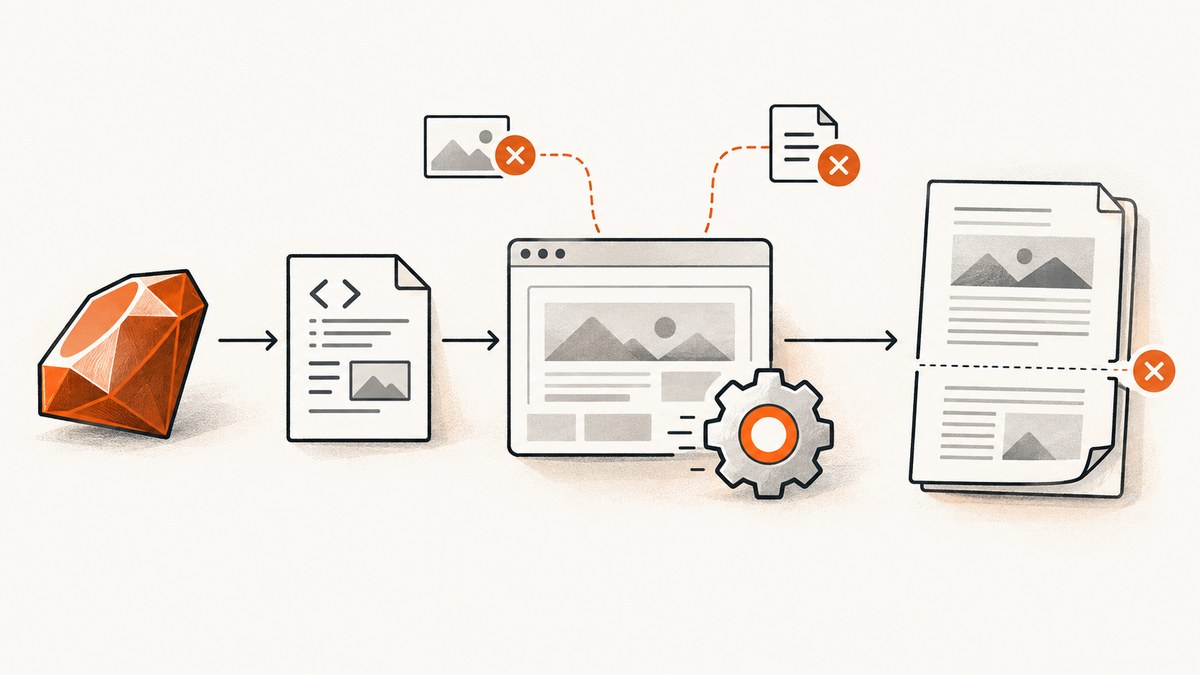
Page-load errors during HTML-to-PDF conversion in Ruby usually come from one of four stages: the renderer cannot navigate to the main document, an individual asset fails, JavaScript content is not ready, or the renderer waits on the same application server that is waiting for the PDF process. Identify the failed stage first; then change the option for the renderer your gem actually launches.
This guide covers wkhtmltopdf with PDFKit or Wicked PDF, and Chromium through Grover. Their option names and timeout behavior differ, so record your gem, renderer version, operating system, container image, and exact command before changing settings.
1. Classify the failure before changing settings
| Symptom | Likely stage | First check |
|---|---|---|
| The PDF job exits immediately and no page is produced | Main navigation or page-load failure | Open the exact URL from the renderer host and inspect stderr |
| PDF opens but CSS, images, fonts, or scripts are missing | Individual resource failure | List every generated asset URL and test it from the renderer context |
| HTML is present but data rendered by JavaScript is absent | Readiness problem | Wait for a selector or function that proves the content exists |
| The process hangs until a timeout | Self-request deadlock, navigation timeout, or conversion timeout | Check server worker count and separate each timeout |
| It works in development but not production | Asset host, precompile, network, or filesystem difference | Compare production URLs, permissions, and container networking |
Keep a minimal reproduction containing the renderer version, OS, source HTML, CSS, JavaScript, and the exact command. The wkhtmltopdf project requests this information when investigating failures (reporting-issues guidance).
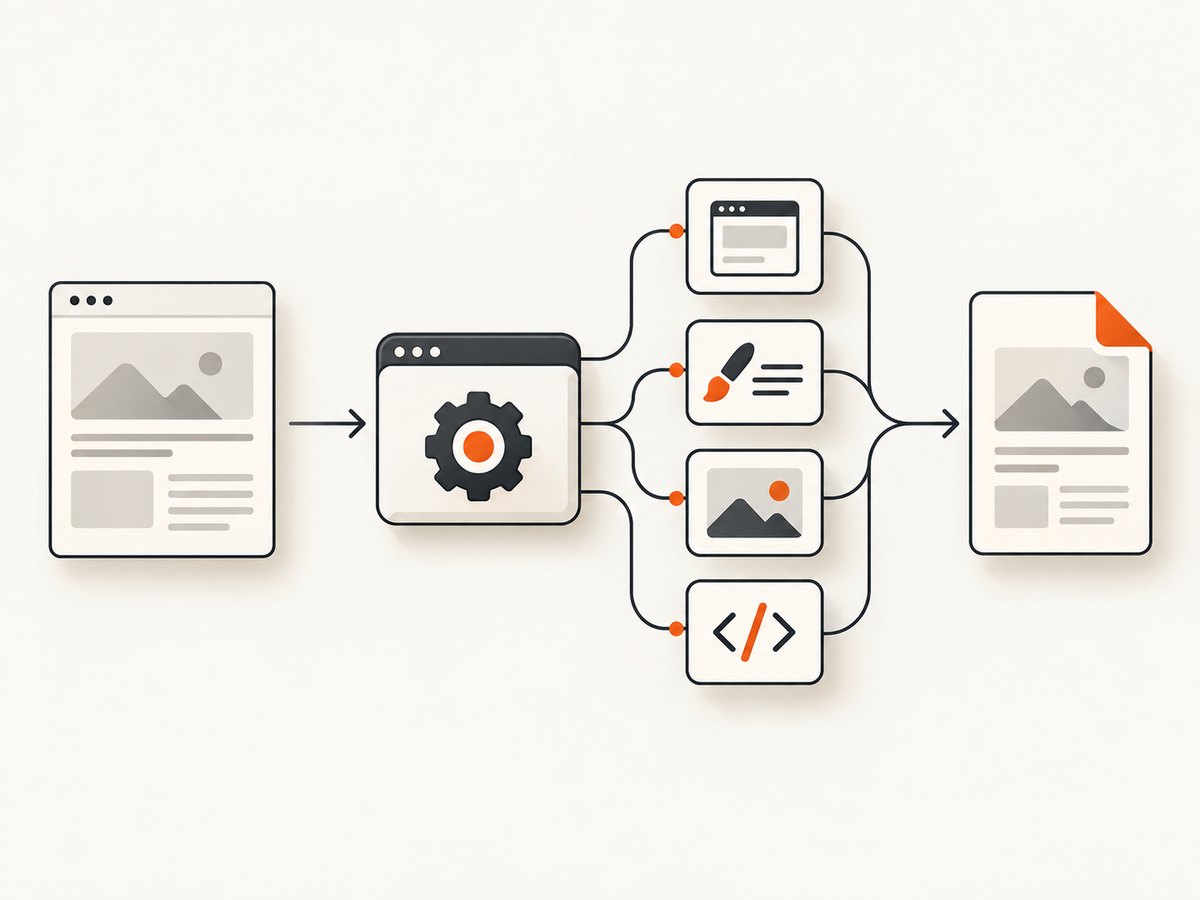
2. Confirm which Ruby renderer is running
PDFKit and Wicked PDF (wkhtmltopdf)
Both wrappers invoke an external wkhtmltopdf binary. Verify the binary and version on the same machine or container that runs the job:
which wkhtmltopdf
wkhtmltopdf --version
bundle exec ruby -e 'puts Gem.loaded_specs["pdfkit"]&.version; puts Gem.loaded_specs["wicked_pdf"]&.version'
wkhtmltopdf 0.12.6 documents separate page and media error policies. Page-load handling defaults to abort; media handling defaults to ignore. Each accepts abort, ignore, or skip (command-line usage documentation).
Grover (Puppeteer/Chromium)
Grover launches Chromium. Confirm the gem, browser executable, and launch arguments in the deployment image. Grover exposes separate browser-launch, request, and PDF-conversion timeouts, plus waits and optional request/JavaScript error raising (Grover README).
3. Fix wkhtmltopdf page and media errors
Inspect the failing URL
Run the smallest possible command with verbose output. Test the main page independently from its assets:
curl -I https://example.test/invoices/42
curl -I https://cdn.example.test/assets/application.css
wkhtmltopdf --log-level info https://example.test/invoices/42 /tmp/invoice.pdf
If the main document is unavailable, fix DNS, TLS, authentication, routing, or firewall access first. If only an image or stylesheet fails, keep navigation strict and repair that resource.
Choose error handling deliberately
# Fail when the page itself cannot load
wkhtmltopdf --load-error-handling abort https://example.test/page /tmp/page.pdf

# Media policy examples; use ignore or skip only when omission is acceptable
wkhtmltopdf --load-media-error-handling abort https://example.test/page /tmp/page.pdf
wkhtmltopdf --load-media-error-handling skip https://example.test/page /tmp/page.pdf
ignore and skip can create an apparently successful but incomplete PDF. Record which resource failed and decide whether that resource is required before relaxing the policy.
4. Make CSS, images, fonts, and scripts reachable
Use absolute URLs or complete file paths
External renderers do not necessarily share the browser’s current URL, Rails route context, asset host, or working directory. PDFKit recommends absolute paths and complete file paths or domain-qualified URLs for raw HTML (PDFKit README).
html = render_to_string(template: "invoices/show", formats: [:html])
kit = PDFKit.new(
  html,
  root_url: "https://app.example.test",
  load_media_error_handling: "abort"
)
send_data kit.to_pdf, filename: "invoice.pdf", type: "application/pdf"
For file-based HTML, use a complete path rather than a relative filename:
html_path = Rails.root.join("tmp", "invoice.html").to_s
pdf = PDFKit.new(File.read(html_path), root_url: "https://app.example.test").to_pdf
File.binwrite("tmp/invoice.pdf", pdf)
Rails and Wicked PDF assets
Wicked PDF documents using its PDF asset helpers or a reachable CDN and precompiling assets used by PDF views. Development asset serving can hide production-only failures; verify the production asset host, digest filenames, permissions, and network route (Wicked PDF README).
<%= wicked_pdf_stylesheet_link_tag "pdf" %>
<%= wicked_pdf_image_tag "logo.png" %>
Confirm that the referenced files exist in the release image and that the renderer can resolve HTTPS certificates and DNS from that image.
Authentication and custom headers
A browser session may have cookies or authorization that the renderer lacks. Pass only the headers and cookies required for the document, and avoid putting secrets in logged URLs. For protected pages, a signed, short-lived URL is often easier to reproduce than an interactive login flow.
5. Prevent self-request deadlocks
A common development failure is a PDF request handled by a single-thread server. The request waits for wkhtmltopdf, while wkhtmltopdf requests CSS, images, or scripts from that same server; the server cannot answer the second request until the first finishes. PDFKit documents this cycle and recommends multiple workers or embedding resources (PDFKit troubleshooting).
- Check whether the PDF URL and asset URLs point back to the same host and port.
- Run the app with more than one worker/thread for conversion jobs.
- Use a reachable staging hostname instead of a loopback-only address.
- Inline critical CSS and small images when practical.
- Move conversion to a background worker so the web request is not holding the only server slot.
6. Wait for JavaScript content correctly
wkhtmltopdf
JavaScript is enabled by default and the documented JavaScript delay default is 200 milliseconds. A fixed delay does not prove asynchronous application work has completed (wkhtmltopdf usage).
wkhtmltopdf --javascript-delay 1000 https://example.test/report /tmp/report.pdfIncrease the delay only as a diagnostic or when you know the page’s timing. If the PDF does not need JavaScript, disabling it can remove a failure source:
wkhtmltopdf --disable-javascript https://example.test/static /tmp/static.pdfGrover
Prefer a readiness condition over an arbitrary sleep. Render a marker after data binding, then wait for it:
options = {
  wait_until: "networkidle0",
  wait_for_selector: "[data-pdf-ready]",
  request_timeout: 30_000,
  launch_timeout: 30_000,
  pdf_timeout: 30_000,
  raise_on_request_failure: true,
  raise_on_javascript_error: true
}
html = render_to_string(template: "reports/show", formats: [:html])
pdf = Grover.new(html, options).to_pdf
send_data pdf, filename: "report.pdf", type: "application/pdf"
Use the option names and supported values from the Grover version installed in your application. Separate launch, navigation/request, readiness, and PDF conversion failures in logs.
7. Ruby examples for the main wrappers
PDFKit
require "pdfkit"

html = "<html><body><h1>Invoice</h1></body></html>"
kit = PDFKit.new(html, page_size: "A4", load_error_handling: "abort")
File.binwrite("invoice.pdf", kit.to_pdf)
Wicked PDF controller action
def show
  @invoice = Invoice.find(params[:id])
  respond_to do |format|
    format.html
    format.pdf do
      render pdf: "invoice-#{@invoice.id}",
             template: "invoices/show",
             disposition: "attachment",
             javascript_delay: 500,
             load_error_handling: "abort",
             load_media_error_handling: "abort"
    end
  end
end
Grover from a rendered Rails view
html = render_to_string(template: "reports/show", formats: [:html])
pdf = Grover.new(
  html,
  wait_until: "networkidle0",
  wait_for_selector: "[data-pdf-ready]",
  raise_on_request_failure: true
).to_pdf
File.binwrite("report.pdf", pdf)
8. A repeatable diagnosis checklist
- Record wrapper gem, renderer/browser version, OS, container image, and command-line options.
- Save the exact HTML and list every CSS, image, font, and script URL.
- Test the main page and each important asset from the renderer’s network or filesystem context.
- Check for a single-thread server waiting on a renderer that calls back into it.
- For dynamic pages, define a selector or function that proves readiness.
- Separate launch, navigation, JavaScript wait, and PDF conversion timeouts.
- Compare development and production asset hosts, precompiled files, permissions, DNS, and certificates.
- Keep local-file and internal-network access restricted for untrusted HTML.
9. Troubleshooting common errors
| Error or symptom | Cause | Fix |
|---|---|---|
| “ContentNotFoundError” or an immediate wkhtmltopdf exit | Main URL is unreachable, invalid, unauthorized, or blocked | Request the URL with curl from the worker host; fix routing, DNS, TLS, credentials, or firewall before changing media policy |
| Missing CSS or images | Relative URL, wrong asset host, uncompiled digest file, or inaccessible CDN | Use absolute URLs or complete paths; precompile assets and verify production reachability |
| PDF hangs in development | Single-worker self-request deadlock | Use multiple workers, a separate reachable host, embedded resources, or a background worker |
| JavaScript data is absent | Conversion starts before asynchronous rendering finishes | Wait for a real selector/function in Grover; use a known wkhtmltopdf delay or remove unnecessary JavaScript |
| Grover timeout at startup | Chromium cannot launch or executable is missing | Install the browser in the image, set the configured executable path, and inspect launch logs |
| Grover request timeout | Navigation or an asset request exceeds its limit | Test the slow URL, remove blocking third-party resources, and tune request timeout separately |
| Local file or internal URL is denied | Renderer security defaults block local or private-network access | Serve only approved resources over an explicit host; do not broadly enable file or internal-network access for untrusted HTML |
| Works locally, fails in production | Different asset serving, container network, permissions, or certificates | Reproduce inside the production image and compare resolved URLs and environment configuration |
10. Security boundaries for HTML conversion
Local-file access and internal-network access can expose secrets when HTML is user controlled. wkhtmltopdf documents local-file access as disabled unless enabled; Wicked PDF recommends sanitizing user HTML/CSS/JavaScript and restricting internal addresses; Grover’s documented Chromium behavior also keeps local-network access disabled by default in the described versions. Keep allowlists narrow, sanitize input, and grant a job only the resources it needs.
11. Performance, reliability, and cost decisions
- Reduce work before increasing timeouts: remove unnecessary third-party scripts, block analytics for PDF jobs, and serve optimized images and fonts.
- Cache stable assets: immutable, versioned CSS and images reduce repeated network failures.
- Use background jobs: conversion can consume a browser process and should not occupy the only web worker.
- Set bounded timeouts: separate launch, request, readiness, and conversion limits so one slow dependency does not hold a job forever.
- Retry selectively: retry transient network failures, but do not hide deterministic missing paths or authorization errors.
- Validate output: check that the PDF exists, has a nonzero size, and contains required text or page count before marking a job successful.
- Control concurrency: cap browser processes and queue work according to available CPU and memory; the cited documentation does not provide universal performance numbers.
12. Or skip the browser setup
If your Ruby service only needs a reliable screenshot or PDF from a URL, ScreenshotNeo provides a single GET request. Its capture pipeline accepts cookie and consent banners like a visitor, removes more than 60 known consent platforms plus newsletter popups and chat widgets, and lets each cleanup step be turned off. Bot checks, CAPTCHAs, blank pages, timeouts, failed loads, and cache hits are not billed; response headers identify the page verdict and whether the request was billed.

See the ScreenshotNeo API documentation for all options.
curl -G "https://api.screenshotneo.com/v1/shot" -d access_key=YOUR_API_KEY --data-urlencode url=https://stripe.com -o shot.webprequire "net/http"
require "uri"
uri = URI("https://api.screenshotneo.com/v1/shot")
uri.query = URI.encode_www_form(access_key: "YOUR_API_KEY", url: "https://stripe.com")
response = Net::HTTP.get_response(uri)
raise "Screenshot failed: #{response.code}" unless response.is_a?(Net::HTTPSuccess)
File.binwrite("shot.webp", response.body)import requests
r = requests.get("https://api.screenshotneo.com/v1/shot", params={"access_key": "YOUR_API_KEY", "url": "https://stripe.com"}, timeout=90)
r.raise_for_status()
open("shot.webp", "wb").write(r.content)const q = new URLSearchParams({ access_key: 'YOUR_API_KEY', url: 'https://stripe.com' });
const res = await fetch(`https://api.screenshotneo.com/v1/shot?${q}`);ScreenshotNeo also offers full-page captures with lazy images loaded, CSS selector element capture, device presets and custom viewports, PDF controls, custom CSS and JavaScript, waits, request blocking, headers and cookies, geolocation and timezone, resizing, selectable cache TTL, signed links, asynchronous jobs with signed webhooks, bulk capture for 100 URLs per call, usage reporting, an OpenAPI specification, and an MCP server with take_screenshot, get_page_info, and capture_pdf for AI agents.
Free usage includes 1,000 screenshots each month with no card. Paid plans start at $5 for 3,000 shots; every feature is available on every plan. Create a free ScreenshotNeo account.
FAQ
Should I set wkhtmltopdf to ignore every error?
No. Page and media policies are separate. Keep required content strict, identify the failing resource, and relax handling only when omission is acceptable.
Why does a page load in Chrome but fail in PDFKit?
The renderer may use a different host, cookies, filesystem, DNS path, certificate store, or asset URL base. Test from the renderer’s environment and use absolute URLs.
Is a longer JavaScript delay a reliable fix?
Only when the page’s timing is known. A selector or function that proves readiness is more reliable for dynamic content.
When should I choose Grover?
Use it when you need Chromium/Puppeteer behavior, explicit readiness controls, and separate timeout and error reporting. Confirm browser availability in deployment.
Can I enable local-file access to fix missing assets?
Do so only for trusted, controlled input and only for the specific files required. For user-controlled HTML, keep local and internal-network access restricted.


