How to Use a Ruby Image Generation SDK
Generate and edit images from Ruby with the official OpenAI gem. See runnable code, output handling, production safeguards, and a screenshot API alternative.

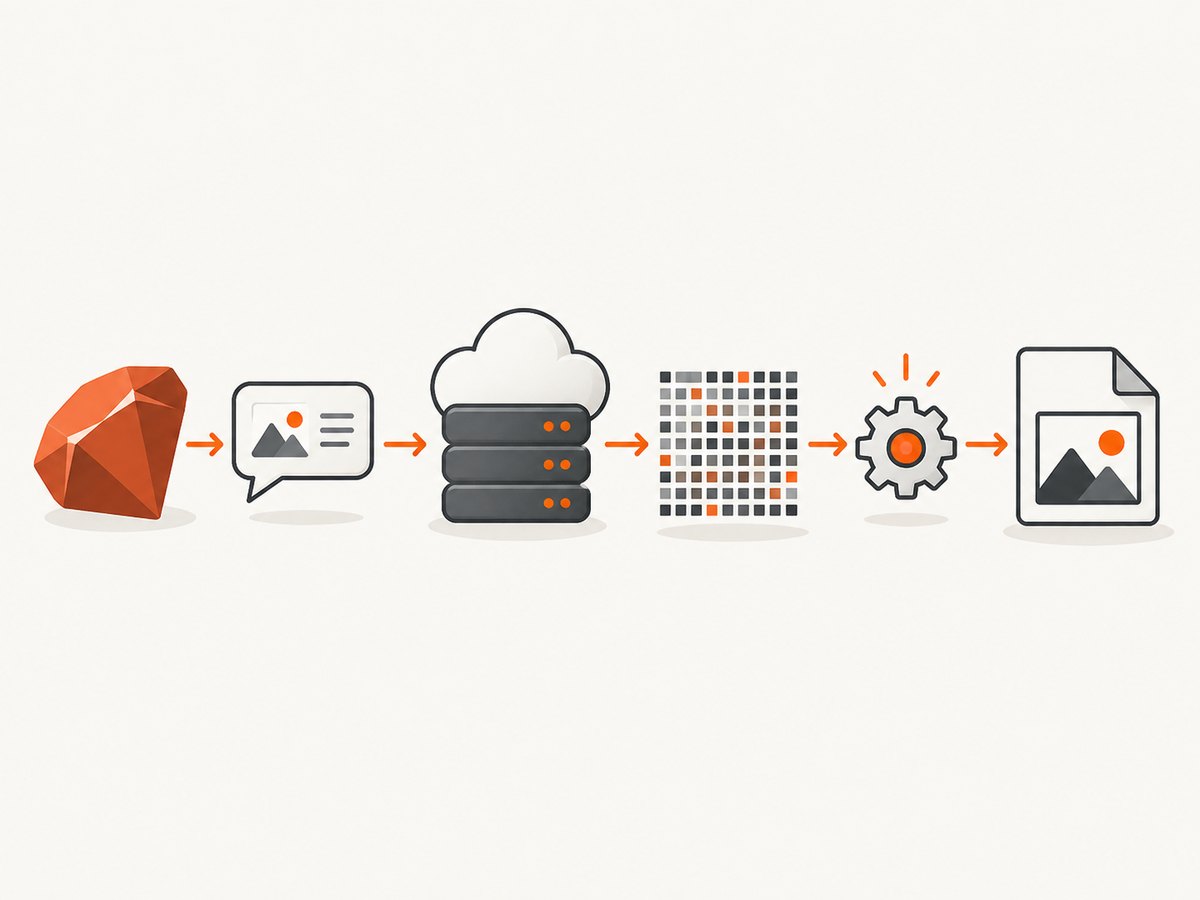
Use the official openai Ruby gem to generate or edit images from a Ruby application. For a single prompt-to-image request or a direct edit, call the Images API; for a conversational workflow that reasons across steps or uses image inputs, use image generation through the Responses API. The returned image data must be decoded and saved by your application.
This guide covers the official SDK setup, generation and editing patterns, output options, Rails integration, error handling, and operating costs. The examples use the SDK and model shape in the research reference; Ruby SDK method names and image model identifiers can change, so confirm them against the current installed gem documentation before shipping.
1. Install and configure the official Ruby SDK
The official OpenAI Ruby SDK supports Ruby 3.3.0 and newer according to its API reference. Add the gem to your Gemfile:
gem "openai"Then install it and provide an API key in the process environment. Keep the key on the server; do not put it in source control or browser-delivered JavaScript.
bundle install
export OPENAI_API_KEY="your-api-key"
In a deployed Rails app, use your hosting platform’s secret or environment-variable manager. For local development, a dotenv-style tool can load a local untracked environment file. Avoid logging the key or returning it to a client.
2. Generate an image with Ruby
The following is the minimal request shape from the research reference. The exact response accessor can vary between gem versions, so inspect the installed SDK’s current API reference when wiring the returned payload to storage.
require "openai"
require "base64"

client = OpenAI::Client.new(api_key: ENV.fetch("OPENAI_API_KEY"))

result = client.images.generate(
  model: "gpt-image-2.5-flare",
  prompt: "A clean product illustration of a red teapot on a white background",
  size: "1024x1024",
  quality: "medium",
  background: "opaque"
)

# Image output is base64 encoded by default. Decode the first result
# using the response shape documented for the installed gem version.
encoded = result.dig("data", 0, "b64_json")
raise "No image payload returned" unless encoded
File.binwrite("teapot.png", Base64.decode64(encoded))
The code demonstrates the common response structure described in the API guide. If your installed gem returns typed objects instead of hashes, use its documented accessors in place of dig; do not assume a response shape from a different version. OpenAI’s image-generation guide documents generation, edits, supported output controls, and image data handling.
Make the prompt specific
Describe the subject, composition, visual style, lighting, background, and intended use. For product assets, make dimensions and negative space part of the instruction where relevant. A prompt is not a guarantee of exact typography or pixel-perfect layout; use image editing or normal design tools when the result must meet strict layout requirements.
3. Save, serve, and edit image output
Image generation returns encoded data that your application needs to decode and persist. For a local script, File.binwrite is enough. In a web application, prefer object storage or another durable asset store rather than keeping large base64 strings in a database row. Store metadata such as the prompt, chosen model, output format, request ID, and creation time if you need to reproduce or audit an asset.
For a direct edit, use the Images API’s editing operation and provide the image input in the format required by the installed SDK. The exact Ruby call and accepted image input representation are version-sensitive; follow the gem’s current edit reference rather than guessing parameter names. The API is intended for generation and editing, while Responses API image generation can accept optional image inputs and an action of auto, generate, or edit.
Rails integration pattern
Keep the API call in a background job for user-triggered generation. That avoids holding a web request open while a model generates an image and gives you a place to retry temporary failures. Persist the output to object storage after decoding, then associate the stored object with the user or record. Validate prompt length and authorization before enqueueing work, and apply per-user or per-account usage limits so one client cannot create uncontrolled API spend.
Do not pass an image-generation API key to a mobile app or browser. The application server should make the request and return an authorized asset URL or application resource identifier.
4. Choose size, quality, format, and background
Output choices affect suitability, file size, latency, and cost. The image guide lists standard dimensions including square 1024x1024, landscape 1536x1024, and portrait 1024x1536. Custom dimensions must follow the model’s documented aspect ratio, pixel count, and edge limits.
| Choice | Use it for | Things to check |
|---|---|---|
| Size | Matching the destination shape, such as square catalog art or landscape banners | Use supported dimensions; custom sizes have documented limits |
| Quality | Lower-cost drafts or higher-fidelity final assets | Higher quality can affect cost and latency; measure against your output needs |
| Format | PNG or WebP for transparency; JPEG when transparency is unnecessary | JPEG can be faster than PNG according to the guide; select a format compatible with downstream use |
| Compression | Reducing transfer and storage size where supported | Compression controls are model and format dependent |
| Background | Opaque backgrounds or transparent cutouts | For transparency, request PNG or WebP and set background to transparent |
For drafts, choose lower quality if it is sufficient; reserve higher quality for approved assets when its extra latency and cost are justified. Keep dimensions close to the actual delivery target to avoid unnecessary image data and follow-up resizing.
5. Choose Images API or Responses API
Use the Images API for a direct generation request or a direct edit. Use image generation in the Responses API when image creation is one step in a larger conversational or multi-step task, or when the workflow needs to work with image inputs as part of its reasoning. The Responses image tool’s optional action can be auto, generate, or edit. Choose the simpler interface that matches the work rather than adding a multi-step orchestration layer to a one-shot request.
6. Handle errors and make production requests reliable
Treat image generation like any other metered API operation. Check the SDK’s current exception types and capture the HTTP status, request ID, and a safe error summary in logs. Never log secrets or full sensitive prompts unless your data policy permits it.
| Symptom | Likely cause | Response |
|---|---|---|
| Authentication failure | Missing, malformed, revoked, or incorrectly loaded API key | Check the server environment and key configuration; keep the secret server-side |
| Quota or billing error | Project quota or billing availability | Check project limits and billing configuration; surface a clear retry-later or contact-admin state |
| Rate limit | Requests exceed the applicable rate limit | Back off with jitter, cap retries, and queue or pace bursts |
| Server error or timeout | Temporary service or network failure | Retry transient failures with bounded exponential backoff; avoid duplicate untracked jobs |
| Missing image bytes | Response accessor does not match the installed gem version or no result is present | Inspect the SDK response documentation, verify the response contains image data, and fail the job clearly |
| Corrupt saved file | Base64 string was written as text instead of decoded bytes | Decode the payload and write binary bytes with File.binwrite |
Set a retry budget and only retry errors that can plausibly recover, such as transient server or rate-limit responses. Authentication and invalid-parameter failures need configuration changes, not repeated attempts. Make job handling idempotent where possible: record the operation before retrying and prevent a duplicate asset from being delivered because a worker repeated a completed request.
7. Performance, reliability, and cost considerations
- Latency: Image generation is an external model request, so run it outside latency-sensitive web request paths when possible. Draft quality and output dimensions are practical controls to evaluate for your workflow.
- Reliability: Record request IDs, handle documented SDK/API errors, use bounded backoff for transient failures, and expose a pending or failed state to users. Do not treat a timeout as proof that no request was processed.
- Cost: Requests incur API usage charges. The prompt guide warns that live generation requests consume API usage. Review current model pricing and project limits before deployment; the dossier contains no stable price figures to quote.
- Storage and delivery: Decode the returned payload once, store binary output durably, and serve a normal image URL through your app or object storage. Avoid repeatedly transferring base64 through application layers.
- Abuse controls: Authenticate callers, enforce quotas and prompt policies, cap concurrent jobs, and keep a budget alert or usage monitoring in place.
Before launch, verify the selected model identifier, supported controls, response shape, pricing, and rate limits in current documentation. SDK and model names are version-sensitive; pin a gem version and review its changelog when upgrading.
8. Or skip the browser setup
If your Ruby workflow also needs screenshots of the generated asset’s page, a rendered landing page, or another URL, ScreenshotNeo provides a website screenshot API and MCP server. A single GET request returns a PNG, JPEG, WebP, or PDF. Its API accepts the parameter names used by other screenshot APIs too.

cURL:
curl -G "https://api.screenshotneo.com/v1/shot" -d access_key=YOUR_API_KEY --data-urlencode url=https://stripe.com -o shot.webpPython:
import requests

r = requests.get("https://api.screenshotneo.com/v1/shot", params={"access_key": "YOUR_API_KEY", "url": "https://stripe.com"}, timeout=90)
open("shot.webp", "wb").write(r.content)
Node.js:
const q = new URLSearchParams({ access_key: 'YOUR_API_KEY', url: 'https://stripe.com' });
const res = await fetch(`https://api.screenshotneo.com/v1/shot?${q}`);
See the ScreenshotNeo API documentation for request options and response details. Before capture, it accepts cookie or consent banners like a visitor and removes more than 60 known consent platforms, newsletter popups, and chat widgets; those steps can each be turned off. Bot checks and CAPTCHAs, blank pages, timeouts, failed loads, and cache hits cost nothing, and response headers identify the page verdict and billing status. Its MCP server exposes take_screenshot, get_page_info, and capture_pdf for Claude, Cursor, and other MCP clients.
The Free plan includes 1,000 screenshots each month with no card. Paid plans start at $5 for 3,000; every feature is available on every plan. Sign up for ScreenshotNeo and get 1,000 free screenshots a month, no card required.
9. FAQ
What is the best Ruby SDK for image generation?
The primary recommendation is OpenAI’s official openai gem when calling OpenAI’s image APIs from Ruby. A third-party gem called generate_image is also listed on RubyGems, but it is not the official SDK; compare maintenance, current API coverage, and parameter support before choosing it.
Can I generate an image in a Rails controller?
You can make a server-side API call, but a background job is usually a better application pattern because generation can take longer than a normal web request and needs retry and status handling.
Can the image API edit an existing picture?
Yes. The Images API supports direct editing, and the Responses image tool can use image inputs with an edit action. Check the current SDK reference for the exact Ruby input and method shape.
Can Ruby return the generated image directly to a browser?
Yes. Decode the image data, persist it, then serve the resulting file through an authorized application route or asset store. Avoid exposing the API key to the browser.