How to Capture Full-Page Screenshots with Ruby and Watir
Capture complete rendered pages with Ruby and Watir, handle driver limits, stitch safely, and know when an API is simpler.
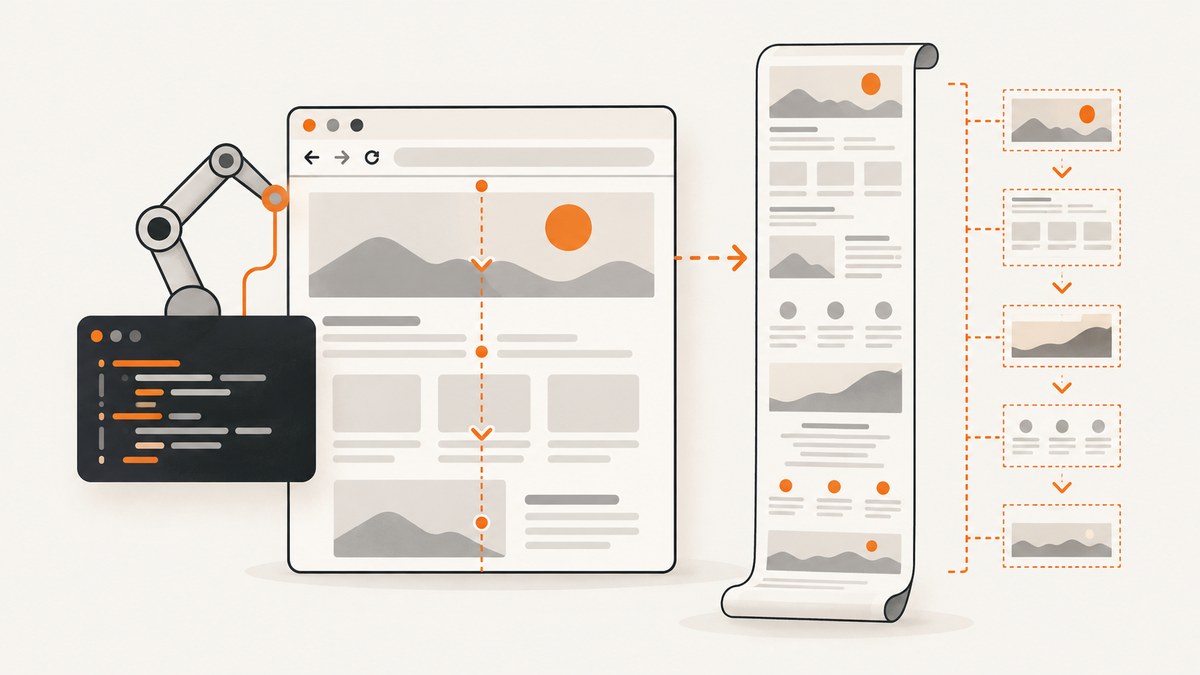
Direct answer: Watir can save a normal viewport screenshot with browser.screenshot.save, but its documented wrapper does not provide a full_page: option. For a true full-page image, call Selenium through Watir’s underlying driver with browser.wd.save_screenshot("full-page.png", full_page: true) when the installed browser driver supports it. Selenium documents this argument as conditional: unsupported drivers can raise UnsupportedOperationError. When native support is unavailable, use Firefox/geckodriver through watir-screenshot-stitch, or capture several viewports and stitch them.
This guide shows each route with runnable Ruby code, explains what “full page” means, covers lazy loading and fixed elements, and includes cURL, Python and Node.js examples for an API alternative. The Selenium Ruby screenshot API is documented at Selenium’s TakesScreenshot reference; Watir’s screenshot wrapper is described in the Watir API reference.
1. What full-page capture actually does
A viewport screenshot records only the pixels currently visible inside the browser window. A full-page screenshot renders the document beyond that viewport and returns one image containing the page from its top edge to its bottom edge. The distinction matters for documentation, visual regression, archiving, and sharing pages that require scrolling.
“Full page” does not automatically mean “fully settled.” document.readyState == "complete" indicates that the initial document load finished, but JavaScript may still insert content, web fonts may still load, and images may be lazy-loaded only after scrolling. Decide what readiness means for your target site before taking the image.
| Method | Best fit | Important limitation |
|---|---|---|
Selenium full_page: true through Watir |
Short unattended script when the active driver implements full-page screenshots | Support depends on the browser and driver; the Selenium Ruby reference marks this API private and may raise an unsupported-operation error |
Firefox/geckodriver with watir-screenshot-stitch |
A documented full-page route when Firefox is available | Requires Firefox and the gem; output still needs inspection for overlays and page-height constraints |
| Viewport stitching | Fallback when native full-page capture is unavailable | Can create seams, repeated fixed headers, large memory use, and height limits |
html2canvas route |
Canvas-based fallback for selected pages | The gem documentation warns that some element types may not render correctly |
| Chrome DevTools manual capture | One-off human checks | Manual command, not reusable Ruby automation |
2. Install Ruby, Watir and Selenium
Start with a project so dependencies are reproducible:
mkdir watir-full-page
cd watir-full-page
bundle init
bundle add watir selenium-webdriver
Watir supplies the readable browser API, while Selenium supplies the WebDriver implementation. Keep the browser and driver versions compatible and pin the versions used by your application. The Watir project page records historical release requirements, including Selenium 4.2 and Ruby 2.7 for Watir 7.2; treat those as release facts rather than a current compatibility matrix. Check the versions in your own environment.
For a local Chrome run, install Chrome and ensure Selenium Manager or your chosen driver setup can locate a compatible driver. Headless mode changes how the browser is displayed; it does not itself add full-page support.
3. Native Selenium full-page capture through Watir
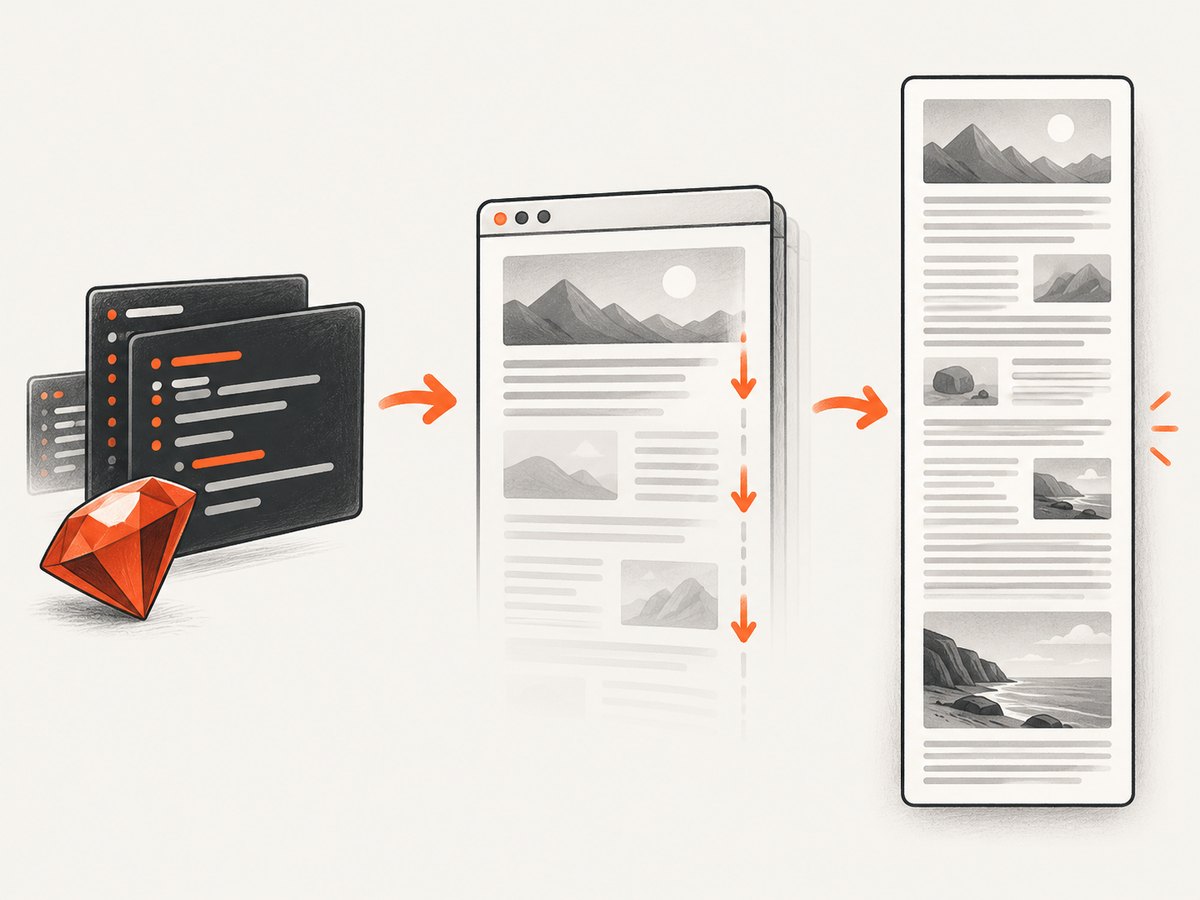
This is the smallest automated approach. It asks Selenium’s underlying driver for a full-page screenshot and closes the browser even if navigation or capture fails.
require "watir"

browser = nil
begin
  browser = Watir::Browser.new(:chrome, options: { args: ["--headless=new", "--window-size=1440,900"] })
  browser.goto("https://example.com")

  # Watir can wait for the initial document load.
  browser.wait_until(timeout: 30) { browser.ready_state == "complete" }

  # This is Selenium's driver-level API. Support is driver-dependent.
  browser.wd.save_screenshot("full-page.png", full_page: true)
  puts "Saved full-page.png"
rescue Selenium::WebDriver::Error::UnsupportedOperationError => e
  warn "This browser driver does not support native full-page screenshots: #{e.message}"
  exit 2
ensure
  browser&.close
end
The full_page argument is not a Watir option. browser.wd exposes the underlying WebDriver object, and save_screenshot delegates to the driver’s screenshot implementation. Selenium also provides screenshot_as(format, full_page: false) if you need bytes instead of a file:
png_bytes = browser.wd.screenshot_as(:png, full_page: true)
File.binwrite("full-page.png", png_bytes)
Use a filename whose extension matches the format. Selenium warns when the extension does not match the screenshot format. PNG is the safest choice for text and visual diffs; convert to JPEG or WebP later when smaller files matter more than lossless pixels.
Wait for the page you actually want
Replace a generic ready-state check with a site-specific condition whenever possible. For example, wait for a main content selector, a loading spinner to disappear, or a known application state:
browser.goto("https://example.com/catalog")
browser.wait_until(timeout: 30) { browser.ready_state == "complete" }
browser.div(id: "catalog").wait_until(&:present?)
browser.div(class: "loading").wait_until(&:not_present?)
browser.wd.save_screenshot("catalog.png", full_page: true)
Do not assume that waiting for one selector proves every image is ready. If the page uses lazy loading, scroll through it before capture, then return to the top if your capture method depends on the initial position:
height = browser.execute_script("return Math.max(document.body.scrollHeight, document.documentElement.scrollHeight)")
viewport = browser.execute_script("return window.innerHeight")
position = 0
while position < height
  browser.execute_script("window.scrollTo(0, arguments[0])", position)
  sleep 0.15
  position += viewport
end
browser.execute_script("window.scrollTo(0, 0)")
browser.wd.save_screenshot("lazy-loaded.png", full_page: true)
The scroll pass is a practical technique, not a guarantee: some applications load content only after an interaction or a delayed network request. Add an application-specific readiness check when the page has one.
4. Firefox and geckodriver with watir-screenshot-stitch
When the native Selenium call is unsupported, the watir-screenshot-stitch documentation describes a Firefox/geckodriver route, plus viewport stitching and an html2canvas option. Install the gem:
bundle add watir-screenshot-stitchThe gem's API and exact method signatures can change, so read the installed version's documentation and pin it in your Gemfile. A typical Firefox setup is:
require "watir"
require "watir-screenshot-stitch"

browser = Watir::Browser.new(:firefox, options: { args: ["-headless"] })
browser.goto("https://example.com")
browser.wait_until(timeout: 30) { browser.ready_state == "complete" }

# Consult the installed gem's API for the exact options in your version.
browser.screenshot_stitch.save("firefox-full-page.png", limit: 5000)
browser.close
The limit value in examples is a page-height ceiling, not a universal safe maximum. Large pages produce large bitmaps and can exhaust memory. Measure your page, choose a limit that fits your use case, and inspect the resulting image. The gem documentation says its Firefox mode uses geckodriver's full-page feature and describes it as the route with the fewest complications when available.
5. Stitching viewport screenshots yourself
Stitching takes several viewport images and joins them vertically. It is useful when a driver has no native full-page operation, but fixed-position elements can appear in every segment and create visible repetition. Device pixel ratio also affects the relationship between CSS pixels and image pixels.
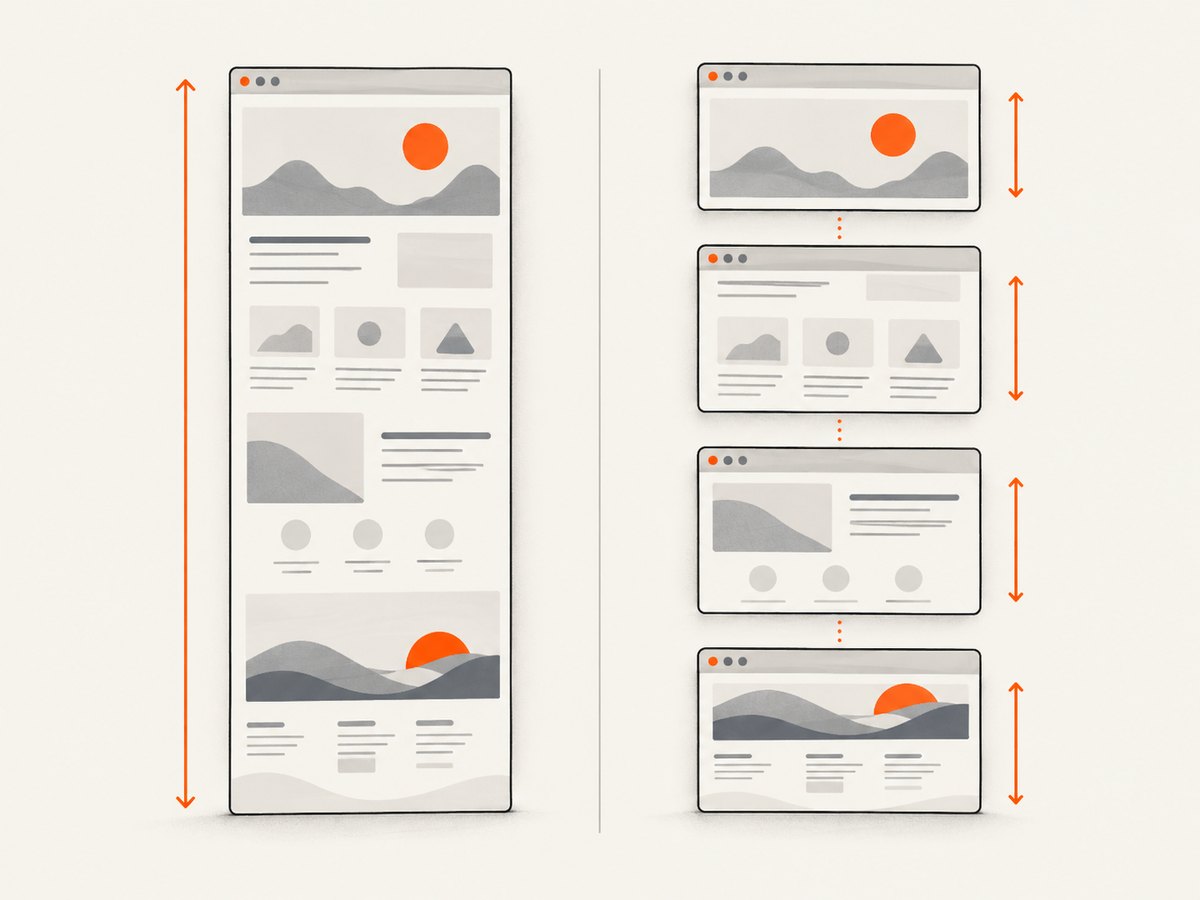
A reliable stitching workflow is:
- Measure the document height and viewport height.
- Scroll to deterministic CSS-pixel positions.
- Capture each viewport with the same window size and scale.
- Hide or account for fixed headers and chat widgets before capture.
- Join the images with a tool that understands their pixel dimensions.
- Check seams, duplicated elements, missing lazy content, and the final height.
Do not blindly append screenshots when the last viewport overlaps the previous one. Calculate the overlap in CSS pixels, convert it using the device pixel ratio, and crop consistently. If your page has an animated carousel, blinking cursor, or time-dependent ad, freeze or hide it first to avoid visible differences between segments.
6. Full page versus one element
If you need a chart, article body, or component rather than the entire document, capture the element. Watir's element screenshot support still uses the underlying driver and therefore inherits driver limitations:
article = browser.element(css: "main article")
article.wait_until(&:present?)
article.screenshot.save("article.png")
Element capture avoids unrelated navigation, but it does not solve cross-origin canvas restrictions, unloaded images, or content hidden behind collapsed sections. Expand the component and wait for its own data before taking the image.
7. Troubleshooting
| Symptom | Likely cause | Fix |
|---|---|---|
UnsupportedOperationError |
The active driver does not implement Selenium's full-page operation | Use Firefox/geckodriver, the stitch gem, or a viewport-stitching fallback; do not assume headless mode changes support |
| Only the visible viewport is saved | The call used browser.screenshot.save or a driver that ignores the full-page argument |
Call browser.wd.save_screenshot(..., full_page: true) and verify the driver behavior with a tall test page |
| Bottom content is missing | Lazy loading or asynchronous rendering had not completed | Scroll through the document, wait for a selector or loading state, and capture after the page-specific readiness condition |
| Repeated header or chat widget | Viewport stitching captured fixed-position elements repeatedly | Hide those selectors before each segment or use a native full-page method; inspect the final image |
| Seams between sections | Scroll offsets, overlap, animation, or device-pixel-ratio calculations differ | Use a fixed viewport, deterministic offsets, consistent scale, and overlap cropping; disable animations where practical |
| Black or blank regions | Canvas, cross-origin resources, blocked requests, or a page that failed to render | Check browser logs and network behavior, wait longer, and validate the page manually in the same browser |
| Out-of-memory or huge output | Very tall page multiplied by device pixel ratio | Set a page-height limit, reduce scale, capture sections, or use a compressed output format after capture |
| Browser process remains open | An exception bypassed cleanup | Use an ensure block and close the Watir browser there |
8. Performance, reliability and cost considerations
Capture time includes navigation, JavaScript execution, image decoding, scrolling, and image encoding. A full-page bitmap grows with both page dimensions and device pixel ratio. Stitching adds repeated browser work and image processing, while a native driver operation generally has fewer moving parts. For repeatable visual tests, use a stable viewport, fixed locale and timezone, deterministic test data, and a page state that does not animate.
Reliability improves when you classify failures instead of saving whatever pixels happen to be available. Record the URL, browser and driver versions, viewport, page height, wait condition, and capture method. Keep the original browser logs for intermittent failures. A screenshot that exists on disk can still be invalid if it contains a loading skeleton or a bot-check page.
Local Watir captures consume your own browser CPU, memory, bandwidth, and maintenance time. A hosted screenshot API trades browser setup for request cost and service configuration. Compare the total cost of running browsers, handling driver upgrades, retrying failed pages, and storing images—not only the price of one successful image.
9. Or skip the browser setup
ScreenshotNeo provides a website screenshot API and MCP server. One GET request returns a PNG, JPEG, WebP, or PDF, with full-page capture and lazy images loaded. It removes cookie and consent banners, newsletter popups, and chat widgets before capture; each cleanup step can be disabled. Bot checks, blank pages, timeouts, failed loads, and cache hits are not billed, and response headers identify the page verdict and whether the request was billed.
See the ScreenshotNeo API documentation for all options. The same endpoint supports CSS-element capture, dark mode, device presets or custom viewports, retina scale, PDF paper sizes and margins, custom CSS and JavaScript, clicks, selector waits, delays, network-idle waits, request blocking, headers, cookies, user agents, authorization, timezone, geolocation, transparent backgrounds, resizing, TTL caching, signed links, asynchronous jobs with signed webhooks, bulk capture of up to 100 URLs per call, usage reporting, and an OpenAPI specification.
cURL
curl -G "https://api.screenshotneo.com/v1/shot" \
  -d access_key=YOUR_API_KEY \
  --data-urlencode url=https://stripe.com \
  -o shot.webp
Python
import requests

r = requests.get(
    "https://api.screenshotneo.com/v1/shot",
    params={"access_key": "YOUR_API_KEY", "url": "https://stripe.com"},
    timeout=90,
)
r.raise_for_status()
open("shot.webp", "wb").write(r.content)
print(r.headers.get("X-Page-Verdict"), r.headers.get("X-Billed"))
Node.js
const q = new URLSearchParams({
  access_key: 'YOUR_API_KEY',
  url: 'https://stripe.com'
});
const res = await fetch(`https://api.screenshotneo.com/v1/shot?${q}`);
if (!res.ok) throw new Error(`${res.status} ${await res.text()}`);
const data = Buffer.from(await res.arrayBuffer());
require('fs').writeFileSync('shot.webp', data);
console.log(res.headers.get('x-page-verdict'), res.headers.get('x-billed'));
ScreenshotNeo also has an MCP server with take_screenshot, get_page_info, and capture_pdf tools for Claude, Cursor, and other MCP clients. Plans include 1,000 shots per month free with no card; paid plans start at $5 for 3,000 shots, and every feature is available on every plan. Create a free ScreenshotNeo account to try the API.
10. Practical checklist
- Confirm whether the installed driver supports
full_page: true. - Use
browser.wdfor Selenium's driver-level call. - Wait for the application's real ready condition, not only document readiness.
- Scroll to trigger lazy-loaded sections when necessary.
- Use
ensureto close the browser. - Inspect for repeated fixed elements, seams, blank regions, and truncated height.
- Use a Firefox/geckodriver or stitching fallback when native support fails.
- Record browser, driver, viewport, scale, and page-height details for reproducibility.
11. FAQ
Does Watir have a full-page option?
The documented Watir screenshot wrapper exposes save and related methods, but not a full_page: parameter. Use Selenium's underlying driver when it supports that argument.
Will this work identically in Chrome and Firefox?
No. Full-page behavior is driver-dependent. Verify the exact browser, driver, Selenium gem, and remote-grid combination used by your project.
Is Chrome DevTools' full-size screenshot automated?
Chrome DevTools offers a manual “Capture a full size screenshot” command. It is useful for a human check but is separate from a reusable Watir script.
How do I capture a PDF instead of an image?
Use a browser PDF workflow or an API that exposes PDF settings. ScreenshotNeo's API supports paper size, margins, landscape mode, and page ranges through its PDF capture options.
What should I do with extremely tall pages?
Set an explicit height limit, lower the pixel scale, or capture logical sections. Review memory use and inspect the output for truncation before publishing it.


