How to Screenshot Webpages With Ruby on a Unix Server
Use Ruby and Playwright to capture webpages on Linux or Unix, with complete setup, options, troubleshooting, and a hosted API alternative.
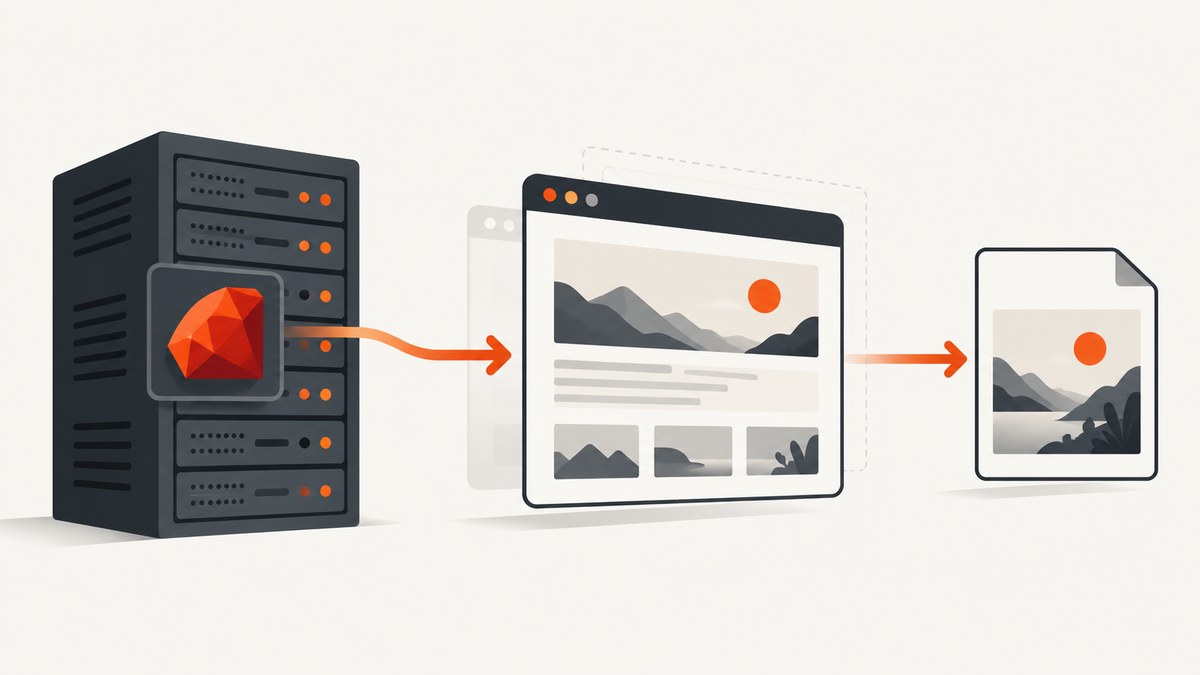
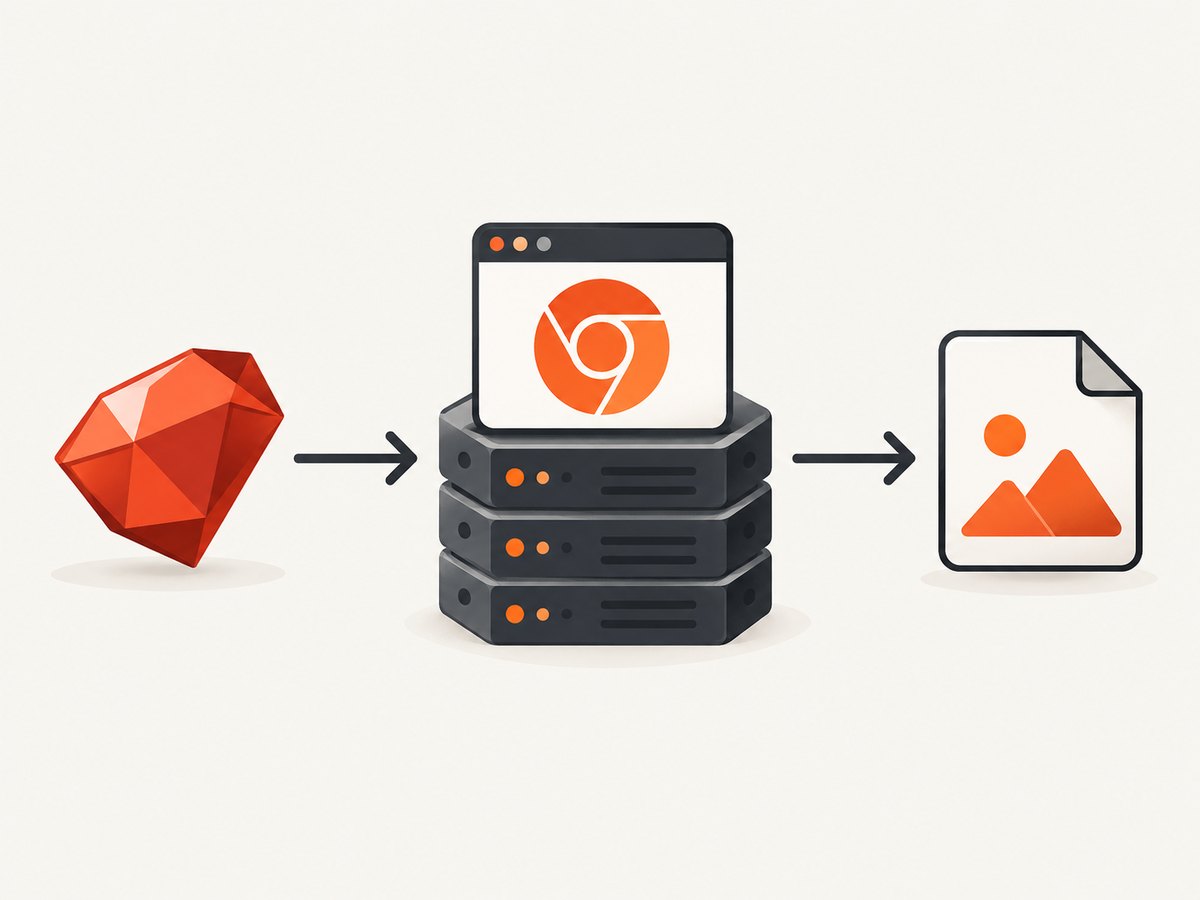
Direct answer: Use the playwright-ruby-client gem to control a Playwright-managed Chromium browser. Install the Ruby client, a matching Playwright driver, browser binaries, and Linux dependencies; launch Chromium in headless mode; navigate to the URL; wait for the page state your application needs; then call page.screenshot.
The Ruby client does not bundle Playwright or its browser. The complete deployment therefore has two parts: Ruby code and a compatible Playwright installation. The official playwright-ruby-client repository documents the client and its external Playwright dependency. Playwright’s browser documentation explains browser installation and Linux dependencies.
1. Install Ruby, the client, and Playwright
Create a Ruby project and add the gem:
mkdir ruby-shot
cd ruby-shot
bundle init
# Add this line to Gemfile:
# gem "playwright-ruby-client"
bundle install
Install a Playwright package and its browser from the same project. The exact package-manager command depends on your Node.js setup; a typical npm installation is:
npm install --save-dev playwright
npx playwright install chromium
# On supported Linux distributions, install browser dependencies too:
npx playwright install-deps chromium
Keep the Ruby client, Playwright package, driver, and browser binaries aligned. Browser builds correspond to Playwright releases, so rerun the browser installation after upgrading Playwright and verify the deployed versions.
2. Capture a viewport screenshot in Ruby
Save this as screenshot.rb. It uses the local Playwright executable and closes the browser and client through block cleanup:
require "playwright"

url = ARGV.fetch(0, "https://example.com")
output = ARGV.fetch(1, "capture.png")

Playwright.create(
  playwright_cli_executable_path: "./node_modules/.bin/playwright"
) do |playwright|
  playwright.chromium.launch(headless: true) do |browser|
    page = browser.new_page(
      viewport: { width: 1440, height: 900 },
      device_scale_factor: 1
    )

    page.goto(url, wait_until: "load", timeout: 60_000)
    page.screenshot(path: output, type: "png")
  end
end

puts "Saved #{output}"
Run it with:
ruby screenshot.rb https://example.com example.pngThe project README includes a headed demonstration using headless: false. A Unix server without a graphical display should use the headless setting shown above (or the equivalent supported by the installed client version).
3. Choose the capture you actually need
Viewport versus full page
A normal screenshot captures the current viewport. Use full-page capture when you need the entire scrollable document:
page.screenshot(
  path: "full-page.png",
  type: "png",
  full_page: true
)
Full-page images can be very tall. They may consume more memory and produce larger files than a viewport shot.
JPEG or WebP output
The Page API supports image format and quality controls. Quality applies to lossy formats:
page.screenshot(
  path: "preview.jpg",
  type: "jpeg",
  quality: 82,
  full_page: false
)

page.screenshot(
  path: "preview.webp",
  type: "webp",
  quality: 80
)
Do not pass a quality value for PNG. Device-pixel scaling controls sharpness and output size:
page = browser.new_page(
  viewport: { width: 1280, height: 800 },
  device_scale_factor: 2
)
A scale factor of 2 creates a denser image but generally increases memory use and file size.
Capture one element
For a chart, card, or other component, use a locator screenshot instead of capturing the whole page:
card = page.locator("[data-testid='invoice-card']")
card.wait_for(state: "visible", timeout: 30_000)
card.screenshot(path: "invoice-card.png", type: "png")
Use a stable selector that belongs to your application. Avoid selectors tied to generated class names.
4. Wait for the page’s real ready state
wait_until: "load" waits for the load event, but modern applications often fetch content afterward. Wait for an application-specific element or state:
page.goto(url, wait_until: "domcontentloaded", timeout: 60_000)
page.locator("main[data-loaded='true']").wait_for(
  state: "visible",
  timeout: 30_000
)
page.screenshot(path: "ready.png", full_page: true)
You can also wait for a known network condition or use a short delay when the page has no better readiness signal:
page.wait_for_timeout(1_000)
page.screenshot(path: "after-delay.png")
A fixed sleep is not a universal synchronization strategy. Prefer a selector or state that represents the content you need.
5. Useful browser and request settings
Authentication and headers
Set cookies or headers in the browser context when the page requires a session. Keep credentials out of source control and logs:
context = browser.new_context(
  extra_http_headers: {
    "Authorization" => "Bearer #{ENV.fetch('API_TOKEN')}"
  }
)
page = context.new_page
page.goto("https://internal.example.test", wait_until: "networkidle")
Custom user agent, timezone, and locale
context = browser.new_context(
  user_agent: "ScreenshotWorker/1.0",
  timezone_id: "UTC",
  locale: "en-US",
  viewport: { width: 1440, height: 900 }
)
Use a truthful user agent and follow the target site’s access rules. A timezone or locale can change dates, number formats, and layout.
JavaScript and CSS adjustments
Inject CSS to hide a known element or normalize a page for a capture:
page.add_style_tag(content: <<~CSS)
  .cookie-banner, .chat-widget { display: none !important; }
CSS

page.screenshot(path: "clean.png")
For JavaScript-driven pages, wait until the script has produced the state you want, then capture. Keep injected changes narrow so the image still represents the page accurately.
6. A complete reusable Ruby script
require "playwright"

url = ENV.fetch("SHOT_URL")
output = ENV.fetch("SHOT_OUTPUT", "capture.webp")
full_page = ENV.fetch("SHOT_FULL_PAGE", "false") == "true"

Playwright.create(
  playwright_cli_executable_path: ENV.fetch(
    "PLAYWRIGHT_CLI",
    "./node_modules/.bin/playwright"
  )
) do |playwright|
  playwright.chromium.launch(headless: true) do |browser|
    context = browser.new_context(
      viewport: { width: 1440, height: 900 },
      device_scale_factor: 1,
      timezone_id: "UTC"
    )

    begin
      page = context.new_page
      page.goto(url, wait_until: "domcontentloaded", timeout: 60_000)
      page.locator("body").wait_for(state: "visible", timeout: 30_000)
      page.screenshot(
        path: output,
        type: "webp",
        quality: 82,
        full_page: full_page
      )
    ensure
      context.close
    end
  end
end

puts "Saved #{output}"
Run it:
SHOT_URL=https://example.com SHOT_OUTPUT=page.webp SHOT_FULL_PAGE=true ruby screenshot.rb7. Running on a restricted Unix host
Local execution is simplest when the application host can install browser libraries and create browser processes. Some managed hosts prohibit that. The Ruby client project documents connecting to a separately running Playwright server, allowing browser installation and execution in a dedicated machine or container.
When separating the worker and browser, decide where to place the network boundary, how to authenticate the connection, how to limit outbound URLs, and how to clean up abandoned browser contexts. A separate browser service adds deployment and version-management work but can keep browser dependencies away from the Ruby application host.
8. Troubleshooting
| Error or symptom | Likely cause | Fix |
|---|---|---|
| Executable not found | The Playwright CLI path is wrong or the package is not installed. | Run the package installation, confirm node_modules/.bin/playwright exists, and pass its absolute path through playwright_cli_executable_path. |
| Browser executable missing | Chromium binaries were not installed, or were removed during deployment. | Run the matching Playwright browser installation command and include the browser cache in the deployment process. |
| Shared library or sandbox errors | Linux browser dependencies are absent or the container restricts browser execution. | Install the documented dependencies with Playwright's install-deps tooling, then review the container's process and sandbox policy. |
Display or $DISPLAY error |
A headed browser was launched on a server without a graphical display. | Use headless: true for unattended capture. Only use headed mode when a display server is deliberately provided. |
| Blank or partially rendered image | The screenshot ran before asynchronous content finished. | Wait for a meaningful selector or application state; do not rely on an arbitrary delay when a readiness signal exists. |
| Timeout during navigation | The URL is slow, inaccessible from the server, blocked, or waiting on a request that never completes. | Check outbound DNS and HTTPS access, inspect the URL in the same environment, set a workload-appropriate timeout, and capture diagnostics for the failing page. |
| Permission denied writing the image | The output directory is not writable by the worker process. | Use a writable path, create the directory during deployment, and verify the process user. |
| Memory growth or crashes | Many browsers, contexts, large full-page images, or high device scale are running concurrently. | Reuse a controlled browser process, close contexts, limit concurrency, and use viewport captures or a lower scale when full-page output is unnecessary. |
| Different results after an upgrade | The Ruby client, Playwright package, and browser build are out of sync. | Pin compatible versions, reinstall browsers after upgrades, and compare the deployed package and browser versions. |
9. Performance, reliability, and cost considerations
- Startup: Launching a browser for every URL adds overhead. A long-lived worker can reuse a browser while creating and closing isolated contexts per job.
- Concurrency: More parallel pages increase throughput until CPU, memory, network, or target-site limits are reached. Bound concurrency and record failures.
- Output: Full-page and high device-scale screenshots use more memory and storage. Pick PNG for lossless output and JPEG or WebP when smaller files are acceptable.
- Reliability: Set navigation and readiness timeouts, close resources in
ensureor block cleanup, and retry only transient failures. Repeated retries can overload a target site. - Security: Treat URLs, cookies, authorization headers, and generated images as sensitive. Restrict who can submit capture jobs and where files are stored.
- Cost: A local browser has infrastructure costs for CPU, memory, storage, and operations. A separate browser host adds another service to deploy and monitor.
10. Or skip the browser setup
ScreenshotNeo provides a website screenshot API and MCP server. One GET request returns PNG, JPEG, WebP, or PDF, so Ruby does not need a local browser, Playwright driver, or Linux browser libraries.

cURL:
curl -G "https://api.screenshotneo.com/v1/shot" -d access_key=YOUR_API_KEY --data-urlencode url=https://example.com -o shot.webpRuby:
require "net/http"
require "uri"

uri = URI("https://api.screenshotneo.com/v1/shot")
uri.query = URI.encode_www_form(
  access_key: "YOUR_API_KEY",
  url: "https://example.com"
)
response = Net::HTTP.get_response(uri)
abort "HTTP #{response.code}" unless response.is_a?(Net::HTTPSuccess)
File.binwrite("shot.webp", response.body)
Python:
import requests
r = requests.get("https://api.screenshotneo.com/v1/shot", params={"access_key": "YOUR_API_KEY", "url": "https://example.com"}, timeout=90)
open("shot.webp", "wb").write(r.content)
Node.js:
const q = new URLSearchParams({ access_key: 'YOUR_API_KEY', url: 'https://example.com' }); const res = await fetch(`https://api.screenshotneo.com/v1/shot?${q}`);See the ScreenshotNeo documentation for parameters and response details. Cookie and consent banners, newsletter popups, and chat widgets are removed before the shot; bot checks, blank pages, failed loads, timeouts, and cache hits are not billed, and response headers identify the page verdict and billing status. The MCP server includes take_screenshot, get_page_info, and capture_pdf tools for Claude, Cursor, and other MCP clients. The Free plan includes 1,000 screenshots per month with no card; paid plans start at $5 for 3,000 shots. Create a free ScreenshotNeo account.
11. FAQ
Can Ruby take a screenshot without Node.js?
The Ruby API is Ruby, but the recommended client relies on an installed Playwright driver and browser. In practice, keep the Playwright package and browser installation alongside the Ruby application or connect to a separate Playwright server.
Does page.screenshot include the entire page?
By default it captures the viewport. Pass full_page: true for the full scrollable document.
Why is my screenshot missing content loaded by JavaScript?
Navigation completion is not the same as application readiness. Wait for the element or state that proves the required content has rendered.
Should production jobs use headed mode?
Normally no. A server without a graphical display should launch Chromium headlessly. Headed mode requires a deliberately configured display environment.
When should I use a separate Playwright server?
Use one when the Ruby host cannot install browser libraries, cannot launch browser processes, or when centralizing browser version management and scaling is more practical.


