Capture Website Screenshots or Convert HTML to Images with Ruby
Use Ferrum, Cuprite, or a hosted API to capture websites and render HTML as PNG, JPEG, WebP, or PDF from Ruby.
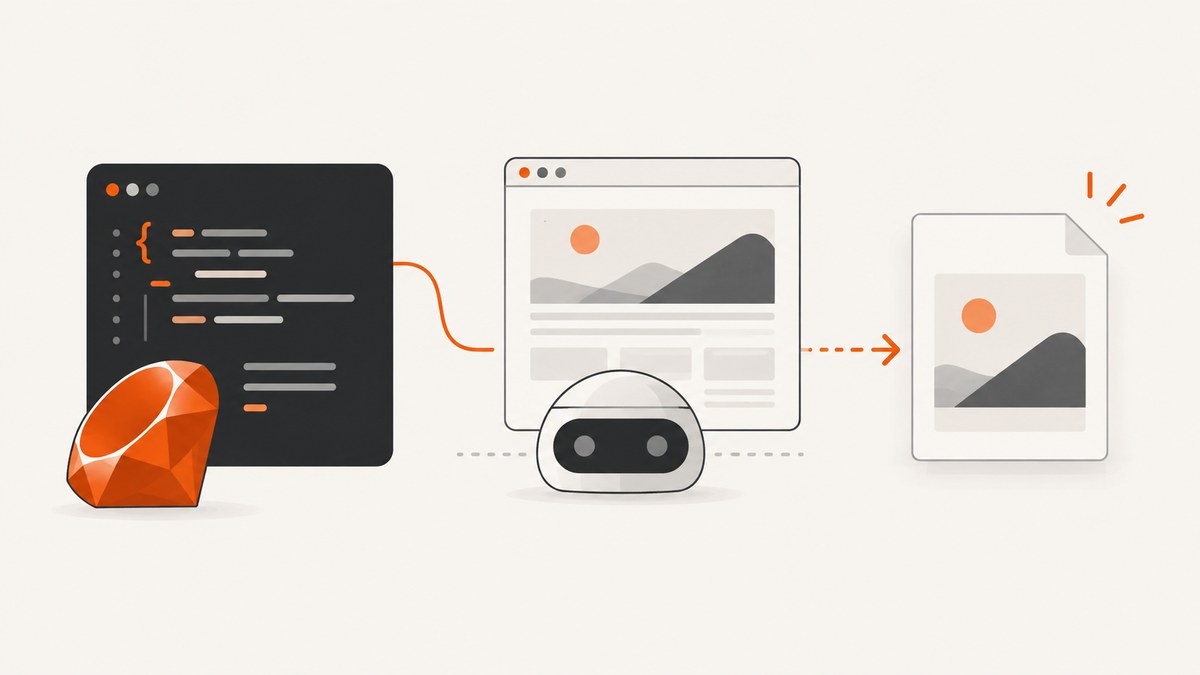
Short answer: use Ferrum when your Ruby process can run Chrome or Chromium. Ferrum controls the browser through the Chrome DevTools Protocol (CDP), so it can navigate to a URL, wait for content, and save a viewport or full-page screenshot. Use Cuprite when the same workflow needs to run through Capybara. Use a hosted renderer when installing and operating a browser is inconvenient.
This guide shows a complete Ruby implementation, including HTML strings, selector and full-page captures, waits, browser configuration, output formats, PDFs, failure handling, and deployment advice. At the end, ScreenshotNeo provides a managed option with one HTTP request.
1. Choose the rendering approach
| Approach | Best for | What you operate |
|---|---|---|
| Ferrum | Ruby scripts, jobs, and services that need browser control | Chrome or Chromium, its executable path, memory, and concurrency |
| Cuprite | Capybara system or feature tests | Ferrum plus the browser process; some Selenium conventions behave differently |
| Hosted HTML-to-image API | Serverless deployments or teams that do not want browser operations | HTTP authentication, request limits, data-handling decisions, and API errors |
Ferrum’s documentation covers PNG, JPEG/JPG, and WebP screenshots; viewport, full-page, selector, and rectangular-area captures; scaling; background colors; Base64 output; and a separate PDF method. Check the documentation for the Ferrum version you deploy because method options can change. A PDF is a document output, not an image screenshot.
2. Install Ferrum and make Chrome available
Add the gem to your application:
bundle add ferrum
Ferrum does not require Selenium, WebDriver, or ChromeDriver. It does require a Chrome or Chromium binary in PATH, or a configured browser path. On a local machine, verify the binary before debugging Ruby:
which google-chrome || which chromium || which chromium-browser
In a container, install a compatible browser package and its shared libraries, then run the process as the container user. If Chrome is installed outside PATH, pass its path when creating the browser:
require "ferrum"

browser = Ferrum::Browser.new(
  browser_path: "/usr/bin/google-chrome",
  window_size: [1440, 900]
)
3. Capture a website screenshot in Ruby
This is the smallest useful program. It opens a page and writes a PNG:

require "ferrum"

browser = Ferrum::Browser.new(window_size: [1440, 900])
browser.go_to("https://example.com")
browser.screenshot(path: "example.png")
ensure
  browser&.quit
Use an explicit begin/ensure block in production so a failed navigation does not leave browser processes behind:
require "ferrum"

browser = Ferrum::Browser.new(
  window_size: [1440, 900],
  timeout: 30
)

begin
  browser.go_to("https://example.com")
  browser.screenshot(path: "example.png", format: :png)
rescue Ferrum::TimeoutError => e
  warn "Page did not finish in time: #{e.message}"
  exit 1
ensure
  browser.quit
end
The URL can be any page the browser can reach. For authenticated or private pages, configure cookies or headers in Ferrum, while remembering that credentials can appear in logs or captured artifacts if you log requests carelessly.
4. Wait for JavaScript and lazy content
A screenshot taken immediately after navigation can contain a loading state. Prefer a deterministic readiness condition over a long fixed sleep. Ferrum exposes browser and page APIs for waiting; the exact helper name depends on the version, so use the versioned API documentation when selecting a wait method.
require "ferrum"

browser = Ferrum::Browser.new(window_size: [1440, 900], timeout: 30)
begin
  browser.go_to("https://example.com/dashboard")
  browser.at_css("main.dashboard")
  browser.screenshot(path: "dashboard.webp", format: :webp)
ensure
  browser.quit
end
For pages that load images only when they enter the viewport, scroll before capturing or use a full-page capture mode that triggers lazy content according to the browser library’s behavior. A fixed delay is useful for a known animation, but it increases every request and still may be too short on a slow page.
5. Viewport, full-page, selector, and area screenshots
Viewport screenshots
A viewport capture records what fits inside the configured browser window. Set the window size to the CSS pixel dimensions you need:
browser = Ferrum::Browser.new(window_size: [1280, 800])
browser.go_to("https://example.com")
browser.screenshot(path: "viewport.jpg", format: :jpeg, quality: 85)
Full-page screenshots
Use the full-page option when the output must include content below the fold:
browser.screenshot(path: "full-page.png", full: true)
Very tall pages can produce large images and consume substantial memory. Split long reports into sections, capture a selected container, or generate a PDF when a paginated document is the real requirement.
Capture one element
Selector capture is useful for cards, invoices, charts, or a component preview. The selector must match an element after JavaScript has rendered it:
browser.at_css("article.invoice")
browser.screenshot(path: "invoice.webp", selector: "article.invoice", format: :webp)
If your Ferrum version uses an element object rather than a selector argument, obtain the node with at_css and use that node’s screenshot method. Verify the signature in the versioned API docs.
Capture a rectangular area
For a fixed region, pass a rectangle with the x and y origin and its width and height, using the area option documented by your Ferrum version. Rectangles are sensitive to responsive layout changes; selector capture is generally more stable for application components.
6. Convert an HTML string to an image
Ferrum can render HTML by navigating to a data: URL. URL-encode the document so spaces, quotes, and non-ASCII characters survive navigation:
require "ferrum"
require "uri"

html = <<~HTML
  <!doctype html>
  <html>
    <head>
      <meta charset="utf-8">
      <style>
        body { margin: 0; font-family: sans-serif; }
        .card { width: 640px; padding: 32px; background: #f4f4f5; }
      </style>
    </head>
    <body><section class="card">Rendered from Ruby</section></body>
  </html>
HTML

browser = Ferrum::Browser.new(window_size: [800, 600])
begin
  browser.go_to("data:text/html;charset=utf-8,#{URI.encode_www_form_component(html)}")
  browser.screenshot(path: "html-card.png", selector: ".card")
ensure
  browser.quit
end
For larger documents, write a temporary HTML file and navigate to a file:// URL, or serve the document from an internal endpoint. Relative CSS, fonts, images, and JavaScript need a resolvable base URL. Inline assets as data URLs when you need a self-contained artifact.
7. Output formats, scale, and backgrounds
Choose PNG for lossless text and diagrams, JPEG for photographic pages where a smaller file is more important, and WebP when your consumers support it. Ferrum documents format-specific options such as JPEG quality, scale, and background color. Transparent output requires both a page whose background permits transparency and a screenshot configuration that does not paint an opaque background.
browser.screenshot(
  path: "hero.webp",
  format: :webp,
  quality: 82,
  scale: 2
)
A higher scale improves sharpness on retina displays but multiplies pixel count, memory use, encoding time, and output size. Keep the CSS viewport stable and change scale deliberately.
8. Generate a PDF instead of an image
Use Ferrum’s PDF method when the deliverable needs pages, margins, paper size, or print layout:
require "ferrum"

browser = Ferrum::Browser.new(window_size: [1280, 900])
begin
  browser.go_to("https://example.com/report")
  browser.pdf(
    path: "report.pdf",
    format: "A4",
    landscape: false,
    print_background: true
  )
ensure
  browser.quit
end
PDF page ranges, margins, headers, and footers vary by Ferrum version. Treat PDF and screenshot code as separate paths and verify print CSS with the browser you deploy.
9. Use Cuprite with Capybara
Cuprite is a pure Ruby Capybara driver built on Ferrum. Register it in a test suite, then use Capybara’s normal visit and screenshot flow:
require "capybara/rspec"
require "capybara/cuprite"

Capybara.register_driver(:cuprite) do |app|
  Capybara::Cuprite::Driver.new(
    app,
    window_size: [1440, 900],
    timeout: 30
  )
end

Capybara.default_driver = :cuprite

RSpec.describe "checkout", type: :feature do
  it "renders the confirmation" do
    visit "/checkout/confirmation"
    expect(page).to have_css(".confirmation")
    page.save_screenshot("tmp/confirmation.png", full: true)
  end
end
Cuprite’s README cautions that Selenium conventions can behave differently. Review driver-specific behavior before migrating an existing Selenium suite, especially around JavaScript execution, downloads, and browser options.
10. Or skip the browser setup
ScreenshotNeo is a managed website screenshot API and MCP server. Send one GET request and receive PNG, JPEG, WebP, or PDF output. The API documentation lists the options; common screenshot API parameter names also work, which helps when switching providers.

curl -G "https://api.screenshotneo.com/v1/shot" -d access_key=YOUR_API_KEY --data-urlencode url=https://stripe.com -o shot.webpimport requests
r = requests.get("https://api.screenshotneo.com/v1/shot", params={"access_key": "YOUR_API_KEY", "url": "https://stripe.com"}, timeout=90)
open("shot.webp", "wb").write(r.content)const q = new URLSearchParams({ access_key: 'YOUR_API_KEY', url: 'https://stripe.com' });
const res = await fetch(`https://api.screenshotneo.com/v1/shot?${q}`);In Ruby, the same endpoint works with the standard library:
require "net/http"
require "uri"

uri = URI("https://api.screenshotneo.com/v1/shot")
uri.query = URI.encode_www_form(access_key: ENV.fetch("SCREENSHOTNEO_KEY"), url: "https://stripe.com")
response = Net::HTTP.get_response(uri)
unless response.is_a?(Net::HTTPSuccess)
  abort "Screenshot failed: #{response.code} #{response.message}"
end
File.binwrite("shot.webp", response.body)
ScreenshotNeo can load lazy images, capture selectors, set device or viewport settings, use dark mode and retina scale, inject CSS or JavaScript, click elements, wait for a selector, delay, or network idle, hide selectors, block ads, trackers, requests, or resource types, provide headers, cookies, a user agent, Authorization, timezone, and geolocation, resize images, cache with a chosen TTL, create signed public image links, run asynchronous jobs with signed webhooks, capture up to 100 URLs in one call, and expose usage data. It also supports HTML/CSS to image and PDF options including paper size, margins, landscape, and page ranges.
Before capture, it accepts cookie or consent banners like a visitor and removes more than 60 known consent platforms, newsletter popups, and chat widgets; each step can be disabled. Bot checks or CAPTCHAs, blank pages, timeouts, failed loads, and cache hits cost nothing, and the response identifies the result with X-Page-Verdict and X-Billed headers. Its MCP server exposes take_screenshot, get_page_info, and capture_pdf for Claude, Cursor, and other MCP clients.
The free plan includes 1,000 shots per month without a card. Paid plans start at $5 for 3,000 shots; yearly billing gives two months free, and every feature is available on every plan. Create a free ScreenshotNeo account.
11. Troubleshooting checklist
| Symptom | Likely cause | Fix |
|---|---|---|
| Browser executable not found | Chrome is absent or not in PATH |
Install Chrome/Chromium or pass browser_path. |
| Timeout during navigation | Slow server, never-ending requests, or a blocked resource | Set a bounded timeout, wait for a specific selector, block unnecessary resources, and record the URL. |
| Blank or half-rendered image | Screenshot ran before JavaScript or fonts finished | Wait for a stable selector, add a short targeted delay, and ensure assets are reachable from the browser. |
| Element selector fails | The element is inside an iframe, shadow root, or not yet mounted | Wait for it, switch into the frame when supported, or expose a stable outer container. |
| Fonts or images differ in production | Different OS fonts, network access, or relative asset URLs | Install required fonts, use absolute or inline assets, and keep rendering environments consistent. |
| Chrome crashes under load | Too many concurrent browsers or very large pages | Bound concurrency, reuse a controlled pool, reduce scale, and capture sections instead of enormous pages. |
| Capybara tests fail after migration | Cuprite and Selenium do not share every behavior | Read Cuprite’s compatibility notes and update driver-specific waits and capabilities. |
12. Performance, reliability, and cost
- Reuse carefully: starting Chrome for every URL adds process overhead. A worker can reuse a browser, but clear cookies, local storage, pages, and injected state between jobs.
- Bound concurrency: each browser tab consumes CPU and memory. Measure your own pages instead of assuming a fixed throughput.
- Reduce work: block analytics, advertisements, video, and unneeded fonts when they do not belong in the image. Avoid an unnecessarily high retina scale.
- Make retries safe: retry transient navigation failures with a limit and backoff. Do not retry indefinitely when a page consistently returns a bot check or an application error.
- Observe outputs: save the target URL, viewport, browser version, elapsed time, and error class alongside the artifact. This makes visual changes diagnosable.
- Budget hosted rendering: compare request pricing, image bytes, caching, data handling, latency, and limits from the current provider terms. The Ferrum and Cuprite documentation does not establish hosted-service pricing, uptime, or comparative performance.
13. FAQ
Can Ruby capture a page without Selenium?
Yes. Ferrum communicates with Chrome or Chromium through CDP and does not require Selenium, WebDriver, or ChromeDriver.
Should I use PNG or WebP?
Use PNG for crisp text and lossless diagrams. Use WebP when smaller files are useful and your consumer supports it. JPEG is suitable for photographic pages.
Is a PDF the same as a full-page screenshot?
No. A screenshot is a raster image. A PDF uses print pagination and document settings such as paper size and margins.
How do I capture a page behind a login?
Open the page in a browser context with the required cookies or headers, then wait for a post-login selector before capturing. Keep credentials out of URLs and artifact logs.
When is a hosted API preferable?
Choose one when browser installation, patching, concurrency, and deployment size are larger problems than adding an HTTP dependency. For a Ruby service, compare the API’s authentication, limits, output options, and data policy with operating Ferrum yourself.


