How to Run Different Browsers in Headless Mode with Selenium Python
Configure Chrome, Edge and Firefox headless mode in Selenium Python, with setup steps, options, troubleshooting and production tips.
Direct answer: create the options object for the browser you want, add that browser’s headless launch argument, and pass the options object to the matching Selenium WebDriver constructor. Use --headless=new for current Chromium-based Chrome and Edge, and -headless for Firefox.
Headless mode runs the browser without displaying a window. Selenium still loads pages, executes JavaScript, manages cookies and interacts with the DOM, so your test or automation code remains almost the same. The important difference is that launch configuration is browser-specific.
1. What headless mode changes
A headless browser has no visible desktop window. It is useful on CI runners, containers, remote servers and scheduled jobs where no graphical session exists. It does not automatically make a page faster, make selectors reliable or bypass bot protection. Viewport size, browser version, fonts, permissions, network conditions and page timing can still affect results.
Configure headless mode before creating the driver. Selenium’s current Python API uses options.add_argument(); older examples that set options.headless = True are obsolete because Selenium deprecated that convenience setter in 4.8.0 and removed it in 4.10.0. See the Selenium headless guidance and the options API reference.
2. Install Selenium and check browser support
python -m pip install -U seleniumThe current Selenium Python API documents Python 3.10+ and support for Chrome, Edge, Firefox, Safari, WebKitGTK and WPEWebKit. Selenium Manager generally obtains a compatible driver for supported browsers, so a new project normally does not need a separate driver-manager package. Read the Selenium Python API documentation for version details.
Install the browser you intend to automate and keep it updated. On Windows, Selenium Manager’s automatic Edge installation requires administrator permissions; an ordinary user session may need Edge installed already or a manually managed driver. See the Selenium Manager documentation.
3. Complete runnable examples for Chrome, Edge and Firefox
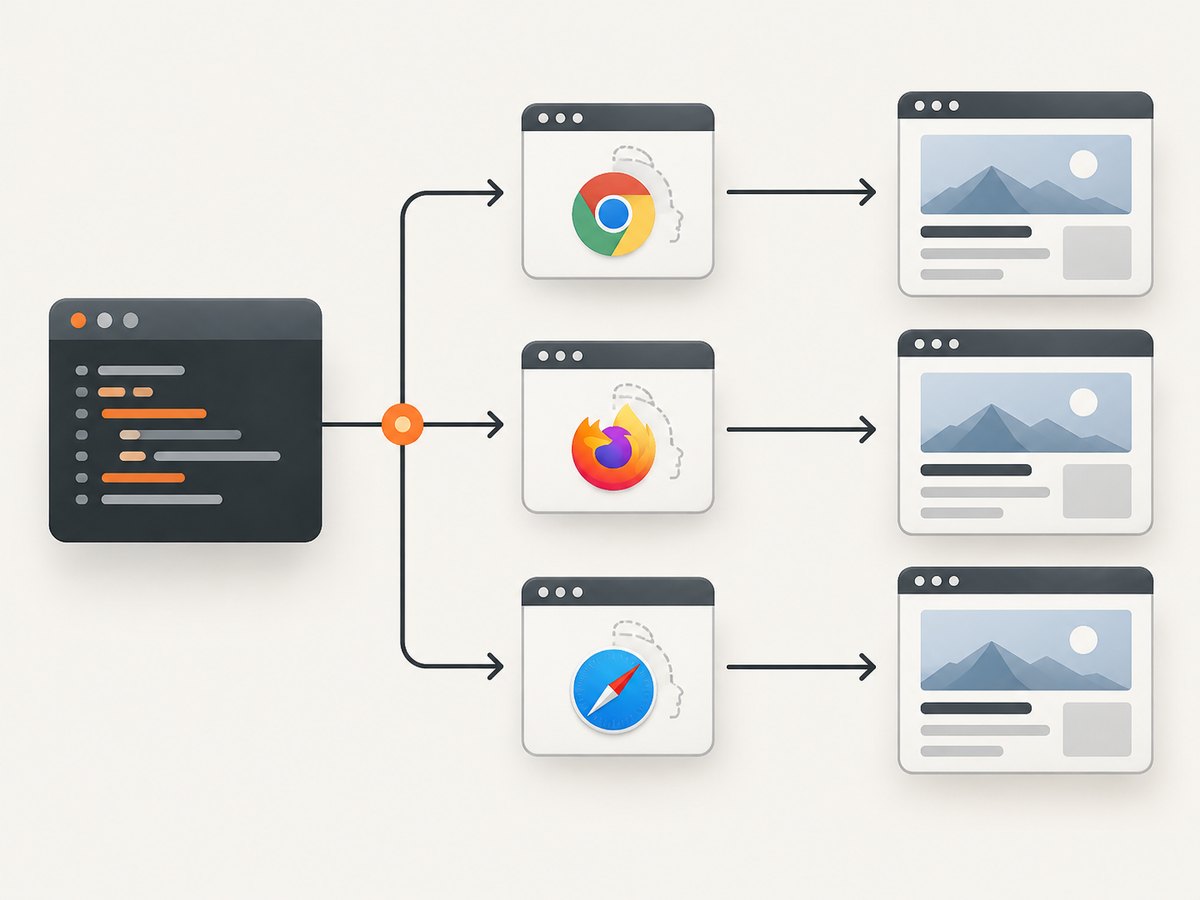
The following script starts each browser without opening a visible window, visits a page, prints its title, and always quits the driver.
from selenium import webdriver
from selenium.webdriver.chrome.options import Options as ChromeOptions
from selenium.webdriver.edge.options import Options as EdgeOptions
from selenium.webdriver.firefox.options import Options as FirefoxOptions


def run_chrome():
    options = ChromeOptions()
    options.add_argument("--headless=new")
    driver = webdriver.Chrome(options=options)
    try:
        driver.get("https://example.com")
        print("Chrome:", driver.title)
    finally:
        driver.quit()


def run_edge():
    options = EdgeOptions()
    options.add_argument("--headless=new")
    driver = webdriver.Edge(options=options)
    try:
        driver.get("https://example.com")
        print("Edge:", driver.title)
    finally:
        driver.quit()


def run_firefox():
    options = FirefoxOptions()
    options.add_argument("-headless")
    driver = webdriver.Firefox(options=options)
    try:
        driver.get("https://example.com")
        print("Firefox:", driver.title)
    finally:
        driver.quit()


if __name__ == "__main__":
    run_chrome()
    run_edge()
    run_firefox()
Chrome and Edge use Chromium’s newer headless implementation. Firefox’s Selenium guide documents the -headless argument; its setup also requires Firefox 78 or later and recommends the latest geckodriver. See Firefox-specific Selenium functionality.
Run one browser selected at runtime
import argparse
from selenium import webdriver
from selenium.webdriver.chrome.options import Options as ChromeOptions
from selenium.webdriver.edge.options import Options as EdgeOptions
from selenium.webdriver.firefox.options import Options as FirefoxOptions


def create_driver(name: str):
    if name == "chrome":
        options = ChromeOptions()
        options.add_argument("--headless=new")
        return webdriver.Chrome(options=options)
    if name == "edge":
        options = EdgeOptions()
        options.add_argument("--headless=new")
        return webdriver.Edge(options=options)
    if name == "firefox":
        options = FirefoxOptions()
        options.add_argument("-headless")
        return webdriver.Firefox(options=options)
    raise ValueError(f"Unsupported browser: {name}")


parser = argparse.ArgumentParser()
parser.add_argument("browser", choices=["chrome", "edge", "firefox"])
args = parser.parse_args()

driver = create_driver(args.browser)
try:
    driver.get("https://example.com")
    print(driver.title)
finally:
    driver.quit()
Run it with python headless.py chrome, python headless.py edge or python headless.py firefox.
4. Options you commonly need in headless jobs
Set a deterministic viewport
options.add_argument("--window-size=1440,1000")  # Chrome or Edge
# After creating a Firefox driver:
driver.set_window_size(1440, 1000)
Headless defaults can differ from a local headed session. Set the viewport explicitly when layout, screenshots or responsive breakpoints matter.
Use a device scale factor for Chrome or Edge
options.add_argument("--force-device-scale-factor=1")Use a consistent scale factor when pixel dimensions must be repeatable. Verify the resulting image dimensions in your own environment.
Run in a Linux container
options.add_argument("--disable-dev-shm-usage")This makes Chromium use a location outside the container’s small shared-memory mount. Increase the container’s shared memory instead when you control the runtime. Add --no-sandbox only when your container security model requires it and you understand the trade-off; it is not a general Selenium requirement.
Collect a screenshot or page source for diagnosis
driver.save_screenshot("debug.png")
with open("debug.html", "w", encoding="utf-8") as file:
    file.write(driver.page_source)
Set a page-load timeout
driver.set_page_load_timeout(45)
driver.get("https://example.com")
A timeout prevents one unresponsive navigation from holding a worker indefinitely. Use explicit waits for elements instead of relying only on a fixed sleep.
Wait for an element instead of guessing a delay
from selenium.webdriver.common.by import By
from selenium.webdriver.support import expected_conditions as EC
from selenium.webdriver.support.ui import WebDriverWait

wait = WebDriverWait(driver, 20)
heading = wait.until(EC.visibility_of_element_located((By.CSS_SELECTOR, "h1")))
print(heading.text)
5. Browser-specific details and limits
| Browser | Options class | Headless argument | Notes |
|---|---|---|---|
| Chrome | ChromeOptions |
--headless=new |
Chromium’s newer headless mode; check current Chrome release behavior when maintaining long-lived examples. |
| Edge | EdgeOptions |
--headless=new |
Edge options inherit Chromium options. Selenium Manager may need administrator permissions to install Edge on Windows. |
| Firefox | FirefoxOptions |
-headless |
Use Firefox 78 or later and a current geckodriver. |
| Safari | SafariOptions |
Not established here | Safari is a supported Selenium browser, but this guide does not claim a supported Safari headless switch. Verify the exact macOS and Safari version in Apple’s WebKit documentation before depending on it. |
| Internet Explorer | Legacy IE driver | Do not use as a current target | Selenium ended official standalone Internet Explorer support in June 2022. The remaining driver use case is Edge IE Compatibility Mode. |
Safari appears in Selenium’s supported browser list, but supported WebDriver automation does not by itself confirm headless support. Treat Safari as a separate platform decision. Standalone IE is legacy; see Selenium’s IE documentation.
6. Reliable waits and page behavior in headless mode
- Wait for a state you need: visibility, clickability, a URL change or a specific DOM property.
- Use a stable viewport and timezone when responsive content or date formatting affects assertions.
- Scroll lazy-loaded content into view before asserting that it exists.
- Do not assume headless and headed rendering are pixel-identical. Compare with the same browser build, fonts, viewport and device scale factor.
- Capture browser console or driver logs in CI when a page behaves differently from a workstation.
- Always call
quit()in afinallyblock so a failed test does not leak browser processes.
7. Troubleshooting common errors
Unable to obtain driver or driver-version mismatch
Cause: Selenium Manager cannot find or download a compatible driver, the browser is missing, or a restricted CI network blocks downloads.
Fix: install the browser, upgrade Selenium, check the browser version, permit the required driver download, or provide a compatible driver through your deployment process. On Windows, run Edge installation with the permissions Selenium Manager requires.
DevToolsActivePort file doesn't exist (Chromium)
Cause: Chromium exited during startup, often because of insufficient shared memory, an invalid profile, or incompatible launch flags.
Fix: use a writable temporary profile, increase container shared memory or add --disable-dev-shm-usage, remove stale experimental flags, and inspect the driver log. Avoid sharing one browser profile between concurrent workers.
The page is blank or elements cannot be located
Cause: the page has not finished rendering, content is inside an iframe or shadow DOM, a consent layer blocks interaction, or headless viewport differences select another responsive layout.
Fix: wait for a meaningful element, switch into the correct iframe, inspect shadow roots with the site’s supported DOM structure, set the viewport explicitly, and save a debug screenshot and HTML. A fixed time.sleep() can hide the timing problem but is less reliable than an explicit wait.
Clicks fail with ElementClickInterceptedException
Cause: an overlay, animation or sticky header covers the target.
Fix: wait for the overlay to disappear, scroll the element into view, wait for clickability, or close the overlay through the same user-visible control a real visitor would use.
Firefox starts locally but not in CI
Cause: Firefox or geckodriver is absent, the versions are incompatible, or the CI user lacks a writable profile directory.
Fix: install Firefox 78 or later and a current geckodriver, use -headless, verify executable permissions, and provide a writable temporary directory.
Headless output differs from headed output
Cause: different browser builds, viewport sizes, fonts, GPU paths, permissions, locale or timing.
Fix: pin the browser image where repeatability matters, set viewport and locale-related settings deliberately, wait for the same page state, and compare diagnostic artifacts from both modes.
8. Performance, reliability and cost considerations
Headless mode removes window rendering, but page load time is still dominated by DNS, network requests, JavaScript execution, fonts and third-party resources. Measure your own pages rather than assuming a fixed speed improvement.
- Reuse carefully: keeping one driver alive avoids startup cost, but reset cookies, local storage and application state between jobs. Use isolated profiles for parallel workers.
- Limit concurrency: each browser consumes CPU, memory and file descriptors. Increase workers gradually and monitor the host.
- Control failures: set navigation and explicit-wait timeouts, retry transient network failures with a limit, and preserve screenshots, HTML and logs for failed cases.
- Keep versions aligned: browser updates can change rendering and headless behavior. Upgrade deliberately and run a small cross-browser smoke suite.
- Cost: Selenium itself is open-source software, but hosted CI, virtual machines, browser infrastructure and network traffic can add cost. A managed screenshot API may be simpler when you only need an image or PDF rather than interactive automation.
9. Or skip the browser setup
If your goal is a clean screenshot or PDF rather than interactive browser automation, ScreenshotNeo provides a single GET request to capture a URL. Its service accepts cookie and consent banners like a visitor, then removes more than 60 known consent platforms, newsletter popups and chat widgets before capture; each cleanup step can be disabled.
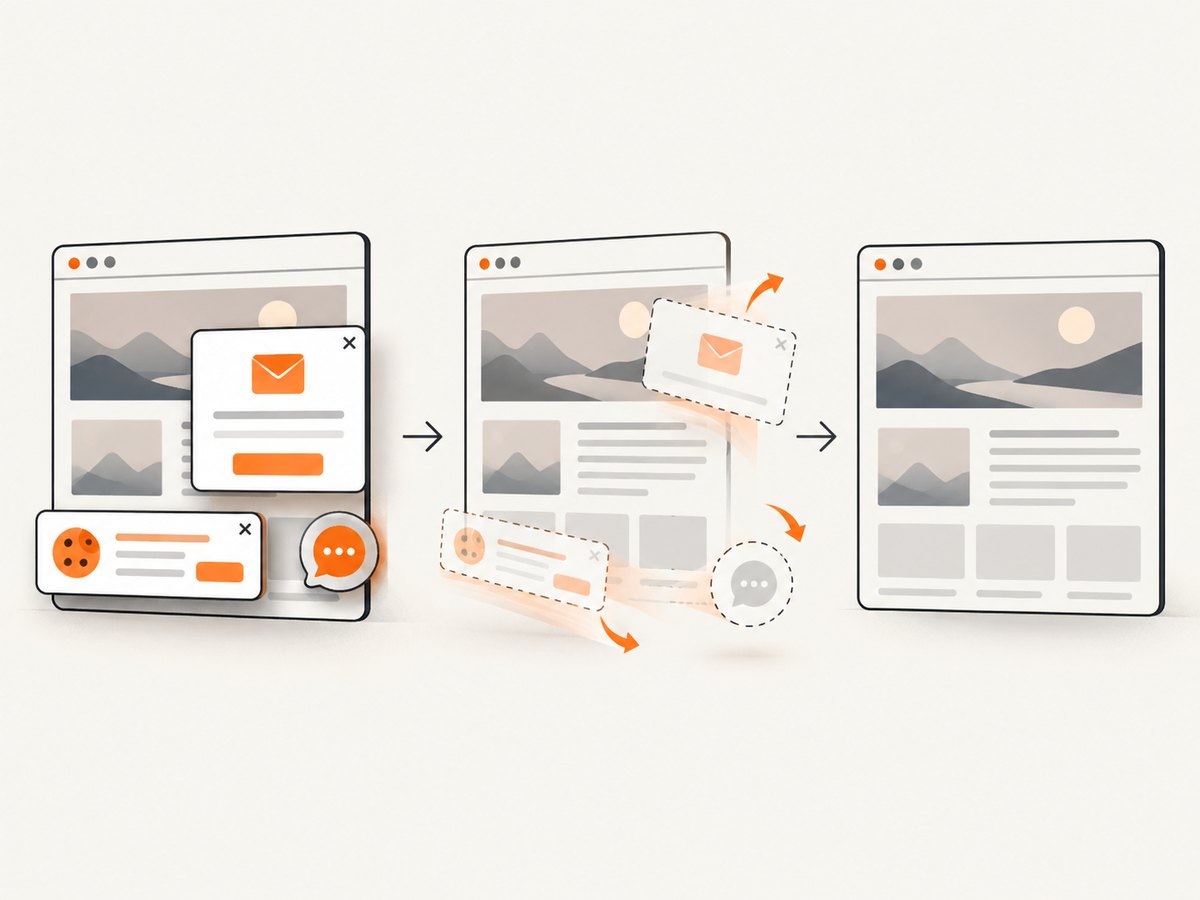
Only clean shots are billed. Bot checks and CAPTCHAs, blank pages, timeouts, failed loads and cache hits cost nothing, and each response identifies the result with X-Page-Verdict and X-Billed headers. ScreenshotNeo also provides an MCP server for Claude, Cursor and other MCP clients, with take_screenshot, get_page_info and capture_pdf tools.
See the ScreenshotNeo API documentation for all options. This one-call example returns WebP data:
curl -G "https://api.screenshotneo.com/v1/shot" -d access_key=YOUR_API_KEY --data-urlencode url=https://stripe.com -o shot.webpimport requests
r = requests.get(
"https://api.screenshotneo.com/v1/shot",
params={"access_key": "YOUR_API_KEY", "url": "https://stripe.com"},
timeout=90,
)
r.raise_for_status()
open("shot.webp", "wb").write(r.content)const q = new URLSearchParams({ access_key: 'YOUR_API_KEY', url: 'https://stripe.com' });
const res = await fetch(`https://api.screenshotneo.com/v1/shot?${q}`);
if (!res.ok) throw new Error(`HTTP ${res.status}`);
const bytes = new Uint8Array(await res.arrayBuffer());
await Bun.write('shot.webp', bytes);Features include full-page capture with lazy images loaded, element capture by CSS selector, dark mode, device presets and custom viewports, retina scale, PDF paper settings and page ranges, HTML/CSS rendering, custom CSS and JavaScript, clicks, selector waits, delays, network-idle waits, request blocking, headers, cookies, user agents, authorization, timezone, geolocation, transparent backgrounds, resizing, TTL caching, signed links, asynchronous jobs with signed webhooks, bulk capture for up to 100 URLs per call, a usage API and an OpenAPI specification. Parameter names used by other screenshot APIs also work to ease switching.
Free accounts include 1,000 screenshots per month with no card. Paid plans start at $5 for 3,000 shots; every feature is available on every plan. Create a free ScreenshotNeo account.
10. FAQ
Can I use options.headless = True?
Do not use that older convenience setter in new code. Add the browser argument with options.add_argument().
Which argument should Chrome use?
Use --headless=new for current Chromium-based Chrome examples, while checking current Chrome release documentation when maintaining a long-lived project.
Is Edge configured like Chrome?
Yes. Create EdgeOptions, add --headless=new, and pass it to webdriver.Edge.
Does headless mode hide a browser from bot detection?
No. Headless only changes whether a window is displayed. Sites can use many other signals, and you should follow their terms and access policies.
Can Selenium run Safari headlessly?
This guide does not confirm a supported Safari headless argument. Safari is a supported Selenium browser, but verify the exact platform and version before designing a headless workflow around it.
Do I need to install ChromeDriver or GeckoDriver manually?
Selenium Manager handles much routine driver setup on supported platforms. Restricted networks, pinned browser images and unusual deployments may still require you to manage browser and driver binaries explicitly.


