How to Run Chrome Extensions in the Cloud
Run extensions in headless Chromium for automated tests, or use a streamed desktop when the extension needs visible browser UI. Here’s how to choose, install, test, and troubleshoot both.
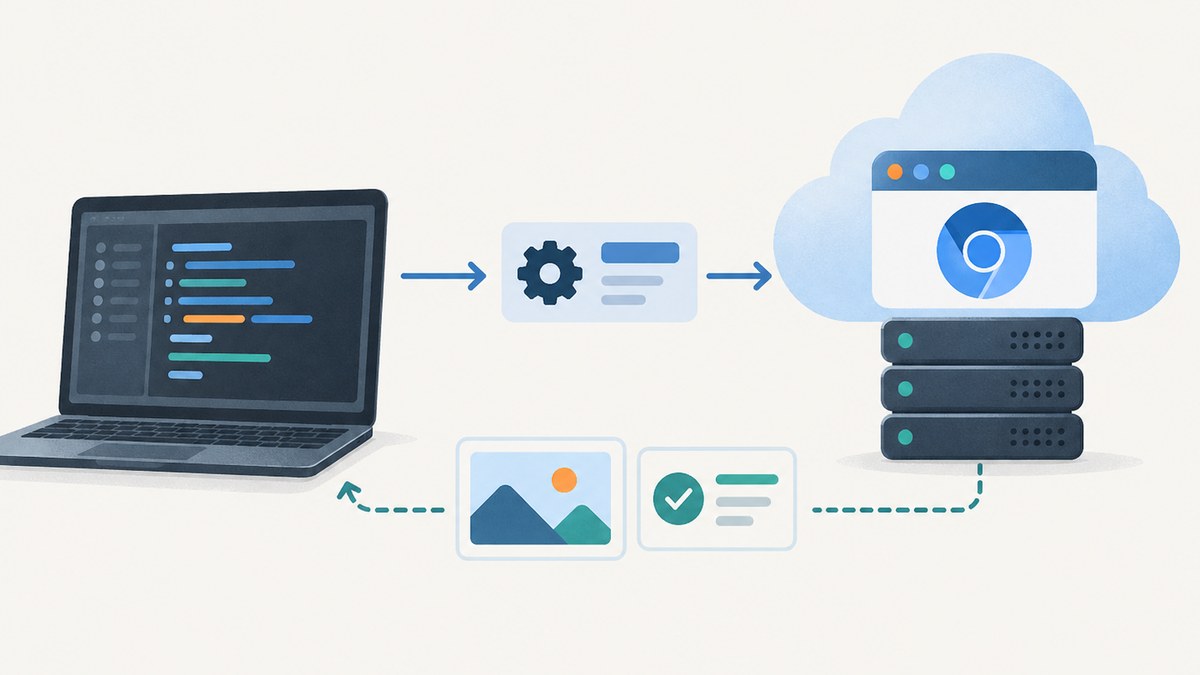
To run a Chrome extension in the cloud, choose the browser environment based on what it needs to do. Use headless Chromium for automated tests and browser tasks that can be controlled through code. Use a full desktop operating system with a streamed display when the extension depends on visible browser UI, drag-and-drop, file dialogs, or other desktop interactions. For a managed remote-browser environment, install the extension inside the remote browser; a locally installed extension cannot read or change a page that runs remotely.
For development and CI, package the extension, pin the browser version, load the unpacked extension from an absolute path, and test both its page behavior and its extension pages. For production use, choose a controlled installation method and check the browser’s enterprise policies. Google Cloud documents both headless and desktop approaches, while Chrome documents extension testing and the new headless mode. Google Cloud’s browser and OS automation guide · Chrome’s Puppeteer extension testing guide
1. Choose the right cloud execution model
Start by listing the extension capabilities your task actually uses. An extension that modifies a page’s DOM or adds a toolbar action may work in automated Chromium, but an extension that depends on a human selecting a file or dragging an item may need a visible desktop. The term “headless” describes how the browser is presented; it does not by itself prove that every extension API, permission, or interaction works in your target setup.
| Need | Recommended model | Trade-off |
|---|---|---|
| Repeatable tests, form flows, page inspection, screenshots, PDFs | Headless Chromium controlled by Puppeteer or another browser automation library | Simple to automate and fit into CI; no visible browser for manual interaction. |
| Toolbar/popup behavior that can be driven through automation | Chromium with the extension loaded, plus automated tests for extension pages and content scripts | Requires explicit extension setup and assertions; API availability can vary by browser version. |
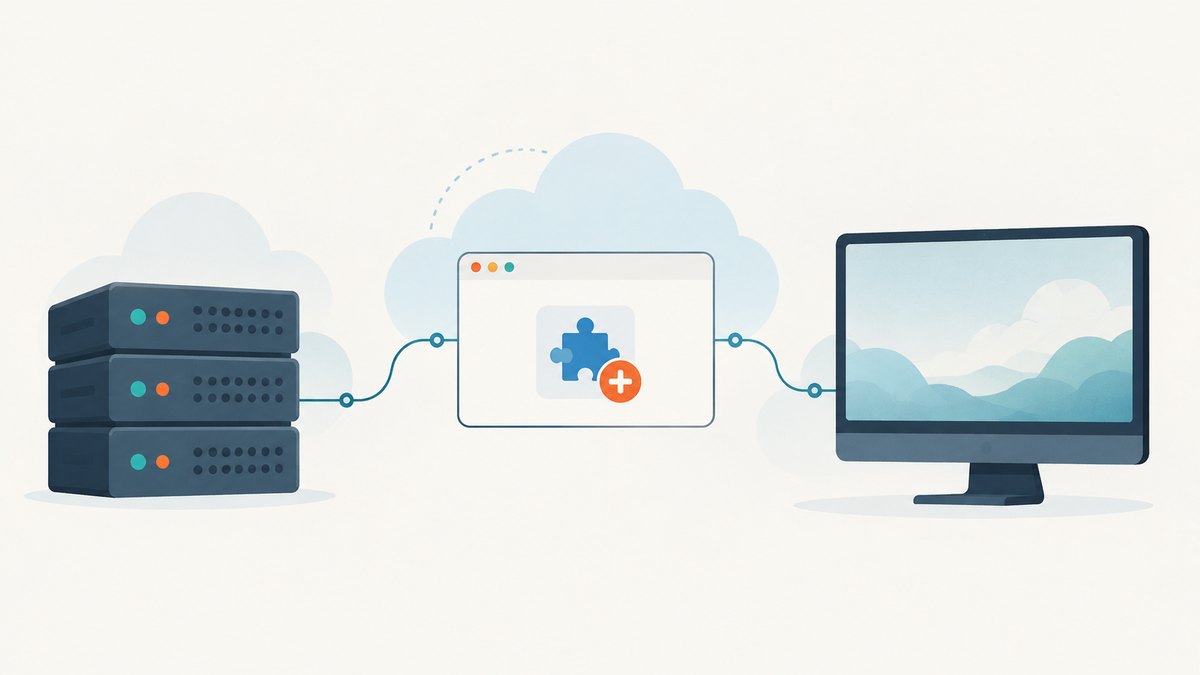
| Drag-and-drop, file dialogs, manual debugging, or desktop applications | Full desktop OS in a container with a streamed display, such as WebSocket or VNC-based access | More moving parts to operate and observe than a headless process. |
| Managed remote-browser isolation | Install the extension in the remote browser itself | Installation, policy, network access, browser version, and persistence are controlled by the provider. |
Google Cloud describes headless Chrome as an option for large-scale scraping, form submission, UI testing, and generating screenshots or PDFs. For extension interaction and other complex desktop processes, its guidance recommends a full desktop OS streamed through WebSockets. That distinction is practical: choose the smallest environment that supports the interaction you need. Google Cloud browser automation documentation
2. Prepare the extension and browser image
- Build the extension. Produce the same packaged files you intend to test or deploy. For local development, keep an unpacked directory containing
manifest.jsonand the extension’s scripts, assets, and pages. - Pin a Chrome or Chromium version. Use a known browser version in the container or runtime configuration. Record it in CI output so failures can be compared against the browser version that produced them.
- Use a stable absolute path. Mount or copy the unpacked extension to a predictable path such as
/app/extension. Automation APIs commonly need an absolute path, and a relative path can resolve differently in a container or CI working directory. - Install runtime dependencies. The container needs Chromium and the libraries it requires. The exact package list depends on the base image and browser build; use the browser vendor’s image guidance instead of assuming a package list transfers between Linux distributions.
- Keep secrets out of the extension bundle. Pass test credentials through the CI secret mechanism or environment, and avoid writing them into screenshots, logs, or artifacts.
For Manifest V3, extension logic must be included in the extension package. A remote JSON configuration or image can be data, but do not fetch JavaScript, WebAssembly, or another executable library and run it as extension logic. Chrome’s policy and migration material explains the remotely hosted code restriction and the difference between data and executable logic. Chrome’s Manifest V3 security guide
3. Test an unpacked extension with Puppeteer
The following Node.js example loads an unpacked extension, visits a page, and opens an extension page using its ID. Set EXTENSION_PATH to the absolute path in your container. Set EXTENSION_ID to the extension ID used by your build. The ID is stable for a packaged extension; for an unpacked build, obtain it from the browser or your development setup rather than assuming a value.
import puppeteer from 'puppeteer';

const extensionPath = process.env.EXTENSION_PATH;
const extensionId = process.env.EXTENSION_ID;
if (!extensionPath || !extensionId) {
  throw new Error('Set EXTENSION_PATH and EXTENSION_ID');
}

const browser = await puppeteer.launch({
  headless: 'new',
  pipe: true,
  enableExtensions: [extensionPath],
});

try {
  const page = await browser.newPage();
  await page.goto('https://example.com', { waitUntil: 'domcontentloaded' });
  console.log('Page title:', await page.title());

  // Exercise an extension page independently of the content script.
  const extensionPage = await browser.newPage();
  await extensionPage.goto(
    `chrome-extension://${extensionId}/index.html`,
    { waitUntil: 'domcontentloaded' },
  );
  console.log('Extension page:', await extensionPage.url());
} finally {
  await browser.close();
}
Install the dependency in the project with npm install puppeteer, save the snippet as an ES module such as run-extension.mjs, then run EXTENSION_PATH=/app/extension EXTENSION_ID=your_extension_id node run-extension.mjs. Use the current Puppeteer API supported by the version pinned in your project. Chrome’s extension testing walkthrough shows how to launch with an extension, wait for its service worker, and open its popup. Its example uses a visible browser during development and recommends new headless mode outside development. Puppeteer extension testing
Chrome’s new headless mode is the mode to use for extension tests that need a headless browser. Chrome documents that the old headless implementation does not support loading extensions. Chrome headless and extensions documentation
4. Cover the extension’s real behaviors
A browser starting successfully is only a smoke check. Test the interactions that matter to your users and to the extension’s permissions:
- Content scripts: load a page matching the extension’s host permissions and assert a visible or DOM change that proves the script ran.
- Extension pages: navigate directly to relevant
chrome-extension://<id>/...pages, such as options or settings pages, and assert their state. - Service workers: wait for the expected extension service worker before sending messages or opening a popup. Workers may start on demand, so avoid assuming one is already active at browser launch.
- Permissions: exercise a feature that requires each important permission. A manifest declaration alone does not prove the feature works in the runtime.
- Negative cases: test unsupported hosts, missing permissions, unavailable network services, and expired test sessions where relevant.
- Artifacts: on failure, save browser console output, extension logs, a screenshot, and the failing test details. These distinguish a broken extension from a browser startup or navigation failure.
Chrome lists Puppeteer, Playwright, Selenium, and WebDriverIO among compatible automation libraries. The extension setup APIs and launch options differ by library and version, so follow the library’s current extension-specific instructions rather than copying Puppeteer options into Playwright or Selenium. Chrome’s testing guide
5. Install in a managed remote browser
Remote browser isolation is different from running your own Chromium container. The page itself executes in a remote browser, so an extension installed only on your local computer cannot access that isolated page’s DOM. Cloudflare documents installing the extension inside the isolated browser instead:

- Configure the Chrome Web Store for isolation according to the remote-browser administrator’s instructions.
- Open
chromewebstore.google.cominside the isolated browser. - Choose the required extension, select Add to Chrome, and confirm with Add extension.
- Open an isolated page and verify that the extension can perform the intended action.
- Check persistence and policy behavior with the administrator. Cloudflare says remote-browser extensions are automatically reinstalled across isolated sessions.
Provider-managed browsers simplify some infrastructure work, but make the installation workflow, policy controls, network egress, browser version control, and extension compatibility provider-specific. Self-managed containers give you more control over the image and version; they also make you responsible for browser updates and runtime setup. These are operational differences, not universal guarantees about latency, cost, or compatibility. Cloudflare Browser Isolation extensions
6. When the extension needs a visible desktop
Use a desktop OS when the job requires visible browser chrome, an operating-system dialog, file selection, drag-and-drop, or a human to inspect and interact with the session. Run Chromium in that desktop and stream its display to the user or test operator. Google Cloud’s guide describes streaming desktop interaction through WebSockets and calls out extensions and other desktop applications as cases for a full OS.
Keep the browser profile and test data isolated between jobs if one session must not affect another. Decide deliberately whether downloads and profile state should persist: persistence can be useful for a continuing user session, while clean profiles make automated runs more repeatable. Capture the desktop stream or screenshots along with browser logs when diagnosing visual issues. Do not assume that the environment is deterministic just because the browser version is pinned; network content, timing, permissions, and extension background work can still vary.
7. Enterprise policies and Manifest V3
For organization-managed browsers, Chrome Enterprise administrators can allow or block extensions and configure installation sources, including the Chrome Web Store, extension IDs, or approved URLs. Check the applicable organization policy before designing an installation flow: a policy may prevent a user or test from installing an otherwise valid extension. Chrome Enterprise extension management
Manifest V3 also affects architecture. Bundle executable logic and libraries with the extension. Use a remote service for server-side operations, or fetch configuration data whose possible effects are determined by the packaged code. Chrome’s guidance explains that remotely hosted code cannot be treated as an ordinary update mechanism for extension logic. Manifest V3 overview
8. Performance, reliability, and cost
No universal latency, concurrency, or cost figure applies to cloud extension execution. Measure your actual extension, browser image, target sites, and cloud runtime; published benchmark figures were not identified in the research for this guide. Headless execution avoids streaming a desktop when the task is fully automatable, while a desktop session adds the display and interaction path. That does not establish a particular savings or speedup.
- Performance: pin the browser, avoid unnecessary pages and browser contexts, and wait for the specific condition your test needs instead of using a long fixed sleep. Track startup and navigation time in your own environment.
- Reliability: use explicit timeouts, retry only transient failures, and preserve logs and screenshots. A retry should start from a known profile state if the test depends on clean state.
- Isolation: separate user sessions and test jobs where cookies, extension storage, or local profile state could cross-contaminate results.
- Cost: account for browser CPU and memory, desktop streaming infrastructure when used, storage for artifacts, and the cloud provider’s billing model. Estimate from measured resource use and expected job volume rather than an invented per-session price.
- Security: limit network access and secrets to what the job needs. Treat extension permissions and the pages it can read as part of the trust boundary.
9. Troubleshooting
| Symptom | Likely cause | Fix |
|---|---|---|
| Extension does not appear in headless Chrome | Old headless mode, unsupported launch configuration, or incorrect extension path | Use Chrome’s new headless mode, check the pinned Puppeteer/browser version, and pass the absolute unpacked-extension path using the library’s supported option. |
| “Extension not found” or extension page fails | Wrong extension ID, page path, or failed installation | Confirm the ID from the running browser and that the requested HTML file exists in the packaged extension. |
| Content script does not change the page | URL does not match host permissions, permission is missing, or the script has not run yet | Use a test URL covered by the manifest, grant the required permission, wait for the relevant event, and inspect console output. |
| Popup or service worker test times out | Test assumes the worker starts immediately or matches the wrong worker/page | Wait for a target matching the extension’s actual service worker or popup URL, and ensure the test action triggers the worker. |
| Works locally, fails in CI | Different browser version, missing Linux runtime dependency, path, display, or policy difference | Print browser and library versions, use a stable absolute path, install runtime dependencies in the image, and reproduce with the same image and flags. |
| Extension cannot affect an isolated page | Extension is installed locally while the page runs in a remote browser | Install and authorize it inside the remote browser, following the provider’s store-isolation and policy steps. |
| Manifest V3 review or runtime flags remote code | Extension fetches and executes code from a server or CDN | Bundle executable logic, or move the operation to a remote service; use remote data only as configuration interpreted by packaged logic. |
| Behavior differs between runs | Network timing, stale profile state, dynamic content, or asynchronous extension work | Use a clean profile where appropriate, wait for a meaningful condition, record artifacts, and isolate the flaky dependency. |
10. Or skip the browser setup
If the task is to capture a website page rather than operate a Chrome extension, ScreenshotNeo provides a website screenshot API and MCP server. It does not run your extension; it returns a screenshot or PDF of a URL. See the ScreenshotNeo API documentation.
curl -G "https://api.screenshotneo.com/v1/shot" -d access_key=YOUR_API_KEY --data-urlencode url=https://stripe.com -o shot.webpCookie banners, popups, and chat widgets are removed before the shot. Bot checks, blank pages, and failed loads are never billed. Its MCP server lets AI agents take screenshots. The free plan includes 1,000 screenshots a month with no card; paid plans start at $5 for 3,000.
Sign up free for 1,000 screenshots a month, no card required.
FAQ
Can I run a Chrome extension without a visible browser?
Yes, use Chrome’s new headless mode with an extension-capable automation setup. Validate the APIs and interactions your specific extension needs; headless support alone does not guarantee compatibility with every workflow.
Can my local extension work with a remote browser tab?
Not if the page is isolated and running remotely. Install the extension in that remote browser so it can access the remote page.
Can Manifest V3 extensions download code when they start?
They can retrieve data such as configuration, but extension logic must be packaged. Do not fetch executable code and run it as extension logic.
Should CI reuse one browser for every test?
Reusing a browser can reduce setup but also allows state to leak between tests. Choose based on the isolation your suite needs, and make profile and storage behavior explicit.


