How to Run Chrome Headless on Google Cloud Run
Deploy Puppeteer or Playwright with Chromium on Cloud Run, configure sandboxing, concurrency, timeouts, and troubleshoot common failures.
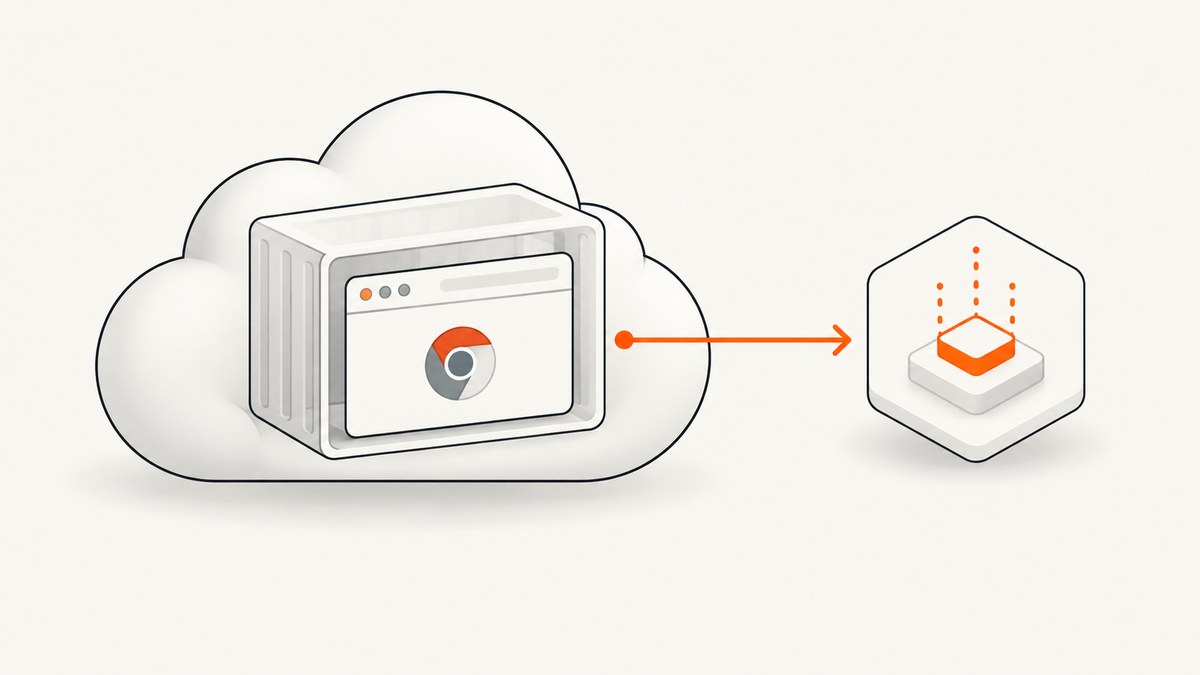
Direct answer: package Chromium and its Linux dependencies in a container, expose an HTTP endpoint, and launch Chrome with Puppeteer, Playwright, or the Chrome DevTools Protocol (CDP). Deploy that image to Google Cloud Run with enough memory and a request timeout that covers browser startup and page work. Close every page and browser, and keep concurrency bounded.
Cloud Run does not include the system packages that Headless Chrome needs in its default Node.js runtime, so use a custom Dockerfile or a complete browser image. Cloud Run accepts Linux 64-bit OCI and Docker images; choose an execution generation and base image that match your browser build. See the Cloud Run container contract.
1. Choose Puppeteer, Playwright, or CDP
| Option | Use it when | Trade-offs |
|---|---|---|
| Puppeteer | You need a focused Chromium API and familiar page automation. | Chrome-focused; official image includes Chrome for Testing and dependencies. |
| Playwright | You may need Chromium, Firefox, WebKit, Chrome, or Edge. | Larger browser distribution and more browser choices. |
| CDP | You want direct control of a Chrome instance. | Lower-level protocol work and more lifecycle code. |
Google documents all three control layers for headless Chrome workloads, including screenshots, PDFs, scraping, extraction, form submissions, and UI tests.
2. Build a minimal Puppeteer service
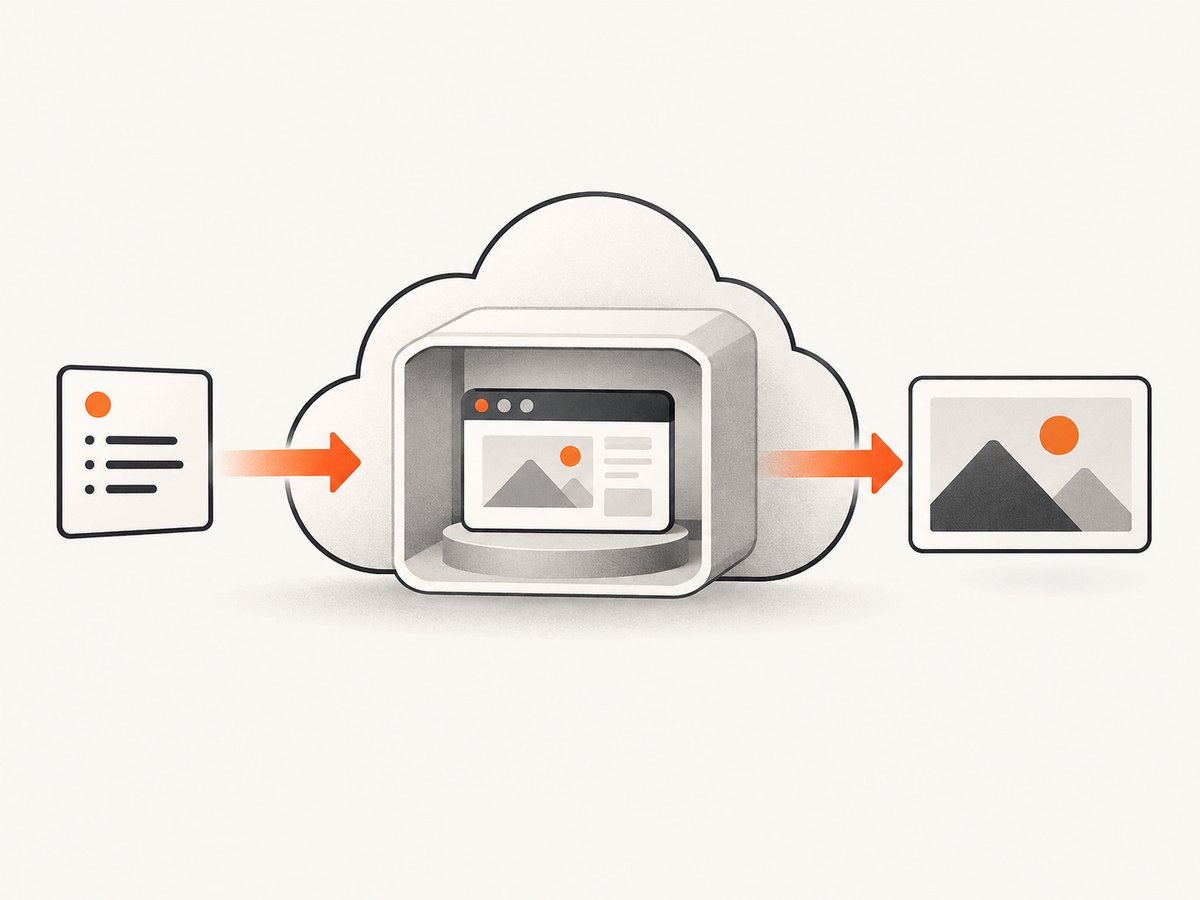
The following service accepts a URL and returns a PNG screenshot. It validates the URL, waits for the page to load, and always closes the page.
server.js
const express = require('express');
const puppeteer = require('puppeteer');

const app = express();
const port = process.env.PORT || 8080;
let browserPromise;

function getBrowser() {
  if (!browserPromise) {
    browserPromise = puppeteer.launch({
      headless: 'new',
      args: [
        '--disable-dev-shm-usage',
        '--no-sandbox',
        '--disable-setuid-sandbox'
      ]
    });
  }
  return browserPromise;
}

app.get('/screenshot', async (req, res) => {
  const target = req.query.url;
  if (!target) return res.status(400).json({error: 'url is required'});

  let parsed;
  try {
    parsed = new URL(target);
    if (!['http:', 'https:'].includes(parsed.protocol)) throw new Error('unsupported protocol');
  } catch {
    return res.status(400).json({error: 'url must be an http or https URL'});
  }

  let page;
  try {
    const browser = await getBrowser();
    page = await browser.newPage();
    await page.setViewport({width: 1440, height: 900, deviceScaleFactor: 1});
    await page.goto(parsed.href, {waitUntil: 'networkidle2', timeout: 30000});
    const image = await page.screenshot({type: 'png', fullPage: true});
    res.set('Content-Type', 'image/png').send(image);
  } catch (error) {
    console.error(error);
    res.status(502).json({error: 'capture failed'});
  } finally {
    if (page) await page.close().catch(() => {});
  }
});

app.get('/healthz', (_req, res) => res.send('ok'));

app.listen(port, () => console.log(`listening on ${port}`));
package.json
{
  "scripts": {"start": "node server.js"},
  "dependencies": {"express": "^4.18.3", "puppeteer": "^24.0.0"}
}
3. Containerize Chromium
Puppeteer’s official image contains Chrome for Testing, its required dependencies, and a compatible Puppeteer version. It also recommends an init process so child Chrome processes are reaped.
Dockerfile using the official Puppeteer image
FROM ghcr.io/puppeteer/puppeteer:latest

WORKDIR /app
COPY package*.json ./
RUN npm ci --omit=dev
COPY server.js ./

ENV NODE_ENV=production
ENV PUPPETEER_SKIP_DOWNLOAD=true
EXPOSE 8080
CMD ["node", "server.js"]
If you use a Debian or Ubuntu Node image instead, install Chromium, fonts, NSS, GTK, X11, and other shared libraries in the image and set Puppeteer’s executable path. The exact package list depends on the base distribution; missing one library commonly causes a launch error.
4. Deploy to Cloud Run
gcloud builds submit --tag REGION-docker.pkg.dev/PROJECT_ID/headless/chrome

gcloud run deploy headless-chrome \
  --image REGION-docker.pkg.dev/PROJECT_ID/headless/chrome \
  --region REGION \
  --platform managed \
  --allow-unauthenticated \
  --memory 1Gi \
  --cpu 1 \
  --timeout 120 \
  --concurrency 1
Replace PROJECT_ID and REGION. Keep the service private and require authentication when the endpoint should not be public. Set --concurrency according to memory and page complexity; one browser page per request is the safest starting point.
5. Call the service
curl -L "https://SERVICE_URL/screenshot?url=https%3A%2F%2Fexample.com" -o page.png6. Playwright alternative
Playwright supports Chromium, Firefox, WebKit, Google Chrome, and Microsoft Edge. Its Docker documentation describes official Microsoft images and the seccomp requirements for sandboxed Chromium.
const { chromium } = require('playwright');
const browser = await chromium.launch({headless: true});
const page = await browser.newPage({viewport: {width: 1440, height: 900}});
await page.goto('https://example.com', {waitUntil: 'networkidle', timeout: 30000});
await page.screenshot({path: 'page.png', fullPage: true});
await browser.close();
7. Browser and page configuration
- Viewport: set width, height, and device scale factor explicitly for reproducible screenshots.
- Wait strategy: use
domcontentloadedfor fast pages,loadwhen assets matter, or network idle only when the site actually becomes idle. - Timeouts: set navigation and action timeouts below the Cloud Run request timeout so you can return a useful error.
- Full page: use
fullPage: true; very long pages require more memory. - Authentication: inject cookies or headers only for resources you are authorized to access.
- Downloads: configure a writable temporary directory and clean files after each request.
- Fonts: install the language fonts your pages need; otherwise text can render as missing-glyph boxes.
- Extensions and drag-and-drop: these may require a fuller desktop environment. Google describes a desktop OS with VNC streaming as an alternative for complex desktop interactions.
8. Sandboxing and security
Chrome has layered sandboxing. --no-sandbox is a fallback when the container cannot provide a usable sandbox and should be limited to content you fully trust. Prefer a working sandbox and verify the Cloud Run execution environment and permissions. Sandboxed Chromium may require a seccomp profile that permits user-namespace operations.
Do not accept arbitrary URLs from untrusted users without SSRF controls. Block private address ranges, metadata endpoints, file URLs, and unexpected redirects. Apply authentication, rate limits, maximum response sizes, and per-request timeouts.
9. Cloud Run CPU, memory, and concurrency
- Memory: browser startup, multiple tabs, large DOMs, and full-page screenshots all consume memory. Increase memory when tabs are killed or the container is OOM-killed.
- CPU: one vCPU is a practical baseline. More CPU helps startup and rendering but does not fix blocked network requests.
- Concurrency: each concurrent page adds browser memory and CPU pressure. Start at one and raise it only after observing stable resource use.
- Timeout: include cold start, browser launch, navigation, rendering, and response upload. Cloud Run must finish request work before the response is sent.
- Background work: CPU may be suspended after a response. Puppeteer’s guidance reports apparent launches taking one to five minutes when work continues after the response with CPU not always allocated. Enable CPU always allocated for genuine background processing.
10. Reliability and cost controls
- Reuse one browser process per container, but create and close a fresh page per request.
- Recycle the browser after a bounded number of pages or after repeated crashes.
- Retry transient navigation failures with a small, capped backoff; do not retry invalid URLs or authentication failures.
- Record navigation duration, browser launch duration, HTTP status, timeout reason, and memory usage.
- Use Cloud Run min instances when cold-start latency matters, and cap max instances to control spend.
- Cache stable assets or results at your application layer when freshness permits.
11. Troubleshooting
| Symptom | Likely cause | Fix |
|---|---|---|
Failed to launch the browser process |
Missing shared libraries or incompatible executable. | Use the Puppeteer image or install Chromium and all required libraries in the Dockerfile. |
Running as root without --no-sandbox |
Container user cannot use the sandbox. | Run as a non-root user with a working sandbox; use --no-sandbox only for trusted content when unavoidable. |
| Browser launches locally but not on Cloud Run | Architecture, permissions, or base-image mismatch. | Build a Linux 64-bit image, verify the Cloud Run execution generation, and test the image locally with the same user. |
| Requests time out | Slow page, blocked third-party request, or overly strict wait condition. | Set navigation and action timeouts, choose a suitable wait strategy, and block unnecessary resources. |
| Container is killed | Insufficient memory or too much concurrency. | Increase memory, reduce concurrency, limit page size, and close pages in finally. |
| Blank or incomplete screenshot | Lazy content has not loaded or capture ran before the UI settled. | Scroll to trigger lazy loading, wait for a selector, or add a short bounded delay. |
| Slow work after HTTP response | Cloud Run suspended CPU after the response. | Finish browser work before responding or enable CPU always allocated for background processing. |
| Zombie Chrome processes | No init process reaping child processes. | Use the official Puppeteer image or add an init process and inspect process counts. |
12. Or skip the browser setup
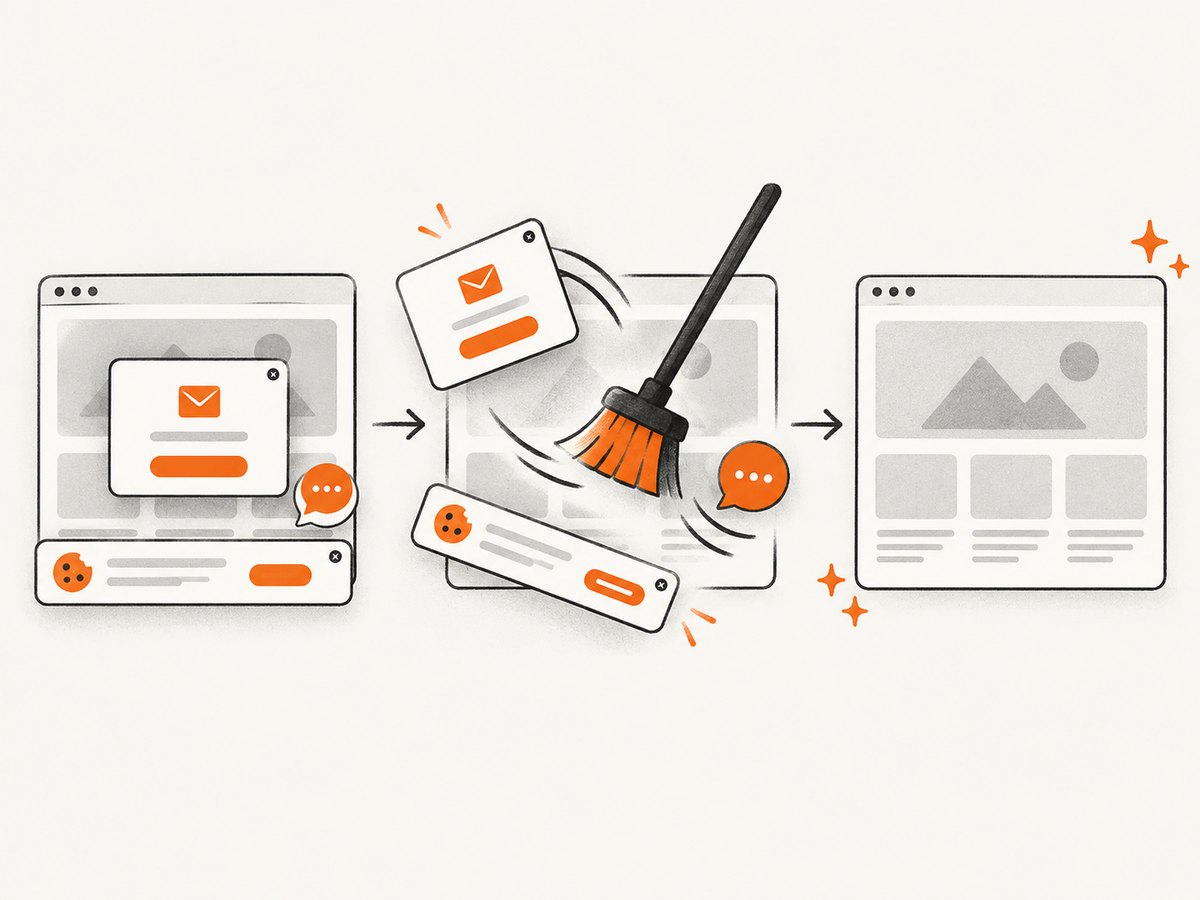
ScreenshotNeo provides a hosted screenshot API and MCP server. Cookie and consent banners, newsletter popups, and chat widgets are removed before the shot; bot checks, blank pages, failed loads, timeouts, and cache hits are not billed. Its MCP server lets Claude, Cursor, and other MCP clients call take_screenshot, get_page_info, and capture_pdf. The free plan includes 1,000 screenshots per month with no card, and paid plans start at $5 for 3,000 shots. See the ScreenshotNeo API documentation.
curl -G "https://api.screenshotneo.com/v1/shot" -d access_key=YOUR_API_KEY --data-urlencode url=https://stripe.com -o shot.webpimport requests
r = requests.get("https://api.screenshotneo.com/v1/shot", params={"access_key": "YOUR_API_KEY", "url": "https://stripe.com"}, timeout=90)
open("shot.webp", "wb").write(r.content)const q = new URLSearchParams({ access_key: 'YOUR_API_KEY', url: 'https://stripe.com' });
const res = await fetch(`https://api.screenshotneo.com/v1/shot?${q}`);Create a free ScreenshotNeo account and get 1,000 screenshots each month with no card.
FAQ
Does Cloud Run include Chrome?
No. Package Chromium and its dependencies in your image or start from a complete browser image.
Can I run more than one tab?
Yes, but each tab increases memory and CPU use. Bound concurrency and close every page.
Is --no-sandbox required?
No. It is a fallback for environments without a usable sandbox and reduces isolation.
Which browser should I choose?
Use Puppeteer for Chromium-focused automation, Playwright for multiple browser engines, and CDP for low-level Chrome control.
Why did the request finish but the browser task stall?
Cloud Run can suspend CPU after the response. Complete the work before responding or enable always-allocated CPU for background processing.


