How to Run Chromium Headless on Raspberry Pi OS
Install Chromium on Raspberry Pi OS, run it without a display, connect Puppeteer or Playwright, and troubleshoot architecture, sandbox, and headless-mode issues.
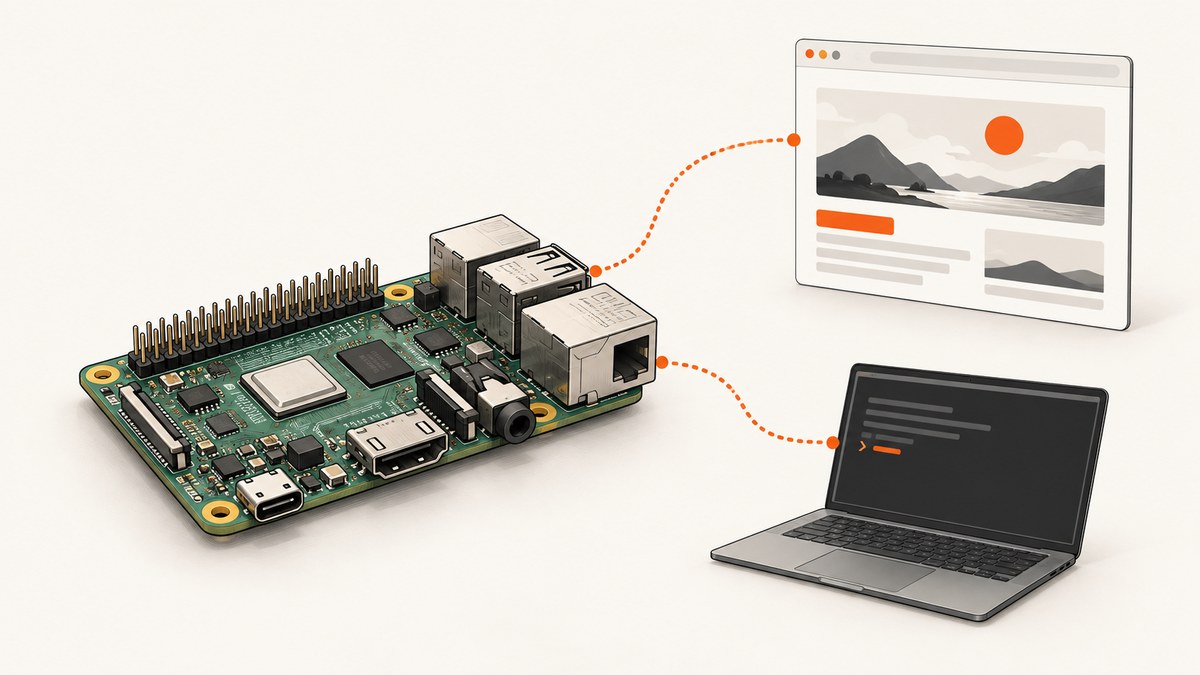
Yes, you can run Chromium headless on Raspberry Pi OS without a monitor or desktop. Install the Debian Chromium package, start it with --headless, and use the DevTools protocol or an automation library such as Puppeteer or Playwright. Raspberry Pi OS Lite is suitable for a monitor-free server; desktop editions include Chromium and a graphical environment. Raspberry Pi’s documentation describes Lite as a command-line-only operating system and identifies 64-bit Raspberry Pi OS as the normal choice for newer Pi 3, Pi 4, and Pi 5 hardware.
This guide covers installation, one-shot page loads, screenshots, PDF generation, remote debugging, browser automation, architecture choices, current Chromium headless behavior, and the errors most often seen on a Pi.
1. Choose the Raspberry Pi OS image
Use Raspberry Pi OS Lite when the Pi will run as a server managed over SSH. It has no graphical desktop, which reduces the amount of software you need to maintain. Use a desktop edition when someone must open Chromium locally with a monitor and keyboard.
- Choose a 64-bit image for Raspberry Pi 3, 4, or 5 when your packages and automation dependencies support arm64.
- Use a 32-bit image for older 32-bit hardware or when a required dependency is only available for armhf.
- Prepare an SD card with at least 8 GB for a Lite installation.
- Configure Ethernet or Wi-Fi and enable SSH, or use Raspberry Pi Connect, during setup so the machine can be administered without a display.
See the Raspberry Pi getting-started documentation for imaging, networking, SSH, and storage guidance.
2. Update the system and install Chromium
Connect over SSH and update the package index before installing the browser:
sudo apt update
sudo apt install chromium chromium-sandbox
Debian’s arm64 package provides the Chromium wrapper at /usr/bin/chromium. The exact browser version depends on the Raspberry Pi OS image and configured repositories, so record the local version rather than assuming a particular release:
command -v chromium
chromium --version
getconf LONG_BIT
uname -m
The expected executable should be /usr/bin/chromium. getconf LONG_BIT reports whether userland is 32-bit or 64-bit, while uname -m identifies the kernel architecture. Check both before installing a framework-managed browser binary.
The chromium-sandbox package supplies Chromium’s security sandbox. Keep it installed unless you have a specific, documented reason to change the sandbox arrangement.
3. Start Chromium without a display
The basic command loads a URL in headless mode and opens a DevTools endpoint on port 9222:
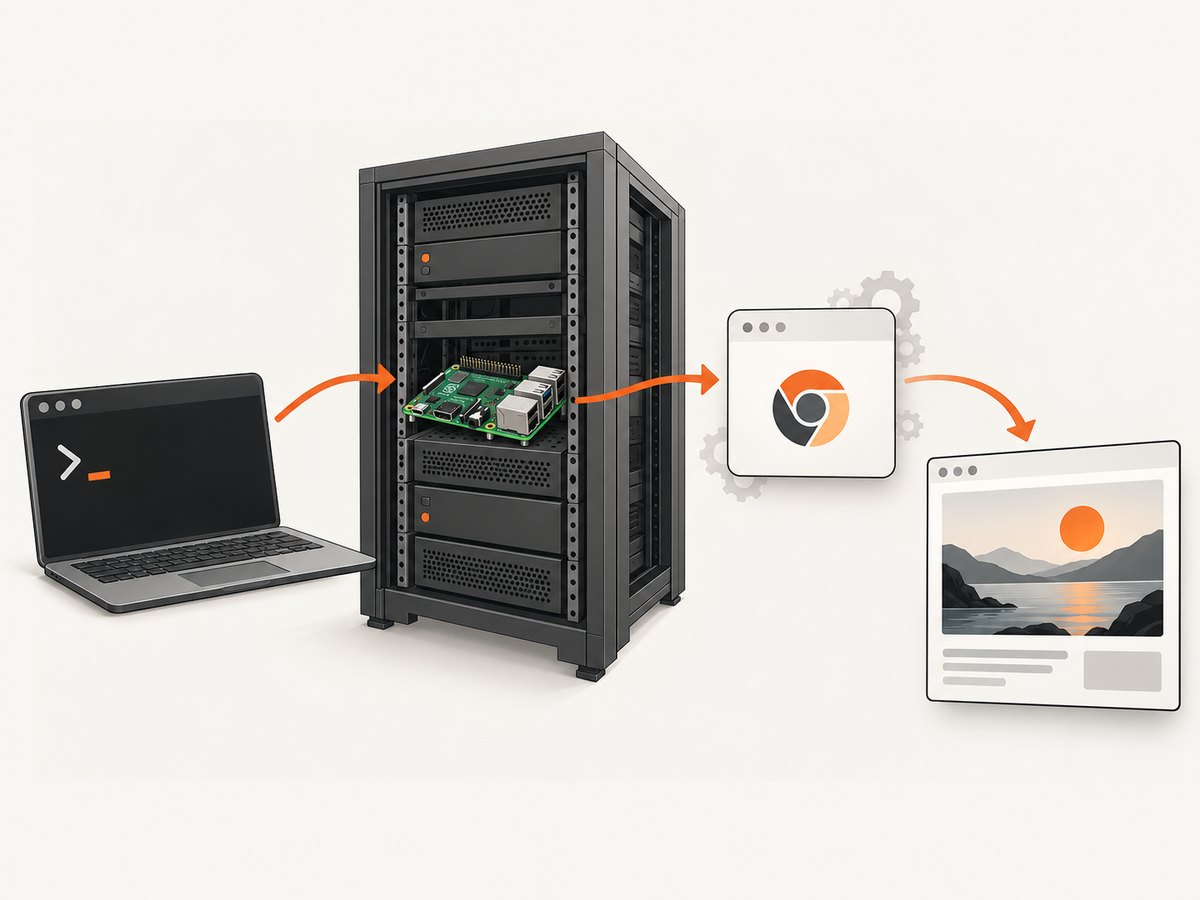
chromium --headless --remote-debugging-port=9222 https://example.comHeadless Chromium can load pages, expose DOM information through the DevTools protocol, and generate bitmaps. The process may keep running while the debugging endpoint is available. Stop it with Ctrl+C when you are finished.
For repeatable jobs, give every browser process its own profile directory. This prevents concurrent Chromium processes from contending for the default profile:
mkdir -p '$HOME/.cache/chromium-headless'
chromium \
  --headless \
  --user-data-dir='$HOME/.cache/chromium-headless' \
  --remote-debugging-port=9222 \
  https://example.com
If several jobs run at once, assign a different debugging port and profile directory to each process. Do not expose the DevTools port directly to the public internet; bind it to a private interface or place access behind an SSH tunnel or a protected network.
4. Capture a screenshot from the command line
Chromium can save a screenshot directly. Add --screenshot and choose an output file:
chromium \
  --headless \
  --disable-gpu \
  --window-size=1440,900 \
  --screenshot='/tmp/example.png' \
  https://example.com
This captures the visible viewport. A full-page capture is different: it requires an automation client to read the page dimensions and request a full-page screenshot through DevTools. The command-line screenshot is useful for smoke tests and simple monitoring, but it does not provide selectors, click actions, cookie handling, or wait conditions.
5. Use Puppeteer with the system Chromium
Puppeteer gives JavaScript code for navigation and screenshots. Install it in a project:
mkdir chromium-pi && cd chromium-pi
npm init -y
npm install puppeteer-core
Use puppeteer-core when Chromium is already installed by apt. Point Puppeteer at the path returned by command -v chromium:
const puppeteer = require('puppeteer-core');

(async () => {
  const browser = await puppeteer.launch({
    executablePath: '/usr/bin/chromium',
    headless: true,
    args: ['--no-sandbox']
  });
  try {
    const page = await browser.newPage();
    await page.setViewport({ width: 1440, height: 900, deviceScaleFactor: 1 });
    await page.goto('https://example.com', { waitUntil: 'networkidle2', timeout: 90000 });
    console.log(await page.title());
    await page.screenshot({ path: 'example.png', fullPage: true });
  } finally {
    await browser.close();
  }
})();
Some distributions can run the browser sandbox normally. If your deployment reports a sandbox initialization error under the service account, --no-sandbox can be a workaround, but it lowers isolation. Prefer fixing permissions and keeping chromium-sandbox installed when possible.
Chromium’s headless documentation also shows Puppeteer’s headless: 'shell' mode. Use that only when you intentionally installed a compatible headless-shell binary and have verified its architecture and dependencies.
6. Use Playwright on Raspberry Pi OS
Playwright offers locator-based automation and browser context controls. Its browser downloads must match the Pi’s architecture. For a headless-shell-only installation, Playwright documents:
npm install playwright
npx playwright install --with-deps --only-shell
For Playwright’s newer headless mode, select the chromium channel. That mode uses the real Chromium browser rather than a separate shell. If you want to use the apt-installed browser, configure the executable path:
const { chromium } = require('playwright');

(async () => {
  const browser = await chromium.launch({
    executablePath: '/usr/bin/chromium',
    headless: true
  });
  try {
    const page = await browser.newPage({ viewport: { width: 1440, height: 900 } });
    await page.goto('https://example.com', { waitUntil: 'networkidle', timeout: 90000 });
    await page.screenshot({ path: 'example.png', fullPage: true });
  } finally {
    await browser.close();
  }
})();
Do not assume a browser downloaded on an x86 development machine will run on an armhf or arm64 Pi. Confirm the package architecture and test the exact image used in production.
7. Connect through the DevTools protocol
The --remote-debugging-port=9222 option lets another process connect to an already-running Chromium instance. Start the browser with a dedicated profile:
chromium \
  --headless \
  --user-data-dir='/tmp/chromium-profile' \
  --remote-debugging-port=9222 \
  https://example.com
Your client must use the same port. If it cannot connect, verify that the process is still running and that the port is listening locally:
ss -ltnp | grep 9222
curl http://127.0.0.1:9222/json/version
When Chromium runs on another machine, tunnel the port over SSH instead of opening it broadly:
ssh -L 9222:127.0.0.1:9222 pi@your-pi-host8. Understand the current headless modes
Do not build a new deployment around --headless=old. Chromium states that, from milestone M132, the old headless implementation is no longer part of the Chrome binary, so --headless=old has no effect. Use current --headless behavior, or install a separate headless-shell package when an application specifically requires that implementation.
Debian publishes an arm64 chromium-headless-shell package. Its use cases include server-side rendering and PDF generation, but it still needs to match the Pi architecture and available libraries. Test it separately from the regular chromium package before replacing a working deployment.
9. Make captures reliable on a small server
- Wait for the right event. Use
domcontentloadedfor static pages,networkidlefor applications that finish loading network resources, or wait for a specific selector when that element proves the page is ready. - Set an explicit timeout. A page can wait forever on a third-party request. Keep a finite navigation and browser-process timeout and report the URL that failed.
- Use separate profiles. A unique
--user-data-dirper concurrent process avoids lock conflicts and cross-job cookies. - Limit concurrency. Raspberry Pi memory and CPU are finite. Queue jobs and reuse a browser process when startup overhead matters.
- Control resources. Block unnecessary advertisements, trackers, videos, and large downloads in your automation layer when they are not part of the capture.
- Record versions. Save the output of
chromium --version,uname -m, and the OS release with deployment logs.
No Raspberry Pi-specific throughput benchmark is established by the available sources. Measure your own pages, viewport sizes, JavaScript workload, and concurrency before promising a capture rate.
10. Troubleshooting common errors
| Error or symptom | Cause | Fix |
|---|---|---|
chromium: command not found |
The package is absent or the image repositories are not configured. | Run sudo apt update, install chromium, then verify command -v chromium. |
| No monitor or display error | The command is trying to use a graphical session. | Run with --headless on Lite or over SSH. A visible desktop is not required. |
| Automation cannot connect | The DevTools port is different, blocked, or Chromium exited. | Use the same port in both processes, check ss -ltnp, and inspect the browser’s stderr output. |
--headless=old does nothing |
Current Chromium no longer includes the old implementation in the Chrome binary. | Use --headless or install a separate compatible headless-shell package. |
| Exec format error | The browser binary targets a different architecture. | Compare uname -m and the package architecture; install an armhf or arm64 build that matches the OS. |
| Sandbox initialization failure | The sandbox package, permissions, or service account setup is incorrect. | Install chromium-sandbox, run as an appropriate user, and avoid disabling the sandbox unless necessary. If required for an isolated service, test --no-sandbox as a conscious trade-off. |
| Blank or incomplete screenshot | The page has not finished rendering, uses lazy loading, or depends on a blocked resource. | Wait for a selector or network idle, scroll before a full-page capture, and inspect console and network errors. |
| Browser exits under load | Memory pressure, too many parallel processes, or an oversized page. | Reduce concurrency, close pages promptly, use a queue, and monitor memory while testing. |
11. Or skip the browser setup
If your goal is a dependable website image or PDF rather than operating Chromium on a Pi, ScreenshotNeo provides a hosted screenshot API and MCP server. It handles the browser environment and accepts one GET request.
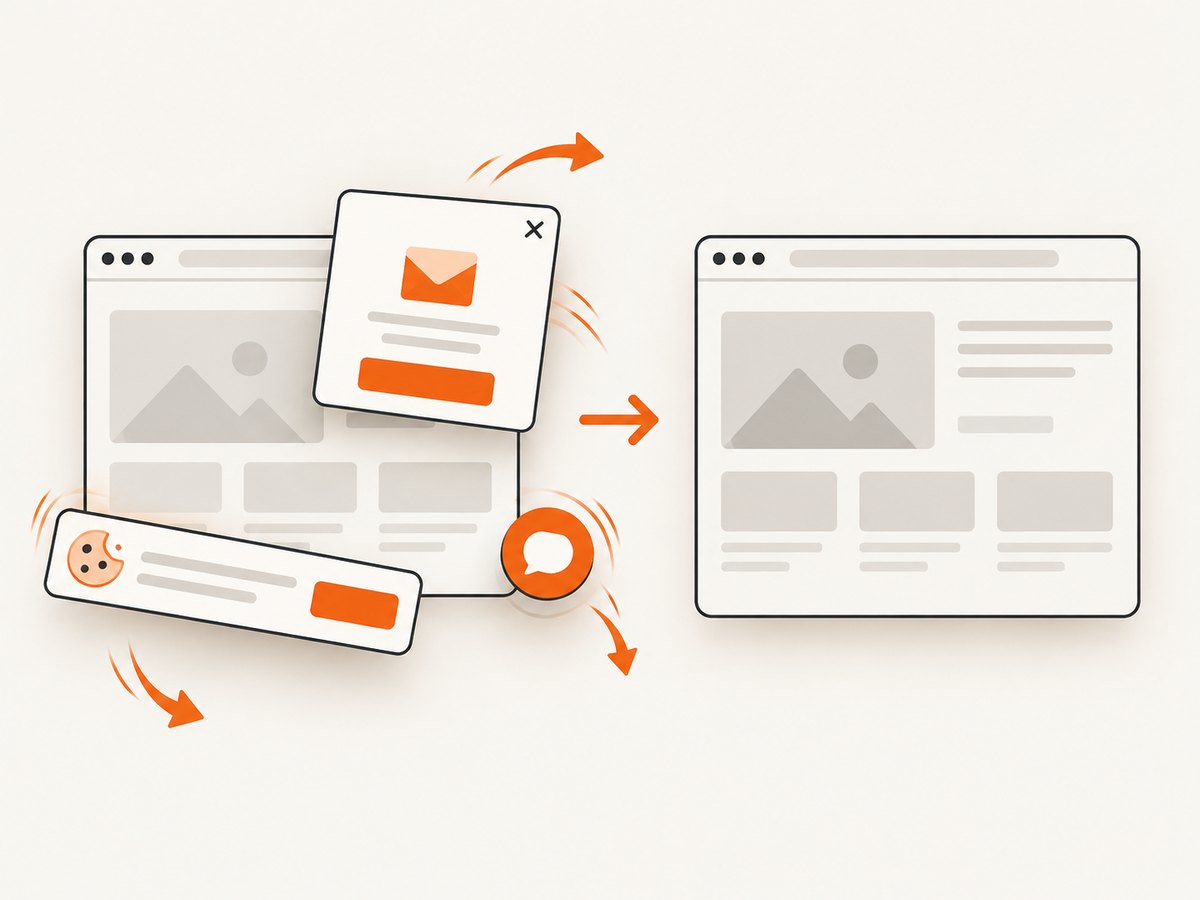
See the ScreenshotNeo API documentation for the complete option list. A minimal request is:
curl -G 'https://api.screenshotneo.com/v1/shot' \
  -d access_key=YOUR_API_KEY \
  --data-urlencode url=https://stripe.com \
  -o shot.webp
import requests
r = requests.get(
'https://api.screenshotneo.com/v1/shot',
params={'access_key': 'YOUR_API_KEY', 'url': 'https://stripe.com'},
timeout=90,
)
open('shot.webp', 'wb').write(r.content)const q = new URLSearchParams({ access_key: 'YOUR_API_KEY', url: 'https://stripe.com' });
const res = await fetch(`https://api.screenshotneo.com/v1/shot?${q}`);ScreenshotNeo removes cookie and consent banners, newsletter popups, and chat widgets before capture. Bot checks, blank pages, failed loads, timeouts, and cache hits are not billed; response headers identify the page verdict and whether the request was billed. It also provides an MCP server with take_screenshot, get_page_info, and capture_pdf tools for Claude, Cursor, and other MCP clients.
Options include full-page screenshots with lazy images loaded, CSS-selector element capture, dark mode, device presets and custom viewports, retina scale, PDF paper and margin settings, custom CSS and JavaScript, clicks, selector or network-idle waits, request blocking, headers, cookies, user agents, authorization, timezone, geolocation, transparent backgrounds, resizing, selectable cache TTLs, signed image links, asynchronous jobs with signed webhooks, bulk capture for up to 100 URLs, and a usage API. The parameter names used by other screenshot APIs also work, which can simplify migration.
The free plan includes 1,000 screenshots per month with no card. Paid plans start at $5 for 3,000 screenshots; yearly billing gives two months free. Create a free ScreenshotNeo account to start.
12. FAQ
Can Raspberry Pi OS Lite run Chromium?
Yes. Lite has no desktop, but Chromium’s headless mode does not need a visible display. Install the package and run it over SSH.
Which Raspberry Pi models support 64-bit Raspberry Pi OS?
Raspberry Pi identifies Pi 3, Pi 4, and Pi 5 as targets for 64-bit Raspberry Pi OS. Older hardware may require a 32-bit image.
Do I need X11 or Wayland for headless mode?
No. Use Chromium’s current --headless mode. A graphical session is unnecessary.
Should I choose Puppeteer or Playwright?
Choose Puppeteer for a small JavaScript script closely aligned with the DevTools model. Choose Playwright when you need its locator API, browser contexts, and broader automation features. In either case, verify the browser binary supports your Pi architecture.
What is the safest way to expose remote debugging?
Keep port 9222 on localhost or a private network and use an SSH tunnel for remote administration. Do not publish an unauthenticated DevTools endpoint to the internet.


