How to Run Custom Functions in a Headless Browser
Run JavaScript inside a headless browser with Playwright or Puppeteer. Learn how to pass data, handle async results, run code before page scripts, and call back to Node.js.
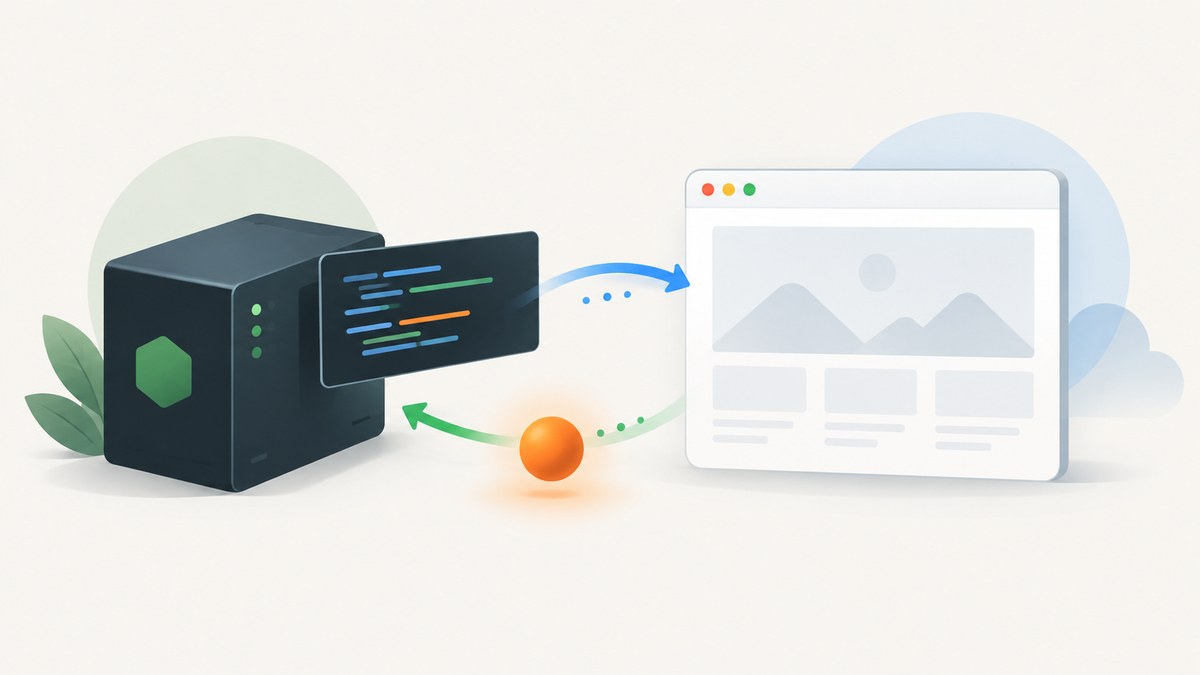
To run a custom JavaScript function in a headless browser, pass it to page.evaluate() in Playwright or Puppeteer. The function runs in the web page’s JavaScript context, where window and document are available. Pass any inputs as arguments, then await the result in your Node.js script. The browser page and automation script are separate environments, so the function cannot see local variables from your script unless you pass them in.
This guide shows complete examples for both libraries, explains how values cross the boundary, and covers two different needs: running code before a page’s own scripts and letting page code call a Node.js function. If you only need a screenshot rather than arbitrary browser-side logic, ScreenshotNeo can capture a URL with one API request.
1. Set up a minimal headless browser script
Use the library already present in your project if possible. Playwright and Puppeteer both support evaluation in the page context and wait for a returned Promise. Their callback serialization and supported transferred values are documented by each project; check the documentation for your installed version when relying on special types.
Playwright
Install Playwright and its browser binaries, then create a script such as capture.js:
npm install playwright
npx playwright install chromium
// capture.js
const { chromium } = require('playwright');
(async () => {
const browser = await chromium.launch({ headless: true });
try {
const page = await browser.newPage();
await page.goto('https://example.com', { waitUntil: 'domcontentloaded' });
const title = await page.evaluate(() => document.title);
console.log(title);
} finally {
await browser.close();
}
})();Run it with node capture.js. The arrow function passed to evaluate executes in the page, and the awaited result is available to Node.js.
Puppeteer
Install Puppeteer, which downloads a compatible Chrome for Testing browser as part of its standard installation flow, then use the equivalent script:
npm install puppeteer// capture-puppeteer.js
const puppeteer = require('puppeteer');
(async () => {
const browser = await puppeteer.launch({ headless: true });
try {
const page = await browser.newPage();
await page.goto('https://example.com', { waitUntil: 'domcontentloaded' });
const title = await page.evaluate(() => document.title);
console.log(title);
} finally {
await browser.close();
}
})();Run with node capture-puppeteer.js. Puppeteer serializes the function to send it into the page. Keep required logic inside the callback or pass data as arguments; do not rely on helper functions or lexical variables that exist only in the Node.js caller.
2. Pass inputs into the page and return useful data
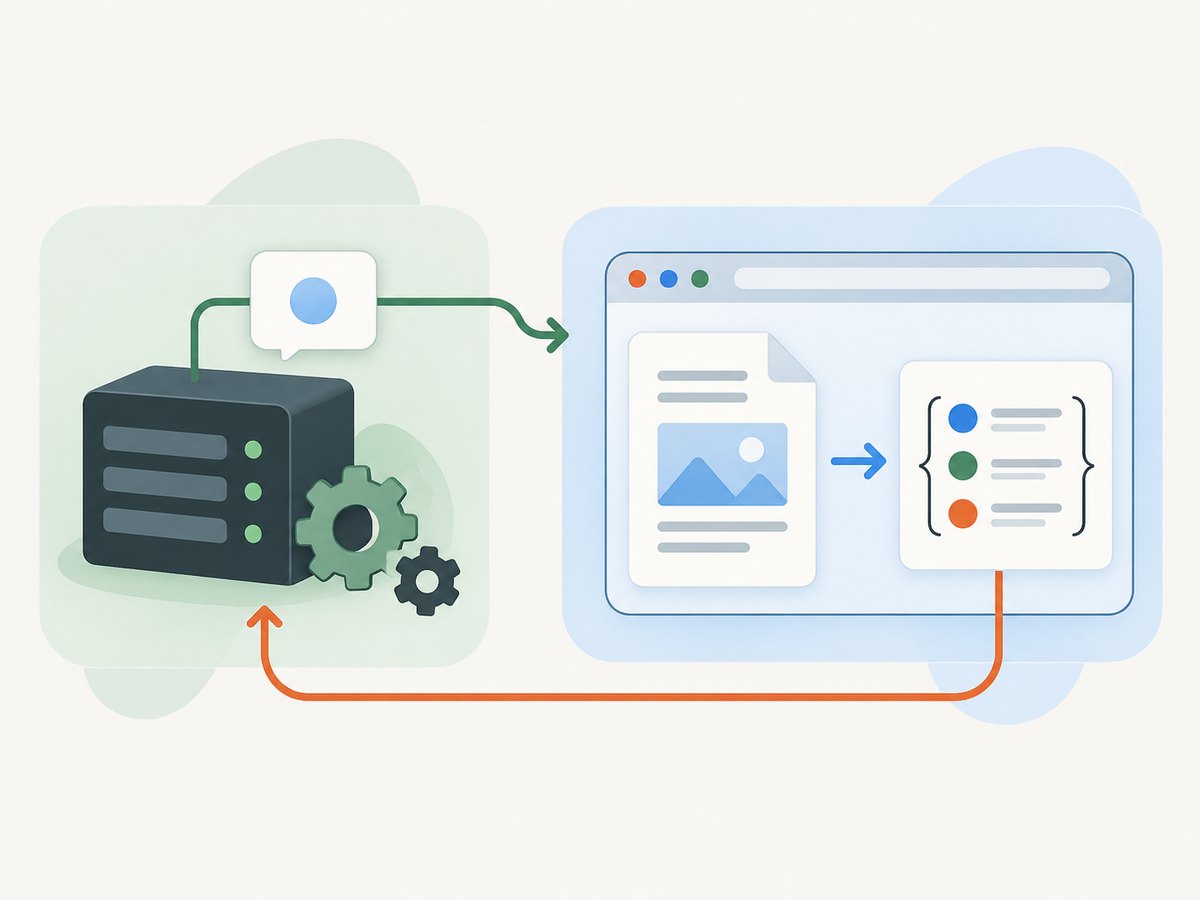
Values do not become shared just because the page and script belong to one automation session. Pass each needed value explicitly after the callback. Return plain serializable data such as strings, numbers, booleans, arrays, and objects rather than DOM nodes or functions.
const selector = '.product-card';
const minimumPrice = 20;

const products = await page.evaluate((selector, minimumPrice) => {
  return Array.from(document.querySelectorAll(selector))
    .map((element) => ({
      name: element.querySelector('h2')?.textContent?.trim() ?? '',
      priceText: element.querySelector('.price')?.textContent?.trim() ?? ''
    }))
    .filter((product) => {
      const price = Number(product.priceText.replace(/[^0-9.]/g, ''));
      return Number.isFinite(price) && price >= minimumPrice;
    });
}, selector, minimumPrice);

console.log(products);
The parameters following the callback are supplied to its arguments in order. This pattern works in Playwright and Puppeteer. Put transformations that need page APIs inside the callback; perform Node-only work, such as writing a file or using a database client, after the value has returned.
Transfer limits and DOM values
A DOM element is not a useful return value for the caller: it belongs to the page context. Instead, read the properties you need and return a compact object. For example, return an element’s text, href, and bounding rectangle as ordinary values. Playwright documents that non-serializable results resolve to undefined, with certain additional supported values described separately. Puppeteer likewise transfers the evaluation result through its protocol. Avoid returning large page objects or the entire DOM when a small structured result will do.
const linkInfo = await page.evaluate(() => {
  const link = document.querySelector('main a');
  if (!link) return null;

  const rect = link.getBoundingClientRect();
  return {
    text: link.textContent.trim(),
    href: link.href,
    x: rect.x,
    y: rect.y,
    width: rect.width,
    height: rect.height
  };
});
Handle missing elements explicitly. Returning null makes absence clear; attempting to read a property from null throws inside the page function. For repeated or complex extraction, validate the shape in Node.js before using it.
3. Await asynchronous page work
Both APIs wait when the evaluation callback returns a Promise. This is useful for browser APIs or page code that completes asynchronously. Do not confuse that with waiting for a page condition: a Promise that never settles leaves the automation waiting, so bound your own wait with a timeout or use the library’s locator and wait APIs for UI readiness.
const pageData = await page.evaluate(async () => {
  const response = await fetch('/api/data');
  if (!response.ok) throw new Error(`Request failed: ${response.status}`);
  const data = await response.json();
  return { count: data.items.length, first: data.items[0] ?? null };
});
This example assumes the current page can access /api/data under the site’s origin and that its response is permitted by the browser. Cross-origin rules still apply to page JavaScript. A rejected Promise or a thrown error is reported as an evaluation failure. Catch it at the caller if your workflow can recover, and include enough context to identify the URL and operation.
try {
  const result = await page.evaluate(async () => {
    const response = await fetch('/api/data');
    if (!response.ok) throw new Error(`HTTP ${response.status}`);
    return response.json();
  });
  console.log(result);
} catch (error) {
  console.error('Page evaluation failed:', error.message);
}
4. Choose the right execution timing and direction
page.evaluate() runs against the current page after it exists. Use a different API if your code must run before the page’s own scripts or if the page must invoke a function implemented in Node.js.
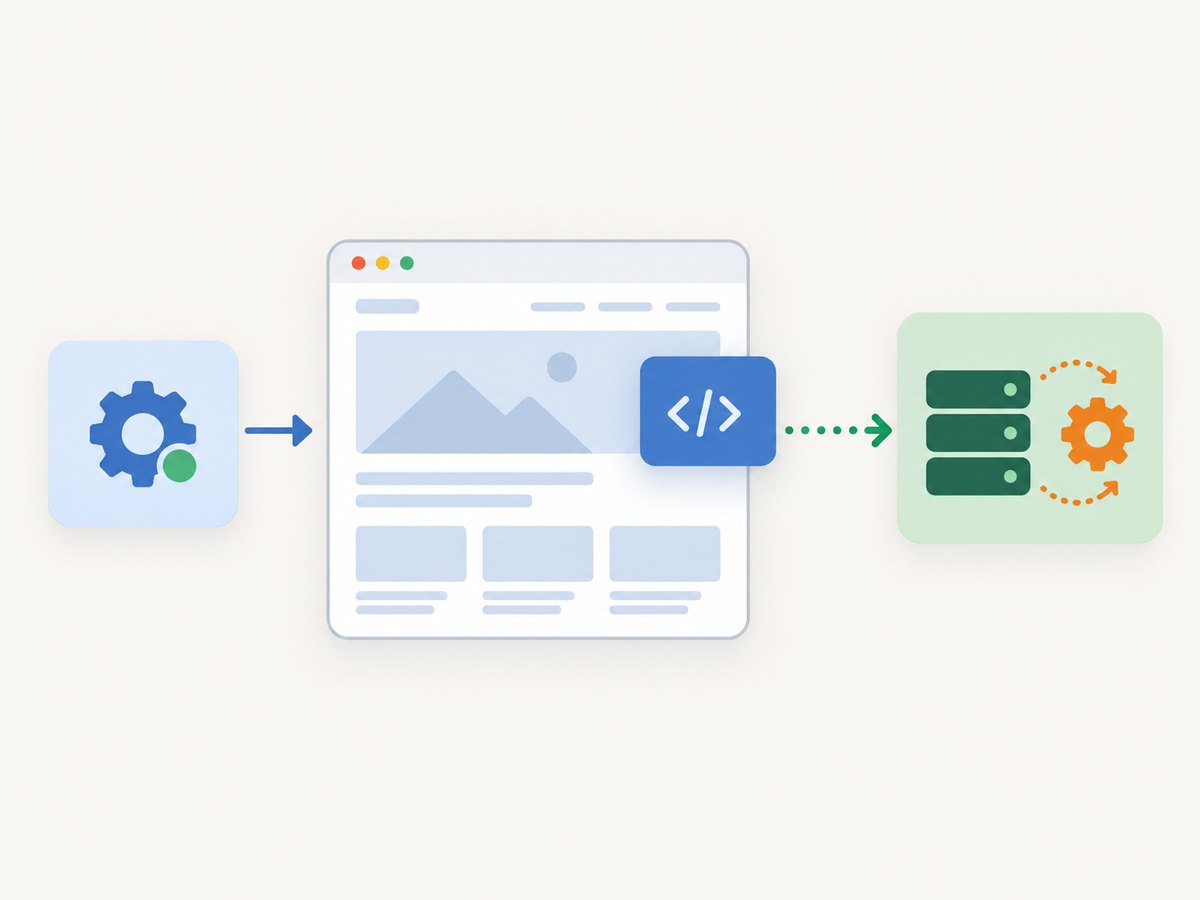
| Need | Use | Behavior |
|---|---|---|
| Read or change the current page | page.evaluate() |
Runs a callback in page context and returns its result. |
| Run code as a new document is created, before its scripts | Playwright page.addInitScript() |
Registers an initialization script for documents, including after navigation. |
| Let page code call a Node.js callback | Playwright page.exposeFunction() |
Adds a callable function to the page that is backed by the automation environment; the exposed function survives navigation. |
Run before page scripts with Playwright
For instrumentation or controlled test setup that has to precede site scripts, register an initialization script before navigating. Keep it small and deterministic. The browser creates a fresh document on navigation, and Playwright runs the registered script in that document before the page’s scripts.
await page.addInitScript(() => {
  window.__automationStartedAt = Date.now();
});

await page.goto('https://example.com');
const startedAt = await page.evaluate(() => window.__automationStartedAt);
console.log(startedAt);
Use this only for behavior that genuinely depends on early timing. If the page is already loaded, registering an init script does not retroactively run it in the current document; navigate or create a new document to exercise it. Avoid changing security-sensitive page behavior outside a controlled automation context.
Let the page call back into Node.js
When page code needs a result from the automation process, expose a function. This is a Playwright API shown here; the page can call the named function and await its Promise.
await page.exposeFunction('lookupRecord', async (recordId) => {
  // This callback runs in Node.js, where server-side libraries are available.
  return { id: recordId, found: recordId === 'demo-1' };
});

const result = await page.evaluate(async () => {
  return window.lookupRecord('demo-1');
});
console.log(result);
Exposed functions survive navigation, while functions provided through evaluation are cleared on top-level navigation, according to Playwright’s page API documentation. Treat exposed callbacks like an interface: validate their arguments, return transferable data, handle rejection, and avoid exposing secrets to untrusted page code.
5. Common errors and fixes
| Symptom | Likely cause | Fix |
|---|---|---|
ReferenceError: selector is not defined |
The callback refers to a Node.js local variable as if it were in page scope. | Add a callback parameter and pass the value after the function: page.evaluate((selector) => ..., selector). |
The result is undefined |
No value was returned, or the result could not be serialized. | Use an explicit return; return plain data rather than a function, DOM node, or other unsupported object. |
| The evaluation hangs | The callback is awaiting a Promise that does not settle, often due to an unavailable request or an event that never fires. | Bound the operation, check the page request and response, and wait for a specific UI condition rather than arbitrary work. |
| Evaluation fails after navigation | The document changed while the function was running, or a top-level navigation cleared a function installed through evaluation. | Wait for navigation and target the new page state; register persistent behavior with the appropriate API, such as Playwright’s init script or exposed function. |
document.querySelector() returns null |
The selector did not match, the content has not rendered, or the target is inside a frame or shadow root. | Check the selector and readiness; use frame-specific APIs for iframes and query the relevant shadow root explicitly. |
Page fetch() fails although the URL works in Node |
Page fetch follows browser origin and CORS rules and may depend on page cookies or credentials. | Check the browser console and network response. If the request belongs in Node.js, make it in Node and pass only the required result into the page. |
| Works locally but browser launch fails elsewhere | The deployment lacks the browser binary or required system dependencies, or the runtime’s sandbox configuration differs. | Install the browser required by the chosen library and follow its official deployment guidance for the target OS/container. |
6. Performance, reliability, and cost
There is no universal speed winner established here between Playwright and Puppeteer. Choose based on the stack already in use, the browser and control flow your project needs, and the APIs required for timing or callbacks. Both libraries must execute the function in the browser and transfer the result back, so keep evaluation work focused.
- Reduce boundary crossings: collect a set of related fields in one evaluation instead of issuing many tiny evaluations in a loop.
- Keep results small: return only the values the caller needs. Large results take time to serialize and move out of the page.
- Wait for the right condition: navigation completion does not always mean a client-rendered element is ready. Wait on the relevant selector or state rather than adding a long fixed delay.
- Make callbacks resilient: handle absent elements, rejected requests, and changing page state. Include time limits for work that can wait indefinitely.
- Reuse browser processes thoughtfully: in a long-running worker, keeping a browser open can avoid repeated launch overhead, but isolate pages and close them when work finishes. Ensure cleanup happens on errors.
- Account for infrastructure: self-hosted automation uses compute, memory, browser downloads, and maintenance time. The exact cost depends on workload and deployment; no general benchmark or fixed cost follows from the APIs themselves.
For a screenshot-only workflow, custom page code may add setup and operational work you do not need. ScreenshotNeo is a website screenshot API and MCP server from Yorker Media. Its plans include the same features: full-page capture with lazy images loaded, element capture, device and viewport settings, custom CSS and JavaScript, wait conditions, request blocking, caching, PDF, bulk capture, and more. Check the ScreenshotNeo API documentation for request options and details.
7. Or skip the browser setup
If the goal is to get an image of a URL, a single request can be simpler than installing and maintaining a browser. This cURL example returns a WebP screenshot:
curl -G "https://api.screenshotneo.com/v1/shot" \
  -d access_key=YOUR_API_KEY \
  --data-urlencode url=https://stripe.com \
  -o shot.webp
Python equivalent:
import requests

r = requests.get(
    "https://api.screenshotneo.com/v1/shot",
    params={"access_key": "YOUR_API_KEY", "url": "https://stripe.com"},
    timeout=90,
)
open("shot.webp", "wb").write(r.content)
Node.js equivalent:
const q = new URLSearchParams({
  access_key: 'YOUR_API_KEY',
  url: 'https://stripe.com'
});
const res = await fetch(`https://api.screenshotneo.com/v1/shot?${q}`);
if (!res.ok) throw new Error(`Screenshot request failed: ${res.status}`);
await import('node:fs/promises').then(({ writeFile }) => writeFile('shot.webp', Buffer.from(await res.arrayBuffer())));
ScreenshotNeo accepts cookie and consent banners like a visitor and removes more than 60 known consent platforms, newsletter popups, and chat widgets before capture; each of those steps can be turned off. Bot checks and CAPTCHAs, blank pages, timeouts, failed loads, and cache hits cost nothing, and response headers identify the page verdict and billing status. Its MCP server gives Claude, Cursor, and other MCP clients the take_screenshot, get_page_info, and capture_pdf tools. The free plan includes 1,000 screenshots a month with no card; paid plans start at $5 for 3,000. Every feature is on every plan.
Read the API docs for all options. Sign up free for 1,000 screenshots a month, no card required.
8. Short FAQ
Can I run a function in a headless browser without a website?
Yes. Navigate to a local HTML file or a page your test creates, then evaluate against that document. APIs such as document are available only when a document context exists.
Can I use TypeScript?
Yes, when your Node.js project compiles or runs TypeScript. The evaluated callback still has to be serializable into the page; pass data explicitly and avoid dependencies that exist only in the Node module scope.
Can the page function access Node.js modules?
No. Code passed to evaluate() runs in the browser context. Use Node.js before or after evaluation, or expose a narrow callback with Playwright when the page must request work from Node.
Does evaluate() replace browser automation actions?
No. It is useful for page-context computation and inspection. For user-like interaction and synchronization, use the library’s page or locator APIs where appropriate, then evaluate when you need a value or page-side operation.
Where can I check version-specific behavior?
Consult the official Playwright evaluation guide, Playwright Page API, and Puppeteer evaluate API reference for the version used by your project.


