How to Run Firefox as a Headless Browser
Run Firefox without a GUI, capture screenshots, automate it with Selenium, and fix common geckodriver and container problems.
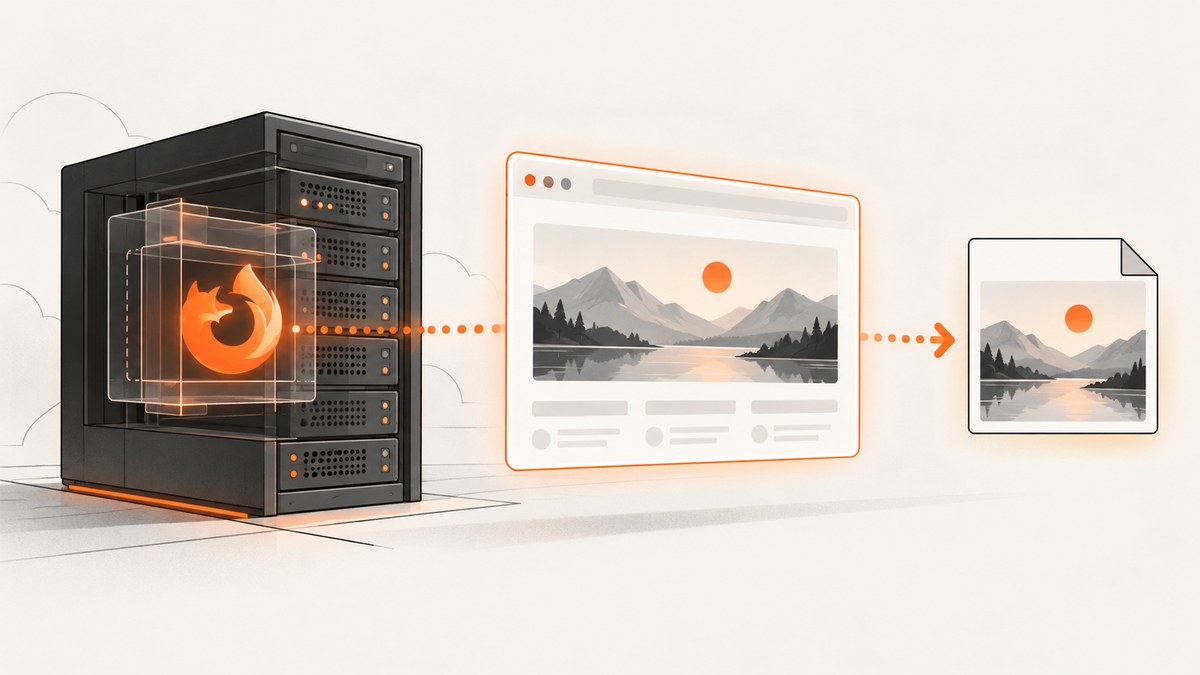
Firefox headless mode runs the browser without opening a graphical window. For a one-off launch, run firefox --headless https://example.com. To save a screenshot, use firefox --headless --screenshot page.png --window-size 1280,800 https://example.com. The --screenshot option enables headless mode, and --window-size controls the viewport dimensions. Mozilla documents this command-line behavior for Windows, Linux with GTK, and macOS in its Firefox command-line reference.
1. Run Firefox headless from the command line
Install Firefox, then verify that the executable is available:
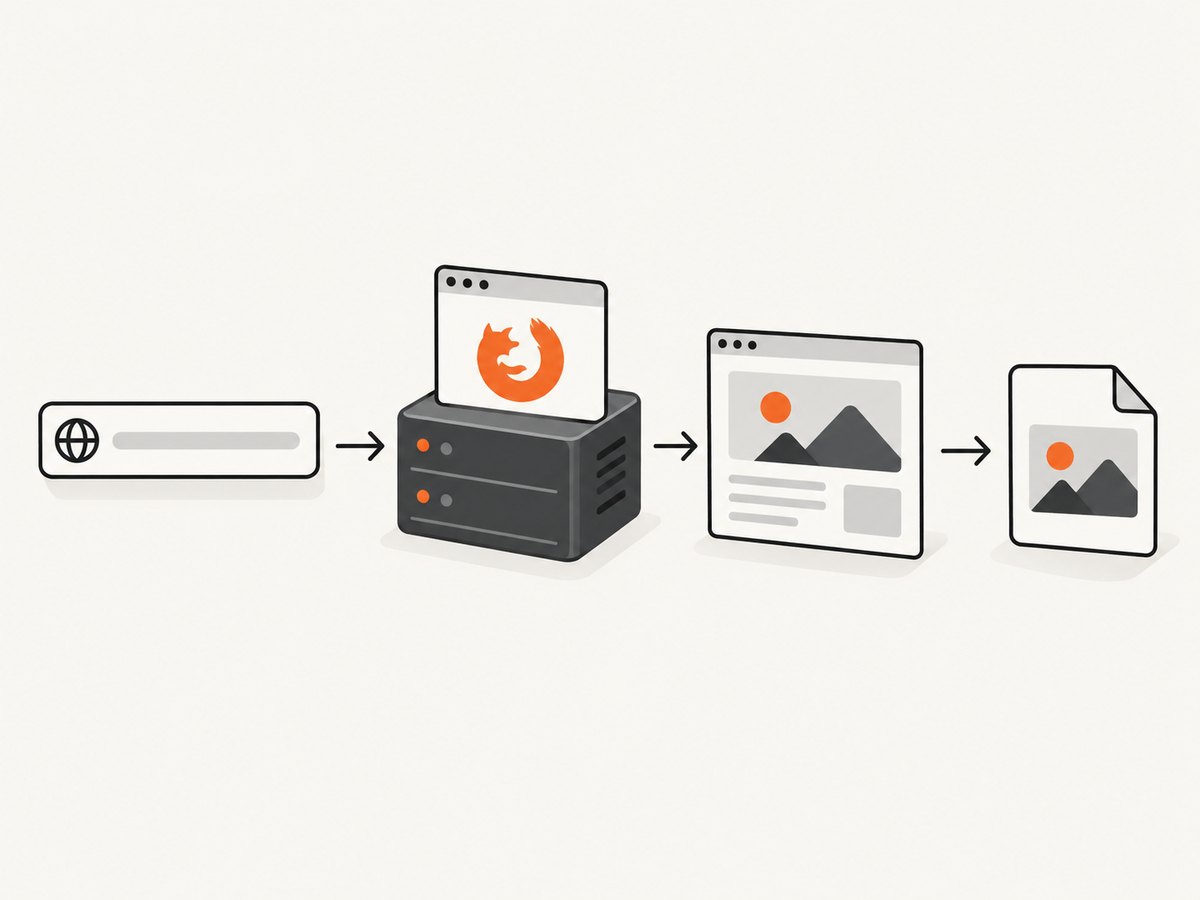
firefox --versionOpen a page without a GUI:
firefox --headless https://example.comFirefox starts, loads the URL, and exits when the command finishes. This is useful for a quick smoke check or a simple automated launch. The command-line mode is not intended to replace WebDriver when you need reliable navigation, DOM inspection, waits, clicks, assertions, or repeated captures.
Capture a screenshot
firefox --headless \
  --screenshot page.png \
  --window-size 1280,800 \
  https://example.com
Use an absolute output path when a job runs from an unknown working directory:
firefox --headless --screenshot /tmp/example.png --window-size 1440,900 https://example.comThe screenshot captures the rendered viewport. A long page is not automatically converted into one full-page image by this command; use WebDriver or a screenshot service when you need full-page stitching, element capture, waiting for dynamic content, cookies, custom headers, or other browser controls.
2. Choose the right Firefox headless approach
| Need | Recommended approach |
|---|---|
| Launch a page once | Firefox CLI with --headless and a URL |
| Take a basic viewport screenshot | Firefox CLI with --screenshot and optional --window-size |
| Click, wait, inspect, or assert | Firefox plus geckodriver and a W3C WebDriver client such as Selenium |
| Run in a container or CI worker | Firefox and a compatible geckodriver, with a shared writable profile directory |
| Capture production screenshots without maintaining browsers | A screenshot API such as ScreenshotNeo |
Firefox’s built-in mode does not require a separate virtual display. WebDriver adds a driver process because geckodriver translates W3C WebDriver commands for Firefox. See Mozilla’s geckodriver overview and usage guide.
3. Automate Firefox headlessly with Selenium in Python
Install Selenium:
python -m pip install seleniumInstall Firefox and geckodriver, then put geckodriver on PATH. Current Selenium releases can generally discover it there. This complete script opens a page, waits for the document to load, and saves a screenshot:
from selenium import webdriver
from selenium.webdriver.firefox.options import Options
from selenium.webdriver.support.ui import WebDriverWait

options = Options()
options.add_argument("-headless")
options.add_argument("--width=1280")
options.add_argument("--height=800")

driver = webdriver.Firefox(options=options)
try:
    driver.get("https://example.com")
    WebDriverWait(driver, 30).until(
        lambda browser: browser.execute_script("return document.readyState") == "complete"
    )
    driver.save_screenshot("example.png")
finally:
    driver.quit()
The Firefox WebDriver capability is the -headless argument inside moz:firefoxOptions. MDN documents the capability format, including Firefox binary and profile settings, in its Firefox options reference.
Use a specific Firefox binary
from selenium import webdriver
from selenium.webdriver.firefox.options import Options

options = Options()
options.binary_location = "/usr/bin/firefox"
options.add_argument("-headless")
driver = webdriver.Firefox(options=options)
try:
    driver.get("https://example.com")
    driver.save_screenshot("page.png")
finally:
    driver.quit()
Use the actual path from your operating system or container image. Check it with which firefox or the package documentation.
Wait for a selector or a fixed delay
from selenium.webdriver.common.by import By
from selenium.webdriver.support import expected_conditions as EC
from selenium.webdriver.support.ui import WebDriverWait

WebDriverWait(driver, 30).until(
    EC.presence_of_element_located((By.CSS_SELECTOR, "main"))
)
# A fixed delay is less precise, but can help with animation-heavy pages.
driver.implicitly_wait(2)
Replace the selector with an element that proves the page is ready. Avoid using a long fixed sleep for every page; it increases latency when the page is already available and still may be too short for a slow page.
4. Automate Firefox headlessly with Selenium in Node.js
Install the Selenium WebDriver package:
npm install selenium-webdriverSave this as capture.mjs and run it with Node.js:
import { Builder, By, until } from "selenium-webdriver";
import firefox from "selenium-webdriver/firefox.js";

const options = new firefox.Options();
options.addArguments("-headless");
options.addArguments("--width=1280", "--height=800");

const driver = await new Builder()
  .forBrowser("firefox")
  .setFirefoxOptions(options)
  .build();

try {
  await driver.get("https://example.com");
  await driver.wait(async () => {
    return (await driver.executeScript("return document.readyState")) === "complete";
  }, 30000);
  await driver.takeScreenshot().then((image) =>
    import("node:fs/promises").then(({ writeFile }) => writeFile("example.png", image, "base64"))
  );
} finally {
  await driver.quit();
}
Make sure geckodriver is installed and discoverable. If your environment does not provide driver discovery, configure the driver path using the Selenium version and installation method supported by your setup.
5. Configure profiles, user agents, cookies, and headers
Firefox WebDriver creates a temporary profile by default and removes it when the session ends. Mozilla describes temporary and custom profiles in its profiles guide.
Use a custom profile
from selenium import webdriver
from selenium.webdriver.firefox.options import Options

options = Options()
options.add_argument("-headless")
options.add_argument("-profile")
options.add_argument("/path/to/profile")
driver = webdriver.Firefox(options=options)
try:
    driver.get("https://example.com")
finally:
    driver.quit()
The profile must exist and be readable by both Firefox and geckodriver. A remote WebDriver session needs the profile on the target machine or supplied through the supported profile capability format.
Set cookies before navigation
driver.get("https://example.com")
driver.add_cookie({"name": "session", "value": "your-value", "path": "/"})
driver.refresh()
Firefox requires that the current page’s domain matches the cookie domain. Navigate to the site first, add the cookie, then refresh or load the page that depends on it.
Set headers
WebDriver does not provide a universal, portable API for arbitrary request headers. For authentication, prefer cookies, a profile, or a test environment designed for the browser. If you need custom headers, request blocking, or a user-agent override as a first-class capture option, use a service that exposes those controls.
6. Run Firefox headless in containers and CI
Container failures often come from mismatched package boundaries rather than from the -headless flag. Firefox and geckodriver must be compatible, and both processes must be able to access the profile directory. Mozilla documents confinement issues with Ubuntu Snap packages and the --profile-root flag in its usage guide and geckodriver flags reference.
Use this checklist for a container:
- Verify
firefox --versionandgeckodriver --versioninside the same container. - Confirm the intended Firefox binary is selected.
- Put temporary profiles in a directory both processes can read and write.
- Use the geckodriver that matches the package environment, especially with Snap or Flatpak.
- Run one minimal headless command before adding Selenium logic.
- Enable driver logs when startup still fails.
If the default temporary directory is hidden by filesystem confinement, select a shared profile root:
geckodriver --profile-root /tmp/firefox-profiles --log traceUse the logging level supported by your installed geckodriver. Do not reuse one writable profile concurrently across parallel jobs; create an isolated profile per worker.
7. Useful command-line options and their limits
| Option | Purpose | Practical note |
|---|---|---|
--headless |
Run without a GUI | Supported on Windows, Linux with GTK, and macOS according to Mozilla’s command-line reference. |
--screenshot file.png |
Save a screenshot | Implies headless mode. |
--window-size width,height |
Set the viewport size | Use dimensions that match the layout you need to capture. |
--profile path |
Use a specific Firefox profile | Ensure the profile is accessible to the Firefox process. |
--version |
Print the Firefox version | Useful when diagnosing driver compatibility. |
Flags and exact behavior can vary by installed Firefox version, so consult Mozilla’s current command-line documentation for the executable you deploy.
8. Troubleshooting Firefox headless mode
“firefox: command not found”
Cause: Firefox is not installed or is not on PATH.
Fix: Install Firefox for the operating system, locate the executable, add its directory to PATH, or provide the full executable path through WebDriver options.
Firefox opens a window
Cause: The command omitted --headless, or the WebDriver options did not pass -headless.
Fix: Add the flag before creating the WebDriver session and confirm that the intended Firefox binary is being launched.
“Unable to obtain driver” or geckodriver is not found
Cause: geckodriver is missing or unavailable on PATH.
Fix: Install geckodriver, verify geckodriver --version, and configure its path using your Selenium binding when automatic discovery is unavailable.
Firefox starts, then the session hangs
Cause: Firefox and geckodriver cannot share the temporary profile, commonly because of Snap, Flatpak, container, or permission boundaries.
Fix: Use a profile directory visible to both processes, use the package-matched driver, and try geckodriver’s --profile-root.
“Process unexpectedly closed with status 1”
Cause: A bad binary path, missing runtime dependency, incompatible driver, or unwritable profile directory.
Fix: Check both version commands, run the simplest CLI launch, select the correct binary, and inspect geckodriver logs.
The screenshot is blank or incomplete
Cause: The capture happened before client-side rendering, images, fonts, or lazy content finished loading.
Fix: Wait for document.readyState and a meaningful selector, then add a bounded delay only for content that loads after those conditions. Check the page in the same viewport and user agent used by the worker.
The page is blocked by a bot check or login wall
Cause: The target site requires an interactive challenge, authentication, or a trusted session.
Fix: Use an authorized test account or staging URL, provide the required profile or cookies, and respect the site’s access rules. Headless mode itself does not bypass access controls.
Parallel jobs interfere with one another
Cause: Multiple Firefox processes share one profile or output path.
Fix: Allocate a unique temporary profile and screenshot filename per job, and always call quit() in a finally block.
9. Performance, reliability, and cost considerations
Performance
- Reuse a WebDriver session for a small sequence of pages when isolation is not required; browser startup is usually more expensive than navigation.
- Use a readiness selector instead of an unnecessarily long fixed sleep.
- Set a viewport deliberately so responsive layouts do not change between runs.
- Block nonessential resources only when your test or image does not depend on them.
- Limit concurrency to the CPU and memory available to the worker. Each Firefox process and profile consumes resources.
Reliability
- Pin the Firefox and geckodriver versions in CI when reproducibility matters.
- Record the URL, viewport, Firefox version, geckodriver version, and failure logs with each failed capture.
- Use bounded page and driver timeouts so a stalled site cannot hold a worker forever.
- Keep profiles isolated and disposable unless a persistent authenticated session is a deliberate requirement.
Cost
Self-hosting avoids an API request charge but still consumes compute, storage, maintenance time, and CI minutes. A managed screenshot API can be simpler when you need many URLs, signed links, asynchronous jobs, webhooks, or browser features without operating Firefox workers. Compare total worker and maintenance cost with the API plan that matches your volume.
10. Or skip the browser setup
ScreenshotNeo provides a website screenshot API and MCP server. One GET request returns a PNG, JPEG, WebP, or PDF. See the ScreenshotNeo API documentation for the full option list.
curl -G "https://api.screenshotneo.com/v1/shot" -d access_key=YOUR_API_KEY --data-urlencode url=https://stripe.com -o shot.webpimport requests
r = requests.get("https://api.screenshotneo.com/v1/shot", params={"access_key": "YOUR_API_KEY", "url": "https://stripe.com"}, timeout=90)
open("shot.webp", "wb").write(r.content)const q = new URLSearchParams({ access_key: 'YOUR_API_KEY', url: 'https://stripe.com' });
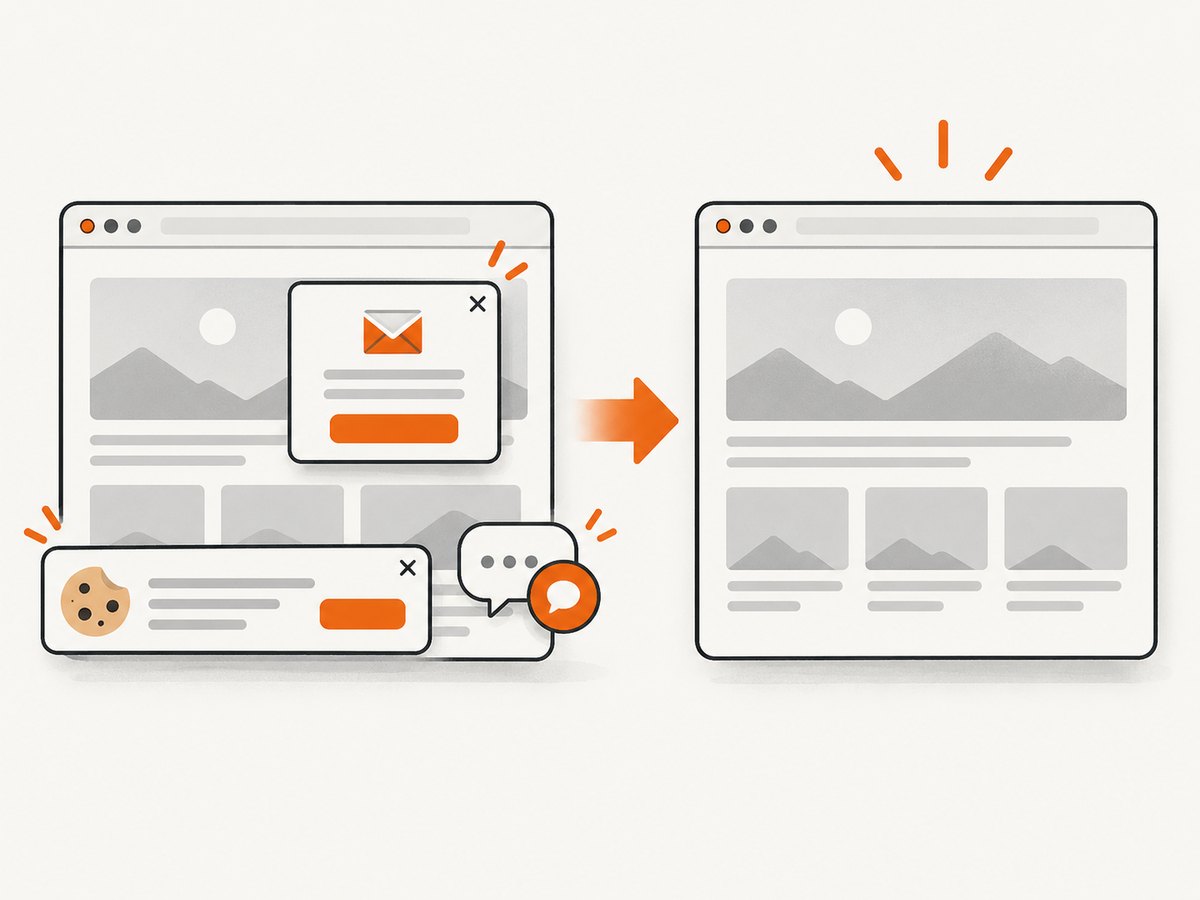
const res = await fetch(`https://api.screenshotneo.com/v1/shot?${q}`);Cookie banners, newsletter popups, and chat widgets are removed before the shot. Bot checks, blank pages, failed loads, timeouts, and cache hits are not billed, and response headers identify the page verdict and billing result. An MCP server lets Claude, Cursor, and other MCP clients call take_screenshot, get_page_info, and capture_pdf. The free plan includes 1,000 screenshots per month with no card; paid plans start at $5 for 3,000 shots. Create a free ScreenshotNeo account.
11. Frequently asked questions
Does Firefox headless need Xvfb?
No. Firefox’s documented --headless mode runs without a GUI, so a virtual display is not required for this mode.
Can I use headless Firefox on macOS?
Yes. Mozilla lists support for the headless command-line option on macOS, Windows, and Linux with GTK.
When should I use geckodriver?
Use geckodriver when code must navigate, wait for application state, interact with elements, inspect the DOM, or run assertions. The CLI is sufficient for a basic launch or screenshot.
Can the CLI capture a full page?
The documented --screenshot command captures a viewport with the requested window size. For full-page or element-specific captures, use WebDriver logic or a screenshot API.
Why does a custom profile fail in a container?
The profile may be outside the filesystem visible to Firefox or geckodriver, or it may not be writable. Put temporary profiles in a shared writable directory and use a package-matched driver.


