How to Run a Headless Browser in Visible Mode with Python
Use Playwright’s Python API with headless=False to show the browser window, debug interactions, and capture reliable screenshots.

To run a headless browser in visible mode with Python, launch Playwright with headless=False. Playwright runs headless by default, so this one option makes the Chromium, Firefox or WebKit window appear on a desktop display.
from playwright.sync_api import sync_playwright

with sync_playwright() as p:
    browser = p.chromium.launch(headless=False)
    page = browser.new_page()
    page.goto('https://example.com')
    input('Press Enter to close the browser...')
    browser.close()
The input() call keeps the short script alive long enough for you to inspect the visible window. Remove it when your script should continue automatically. The complete setup, browser choices, debugging controls, display requirements, failure fixes and a screenshot API alternative are covered below.
1. Install Playwright and its browser binaries
Install the Python package and then install the supported browser binaries. Playwright’s installation commands can change, so follow the current Playwright Python browser guide for the exact commands for your environment.
python -m pip install playwright
python -m playwright install
You can install only the engine you need if your project has a reason to limit downloads. For example, a Chromium-only workflow can install Chromium using the current command documented by Playwright. Playwright manages compatible browser builds, which avoids manually matching a browser and driver version.
2. Run the smallest visible-mode script
Create visible_browser.py:
from playwright.sync_api import sync_playwright

with sync_playwright() as p:
    browser = p.chromium.launch(headless=False)
    page = browser.new_page()
    page.goto('https://example.com', wait_until='domcontentloaded')
    print('Title:', page.title())
    input('Press Enter to close the browser...')
    browser.close()
Run it from a terminal on a machine with a graphical display:
python visible_browser.pyA Chromium window should open, navigate to the page and remain open until you press Enter. Playwright’s Python library documents Chromium, Firefox and WebKit, and its default is headless operation. Setting headless=False changes only the launch mode; it does not change your page, context or locator APIs.
3. Choose the browser engine or installed channel
The Playwright object exposes the supported engines:
from playwright.sync_api import sync_playwright

with sync_playwright() as p:
    chromium = p.chromium.launch(headless=False)
    chromium.close()

    firefox = p.firefox.launch(headless=False)
    firefox.close()

    webkit = p.webkit.launch(headless=False)
webkit.close()| Choice | When to use it | Important detail |
|---|---|---|
| Chromium | Default choice for most web compatibility checks | Uses Playwright’s managed Chromium build |
| Firefox | Cross-browser behavior checks | Install the Firefox binary through Playwright |
| WebKit | WebKit-specific compatibility checks | Install the WebKit binary through Playwright |
| Chrome or Edge channel | Testing a branded browser already installed on the machine | Check Playwright’s browser-channel documentation and your organization’s browser policies |
Use an installed Chrome or Edge channel only when matching that branded browser is part of the requirement. Enterprise policies can affect whether Playwright can control those browsers, so verify the policy with your administrator.
4. Keep the window open, slow actions and inspect state
Keep a short script alive
A Python process exits as soon as it reaches the end of the with block. That closes the browser. Use one of these approaches while debugging:
# Manual inspection
input('Press Enter to close...')

# Wait for a fixed period
page.wait_for_timeout(10_000)

# Wait for a condition
page.wait_for_selector('main')

# Keep the process alive until a real application event
page.wait_for_url('**/dashboard')
page.wait_for_timeout() is useful for a quick inspection, but a selector, URL or other condition is more reliable for an automated script because network speed varies.
Slow every Playwright operation
Use slow_mo when you need to watch each action. The value is in milliseconds.
from playwright.sync_api import sync_playwright

with sync_playwright() as p:
    browser = p.chromium.launch(headless=False, slow_mo=250)
    page = browser.new_page()
    page.goto('https://example.com')
    page.get_by_role('link').first.click()
    input('Press Enter to close...')
    browser.close()
Keep slow_mo for local diagnosis. It adds delay to every operation and should normally be disabled in production jobs.
Open developer-friendly context settings
A browser contains one or more isolated contexts. Set the viewport, locale, timezone or color scheme when reproducing a report:
from playwright.sync_api import sync_playwright

with sync_playwright() as p:
    browser = p.chromium.launch(headless=False)
    context = browser.new_context(
        viewport={'width': 1440, 'height': 900},
        locale='en-US',
        timezone_id='America/New_York',
        color_scheme='dark',
    )
    page = context.new_page()
    page.goto('https://example.com')
    input('Press Enter to close...')
    context.close()
    browser.close()
Context settings are separate from headed mode. A headed browser can still emulate a viewport that differs from the physical window size.
5. Capture a screenshot while the browser is visible
Visible mode is especially useful when you are diagnosing a screenshot. Wait for the actual page state, then capture:
from playwright.sync_api import sync_playwright

with sync_playwright() as p:
    browser = p.chromium.launch(headless=False)
    page = browser.new_page(viewport={'width': 1365, 'height': 768})
    page.goto('https://example.com', wait_until='networkidle')
    page.screenshot(path='example.png', full_page=True)
    input('Saved example.png. Press Enter to close...')
    browser.close()
networkidle can be a poor choice for pages that keep analytics or streaming connections open. In that case, wait for a meaningful selector and then use a short, bounded delay only if animations or lazy content need time to settle.
6. Make the visible run deterministic
Wait for content, not an arbitrary sleep
page.goto('https://example.com', wait_until='domcontentloaded')
page.locator('main').wait_for(state='visible')
page.locator('[data-testid="results"]').wait_for(state='visible')
page.screenshot(path='results.png')
Disable motion during debugging
page.add_style_tag(content='''
*, *::before, *::after {
  animation-duration: 0s !important;
  animation-delay: 0s !important;
  transition: none !important;
  scroll-behavior: auto !important;
}
''')
page.screenshot(path='stable.png', full_page=True)
Inspect failures with a trace
from playwright.sync_api import sync_playwright

with sync_playwright() as p:
    browser = p.chromium.launch(headless=False)
    context = browser.new_context()
    context.tracing.start(screenshots=True, snapshots=True, sources=True)
    page = context.new_page()
    page.goto('https://example.com')
    page.screenshot(path='debug.png')
    context.tracing.stop(path='trace.zip')
    context.close()
    browser.close()
The trace records browser activity for later inspection. Keep traces out of normal high-volume runs because they add storage and processing overhead.
7. Display requirements: where headed mode works
A visible browser needs an environment that can display a graphical window. A local desktop normally provides this automatically. A remote server, container, CI runner or remote desktop may not. The Playwright browser guide explains browser installation, but no single configuration applies to every server or CI setup.
- Local desktop: run the script from a terminal in the logged-in graphical session.
- Remote desktop: run it inside the remote graphical session and make sure the session remains active.
- Container or CI: headed mode may fail when no display server is available. Use the environment’s documented display solution, or run headless and collect screenshots or traces as artifacts.
- SSH: a normal SSH shell does not automatically provide a display. A forwarded or virtual display must be configured by the environment administrator.
Do not assume that setting headless=False creates a display. It only asks the browser to show its UI; the operating system still has to provide somewhere to show it.
8. Common errors and fixes
| Error or symptom | Likely cause | Fix |
|---|---|---|
ModuleNotFoundError: No module named 'playwright' |
The Python package is not installed in the active interpreter. | Run python -m pip install playwright with the same Python executable used to start the script. |
| Executable does not exist | The Playwright browser binary has not been installed, or the cache is unavailable. | Run the current browser installation command from the Playwright guide and check that the process can read its browser cache. |
| Browser launches and closes immediately | The script reached the end of the context. | Add an inspection pause while debugging, or keep the process alive by waiting for a real application condition. |
| No window appears | The process has no graphical display, or it is running in a different session. | Run inside a desktop or remote graphical session, or use headless mode in that environment. |
| Page is blank or incomplete | The script captured before content or lazy resources finished loading. | Wait for a meaningful selector, scroll if the site lazy-loads content, and capture after the required state is visible. |
Timeout waiting for networkidle |
Analytics, sockets or other long-lived requests prevent network idle. | Use domcontentloaded plus a selector wait, or set a bounded timeout around the specific operation. |
| Clicks do not work | An overlay, cookie banner, animation or changing locator blocks the target. | Inspect the visible page, wait for the target to be actionable, close the overlay, and prefer role or test-id locators over brittle positional selectors. |
| Installed Chrome cannot be controlled | Browser-channel settings or enterprise policies prevent automation. | Use a Playwright-managed browser for a reproducible run, or review the channel and policy requirements in the official documentation. |
9. Performance, reliability and security considerations
- Startup cost: launching a new browser for every URL is slower than reusing one browser process and creating isolated contexts. Reuse a browser when your workload allows it.
- Isolation: use a fresh context for separate users, cookies or authentication states. Close contexts promptly so memory does not grow without bound.
- Waiting: condition-based waits are usually faster and more reliable than long fixed sleeps. Avoid global delays unless you are deliberately slowing a local demonstration.
- Resource control: screenshots, videos and traces consume disk space. Enable them for diagnosis or required artifacts, then clean them up.
- Network variability: headed mode does not make remote pages deterministic. Record the URL, browser engine, viewport and relevant context settings with each capture.
- Credentials: do not print cookies, authorization headers or saved storage state into logs or trace files that other users can access.
- Cost: Playwright itself is software you run, so your operational cost comes from the machine, browser startup, bandwidth, storage and maintenance of the display environment.
10. Or skip the browser setup
If your goal is a clean website screenshot rather than inspecting a browser window, ScreenshotNeo provides a single HTTP request. It handles the browser environment for you and supports PNG, JPEG, WebP or PDF output. See the ScreenshotNeo API documentation for the complete option list.
cURL
curl -G "https://api.screenshotneo.com/v1/shot" -d access_key=YOUR_API_KEY --data-urlencode url=https://stripe.com -o shot.webpPython
import requests

r = requests.get(
    'https://api.screenshotneo.com/v1/shot',
    params={'access_key': 'YOUR_API_KEY', 'url': 'https://stripe.com'},
    timeout=90,
)
r.raise_for_status()
open('shot.webp', 'wb').write(r.content)
Node.js
const q = new URLSearchParams({
  access_key: 'YOUR_API_KEY',
  url: 'https://stripe.com'
});
const res = await fetch(`https://api.screenshotneo.com/v1/shot?${q}`);
if (!res.ok) throw new Error(`HTTP ${res.status}`);
const buffer = Buffer.from(await res.arrayBuffer());
require('fs').writeFileSync('shot.webp', buffer);
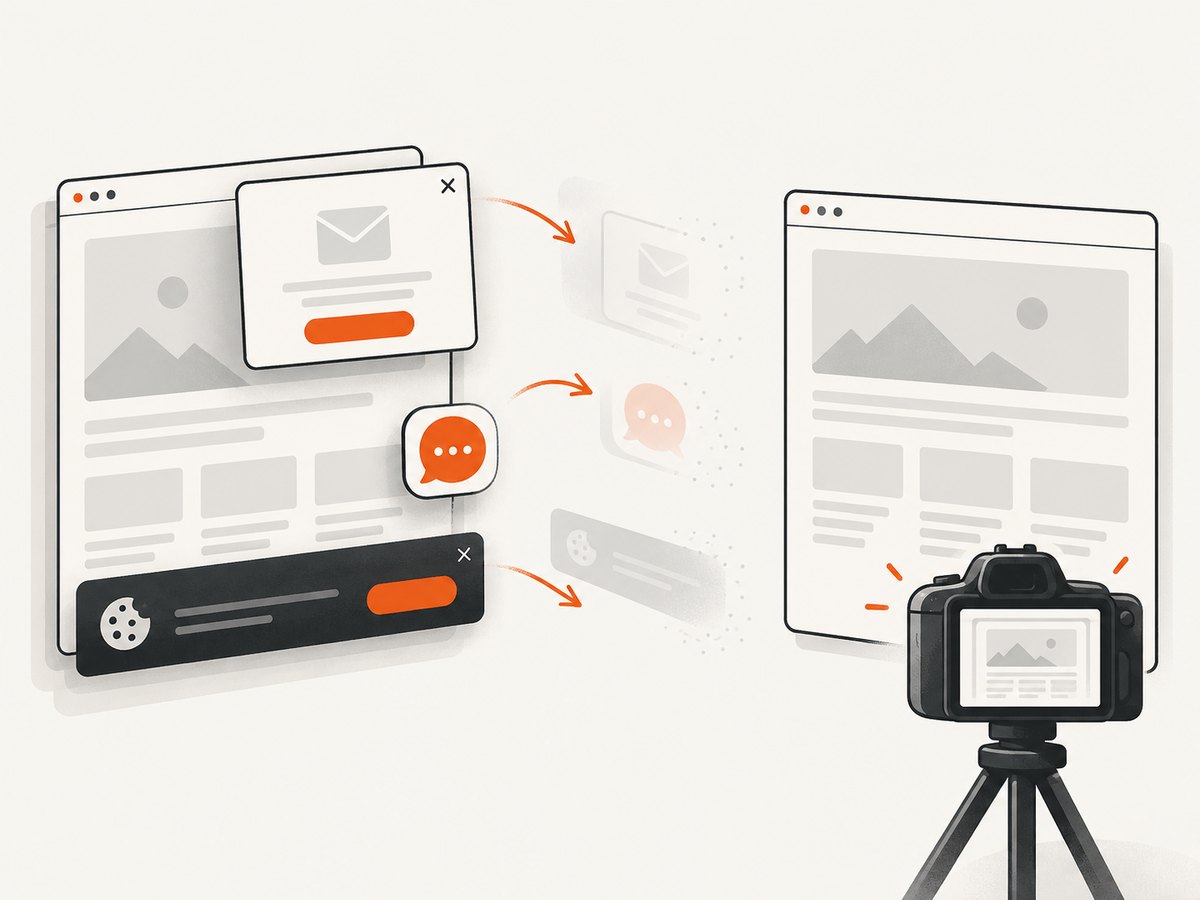
ScreenshotNeo removes cookie and consent banners, newsletter popups and chat widgets before the shot. Bot checks or CAPTCHAs, blank pages, timeouts, failed loads and cache hits are not billed, and the response identifies the result with X-Page-Verdict and X-Billed headers. Its MCP server gives Claude, Cursor and other MCP clients the take_screenshot, get_page_info and capture_pdf tools.
For more control, the API supports full-page capture with lazy images, CSS element capture, dark mode, device presets or custom viewports, retina scale, PDF paper sizes and page ranges, custom CSS and JavaScript, clicks, selector or network-idle waits, request blocking, headers, cookies, user agents, authorization, timezone, geolocation, transparent backgrounds, resizing, selectable cache TTLs, signed image links, asynchronous jobs with signed webhooks, bulk capture of up to 100 URLs per call, a usage API and an OpenAPI specification. Familiar parameter names used by other screenshot APIs also work when switching.
There is a free plan with 1,000 screenshots per month and no card. Paid plans start at $5 for 3,000 shots; every feature is available on every plan. Create a free ScreenshotNeo account.
11. FAQ
Does headed mode mean the browser is no longer automated?
No. Playwright still controls the page through the same Python API. The difference is that the browser UI is rendered and visible.
Can I use headless=False in a server job?
Only if that job has access to a graphical display. Without one, use the environment’s display configuration or run headless.
Why does my script finish before I can see anything?
Once Python reaches the end of the context, Playwright closes the browser. Add a temporary input() pause or wait for the event you are investigating.
Should I always wait for networkidle?
No. Sites with persistent requests may never become idle. Waiting for the selector that represents the content you need is usually more reliable.
Is visible mode required for screenshots?
No. Headless mode can capture screenshots. Visible mode is useful when you need to watch navigation, overlays, layout shifts or authentication behavior while diagnosing a script.


