How to Run Headless Chrome in an Microsoft Azure Web App
Run Chromium reliably on Azure App Service: choose the right hosting model, build a custom container, deploy it, troubleshoot failures, and compare managed options.
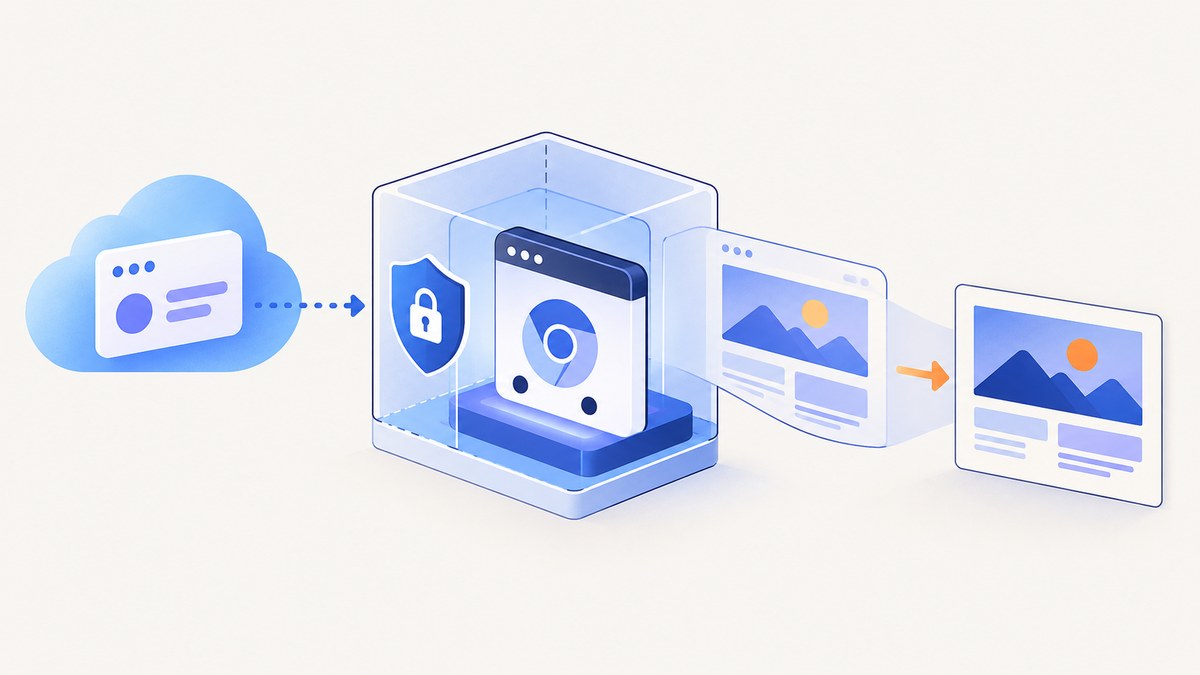
Direct answer: If your Azure Web App runs on Linux with the managed Code runtime, do not plan on installing Chromium’s missing native libraries at startup. A headless browser is still a native process, and the managed environment does not provide the OS package control needed to add libraries such as libnspr4.so. The dependable pattern is to package Chromium and its native dependencies in a custom Linux container, then deploy that image to App Service for Containers or evaluate Azure Container Apps.
This guide shows the architecture, a complete container example, deployment commands, browser-launch code, production settings, troubleshooting, and alternatives. The recommendation applies to Linux App Service Code hosting described in the Microsoft Q&A guidance; Windows and other Azure services have different constraints and must be checked separately.
1. Understand the hosting constraint
Headless mode only removes the visible window. It does not remove Chromium’s requirements for shared libraries, fonts, sandbox support, and compatible system calls. If a library is absent, Chromium exits before your automation framework can create a page.
A Microsoft-hosted Q&A answer dated February 19, 2026 addresses the common libnspr4.so launch failure in Azure App Service Linux. The moderator’s guidance is that the managed Code environment does not offer a supported way for the application owner to install those OS packages, and recommends a custom container. Microsoft Learn’s custom-container quickstart documents deploying such images to App Service.
| Hosting choice | Can you add Chromium and OS libraries? | Use it when | Trade-off |
|---|---|---|---|
| App Service Linux, managed Code | No package control for this scenario | Your app does not launch a native browser | Simple deployment, but browser startup can fail |
| App Service Web App for Containers | Yes, through the image | Your web app must launch Chromium itself | You own image updates and security patches |
| Azure Container Apps | Yes, through the image | You want container hosting with a different operational model | Review scaling, ingress, and revision behavior |
| Playwright Workspaces | Browser runs as a cloud test service | End-to-end browser testing against a deployed site | It is documented for test execution, not as an in-process PDF or scraping browser |
Do not generalize the Linux Code limitation to every Azure hosting configuration. Microsoft also advises checking language runtime and dependency compatibility when moving between Windows and Linux App Service. An older Windows Q&A answer discusses sandbox restrictions, but it is community material rather than a current universal support guarantee.
2. Choose an automation library and browser version
Pick one automation stack and keep its browser version aligned with the image. Playwright and Puppeteer both launch Chromium, but each release has its own supported browser revisions and dependency list. The exact package names should come from the library’s current documentation or a maintained browser image; do not copy a random list of Debian packages and assume it will remain valid.
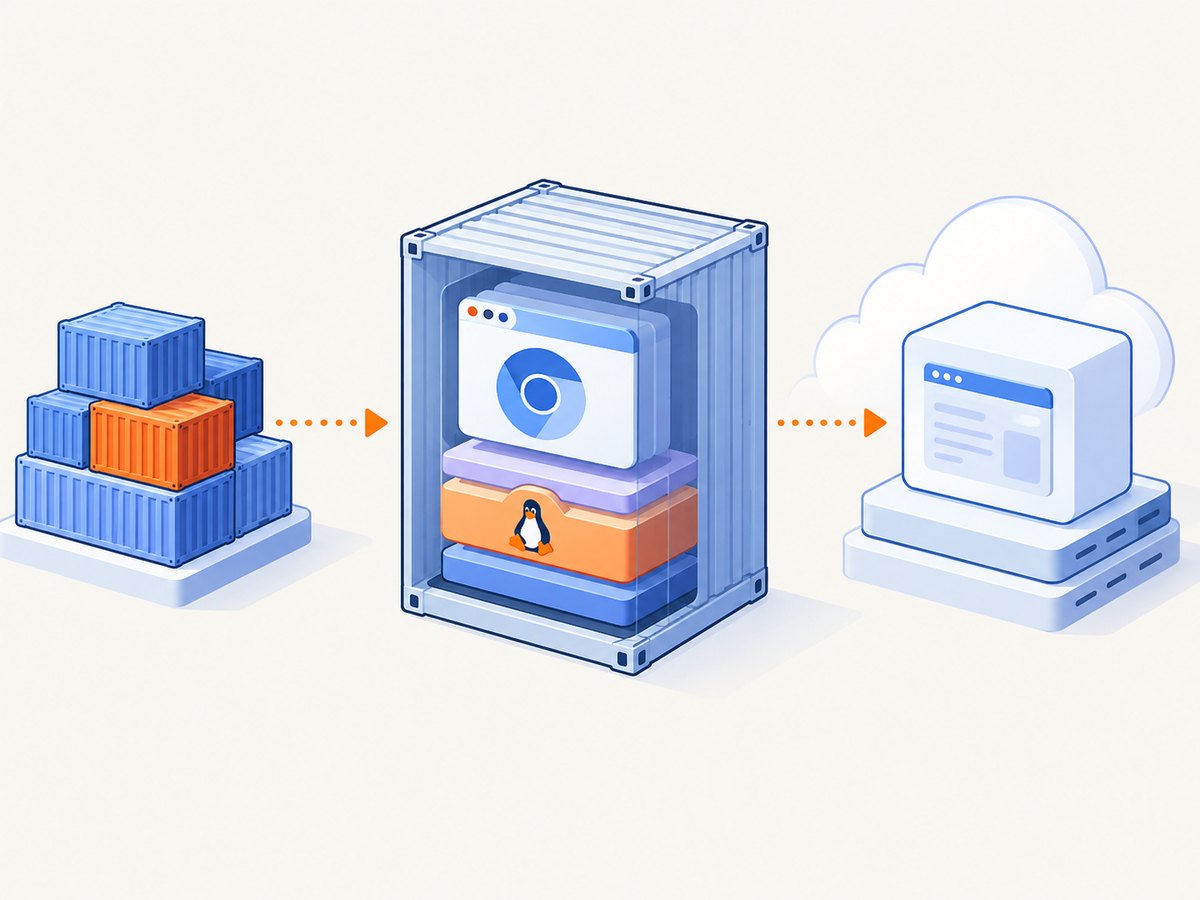
For a reproducible build:
- Pin your application dependencies in a lockfile.
- Pin the browser revision supplied by your automation library, or use a base image that explicitly includes that revision.
- Build the image in CI and run a smoke test that opens a page and takes a screenshot.
- Promote the same image digest through staging and production.
3. Build a custom Linux container
The following example uses Node.js and Playwright. It is a template for the hosting pattern; select the base image and package versions that your chosen library currently supports.
# Dockerfile
FROM mcr.microsoft.com/playwright:v1.52.0-noble

WORKDIR /app

COPY package*.json ./
RUN npm ci --omit=dev

COPY server.js ./

ENV NODE_ENV=production
ENV PORT=8080

EXPOSE 8080
CMD ["node", "server.js"]
// package.json
{
  "name": "azure-headless-chrome",
  "private": true,
  "type": "module",
  "scripts": { "start": "node server.js" },
  "dependencies": { "express": "^4.21.2", "playwright": "^1.52.0" }
}
// server.js
import express from 'express';
import { chromium } from 'playwright';

const app = express();
const port = Number(process.env.PORT || 8080);
let browser;

async function getBrowser() {
  if (!browser) {
    browser = await chromium.launch({
      headless: true,
      args: ['--disable-dev-shm-usage']
    });
  }
  return browser;
}

app.get('/healthz', (_req, res) => res.status(200).send('ok'));

app.get('/screenshot', async (req, res) => {
  const target = String(req.query.url || 'https://example.com');
  let context;
  try {
    const b = await getBrowser();
    context = await b.newContext({ viewport: { width: 1365, height: 768 } });
    const page = await context.newPage();
    await page.goto(target, { waitUntil: 'networkidle', timeout: 45000 });
    const image = await page.screenshot({ fullPage: true, type: 'png' });
    res.type('png').send(image);
  } catch (error) {
    console.error(error);
    res.status(502).json({ error: 'browser_capture_failed' });
  } finally {
    await context?.close();
  }
});

const server = app.listen(port, '0.0.0.0', () => {
  console.log(`listening on ${port}`);
});

const shutdown = async () => {
  await browser?.close();
  server.close(() => process.exit(0));
};
process.on('SIGTERM', shutdown);
process.on('SIGINT', shutdown);
The 0.0.0.0 bind is required so App Service can reach the process inside the container. The PORT environment variable lets the platform choose the listening port. Reusing one browser process avoids downloading or starting Chromium for every request; creating a fresh context per request keeps cookies and storage isolated.
4. Build, test, and publish the image
Build locally and verify the health endpoint and a real capture before pushing:
docker build -t yourregistry.azurecr.io/headless-chrome:1.0.0 .
docker run --rm -p 8080:8080 yourregistry.azurecr.io/headless-chrome:1.0.0
curl http://127.0.0.1:8080/healthz
curl -o page.png "http://127.0.0.1:8080/screenshot?url=https%3A%2F%2Fexample.com"
After the smoke test, push to Azure Container Registry (ACR):
az acr login --name YOUR_REGISTRY

docker push yourregistry.azurecr.io/headless-chrome:1.0.0
Use immutable tags or image digests in production. A mutable latest tag makes rollbacks ambiguous and can silently change the browser binary.
5. Deploy to App Service for Containers
Create a Linux plan and web app, then configure the registry image. Names and SKU choices depend on your workload; the commands below show the deployment shape.
az group create \
  --name rg-headless-browser \
  --location eastus

az appservice plan create \
  --name asp-headless-browser \
  --resource-group rg-headless-browser \
  --is-linux \
  --sku B1

az webapp create \
  --name YOUR_UNIQUE_APP_NAME \
  --resource-group rg-headless-browser \
  --plan asp-headless-browser \
  --container-image-name yourregistry.azurecr.io/headless-chrome:1.0.0 \
  --container-registry-url https://yourregistry.azurecr.io

az webapp config appsettings set \
  --name YOUR_UNIQUE_APP_NAME \
  --resource-group rg-headless-browser \
  --settings WEBSITES_PORT=8080
If the registry is private, configure managed identity or registry credentials according to your App Service setup. Keep secrets such as registry passwords, target-site credentials, and API keys in App Service settings or Key Vault rather than in the image.
Configure health checks to call /healthz. Set a startup time suitable for the image size, and make your application return a useful status while the browser is warming. During deployment, inspect container logs:
az webapp log config \
  --name YOUR_UNIQUE_APP_NAME \
  --resource-group rg-headless-browser \
  --docker-container-logging filesystem

az webapp log tail \
  --name YOUR_UNIQUE_APP_NAME \
  --resource-group rg-headless-browser
6. Browser settings that matter in production
Sandbox flags
Do not disable the Chromium sandbox by default. Some restricted environments require --no-sandbox, but removing a security boundary should be a deliberate decision after checking the container’s user, kernel, and runtime configuration. Run the process as a non-root user when the base image supports it.
Shared memory
Chromium uses shared memory for renderer processes. Small container /dev/shm mounts can cause crashes or page hangs. The example uses --disable-dev-shm-usage, which moves that usage to the filesystem. Measure your workload before choosing between that flag and a larger shared-memory mount.
Navigation and page readiness
networkidle can take a long time on pages with analytics or long polling. For predictable latency, wait for a specific selector or application signal, set a hard timeout, and abort work that exceeds your request budget. Always close contexts in a finally block.
Concurrency
Each page consumes CPU and memory. Limit concurrent captures with a queue or semaphore instead of allowing every HTTP request to open a page simultaneously. Reuse the browser process, but isolate requests with separate contexts. If memory grows after repeated captures, recycle the browser after a bounded number of jobs and investigate pages that create many workers or downloads.
7. Common errors and fixes
| Error or symptom | Likely cause | Fix |
|---|---|---|
libnspr4.so: cannot open shared object file |
Chromium is running in managed Linux Code hosting without its native libraries | Move to a custom container and install the browser dependencies in the image |
| Browser executable not found | The image contains the automation package but not its browser revision | Run the library’s browser-install step during the image build, or use a compatible browser base image |
| Container starts then exits | Process binds to localhost, uses the wrong port, or crashes during startup | Bind to 0.0.0.0, honor PORT/WEBSITES_PORT, and read container logs |
| Navigation timeout | Slow target, blocked resource, consent dialog, or never-ending requests | Set a finite timeout, wait for a selector, log the URL, and handle the page’s blocking state |
| Blank or partial screenshot | Capture occurs before client-side rendering or lazy images finish | Wait for a known element, a short post-render delay, or an application-ready marker |
| Random crashes under load | Too many renderer processes or insufficient memory | Cap concurrency, use contexts carefully, scale out, and monitor memory |
| Fonts or emojis differ | Required fonts are absent from the image | Install and pin the fonts your pages require, then rebuild the image |
| Works locally but fails in Azure | Different architecture, environment variables, outbound networking, or user permissions | Run the exact image locally, print non-secret configuration, and compare platform logs |
8. Reliability, performance, and cost planning
No source in the supplied research provides a universal throughput, latency, uptime, or success-rate figure, so size the service with your own pages and concurrency tests. Browser work is variable: a static page, a JavaScript-heavy dashboard, and a page behind a bot check have very different resource costs.
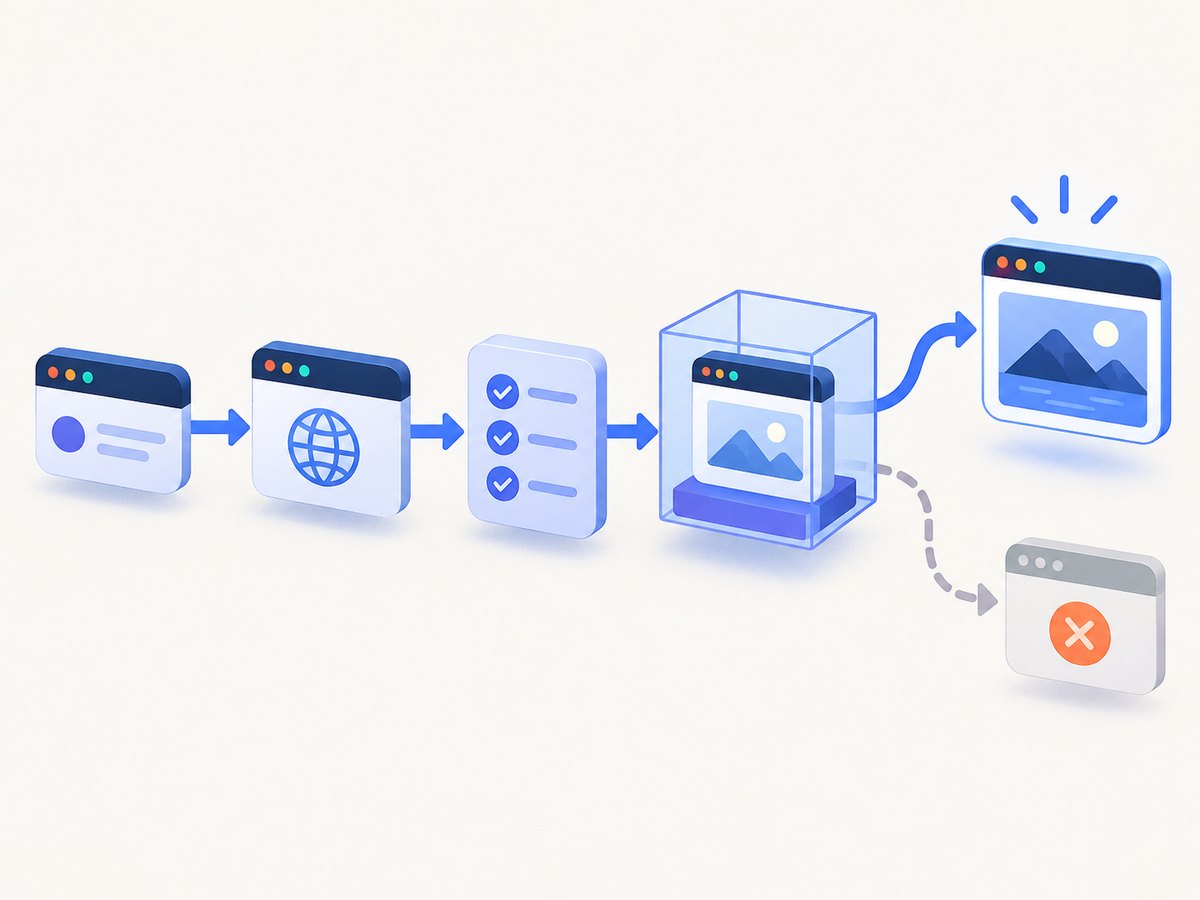
- Warm the process: keep one browser instance ready and use a lightweight health probe.
- Bound work: enforce navigation, overall request, and queue timeouts.
- Scale deliberately: scale out when CPU or memory saturation causes queueing; do not assume adding threads makes one instance faster.
- Log useful dimensions: URL host, navigation duration, browser errors, HTTP status, and capture size. Redact cookies, authorization headers, and page content.
- Plan image maintenance: a custom image gives package control, but your team must rebuild it for browser, base-image, and security updates.
- Estimate Azure spend from measured usage: App Service plan size, instance count, registry storage, logging, and outbound traffic all affect cost. The research dossier contains no verified price or benchmark to substitute for Azure’s current calculator.
For end-to-end testing rather than application-side rendering, Azure Playwright Workspaces documents cloud-hosted browser runs with Windows/Linux selection. Treat that as a separate test-execution service; the documentation does not position it as a browser process your production web app launches to create PDFs or scrape pages.
9. Or skip the browser setup
ScreenshotNeo provides a website screenshot API and MCP server when you need an image or PDF without packaging Chromium in your Azure app. Read the API documentation for the full option list.
curl -G "https://api.screenshotneo.com/v1/shot" -d access_key=YOUR_API_KEY --data-urlencode url=https://stripe.com -o shot.webp
import requests
r = requests.get("https://api.screenshotneo.com/v1/shot", params={"access_key": "YOUR_API_KEY", "url": "https://stripe.com"}, timeout=90)
open("shot.webp", "wb").write(r.content)
const q = new URLSearchParams({ access_key: 'YOUR_API_KEY', url: 'https://stripe.com' });
const res = await fetch(`https://api.screenshotneo.com/v1/shot?${q}`);
Cookie banners are accepted and removed before capture, along with more than 60 known consent platforms, newsletter popups, and chat widgets; each cleanup step can be disabled. Bot checks, blank pages, failed loads, timeouts, and cache hits are not billed, and response headers report the page verdict and billing status. An MCP server exposes take_screenshot, get_page_info, and capture_pdf to Claude, Cursor, and other MCP clients. The service supports full-page and element captures, device presets, custom viewports, retina scale, PDF controls, custom CSS and JavaScript, clicks, waits, blocking rules, headers, cookies, user agents, authorization, timezone, geolocation, transparent backgrounds, resizing, caching, signed links, asynchronous webhooks, bulk capture, usage reporting, and an OpenAPI specification.
There are 1,000 screenshots per month on the free plan with no card required. Paid plans start at $5 for 3,000 shots, and every feature is available on every plan. Create a free ScreenshotNeo account to try the API.
10. Checklist before production
- Confirm whether your app truly needs to launch a browser or only needs remote browser tests.
- If it launches Chromium, build a custom Linux image with pinned browser and application dependencies.
- Verify the image locally with a health check and representative pages.
- Deploy to App Service for Containers or Azure Container Apps, not managed Linux Code when OS libraries are required.
- Bind to
0.0.0.0, configure the platform port, and enable container logs. - Limit concurrency, close contexts, set timeouts, and monitor memory.
- Keep credentials out of the image and redact sensitive request data from logs.
- Define an image update and rollback process.
FAQ
Can I run Puppeteer or Playwright on Azure App Service Linux Code?
The managed runtime may run your application code, but the documented missing-library scenario means Chromium can fail to start. Use a custom container when the browser needs native packages.
Does adding --headless fix a missing library?
No. Headless mode changes display behavior; it does not install shared libraries or change the host package set.
Should I use Windows App Service instead?
Check the current platform limits and your automation library’s support matrix for the exact Windows configuration. The supplied research does not support an unconditional Windows recommendation.
Is a custom container maintenance-free?
No. You gain control over the browser and OS libraries, and you also take responsibility for rebuilding, patching, testing, and redeploying the image.
Can ScreenshotNeo replace an in-process browser for every workload?
It is suited to API-driven screenshots and PDFs, including agent workflows. If your application needs direct DOM interaction or a long-lived authenticated browser session, evaluate whether an in-process browser remains the better fit.


