How to Run Headless Chrome With Selenium in Python
Launch Chrome without a visible window using modern Selenium 4, automatic driver management, reliable waits, troubleshooting, and screenshot options.
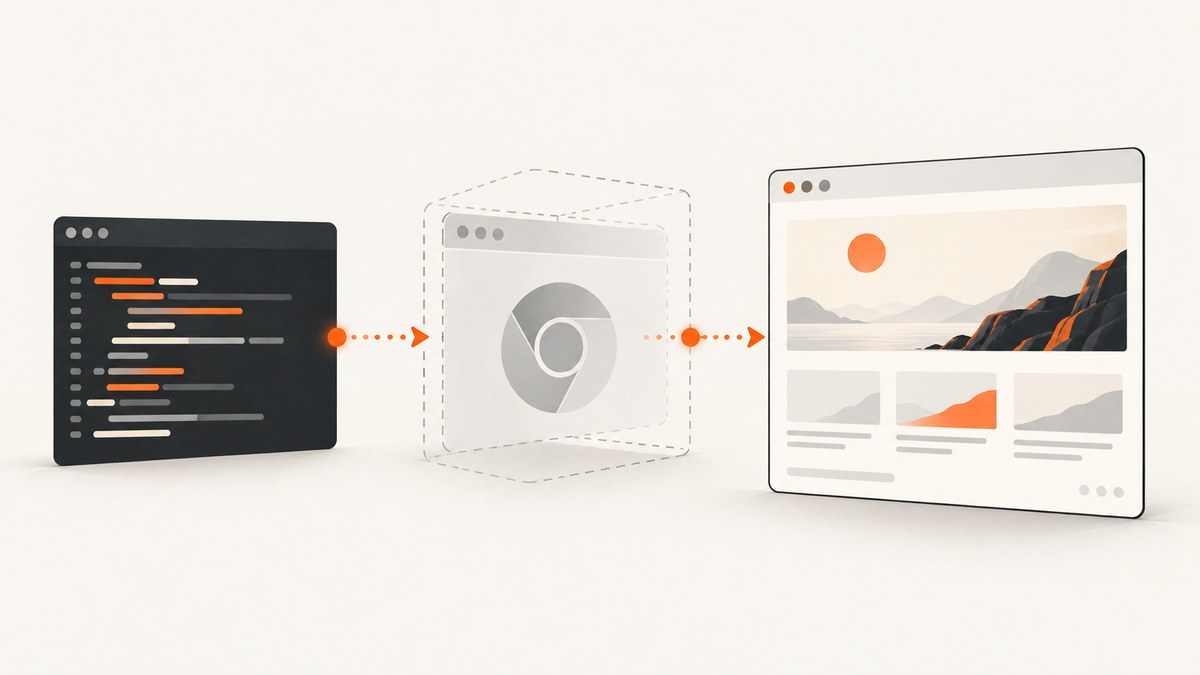
To run Chrome headlessly with Selenium in Python, install the Selenium binding, create webdriver.ChromeOptions(), add Chrome’s --headless=new argument, and pass those options to webdriver.Chrome(). Selenium Manager normally finds or downloads a compatible driver for you. Always close the session with driver.quit().
from selenium import webdriver

options = webdriver.ChromeOptions()
options.add_argument("--headless=new")
options.add_argument("--window-size=1920,1080")

driver = webdriver.Chrome(options=options)
try:
    driver.get("https://example.com")
    print(driver.title)
finally:
    driver.quit()
The fixed viewport matters when responsive layouts, screenshots, or element coordinates are involved. The Selenium Chrome documentation describes Chrome command-line arguments and browser configuration. Selenium’s Selenium Manager documentation explains automatic browser and driver management.
1. Install Selenium in an isolated Python environment
Use the same Python environment that will run your script. A virtual environment prevents another project from changing your Selenium version or dependencies.
python -m venv .venv

# macOS and Linux
source .venv/bin/activate

# Windows PowerShell
.venv\Scripts\Activate.ps1

python -m pip install -U selenium
The Selenium Python guide recommends installing the binding with pip install -U selenium and considering a virtual environment. Confirm the installation before debugging Chrome:
python -c "import selenium; print(selenium.__version__)"Use a current Python version supported by the Selenium release you install. Selenium’s package support changes over time, so check the current PyPI metadata when pinning a runtime for a production image.
2. Launch Chrome in headless mode
Use --headless=new
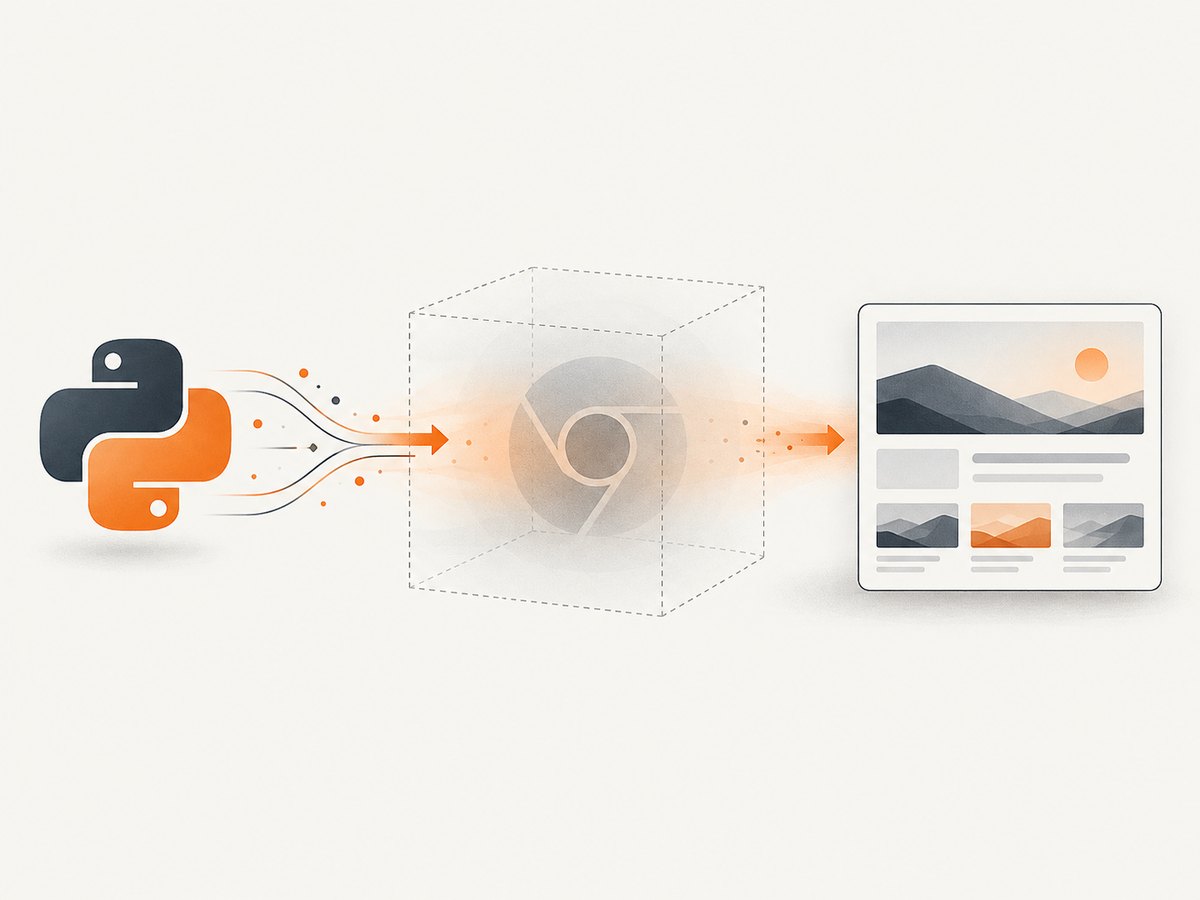
Headless mode is a Chrome argument, not a separate Selenium driver class. The --headless=new value selects Chrome’s current headless implementation. Selenium’s AI-agent guidance documents the current argument-based approach and notes that the old options.headless = True convenience property was removed. Google’s Chrome headless documentation also shows Selenium-based headless usage.
from selenium import webdriver

options = webdriver.ChromeOptions()
options.add_argument("--headless=new")

driver = webdriver.Chrome(options=options)
try:
    driver.get("https://example.com")
    print(driver.title)
finally:
    driver.quit()
Set a deterministic viewport
Headless Chrome still has a viewport. If you omit one, a responsive page may render a mobile navigation bar, different column count, or different lazy-loading thresholds on another machine. Set it explicitly when collecting screenshots or comparing page output.
options.add_argument("--window-size=1440,900")For a device-like viewport, set width and height to the CSS pixels you need. Retina density is separate from viewport size; use Chrome’s device emulation or a screenshot tool when you need a particular device scale.
3. A complete, reliable Selenium script
This example loads a page, waits for a meaningful element, reads its title and heading, saves a screenshot, and closes Chrome even when navigation or assertions fail.
from pathlib import Path

from selenium import webdriver
from selenium.common.exceptions import TimeoutException
from selenium.webdriver.common.by import By
from selenium.webdriver.support import expected_conditions as EC
from selenium.webdriver.support.ui import WebDriverWait

URL = "https://example.com"
OUTPUT = Path("example.png")

options = webdriver.ChromeOptions()
options.add_argument("--headless=new")
options.add_argument("--window-size=1440,900")

# Uncomment this only when Chrome is installed outside the normal locations.
# options.binary_location = "/path/to/chrome"

driver = webdriver.Chrome(options=options)
driver.set_page_load_timeout(45)

try:
    driver.get(URL)
    wait = WebDriverWait(driver, 20)
    wait.until(EC.presence_of_element_located((By.TAG_NAME, "body")))

    print("title:", driver.title)
    print("h1:", driver.find_element(By.TAG_NAME, "h1").text)
    driver.save_screenshot(str(OUTPUT))
    print("saved:", OUTPUT.resolve())
except TimeoutException:
    print("The page or required element did not load before the timeout.")
finally:
    driver.quit()
driver.get() waits according to the browser’s page-load strategy, but that does not guarantee that JavaScript-rendered content is ready. An explicit wait for a selector is usually more reliable than a fixed sleep.
4. Wait for the page state you actually need
Wait for an element
wait = WebDriverWait(driver, 20)
card = wait.until(
    EC.visibility_of_element_located((By.CSS_SELECTOR, "main .result-card"))
)
print(card.text)
Useful conditions include presence_of_element_located, visibility_of_element_located, element_to_be_clickable, and url_contains. Choose the condition that represents success. Presence is enough for a hidden node; visibility is better when you will read or screenshot it.
Wait for a JavaScript condition
wait.until(lambda d: d.execute_script("return document.readyState") == "complete")
wait.until(lambda d: d.execute_script("return window.appReady === true"))
Wait for lazy content
For pages that load images as you scroll, scroll in measured steps and wait for the image or content selector. Do not assume that a network-idle event means every image is decoded.
driver.execute_script("window.scrollTo(0, document.body.scrollHeight)")
wait.until(EC.presence_of_all_elements_located((By.CSS_SELECTOR, "img")))
Use time.sleep() only when the page offers no observable condition. Fixed sleeps make fast runs slower and still fail when a slow run needs more time.
5. Chrome options you can combine
| Option | Use | Example |
|---|---|---|
| Headless | Run without a visible window | --headless=new |
| Viewport | Make responsive output deterministic | --window-size=1920,1080 |
| Browser binary | Use a nonstandard Chrome or Chromium path | options.binary_location = "/opt/chrome/chrome" |
| Arguments | Pass supported Chrome switches | options.add_argument("--lang=en-US") |
| Preferences | Set Chrome profile preferences | options.add_experimental_option("prefs", {...}) |
Keep the option list small. Every extra switch can change browser behavior or hide a real deployment problem. In containers, the host may require additional operating-system packages or a sandbox configuration; those requirements depend on the image and Chrome build, so treat the image documentation as authoritative.
Use an explicit Chrome binary
options = webdriver.ChromeOptions()
options.add_argument("--headless=new")
options.binary_location = "/usr/bin/google-chrome"
driver = webdriver.Chrome(options=options)
Use a custom driver service when required
Selenium’s Python API provides Service for starting and stopping a custom ChromeDriver executable or configuring its service log.
from selenium import webdriver
from selenium.webdriver.chrome.service import Service

service = Service(executable_path="/opt/bin/chromedriver", log_output="chromedriver.log")
options = webdriver.ChromeOptions()
options.add_argument("--headless=new")

driver = webdriver.Chrome(service=service, options=options)
try:
    driver.get("https://example.com")
finally:
    driver.quit()
Manual driver management is useful for offline, pinned, or specially provisioned environments. Chrome and ChromeDriver major versions must match. In ordinary supported installations, start with Selenium Manager instead of hard-coding a path.
6. Navigation, interaction, and screenshots
Headless Chrome supports the same WebDriver actions as a visible session: navigation, CSS or XPath selection, clicks, typing, JavaScript execution, cookies, and screenshots.
from selenium.webdriver.common.by import By

email = wait.until(EC.element_to_be_clickable((By.NAME, "email")))
email.send_keys("developer@example.com")
driver.find_element(By.CSS_SELECTOR, "button[type='submit']").click()
wait.until(EC.url_contains("/account"))
driver.save_screenshot("account.png")
driver.save_screenshot() captures the current viewport. For a page screenshot, use JavaScript to measure the document and temporarily resize the window, or use a purpose-built capture service. Very tall pages can consume substantial memory and may exceed downstream image limits.
7. Driver discovery: Selenium Manager versus manual setup
Selenium Manager is Selenium’s official driver manager, shipped with Selenium releases starting at 4.6. When you call webdriver.Chrome() without a supplied service, Selenium can discover the browser and resolve a compatible driver. It may download components and cache them locally.
Use this decision guide:
- Standard workstation: use Selenium Manager and keep the script free of a hard-coded driver path.
- Offline or pinned build: provision Chrome and ChromeDriver yourself, match their major versions, and pass a
Service. - Nonstandard Chrome location: set
options.binary_location; provide a service path only if the driver also is nonstandard. - CI or containers: pin the browser image and verify the installed binary, permissions, and required libraries before investigating Selenium code.
Avoid old constructor patterns such as webdriver.Chrome(executable_path=...), removed element methods such as find_element_by_id, and options.headless = True. Current Selenium guidance documents these removals.
8. Troubleshooting common failures
“Unable to obtain driver” or Selenium Manager download errors
Cause: the environment cannot locate Chrome, reach the driver source, write its cache, or use the downloaded executable.
Fix: confirm Chrome is installed and executable, allow the environment to download or preinstall a matching driver, and inspect the Selenium Manager log. In an offline build, pass a known-good Service path.
“SessionNotCreatedException: version mismatch”
Cause: ChromeDriver’s major version differs from Chrome’s major version.
Fix: update or downgrade one side so the major versions match, or return to Selenium Manager. Do not fix this by adding random Chrome flags.
Chrome starts and immediately exits
Cause: an invalid binary path, missing OS libraries, insufficient permissions, or a container-specific sandbox problem.
Fix: run the Chrome binary directly in the same environment, verify options.binary_location, check service logs, and use a base image that includes Chrome’s dependencies. Container workarounds are image-specific.
Timeout waiting for an element
Cause: the selector is wrong, the page is still rendering, a consent dialog blocks interaction, or the content is inside an iframe.
Fix: confirm the URL and selector, wait for a stable state, switch to the correct iframe, and capture page HTML or a diagnostic screenshot before changing timeouts.
Headless output differs from visible Chrome
Cause: viewport size, device scale, user agent, fonts, locale, timezone, animations, or timing differs.
Fix: set a fixed window size, configure locale and timezone where needed, wait for the actual content condition, and disable animations through test CSS if visual comparison requires it.
Screenshot is blank or incomplete
Cause: capture happened before rendering, content is lazy-loaded below the fold, or the page uses a canvas or cross-origin resource that is not ready.
Fix: wait for a visible selector, scroll to trigger lazy loading, wait for image completion, and verify the page manually at the same viewport.
9. Reliability, performance, and cost
Each WebDriver session starts a browser process, so reuse one session for related pages when isolation is not required. Create separate sessions for tests that must not share cookies or local storage. Always use a try/finally block so a failed assertion does not leave Chrome processes running.
Keep waits specific and short enough to expose failures, but long enough for the slowest expected environment. A page-load timeout protects the worker from hanging forever; an element wait expresses application readiness. Record the URL, browser version, Selenium version, viewport, and exception when a run fails.
Parallel sessions can increase throughput, but each consumes CPU and memory. Limit concurrency to what the machine can sustain and watch for file-name collisions when saving screenshots. Cache static setup outside the per-page loop, and avoid repeatedly downloading drivers in ephemeral workers.
Selenium itself has no per-screenshot service charge: your direct costs are the machine, browser processes, network traffic, and any hosted CI or grid. A remote browser provider may add session or bandwidth pricing. If your goal is reliable website screenshots rather than browser interaction, an API can remove that operational work.
10. Or skip the browser setup
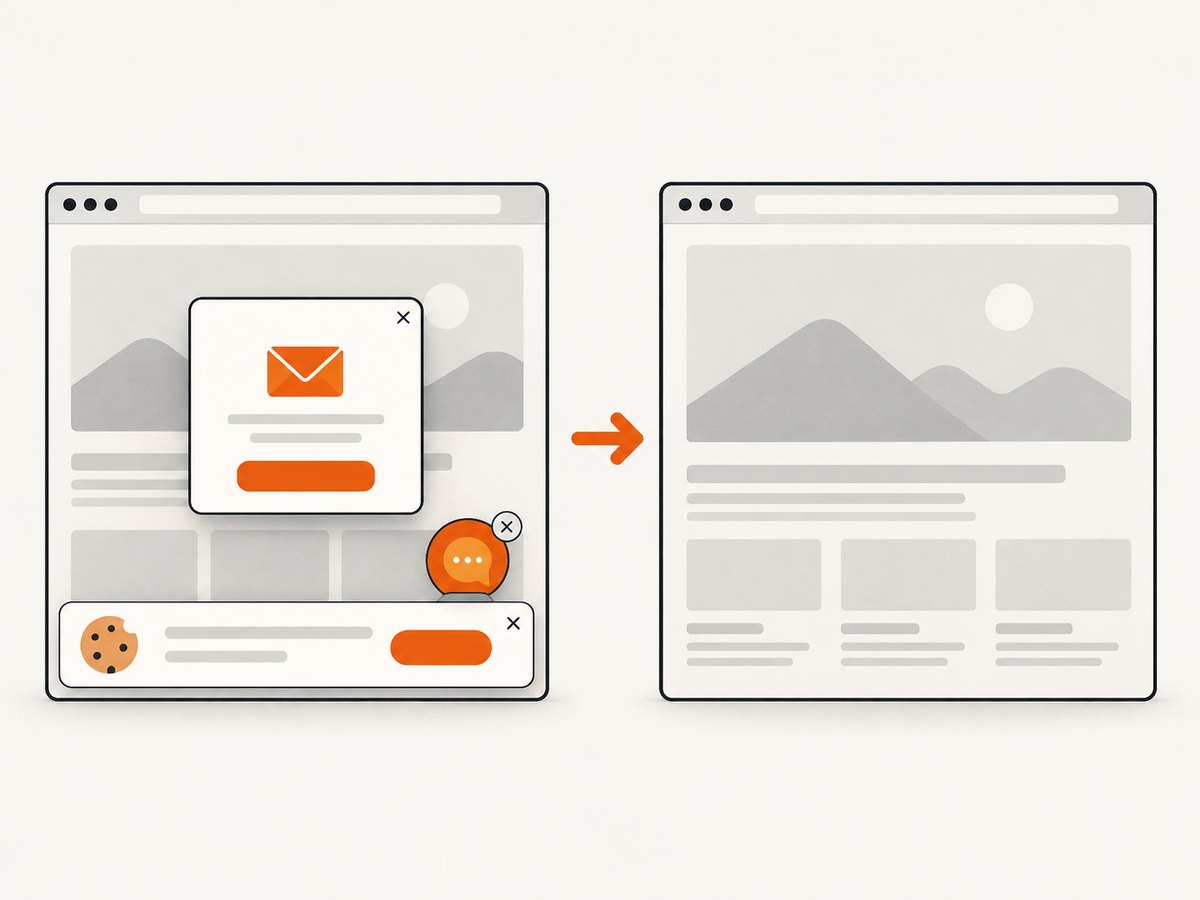
ScreenshotNeo provides a website screenshot API and MCP server. Send one GET request with a URL to receive PNG, JPEG, WebP, or a PDF. It accepts cookie and consent banners before capture, then removes more than 60 known consent platforms, newsletter popups, and chat widgets; each step can be turned off. Bot checks, CAPTCHAs, blank pages, timeouts, failed loads, and cache hits are not billed, and the response identifies the result with X-Page-Verdict and X-Billed headers.
See the ScreenshotNeo API documentation for all options. The basic call is:
curl -G "https://api.screenshotneo.com/v1/shot" -d access_key=YOUR_API_KEY --data-urlencode url=https://stripe.com -o shot.webpimport requests
r = requests.get(
"https://api.screenshotneo.com/v1/shot",
params={"access_key": "YOUR_API_KEY", "url": "https://stripe.com"},
timeout=90,
)
r.raise_for_status()
open("shot.webp", "wb").write(r.content)const q = new URLSearchParams({ access_key: 'YOUR_API_KEY', url: 'https://stripe.com' });
const res = await fetch(`https://api.screenshotneo.com/v1/shot?${q}`);
if (!res.ok) throw new Error(`HTTP ${res.status}`);
const image = Buffer.from(await res.arrayBuffer());
await fs.promises.writeFile('shot.webp', image);ScreenshotNeo also supports full-page capture with lazy images loaded, CSS-selector element capture, dark mode, device presets and custom viewports, retina scale, PDFs with paper size, margins, landscape and page ranges, custom CSS and JavaScript, clicks, selector or network-idle waits, request blocking, headers, cookies, user agents, Authorization, timezone, geolocation, transparent backgrounds, resizing, configurable caching, signed image links, asynchronous jobs with signed webhooks, bulk capture of up to 100 URLs per call, a usage API, and an OpenAPI specification. An MCP server exposes take_screenshot, get_page_info, and capture_pdf to Claude, Cursor, and other MCP clients.
Free accounts include 1,000 screenshots each month with no card. Paid plans start at $5 for 3,000 shots; every feature is available on every plan. Create a free ScreenshotNeo account.
FAQ
Can I run headless Chrome without installing ChromeDriver?
Usually yes. Current Selenium releases use Selenium Manager when you do not provide a driver service. The browser still must be available, and restricted or offline environments may need a preinstalled matching driver.
Is --headless different from --headless=new?
Both request headless operation, but --headless=new makes the current implementation explicit. Use the argument supported by your Chrome version and Selenium guidance.
Why does my script finish but Chrome remains running?
Ensure every code path reaches driver.quit(), preferably in finally. A process killed outside Python cannot run cleanup code, so CI workers should also enforce job timeouts.
Should I use Selenium for every screenshot job?
Use Selenium when you need browser interaction, authenticated flows, or test assertions. For straightforward capture at scale, an API such as ScreenshotNeo can avoid maintaining browser binaries and workers.


