How to Run Custom JavaScript Before Capturing a Website
Inject JavaScript before or after a page loads, wait for async content, then capture a reliable screenshot or PDF with Playwright, Puppeteer, or a hosted API.
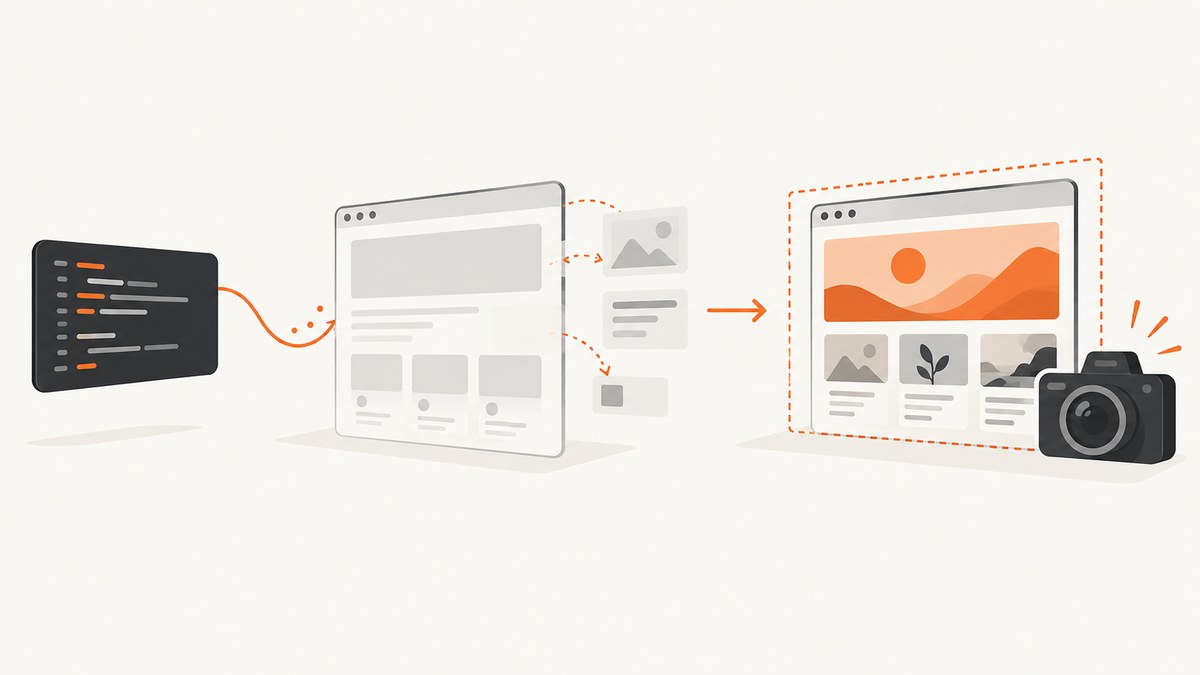
Run JavaScript in the browser page before calling the screenshot or PDF method. Use an initialization hook when code must run before the website’s own scripts; use page evaluation when the document is already available. In either case, await asynchronous setup and a meaningful page-ready condition before capture.
For an application you control, Playwright and Puppeteer give you direct browser access. A hosted browser service can run scripts remotely. If you need the capture without managing browser setup, ScreenshotNeo accepts custom JavaScript and CSS as screenshot options and returns an image or PDF.
1. Pick the right point in the page lifecycle
There are two different jobs developers mean by “run JavaScript before capture”:
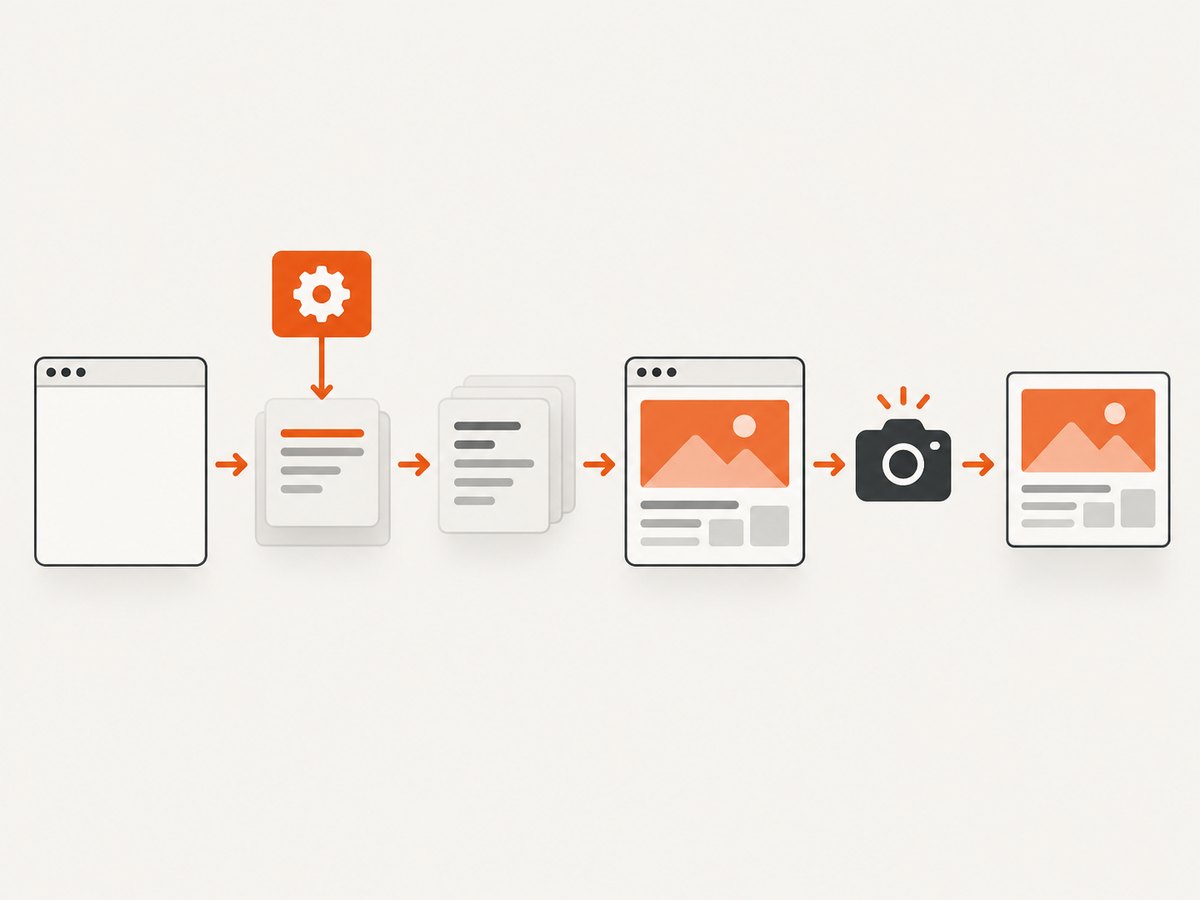
- Change the page before its code runs. Install a pre-document initialization script before navigation. This is useful for setting globals, stubbing browser APIs, or observing calls from the application’s scripts.
- Prepare a page that has loaded. Navigate first, evaluate code in the page context, wait for it to finish, and then capture. This is usually best for DOM edits, opening a tab, or triggering an application action.
These approaches are not interchangeable. A normal evaluation cannot retroactively affect scripts that already ran. An initialization hook runs very early, but the document may not yet contain elements you want to edit.
| Need | Use | When it runs |
|---|---|---|
| Set a global or intercept an API before site code | Playwright addInitScript or Puppeteer evaluateOnNewDocument |
After document creation, before page scripts |
| Change existing DOM or trigger an action | evaluate |
When you call it, against the current page |
| Wait for asynchronous setup | Return/await a Promise in evaluate |
Capture only after the Promise resolves |
| Run code in a managed capture service | Hosted screenshot or function API | According to that service’s request lifecycle |
2. Playwright: inject, prepare, and capture
Install Playwright in a Node.js project and install its browser. This runnable example uses Chromium, runs a hook before page scripts, then waits for a page-specific ready signal, performs asynchronous DOM preparation, and writes a full-page PNG.
npm install playwright
npx playwright install chromium
// capture.mjs
import { chromium } from 'playwright';
const url = process.argv[2] ?? 'https://example.com';
const browser = await chromium.launch({ headless: true });
const page = await browser.newPage({ viewport: { width: 1440, height: 1000 } });
try {
// Runs after document creation and before the page's scripts.
await page.addInitScript(() => {
window.__captureMode = true;
});
await page.goto(url, { waitUntil: 'domcontentloaded', timeout: 45000 });
// Prefer an app-specific ready marker when the site provides one.
// Replace this selector with a real element on your target page.
await page.locator('body').waitFor({ state: 'visible', timeout: 15000 });
// evaluate waits for the returned Promise to resolve.
await page.evaluate(async () => {
const badge = document.createElement('div');
badge.textContent = 'Prepared for capture';
badge.dataset.captureNote = 'true';
Object.assign(badge.style, {
position: 'fixed', right: '12px', bottom: '12px', zIndex: '2147483647',
background: '#172554', color: 'white', padding: '8px 12px',
font: '14px sans-serif', borderRadius: '6px'
});
document.body.appendChild(badge);
// Example async work; replace with the actual app operation.
await new Promise(resolve => setTimeout(resolve, 250));
});
await page.screenshot({ path: 'capture.png', fullPage: true });
} finally {
await browser.close();
}Run it with node capture.mjs https://your-site.example. The Playwright evaluation documentation describes page-context execution and Promise handling; its initialization-script API documents the early hook. Use a selector meaningful to the application rather than relying on body visibility for production captures.
Pass data safely into page code
The callback passed to evaluate runs in the browser, not in Node.js. It cannot read local variables unless you pass them as arguments. This keeps the boundary explicit:
const theme = 'dark';
await page.evaluate((value) => {
  document.documentElement.dataset.theme = value;
}, theme);
For initialization scripts, pass serializable values through the API’s argument parameter where supported, or close over constants in the function you provide. Avoid building JavaScript source by concatenating untrusted strings.
3. Puppeteer: the equivalent workflow
Puppeteer offers the same lifecycle split. evaluateOnNewDocument installs a function before site scripts; evaluate runs against the current document. Install Puppeteer and use this example:
npm install puppeteer// capture-puppeteer.mjs
import puppeteer from 'puppeteer';
const url = process.argv[2] ?? 'https://example.com';
const browser = await puppeteer.launch({ headless: true });
try {
const page = await browser.newPage();
await page.setViewport({ width: 1440, height: 1000, deviceScaleFactor: 1 });
await page.evaluateOnNewDocument(() => {
window.__captureMode = true;
});
await page.goto(url, { waitUntil: 'domcontentloaded', timeout: 45000 });
await page.waitForSelector('body', { visible: true, timeout: 15000 });
await page.evaluate(async () => {
document.documentElement.classList.add('capture-ready');
await new Promise(resolve => setTimeout(resolve, 250));
});
await page.screenshot({ path: 'capture.png', fullPage: true });
} finally {
await browser.close();
}Run node capture-puppeteer.mjs https://your-site.example. See Puppeteer’s primary docs for pre-document injection and screenshot output. The browser must be installed and available in the environment where this script runs.
4. Choose a readiness condition that matches the page
Navigation completion and application readiness are different. A page can finish its initial document load while client-side rendering, data fetching, fonts, animations, or embedded widgets are still changing the pixels.
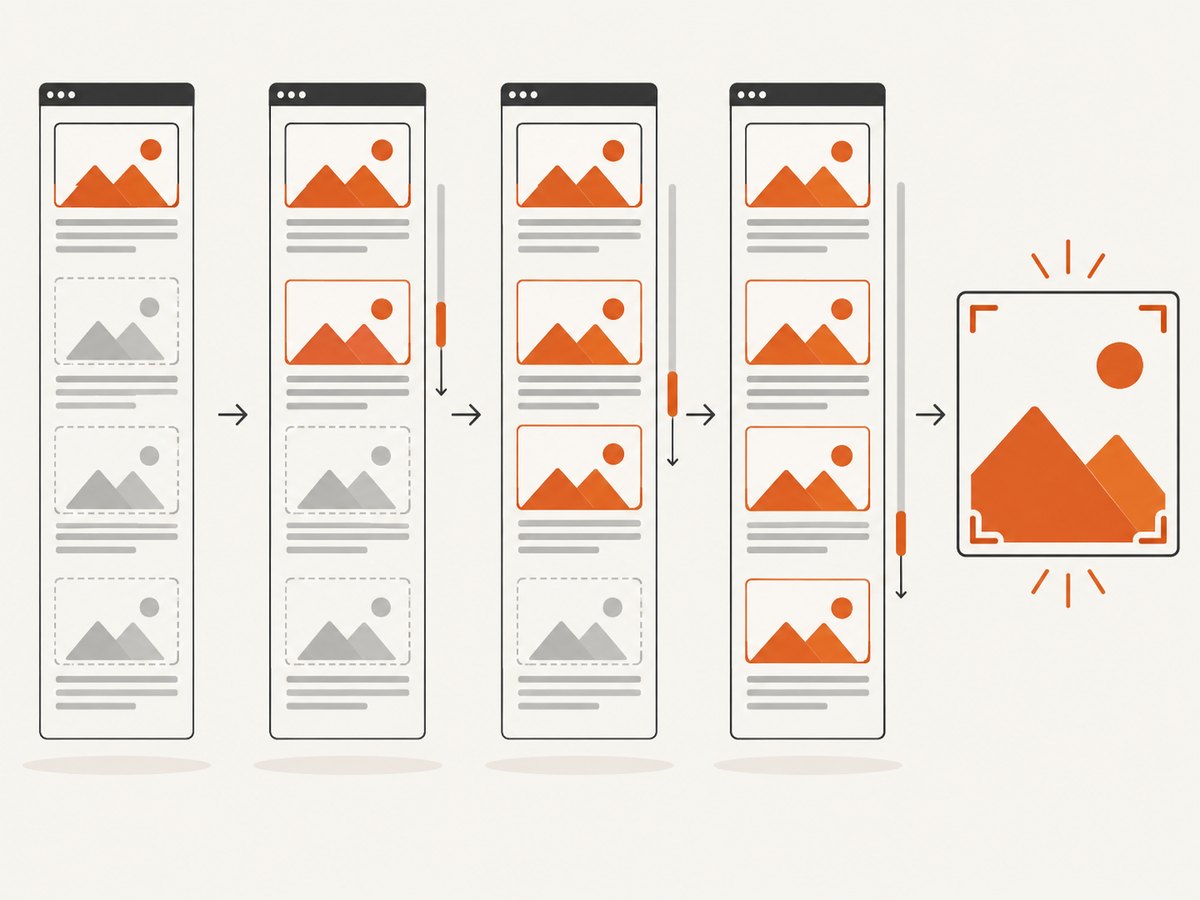
- Navigate. Use
domcontentloadedfor a fast start, or a load state if the page needs its resources. No single navigation event means every application is visually stable. - Wait for a real signal. Prefer a selector such as a results container, a known heading, or an application-owned global that indicates data is rendered.
- Await your own preparation. If setup fetches data, decodes an image, or triggers a component update, return a Promise and await it.
- Handle lazy content. Full-page capture does not guarantee every below-the-fold image has loaded. Scroll through the page or trigger the site’s lazy-load mechanism, then wait for images to complete.
- Capture once stable. Avoid arbitrary long sleeps when a selector or explicit ready state is available. A short bounded delay can still be useful for transitions or delayed rendering.
await page.evaluate(async () => {
  // Trigger common scroll-based lazy loaders.
  for (let y = 0; y < document.body.scrollHeight; y += window.innerHeight) {
    window.scrollTo(0, y);
    await new Promise(resolve => setTimeout(resolve, 100));
  }
  window.scrollTo(0, 0);

  await Promise.all(
    [...document.images].map(img => {
      if (img.complete) return Promise.resolve();
      return new Promise(resolve => {
        img.addEventListener('load', resolve, { once: true });
        img.addEventListener('error', resolve, { once: true });
      });
    })
  );
});
This example bounds each image wait only through its event outcome; for pages with images that can stall, add an application-appropriate timeout. Some sites load images only when a specific element enters view, so adapt the scroll step to the page rather than assuming one pass is sufficient.
5. Hosted browser APIs and PDFs
A managed browser endpoint can run capture work without you deploying Chromium. Browserless documents a /screenshot endpoint with addScriptTag entries for a script URL or inline content, and a /function endpoint for custom Puppeteer code. Its /pdf endpoint produces a rendered PDF. Consult the Screenshot API, Function API, and PDF API for their current request schemas and authentication requirements.
Illustrative request shape (check the current endpoint schema and provide your own service token):
curl -X POST 'https://production-sfo.browserless.io/screenshot?token=YOUR_TOKEN' \
  -H 'Content-Type: application/json' \
  --data '{
    "url": "https://example.com",
    "options": { "fullPage": true },
    "addScriptTag": [
      { "content": "document.documentElement.dataset.captureMode = \\\"true\\\"" }
    ]
  }' \
  --output capture.png
For code that needs to await application-specific work, use the service’s custom function route and its documented Puppeteer interface rather than assuming a simple script-tag insertion can wait for every task. Browserless also documents waiting for events, selectors, functions, and timeouts before PDF generation. A PDF is not simply a tall screenshot: print CSS, page size, margins, landscape mode, and page breaks affect the result. Test the PDF path separately from image capture.
6. Compare the implementation choices
| Approach | Timing control | Readiness | Output | Operational work |
|---|---|---|---|---|
| Playwright | Pre-script init hook and current-page evaluation | Promises, selectors, navigation states, app signals | Image or PDF | Host and maintain browser runtime |
| Puppeteer | Pre-document injection and current-page evaluation | Promises, selectors, navigation options | Image or PDF | Host and maintain browser runtime |
| Browserless | Script tag injection or custom browser function | Endpoint-specific waits, selectors, functions | Screenshot or PDF endpoint | Use hosted service and its authentication/API |
Choose an in-process browser when you need detailed control over navigation, application state, or browser interactions. A hosted service is useful when browser installation and scaling should be handled outside your application. Verify current service options and pricing directly; the documentation cited here does not establish comparative performance or cost.
7. Or skip the browser setup
ScreenshotNeo is a website screenshot API and MCP server. Send one GET request with the target URL to get PNG, JPEG, WebP, or PDF output. For the available JavaScript, CSS, wait, viewport, and output options, see the ScreenshotNeo API documentation.
curl -G "https://api.screenshotneo.com/v1/shot" \
  -d access_key=YOUR_API_KEY \
  --data-urlencode url=https://stripe.com \
  -o shot.webp
import requests
r = requests.get(
"https://api.screenshotneo.com/v1/shot",
params={"access_key": "YOUR_API_KEY", "url": "https://stripe.com"},
timeout=90,
)
r.raise_for_status()
open("shot.webp", "wb").write(r.content)const q = new URLSearchParams({
access_key: 'YOUR_API_KEY',
url: 'https://stripe.com'
});
const res = await fetch(`https://api.screenshotneo.com/v1/shot?${q}`);
if (!res.ok) throw new Error(`Screenshot request failed: ${res.status}`);
const bytes = new Uint8Array(await res.arrayBuffer());
await import('node:fs/promises').then(fs => fs.writeFile('shot.webp', bytes));ScreenshotNeo accepts custom JavaScript as a capture option. It also accepts cookie banners like a visitor and removes more than 60 known consent platforms, newsletter popups, and chat widgets before the shot; each step can be turned off. Bot checks and CAPTCHAs, blank pages, timeouts, failed loads, and cache hits are not billed, and response headers say the page verdict and whether the request was billed. Its MCP server provides take_screenshot, get_page_info, and capture_pdf for Claude, Cursor, and other MCP clients. The free plan includes 1,000 shots per month without a card; paid plans start at $5 for 3,000 shots. Sign up for 1,000 free screenshots a month, no card required.
8. Troubleshooting
| Symptom | Likely cause | Fix |
|---|---|---|
| Page changes do not appear | Code ran in the Node/Python process rather than the page context, or ran before the target element existed | Use page.evaluate; wait for the element first. Use an init hook only for pre-script work. |
| Screenshot starts before async changes finish | The evaluated callback did not return or await its Promise | Return the Promise from evaluate and await the call before capture. |
| Initialization code has no effect | The hook was registered after navigation, or its condition only applies to another document | Register it before goto; check frame and navigation behavior for the browser library. |
| Selector wait times out | Wrong selector, blocked request, consent wall, or application error | Inspect the page and console; choose a stable app marker and set a bounded timeout with useful error logging. |
| Lazy images are missing | The page never triggered viewport-based loading | Scroll through the page, wait for image completion, and return to the desired capture position. |
| PDF differs from screenshot | Print styles, pagination, margins, or paper size change layout | Configure PDF options and test print output separately; use print-specific CSS when you own the page. |
| Hosted endpoint returns an error | Invalid token, malformed JSON, unsupported option, or request timeout | Check the provider’s current schema and authentication instructions; log status and response body without exposing credentials. |
| Capture works locally but fails in deployment | Browser dependencies, memory, sandbox settings, or concurrent jobs differ | Install the matching browser, provision runtime dependencies, limit concurrency, and record navigation/capture errors. |
9. Performance, reliability, and cost
Capture time is usually affected by the target site’s own response and rendering, the readiness condition, browser startup, and output size. There are no published benchmark figures in the research for these approaches, so measure your own target URLs and workload rather than relying on a generic speed claim.
- Keep waits specific. Waiting for all network activity can be unreliable on pages with analytics, polling, or long-lived connections. A selector or application-ready signal often gives a clearer condition.
- Reuse browsers when appropriate. For repeated captures in an owned service, reusing a browser process can avoid repeated startup overhead; isolate pages and contexts according to your security needs.
- Bound work. Set navigation and selector timeouts, cap concurrency, close pages and browsers in cleanup paths, and retry only transient failures. Avoid retrying a deterministic selector or script error unchanged.
- Make output repeatable. Set viewport, device scale, locale/timezone if relevant, and a stable wait condition. Dynamic advertisements and personalized content can still vary.
- Protect credentials and page data. Keep API tokens out of source control and logs. A page script can access the page’s DOM and origin context; only inject code you trust.
- Account for cost by operating model. Self-hosted automation consumes your compute and maintenance time. Hosted APIs charge according to their current plans and terms. ScreenshotNeo lists a free 1,000 shots monthly and paid tiers from $5 for 3,000; only clean shots are billed, and its response headers expose the verdict and billing status.
10. FAQ
Can I inject JavaScript before the website loads?
Yes. Register Playwright’s addInitScript or Puppeteer’s evaluateOnNewDocument before navigation. The script runs after document creation and before page scripts.
Can injected code access Node.js variables?
No, page-context code runs in the browser. Pass values explicitly through the automation library’s evaluation arguments.
Should I wait for network idle?
Only if it reflects the target’s readiness. Analytics, polling, and open connections may prevent idle; an application selector or ready signal is often more dependable.
Does full-page capture load every lazy image?
Not necessarily. Trigger the page’s lazy-loading behavior, commonly by scrolling, and wait for the required assets before capturing.
Can the same setup produce a PDF?
Yes, but PDF generation uses print layout rules and pagination. Configure and validate it as a separate output path.
References: Playwright evaluate, Playwright addInitScript, Puppeteer evaluateOnNewDocument, Puppeteer screenshot, and Browserless documentation for its screenshot, function, and PDF APIs.


