How to Run Custom JavaScript with wkhtmltopdf and wkhtmltoimage
Use --run-script, delays, and window.status to render JavaScript reliably with wkhtmltopdf and wkhtmltoimage.
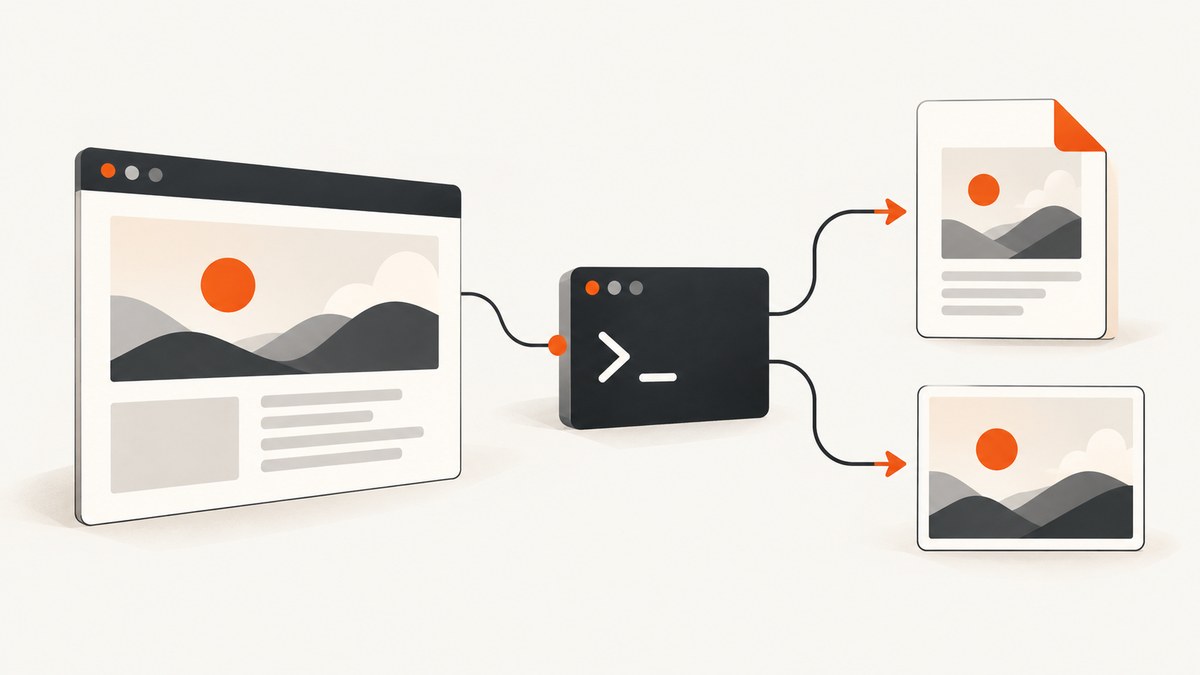
Direct answer: JavaScript is enabled by default in wkhtmltopdf and wkhtmltoimage. Add code after page load with --run-script, wait for asynchronous work with --javascript-delay, or let the page signal completion through window.status and --window-status. For image output, verify the exact binary you use: historical wkhtmltoimage builds have ignored delay and status options, so timing behavior can vary by version.
This guide shows complete command-line workflows, equivalent libwkhtmltox settings, reliable patterns for asynchronous pages, local-file controls, troubleshooting, and a hosted alternative when maintaining a browser binary is unnecessary.
1. How JavaScript execution works
wkhtmltopdf and wkhtmltoimage load a page in the Qt WebKit engine, execute JavaScript, and then render the resulting document. The documented default is JavaScript enabled. You can make that explicit with --enable-javascript, or disable execution with --disable-javascript.
There are three different timing controls:
| Control | Best for | Behavior |
|---|---|---|
--run-script |
Adding capture-time code | Runs a JavaScript snippet after the page finishes loading. The option is repeatable. |
--javascript-delay |
Known, fixed-duration work | Waits a specified number of milliseconds after load before rendering. |
--window-status |
Variable asynchronous work | Waits until page code sets window.status to the requested value. |
The official usage documentation describes --run-script <js> as additional JavaScript run after loading, and --enable-javascript as the default behavior. See the wkhtmltopdf command reference and the wkhtmltoimage command reference.
2. Basic commands
Run a script while creating a PDF
wkhtmltopdf \
  --enable-javascript \
  --run-script "document.body.dataset.rendered='true';" \
  input.html output.pdf
The snippet runs after the document load event. It can modify the DOM, add a class, trigger an application function, or expose a value needed by CSS.
Run a script while creating an image
wkhtmltoimage \
  --enable-javascript \
  --run-script "document.body.classList.add('capture-mode');" \
  input.html output.png
Inject more than one script
wkhtmltopdf \
  --run-script "document.documentElement.classList.add('print');" \
  --run-script "window.prepareCharts && window.prepareCharts();" \
  input.html output.pdf
Repeat the option when separate snippets are easier to maintain. Shell quoting matters: use single quotes around JavaScript that contains double quotes, or put complex code in a shell variable or script file and pass it carefully.
3. Wait for JavaScript with a fixed delay
Use --javascript-delay when the page needs a predictable amount of time for animations, chart drawing, or a request that normally finishes within a known window.
wkhtmltopdf \
  --enable-javascript \
  --javascript-delay 1000 \
  https://example.com/report output.pdf

wkhtmltoimage \
  --enable-javascript \
  --javascript-delay 1000 \
  https://example.com/report output.png
The value is in milliseconds. A delay of 0 does not create a useful wait for asynchronous work. Increase it only as much as needed: a large value makes every capture slower, while a small value can produce an incomplete document.
When a delay is appropriate
- A chart library draws immediately after load and has a stable rendering time.
- A local HTML file starts a short, deterministic animation.
- You cannot change the page to publish a completion signal.
Why a delay is not deterministic
Network latency, CPU load, cache state, and third-party scripts can change completion time. A page that usually finishes in 800 ms may need several seconds on a busy machine. Prefer a page-controlled signal when you own the page.
4. Wait for a page-controlled signal with window.status
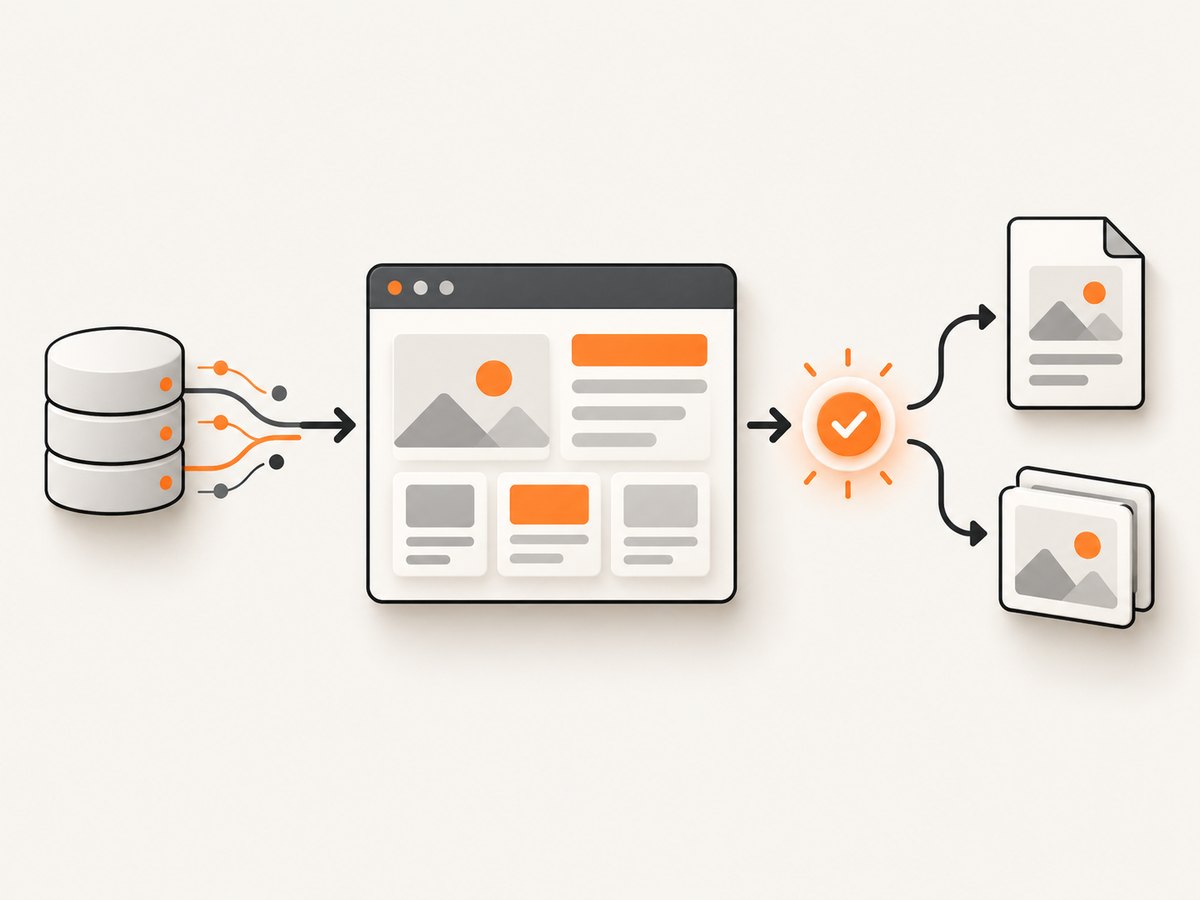
The reliable pattern is to set window.status only after all data has been fetched and the DOM has been updated.
<!doctype html>
<html>
<body>
  <div id="result">Loading…</div>
  <script>
    fetch('/data.json')
      .then(response => {
        if (!response.ok) throw new Error(`HTTP ${response.status}`);
        return response.json();
      })
      .then(data => {
        document.querySelector('#result').textContent = data.value;
        window.status = 'ready-for-capture';
      })
      .catch(error => {
        document.querySelector('#result').textContent = error.message;
        window.status = 'capture-error';
      });
  </script>
</body>
</html>
wkhtmltopdf \
--enable-javascript \
--window-status ready-for-capture \
report.html report.pdfThe renderer waits for the requested status value instead of guessing how long the request will take. Make sure every code path sets a status, including error paths, or a capture can wait indefinitely or until a renderer-specific timeout.
Use window.print when supported
The libwkhtmltox settings reference documents rendering that waits for the configured JavaScript delay or until JavaScript calls window.print(). This can be useful when the page already has print preparation logic. See the libwkhtmltox page settings reference.
5. A complete asynchronous example
The following example waits for two requests, renders a table, and exposes a status value. It also prevents a capture from hanging forever by publishing an error status.
<!doctype html>
<html>
<head>
  <style>
    body { font: 16px sans-serif; }
    table { border-collapse: collapse; }
    td, th { border: 1px solid #999; padding: 6px 10px; }
  </style>
</head>
<body>
  <h1>Orders</h1>
  <table id="orders"></table>
  <script>
    async function render() {
      try {
        const [ordersResponse, namesResponse] = await Promise.all([
          fetch('/orders.json'),
          fetch('/customers.json')
        ]);
        if (!ordersResponse.ok || !namesResponse.ok) {
          throw new Error('Data request failed');
        }
        const orders = await ordersResponse.json();
        const names = await namesResponse.json();
        const table = document.querySelector('#orders');
        table.innerHTML = '<tr><th>Customer</th><th>Total</th></tr>';
        for (const order of orders) {
          const row = document.createElement('tr');
          row.innerHTML = `<td>${names[order.customerId]}</td><td>${order.total}</td>`;
          table.appendChild(row);
        }
        window.status = 'ready-for-capture';
      } catch (error) {
        document.body.dataset.captureError = error.message;
        window.status = 'capture-error';
      }
    }
    render();
  </script>
</body>
</html>
wkhtmltopdf \
--enable-javascript \
--window-status ready-for-capture \
--debug-javascript \
report.html report.pdf6. Injecting code safely from the shell
Shells interpret quotes, dollar signs, backticks, semicolons, and parentheses before wkhtmltopdf receives them. Keep short snippets simple:
wkhtmltopdf --run-script 'document.body.style.backgroundColor = "#fff";' input.html output.pdfFor longer code, use a compact one-line file and read it into a variable:
script=$(cat capture.js)
wkhtmltopdf --run-script "$script" input.html output.pdf
Review the generated command in CI logs without printing credentials or private page data. If your shell or CI runner has restrictive quoting rules, call a small wrapper program that constructs the argument list directly.
7. Equivalent libwkhtmltox settings
If you embed the renderer instead of invoking its binaries, the relevant settings map directly:
| CLI flag | libwkhtmltox setting |
|---|---|
--enable-javascript |
web.enableJavascript = true |
--javascript-delay 1000 |
load.jsdelay = 1000 |
--window-status ready-for-capture |
Set the corresponding load status setting to the required string. |
The library reference also describes waiting for the delay or for window.print(). Use the same page-signaled design: update the DOM first, then signal completion.
8. Local files, scripts, and assets
Local HTML often references local JavaScript, CSS, fonts, or images. Local-file access is a separate security and compatibility setting. Review whether your binary disables it by default or through a wrapper.
wkhtmltopdf \
  --enable-javascript \
  --enable-local-file-access \
  input.html output.pdf
Some builds support narrowly scoped allowances such as --allow /path/to/assets. Prefer granting only the directories required by the document. If local resources fail, inspect --disable-local-file-access, --enable-local-file-access, and any allow-list arguments in the exact version’s help output.
9. Debugging and troubleshooting
JavaScript never runs
Cause: JavaScript was disabled by a wrapper or command-line flag.
Fix: Add --enable-javascript explicitly and remove --disable-javascript. Confirm the input contains the script and that the URL is reachable from the capture machine.
The PDF contains the loading state
Cause: Rendering started before asynchronous work completed.
Fix: Start with --javascript-delay 1000 and increase it while diagnosing. For production, set window.status after the final DOM update and use --window-status.
The process waits forever
Cause: The page never sets the requested status, often because a promise rejected or a request was blocked.
Fix: Set a failure status in a catch path, inspect network dependencies, and ensure the requested status string matches exactly. Do not rely on a status value that is set only on success without an error path.
JavaScript errors are invisible
Cause: Console diagnostics are not enabled.
Fix: Add --debug-javascript. This exposes JavaScript warnings and errors in the command output. Save stderr in CI so failures can be correlated with the input URL and renderer version.
A long script is terminated
Cause: The slow-script protection stopped work that exceeded its threshold.
Fix: Simplify the script or move expensive work before capture. If the page genuinely needs more time, test --no-stop-slow-scripts carefully. Disabling the protection can leave a process stuck when code contains an accidental loop.
Local JavaScript or CSS is missing
Cause: Local-file access is disabled or the path is outside an allowed directory.
Fix: Enable local access deliberately or add a narrow allow-list path. Use absolute paths while diagnosing and check file permissions for the account running the renderer.
PDF waits correctly but the image is incomplete
Cause: Historical wkhtmltoimage builds have ignored --javascript-delay and --window-status. This behavior is documented in issue #2142.
Fix: Record and test the exact wkhtmltoimage binary used in deployment. Make the page render synchronously where possible, and use a conservative fallback delay only after confirming how that binary behaves.
10. A production checklist
- Pin the wkhtmltopdf and wkhtmltoimage versions used by local development and CI.
- Run a capture against the same URL from the same network environment as production.
- Use
window.statusfor variable network or rendering time. - Set an error status for rejected requests and missing data.
- Enable
--debug-javascriptduring diagnosis and retain stderr in logs. - Check local-file access explicitly for every local asset.
- Test fonts, images, charts, animations, and lazy-loaded content in the output format you ship.
- For images, validate timing with the packaged binary rather than assuming PDF behavior carries over.
- Keep scripts short and idempotent so retries produce the same document.
11. Performance, reliability, and cost considerations
A fixed delay adds that delay to every successful capture, even when the page is already ready. A status signal usually reduces unnecessary waiting, but it depends on every code path publishing a value. Remote resources add network variability; self-contained HTML with local assets is easier to reproduce, provided local-file access is configured correctly.
Retry only failures that are likely transient, such as a temporary network error. A deterministic JavaScript error, a missing local file, or a page that never sets its status will fail repeatedly. Capture logs should include the renderer version, command options, URL class, elapsed time, exit code, and output size.
Running wkhtmltopdf yourself means paying for the machine, process supervision, binary updates, and debugging time. It also means deciding how to handle consent banners, chat widgets, bot checks, blank pages, and failed loads before the output reaches users.
12. Or skip the browser setup
ScreenshotNeo provides a hosted website screenshot API when you want one request instead of managing wkhtmltopdf binaries and timing behavior. Its capture endpoint accepts a URL and returns PNG, JPEG, WebP, or PDF. The same request can use custom JavaScript, CSS, waits, headers, cookies, user agents, device presets, full-page capture, element selectors, and PDF settings. See the ScreenshotNeo documentation for the complete option set.

curl -G "https://api.screenshotneo.com/v1/shot" \
  -d access_key=YOUR_API_KEY \
  --data-urlencode url=https://stripe.com \
  -o shot.webp
import requests
r = requests.get(
"https://api.screenshotneo.com/v1/shot",
params={"access_key": "YOUR_API_KEY", "url": "https://stripe.com"},
timeout=90,
)
r.raise_for_status()
open("shot.webp", "wb").write(r.content)const q = new URLSearchParams({
access_key: 'YOUR_API_KEY',
url: 'https://stripe.com'
});
const res = await fetch(`https://api.screenshotneo.com/v1/shot?${q}`);
if (!res.ok) throw new Error(`HTTP ${res.status}`);
const bytes = new Uint8Array(await res.arrayBuffer());
await Bun.write('shot.webp', bytes);Before the capture, ScreenshotNeo accepts cookie and consent banners and removes more than 60 known consent platforms, newsletter popups, and chat widgets; each step can be turned off. Bot checks and CAPTCHAs, blank pages, timeouts, failed loads, and cache hits cost nothing, and the response identifies the result with X-Page-Verdict and X-Billed headers. An MCP server provides take_screenshot, get_page_info, and capture_pdf tools for Claude, Cursor, and other MCP clients.
The Free plan includes 1,000 shots per month with no card. Paid plans start at $5 for 3,000 shots; yearly billing gives two months free, and every feature is available on every plan. Create a free ScreenshotNeo account and start with the 1,000 included screenshots.
13. FAQ
Is JavaScript enabled by default?
Yes, in the documented wkhtmltopdf CLI. Use --enable-javascript to make that choice explicit.
Can I pass more than one script?
Yes. Repeat --run-script for each snippet.
Should I always use a delay?
No. Use a delay for predictable fixed-duration work. Use window.status when completion depends on requests or rendering steps.
Why does the same command behave differently for PDF and PNG?
wkhtmltopdf and wkhtmltoimage can be packaged at different versions or builds. Historical wkhtmltoimage timing bugs mean you must validate the exact image binary.
How do I know whether a failure was JavaScript or networking?
Run with --debug-javascript, inspect stderr, verify the page’s requests independently, and add an explicit failure status to asynchronous code.


