How to Run Nightmare.js More Than Once in Node.js
Run repeated Nightmare.js jobs reliably with fresh instances, awaited cleanup, optional shared browser state, and fixes for common failures.
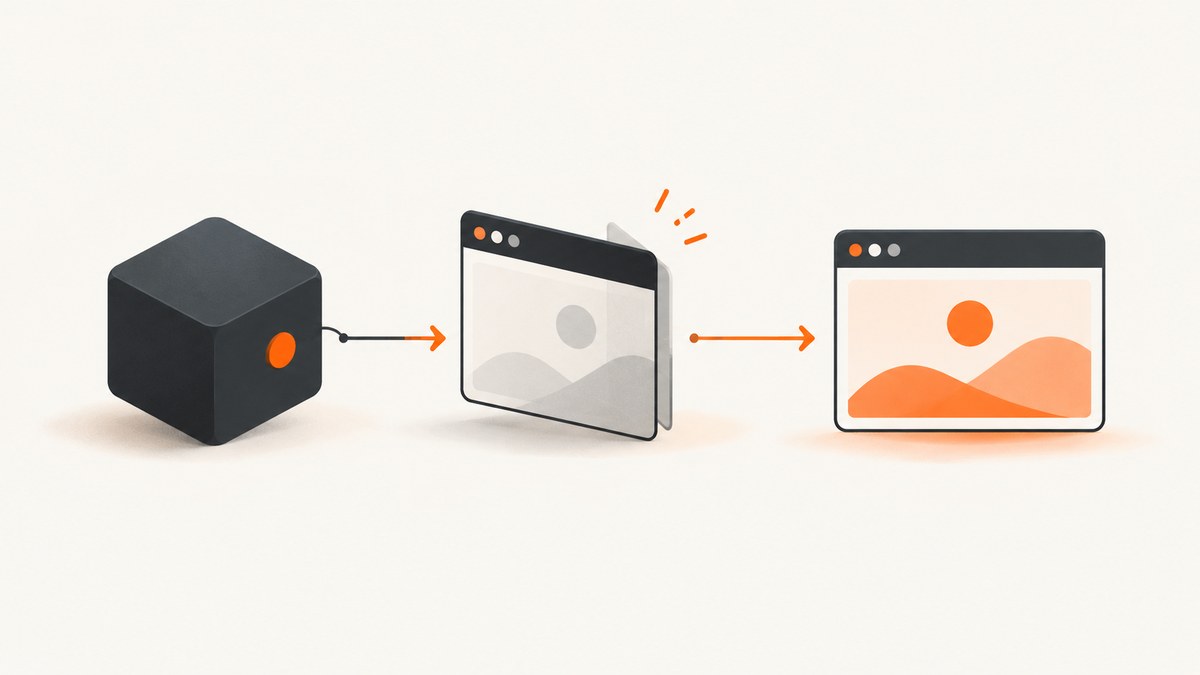
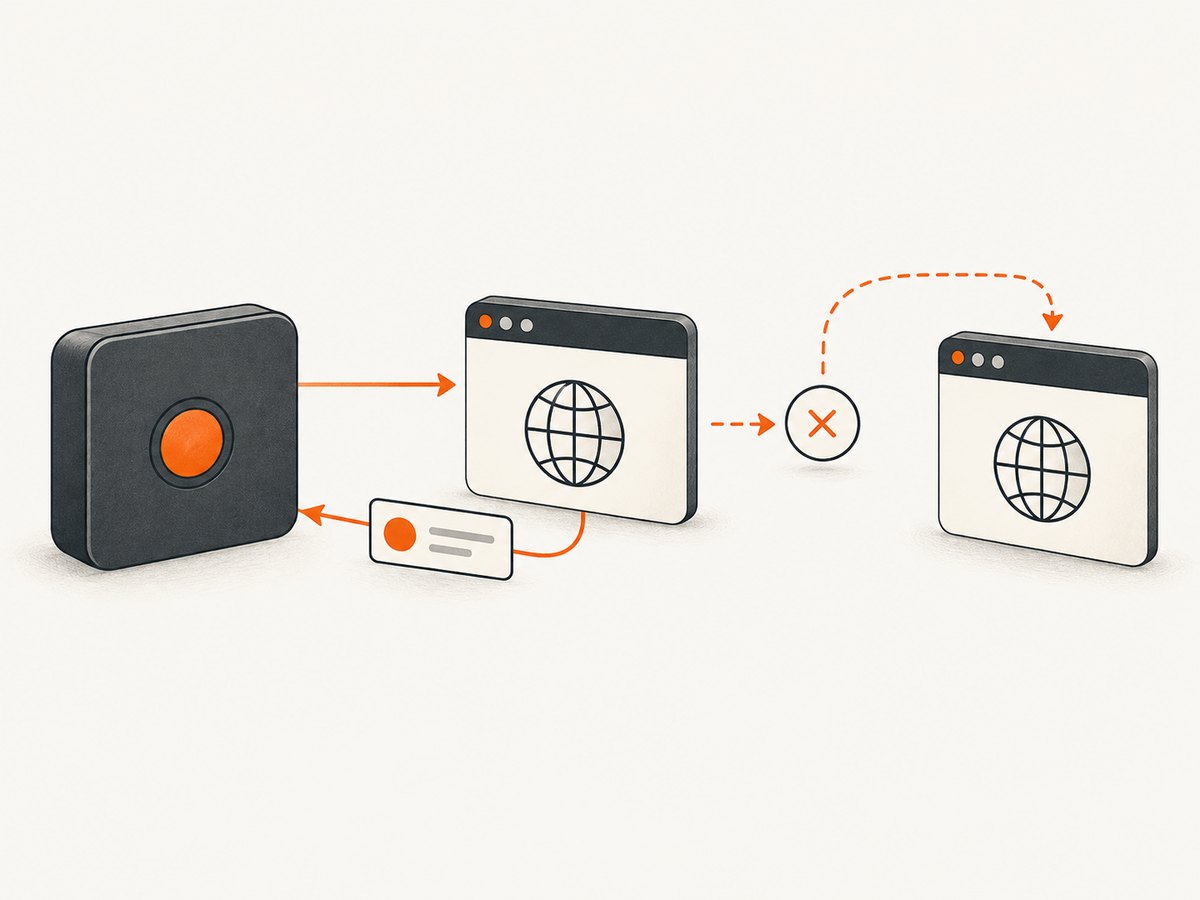
To run Nightmare.js more than once in Node.js, create a fresh Nightmare() instance for each run, queue that run’s actions, call .end(), and await the returned promise before creating the next instance. The .end() action completes queued operations and closes the Electron process. An ended instance is finished; create another one for the next job.
This sequential pattern is the safest straightforward approach for repeated captures or page checks. By default, separate instances do not retain browser storage after they end. If you deliberately need cookies or local storage to carry over, configure the same persistent Electron partition on each instance.
1. Install and check your environment
Nightmare is a Node.js browser automation module that uses Electron. Install it in your project with npm:
npm install --save nightmareNightmare’s npm listing reports version 3.0.2 and describes it as published seven years ago at the time of the research for this guide. That is dated package context, not a promise that it supports every current Node.js release or operating system. Check what your project actually installed and validate it in the runtime and operating system where it will run. See the Nightmare npm listing and the project README.
Electron also needs system libraries and, depending on the environment, UI-related dependencies. A server image that lacks those dependencies may install or start Nightmare unsuccessfully. If a minimal container or server is your target, first verify that Electron can launch there; a Node.js package installation completing successfully does not by itself prove that the browser process will start.
2. Run jobs sequentially with a new instance each time
The key is to put instance creation, navigation, extraction, and shutdown inside one function. Await that function before moving to the next URL:
const Nightmare = require('nightmare');

async function getPageTitle(url) {
  const nightmare = Nightmare();

  try {
    return await nightmare
      .goto(url)
      .evaluate(() => document.title)
      .end();
  } catch (error) {
    // Let the caller decide how to report or recover from this run.
    throw error;
  }
}

async function main() {
  const urls = [
    'https://example.com',
    'https://example.org'
  ];

  for (const url of urls) {
    const title = await getPageTitle(url);
    console.log(url, title);
  }
}

main().catch((error) => {
  console.error('A Nightmare run failed:', error);
  process.exitCode = 1;
});
There are three important parts:
- Create an instance inside the per-run function. Every call gets its own browser lifecycle.
- Keep that run’s actions in one queue. Chain navigation and page operations on the instance that owns them.
- Await
.end()before starting the next run. Its promise settles after the queued work and shutdown complete. The next loop iteration then creates another instance.
The README documents .end() as completing queued operations and closing the Electron process. In a promise-based flow, make sure the chain ends with .end() and that the caller waits for it. Do not call .end() and then try to navigate with that same instance.
Handle an individual URL failure and continue
The previous example stops the batch if a run fails. For a batch where each URL should be attempted independently, catch errors inside the loop. The failed run is still not reused; the following iteration calls the function again and creates a new instance.
const Nightmare = require('nightmare');

async function getPageTitle(url) {
  const nightmare = Nightmare();
  return nightmare
    .goto(url)
    .evaluate(() => document.title)
    .end();
}

async function main() {
  const urls = ['https://example.com', 'https://bad.invalid', 'https://example.org'];
  const results = [];

  for (const url of urls) {
    try {
      results.push({ url, title: await getPageTitle(url), error: null });
    } catch (error) {
      results.push({ url, title: null, error: error.message });
    }
  }

  for (const result of results) {
    if (result.error) {
      console.error('Failed:', result.url, result.error);
    } else {
      console.log('Succeeded:', result.url, result.title);
    }
  }
}

main().catch(console.error);
Use a top-level catch as well as per-item catches when the program needs to report failures that escape the item loop. Avoid silently swallowing errors: recording the URL and error makes it possible to retry or diagnose the specific run.
3. Decide whether browser state should persist
By default, Nightmare instances use an in-memory partition. Cookies, local storage, and other persistent browser state are discarded when the instance ends. This gives each fresh instance an isolated session.

When several runs must share browser state, configure the same Electron partition on each instance. A partition name with the persist: prefix stores state across instances:
const Nightmare = require('nightmare');

const sharedBrowserOptions = {
  webPreferences: {
    partition: 'persist:nightmare-shared-session'
  }
};

async function readPage(url) {
  const nightmare = Nightmare(sharedBrowserOptions);
  return nightmare
    .goto(url)
    .evaluate(() => ({
      title: document.title,
      storedValue: localStorage.getItem('example-key')
    }))
    .end();
}

async function main() {
  const first = await readPage('https://example.com');
  const second = await readPage('https://example.org');
  console.log(first, second);
}

main().catch(console.error);
The shared-partition setting is an option, not a requirement for repeated runs. Leave it out when each run should start without shared browser storage. Choose one behavior deliberately: an in-memory default for isolation, or the same persistent partition for intended continuity. The Nightmare README documents the webPreferences.partition configuration and a persistent partition example.
4. Keep work on one instance orderly
Nightmare queues actions on an instance. Use one chain for the operations that belong to a run, and finish it once. If two jobs are independent, give each its own instance. For sequential jobs, await each run as shown above.
The cited documentation covers instance creation and shutdown, but does not establish a general performance or safe-concurrency guarantee for launching many Electron instances at once. Do not assume that starting a large number of instances concurrently will be faster or reliable. Begin with sequential execution; if you need parallel work, measure it in your own deployment and account for the memory and process cost of each Electron browser.
Common lifecycle mistakes
- Reusing an ended instance: create a new instance for the next run.
- Starting the next run before shutdown settles: await the prior chain ending in
.end(). - Omitting
.end(): finish the queued chain with.end()so the Electron process is closed. - Expecting default cookies or local storage to survive: use the same persistent partition if cross-run state is required.
- Using a persistent partition unintentionally: omit the partition option to keep instances isolated by default.
5. Troubleshoot common errors
| Symptom | Likely cause | What to do |
|---|---|---|
| Electron fails to launch on a server | The system image may lack UI-related dependencies required by Electron. | Check the operating system’s installed libraries and verify Electron can launch in the target environment. The project README notes that some server distributions omit UI dependencies. |
| A later run fails after the first run completed | The code may be attempting to use an instance after .end(), or may not be waiting for the first chain to settle. |
Create a fresh instance inside the run function and await its completed chain before proceeding. |
| Login state disappears between runs | Each default in-memory partition is ephemeral when its instance ends. | Pass the same persist: partition in webPreferences to each instance when shared state is intentional. |
| Unexpected state is shared between runs | Instances are configured with the same persistent partition. | Remove the persistent partition setting if each run should be isolated. |
| The package installs but does not work with the current runtime | The npm listing’s version information is dated and does not establish compatibility with every current Node.js and OS combination. | Inspect the installed package version, consult its project documentation, and validate installation and launch in the actual deployment environment. |
| The batch stops on one bad URL | An error propagated out of the per-run function and was caught only at the batch’s outer boundary. | If later URLs should still run, catch and record errors inside the loop for each URL. |
For actionable diagnostics, include the URL and the error message in logs. Keep a failed run’s instance lifecycle separate from the next run; a fresh instance makes it easier to tell whether the problem belongs to a specific page or to the environment.
6. Performance, reliability, and cost considerations
Every fresh Nightmare instance starts an Electron process, so sequential jobs have startup overhead. Reuse within a single run by keeping that run’s actions on its instance, then end it; do not try to save startup time by continuing to use an instance after it has been ended.
Sequential execution is simple to reason about and avoids assuming undocumented concurrency behavior. If throughput is important, benchmark the actual URLs and deployment setup, and increase concurrency only after confirming process stability and resource capacity. The supplied Nightmare sources do not provide a throughput benchmark, memory guarantee, or safe maximum number of concurrent instances.
Nightmare itself is a self-hosted Node.js package in this workflow, so its relevant operational costs are your runtime and infrastructure, plus the maintenance burden of a browser automation dependency. The research materials do not establish a current maintenance schedule or compatibility matrix; check the package and project documentation before choosing it for a new long-lived deployment.
7. Or skip the browser setup
If your task is simply to get a screenshot or PDF from a URL, ScreenshotNeo is a website screenshot API and MCP server from Yorker Media. Its one-call API handles the browser setup and returns an image or PDF. See the ScreenshotNeo API documentation.
curl -G "https://api.screenshotneo.com/v1/shot" \
  -d access_key=YOUR_API_KEY \
  --data-urlencode url=https://stripe.com \
  -o shot.webp
import requests
r = requests.get(
"https://api.screenshotneo.com/v1/shot",
params={"access_key": "YOUR_API_KEY", "url": "https://stripe.com"},
timeout=90,
)
open("shot.webp", "wb").write(r.content)const q = new URLSearchParams({
access_key: 'YOUR_API_KEY',
url: 'https://stripe.com'
});
const res = await fetch(`https://api.screenshotneo.com/v1/shot?${q}`);
if (!res.ok) throw new Error(`Screenshot request failed: ${res.status}`);
await Bun.write('shot.webp', res);- Cookie banners are accepted and removed before capture, along with known newsletter popups and chat widgets; each cleanup step can be turned off.
- Bot checks, blank pages, timeouts, failed loads, and cache hits are not billed. Response headers identify the page verdict and billing status.
- An MCP server provides
take_screenshot,get_page_info, andcapture_pdftools for Claude, Cursor, and other MCP clients. - The Free plan includes 1,000 screenshots per month with no card. Paid plans start at $5 for 3,000 screenshots. All features are on every plan.
Sign up free for 1,000 screenshots a month, with no card.
8. Frequently asked questions
Can I call .end() more than once?
Structure each run to finish its action chain with one .end(), then await it. For another run, create another Nightmare instance.
Will a new instance remember a previous login?
Not with the default in-memory partition after the previous instance ends. Configure the same persistent partition when sharing browser storage is intended.
Should I run multiple Nightmare instances in parallel?
The cited docs do not make a general safe-concurrency or performance promise. Start sequentially, then validate any parallelism against the resources and workloads in your own environment.
Does this approach work in a server container?
It depends on whether the environment has the dependencies Electron needs. Verify Electron launch in the actual container or server image, since some distributions lack UI-related dependencies.


