How to Run Playwright in Docker
Run Playwright in Docker with a version-matched browser image, a complete test setup, CI guidance, and fixes for common launch and security issues.

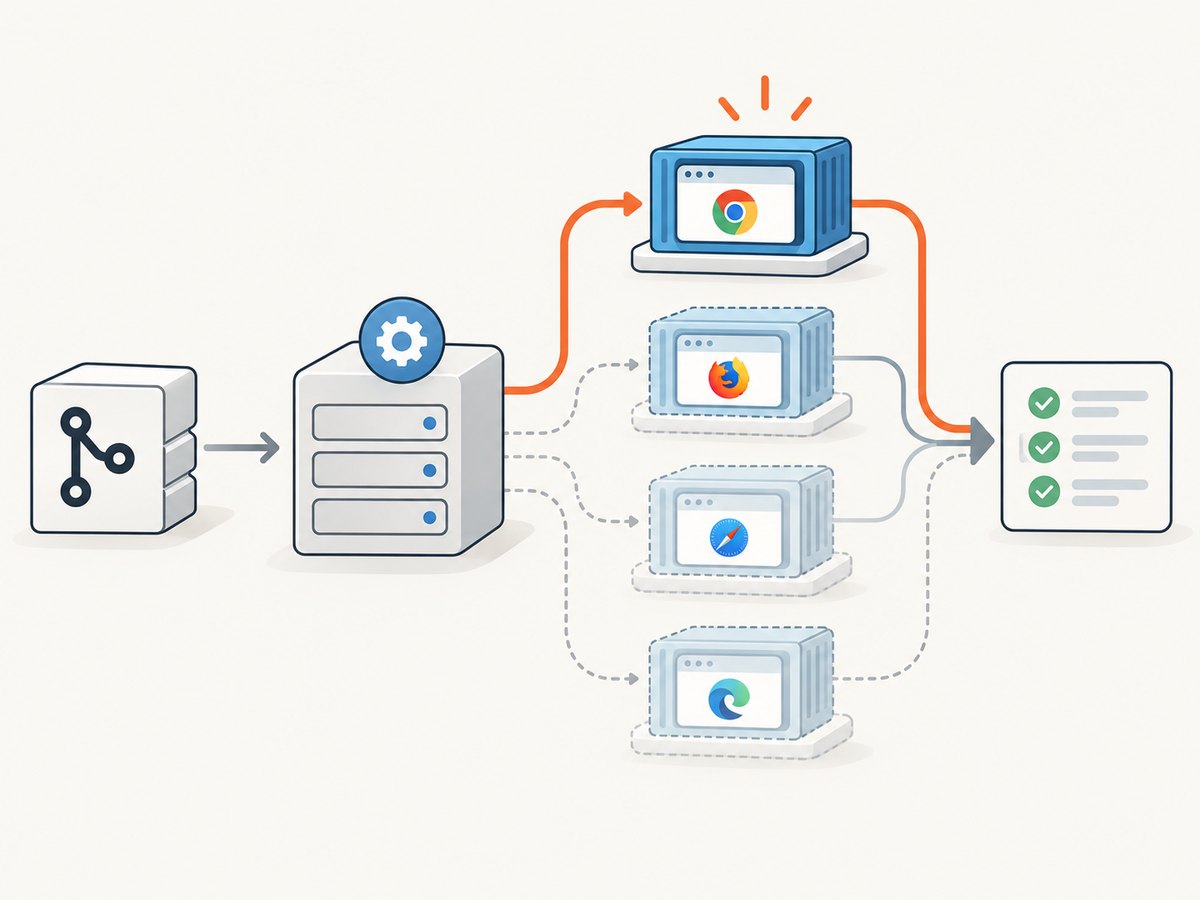
To run Playwright in Docker, use a Playwright image whose version matches your project’s Playwright package, install your project dependencies inside the container, and run Playwright there. The official image supplies browser binaries and operating system dependencies; it does not supply your application’s Playwright package. Start with the official image for the simplest setup. For a custom image, install the matching browser binaries and system dependencies yourself. Playwright recommends Docker’s --init and --ipc=host runtime options for typical Chromium test runs.
This guide covers a runnable JavaScript test, a Dockerfile and Compose setup, CI, custom images, browser selection, security, resource use, and troubleshooting. Playwright’s Docker guidance is the reference for image and runtime details: official Docker documentation.
1. Choose the Docker approach
There are two common ways to use Docker with Playwright. With the prebuilt image, you get the browser and operating system libraries without maintaining those layers yourself. With a custom image, you control the base environment and installed tools, but you must keep the browser installation aligned with the Playwright package.
| Approach | Use it when | What to watch |
|---|---|---|
| Official Playwright image | You want a ready browser environment for tests or development. | Pin the image tag and use the same Playwright version in the project. |
| Custom image | Your job needs a particular base, system tool, or deployment environment. | Install the matching browser binaries and operating system dependencies. |
| Install browsers during CI | You already use a Linux CI image and prefer not to use the Playwright container. | Run npx playwright install --with-deps after installing project dependencies. |
Use a specific tag rather than latest. Playwright’s Docker guide currently illustrates a versioned tag such as mcr.microsoft.com/playwright:v1.63.0-noble; check the official page for the current tag before publishing or upgrading. Keep the tag’s Playwright release aligned with the version in your lockfile. Browser executables are tied to Playwright releases, and a mismatch can leave the package looking for a browser path that is not present.
2. Make a minimal runnable project
The following example runs a real Playwright Test assertion in Chromium. Create a project directory with these files. The version in package.json is illustrative: replace it with a version that matches the image tag you selected, then commit the generated lockfile.
{
  "name": "playwright-docker-example",
  "private": true,
  "scripts": { "test": "playwright test" },
  "devDependencies": { "@playwright/test": "1.63.0" }
}
Create playwright.config.js:
const { defineConfig } = require('@playwright/test');

module.exports = defineConfig({
  testDir: './tests',
  reporter: 'list',
  use: {
    browserName: 'chromium',
    headless: true,
  },
  // Start with one worker in CI for more predictable resource use.
  workers: process.env.CI ? 1 : undefined,
});
Create tests/example.spec.js:
const { test, expect } = require('@playwright/test');

test('page has a title', async ({ page }) => {
  await page.goto('https://example.com');
  await expect(page).toHaveTitle(/Example Domain/);
});
Create a Dockerfile:
FROM mcr.microsoft.com/playwright:v1.63.0-noble

WORKDIR /work
COPY package.json package-lock.json ./
RUN npm ci
COPY . .
CMD ["npx", "playwright", "test"]
Build and run it from the project directory:
docker build -t playwright-docker-example .
docker run --rm --init --ipc=host playwright-docker-example
The Docker image provides the browser environment, while npm ci installs the package declared in your lockfile. Add a .dockerignore so the local dependency tree does not overwrite the Linux dependencies installed in the image:
node_modules
playwright-report
 test-results
.git
Remove the accidental leading space before test-results if copying this snippet exactly; the intended ignore entry is test-results. Alternatively:
node_modules
playwright-report
test-results
.git
3. Use Docker Compose for repeatable local runs
Compose is useful when you want a stable command, environment variables, or mounted test output. Save this as compose.yaml:
services:
  tests:
    build: .
    init: true
    ipc: host
    environment:
      CI: "true"
    volumes:
      - ./playwright-report:/work/playwright-report
      - ./test-results:/work/test-results
Then run:
docker compose run --rm testsThe init setting maps to Docker’s init behavior for proper process handling. ipc: host uses the host IPC namespace, the documented Chromium starting point for reducing memory-related browser crashes. These options are not a substitute for giving the container adequate memory and CPU.
4. Configure the image and browser installation
Pick a supported base
The official Docker guide lists Ubuntu-based variants including Noble and Jammy, and advises that Alpine and other musl-based distributions are unsupported because Playwright’s Firefox and WebKit builds target glibc. Use a supported image variant compatible with the rest of your environment. Confirm available tags and supported bases in the Docker guide, since base versions and tags change.
Build a custom image
If you need a custom base image, install Node, your project’s Playwright package, and the corresponding browsers and system libraries. The browser CLI supports installing both with --with-deps:
FROM node:22-bookworm

WORKDIR /work
COPY package.json package-lock.json ./
RUN npm ci
RUN npx playwright install --with-deps chromium
COPY . .
CMD ["npx", "playwright", "test"]
This example installs Chromium only. Use npx playwright install --with-deps to install the default browser set, or specify firefox or webkit when that is what your suite needs. The exact image version and installed package version must match. After changing the Playwright package version, rebuild the image and install that release’s browser binaries. See the official browser installation guide.
Reduce browser downloads when appropriate
Only install browsers used by your test projects. For headless-only Chromium use, Playwright documents an option to install only the headless shell in applicable workflows; consult the browser guide for the current supported flag and its relationship to headless modes. Do not apply a download-saving option until you know whether your tests use the full browser or a branded channel.
Playwright supports Chromium, Firefox, WebKit, and selected branded browsers. A project configured for Chrome or Edge may need the corresponding browser channel installed; the regular Chromium binary is not automatically the same thing as a branded browser. Keep browser projects and installation commands consistent.
5. Run the setup in CI
For Linux CI, either run the job in the Playwright image or install dependencies on the runner using the CLI. The official CI guide recommends one worker in CI as a stability starting point; increase parallelism carefully or distribute a large suite across CI jobs using sharding.

A GitHub Actions job using the CLI installation route looks like this:
name: Playwright tests
on: [push, pull_request]
jobs:
  test:
    runs-on: ubuntu-latest
    steps:
      - uses: actions/checkout@v6
      - uses: actions/setup-node@v6
        with:
          node-version: 22
          cache: npm
      - run: npm ci
      - run: npx playwright install --with-deps
      - run: npx playwright test
        env:
          CI: "true"
For an image-based CI job, build or pull the versioned image, install the project dependencies in the job or image, and run npx playwright test. Do not install a newer Playwright package on top of an older browser image without rebuilding or changing the image. For more examples and the guidance on workers and sharding, see Playwright’s CI documentation.
Browser cache restoration can take about as long as downloading the browser binaries, while Linux system dependencies cannot be cached in the same way. The CI guidance therefore says browser caching is generally not recommended. Measure your own pipeline before adding cache complexity.
Headed Linux runs need an X server. The Playwright image includes Xvfb; invoke a headed command through xvfb-run when needed:
xvfb-run npx playwright test --headed6. Handle security and untrusted websites
The official image runs as root by default, which disables Chromium’s sandbox. Playwright says this can be acceptable for trusted end-to-end test code. A test suite that navigates only to your own controlled test environment has a different threat profile from a crawler that loads arbitrary URLs.
For crawling or scraping untrusted sites, follow Playwright’s documented setup for a separate user and seccomp configuration. The official image documentation is intended for testing and development and advises against using it to visit untrusted websites. Do not treat --cap-add=SYS_ADMIN as a production security fix: the guide mentions it as a local-development troubleshooting option for unusual Chromium launch failures. Review the security section of the Docker guide before exposing a browser worker to outside input.
7. Troubleshoot common failures
| Symptom | Likely cause | Fix |
|---|---|---|
| Executable does not exist or browser cannot be found | The package and image/browser installation versions differ, or the browser was not installed. | Align package and image versions, rebuild, and install the needed browser. |
| Missing shared library or browser exits at launch | A custom base is missing operating system dependencies. | Use the official image or run npx playwright install --with-deps chromium in a compatible Linux base. |
| Chromium crashes under load | Insufficient shared memory or container memory pressure. | Start with --ipc=host, reduce concurrent workers, and ensure the container has adequate memory. |
| Browser launch fails only in local development | Container permissions or environment differ from CI. | Run with DEBUG=pw:browser to capture launch diagnostics. The Docker guide suggests trying --cap-add=SYS_ADMIN for unusual local failures. |
| Firefox or WebKit cannot run on Alpine | Alpine uses musl; those Playwright builds target glibc. | Switch to a supported Ubuntu/glibc image. |
| Tests pass locally but fail in container | Different browser versions, fonts, environment variables, or available resources. | Run the same pinned image locally and in CI; inspect browser logs and test traces. |
| Headed tests say no display is available | Linux has no X server in the container. | Use headless mode or launch the headed run with xvfb-run. |
| Browser install fails behind company proxy | The browser download host is blocked or the proxy certificate is untrusted. | Configure HTTPS_PROXY; where needed, provide your CA through NODE_EXTRA_CA_CERTS. |
For detailed browser launch diagnostics, set the environment variable on the command:
DEBUG=pw:browser npx playwright test8. Performance, reliability, and cost
There is no universal Docker performance number for Playwright: results depend on the pages, browser, runner CPU and memory, and test concurrency. The official guidance offers configuration recommendations rather than comparative benchmarks. Begin with one worker in CI, use --ipc=host, and increase concurrency only after checking memory pressure and failure rates. For broader parallel execution, sharding across jobs can isolate resource demand.
Pinning the image and dependency lockfile improves repeatability because the browser build and package stay paired. Rebuild deliberately when updating Playwright. Installing every browser when only Chromium is used adds unnecessary downloads; conversely, omitting a required browser creates launch failures. Browser downloads consume disk and build time, but caching them may cost about as much time as downloading again. Compare full pipeline time before adding cache maintenance.
Container cost depends on your CI provider, job duration, parallel jobs, and runner size; the Playwright documentation does not provide a cross-provider price or performance benchmark. Track wall-clock time, retry rate, and runner resource use for your own suite. Use sharding when the wall-clock benefit justifies additional concurrent runners.
9. Or skip the browser setup
If your task is to capture a website screenshot rather than run browser tests or interact with a page, ScreenshotNeo provides a one-request screenshot API and an MCP server. Its API can return PNG, JPEG, WebP, or PDF. The response identifies page verdict and billing status. See the ScreenshotNeo API documentation.
curl -G "https://api.screenshotneo.com/v1/shot" -d access_key=YOUR_API_KEY --data-urlencode url=https://stripe.com -o shot.webpimport requests
r = requests.get("https://api.screenshotneo.com/v1/shot", params={"access_key": "YOUR_API_KEY", "url": "https://stripe.com"}, timeout=90)
open("shot.webp", "wb").write(r.content)const q = new URLSearchParams({ access_key: 'YOUR_API_KEY', url: 'https://stripe.com' });
const res = await fetch(`https://api.screenshotneo.com/v1/shot?${q}`);Cookie and consent banners are accepted like a visitor and removed along with 60+ known consent platforms, newsletter popups, and chat widgets; each cleanup step can be disabled. Bot checks and CAPTCHAs, blank pages, timeouts, failed loads, and cache hits are not billed. An MCP server lets AI agents use take_screenshot, get_page_info, and capture_pdf. The Free plan includes 1,000 screenshots a month without a card; paid plans start at $5 for 3,000. Sign up for 1,000 free screenshots a month, no card required.
10. FAQ
Does the Playwright Docker image include Playwright Test?
No. It includes browser binaries and system dependencies. Add @playwright/test or the Playwright package your project needs.
Can I run only Chromium?
Yes. Install Chromium specifically with npx playwright install --with-deps chromium in a custom setup, and configure your tests to use Chromium.
Can I run Playwright on Alpine?
The official Docker guidance says Alpine and other musl-based distributions are unsupported because Firefox and WebKit builds target glibc. Choose a supported Ubuntu-based image instead.
Should I run multiple workers in CI?
Start with one worker for stability and reproducibility. If the suite needs more throughput, assess resource use and consider sharding across jobs.
Is the official image suitable for scraping arbitrary sites?
Playwright advises against using the image to visit untrusted websites. For untrusted browsing, follow its separate-user and seccomp guidance.