How to Run Playwright on Windows
Install Playwright, download its browsers, run your first test, and fix common Windows setup problems with Node.js, Python, or .NET.
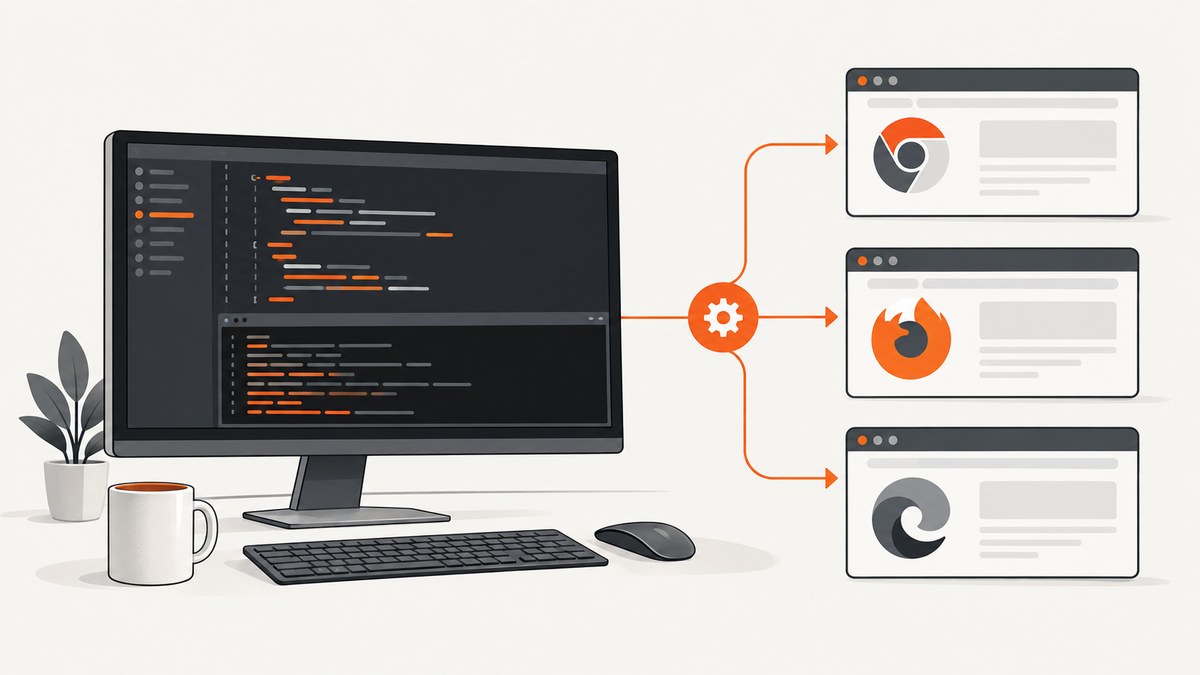
Quick answer: install a Playwright language package, install the matching browser binaries separately, then run a test. For Node.js, the usual sequence is npm init playwright@latest, npx playwright install, and npx playwright test. Playwright’s package and browser downloads are separate, and browser revisions are tied to the Playwright version.
This guide covers Windows setup for Node.js, Python, and .NET, headed and headless runs, browser choices, CI, troubleshooting, and a browser-free screenshot option.
1. Choose your Playwright route
| Stack | Install | Browser install | Typical run command |
|---|---|---|---|
| Node.js | npm init playwright@latest or npm install --save-dev @playwright/test |
npx playwright install |
npx playwright test |
| Python | pip install playwright |
playwright install |
Your selected Python test runner, commonly pytest |
| .NET | Add the Playwright package to a test project | Run the generated playwright.ps1 install script |
dotnet test |
Use the binding that matches your existing application and test tooling. The commands and support details can change with releases, so check the official installation pages for the version in your project: Node.js installation, Python installation, and the .NET browser guide.
2. Install and run Playwright with Node.js
Step 1: Create a project
Install Node.js using your normal Windows method, open PowerShell, and create a project directory:
mkdir playwright-windows
cd playwright-windows
npm init playwright@latest
The setup wizard creates a Playwright Test project and asks questions such as the language, test directory, and whether to add a CI workflow. In an existing project, install the test package instead:
npm install --save-dev @playwright/testStep 2: Download browser binaries
npx playwright installThis downloads the Playwright-managed builds of Chromium, Firefox, and WebKit. The browser files are version-matched to your Playwright package. After upgrading Playwright, run the install command again when the new release requires different browser revisions. On Windows, the default cache is %USERPROFILE%\AppData\Local\ms-playwright. See the official browser documentation for current options.
Step 3: Add a first test
Create tests\home.spec.js (or use the generated test file):
const { test, expect } = require('@playwright/test');

test('home page has the expected title', async ({ page }) => {
  await page.goto('https://example.com');
  await expect(page).toHaveTitle(/Example Domain/);
});
Step 4: Run it
npx playwright testTo watch the browser:
npx playwright test --headedTo run one file, pass its path:
npx playwright test tests/home.spec.jsUse the CLI help for the exact options in your installed release:
npx playwright test --helpComplete Node.js script without the test runner
For a one-off automation script, install the library and launch a browser directly:
npm install playwright
npx playwright install chromium
const { chromium } = require('playwright');
(async () => {
const browser = await chromium.launch({ headless: true });
const page = await browser.newPage({ viewport: { width: 1280, height: 800 } });
await page.goto('https://example.com', { waitUntil: 'domcontentloaded' });
console.log(await page.title());
await page.screenshot({ path: 'example.png', fullPage: true });
await browser.close();
})();3. Select a browser
Playwright-managed Chromium, Firefox, and WebKit builds are the predictable default. Choose the engine that matches what you need to exercise:
- Chromium: a Chromium-based browser engine for general web testing.
- Firefox: Firefox engine coverage.
- WebKit: WebKit coverage.
Playwright can also use branded Google Chrome and Microsoft Edge channels when those products specifically matter. Installing Chrome or Edge through Playwright places the browser in the operating system’s default global location and can override the current browser installation, so read the channel instructions before using that option. The browser guide documents the current channel names and commands.
npx playwright install chrome
npx playwright install msedge
In a test, select a project or launch a channel according to your configuration. Keep bundled browsers for reproducible automation unless validating a branded release is the actual requirement.
4. Run Playwright with Python
Install the package and browsers
py -m pip install playwright
playwright install
The Python documentation lists Windows 11+, Windows Server 2019+, and Windows Subsystem for Linux among its system options; verify the current support page before standardizing an environment.
Run a script
from playwright.sync_api import sync_playwright

with sync_playwright() as p:
    browser = p.chromium.launch(headless=True)
    page = browser.new_page(viewport={"width": 1280, "height": 800})
    page.goto("https://example.com", wait_until="domcontentloaded")
    print(page.title())
    page.screenshot(path="example.png", full_page=True)
    browser.close()
With pytest integration, install and run your test suite using the approach documented for your project:
py -m pip install pytest-playwright
pytest
Python browser installation and CI details are maintained in the Python browser guide and Python CI guide.
5. Run Playwright with .NET
Create a test project using a supported framework such as MSTest, NUnit, or xUnit, add Playwright, and build it. The generated PowerShell script then installs browser binaries. A CI-shaped sequence is:
dotnet build
pwsh bin/Debug/netX/playwright.ps1 install --with-deps
dotnet test
Replace netX and the configuration path with the target framework and build output used by your project. The exact generated script path depends on those settings. See the .NET CI documentation and .NET browser documentation.
6. Headless, headed, and debug runs
- Headless: the normal default for tests and automation. It is faster to run in CI and does not open a visible window.
- Headed: add
--headedto Playwright Test or launch withheadless: falsein a script to watch actions. - Debugging: start with headed mode, isolate one test, and use the tracing and debugging tools documented for your installed release. Use
npx playwright test --helpto confirm current CLI syntax.
7. Windows CI
Playwright’s CI documentation states that Windows and macOS agents need no additional Playwright configuration: install Playwright and run the tests. A typical Node.js job is:
npm ci
npx playwright install
npx playwright test
The CI guide recommends setting workers to 1 when stability and reproducibility matter. On powerful self-hosted CI, tests can run in parallel or be sharded across jobs. Keep browser installation in the job that executes the tests so the binaries match the package version.
8. Troubleshooting Windows setup
| Symptom | Likely cause | Fix |
|---|---|---|
Executable doesn't exist or browser missing |
The package is installed but browser binaries are not. | Run npx playwright install, playwright install, or the generated .NET install script in the same project environment. |
| It worked before an upgrade, then fails | The Playwright package now expects different browser revisions. | Run the browser install command again after updating the package. |
| PowerShell says a command is not recognized | The package’s executable is not being resolved from the active environment. | For Node.js use npx; for Python activate the intended environment and run playwright install; for .NET run the generated script from the build output. |
| Headless passes but the visible run looks wrong | Timing, viewport, or rendering behavior differs when inspecting interactively. | Use --headed, run one test, add explicit waits tied to page state, and inspect a trace using the current Playwright debugging documentation. |
| Downloads consume unexpected disk space | Each Playwright version maintains browser binaries in the Windows cache. | Review %USERPROFILE%\AppData\Local\ms-playwright and remove unused project/browser revisions according to your machine policy. |
| Chrome or Edge behaves differently from Chromium | Branded channels use installed products rather than the bundled browser build. | Install and select the branded channel deliberately, and document that choice in the project. |
| CI is flaky | Too much parallelism, missing browser installation, or environment differences. | Install browsers in the job, pin the package lockfile, start with one worker, and parallelize only after the suite is stable. |
| Navigation hangs or times out | The page is slow, blocked, or waiting on resources that never finish. | Check the URL from the CI machine, use an appropriate navigation wait condition, and diagnose the page with a headed run or trace before increasing timeouts globally. |
9. Reliability, performance, and cost considerations
Reliability
- Keep the Playwright package and browser binaries in sync.
- Use a lockfile and install browsers as an explicit CI step.
- Prefer locators and assertions that describe page state instead of arbitrary sleeps.
- Start CI with one worker when reproducibility is more important than throughput.
Performance
- Reuse a browser process for multiple pages when your script architecture allows it.
- Install only the browser engines your suite needs.
- Use headless mode in CI and parallelize after measuring stability.
- Capture traces or screenshots selectively when diagnosing failures.
Cost
Playwright itself is software you run on your Windows machine or CI workers. Your practical costs are compute, storage for browser binaries and artifacts, and CI minutes. Browser download size and runtime depend on the selected version, engine, test suite, and machine; do not assume a fixed figure.
10. Or skip the browser setup
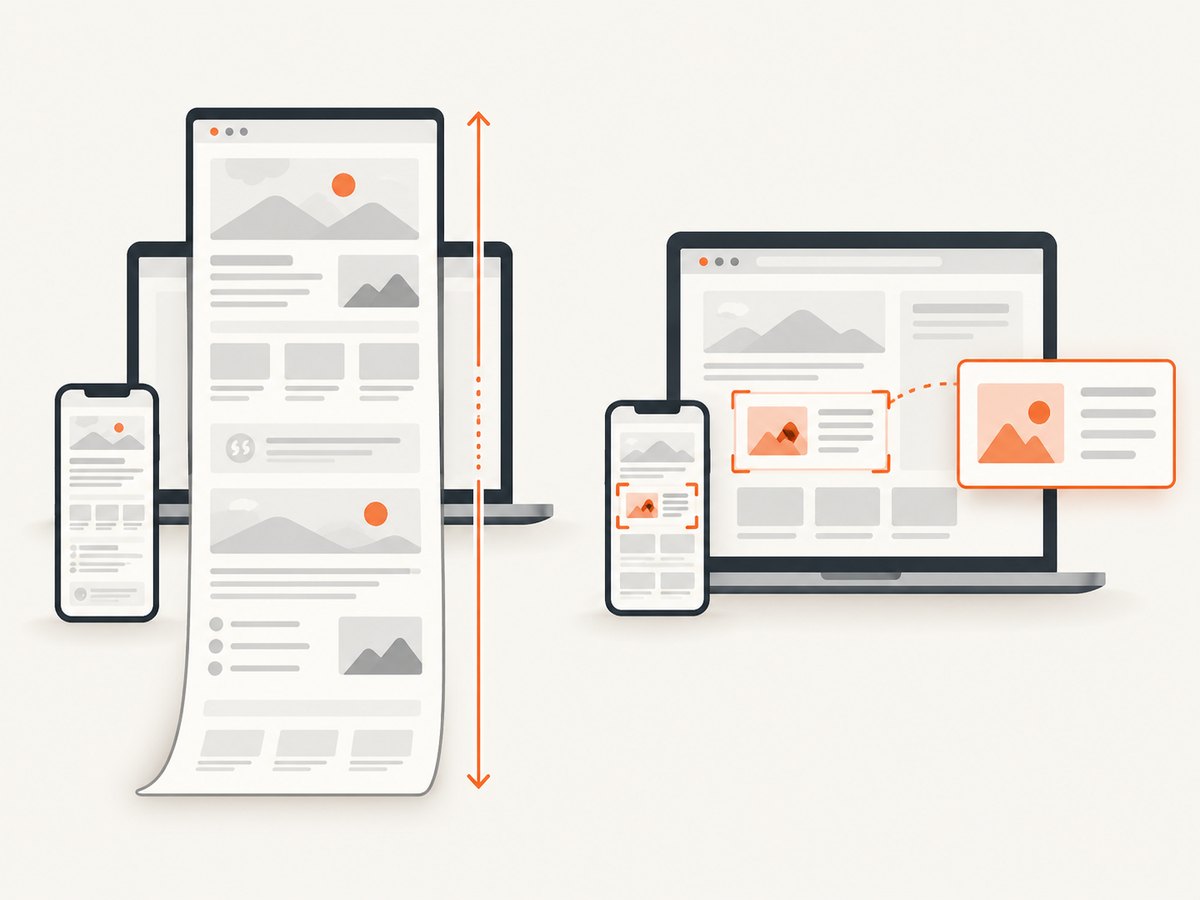
If your goal is a clean screenshot rather than interactive browser automation, ScreenshotNeo provides a GET endpoint that returns PNG, JPEG, WebP, or PDF. The request works from PowerShell, cURL, Python, or Node.js, so there is no local Playwright browser installation.
See the ScreenshotNeo API documentation for the current options. Basic calls:
curl -G "https://api.screenshotneo.com/v1/shot" -d access_key=YOUR_API_KEY --data-urlencode url=https://stripe.com -o shot.webpimport requests
r = requests.get("https://api.screenshotneo.com/v1/shot", params={"access_key": "YOUR_API_KEY", "url": "https://stripe.com"}, timeout=90)
open("shot.webp", "wb").write(r.content)const q = new URLSearchParams({ access_key: 'YOUR_API_KEY', url: 'https://stripe.com' });
const res = await fetch(`https://api.screenshotneo.com/v1/shot?${q}`);ScreenshotNeo accepts cookie and consent banners before capture and removes more than 60 known consent platforms, newsletter popups, and chat widgets; each step can be turned off. Bot checks, blank pages, timeouts, failed loads, and cache hits are not billed, and the response reports the result in X-Page-Verdict and X-Billed headers. Its MCP server provides take_screenshot, get_page_info, and capture_pdf tools for Claude, Cursor, and other MCP clients. One thousand screenshots per month are free with no card; paid plans start at $5 for 3,000 shots. Create a free ScreenshotNeo account.
11. FAQ
Do I need to install browsers separately?
Yes. Installing the Node.js, Python, or .NET package does not by itself guarantee that the matching Playwright browser binaries are present.
Where are Playwright browsers stored on Windows?
The documented default cache is %USERPROFILE%\AppData\Local\ms-playwright.
Should I use Chrome or Playwright’s Chromium?
Use the bundled build for predictable automation. Use branded Chrome or Edge when validating that specific product is required.
Can Playwright run on Windows CI?
Yes. The official CI guidance says Windows agents need no additional Playwright configuration after installation; install the package and browsers, then run the tests.
Can I use Playwright only for screenshots?
Yes, but a screenshot API can remove browser installation and maintenance when you only need rendered images or PDFs. ScreenshotNeo also handles consent overlays and reports whether a response was clean and billable.


